


ODOO'S FUNCTION
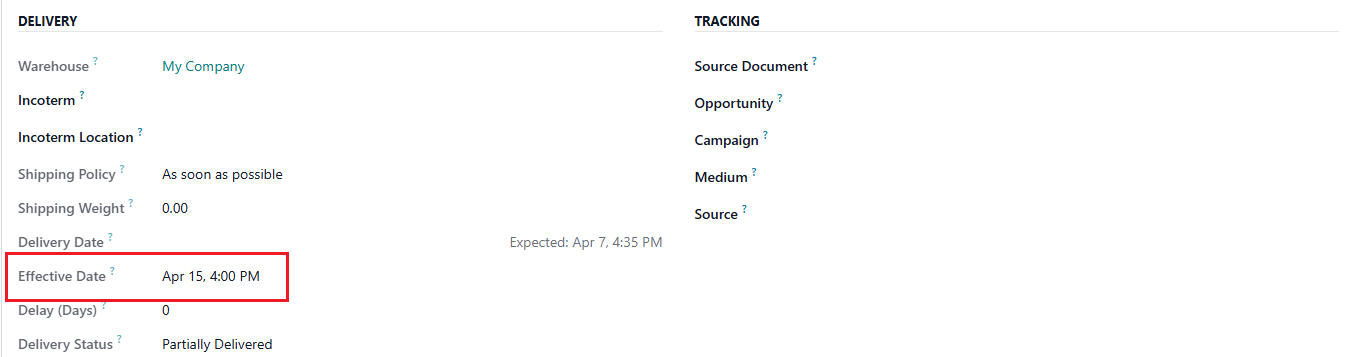
In Odoo, while users can change the effective date on a validated Receipt or Delivery, this date is only linked to the stock moves. When a corresponding bill or invoice is created, its date must be re-entered manually, and the effective date from the transfer is not automatically linked to the resulting Journal Entries.
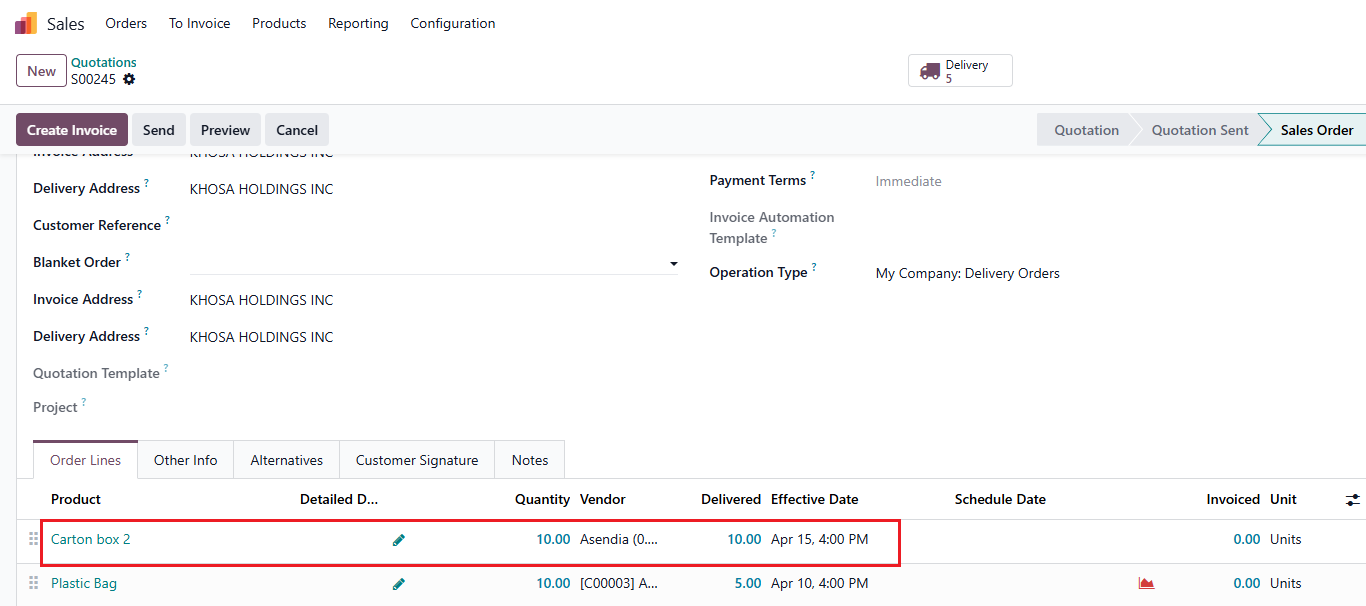
Additionally, the system updates the effective date at the Sales/Purchase Order level only, not at the individual product line level, which limits accuracy for orders with multiple delivery schedules.
CLUEDOO'S FUNCTION
Cluedoo enhances this workflow by introducing:
1️⃣ A "Force Delivery Date" field, allowing users to manually define the effective date of a transfer.
2️⃣ The automatic application of this date to all related records, including:
- Stock Valuation Date
- Stock Move Date
- Journal Entry Date (Accounting Date)
- Invoice/Bill Date
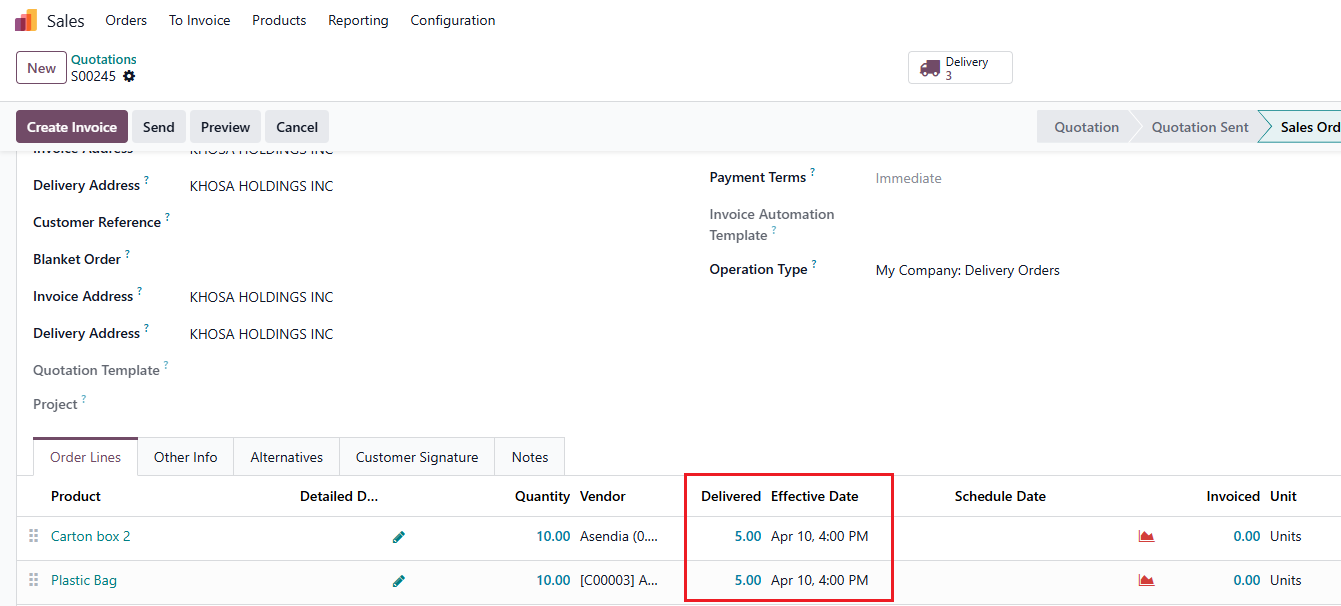
3️⃣ Partial Delivery & Backorder Support: Introduce a field on SOL/POL to store the latest effective delivery date per product line, ensuring each product reflects its own actual delivery timeline instead of applying a single date to the entire order.
This ensures that both operational and financial records reflect the true date of the physical stock movement and complete date consistency across all documents without manual re-entry.
1. Go to Product Categories > Access a particular Product Category > Set up Inventory Valuation
Note: The below steps apply similarly to the Force Delivery Date of Purchase Orders |  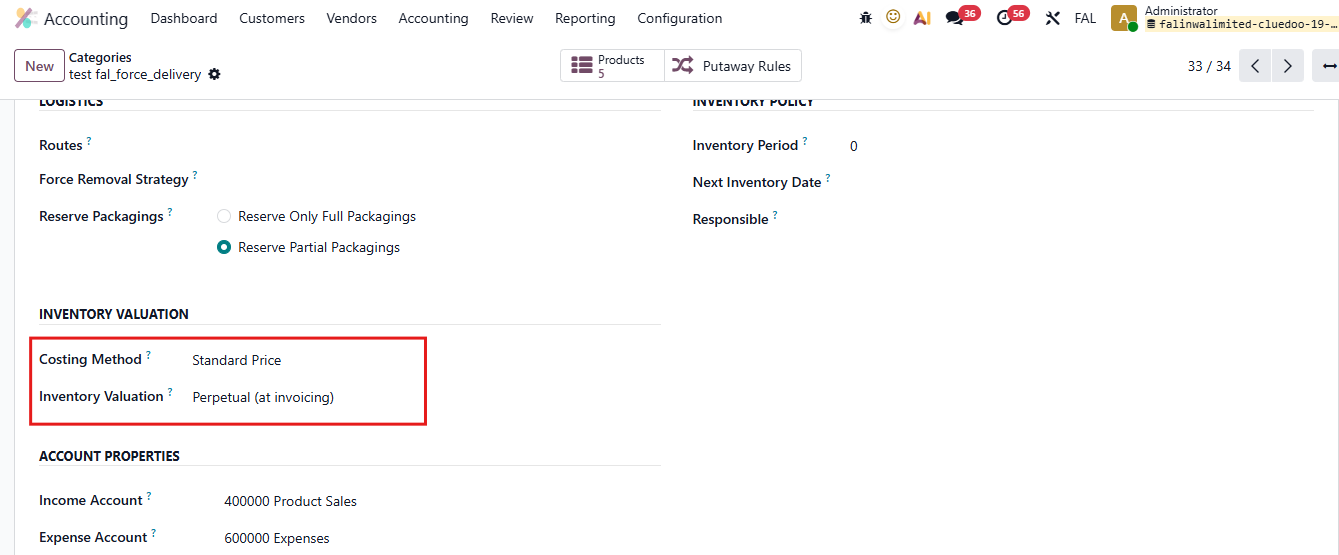 |
2. Go to Sales > Create a Sale Order with a product that belongs to the configured product category above > Confirm > Click on the Delivery button |   |
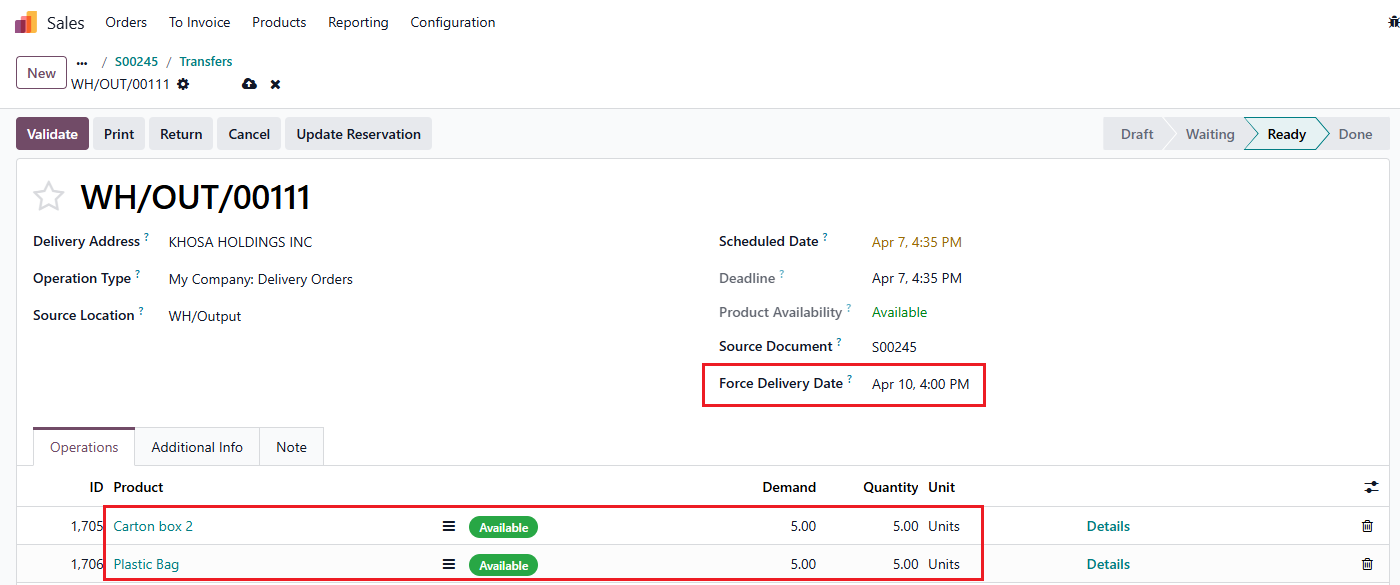
3. On Transfers > Set up Force Delivery Date > Validate You can see that Force Delivery Date = Effective Date = Date Scheduled on Stock Move |   |
4. Create an Invoice > Can see that Invoice Date = Effective Date |  |
5. Click on the Valuation button > Can see that Stock Valuation Date = Effective Date and The Year of Journal Entry = The year of Effective Date From V19, instead of clicking on the Valuation button to check fields that were on stock valuation layer, you can find them in Inventory > Receive/Deliver Stock Moves |    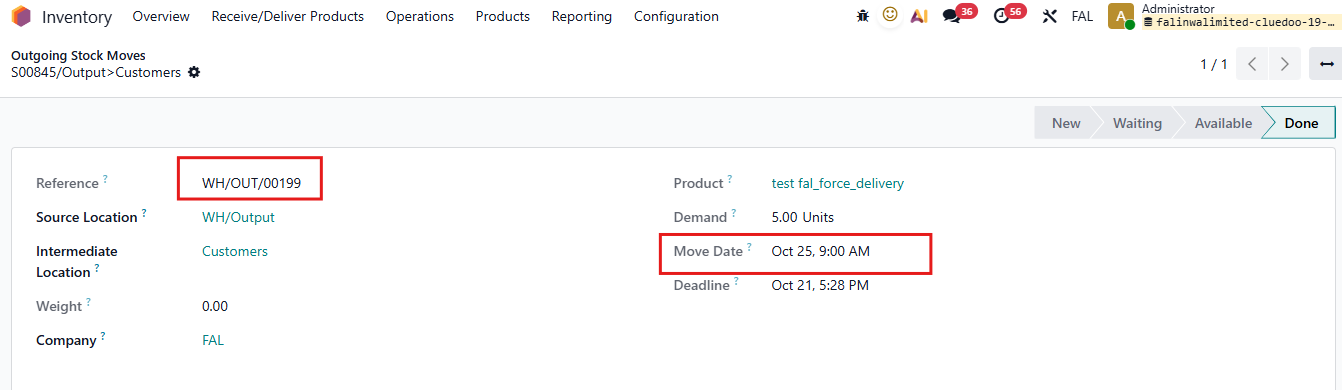 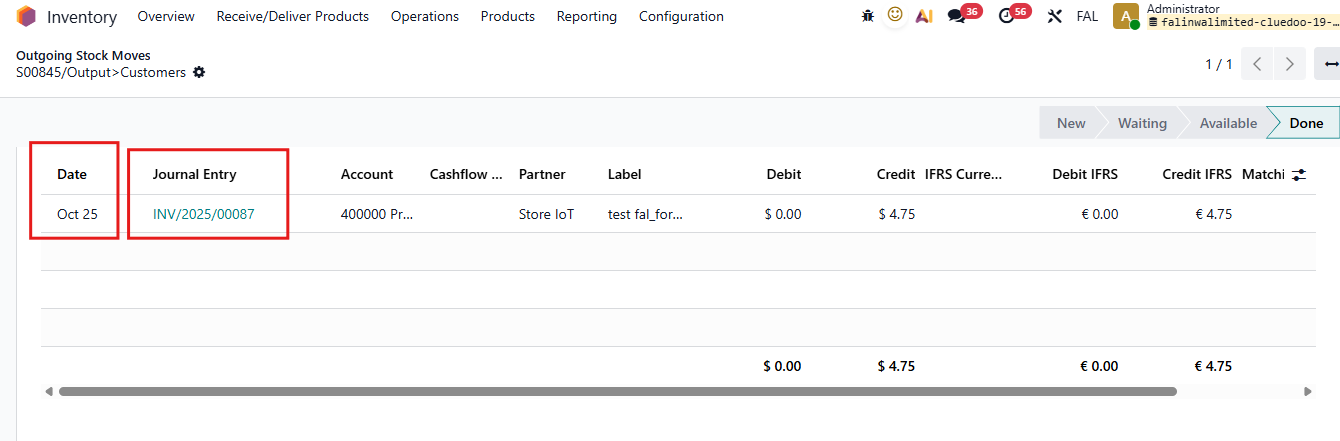 |
6. Access the Journal Entry > Can see that Accounting Date = Effective Date |  |
7. Move to Moves History > Can see that The Date of Stock Move = Effective Date |  |
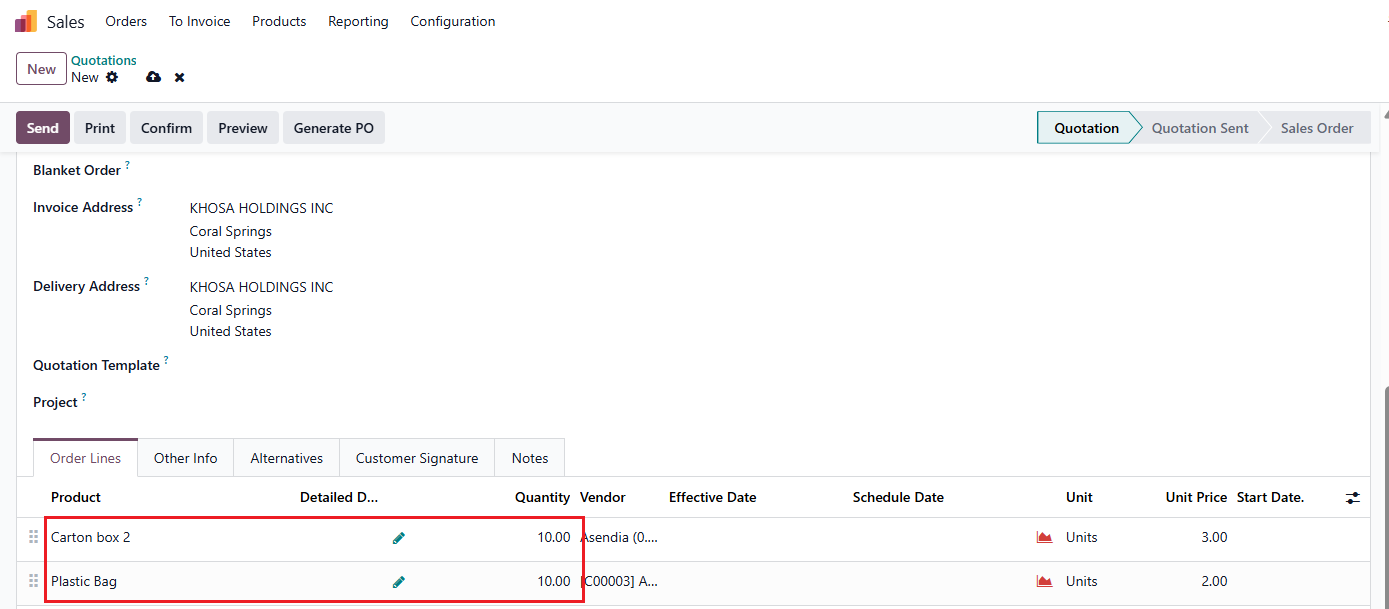
EFFECTIVE DATE ON SOL / POLCreate a Sales Order / Purchase Order > Add the products and fill in the Quantity > Confirm |
|
1. Change the quantity to transfer a part of the order Fill in the Force Delivery Date > Validate > Create backorder Return to the SO, Effective Date of the SOL = Force Delivery Date of the transfer |
|
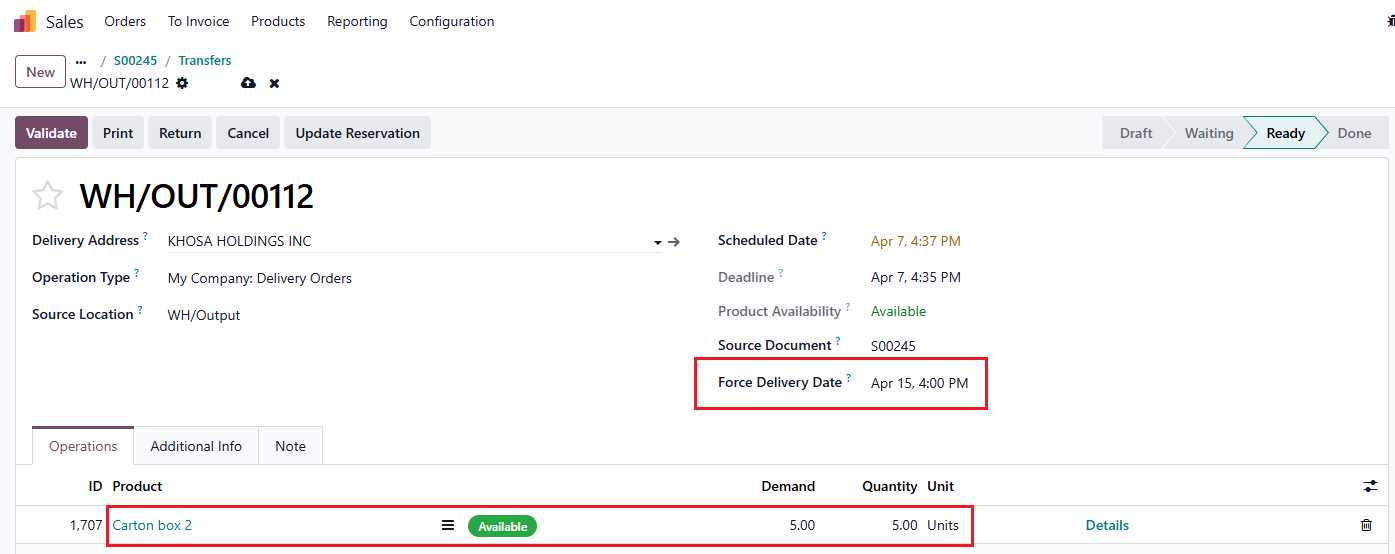
2. On the backorder, change the Force Delivery Date to a later date and receive only 1 product > Validate Return to the SO, you can see that the Effective Date on the SOL is updated accordingly (= latest force delivery date). In the Other Information tab, Effective Date = Latest Force Delivery Date in the SOL. |
|