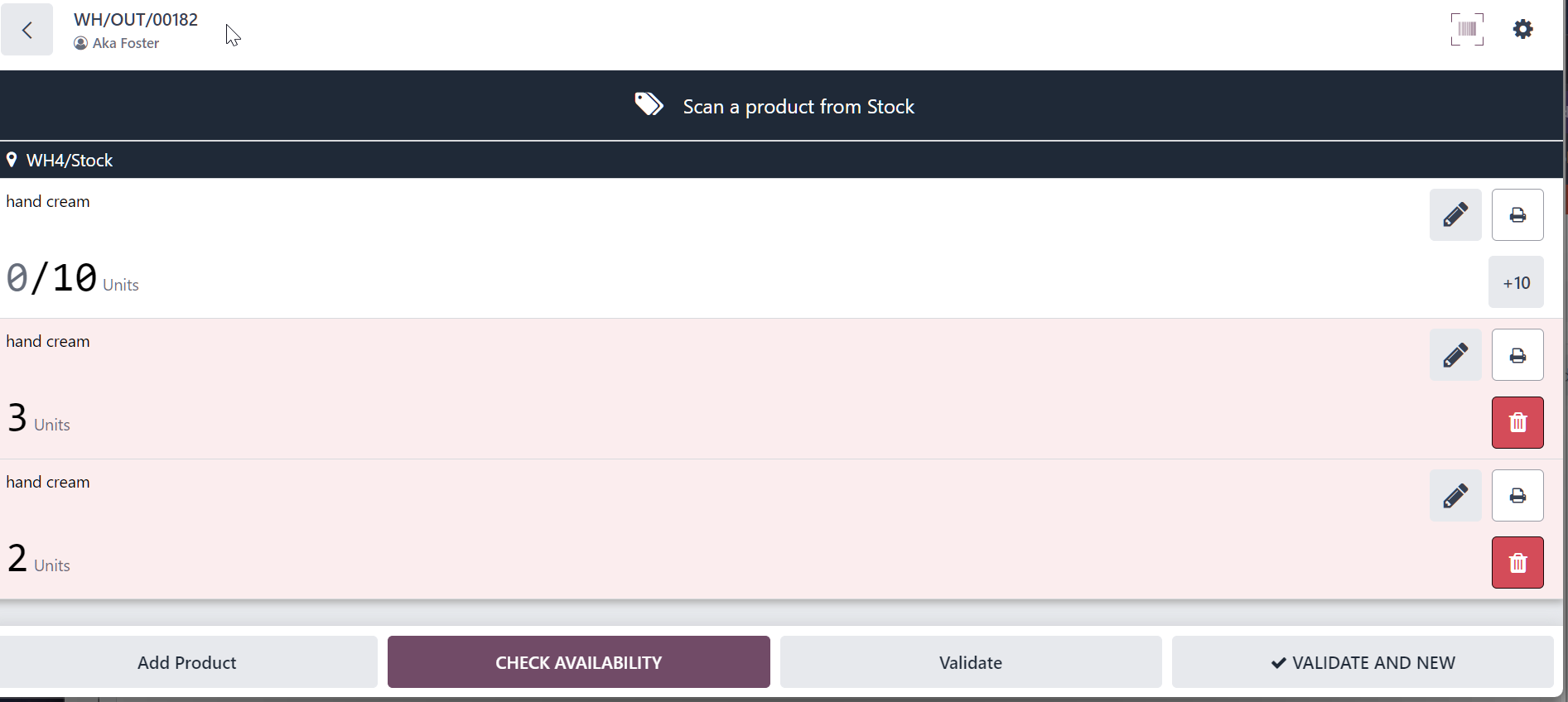



ODOO'S FUNCTION
In Odoo barcode app, users retain full access to the edit function (pencil icon) on records, and the interface does not provide dedicated "Validate" or "New" buttons for controlled data entry. When scanning product's barcode, each scan normally adds 1 piece automatically, and users can then adjust the total quantity using the edit icon or the +1 / -1 controls. This makes it harder to separate consultation, validation, and creation tasks, especially in environments that require stricter data governance as well as managing products and quantities efficiently in warehouse operations, especially when multiple scans are required.
CLUEDOO'S FUNCTION
With the Cluedoo module installed, users gain more control over both record editing and barcode quantity entry.
The module introduces:
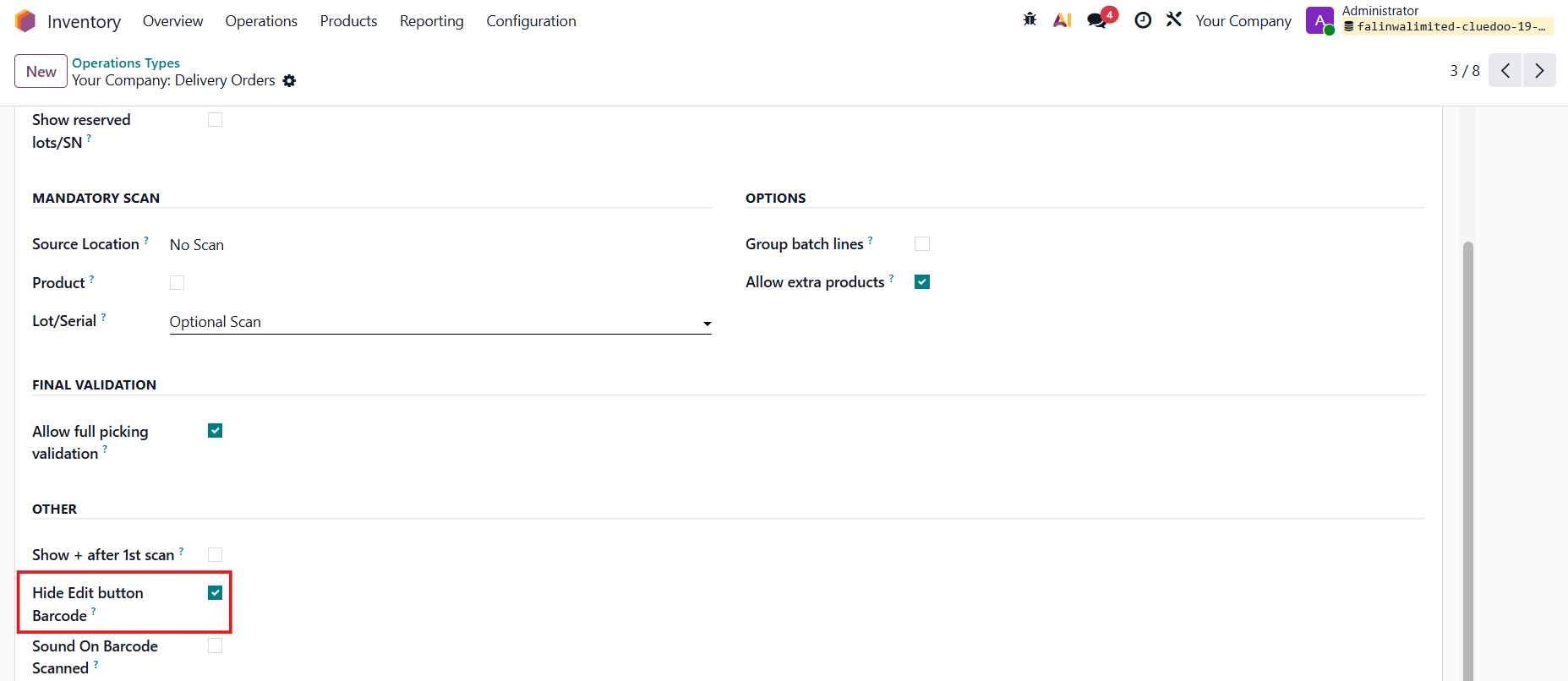
1️⃣ A Hide Edit Button setting at both user level and operation type level, so users can still see the pencil icon but cannot directly edit records.
2️⃣ A dedicated Validate & New button to create records with better control.
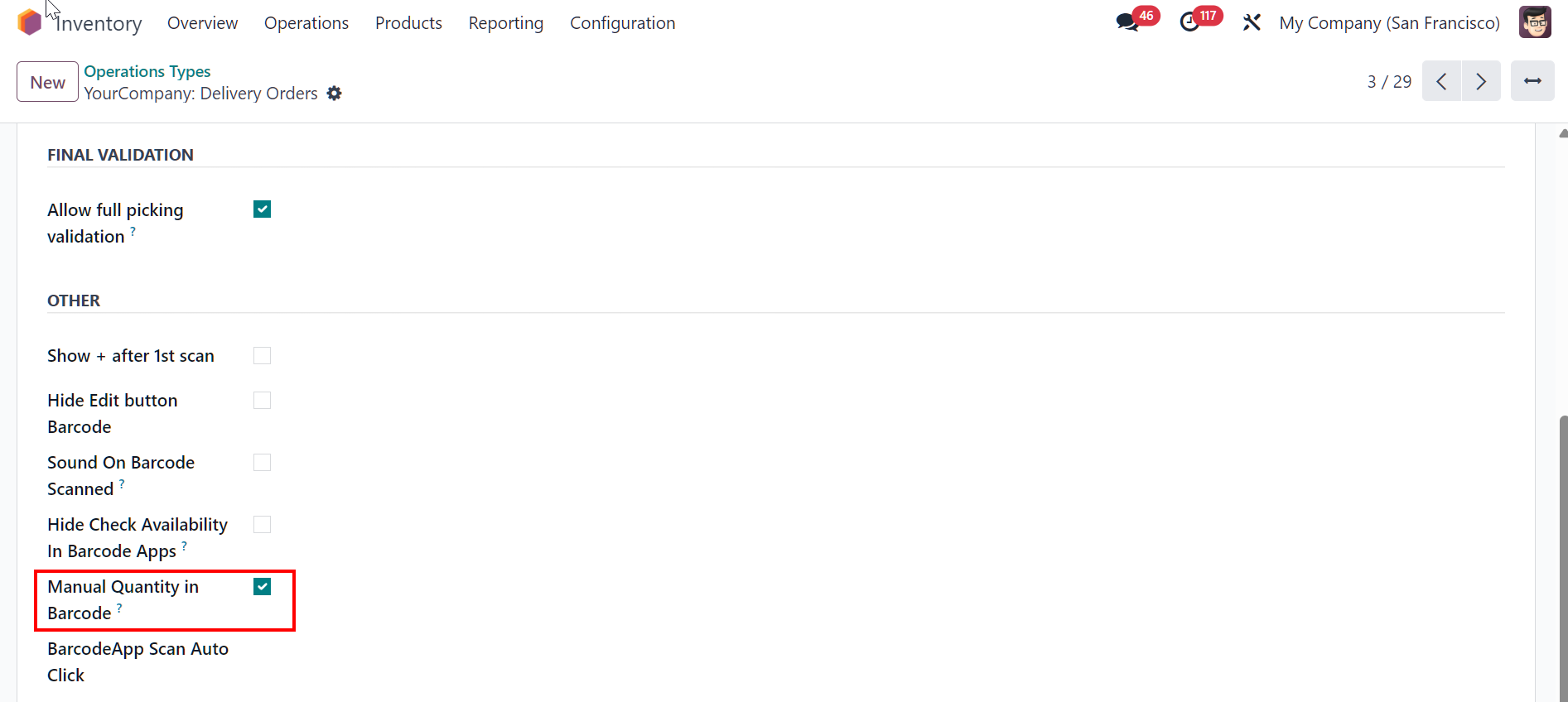
3️⃣ A new Manual Quantity in Barcode option on the Operation Type.
HIDE EDIT BARCODE | |
1. Check the Hide Edit Barcode box in both the user settings and operation types. | 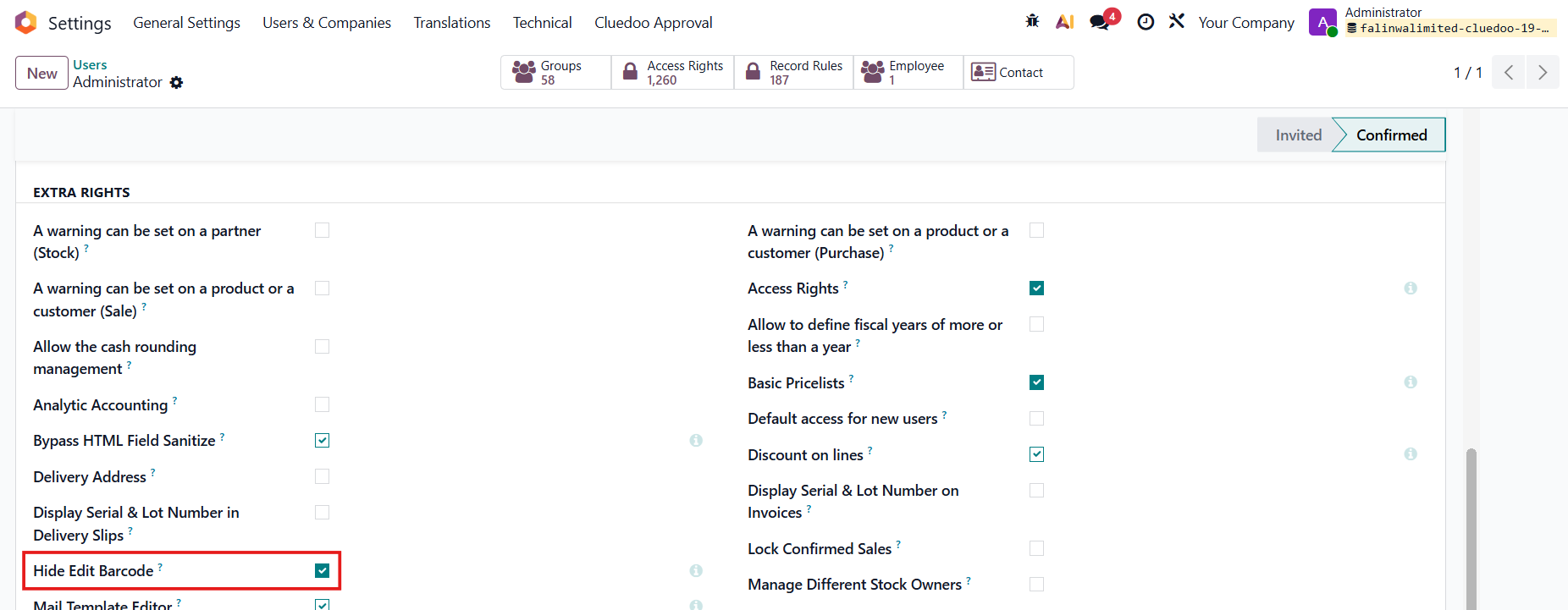 |
| |
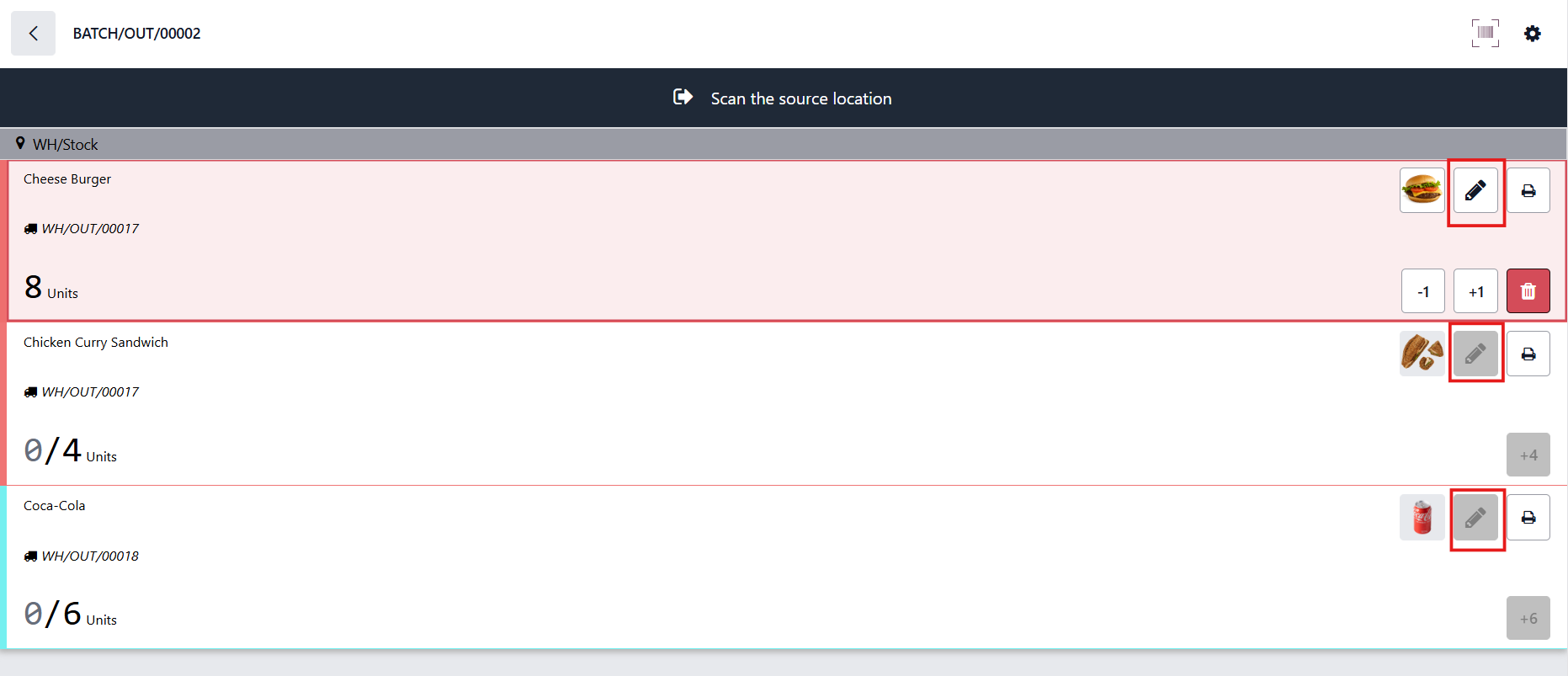
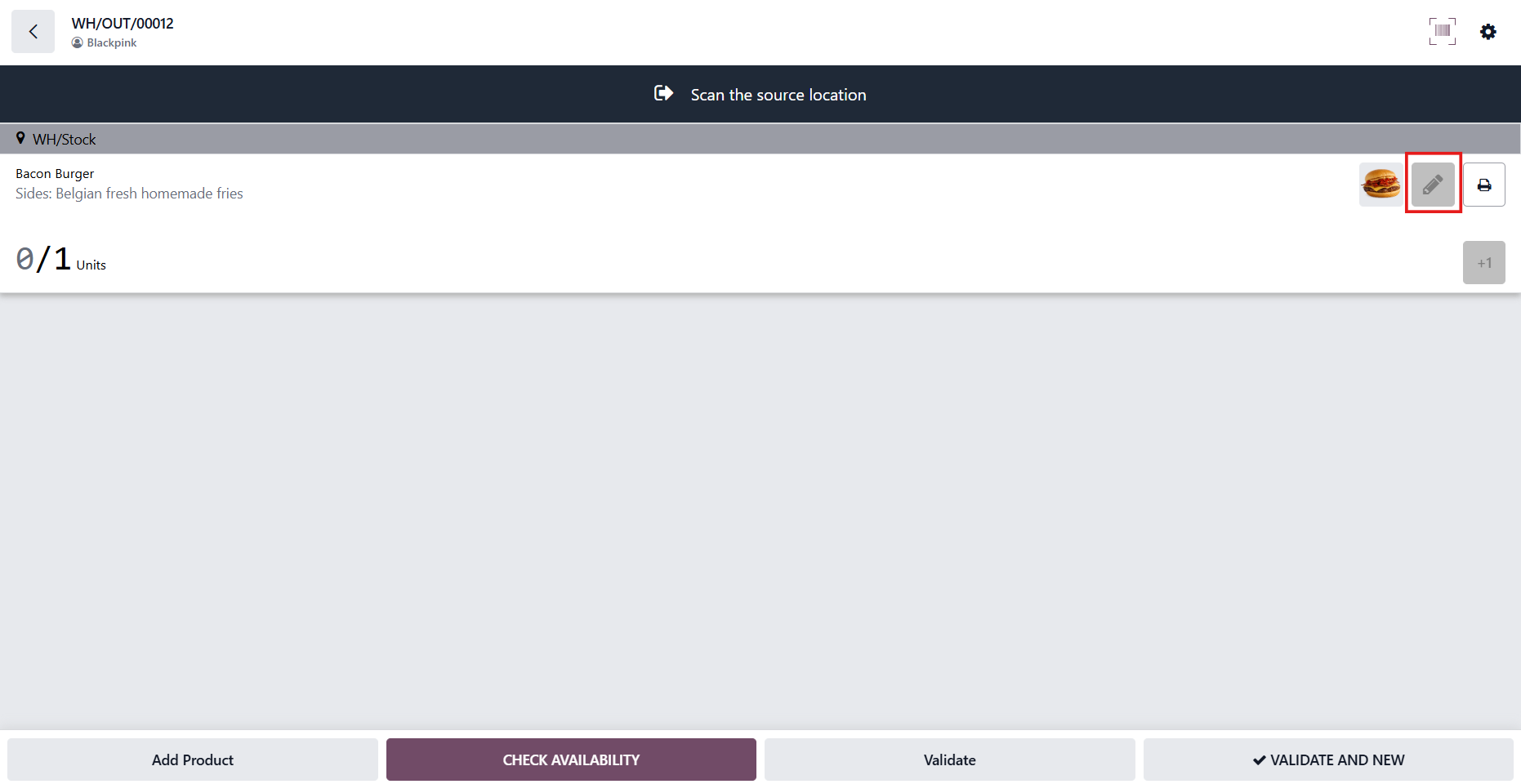
2. Go to Barcode > Operations > Select the operation type that you choose to hide the edit button > We can see the pencil icon but can't edit. You can edit if you add a product. Notes:
|  |
|
|
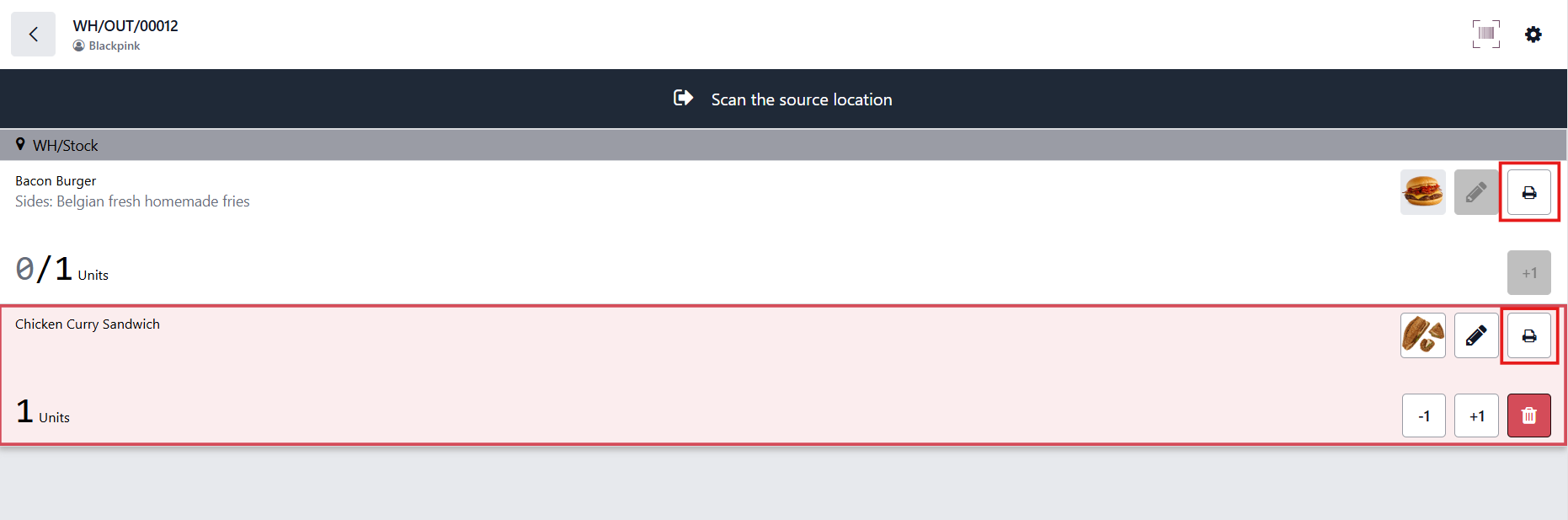
3. Click Add Product > The buttons Validate & New and Delete are added. | 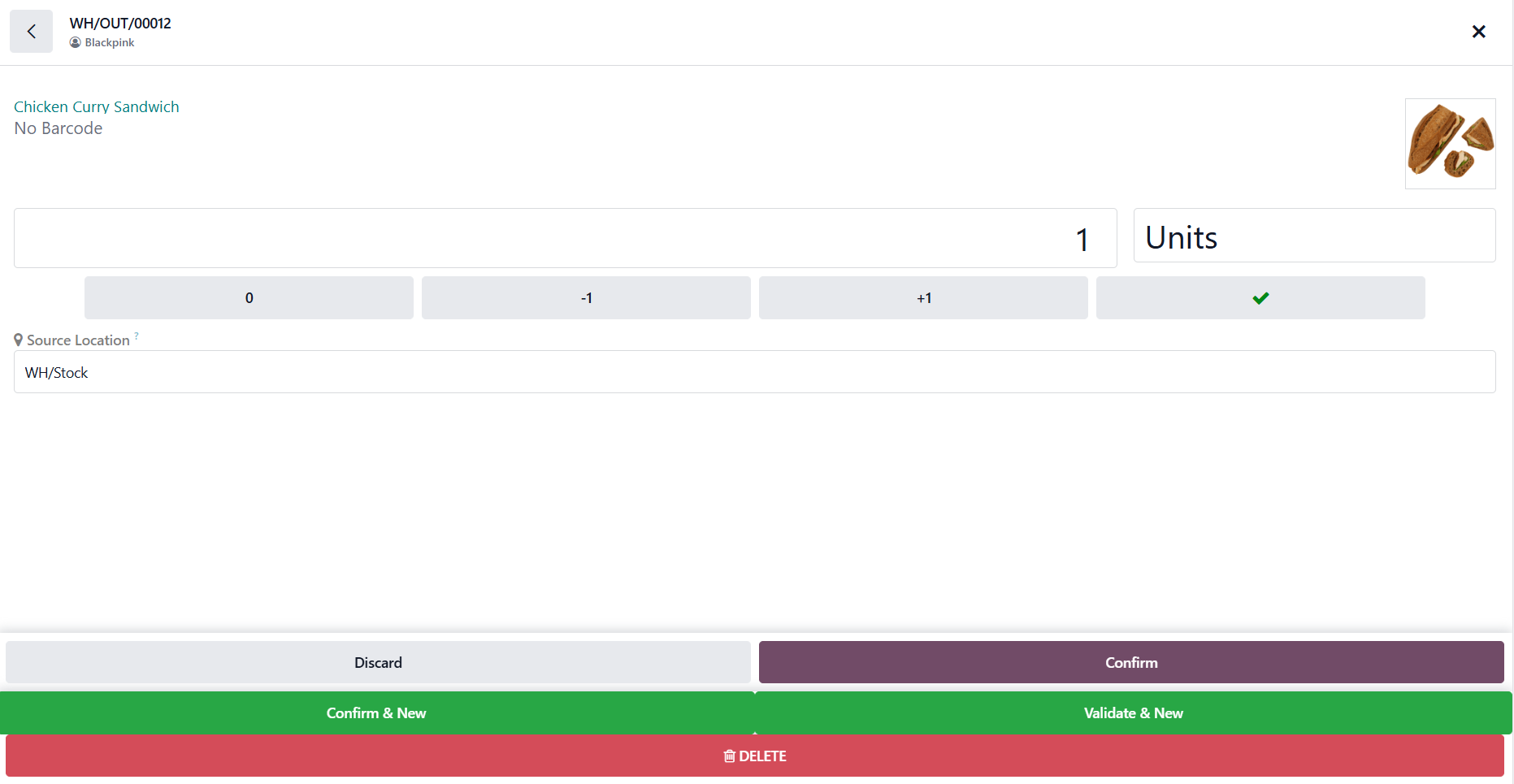 |
4. Click on the Print icon after scanning a product and the quantity will provide the product's barcode. We do not need to wait for picking validation. |
|
MANUAL QUANTITY | |
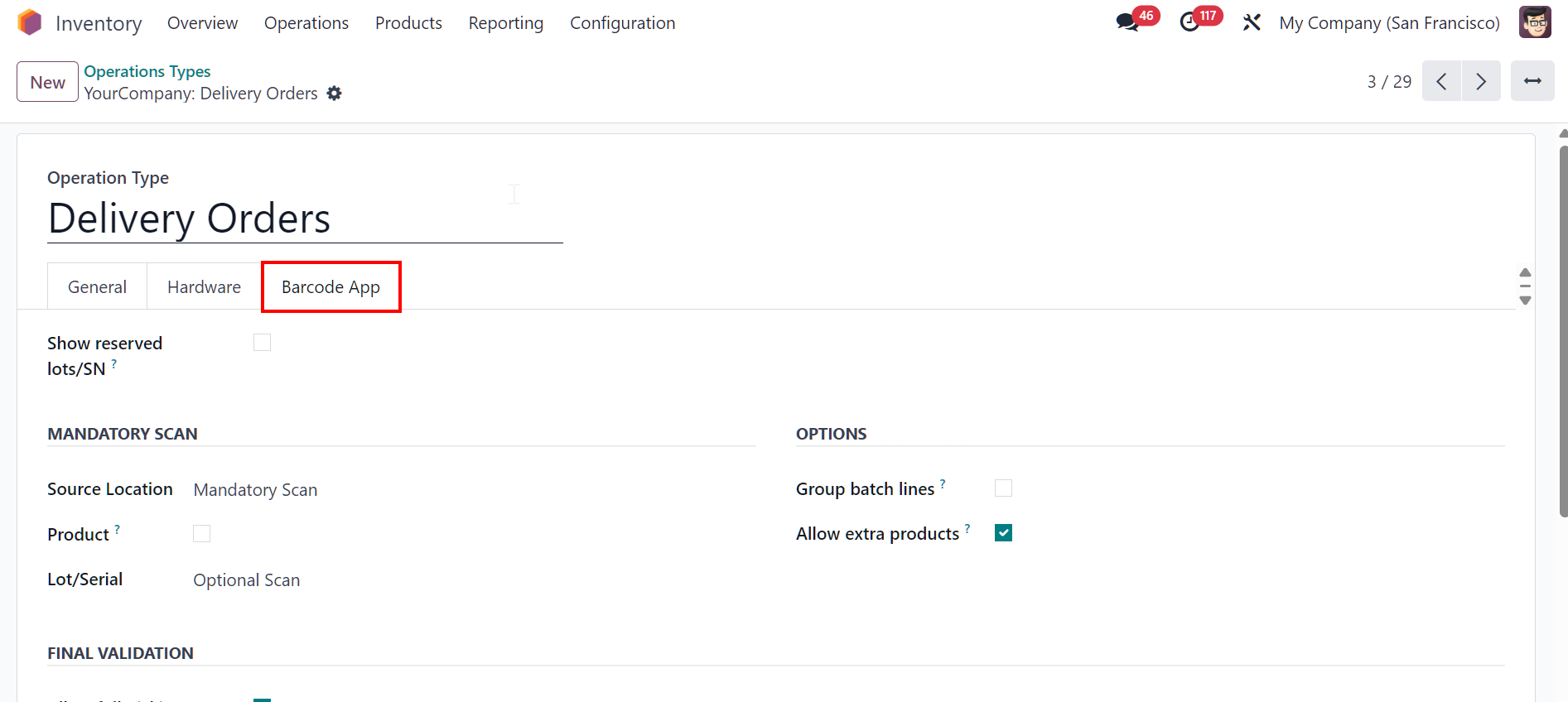
1. Go to Inventory > Configuration > Operation Types Access an operation type > Under the Barcode App tab > Check box Manual Quantity in Barcode. |
|
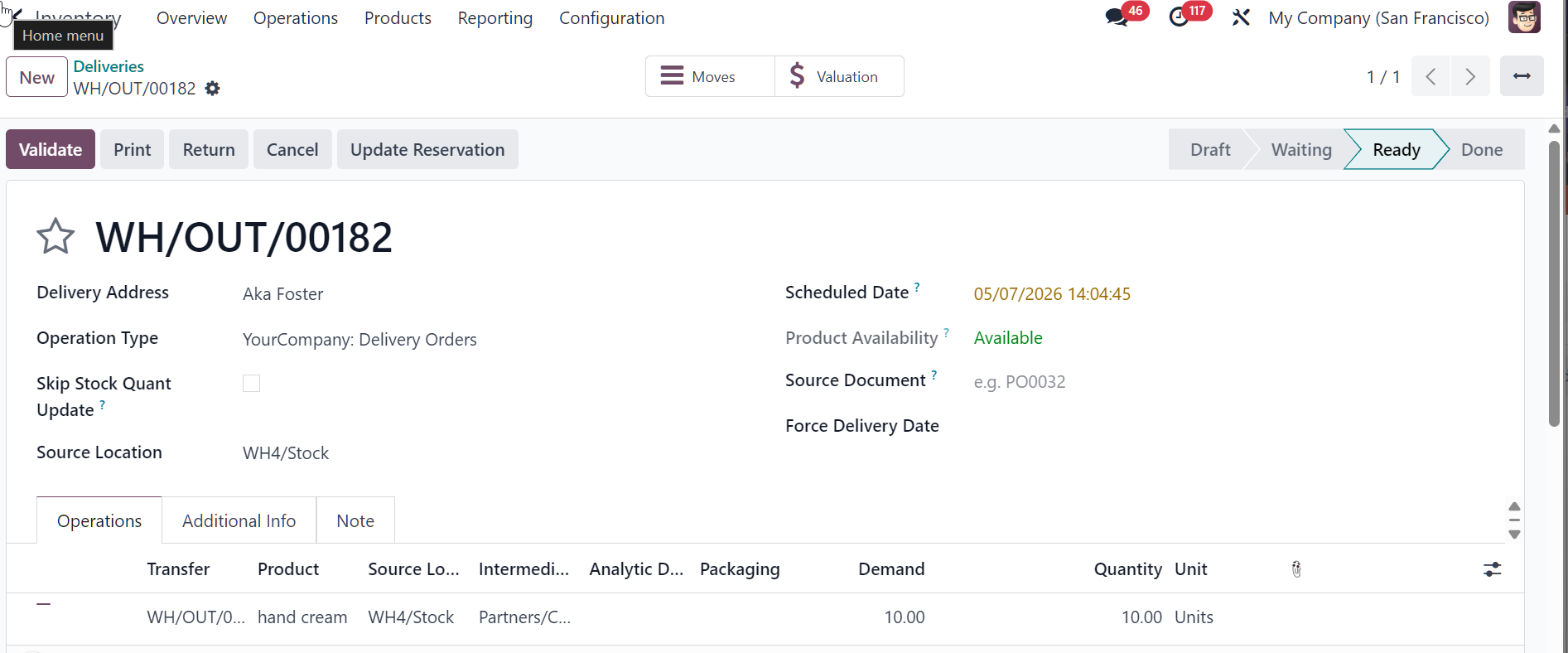
2. Create a new transfer > Choose product and fill demand quantity |
|
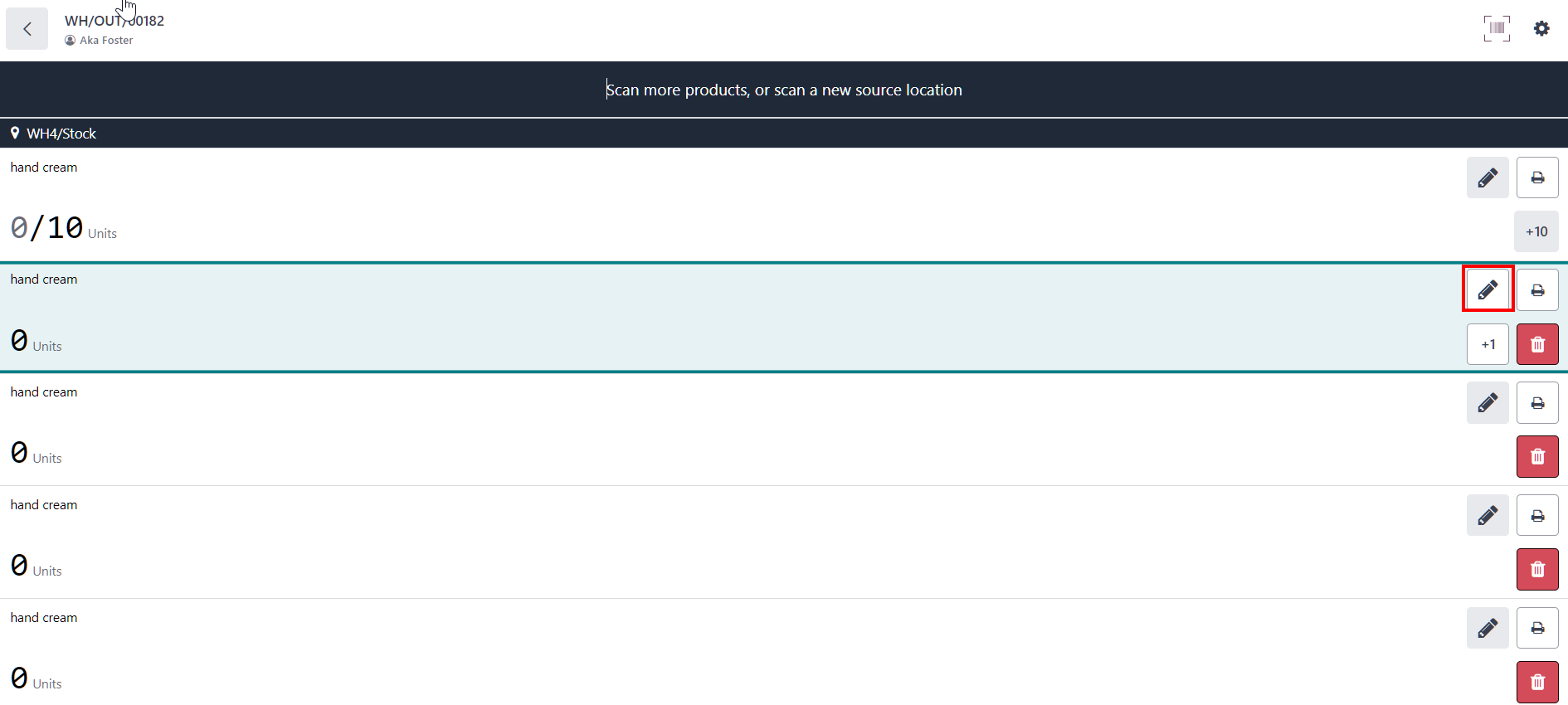
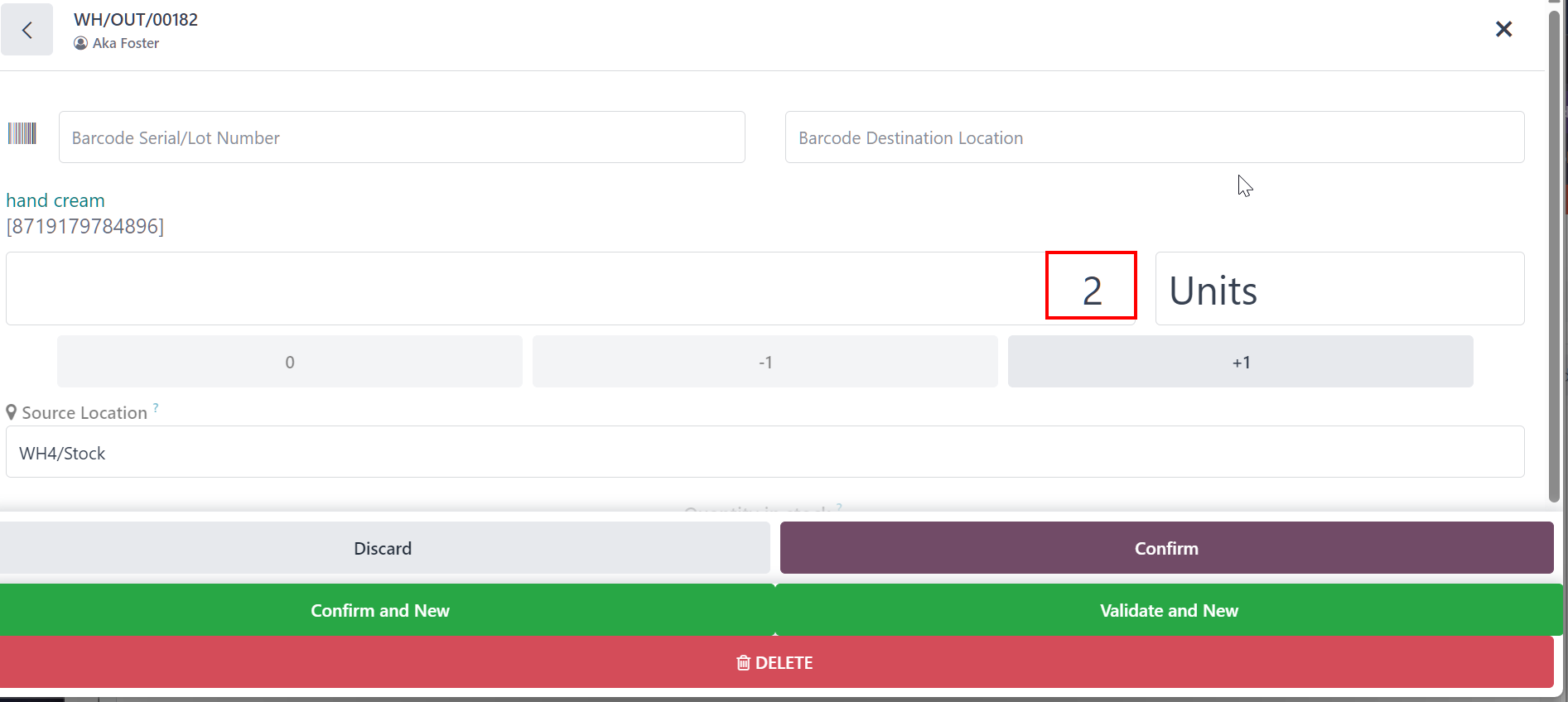
3. Open the transfer in Barcode. Each time the user scans the product's barcode, a new line with quantity 0 is added. To change the quantity, open the keypad and fill in quantity. Note: If the same product is scanned multiple times, the system will create new lines for each scan instead of increasing the quantity on the same line. |
|