



ODOO'S FUNCTION
In Odoo, reordering stock rules are used to automate the replenishment of products when their stock levels fall below a certain threshold. Odoo allows users to configure internal stock transfer between warehouses.
However, when creating replenishments for multiple products with the same route, Odoo will automatically merge these stock picks into a single record, potentially causing confusion in stock movements.
For example, Warehouse 2 will get resupply from Warehouse 1. Warehouse 2 reordered 2 products: A and B from Warehouse 1; however:
- Product A is available to transfer.
- Product B is not available, which will require more time for the transfer to be ready.
Odoo automatically consolidates all stock moves, causing a delay in transferring Product A, while Product A may be needed urgently.
CLUEDOO'S FUNCTION
CLuedoo's module will:
- prevent Odoo from merging stock pickings (specifically internal transfers) that are automatically generated from replenishment. Independent transfer records will be automatically created for each product.
- ensure that stock pickings created from a split MO inherit the exact sequence of that specific MO.
1. Go to Users > Choose one > Technical > Make sure you have checked Manage Multiple Stock Locations, Manage Multiple Warehouses, and Manage Push and Pull Inventory flows |  |
2. Go to Inventory > Warehouses > Create Warehouse 2 and make sure you check Resupply From Warehouse 1 |  |
3. In Inventory -> Configuration -> Operation Types, select all appropriate routes and tick the "Lock Merge" box. e.g., If Warehouse 1 is delivering stock to Warehouse 2, then Lock Merge needs to be selected on Warehouse 1 - Delivery Orders and Warehouse 2 - Receipts |   |
For Reordering Rules 1. Create Reordering Rules for 2 different products to Warehouse 2 and click on Order Once > Odoo will automatically create Transfers for both product replenishment. Note: Remember to choose the correct Route(s) |  |
2. Transfers will be created independently for each product. Users can check the delivery status of each product more conveniently. |     |
For Manufacturing Order
Note:
| 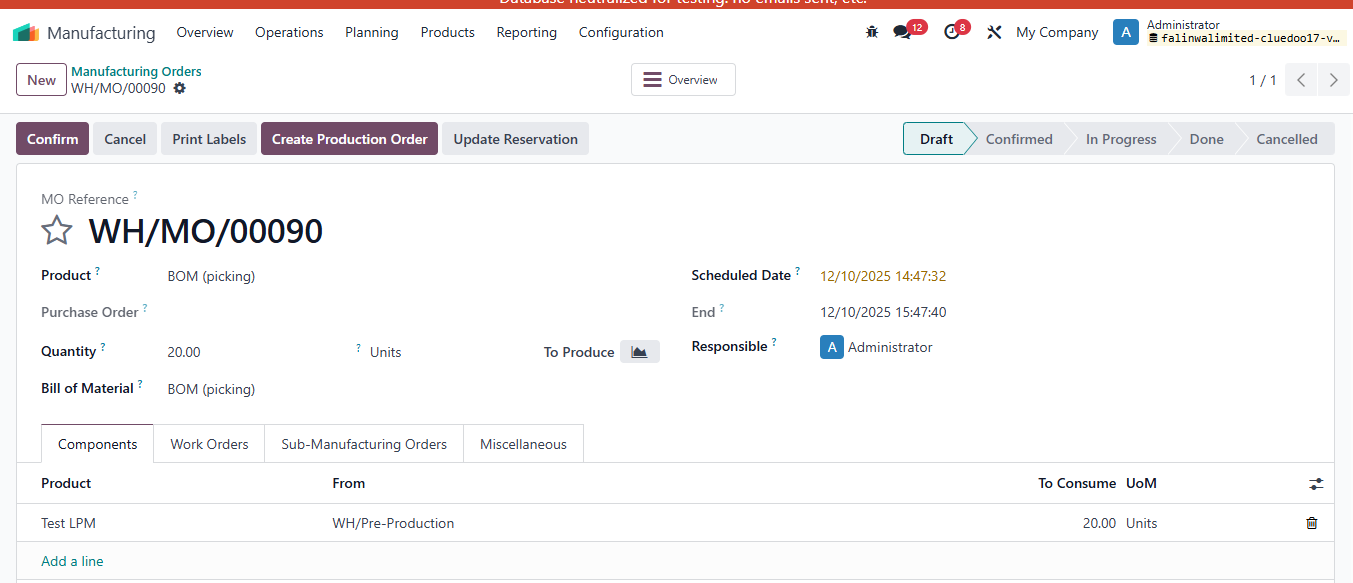 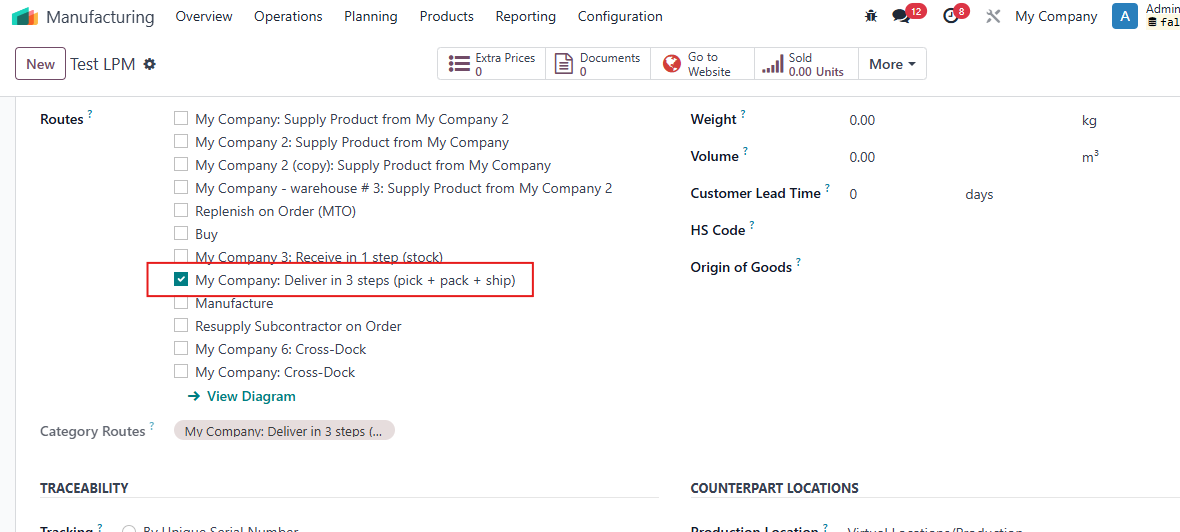 |
2. Go to Action > Split MO Choose the number of splitted MO you want Then Split Backorder of this MO is automatically created For example: The origin MO is WH/MO/00090 After spliting, Backorders of this MO are WH/MO/00090-001, -002 ... | 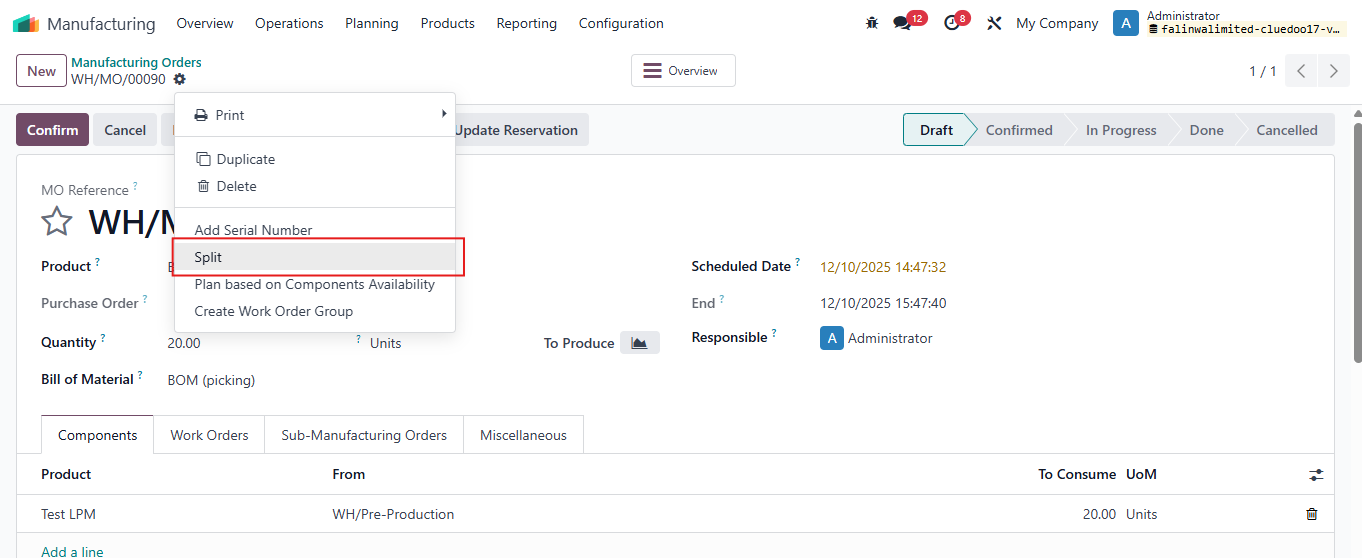 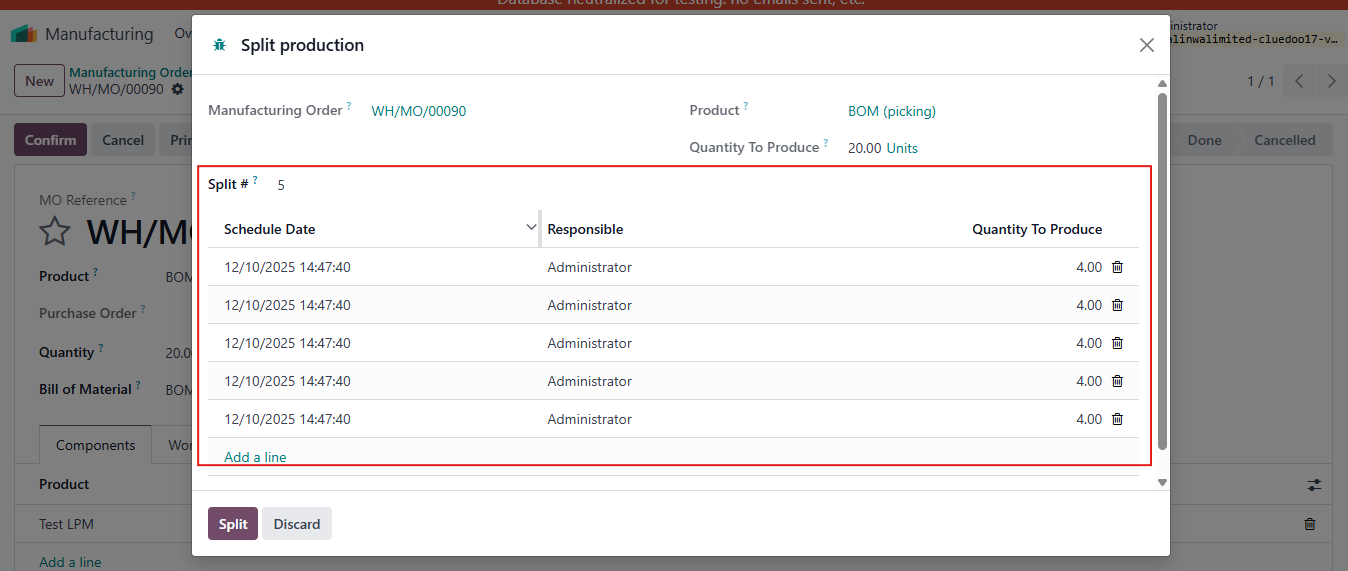 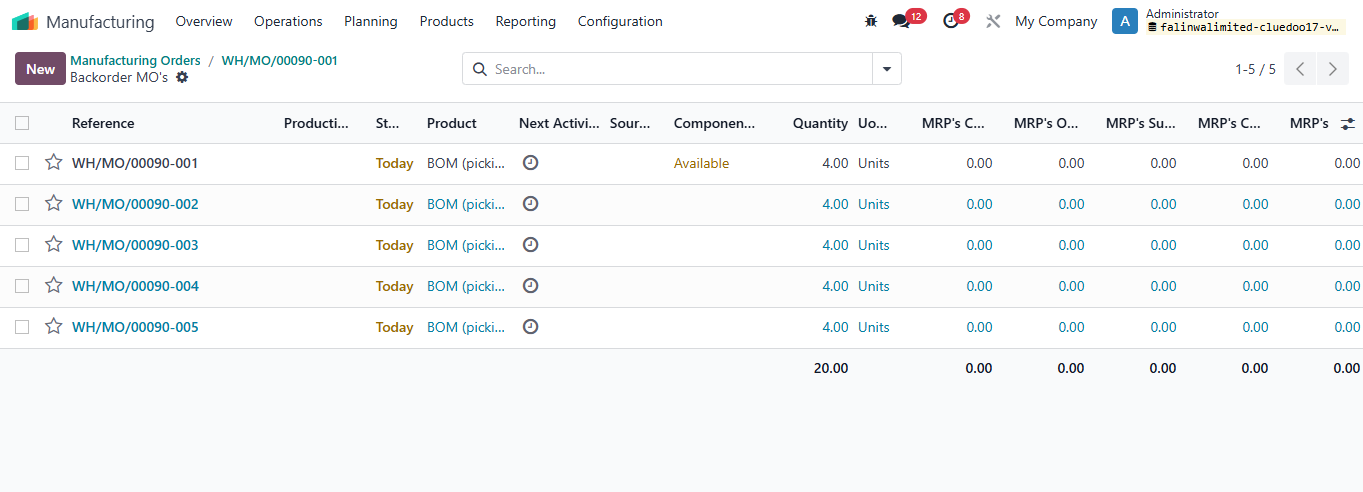 |
Stock pickings created from a split MO inherit the exact sequence of that specific MO. | 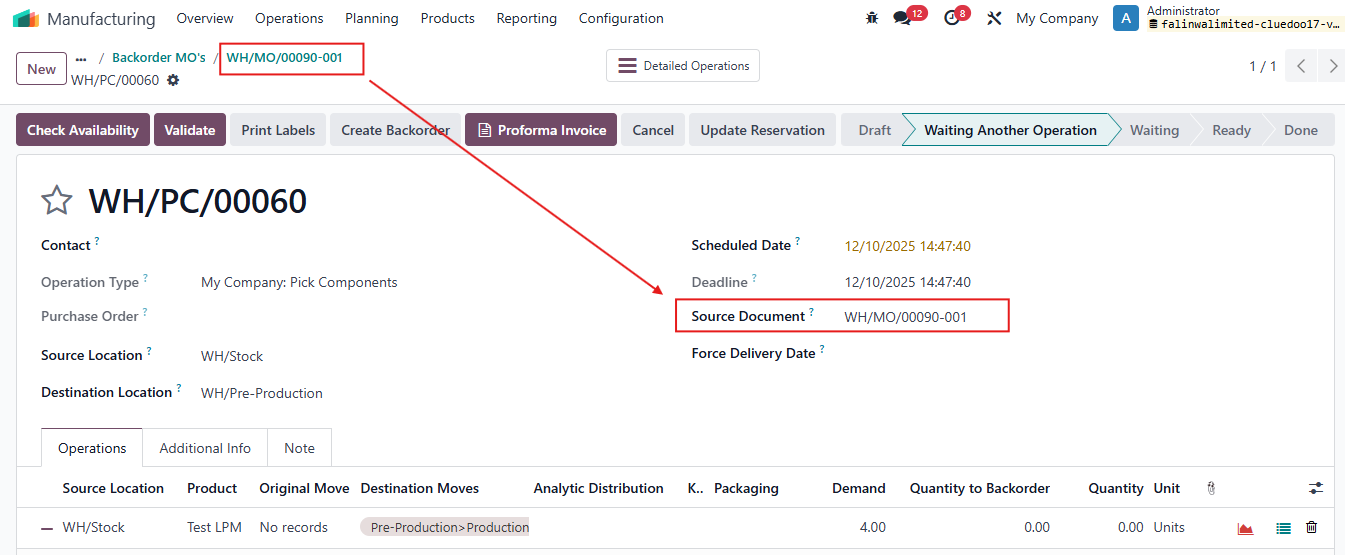 |