ODOO'S FUNCTION
By default, Odoo’s Purchase module does not provide a dedicated configuration for down payments, requiring users to manually add a product or line item to represent down payments in Purchase Orders (POs) or Vendor Bills. There is no option to define a specific product for down payments or control its visibility in POs under Settings.
CLUEDOO'S FUNCTION
CLuedoo improves Odoo’s Purchase module by introducing streamlined down payment management:
1️⃣ Allows defining a specific product for down payments and controlling its visibility in POs
2️⃣ Enables selecting a down payment option and specifying an amount or percentage
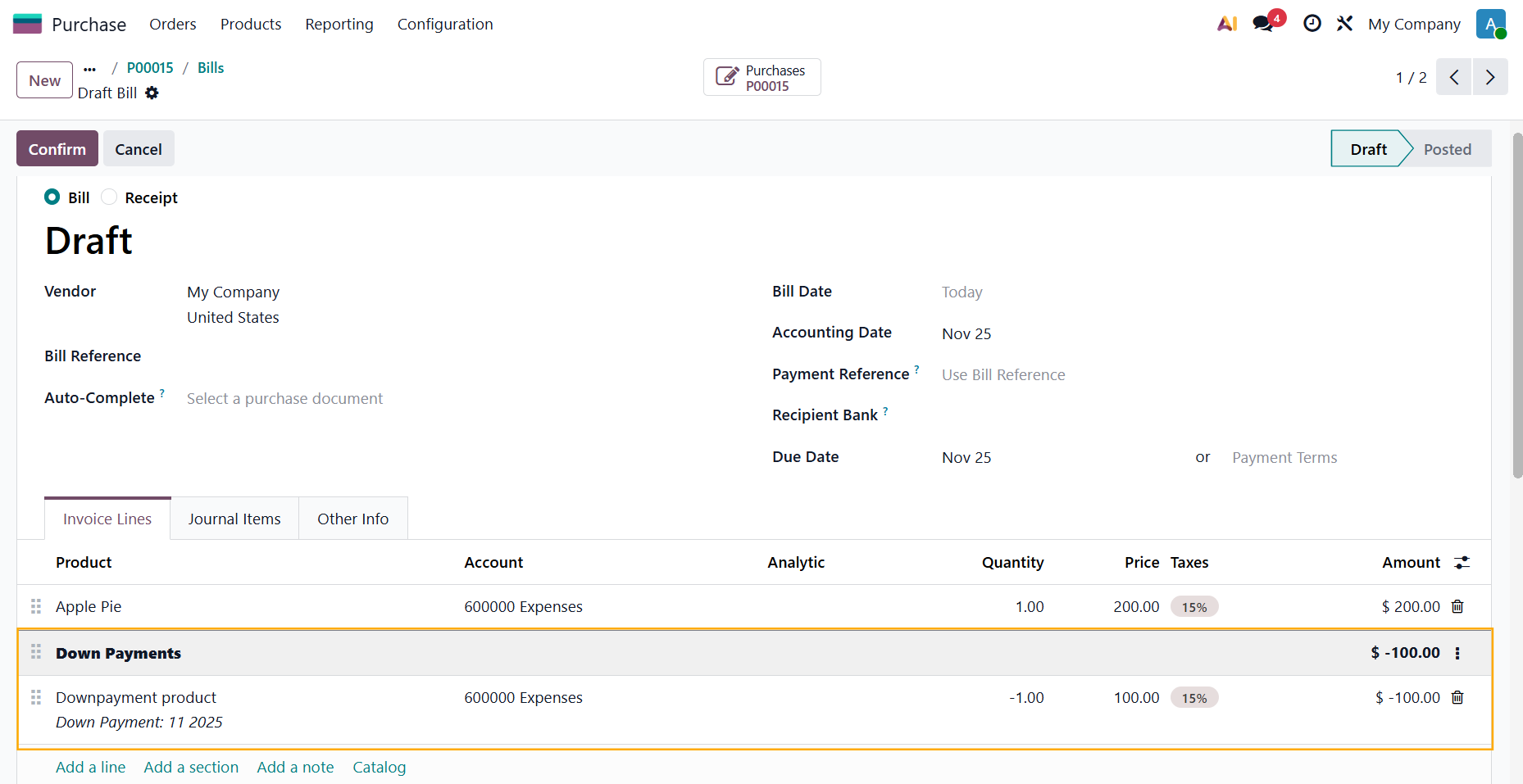
3️⃣ Displays down payment records in a dedicated section on the bill and Purchase Order Lines
4️⃣ Ensures down payments are not copied when duplicating a PO, preserving only regular PO items for accuracy.
1Go to Settings > Purchase > Down Payments > Define product for down payments and whether the down payment product is displayed in POs. | 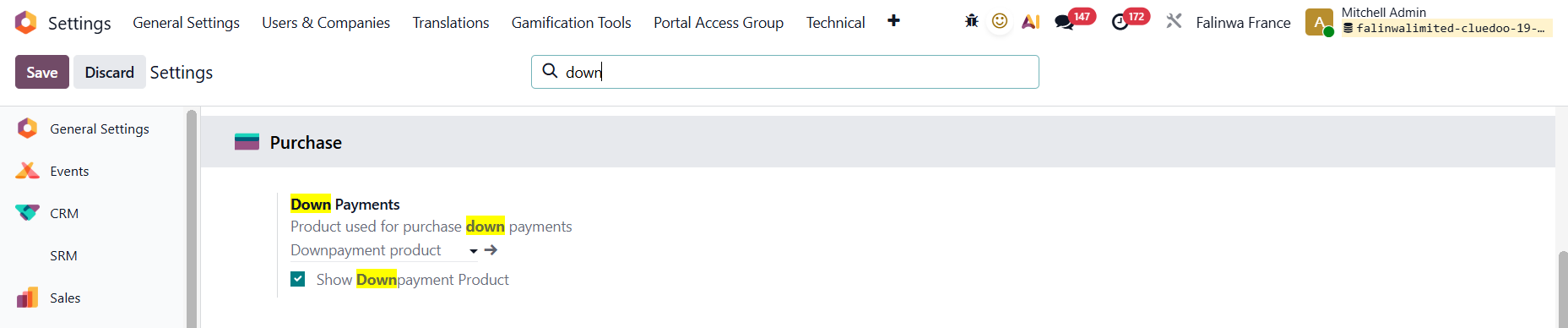 |
2Create a Purchase Order and then create a bill. When registering the payment, we can select the down payment option as well as add the down payment amount/percentage. e.g., I create a PO that is worth $200 and choose to invoice a down payment of 50% | 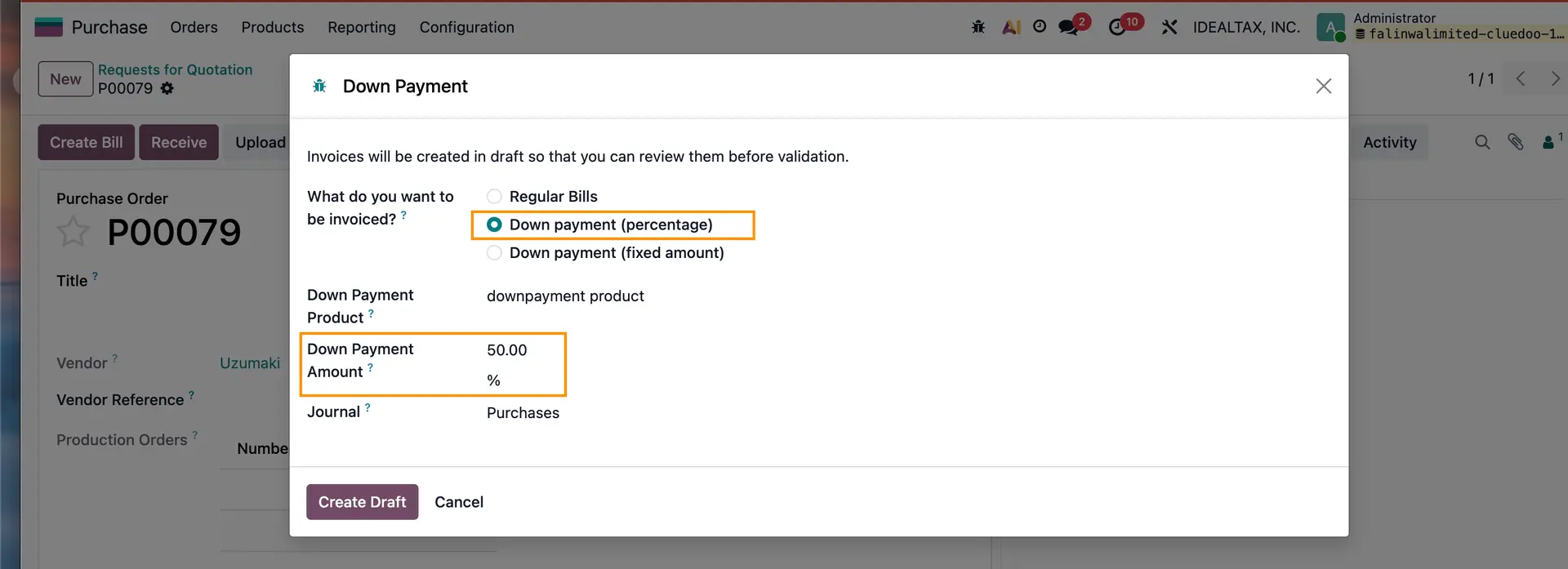 |
3In the bill lines/POL, it will show the down payment record with the correct amount. |  |
Notes:
|  |