


ODOO'S FUNCTION
In Odoo, there is no automatic calculation of timesheet revenue per employee on a task form. Additionally, there is no built-in project task timesheet control functionality.
CLUEDOO'S FUNCTION
With CLuedoo, timesheet revenue is automatically calculated as employees fill in their timesheets in tasks. Cluedoo also introduces full project task timesheet control.
- Automatic calculation of timesheet revenue per employee upon timesheet entry
- A new Controlling tab is added to the Project Task form for improved task monitoring and control
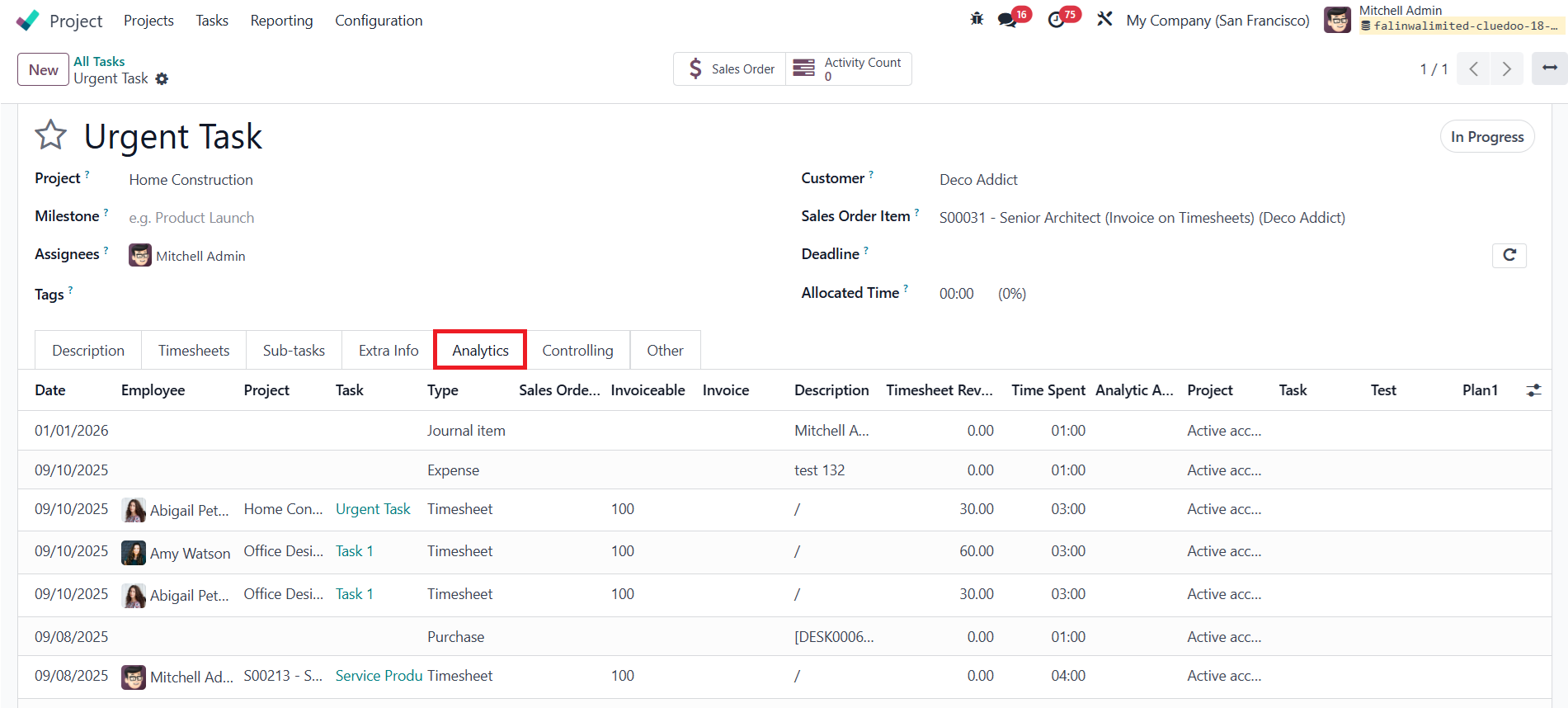
- A new Analytic Lines Tab is added to the Task form, which lists all analytic items of the assigned Analytic Account
- Define the timesheet Revenue currency base on company_id in Sales Order
1Go to Employees > Access an employee form > There is a new field Timesheet Revenue > Fill the timesheet revenue for the employee e.g., For Employee: Abigail Peterson, i set Timesheet Revenue to 10 |
|
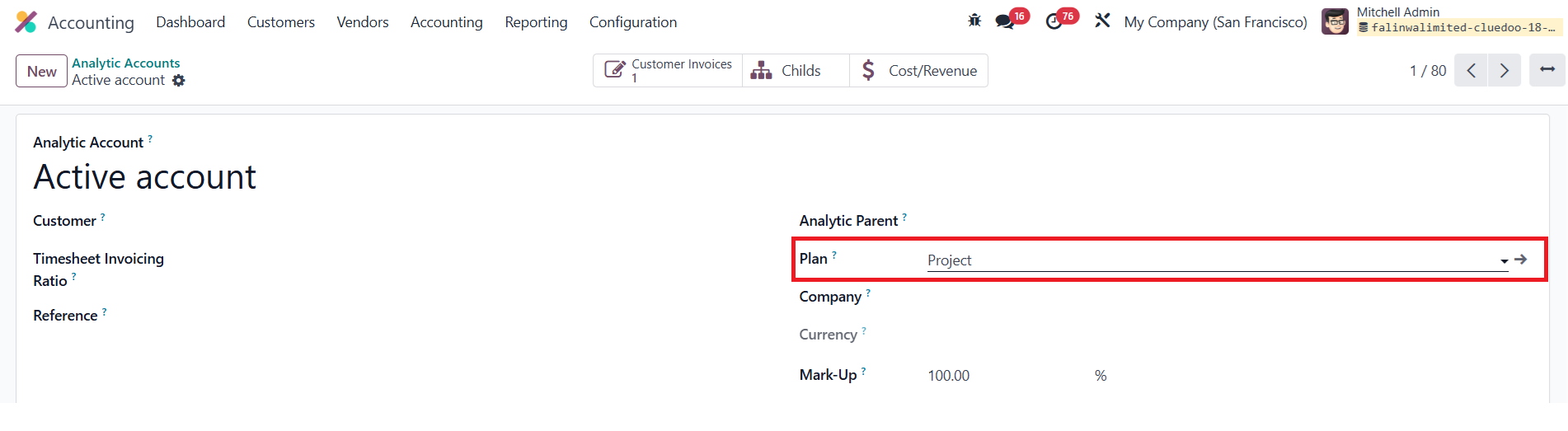
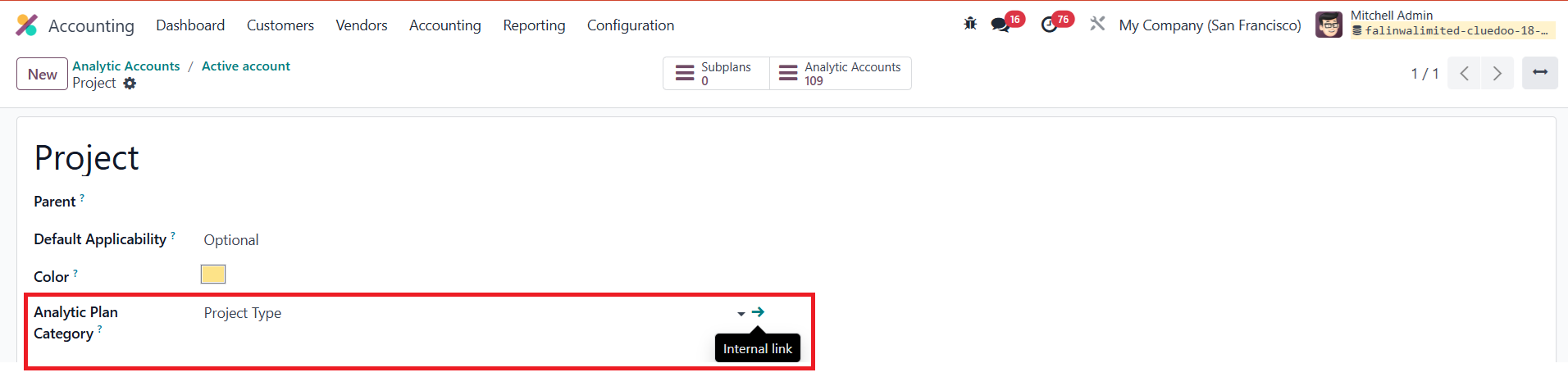
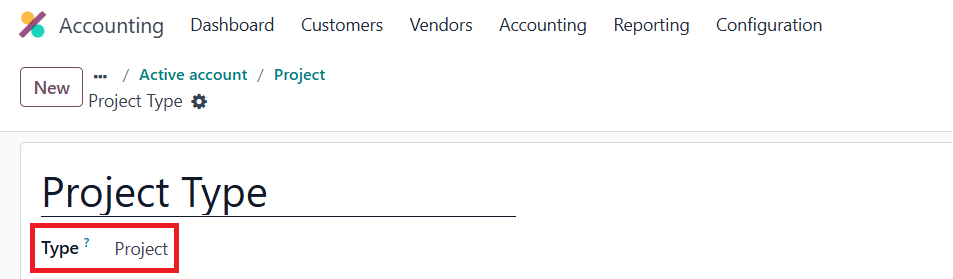
2Go to Analytic Account > Create a new Analytic Account/ Access an existing one > Access Plan > Access Analytic Plan Category > Make sure the Type is set to Project
|
|
3Go to Tasks > Creating a new Task/ Access an existing one > Assign a Project > Select the configured Analytic Account in Analytic Distribution | 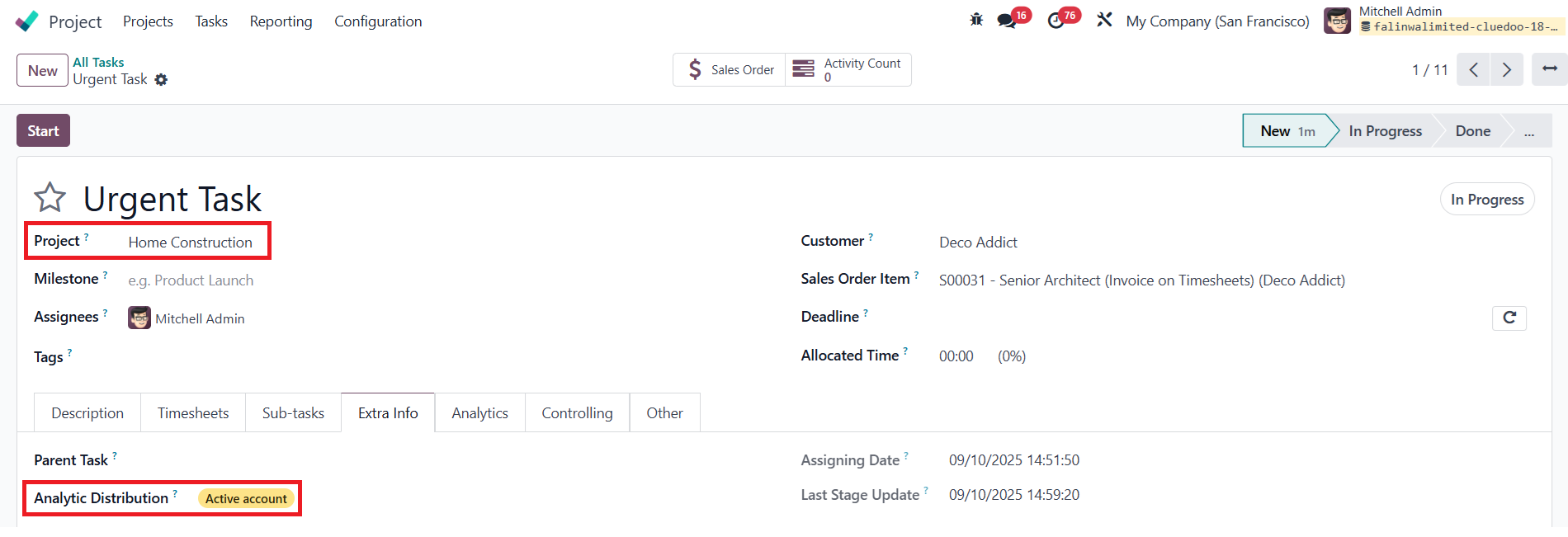 |
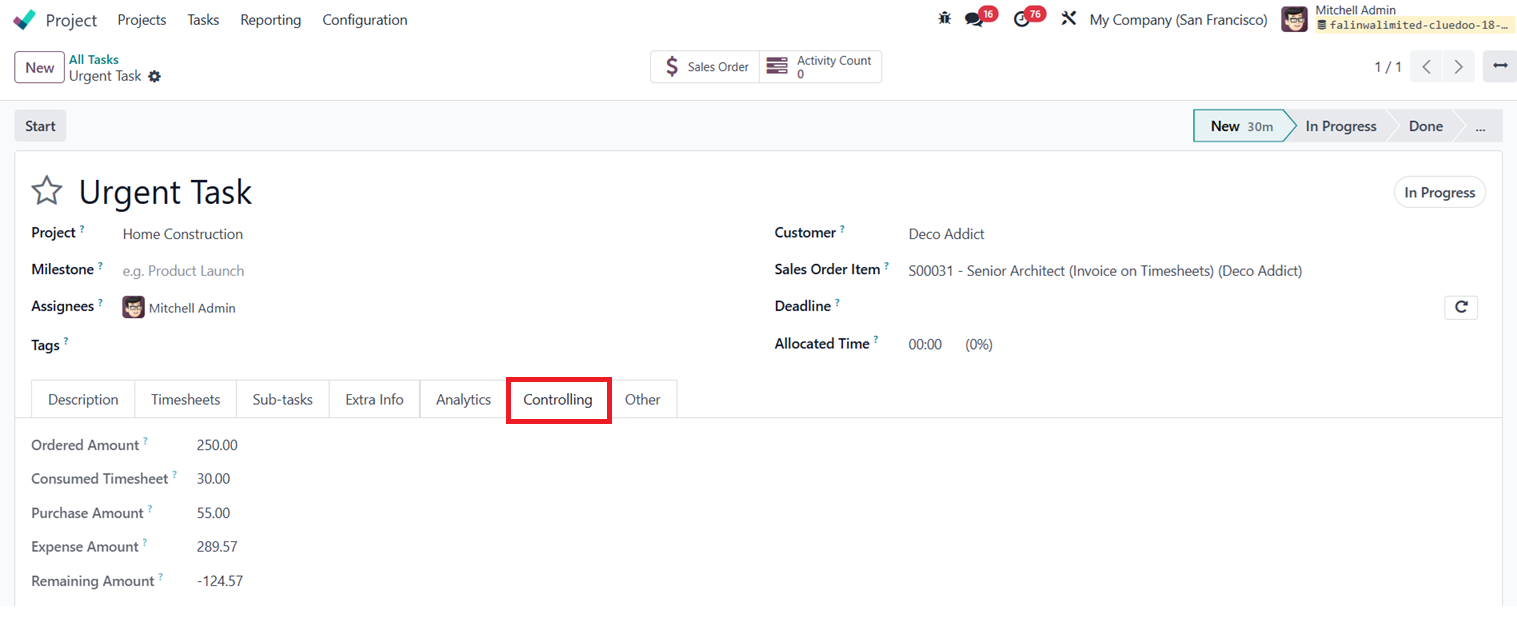
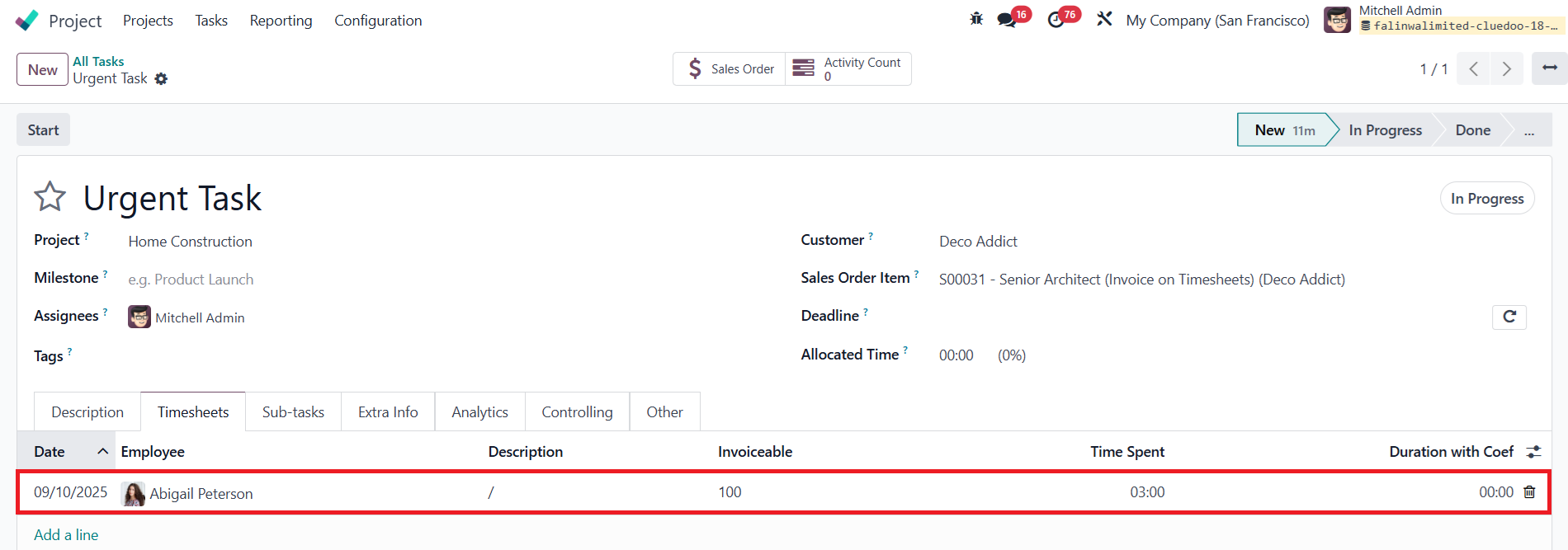
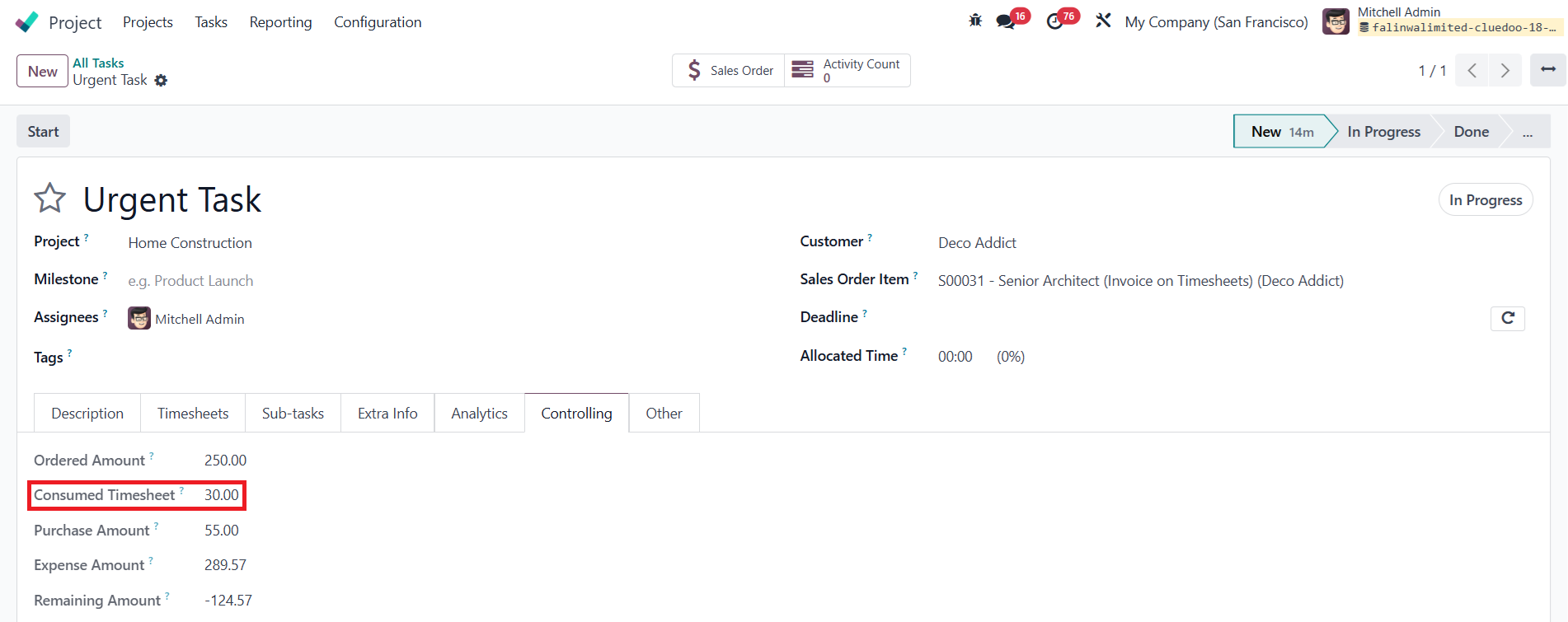
4On the Timesheet Tab > Add new lines with the configured Employee and Input the Time Spent > Move to the Controlling Tab > Can see the calculated Consumed Timesheet using the following formula: Calculation: Consumed Timesheet = Timesheet Revenue * Time Spent (3*10 = 30)
Notes:
|   |
5In the Analytic Lines Tab, all Analytic Items of the assigned Analytic Account are listed here Notes:
|  |
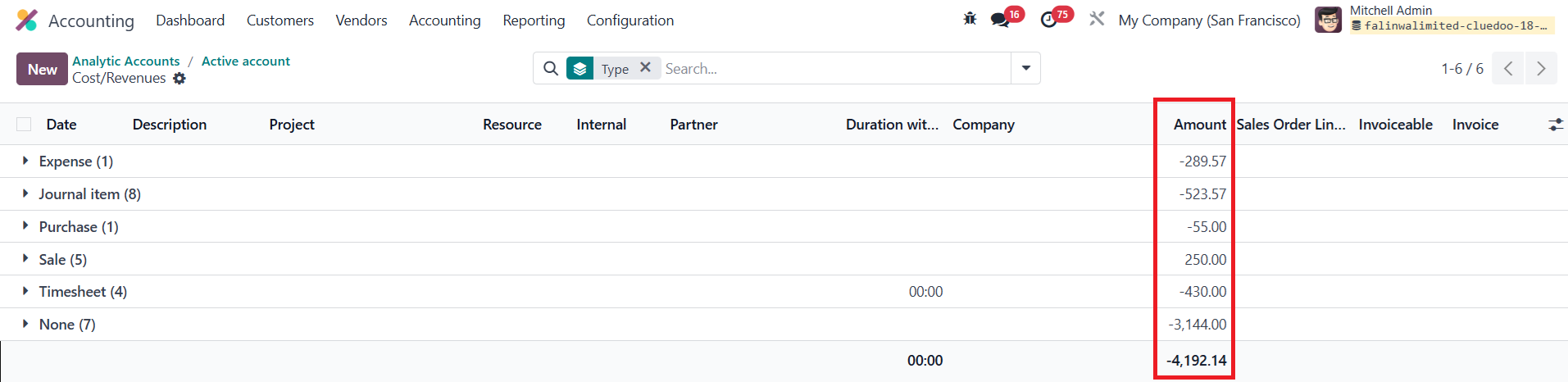
6Come back to the configured Analytic Account form > Click on Cost/ Revenue button > Group by Type > The data of each field in the Controlling Tab is equal to the one of the Amount column, depending on the Type:
Notes:
|
|
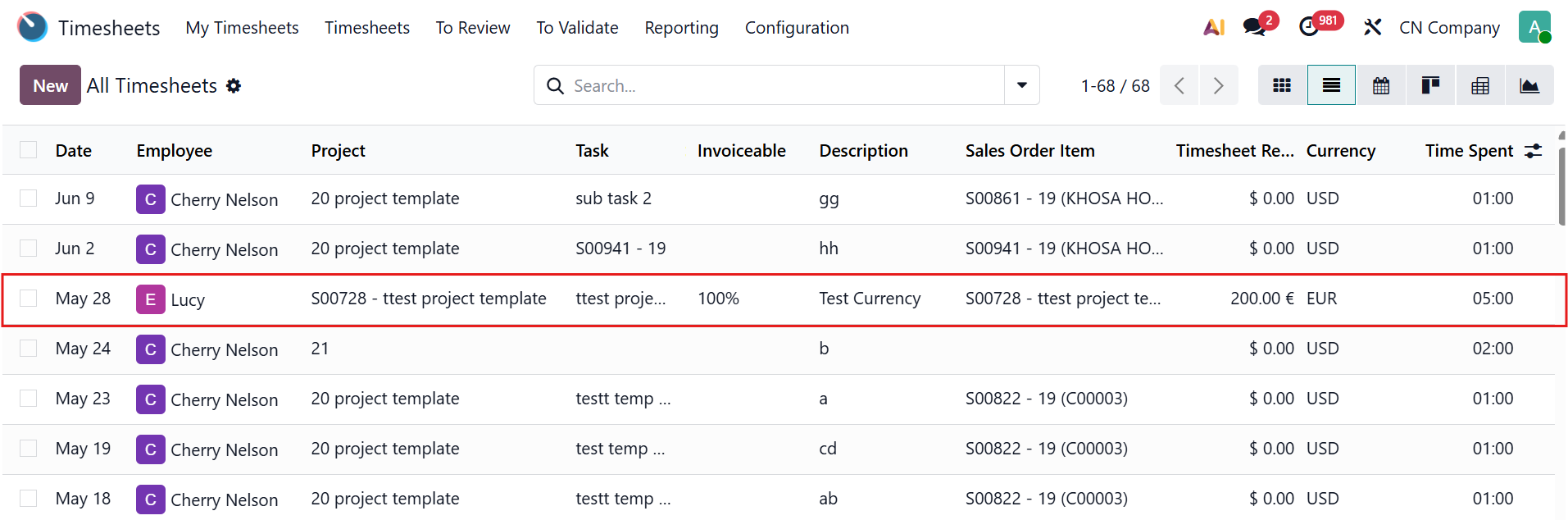
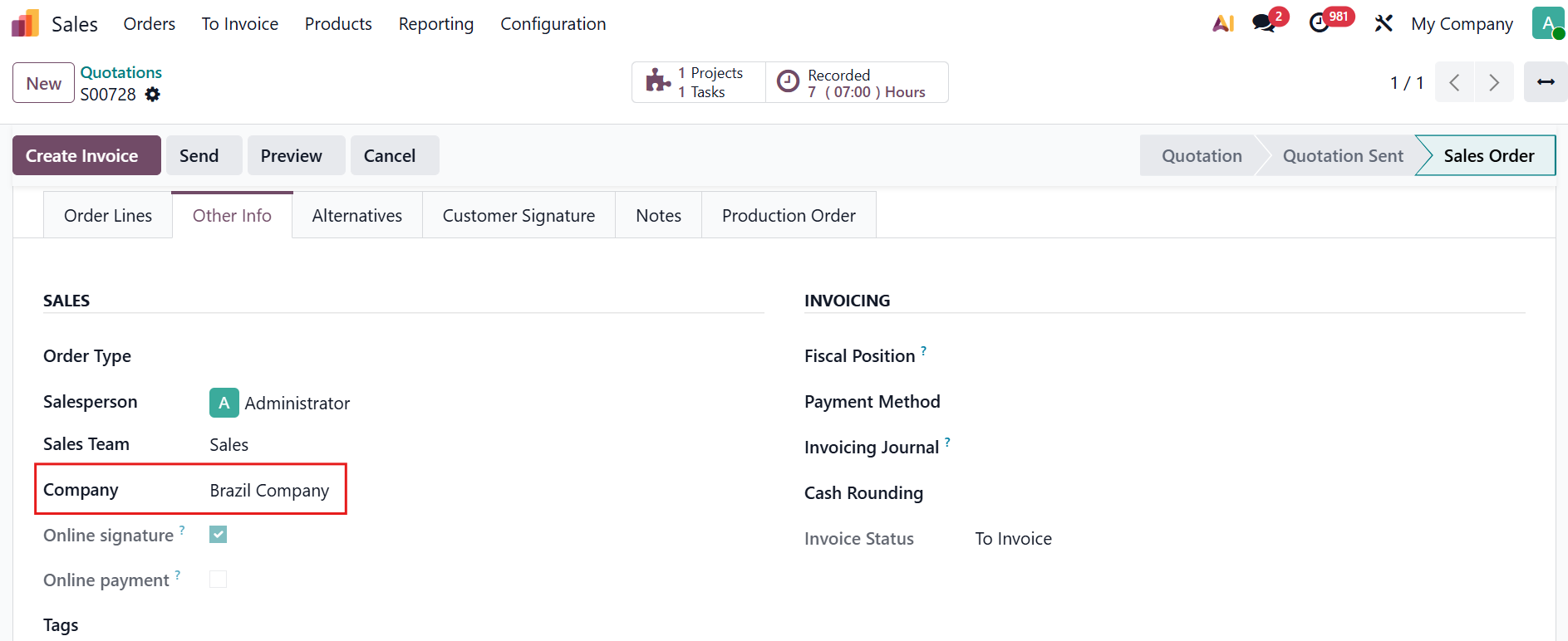
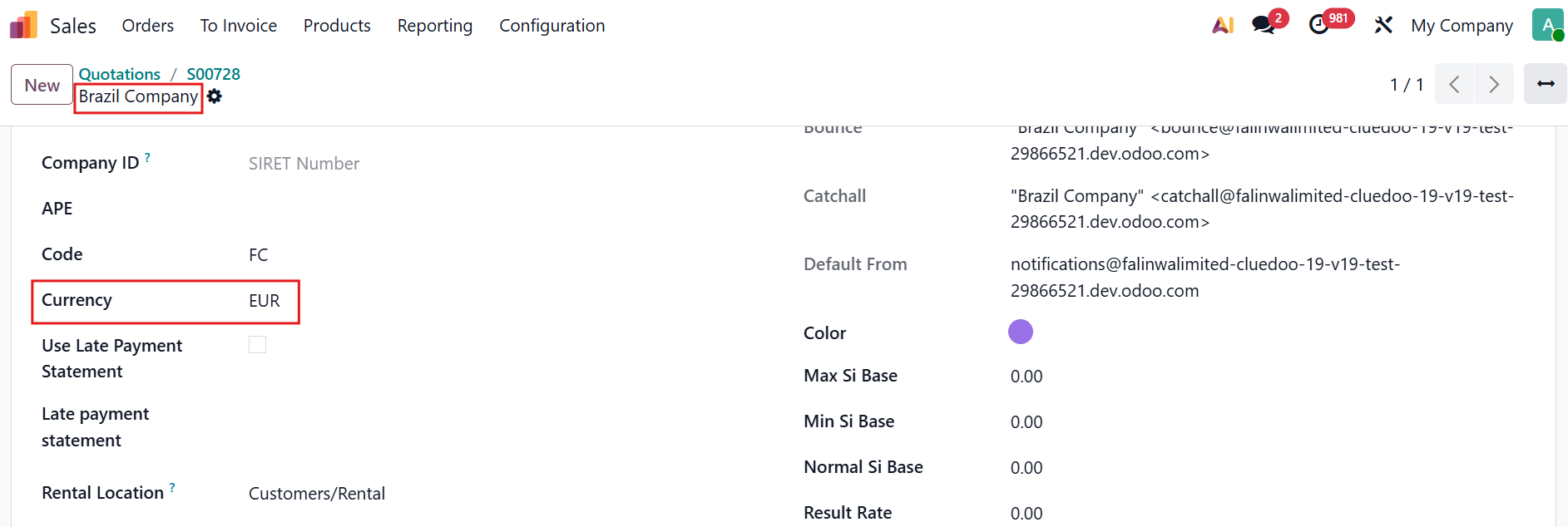
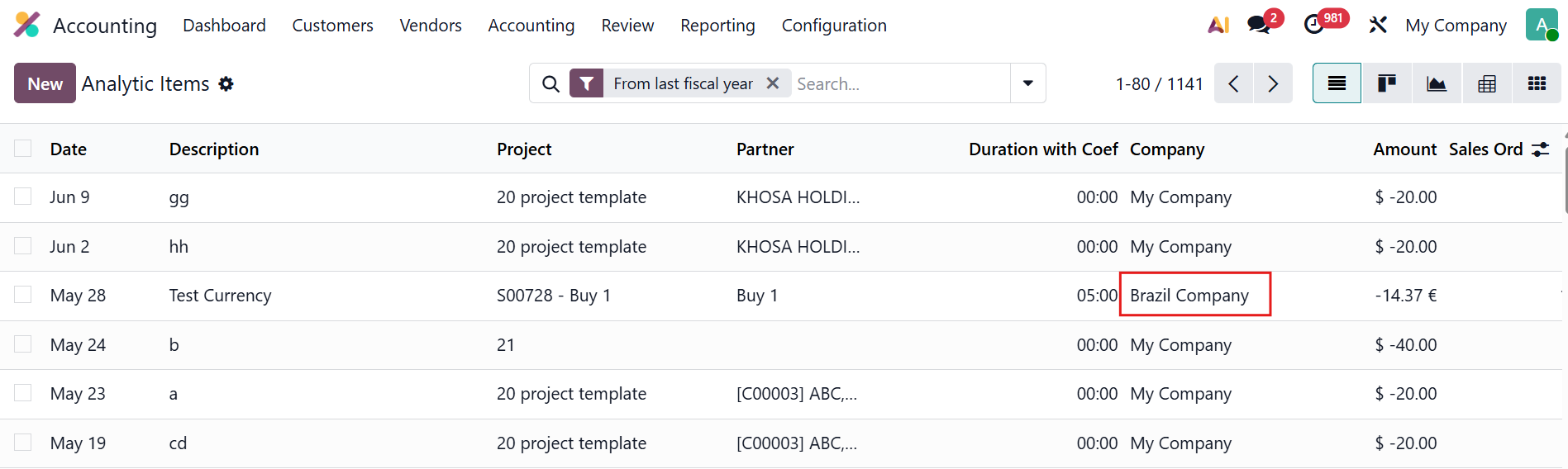
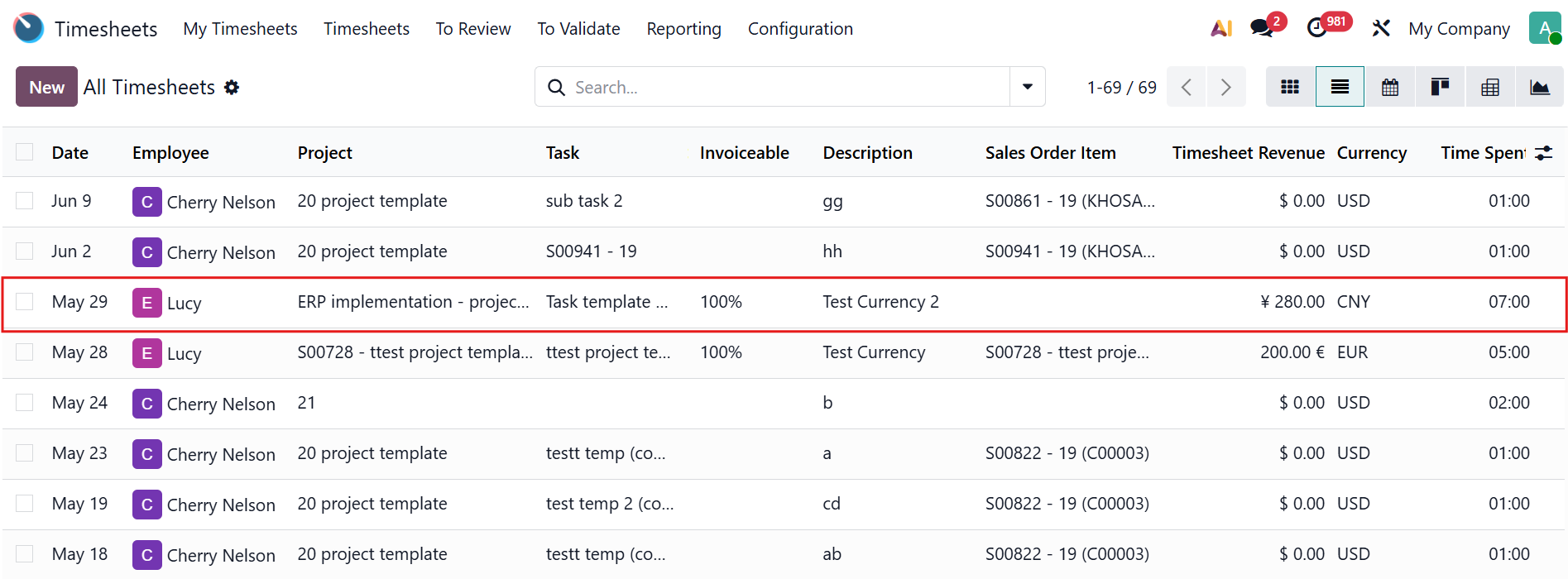
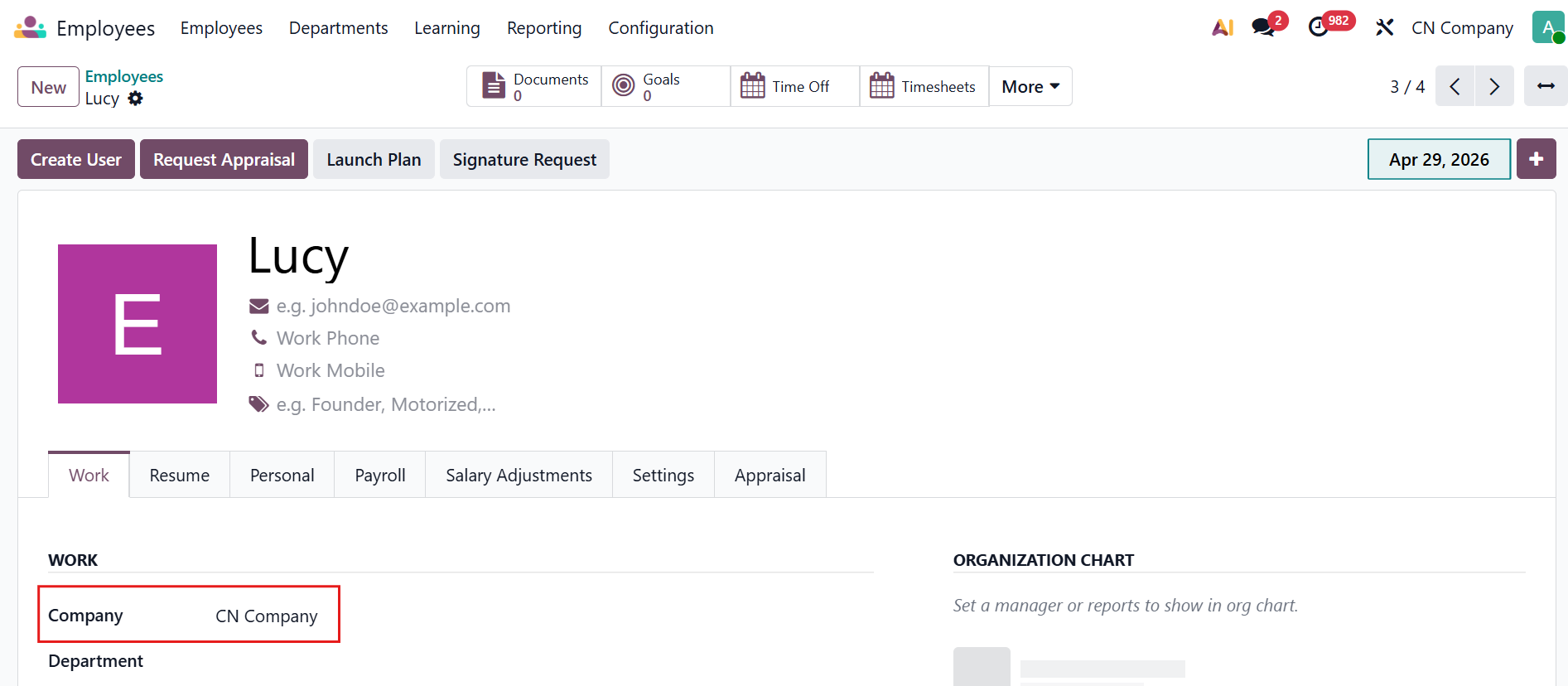
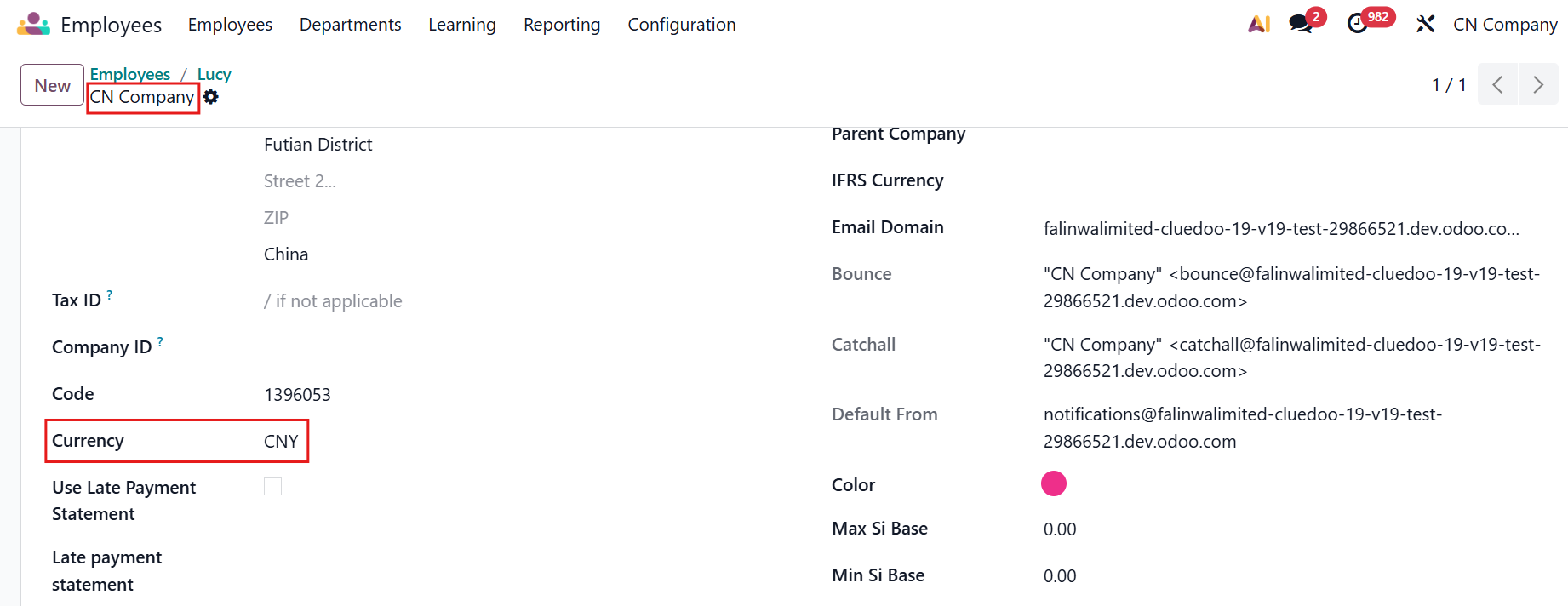
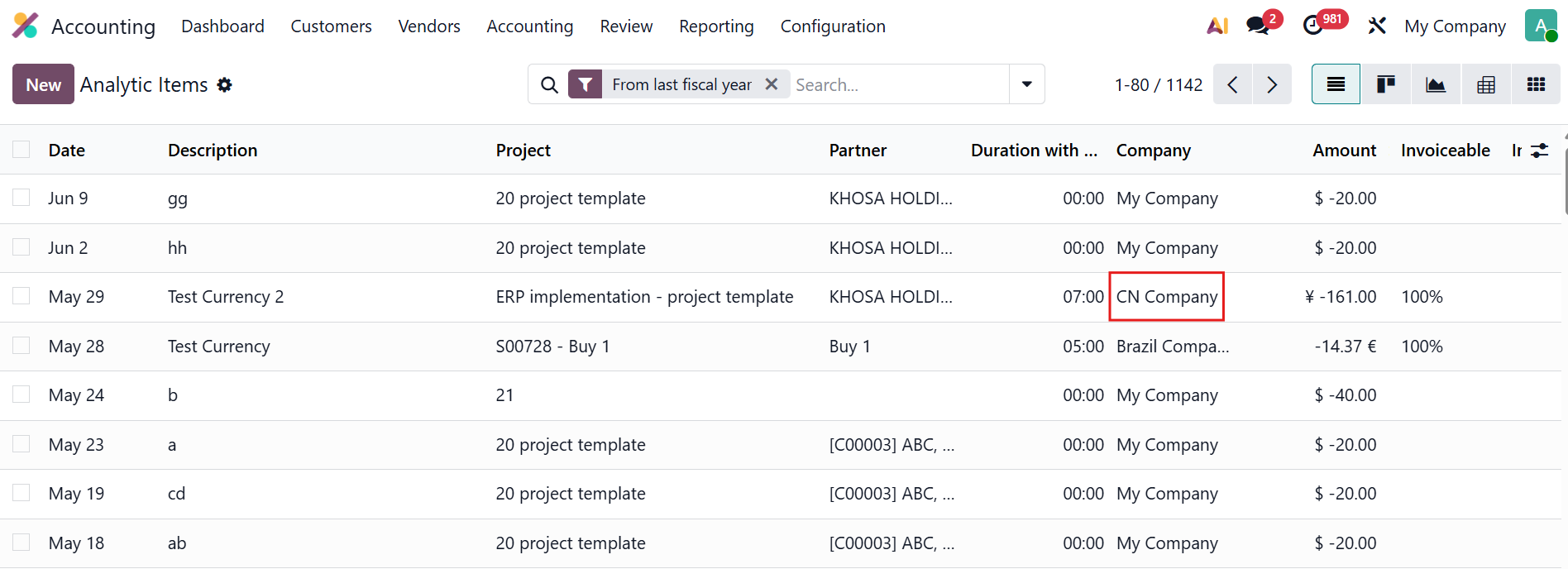
TIMESHEET REVENUE CURRENCYSince v19, if an SO is linked to the timesheet, the revenue currency and analytic items should follow the SO's company, not the employee's. Case 1: If a SOL is defined
|
|
Case 2: If no SOL is defined:
|
|