



ODOO'S FUNCTION
In Odoo, When user update the cost in an expense category, Odoo automatically updates the cost in all expenses linked to that specific category. This ensures consistency in cost data across linked expenses but does not offer an option to apply the update selectively. Furthermore, Odoo completely lacks a native global action or button to trigger a mass recalculation on an existing Expense Report. If a company updates its official expense policies or vendor rates, employees or managers are forced to manually open, delete, and recreate every single affected expense line one by one to capture the updated cost, which is highly inefficient and prone to human error.
CLUEDOO'S FUNCTION
Cluedoo introduces:
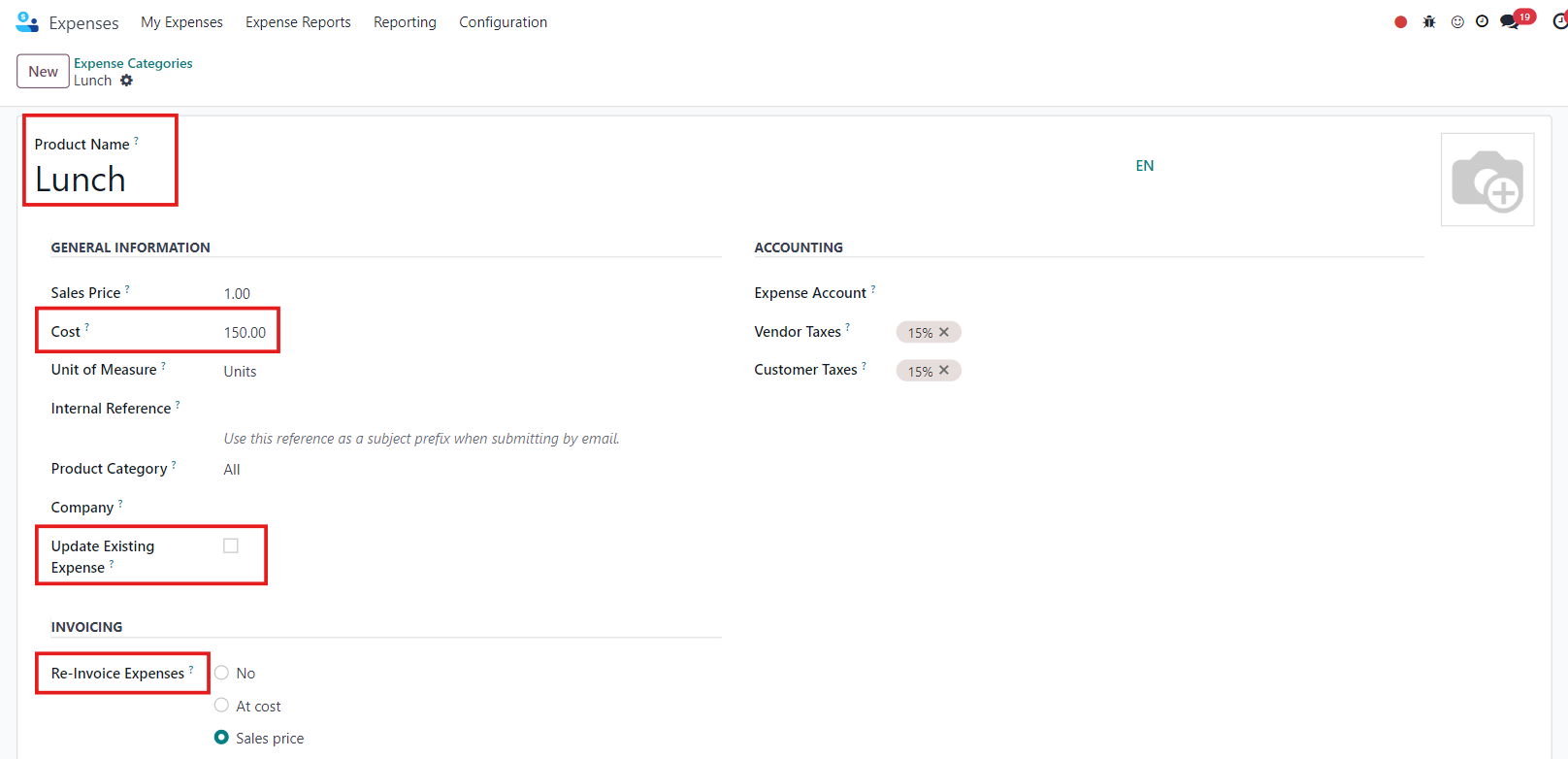
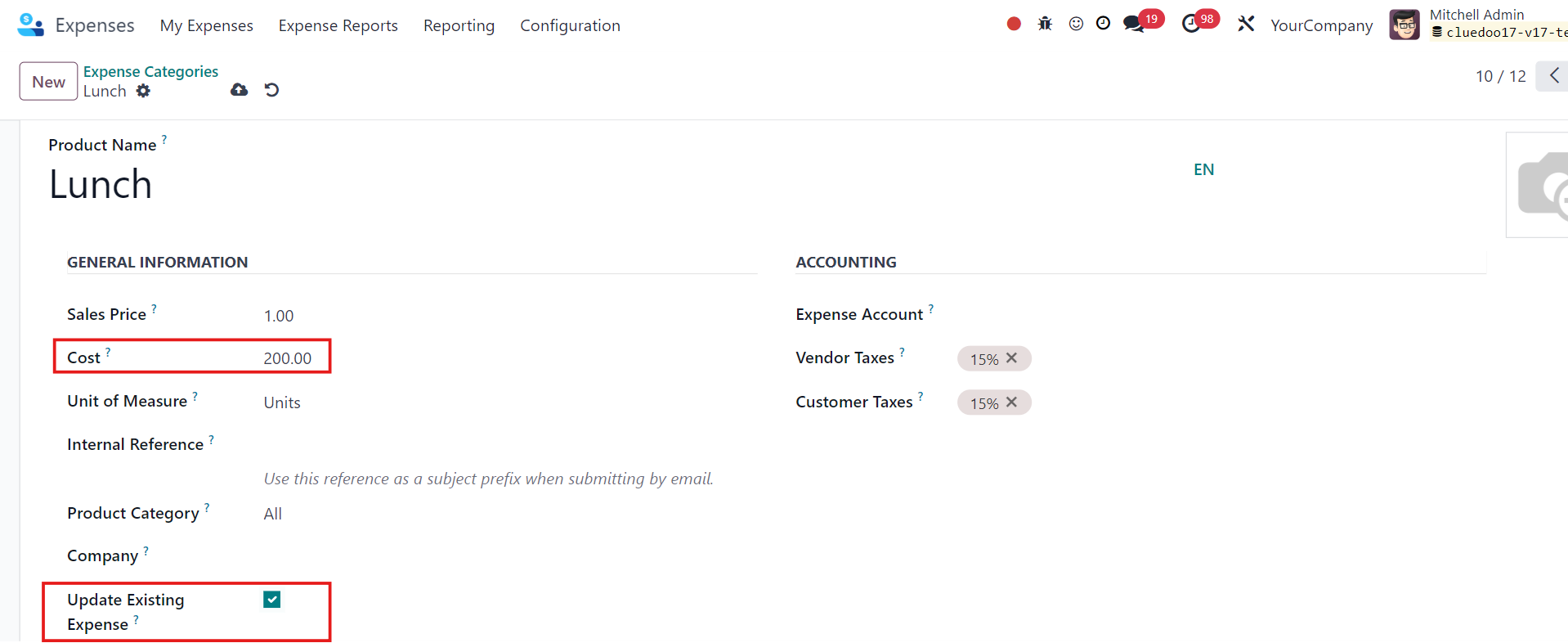
1️⃣ An Update Existing Expense button within Expense Categories. This feature allows you to choose whether to apply the new cost to all existing expenses linked to the category or limit the change only to new expenses moving forward. This added flexibility helps control expense updates based on specific needs or policies.
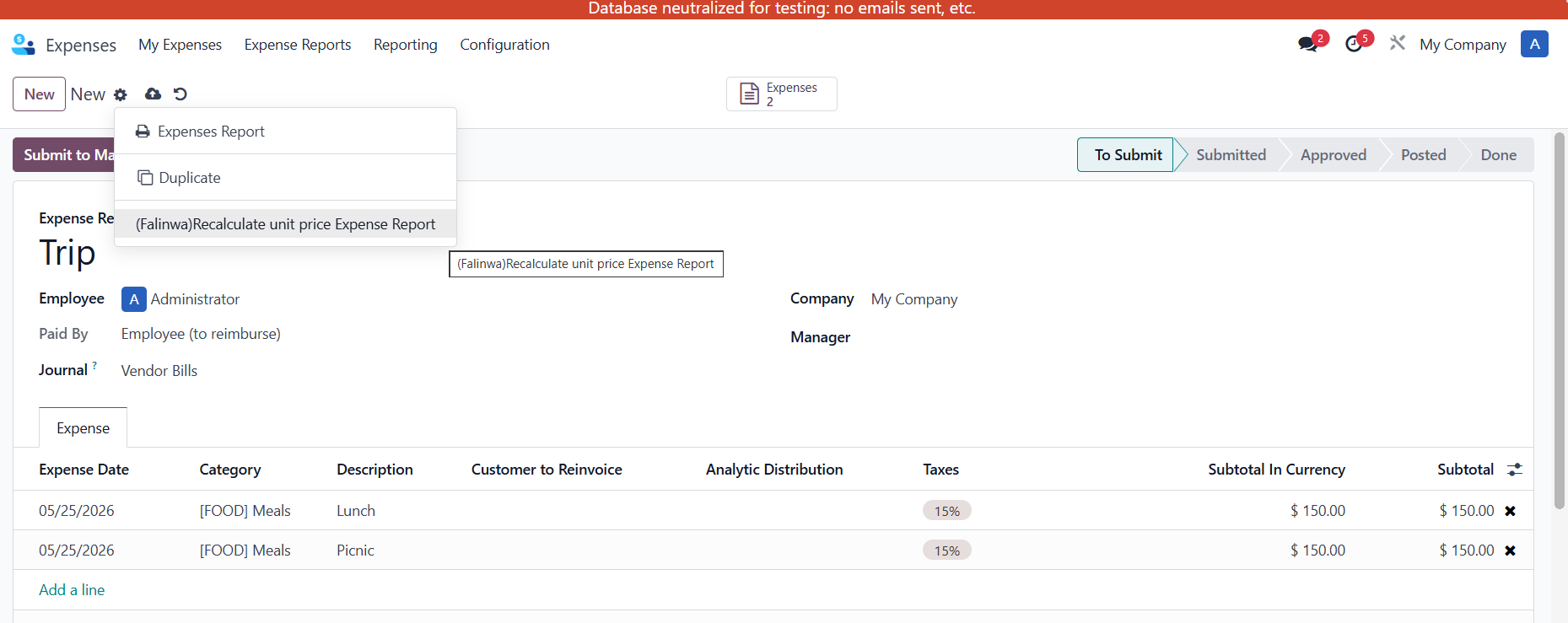
2️⃣ Recalculation Button: A dedicated "Recalculate unit price Expense Report" button is introduced on the expense report form. This allows managers or accountants to manually trigger a bulk update, ensuring all attached draft expense lines are instantly synchronized with the latest product costs before moving forward.
EXPENSE CATEGORIES: 1. Go to Expenses > Configuration > Expense Categories > New or choose an existing one > Fill in the necessary information > Save |
|
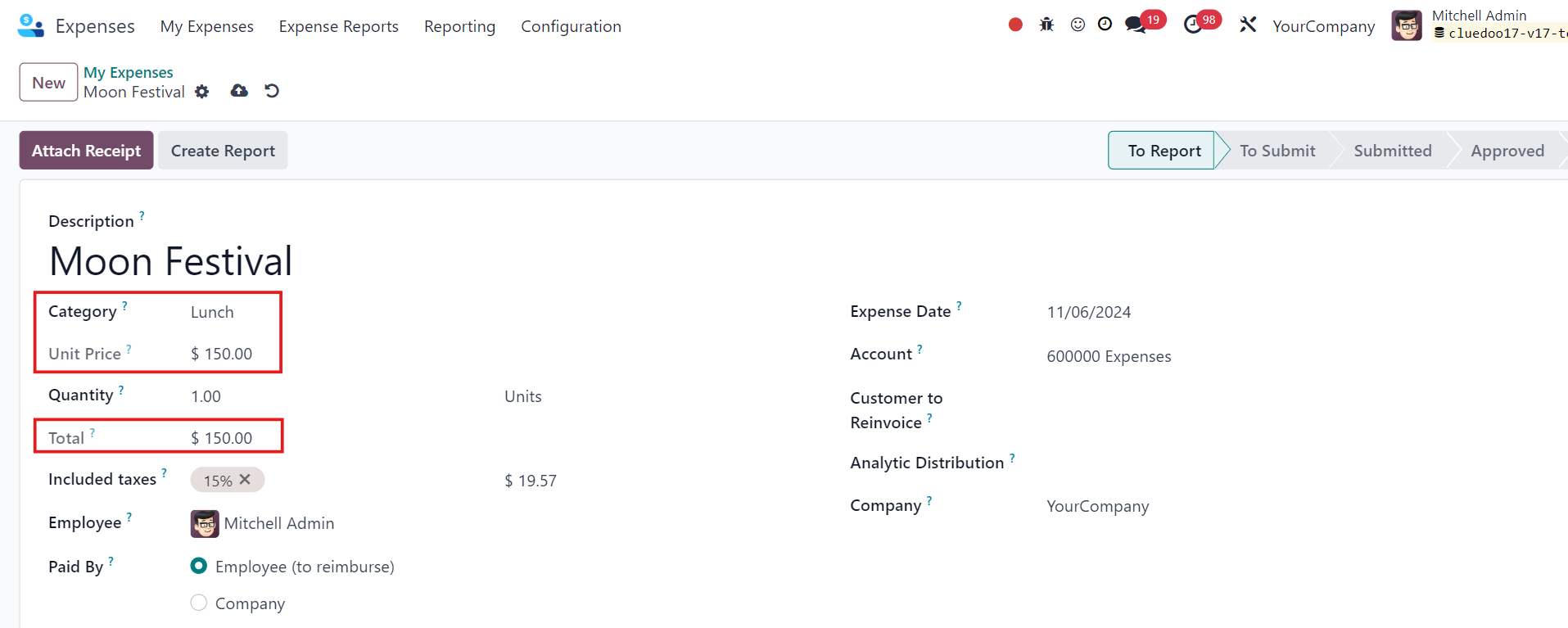
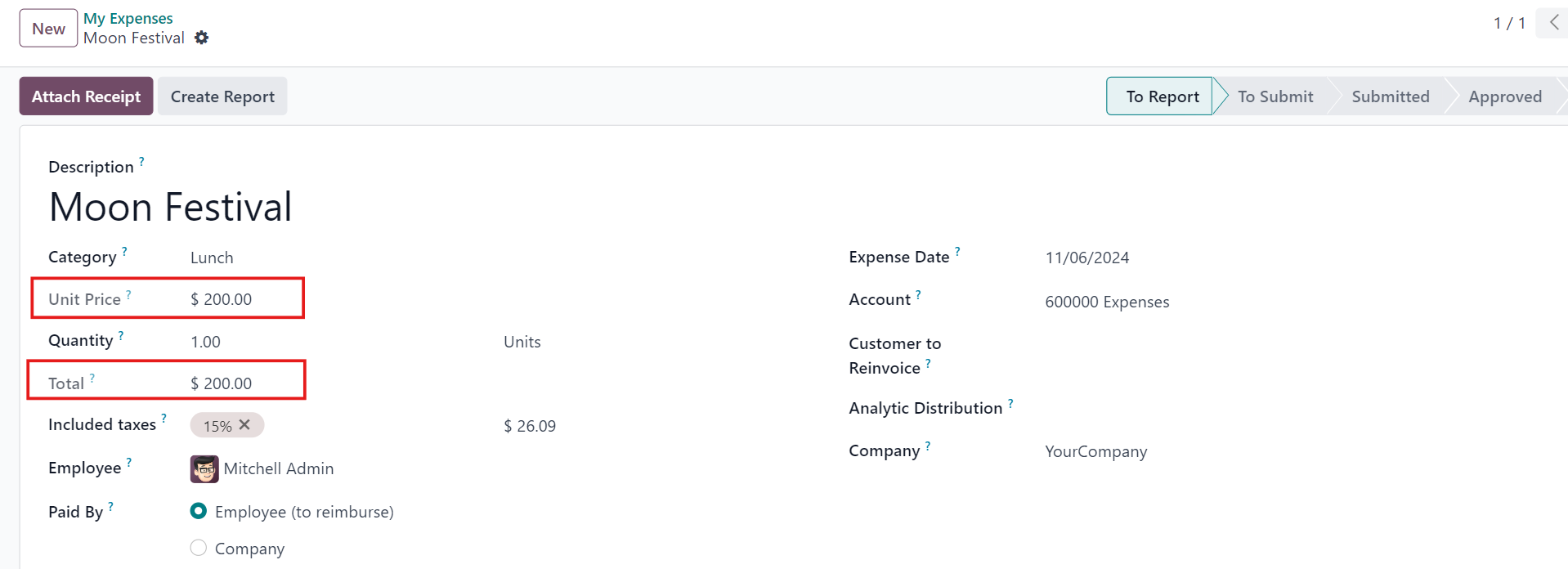
2. My Expenses > New > Fill in Description and select Category > The Unit Price and Total will be updated automatically > Save |
|
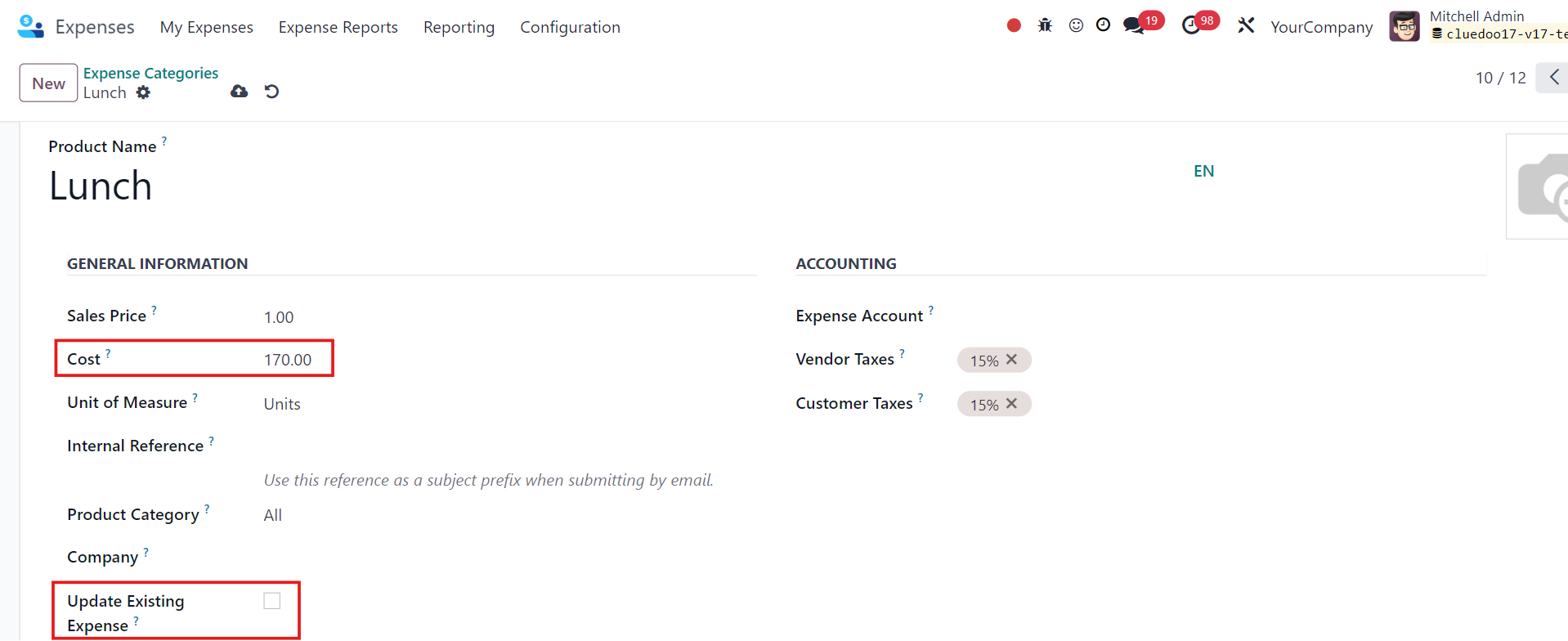
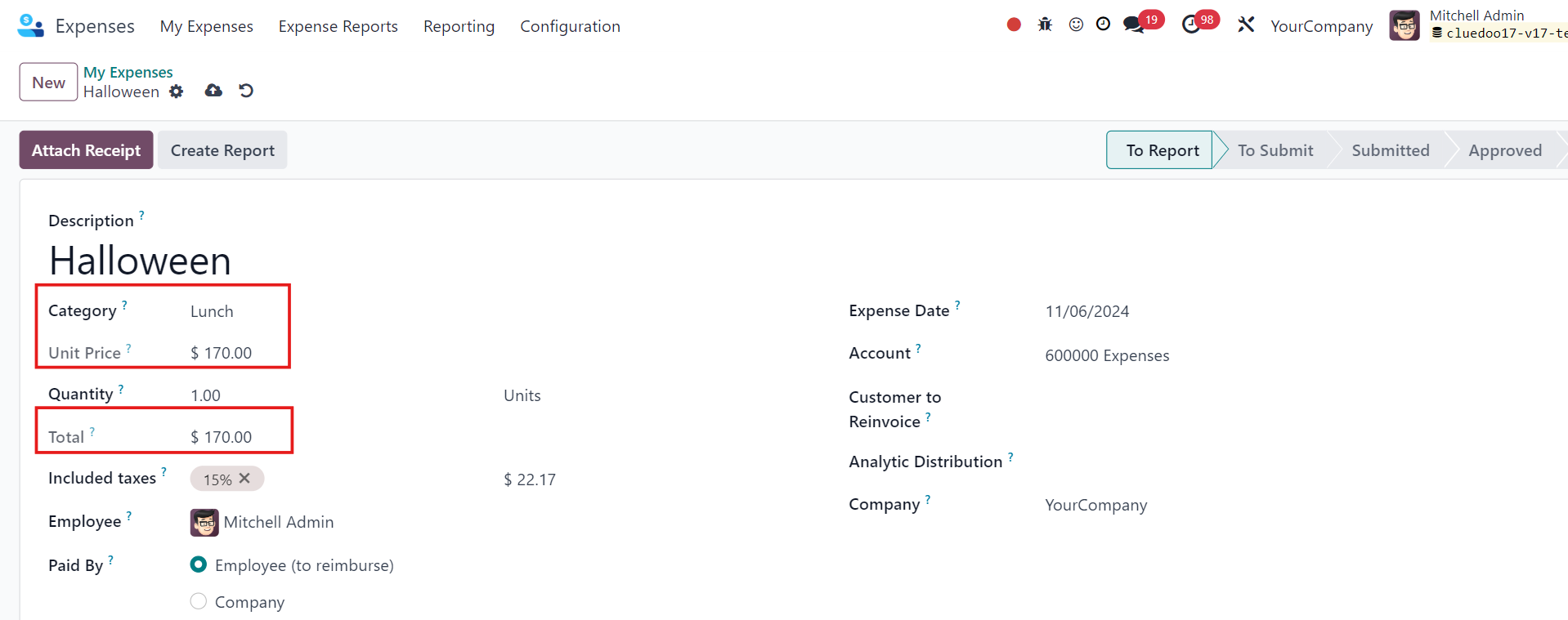
3. Head back to Expense Categories and change the cost > Decide whether you want to update existing expenses or not > Save If you do not check, only new expenses will have the updated cost. If you check, all the existing and new expenses will have the updated cost. Note that the cost can only be changed in existing expenses that have not been submitted to the manager yet. | Update Existing Expense not checked:
Update Existing Expense checked:
|
REPORT 4. Go to Expenses > My Reports > New > Add Expense line and Fill in the necessary information > Save |
|
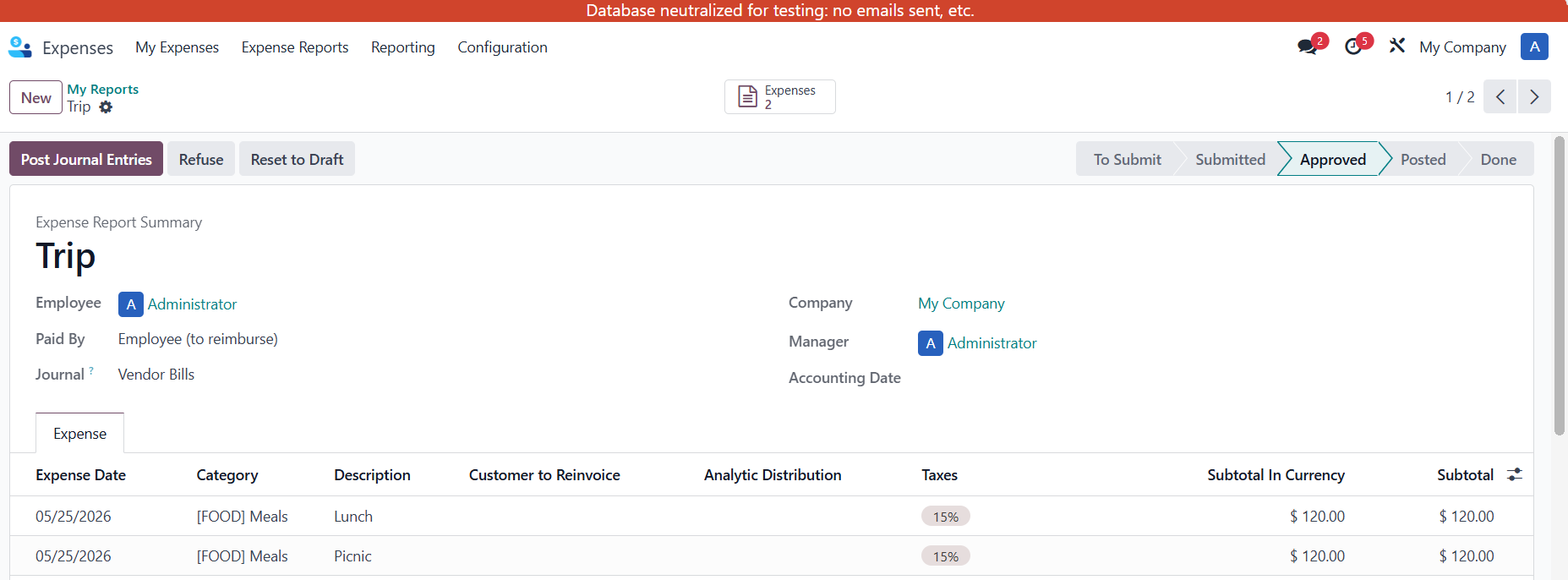
Whenever the user updates the product's cost price, the button "Recalculate unit price Expense Report" is available to recalculate the unit price for all existing draft expenses (excluding scenarios with multiple taxes). |
|
NOTE: Once an expense report is approved, it becomes completely locked; users can neither add new expense lines nor edit existing ones. |
|

STORY BEHIND THE FEATURE
ODOO BEHAVIOR
CLUEDOO BEHAVIOR
Cluedoo introduces an Update Existing Expense button within Expense Categories. This feature allows you to choose whether to apply the new cost to all existing expenses linked to the category or limit the change only to new expenses moving forward. This added flexibility helps control expense updates based on specific needs or policies.
MODULE +
CLUEDOO RECOMMENDATIONS
Install on 100% of the database.
HOW TO USE THIS MODULE
1. Go to Expenses > Configuration > Expense Categories > New or choose an existing one > Fill in the necessary information > Save |
|
2. My Expenses > New > Fill in Description and select Category > The Unit Price and Total will be updated automatically > Save |
|
3. Head back to Expense Categories and change the cost > Decide whether you want to update existing expenses or not > Save If you do not check, only new expenses will have the updated cost. If you check, all the existing and new expenses will have the updated cost. Note that the cost can only be changed in existing expenses that have not been submitted to the manager yet. | Update Existing Expense not checked:
Update Existing Expense checked:
|





