


STORY BEHIND THE FEATURES
ODOO BEHAVIOUR
CLUEDOO BEHAVIOUR
In many cases, time is consumed, for example, for pre-sales tasks, before clients decide to use the service. Therefore, it's often necessary to create projects and tasks beforehand to record time even before the quotation is confirmed.
The Cluedoo module allows previously created projects, tasks, and recorded hours to be linked to future sales orders.
USE CASE
During the pitching phase for an ERP implementation, the pre-sales process consumes approximately 10 hours. It becomes essential to create projects and tasks in advance to accurately track these hours prior to quotation confirmation.
DEPENDENCIES
Project/Task Template
Task Analytic Account from Sales
Recommend combining with CRM: Opportunity to Project
For full optimization: Opportunity → Project/Task → Sales Order
OUR FEATURES AS A SOLUTION
Analytic Account on Sale Order Line
HOW TO USE THIS MODULE?
Key set-up
\t1. Setup Project Template and Task Template
\t- For detailed instructions please refer to module Project/Task Template
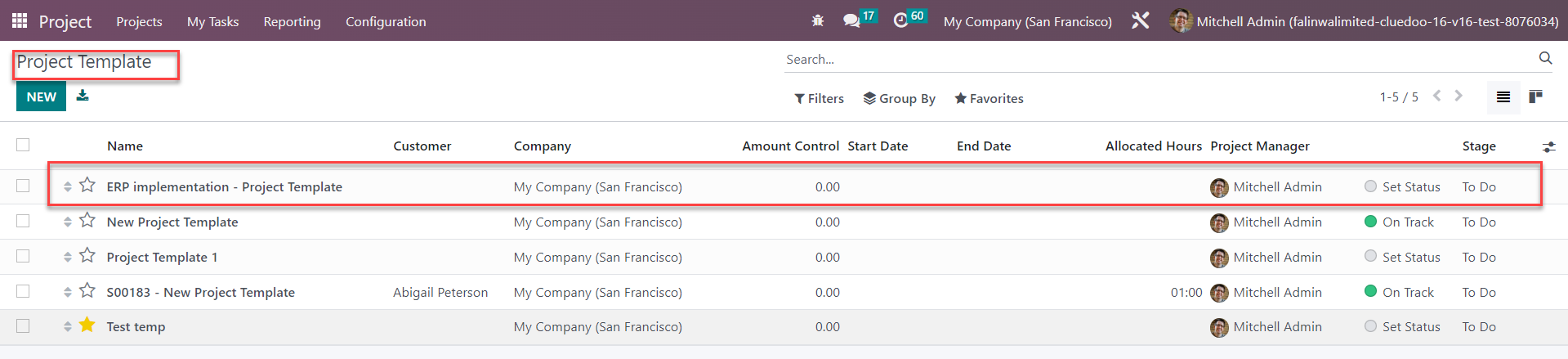
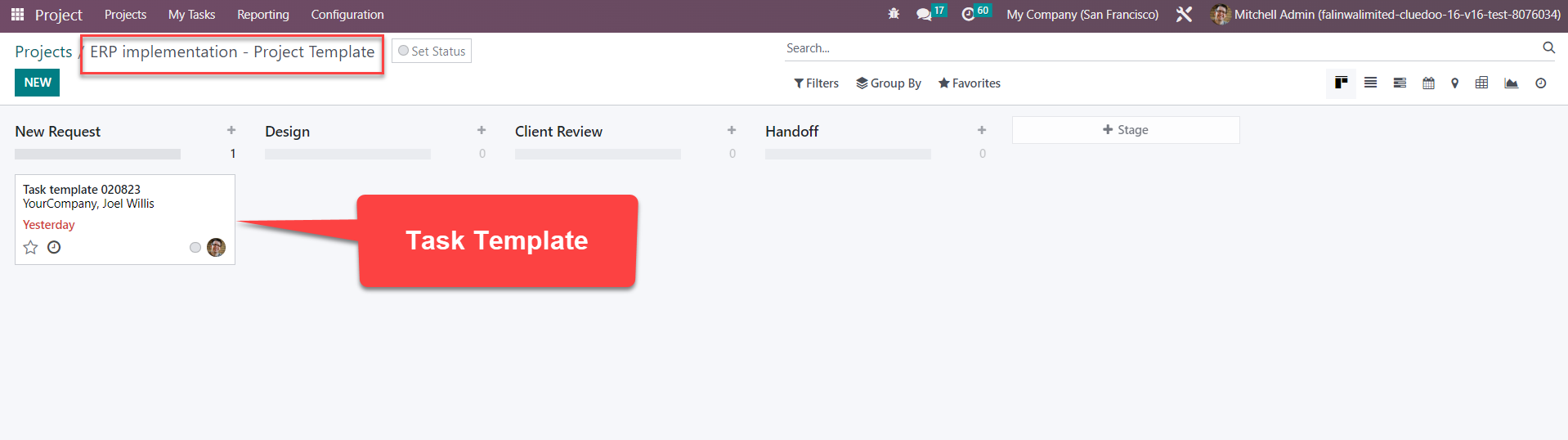
\tFor this use case, a project template called "ERP implementation - project template" was set up with 1 task template inside
\t
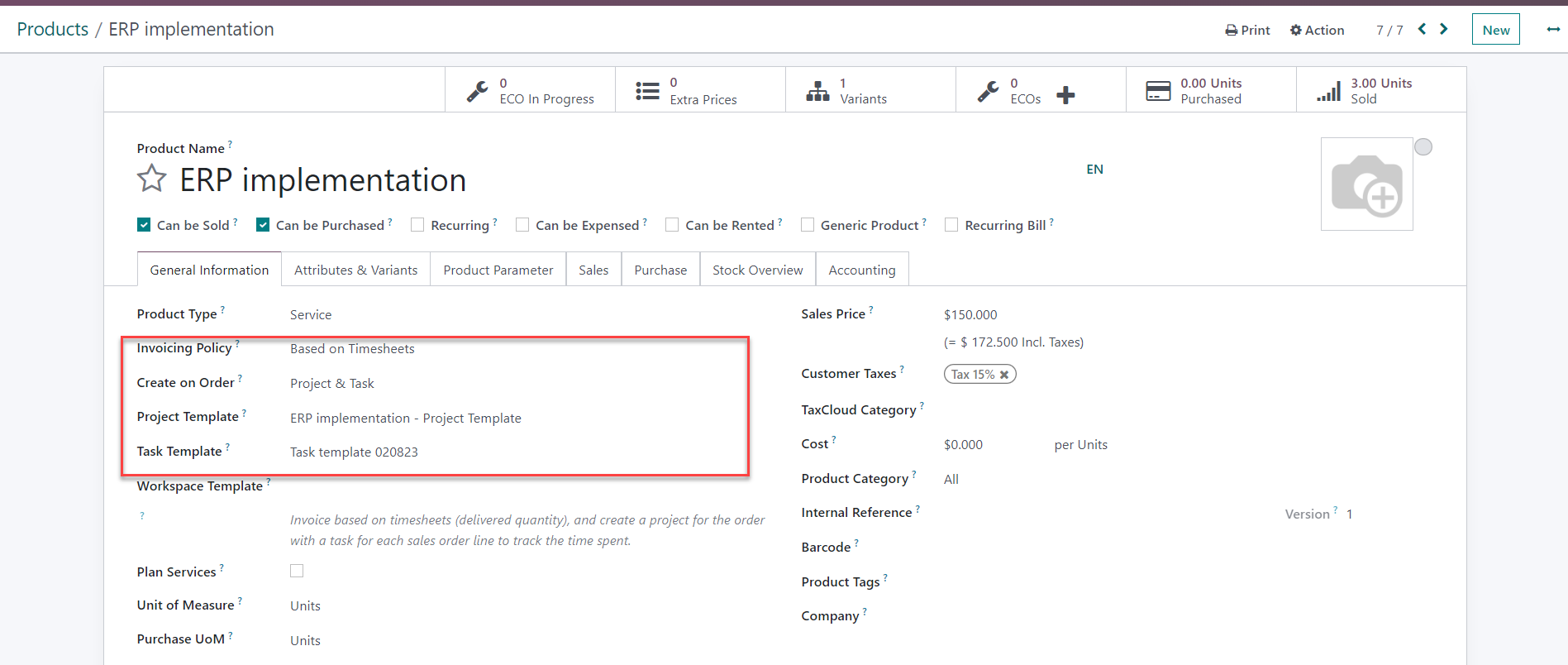
2. Configure product:
\t- Product Type: Service
- Invoicing policy: Based on Timesheets
- Create on Order: Project and Task
- Project Template: select Project Template set up above
- Task Template: select Task Template set up above
\t
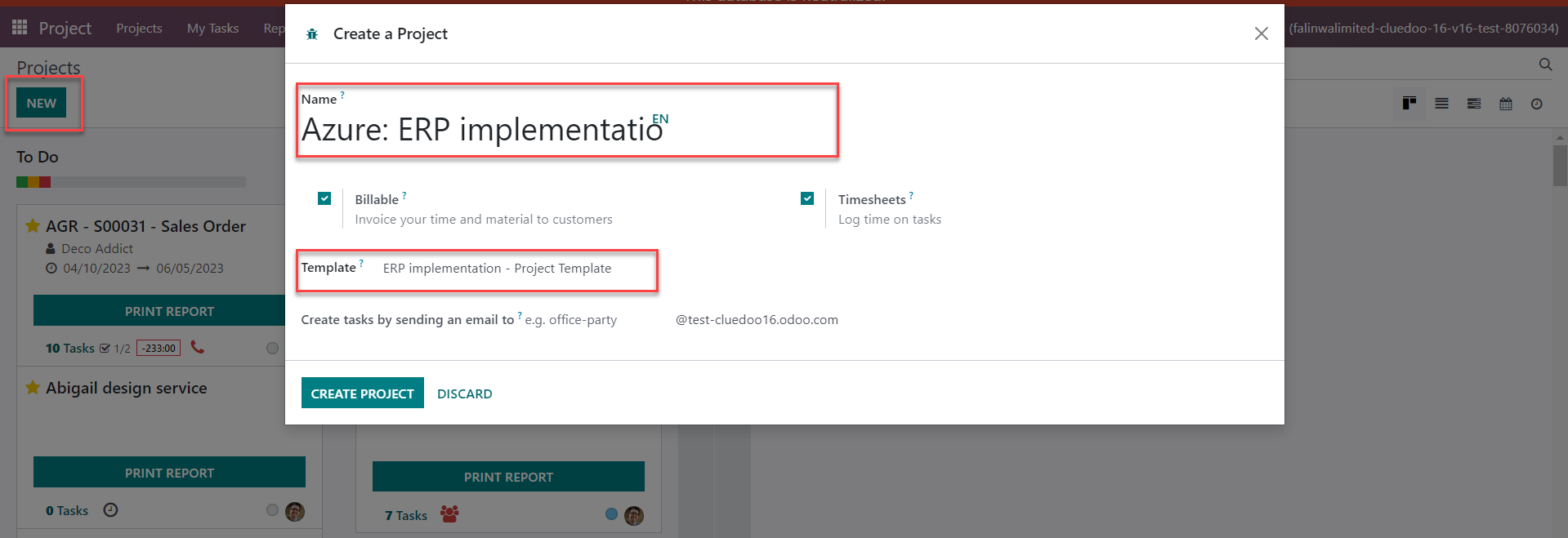
Scenario 1 (Solution to Use case): Project and task created prior to quotation confirmation.
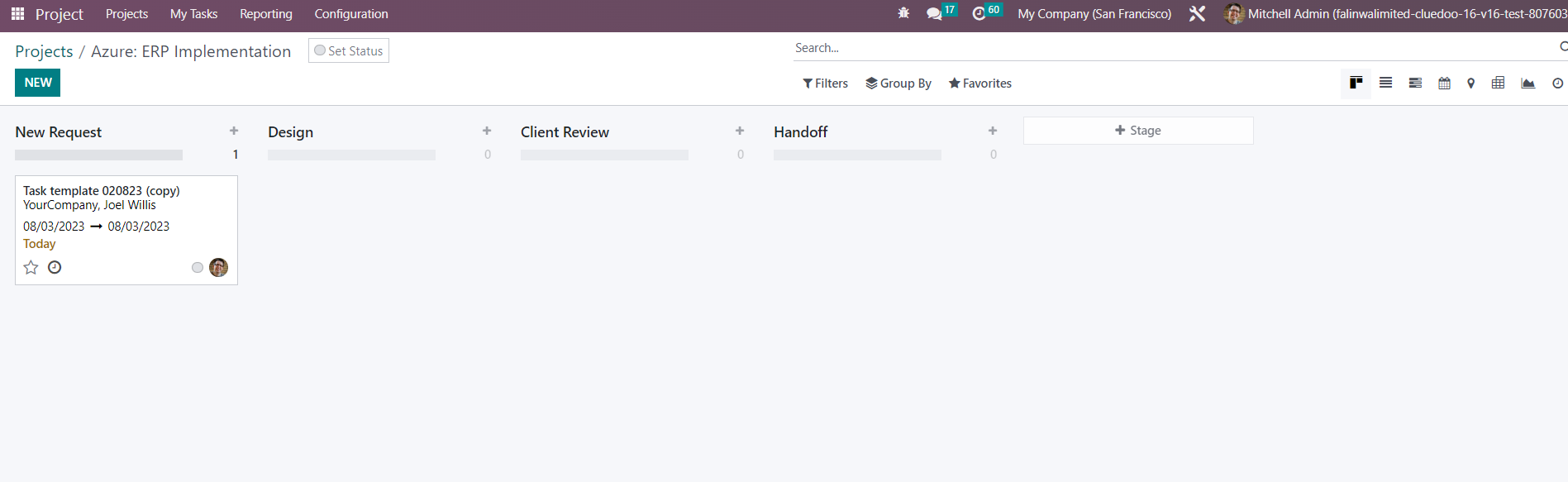
\tAction 1: Create a new Project from "ERP implementation - project template"
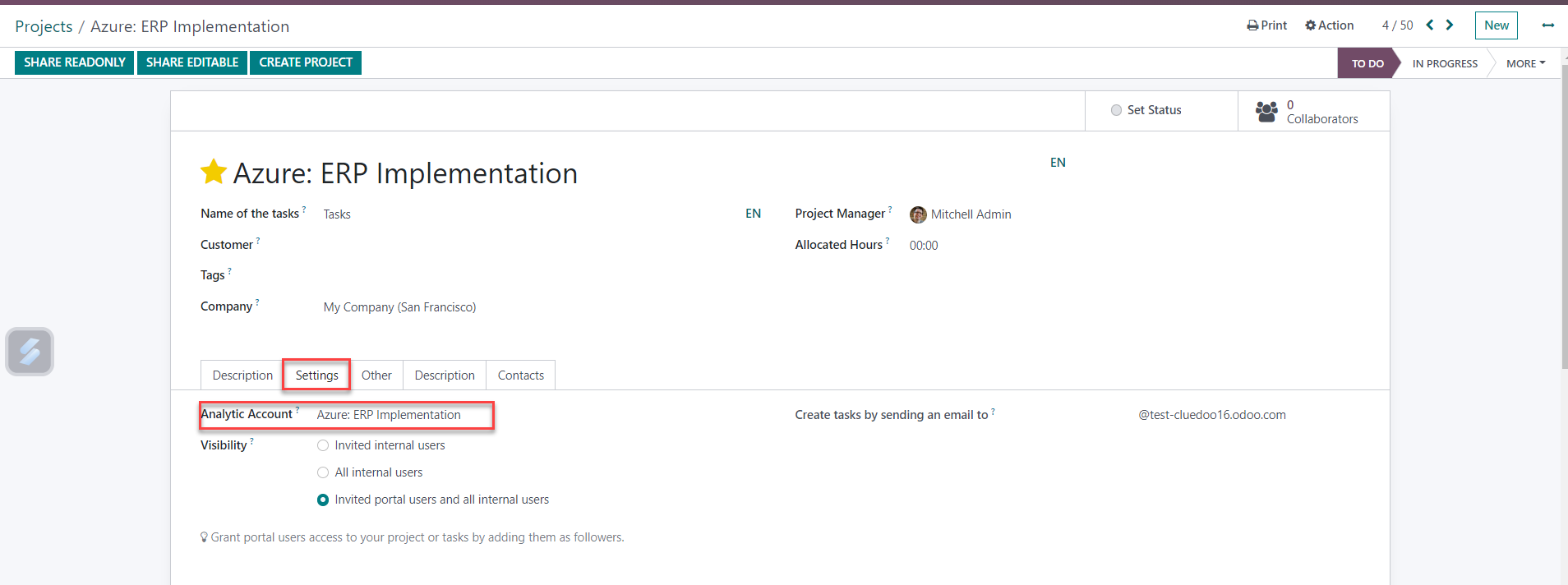
Result:
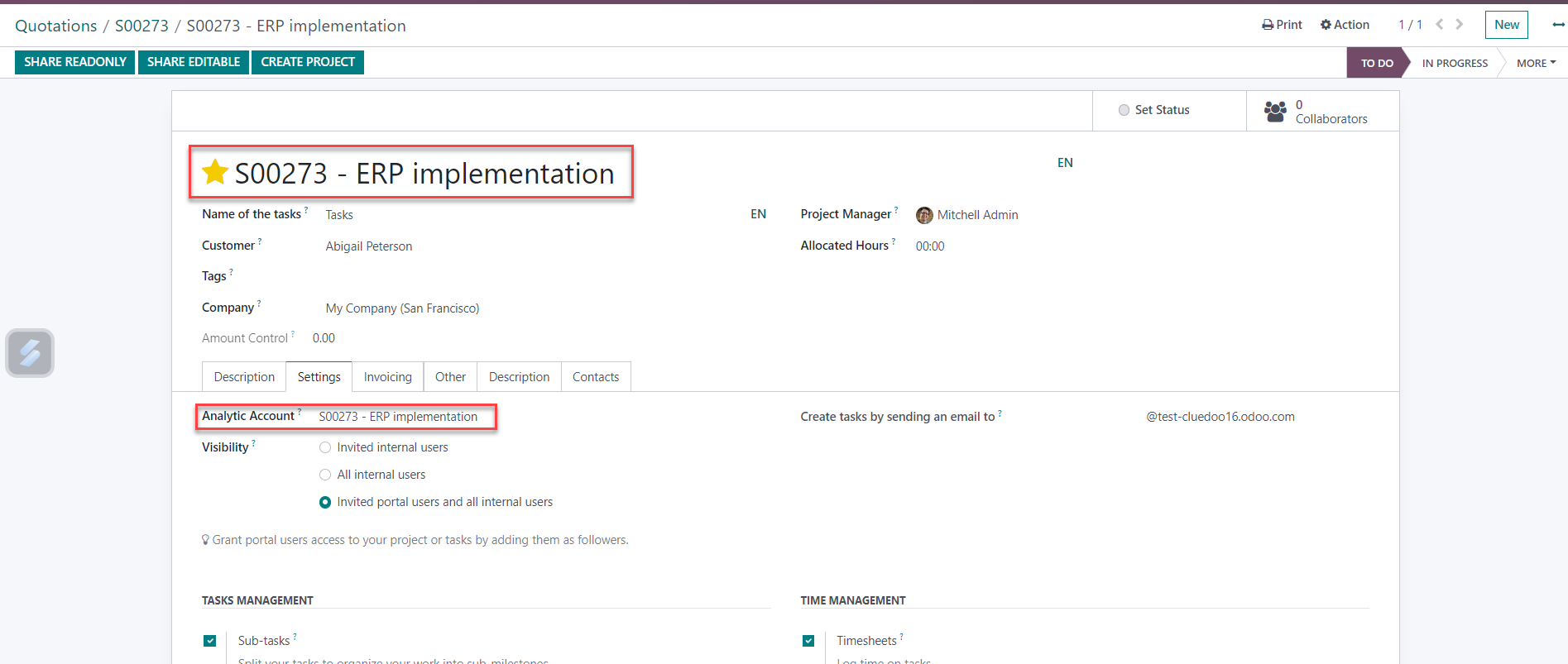
\t1. On the newly created project's settings, an analytic account (AA) was auto-generated
\t
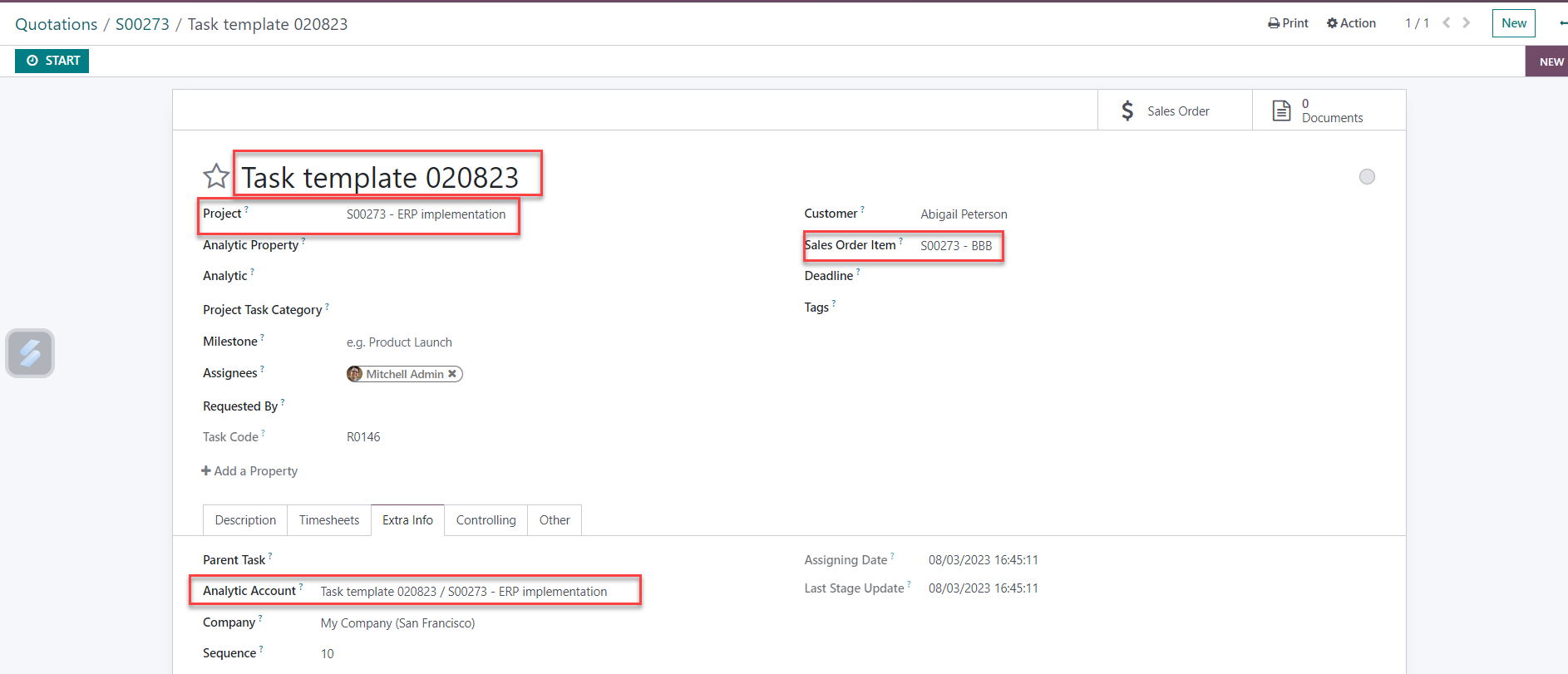
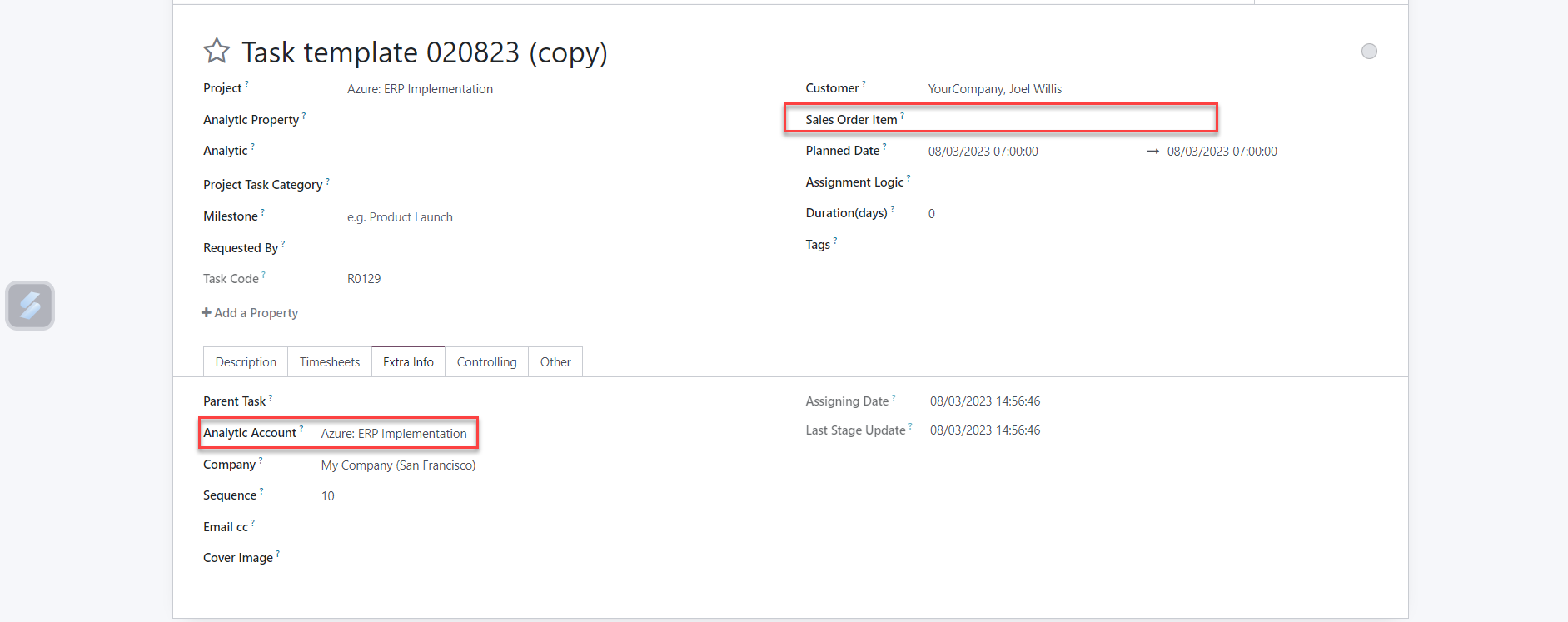
2. The new task inside the new project was generated based on the task template
- Task's AA is the project's AA
\t- At the moment, the task has not been assigned a specific Sales Order
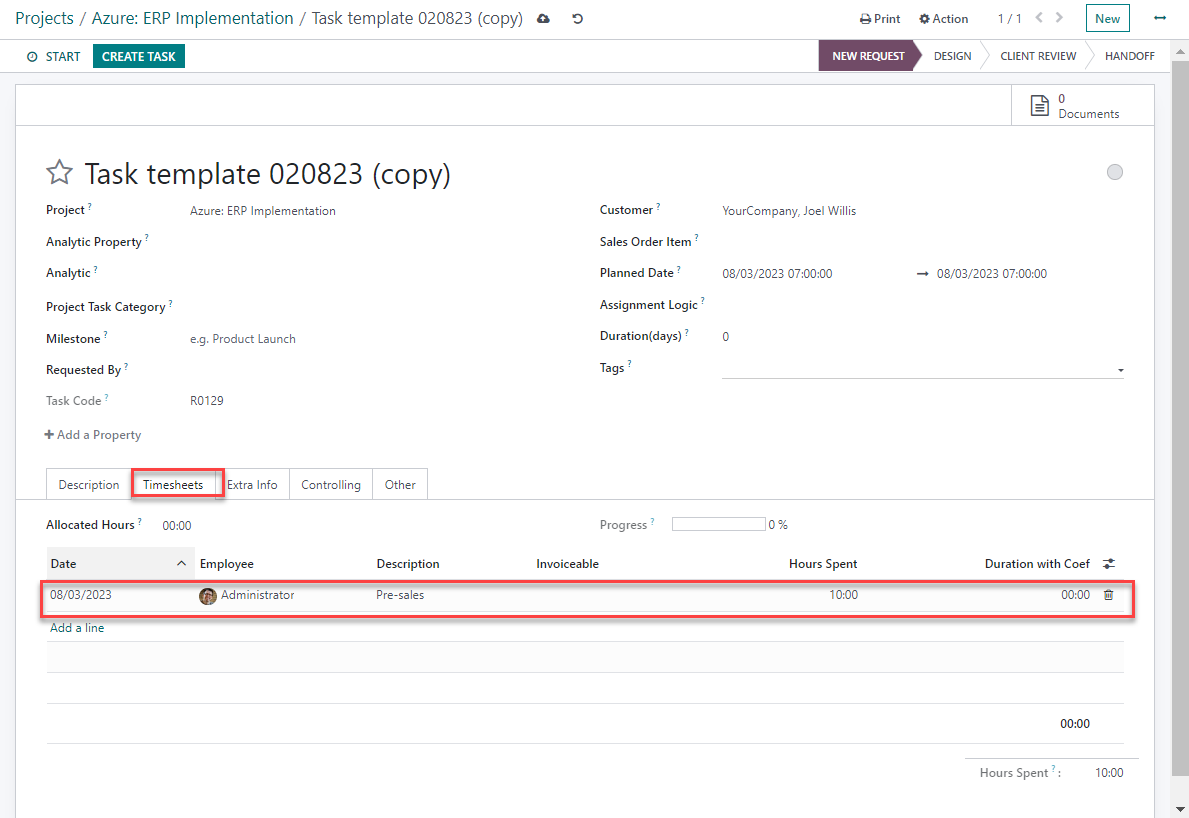
Action 2: Log pre-sales hours directly in the task's timesheet tab
\t
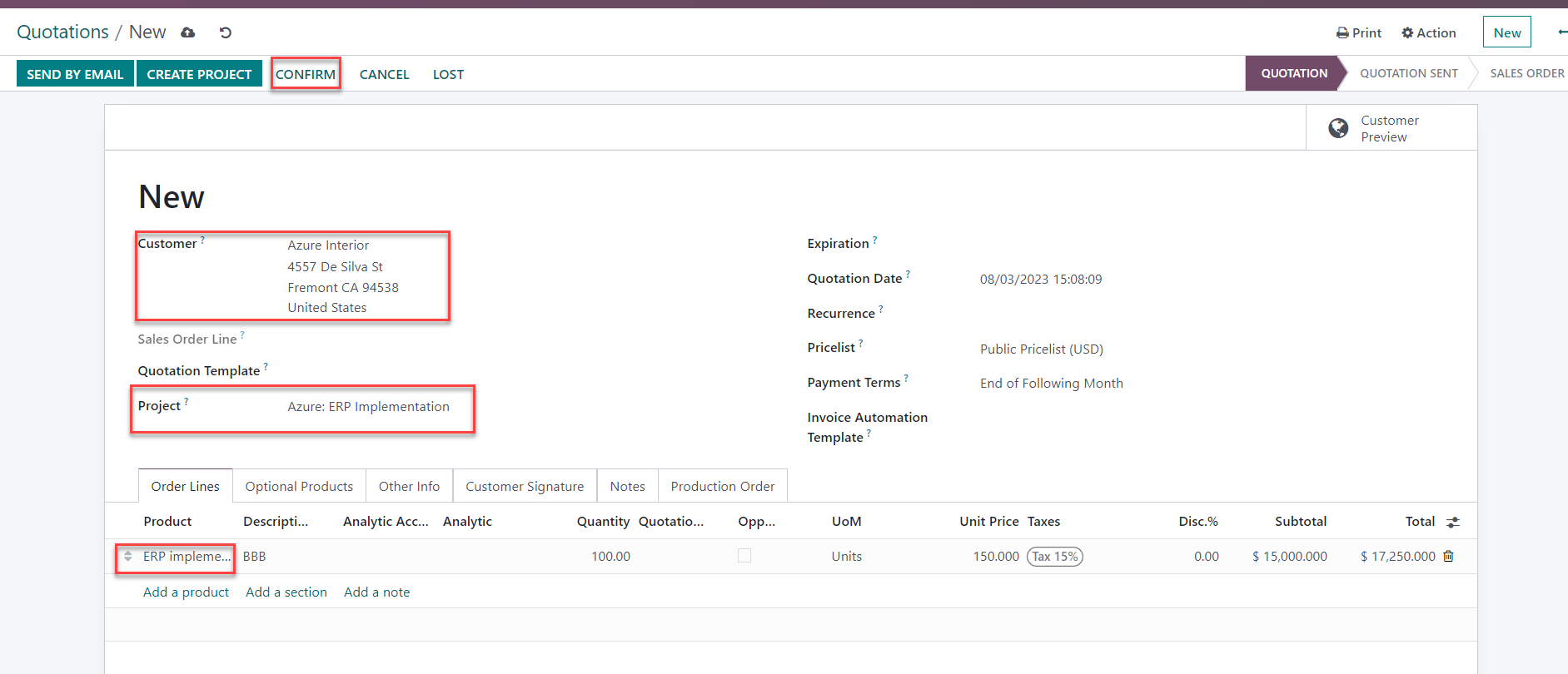
Action 3: Once the client accepts the proposal, confirm the quotation using the configured product and pre-created project
Result:
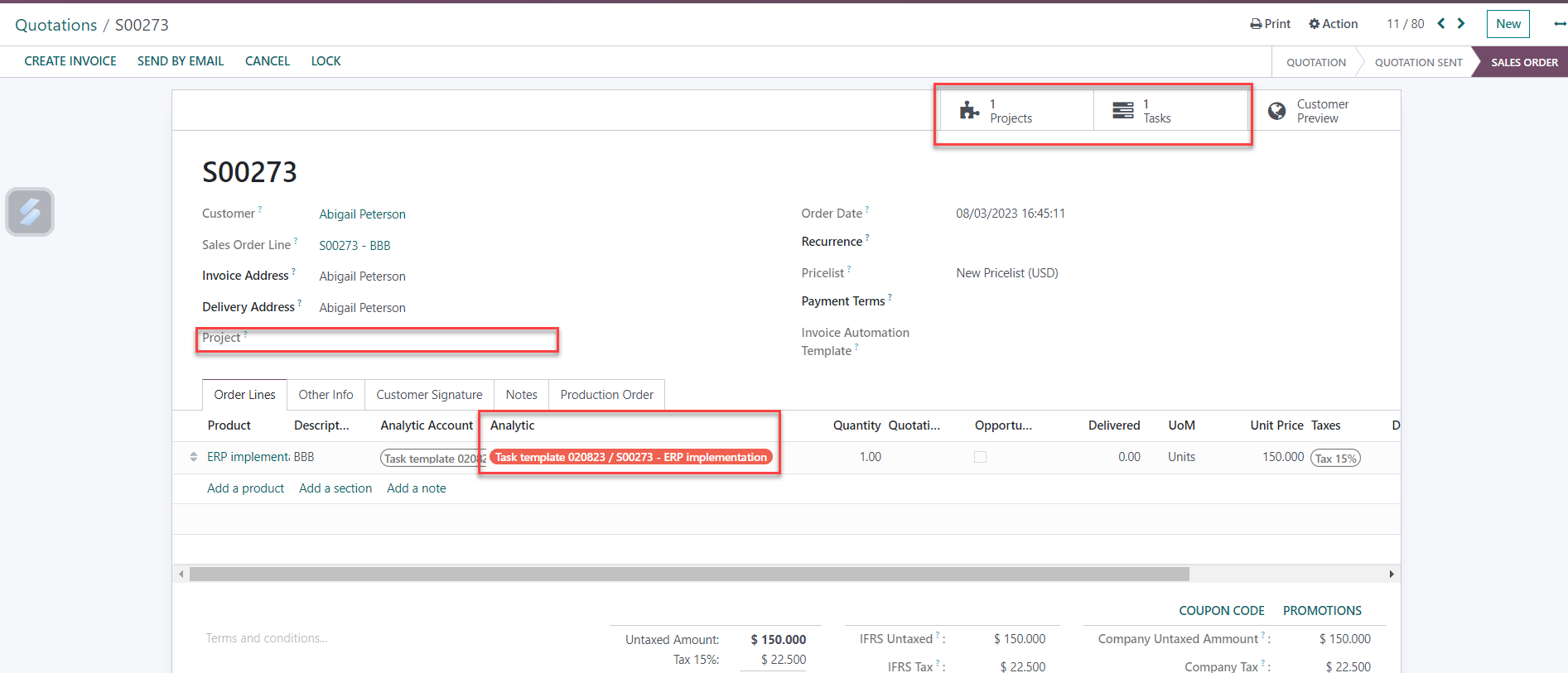
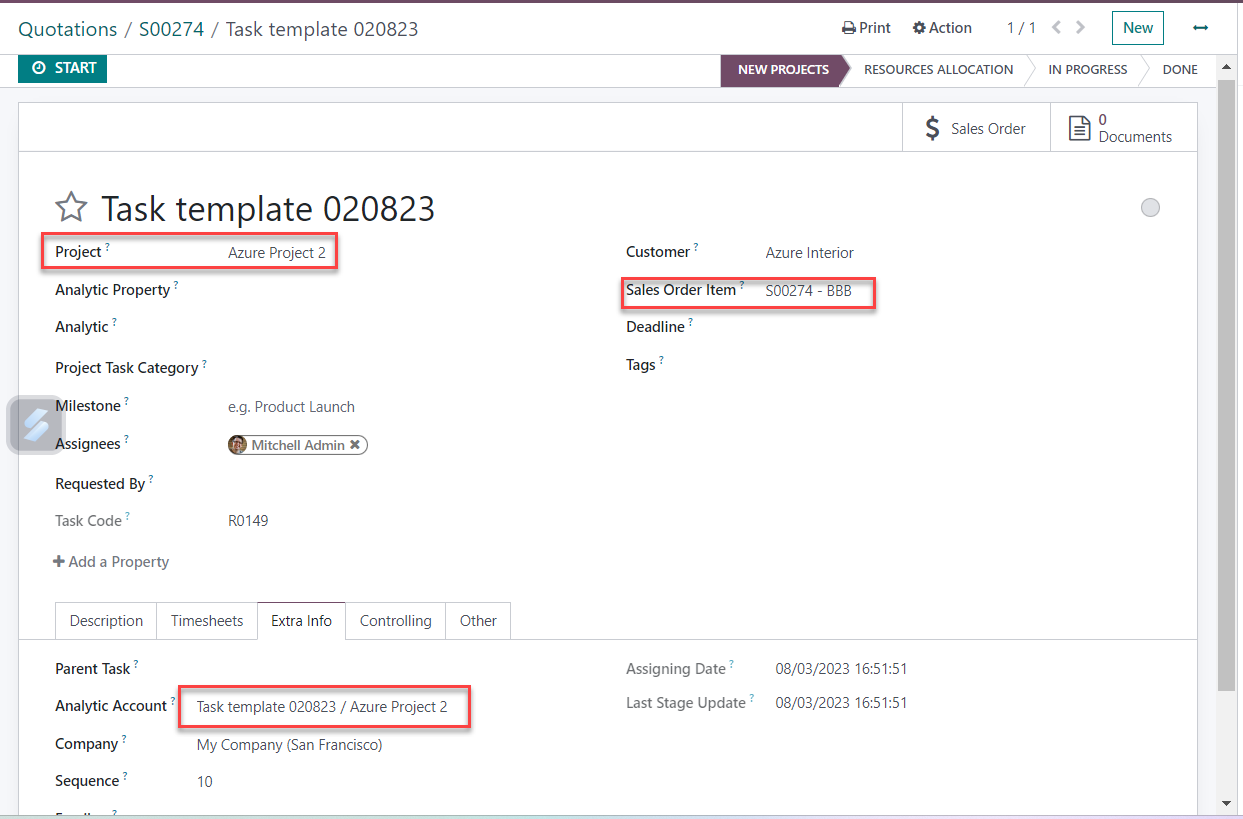
- The project and task were created in advance, and the task matches the task template on the product configuration. Therefore, confirmed quotation will not generate new projects and tasks. The previously created project and task will be linked to the Sales Order
- The AA of the previously created task will be assigned to the Sales Order line
- Time recorded from the task will also be updated to Sales Order
- Smart buttons on the Sales Order provide quick access to the linked Project, Task, and Timesheet
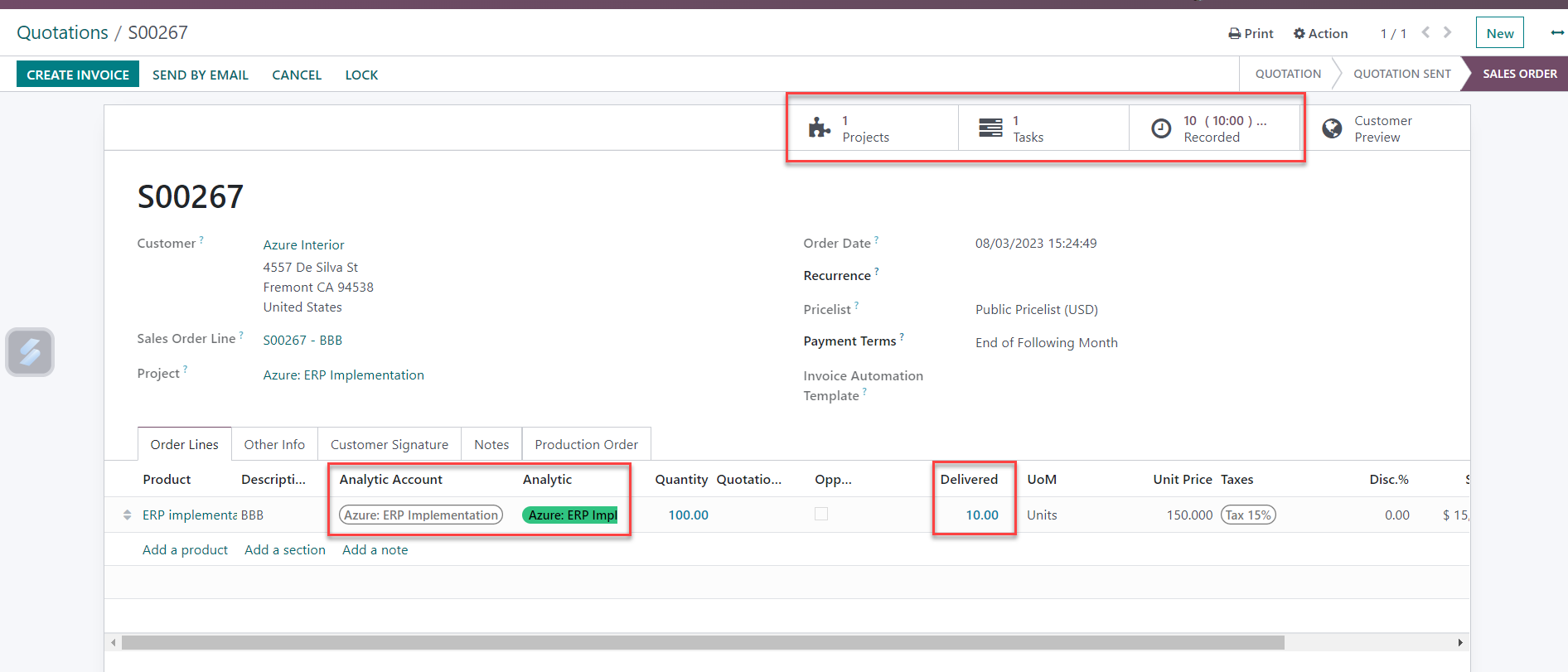
- The previously created task is now fully assigned to the confirmed Sales Order
\t

Scenario 2: Project Exists but No Matching Task
Context: An existing project for the client already contains tasks. The client requests the addition of ERP implementation services
Note: If any existing tasks inside project were created from the task template on product configuration and not assigned to a specific Sales order > confirming a new quotation will link these existing tasks to the new Sales Order
\t
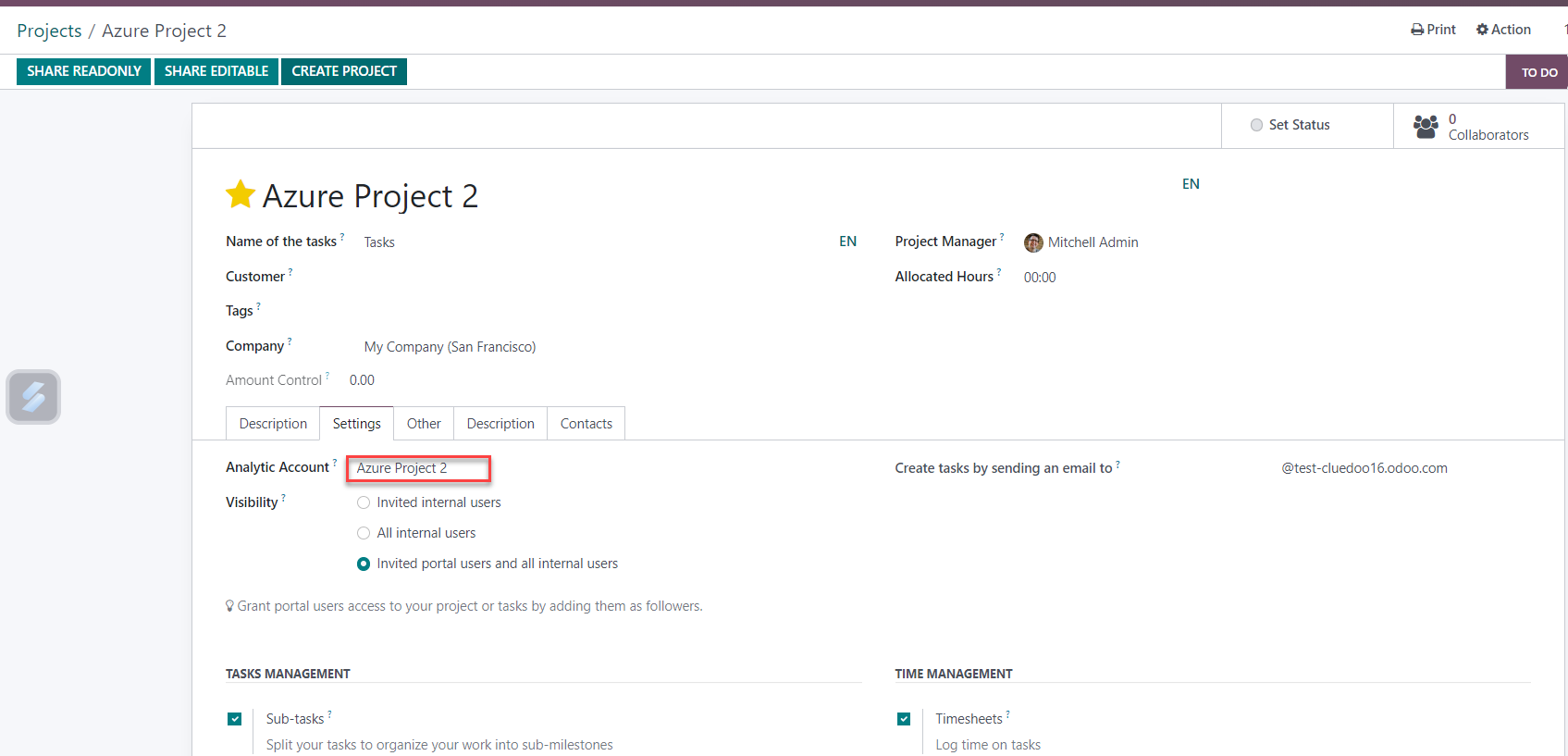
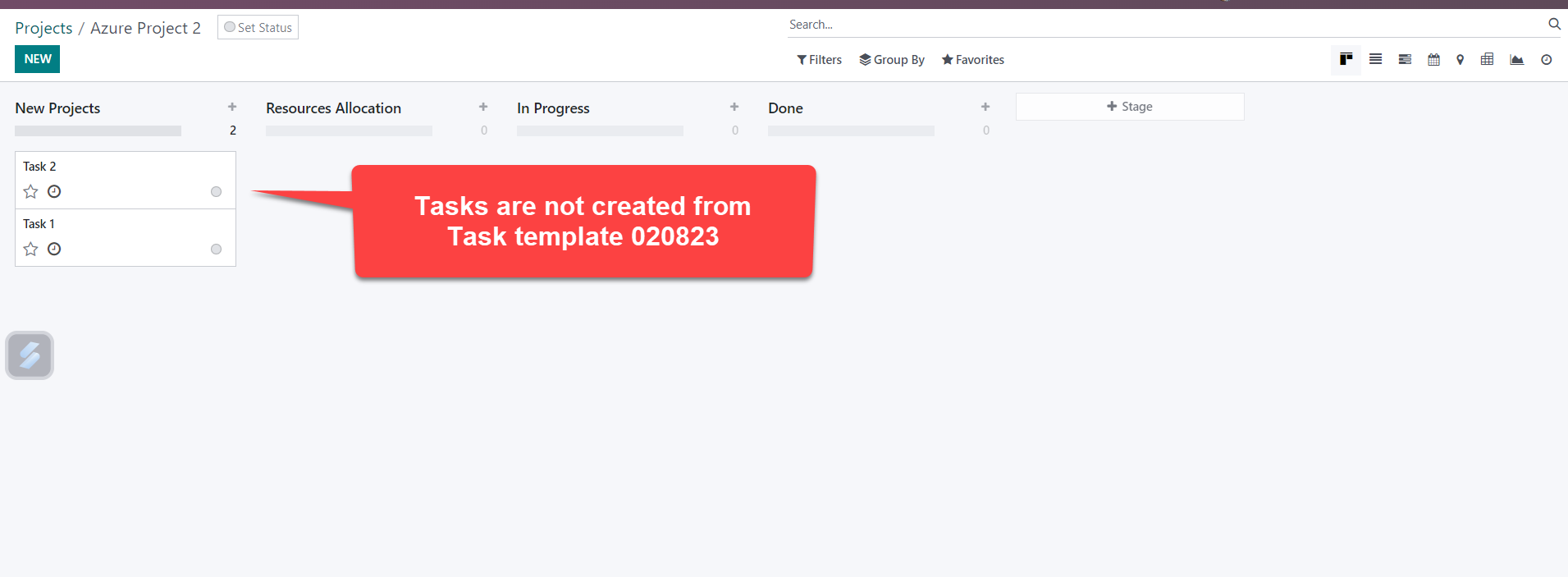
Action 1: Confirm quotation
Result:
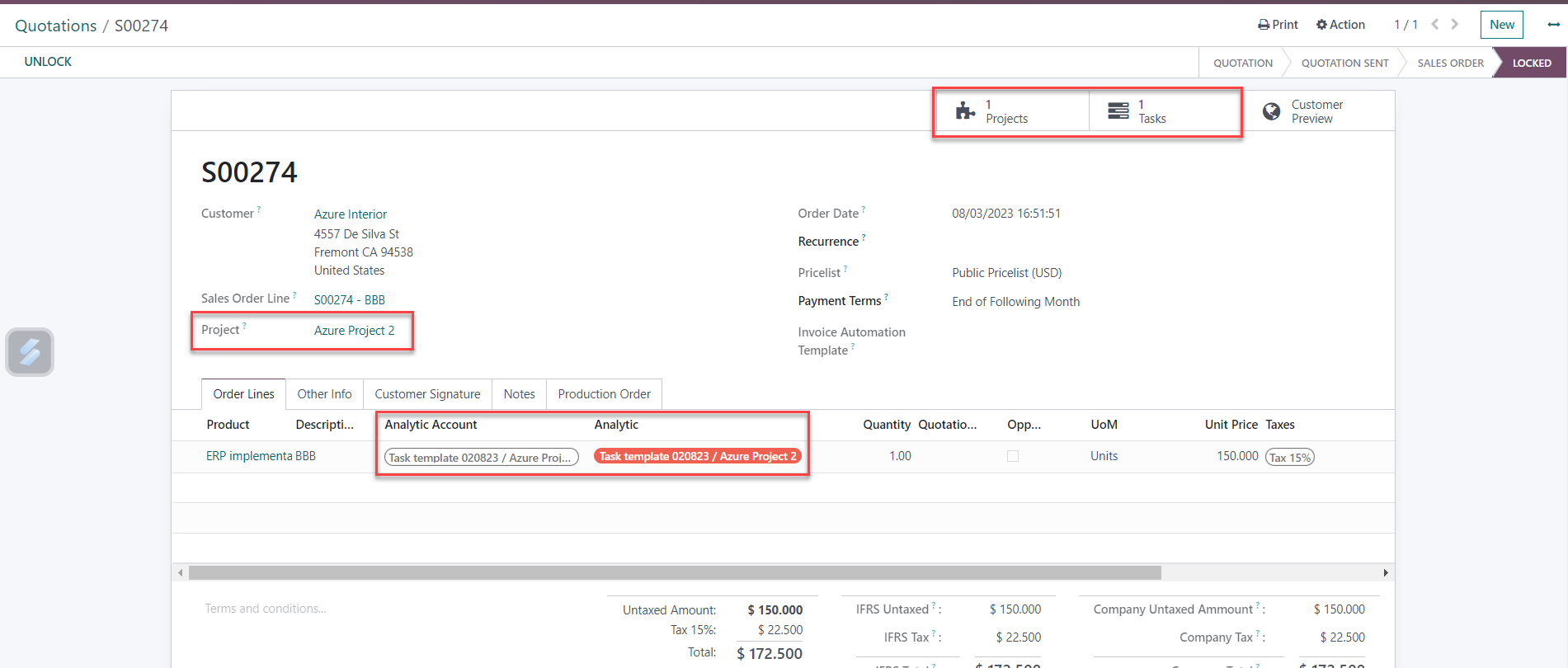
- A new task will be auto-generated from the task template from product configuration
- A new AA is generated for the task, inheriting the project's AA
- The task's AA will be assigned to the Sales Order line
\t
Scenario 3: No Project and no task created prior to quotation confirmation.
Context: In cases where the proposal phase is simple and no pre-sales time has been logged, no project or task is created before quotation confirmation
\tAction 1: Simply create and confirm the quotation, leaving the project field blank
Result:
- A new project and task are automatically created from the templates defined in the product configuration
- New AA is auto-generated for the new project
- A new AA is also generated for the new task, with the project’s AA set as its parent
- The task's AA is assigned to the Sales Order line
\t