ODOO'S FUNCTION
By default, Odoo requires users to manually split and assign each stock move line when both lots and packages are involved in the same transfer. This means you have to carefully calculate and enter every line yourself to ensure the quantities match - a time-consuming process that is highly prone to human error.
CLUEDOO'S FUNCTION
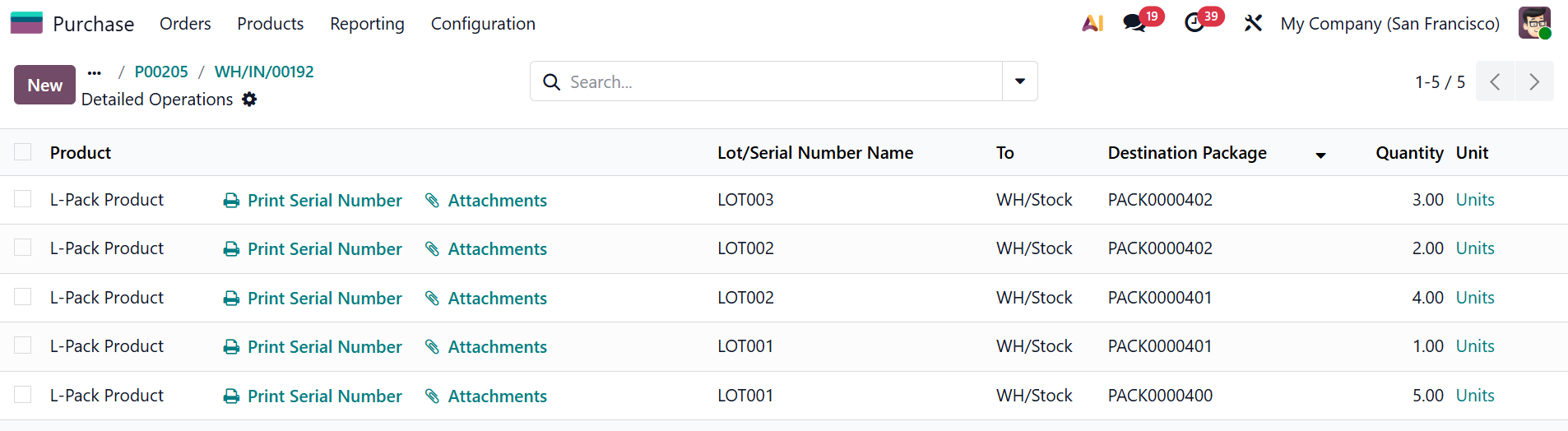
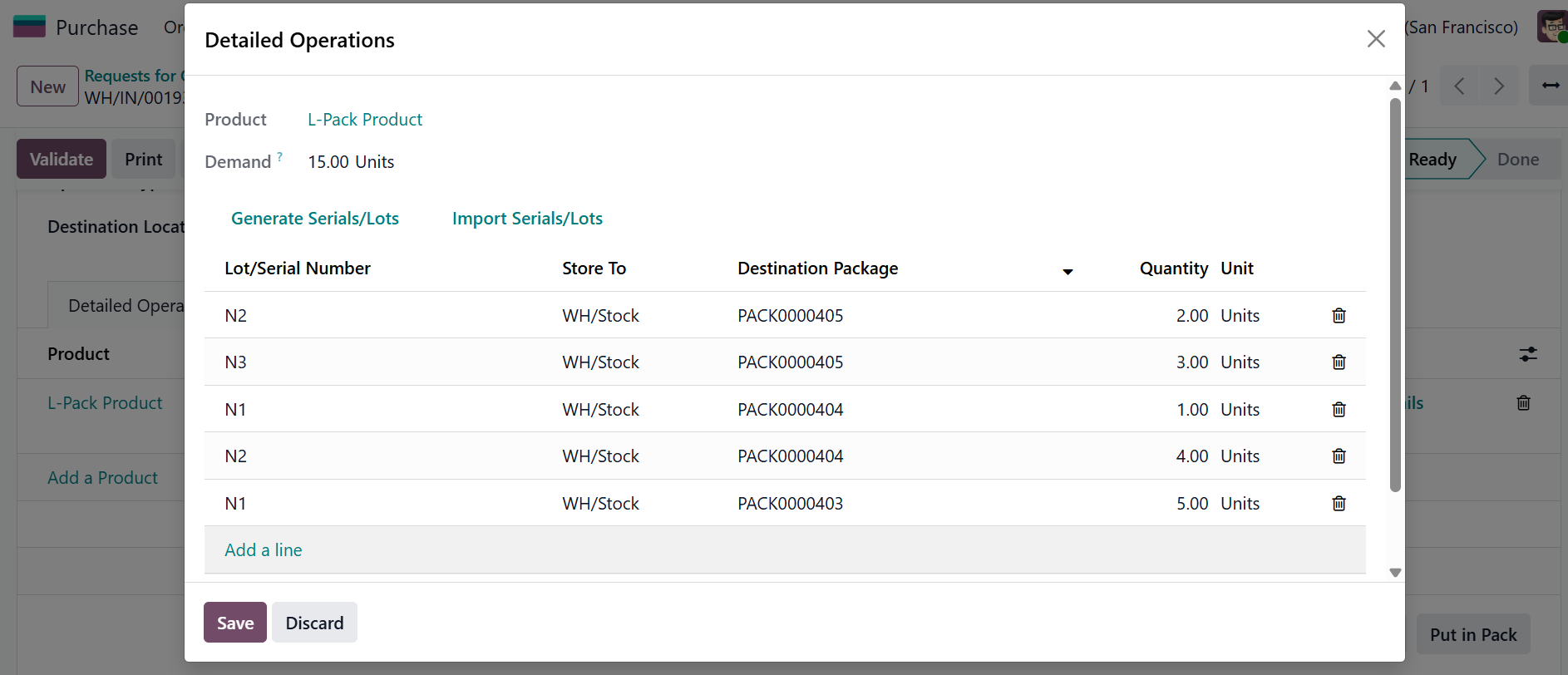
CLuedoo brings the power of automatically split and assign lots and packages in sequential order until the maximum quantity is reached. Whether you enter lots first or packages first, the module intelligently distributes stock move lines to ensure both are filled correctly without conflict. Say goodbye to manual line splitting and data inconsistencies between your Backend and Barcode operations.
CONFIGURATION 1 . Open an existing product or Create a new product tracked by Lot | 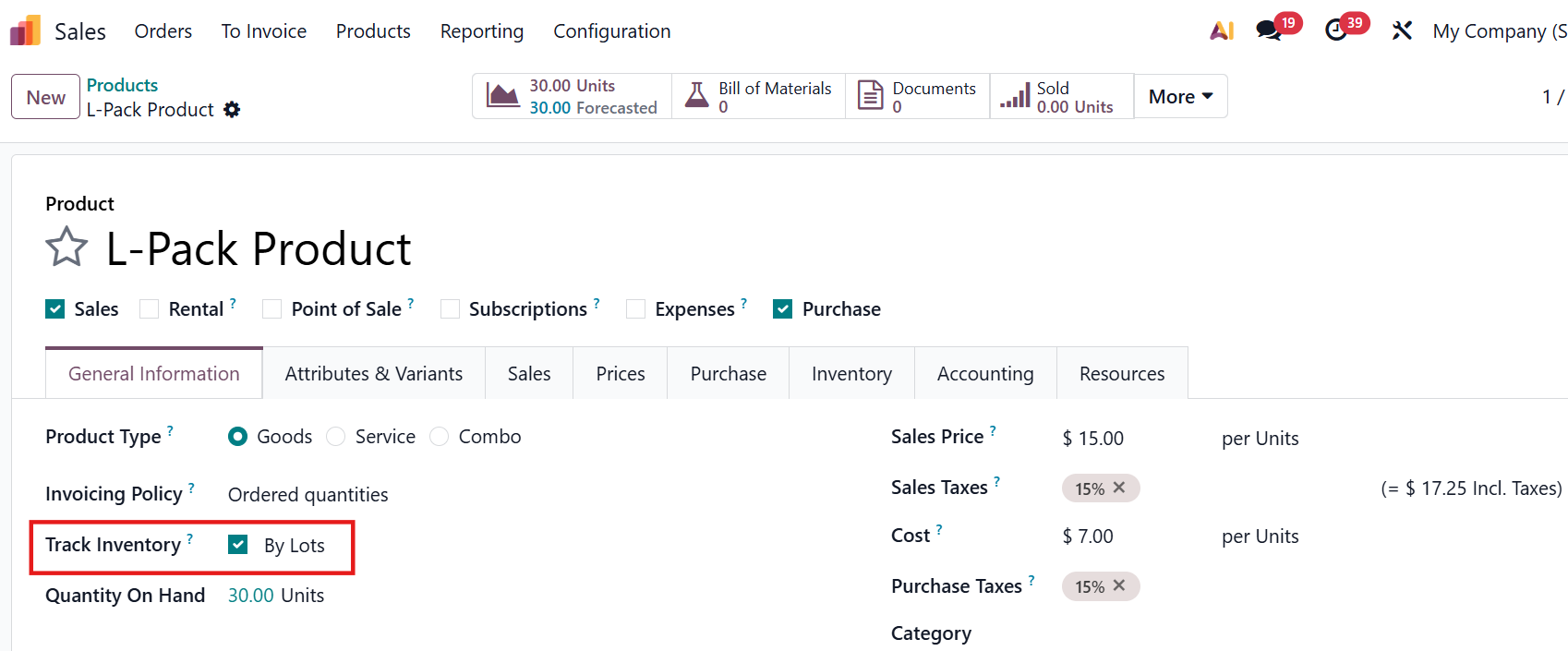 |
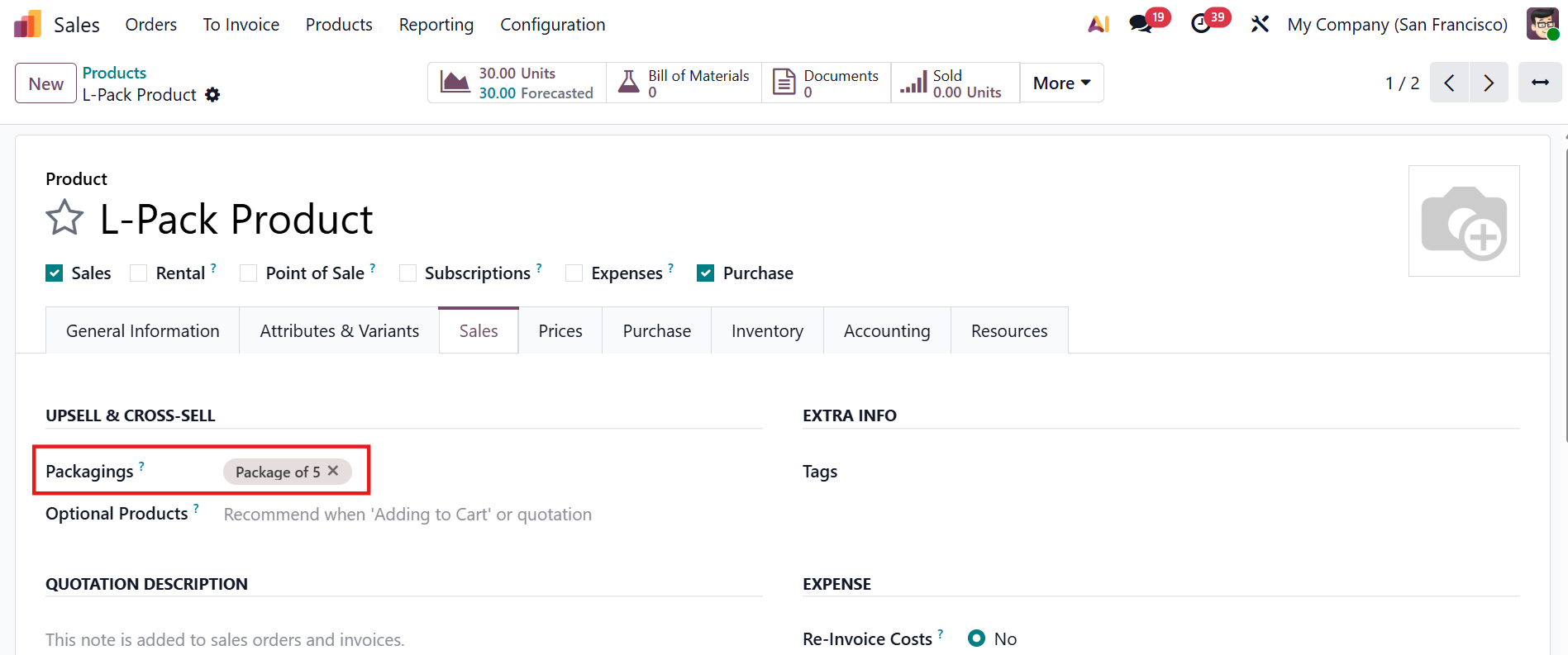
2. Under Sales tab, define a packaging unit e.g., Pack of 5 |
|
USAGE1. Create a Purchase Order with the configured product and set the unit of measure to the defined package. | 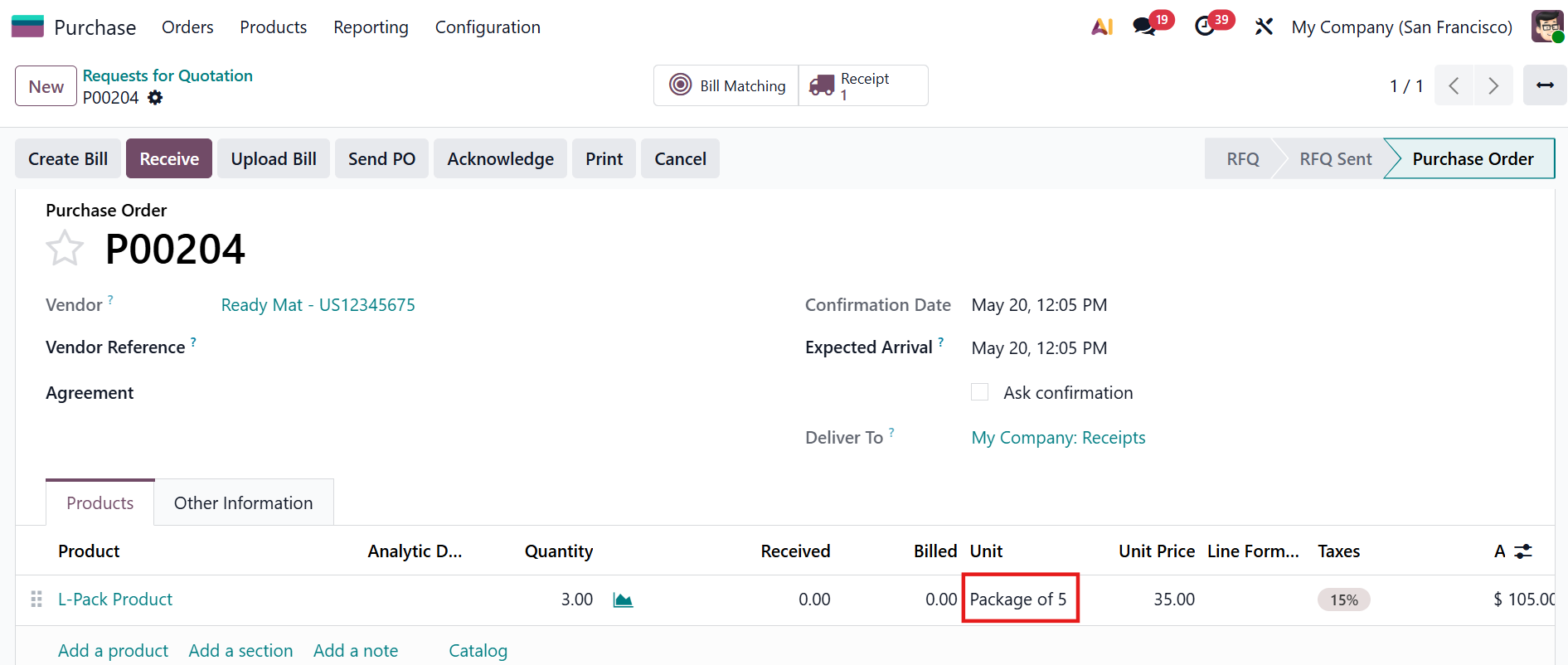 |
2. Navigate to the generated receipt and click the Barcode button to open it in the Barcode app. | 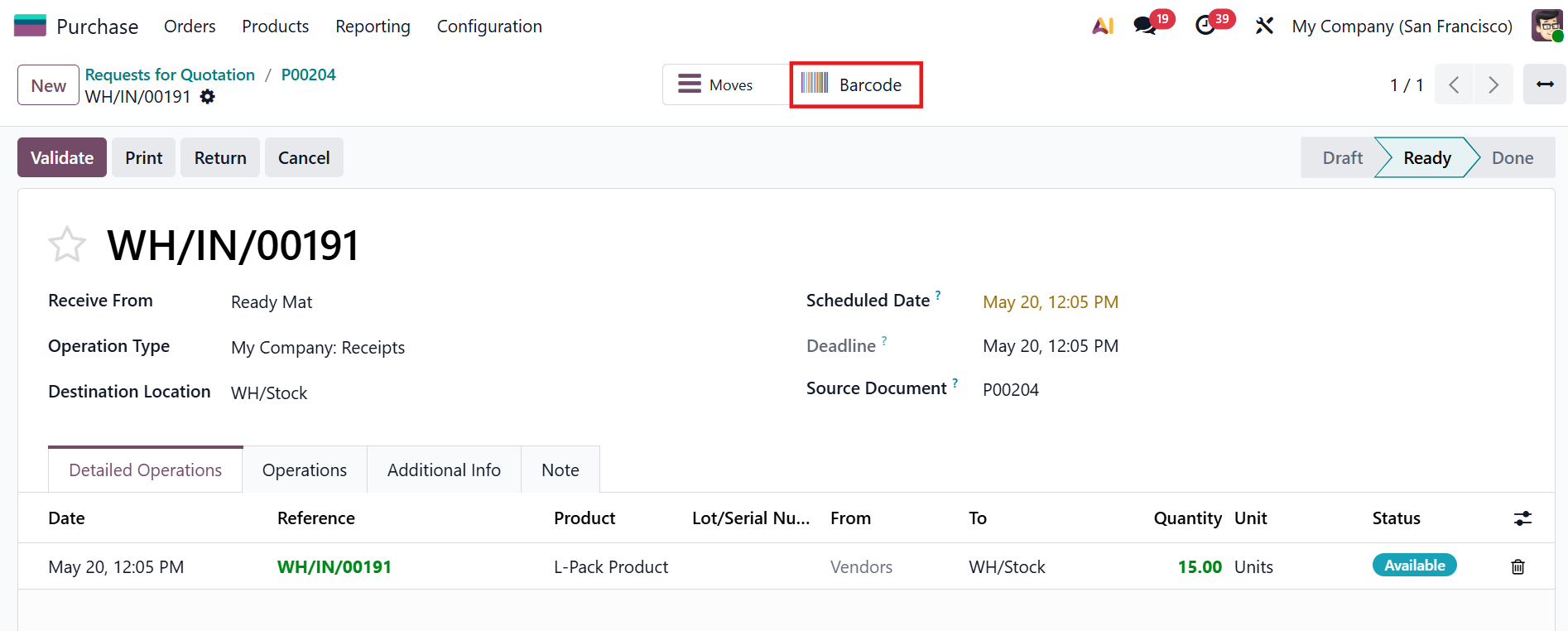 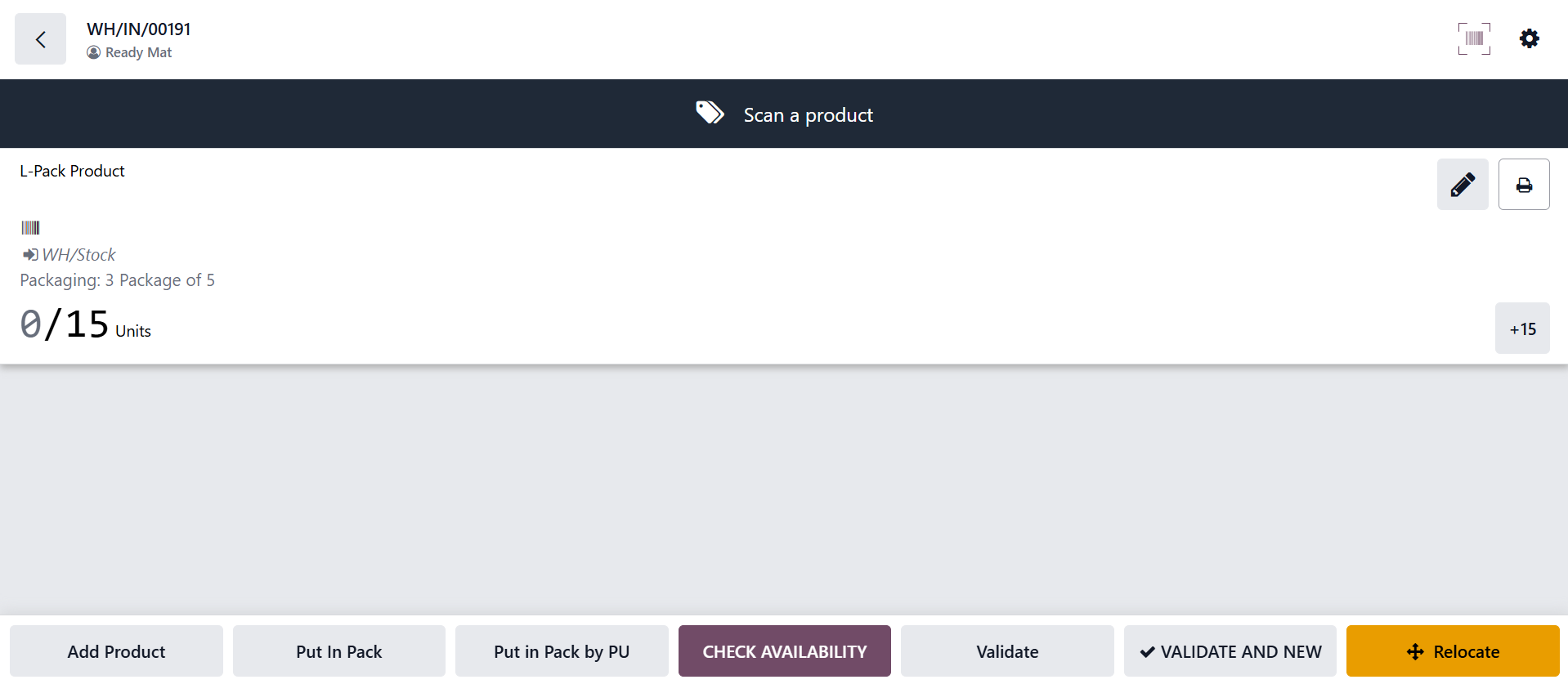 |
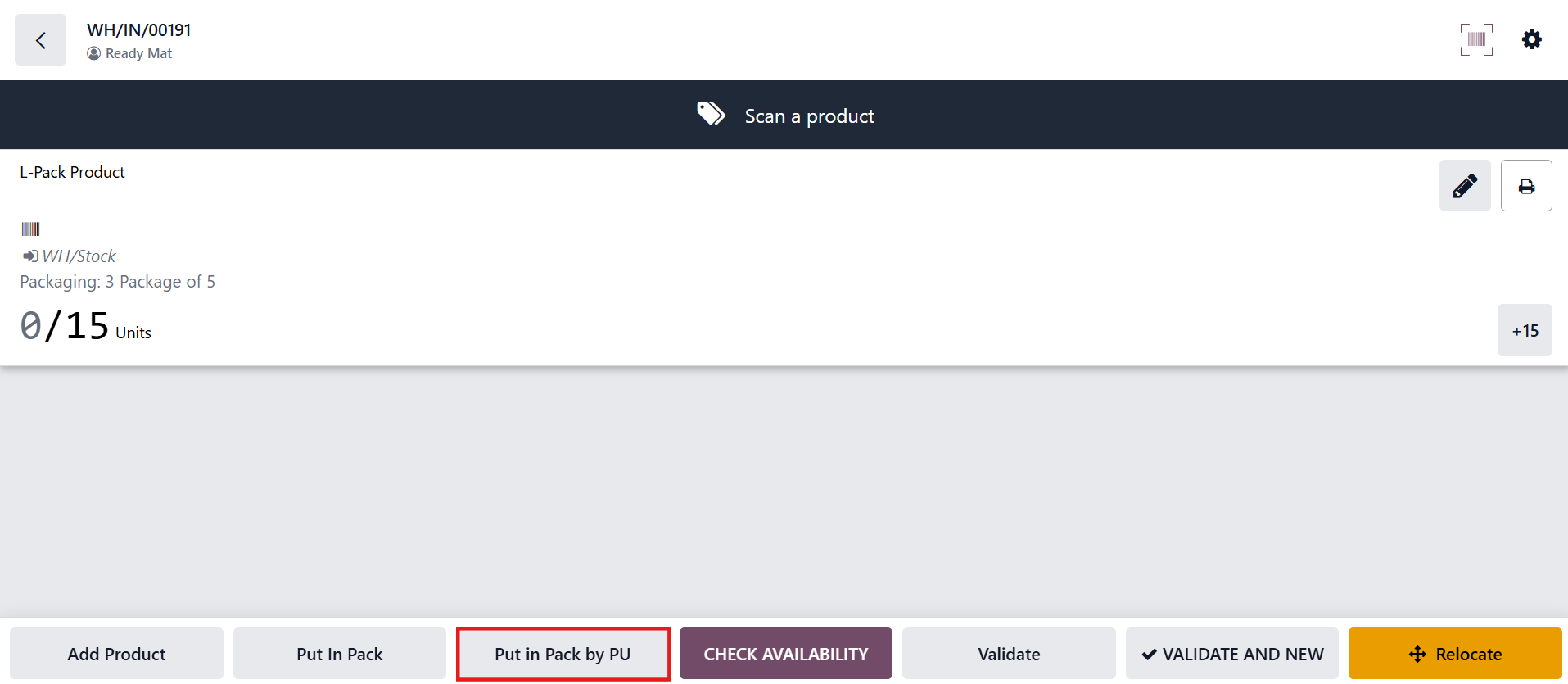
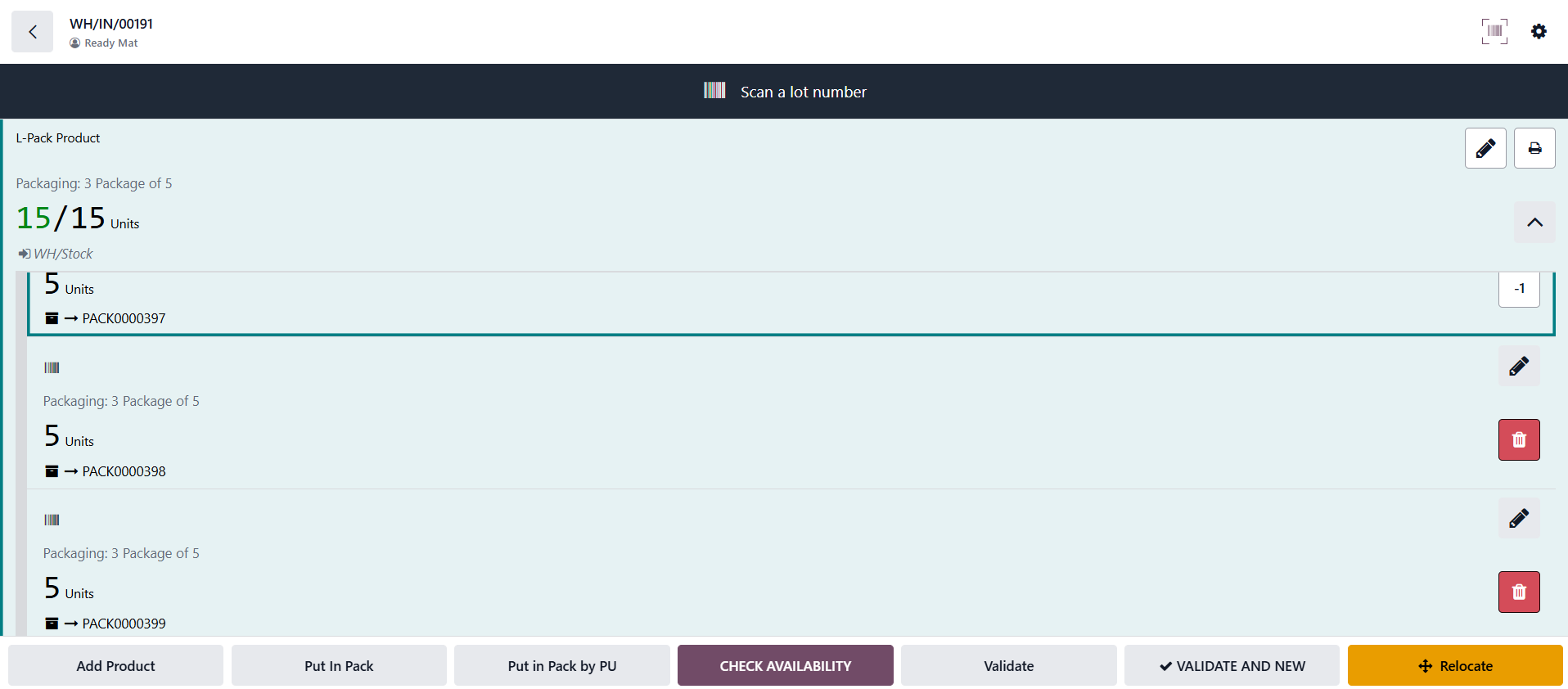
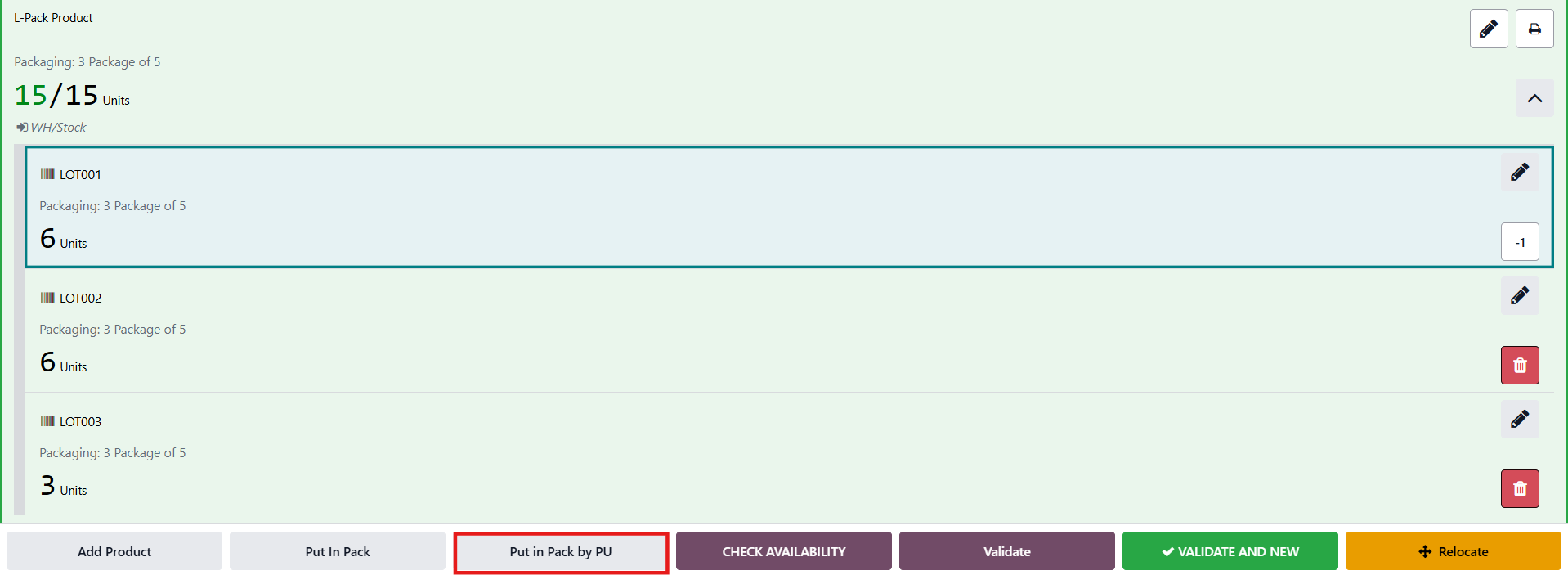
Option A: Assign Packages First, Lots Later 1. Click Put in Pack by PU — packages are generated automatically based on the packaging unit. Example: With 15 total units and a pack size of 5, the system generates 3 packages automatically. |
|
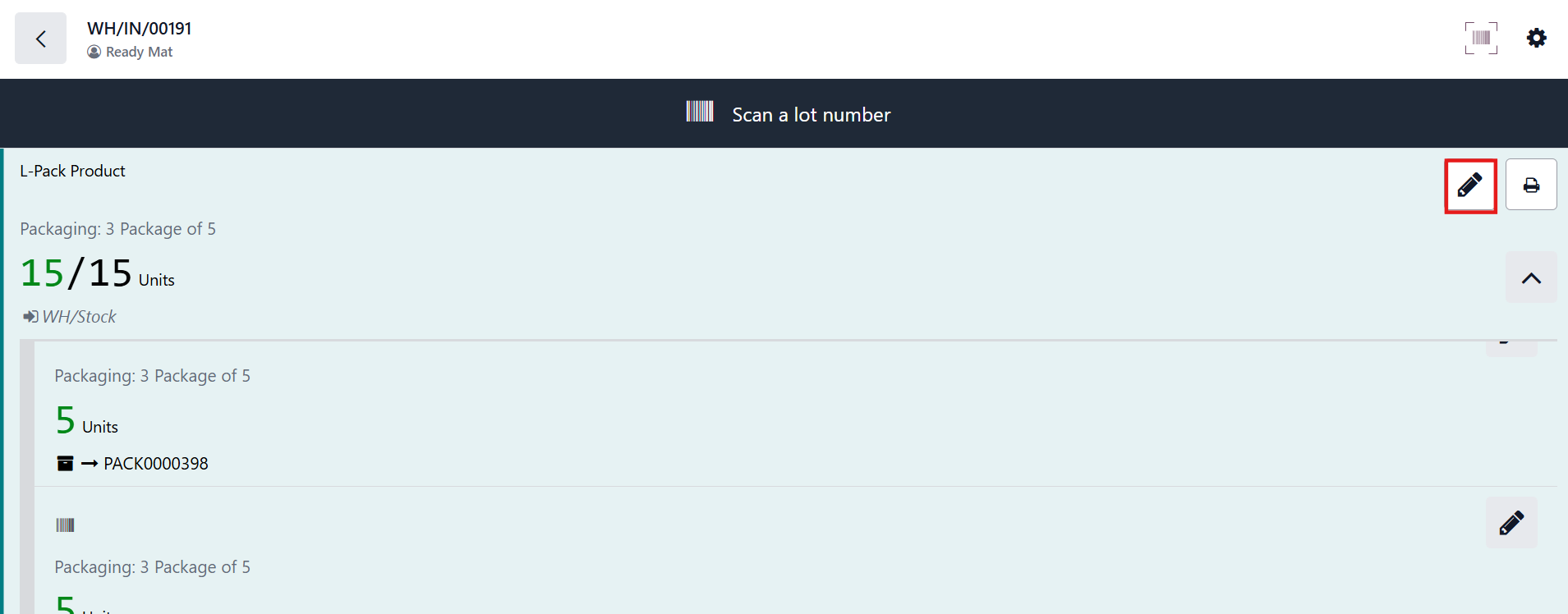
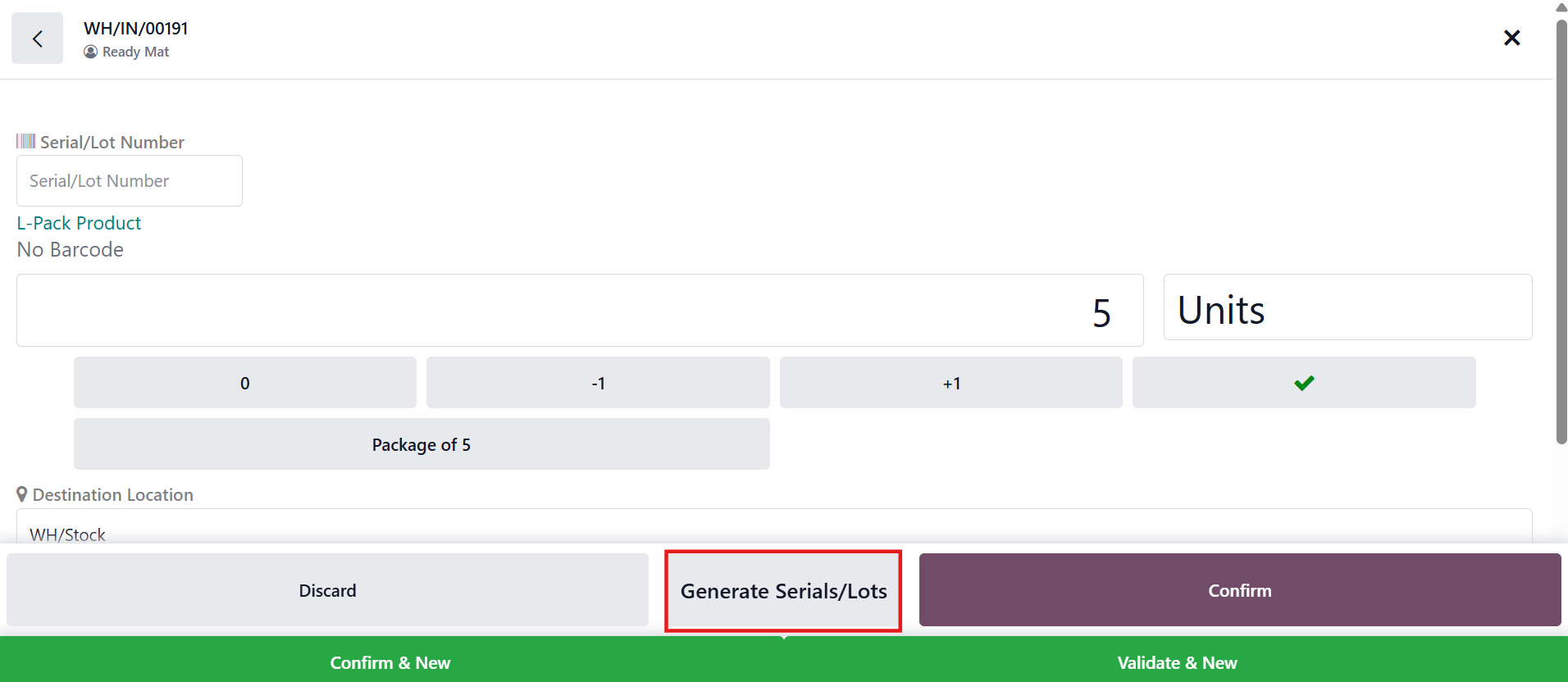
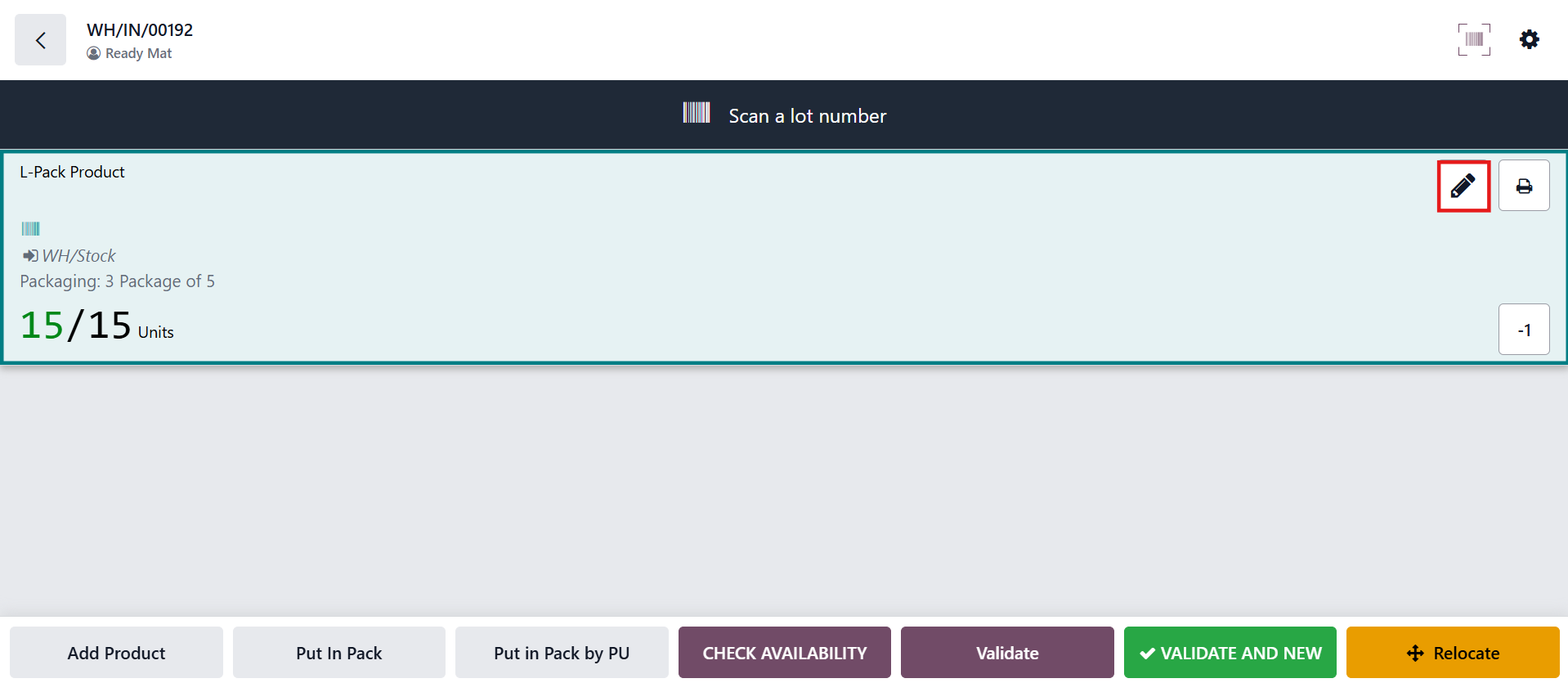
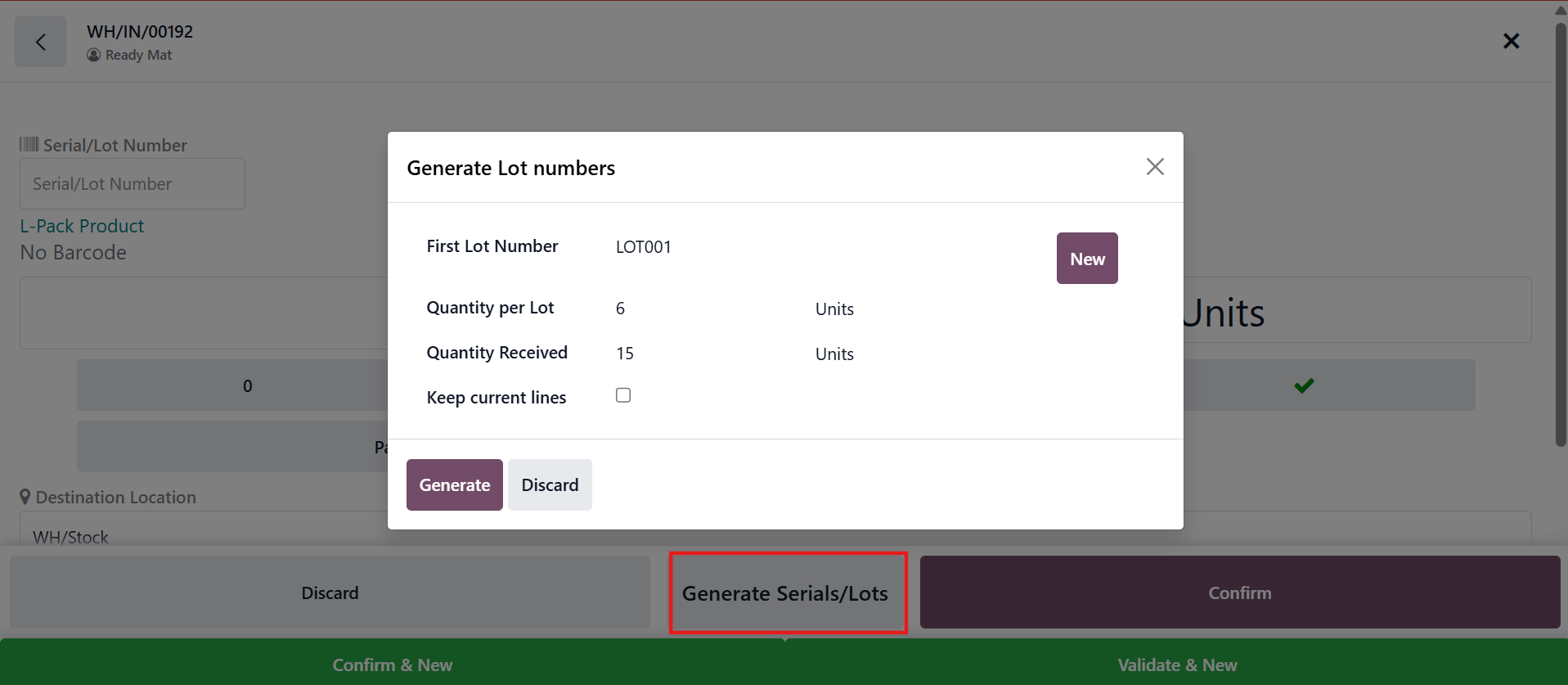
2. Click the pencil icon then Generate Serials/Lots button |
|
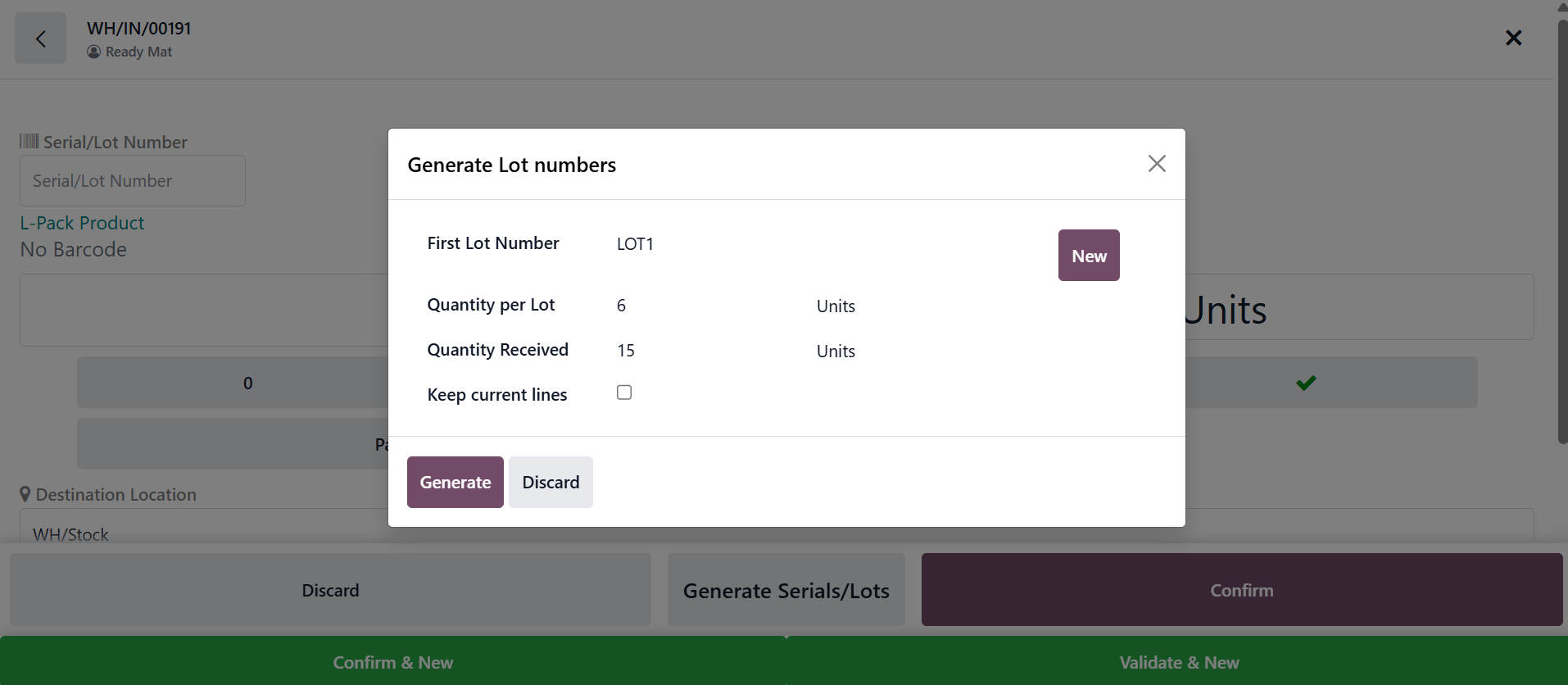
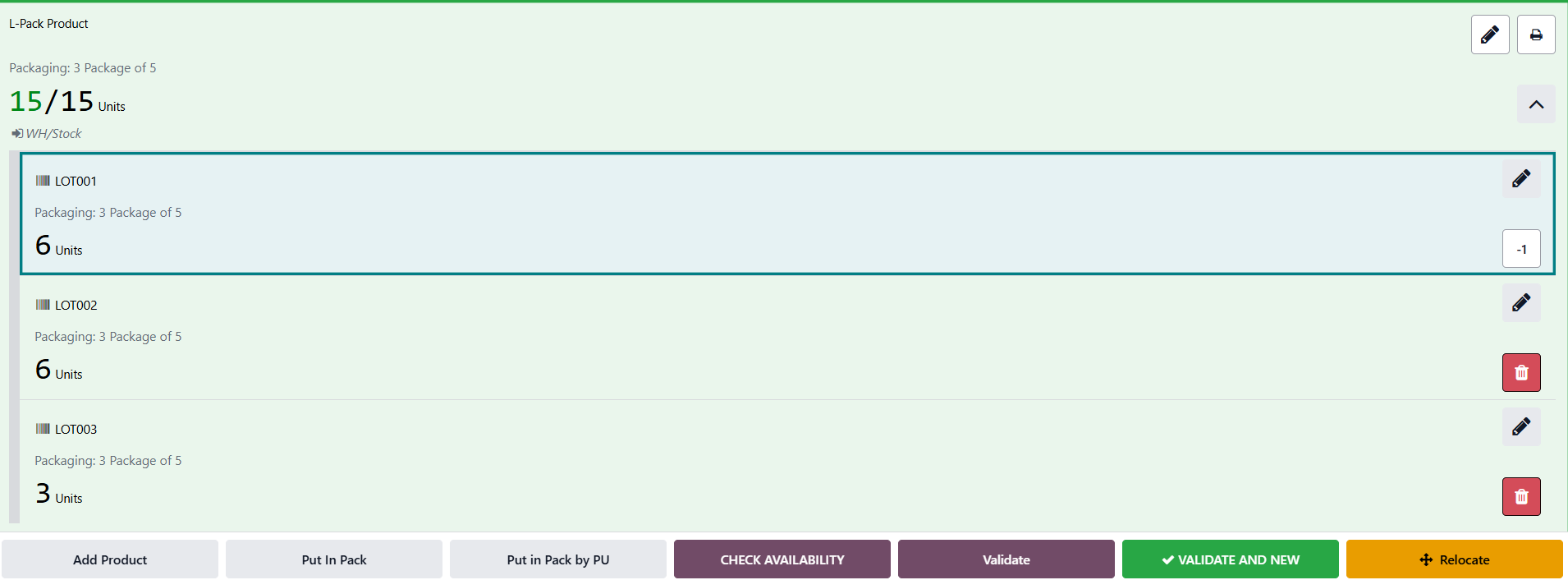
Example: With 6 units per lot, 3 lots are generated automatically. |
|
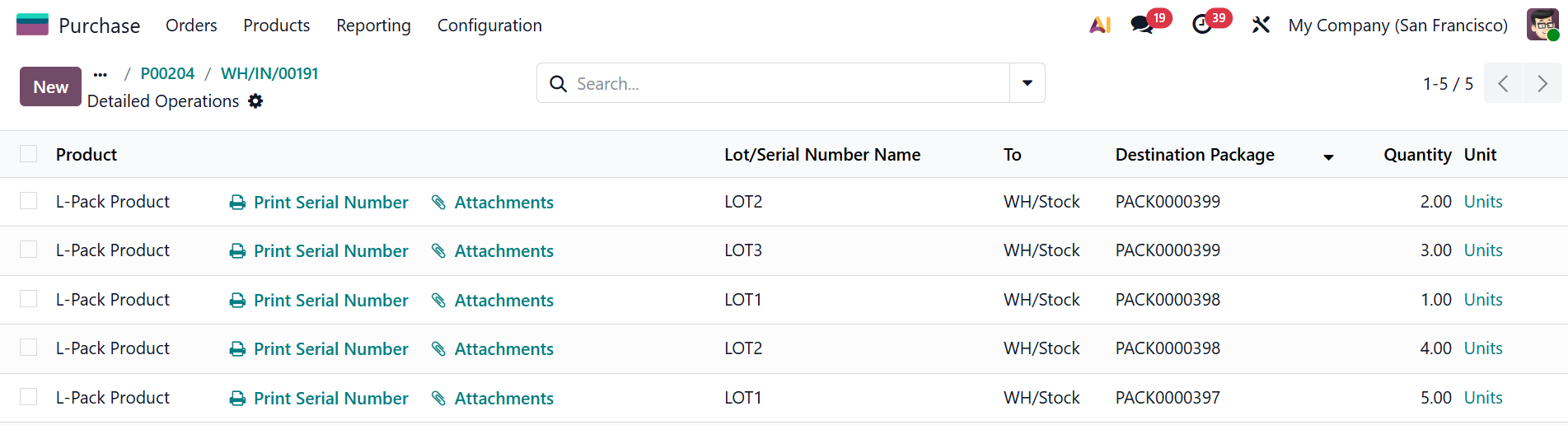
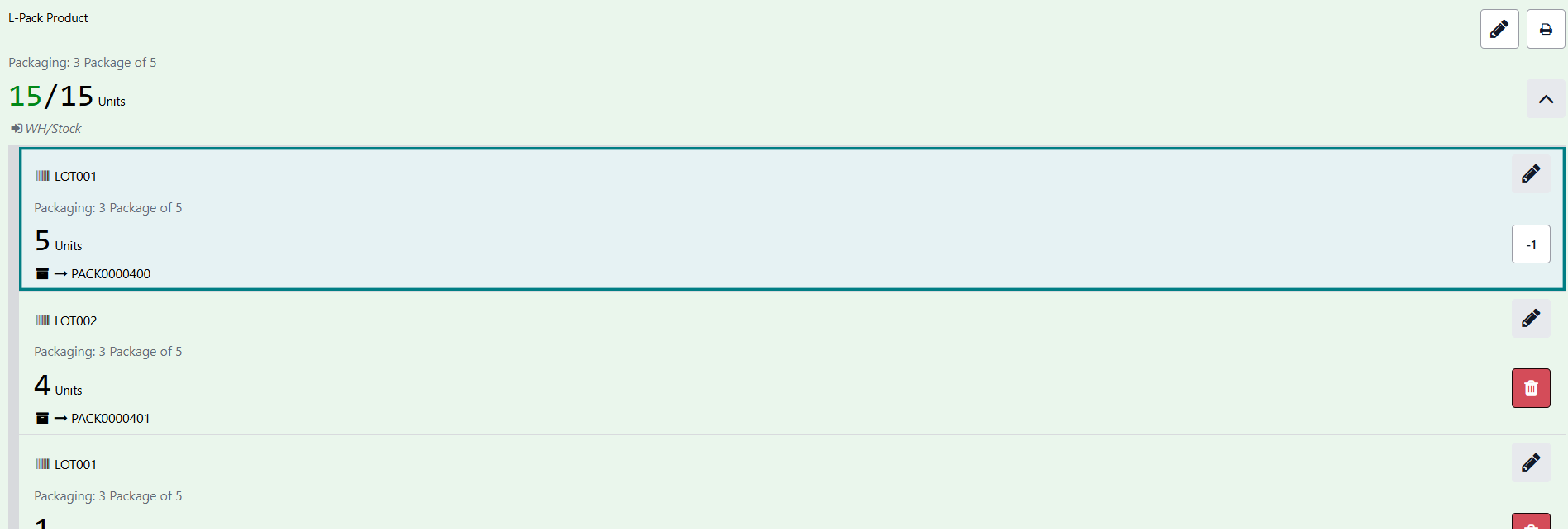
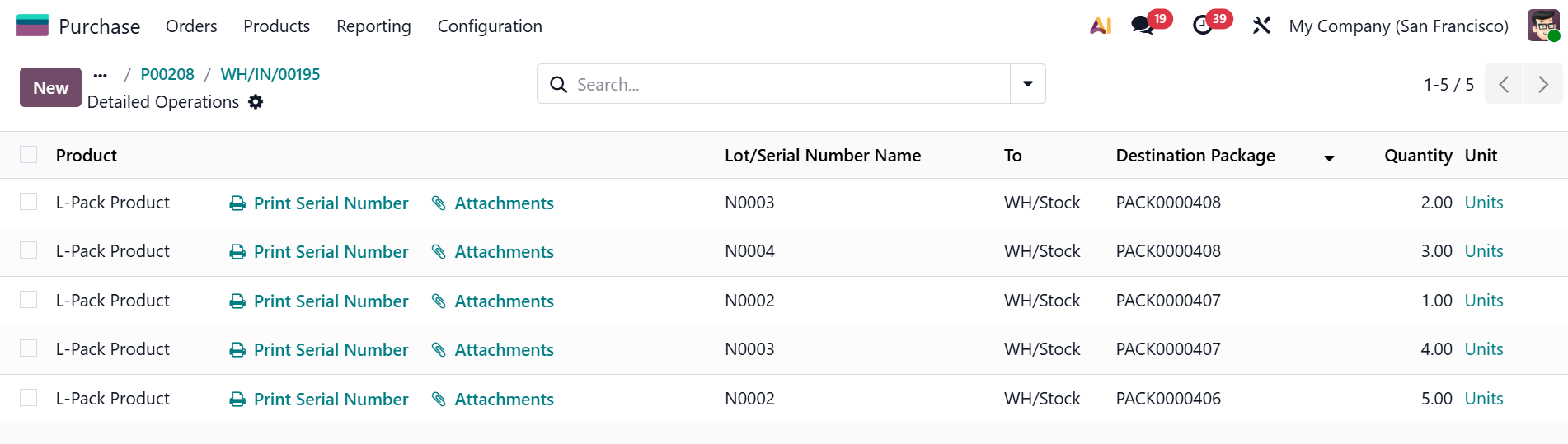
Results: Each package is filled to its maximum capacity before moving to the next, and each lot is consumed in order before moving to the next Example:
|
|
Option B: Assign Lots First, Packages Later 1. Click Generate Serials/Lots - lots are generated automatically for the product. Example: 3 lots are generated automatically. |
|
2. Click Put in Pack by PU - packages are assigned and mapped to the lots sequentially until each package reaches its maximum quantity. |
|
Both options produce the same result - lots and packages are always distributed correctly regardless of the order they are assigned. |
|
Beside Generate Serials/Lots and Put in Pack by PU from Barcode, we can also do it directy in Backend | |
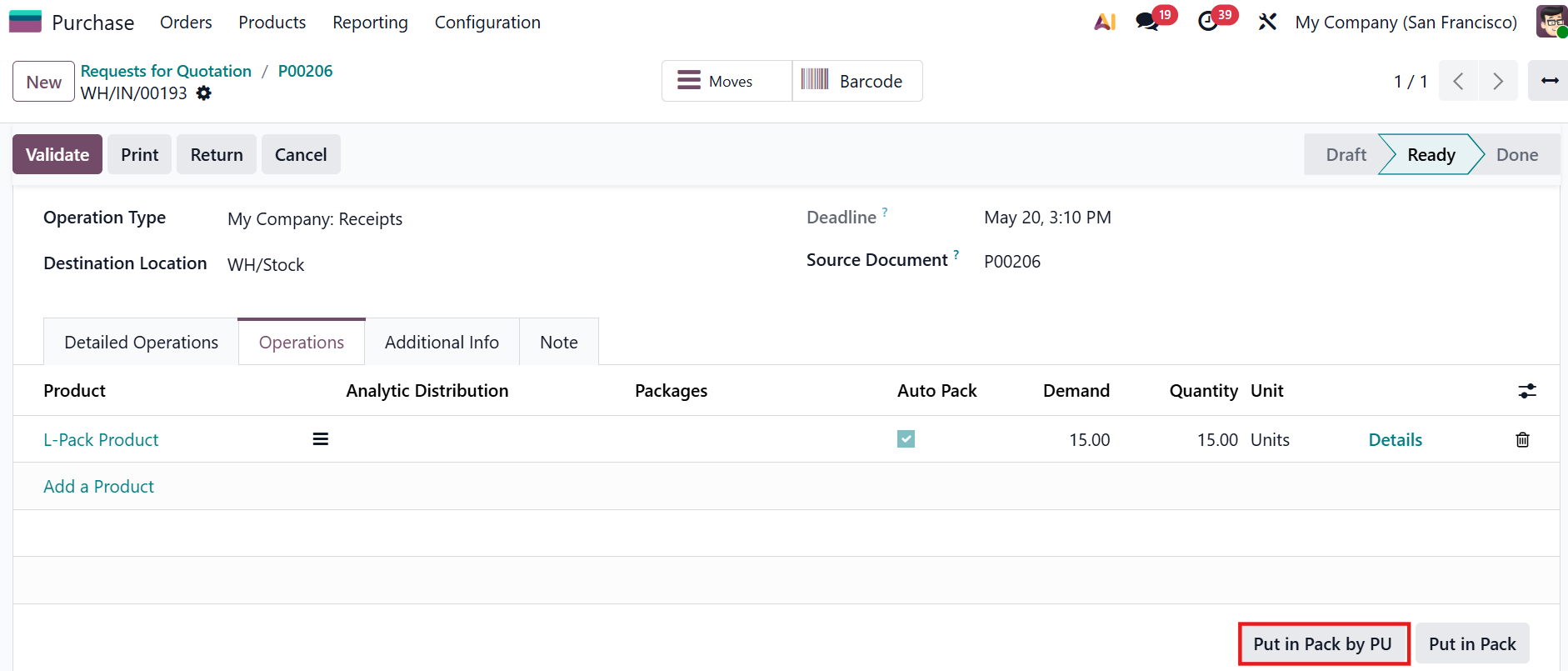
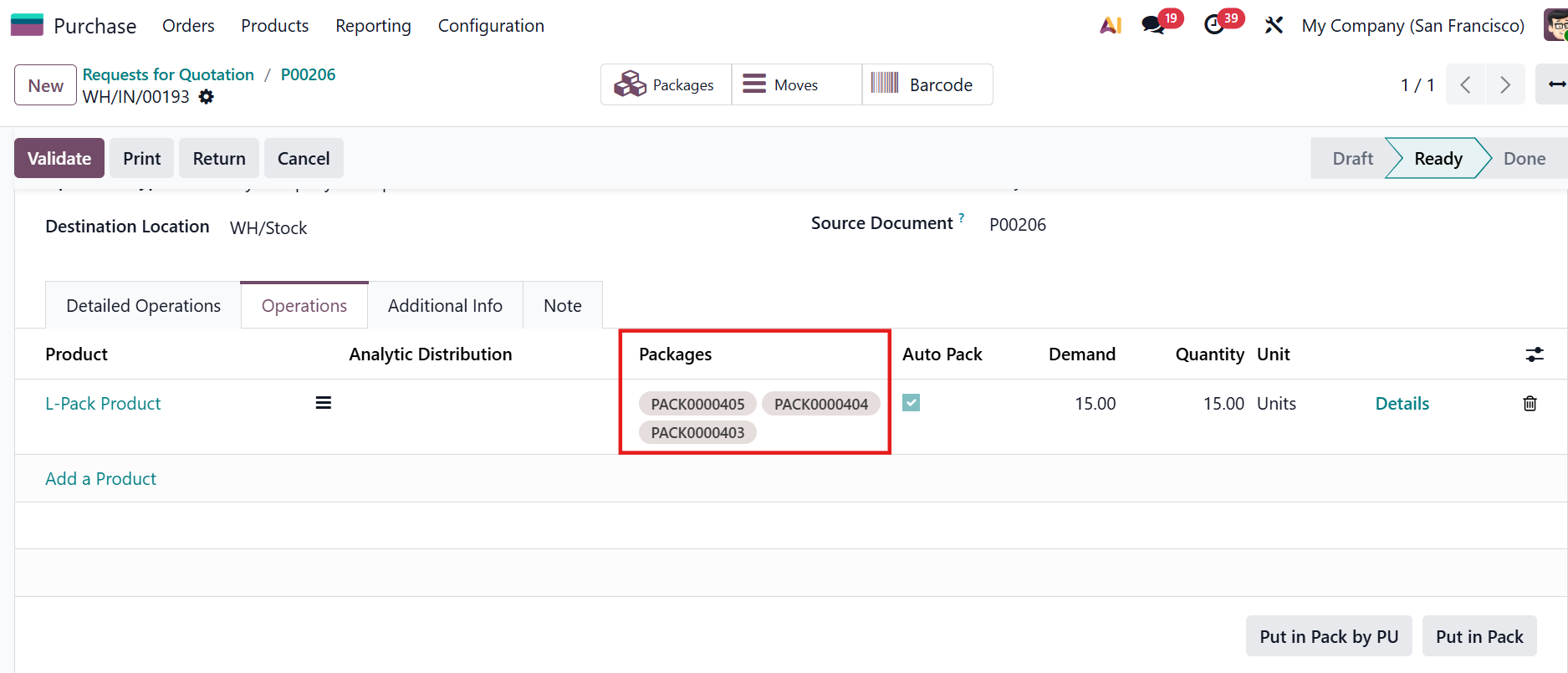
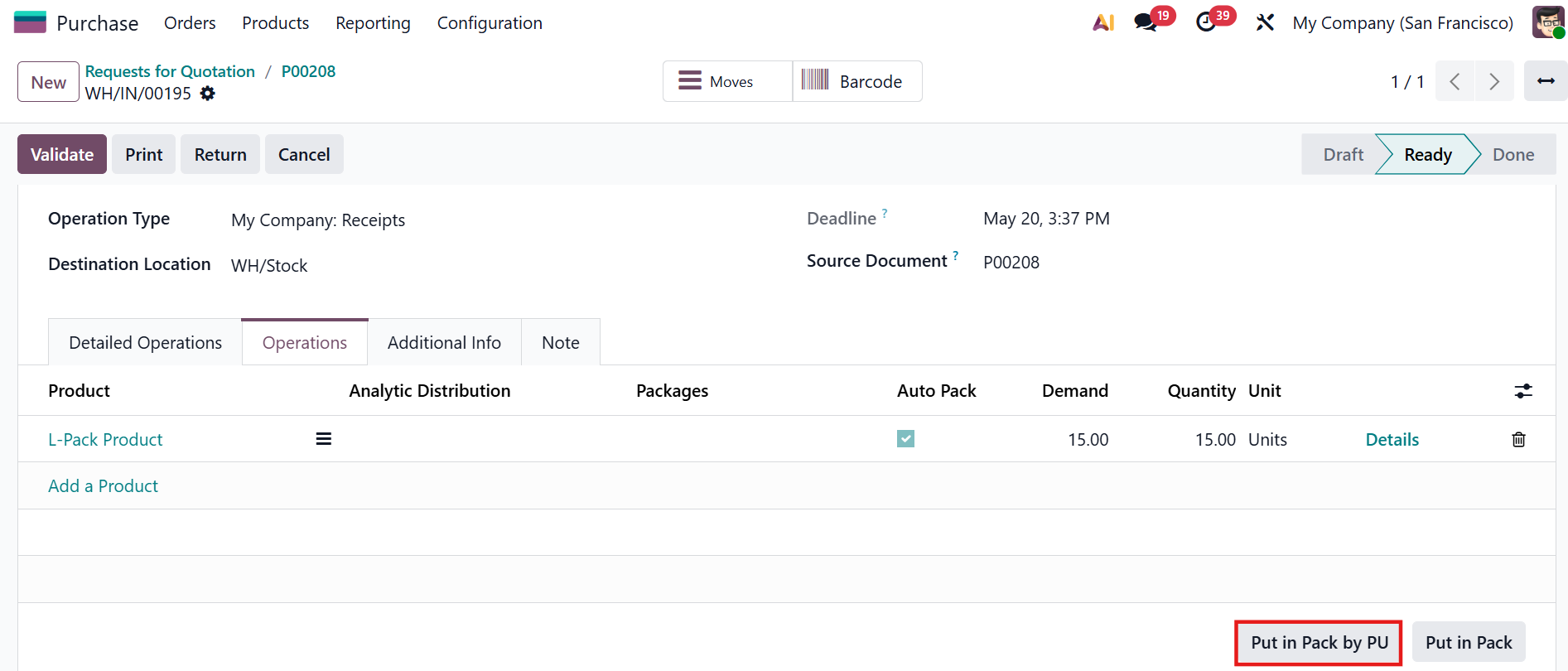
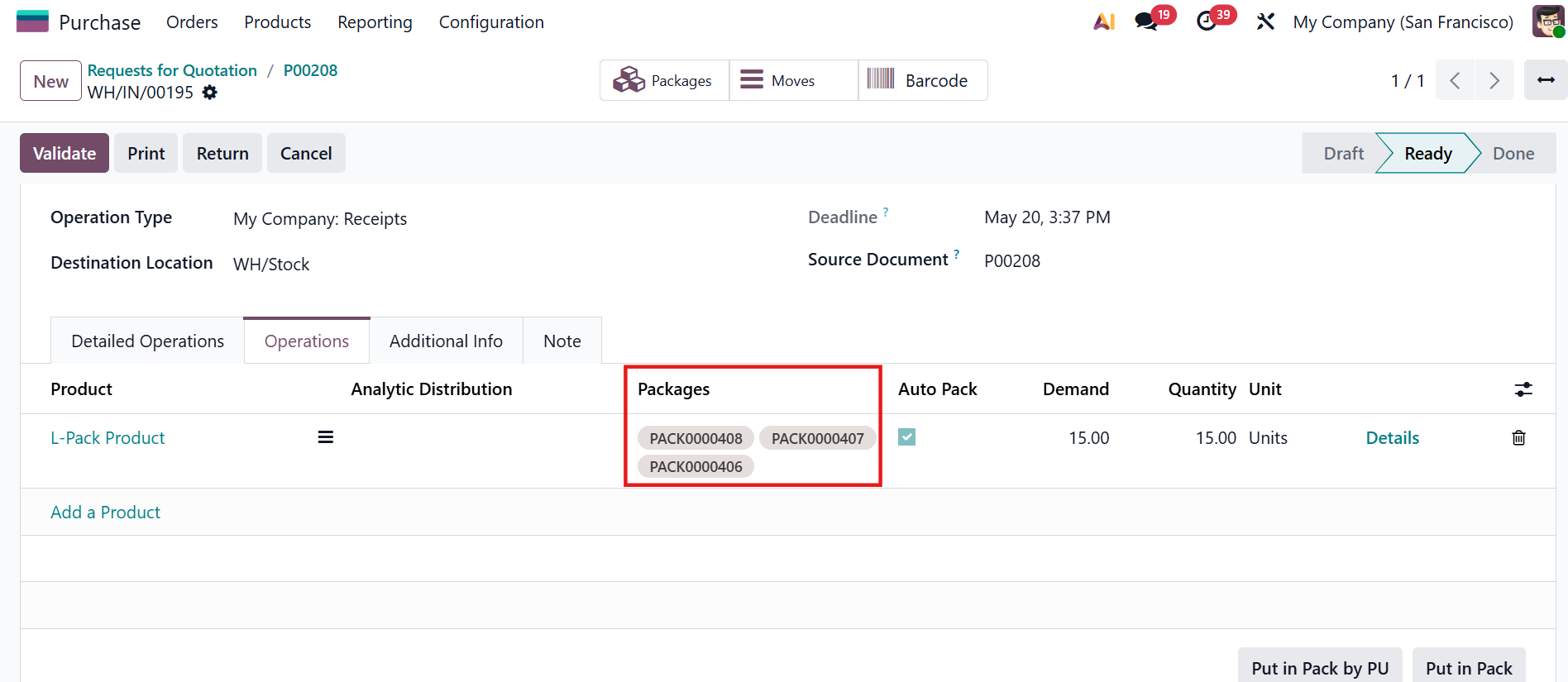
Option A: Assign Packages First, Lots Later On the generated receipt, click Put in Pack by PU at the end of the generated receipt > packages are generated automatically based on the packaging unit. |
|
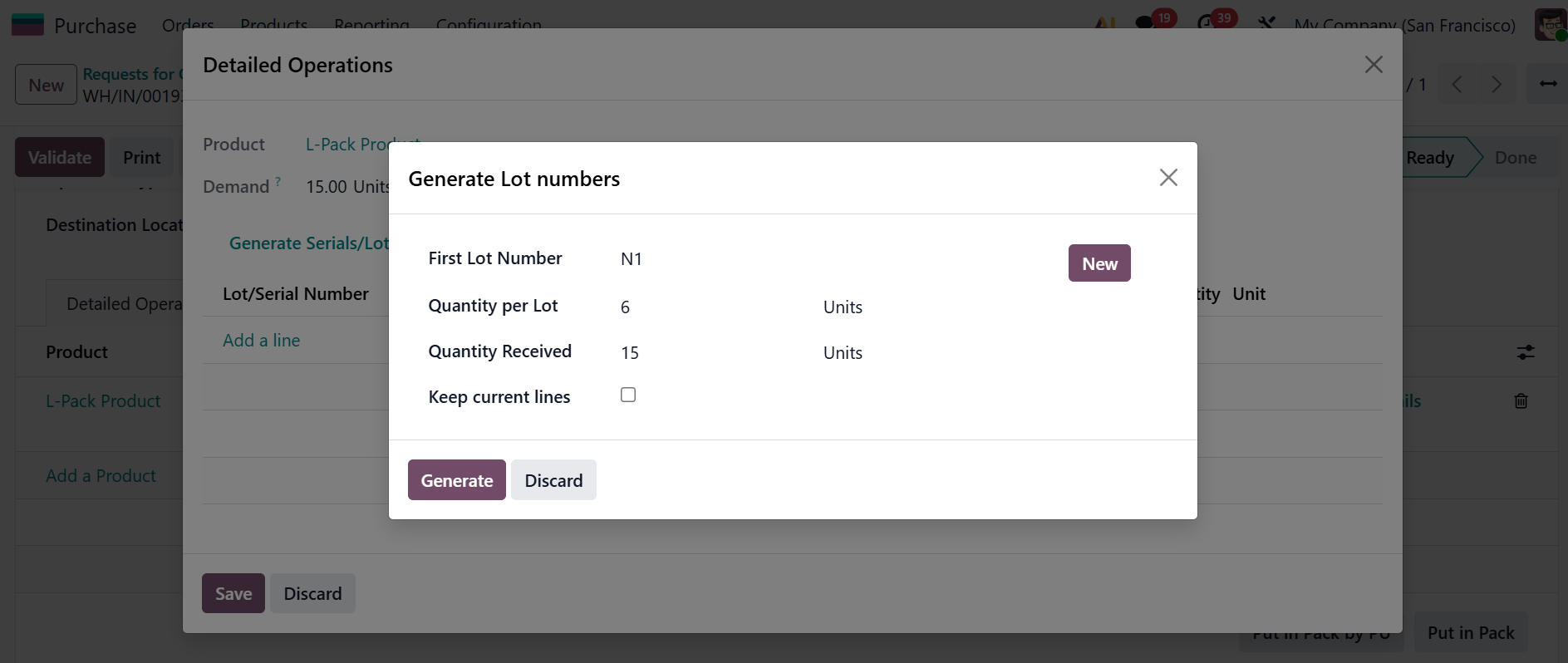
Generate Serials/Lots then both lots and packages are assigned sequentially until each package reaches its maximum quantity |
|
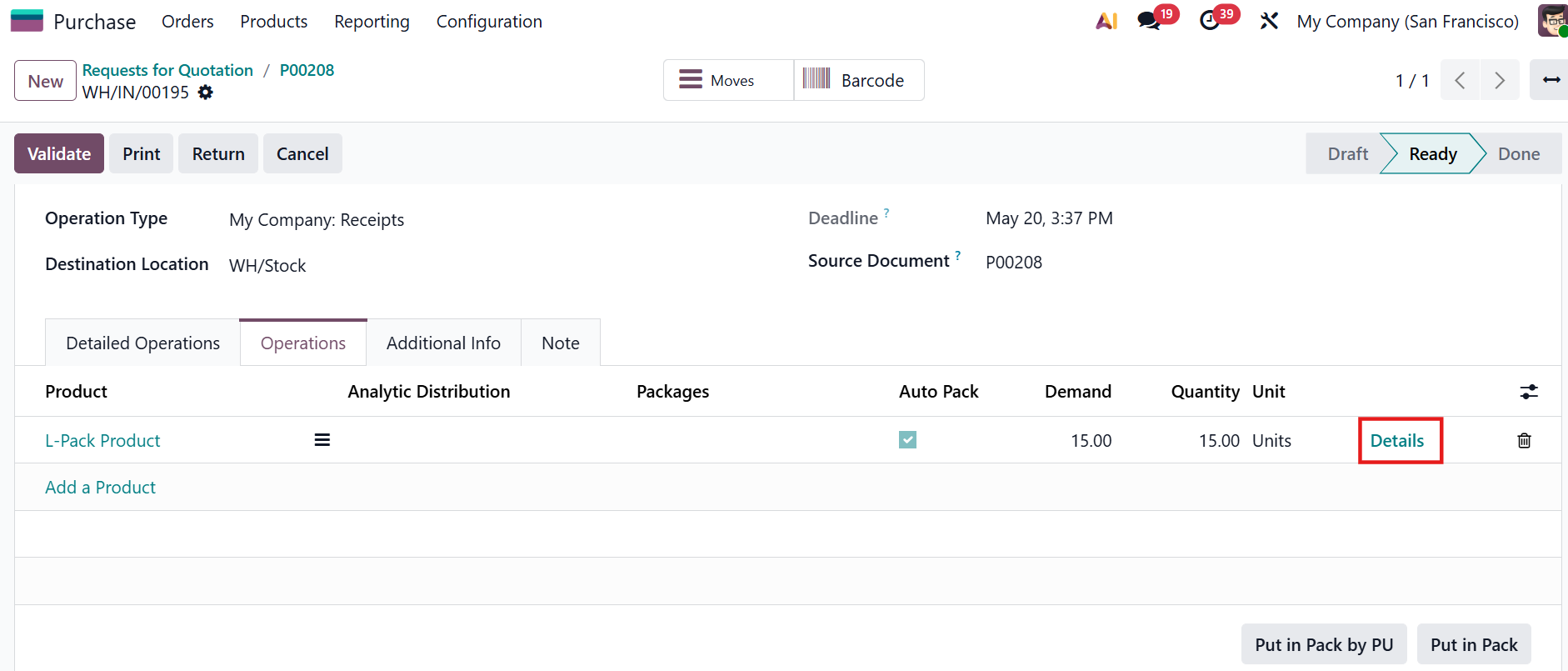
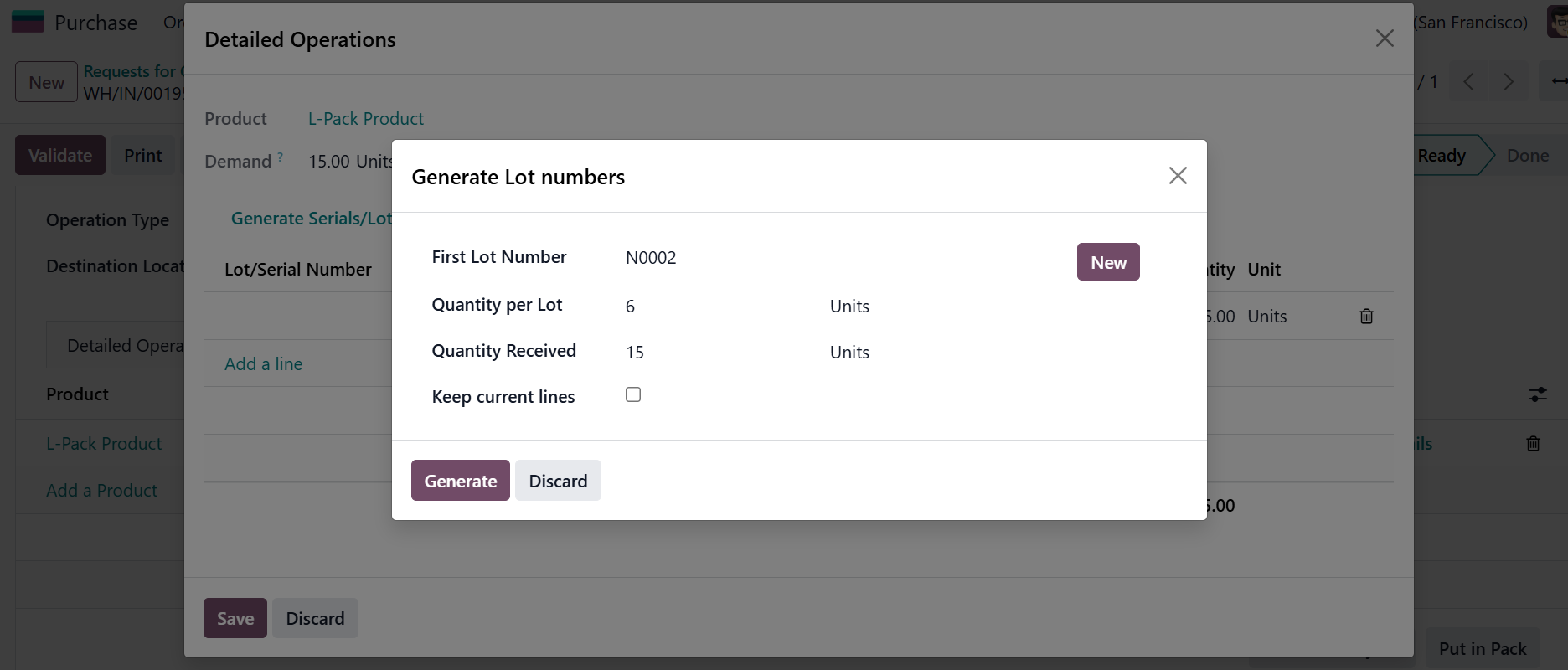
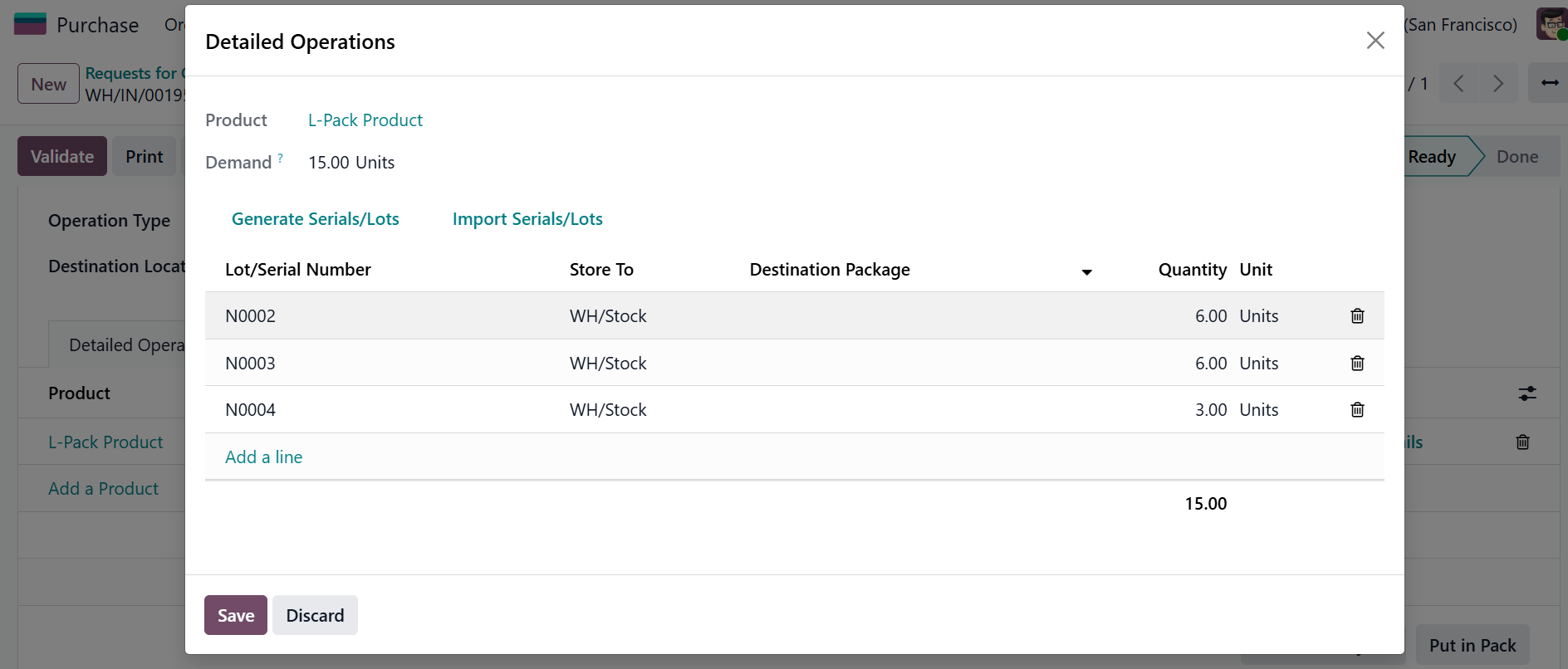
Option B: Assign Lots First, Packages Later 1 . Click Details then Generate Serials/Lots |
|
2. Click Put in Pack by PU - packages are assigned and mapped to the lots sequentially until each package reaches its maximum quantity. |
|
The result is the same when assigning packages first and lots later |
|