



ODOO'S FUNCTION
Standard Odoo is quite restrictive when it comes to quality control and partial validations.
Odoo allows partial validation on a transfer, but it cannot correctly manage situations where:
- Only part of the total demand is validated (e.g., demand = 10, but you only process 4), and
- Within those 4 items, some pass and some fail.
When you validate Odoo’s picking, it still forces everything to one single final location. That means if the 4 validated items include both passed and failed quantities, Odoo will place them all in the “pass” location — never split correctly. This leads to wrong stock and manual fixes.
CLUEDOO'S FUNCTION
CLuedoo ensures each quantity, even partial, always ends up in the correct location.
CONFIGURATION | |
1. Go to Products → Create 2 goods-type products, one is tracked By Unique Serial Number, the other is not tracked/tracked by lots | 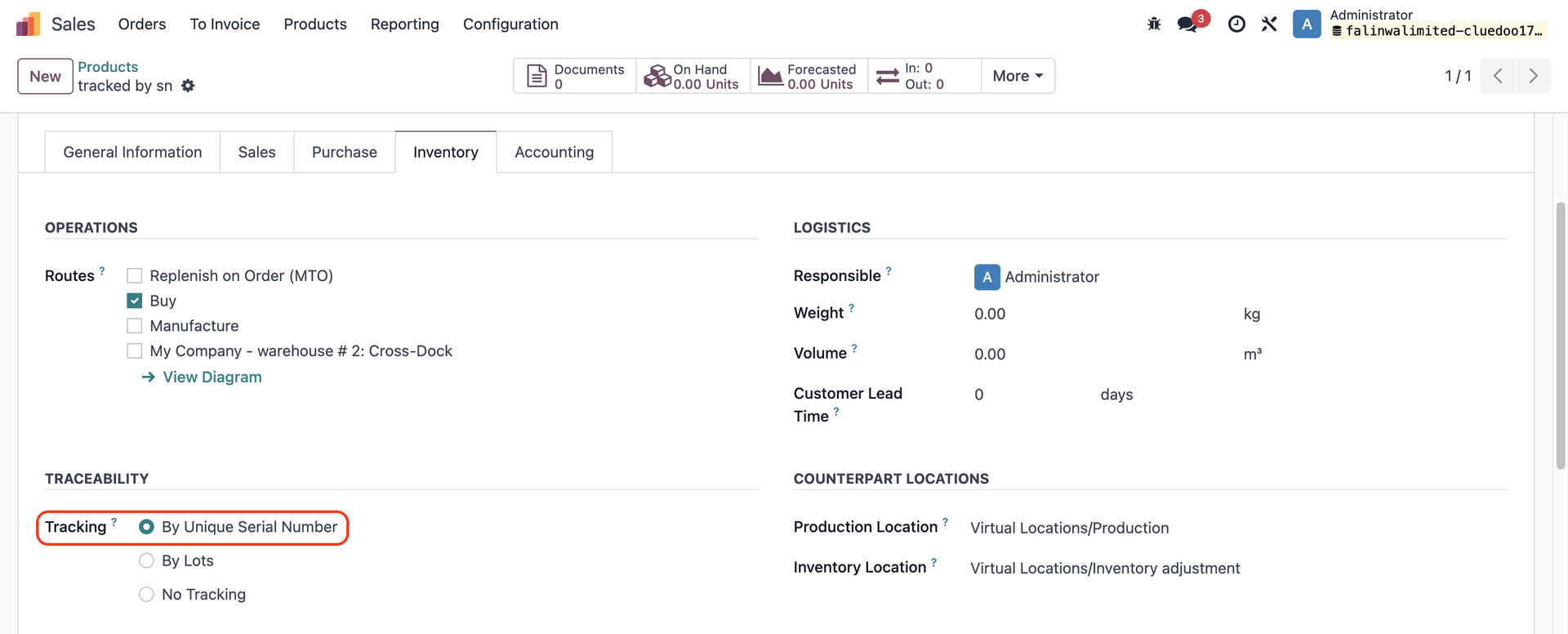 |
2. Go to Warehouses → Warehouse Configuration → Incoming Shipments → Choose the one that best suites your business e.g. Here I choose Receive goods directly (1 step) | 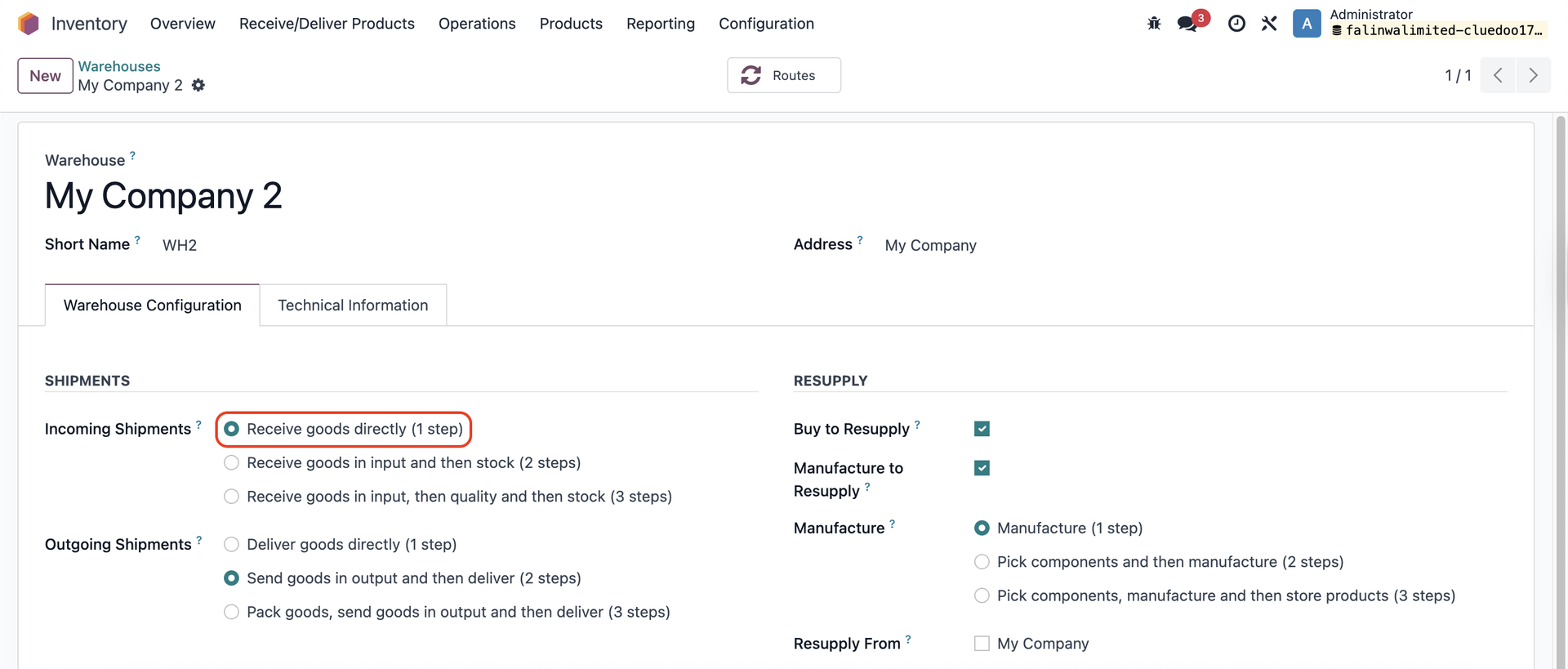 |
3. Go to Quality → Quality Control Points → Fill in the necessary information and check the Manage Transfer From Quality Check → Save | 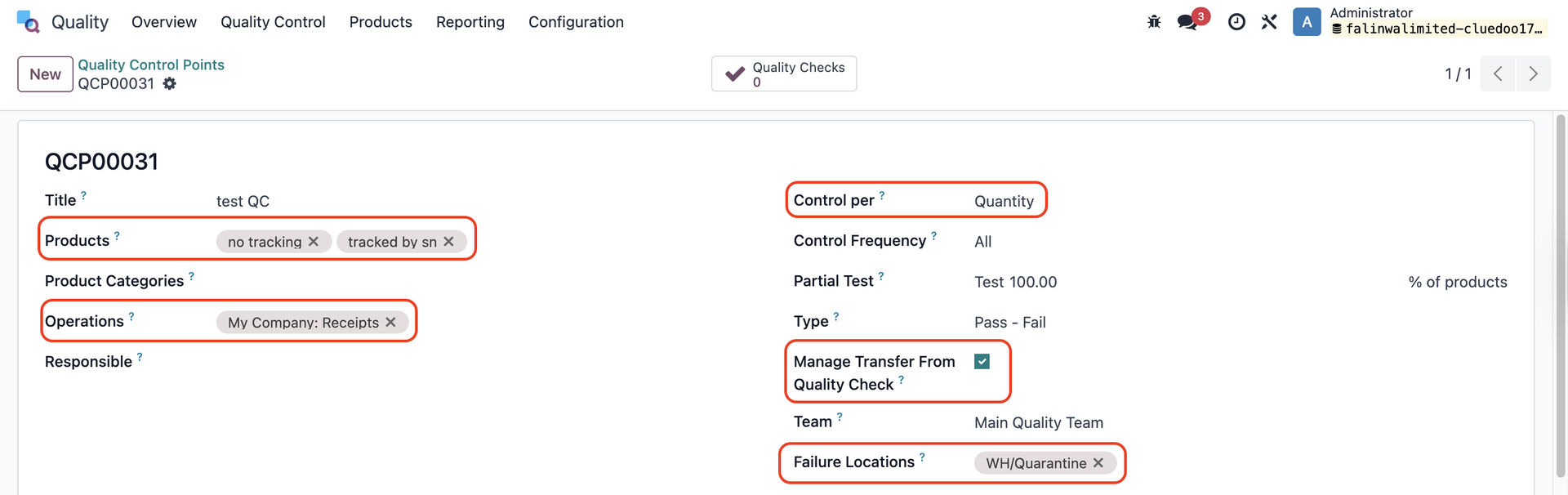 |
4. Go to Inventory → Operation Types → Choose the operation type that you set in the QCP → Make sure you select Always in Create Backorder and activate Auto Validate Create Backorder | 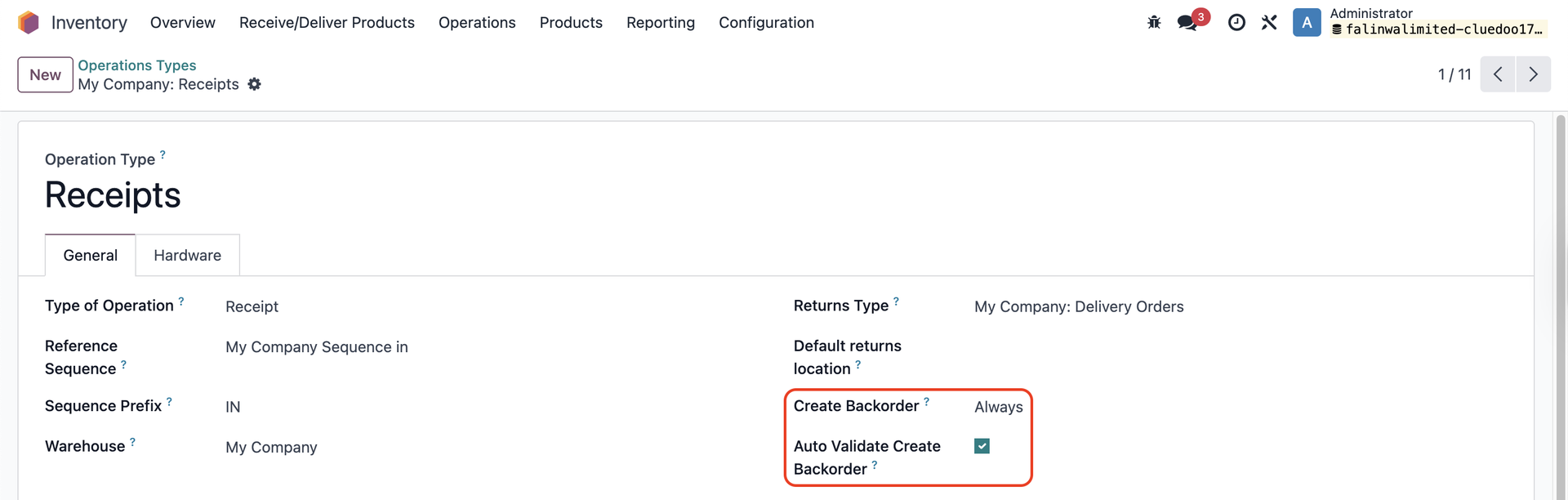 |
USAGE | |
1. Create a Purchase Order and add the products → Confirm Order → Go to Receipt | 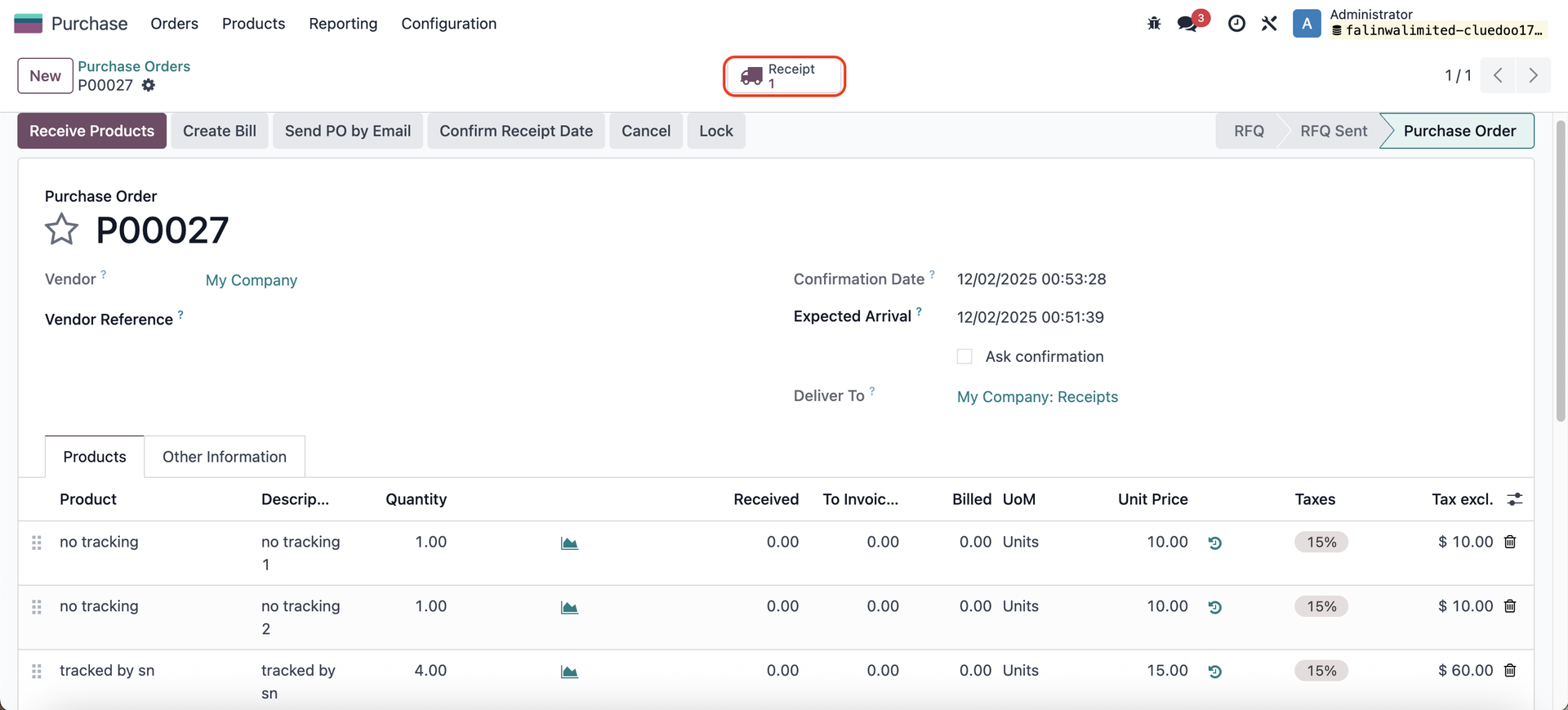 |
2. Assign serial numbers for the product tracked by Unique Serial Number → access the Quality Checks button | 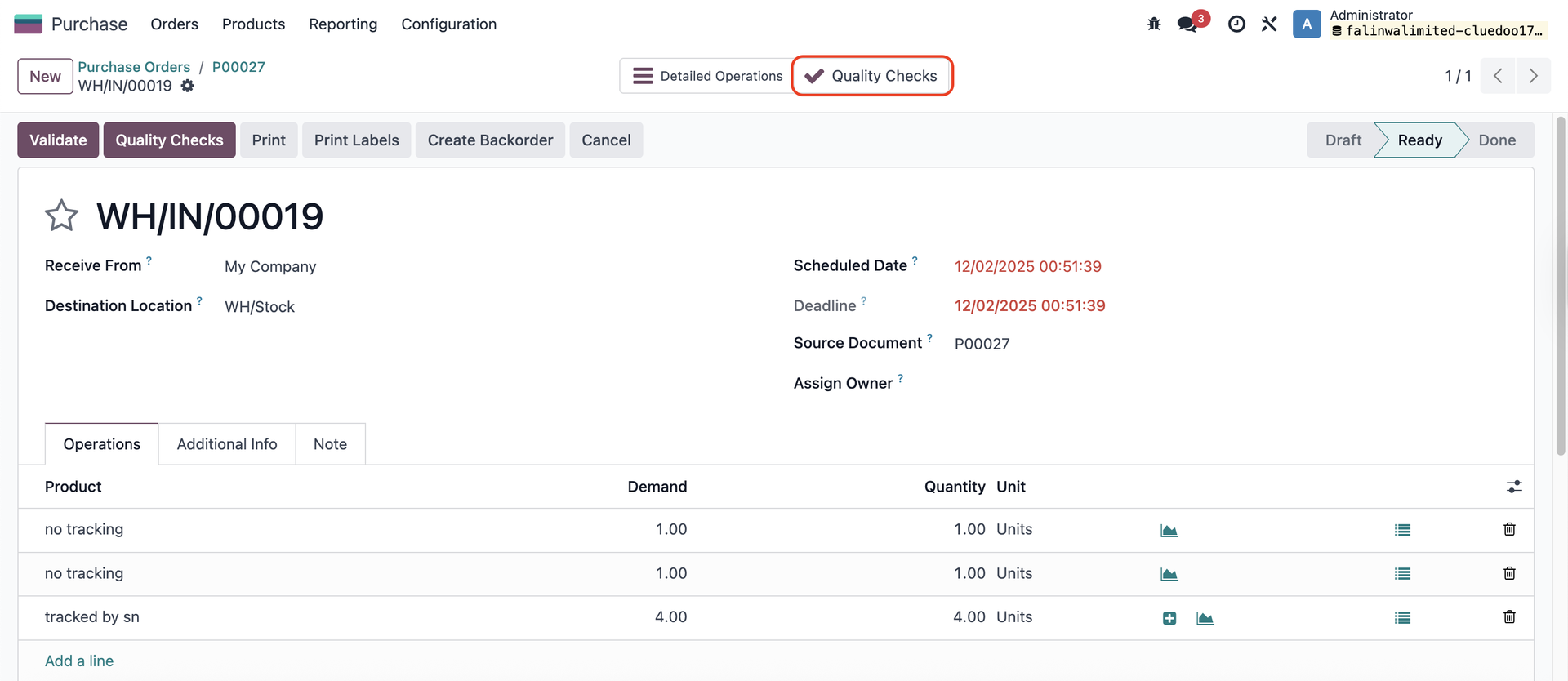 |
Note: For products tracked by Unique Serial Number, the Quantity Validated is readonly and cannot be changed | 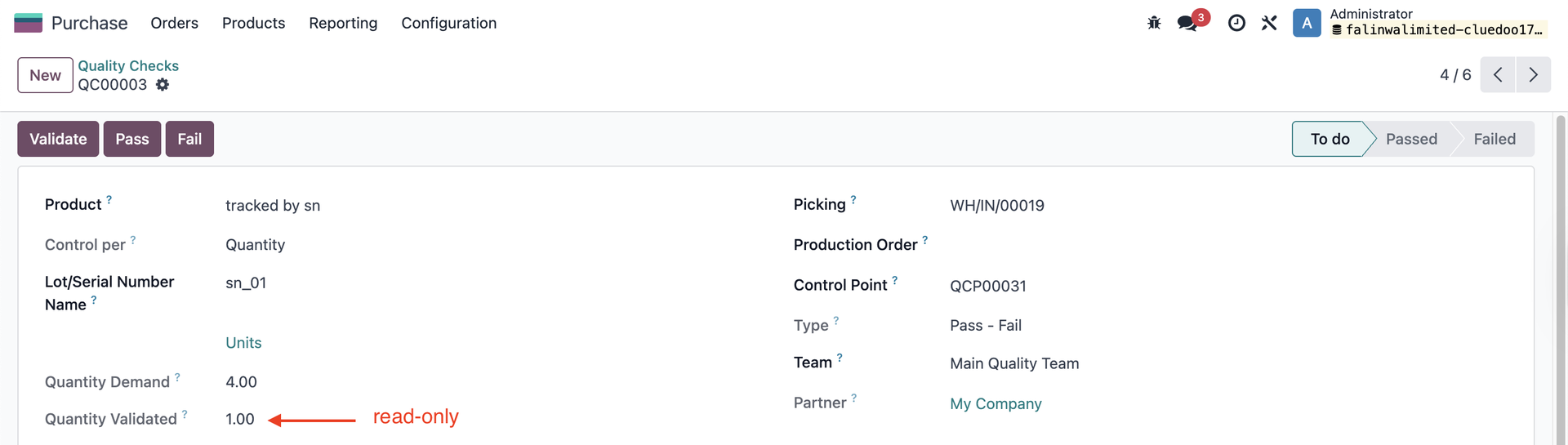 |
3. Fill in the Quantity Validated for the product with no tracking/with lots From the Quality Check form, you have the option to Validate the entire transfer | 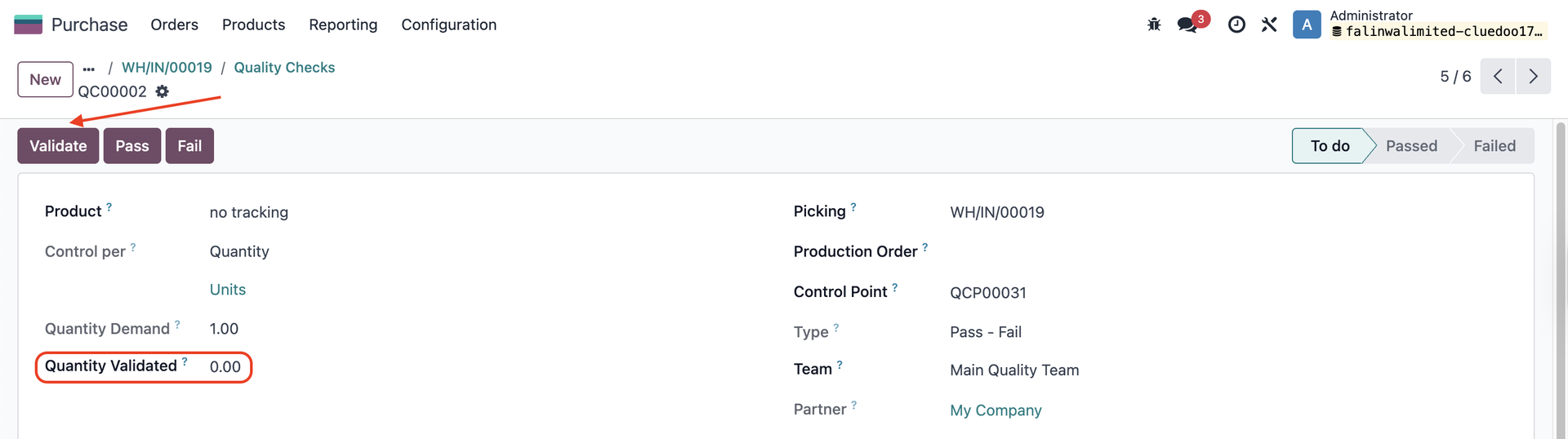 |
4. Mark as pass/fail some QCs of your choice → You can Validate the QCs from the list view. Alternatively, head to one of the QCs that you already marked as pass/fail and click Validate → it works the same as the action in the list view without selecting all the QCs. | 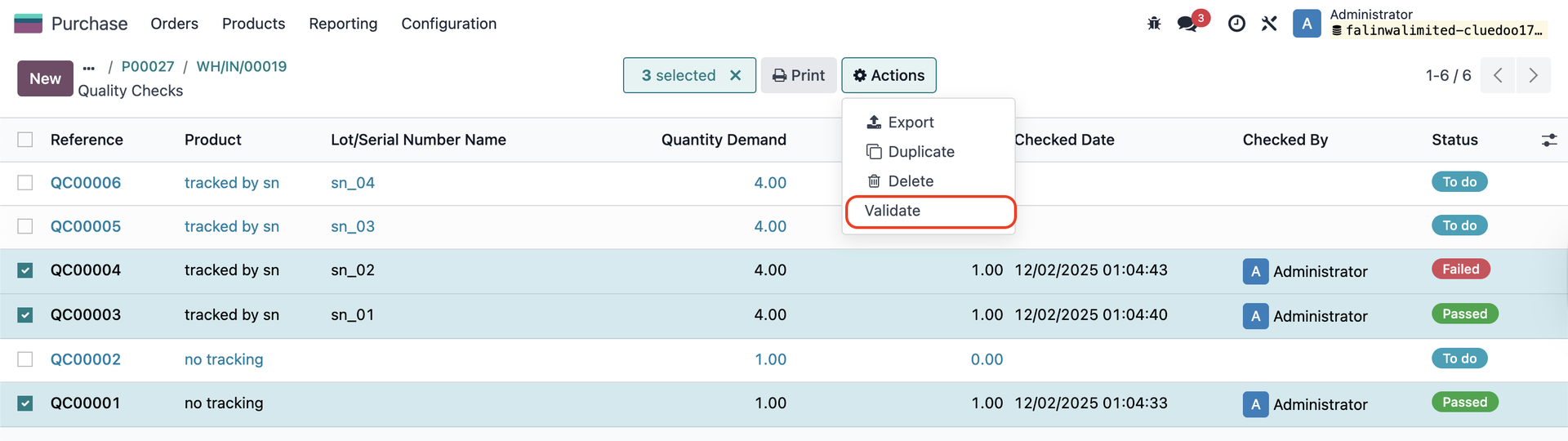 |
The transfer will be auto-validated, and a backorder will be auto-created as well. |  |
The Demand and Validated Quantity are updated in the done transfer. → Go to Detailed Operations/Moves | 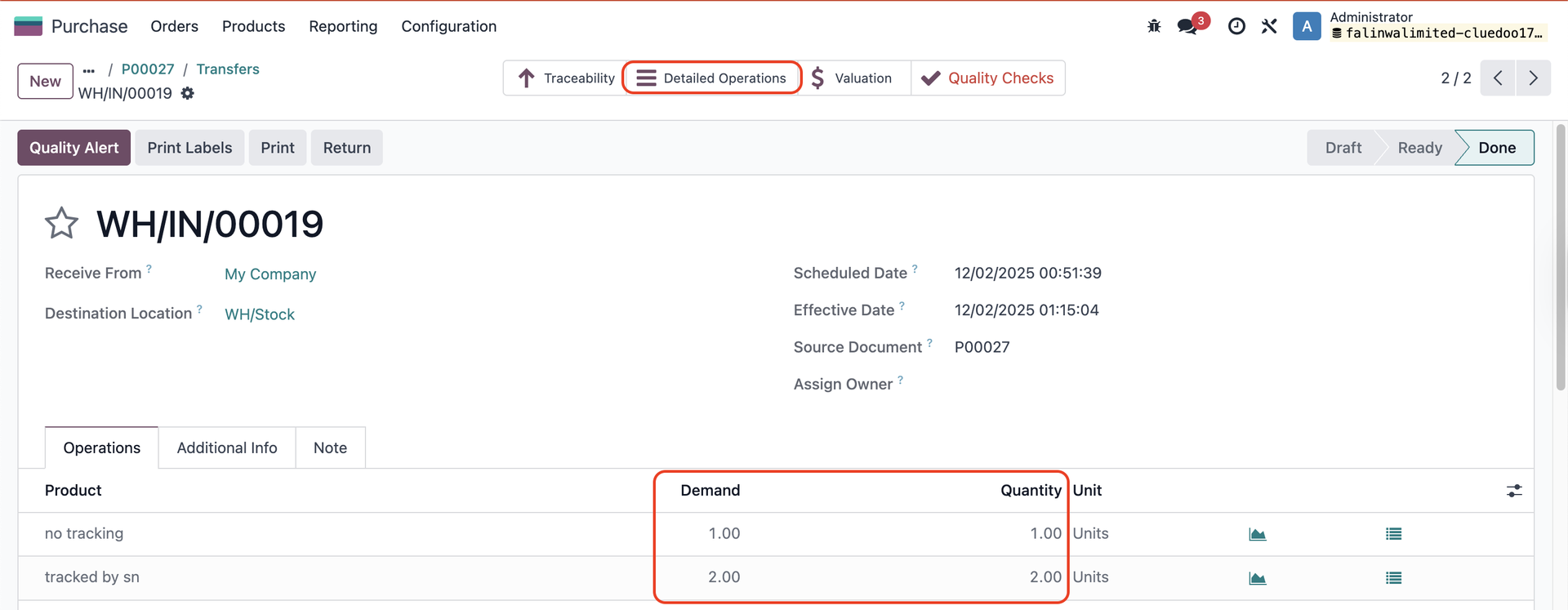 |
You will see that all the passed QCs are moved to the done transfer's Destination Location, and the failed QC is moved to the Failure Location that you set in the QCP. Note: In caae the transfer only has failed QCs, the Destination Location will change to the Failure Location. |  |
5. The remaining quantity will be updated in the backorder, and the serial numbers are inherited as well. Note: for 1-step receipt, the SN/L will appear on the picking lines after the transfer is validated. | 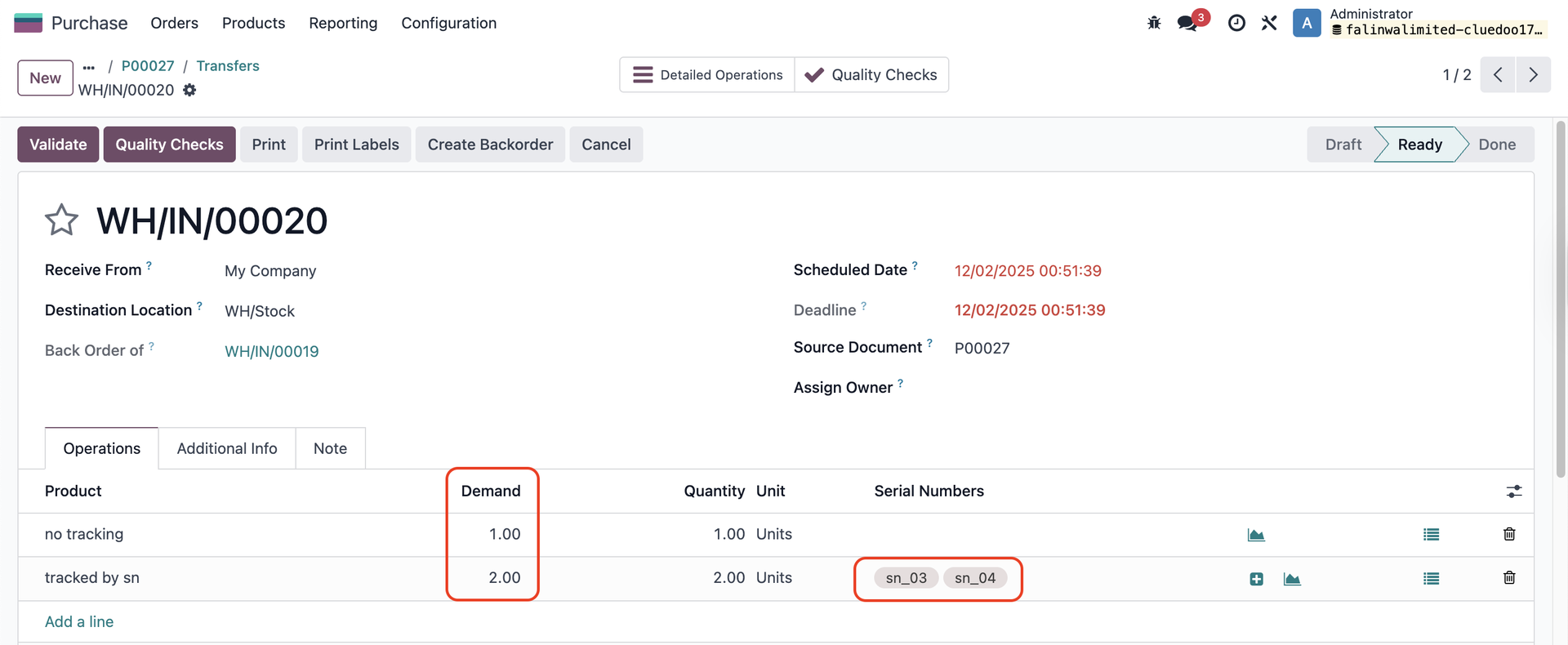 |