


ODOO'S FUNCTION
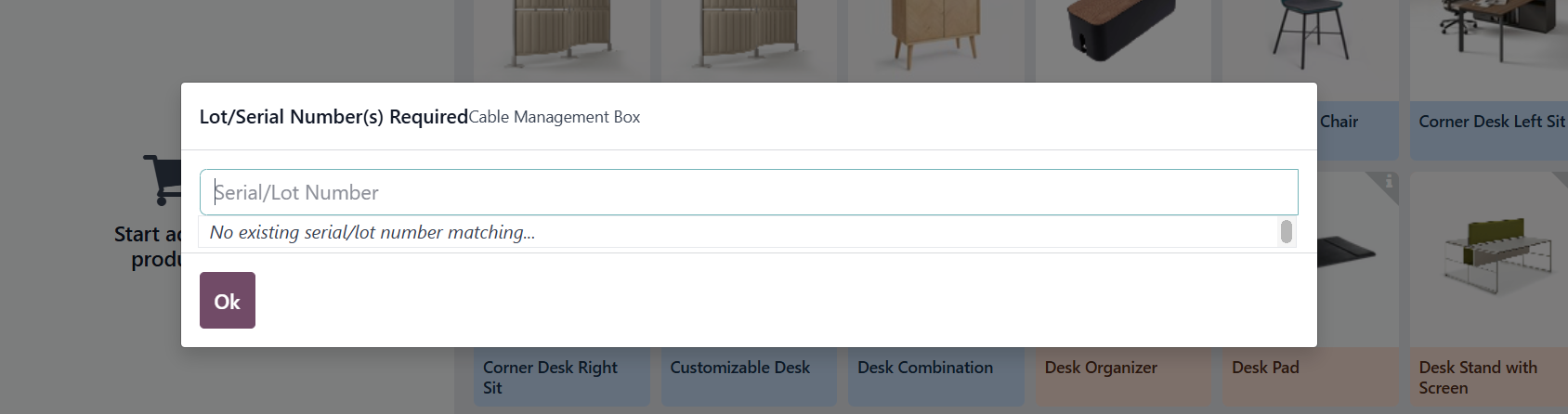
In POS, products tracked by Lot/Serial Number always require scanning before validating the order, regardless of the source or destination location.
CLUEDOO'S FUNCTION
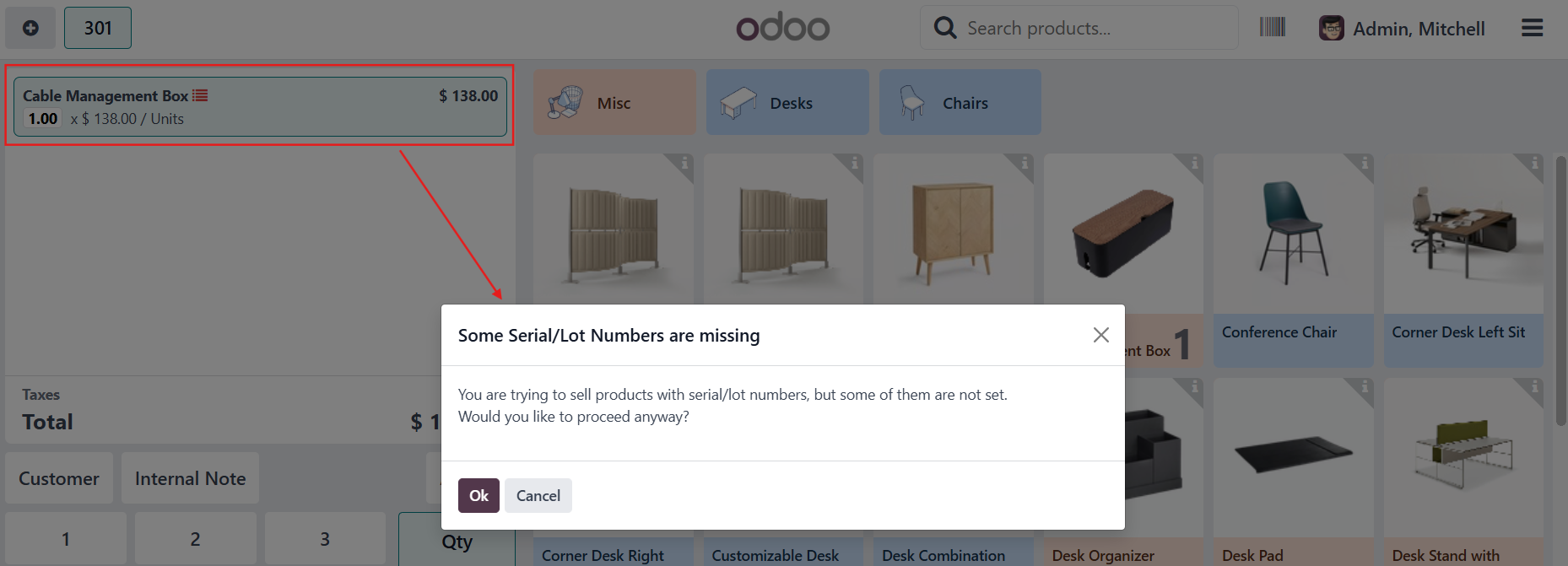
If the source location in the POS operation type is set to “No Tracking”, the system skips the serial/lot scan in POS and allows the stock move to be validated directly.
CONFIGURATION | |
1. Go to Point of Sale > Choose a shop > Click the 3 dots > Edit > More Settings: Configurations > Settings > Choose an Operation Type for this shop | 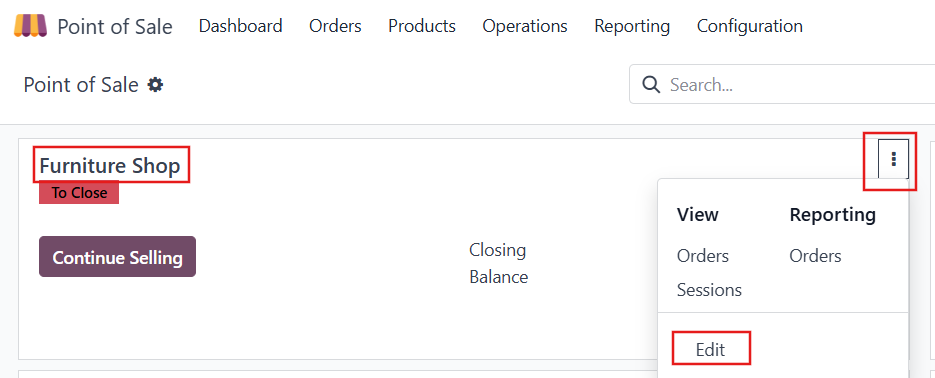 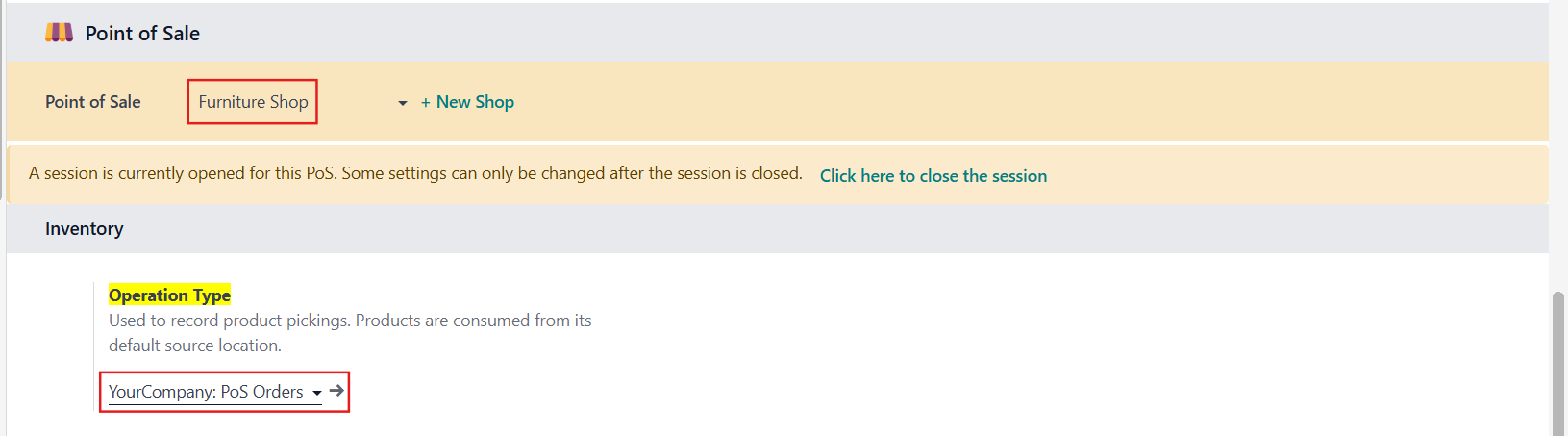 |
2. Check the Source Location and Destination Location in the Operation Type | 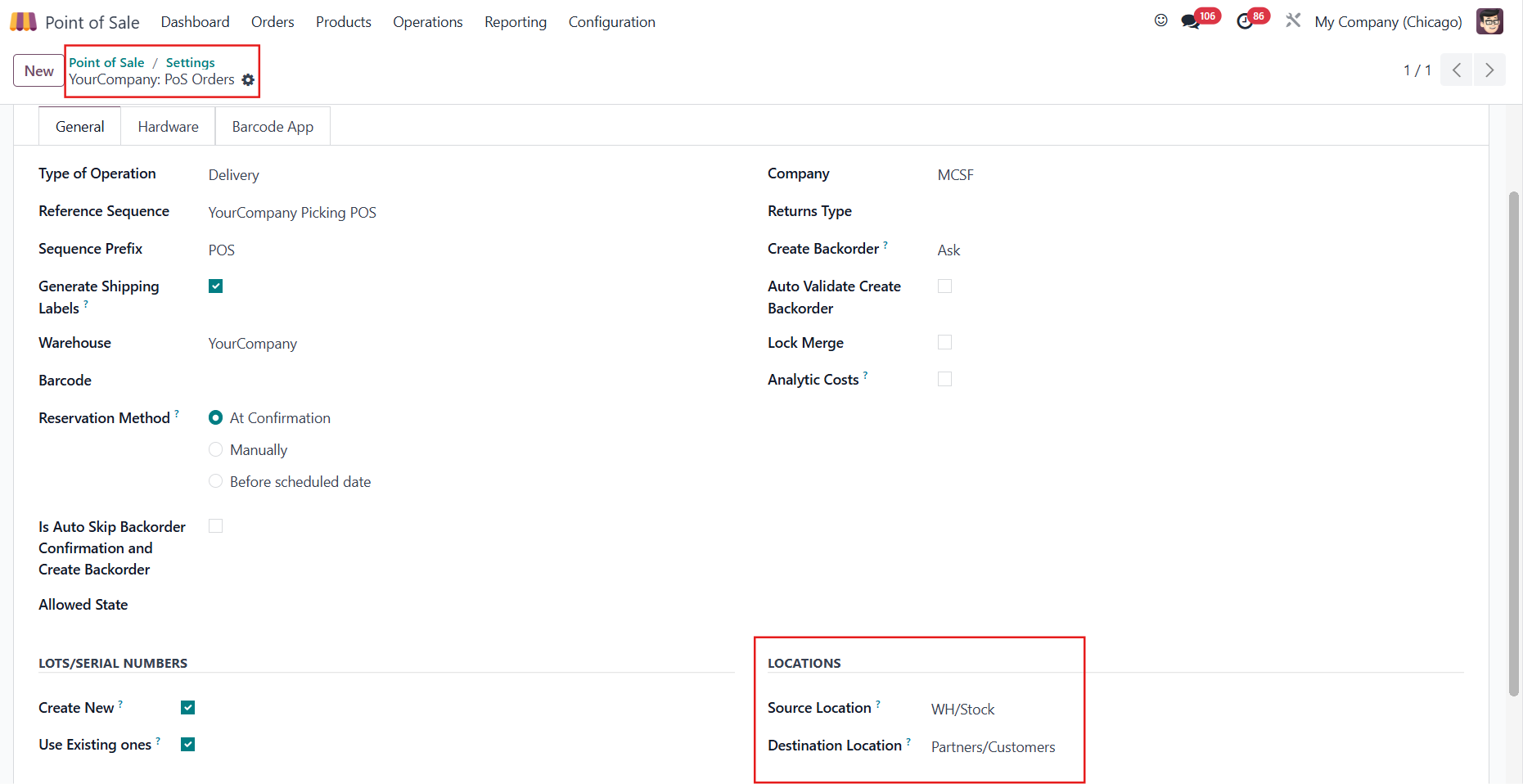 |
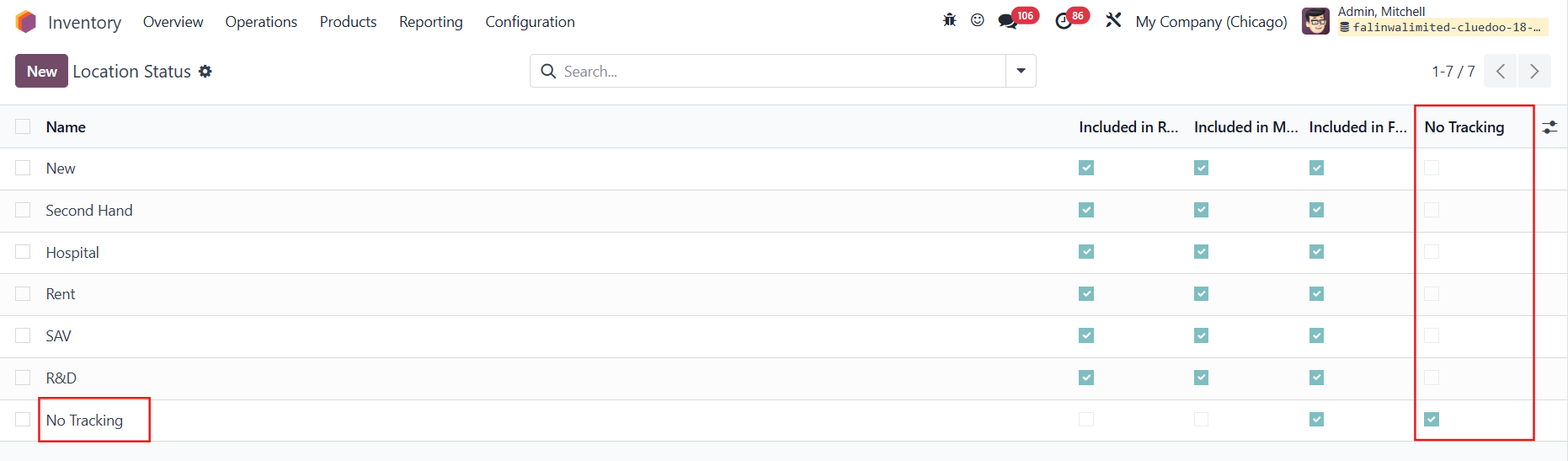
3. Go to Inventory > Configuration > Location Management > Location Status > we have a new column No Tracking for the location statuses
| 
|
USAGE | |
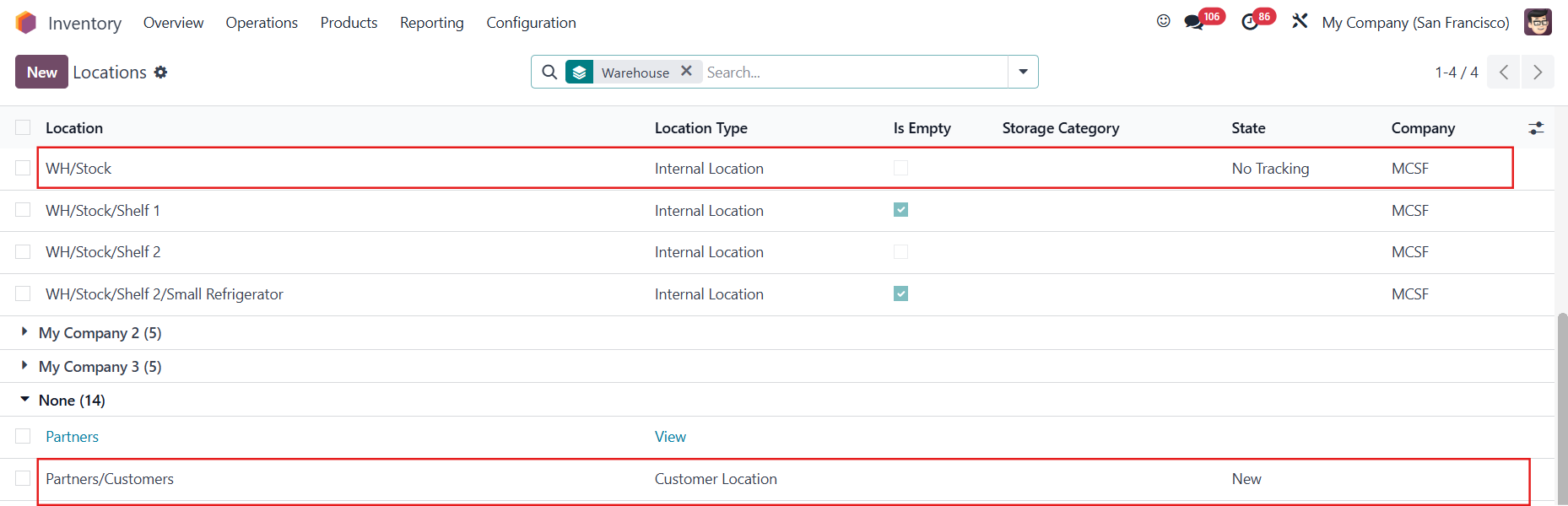
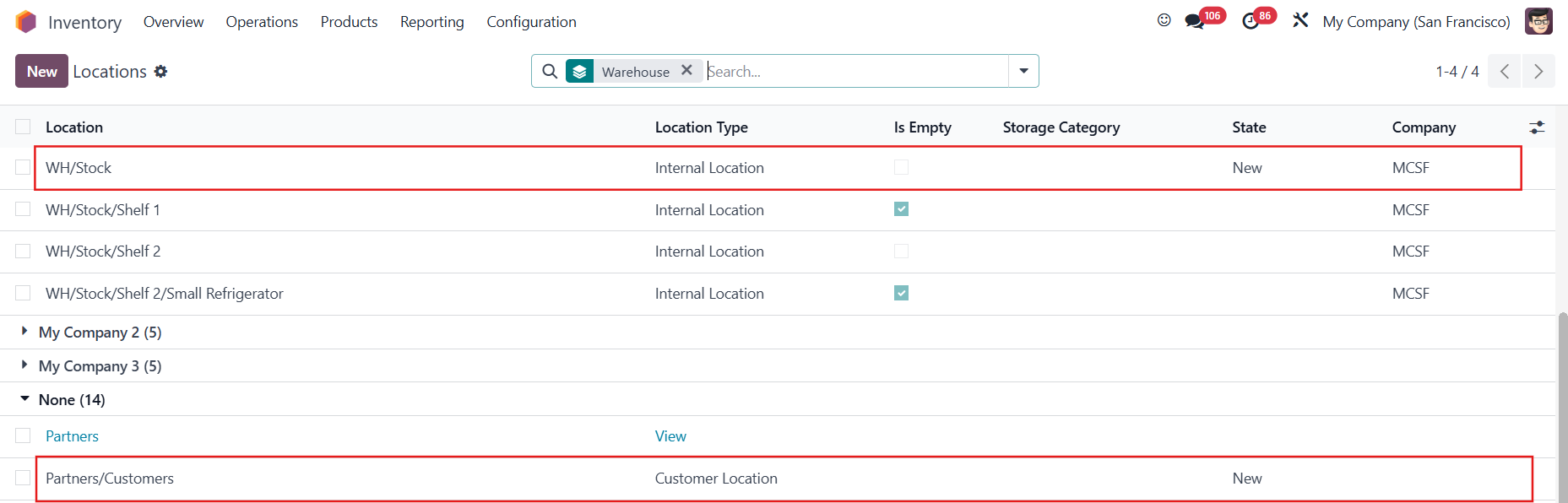
CASE 1: SOURCE LOCATION + DESTINATION LOCATION = NO TRACKING1. Go to Inventory > Configuration > Warehouse Management > Locations, we can choose the state/status for the Source Location and Destination Location above | 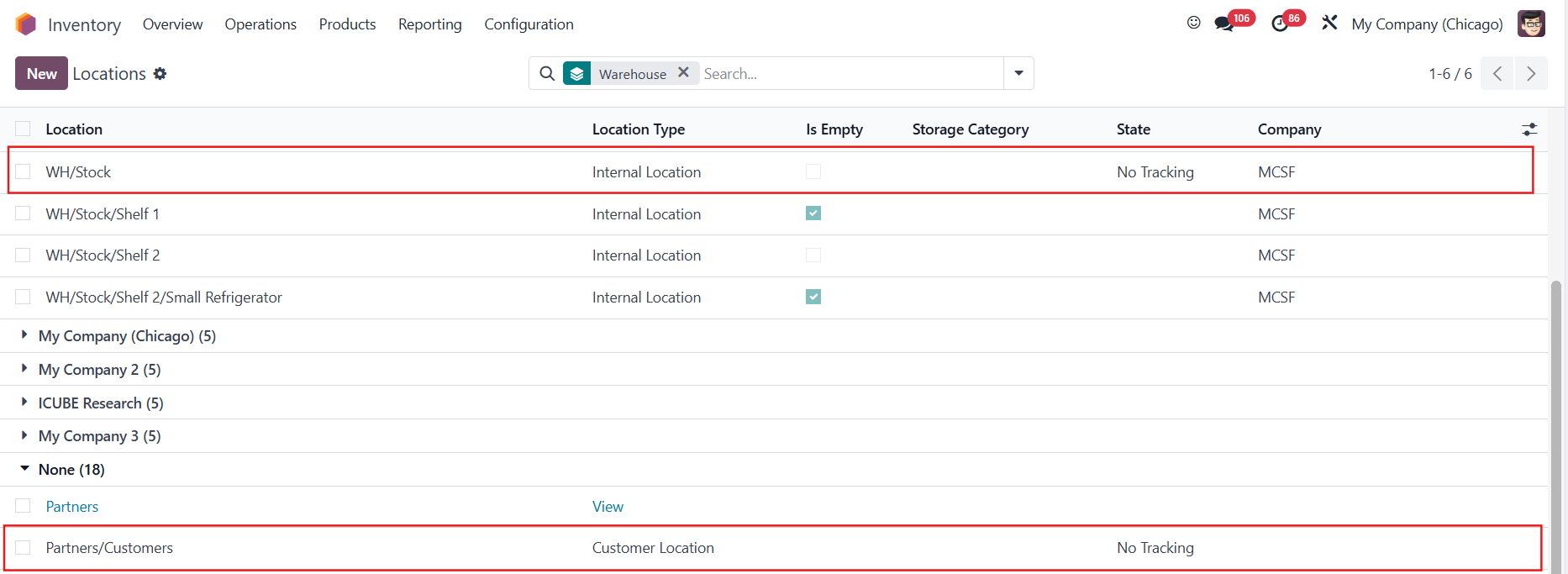 |
2. Create a product tracked by Lots/Unique Serial Number | 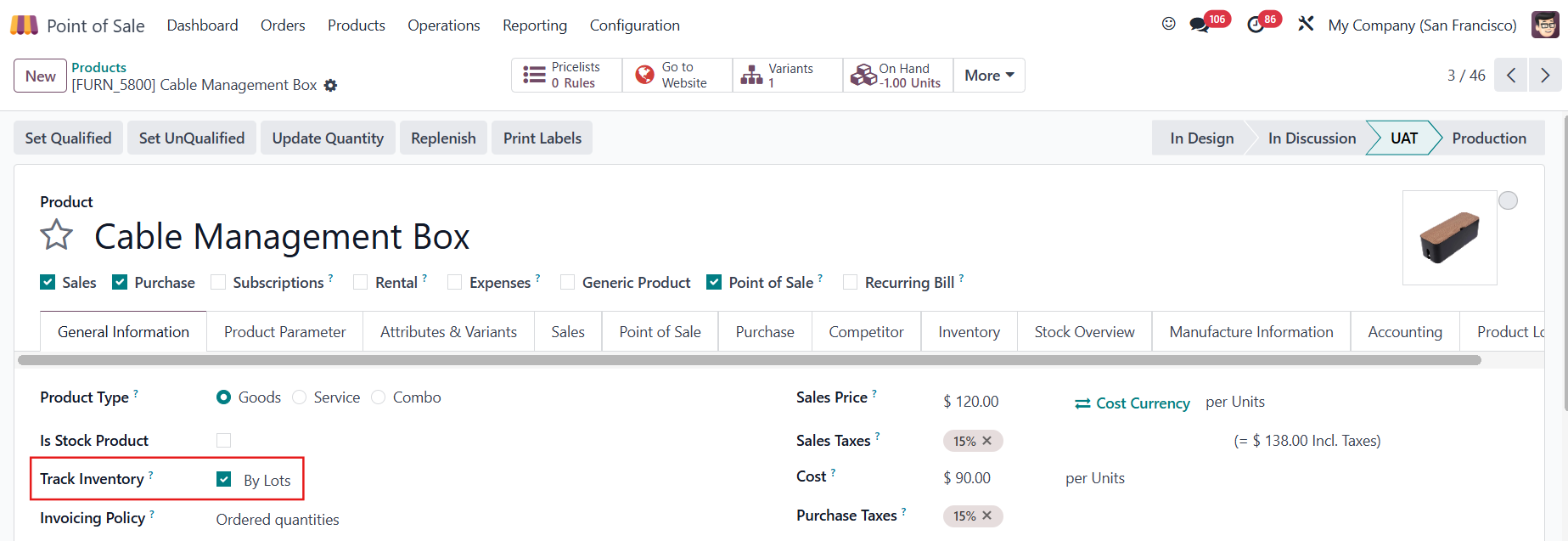 |
3. Access the shop > Add the product to the order > Click Payment Note: The quantity will automatically fill to 1 without requiring manual input via the numpad or entering a Lot/SN. |
|
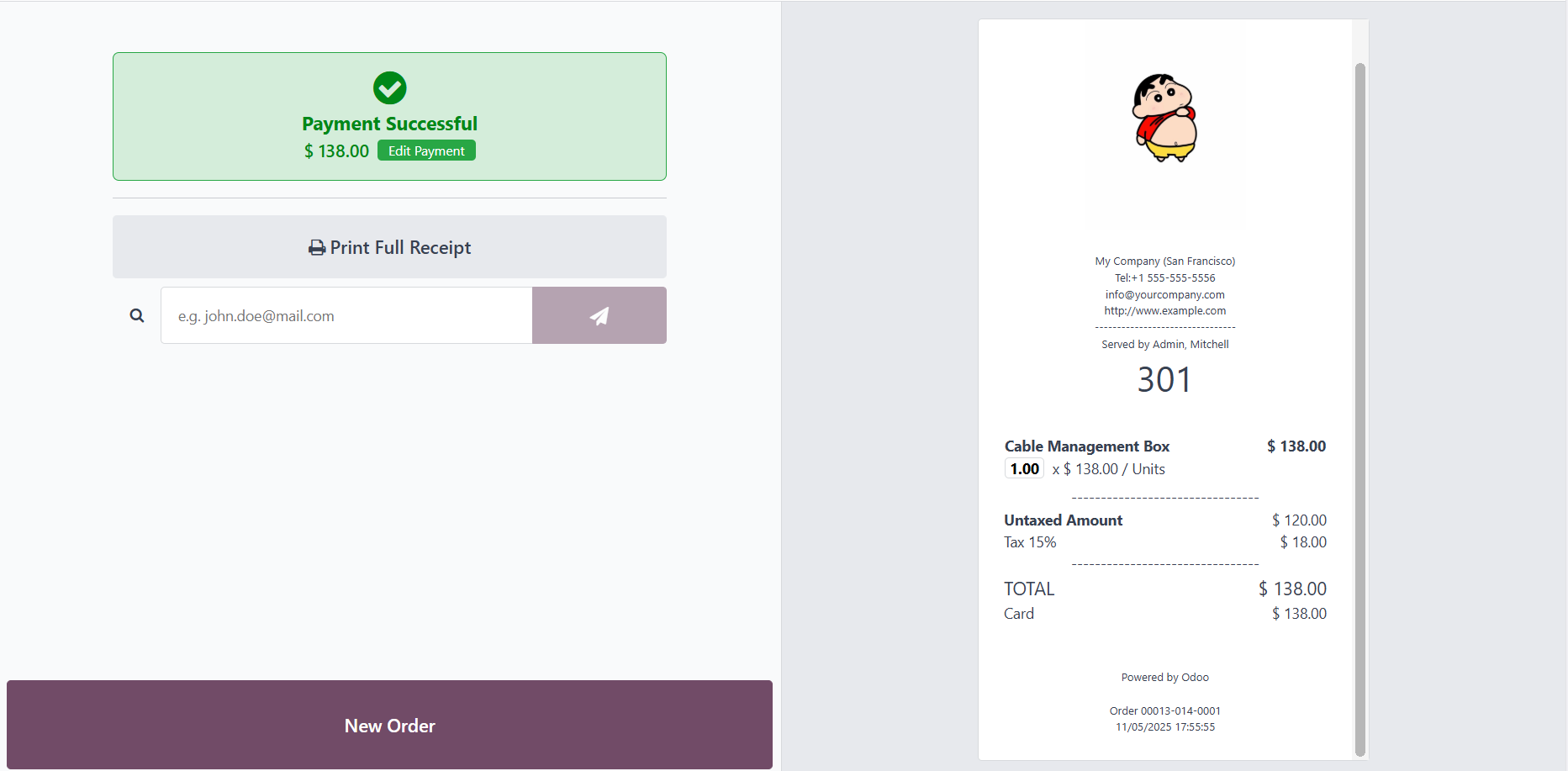
4. Choose a payment method and a customer > Validate > The order has been placed successfully without assigning the L/SN |
|
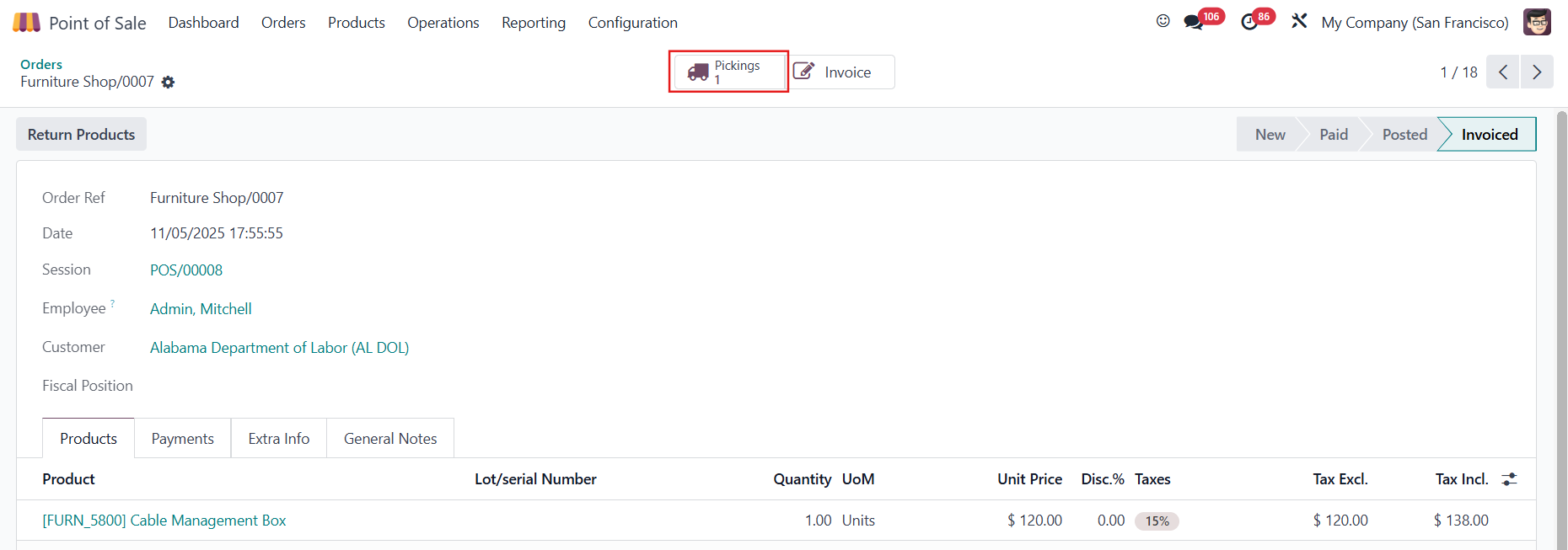
5. Go to the POS order > Pickings > You will see that the picking has been automatically validated |
|
CASE 2: ONLY SOURCE LOCATION = NO TRACKINGYou can still place the order without assigning the L/SN but the POS picking is not automatically validated |
|
CASE 3: SOURCE LOCATION + DESTINATION LOCATION = TRACKING (ODS)You will not be able to proceed the order if no L/SN is assigned to the product |
|