


ODOO'S FUNCTION
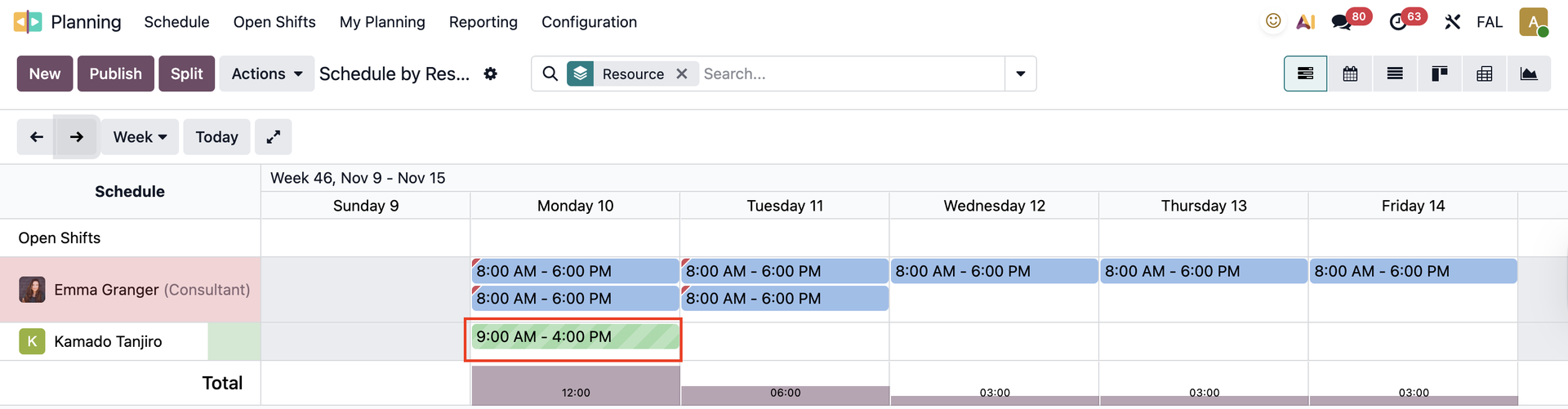
When an employee requests time off, Odoo does not automatically display the time off in the Planning schedule.
CLUEDOO'S FUNCTION
With CLuedoo, time off is directly linked to Planning, making it easier for both users and managers to track and manage schedules.
1. Create a new Timeoff request | 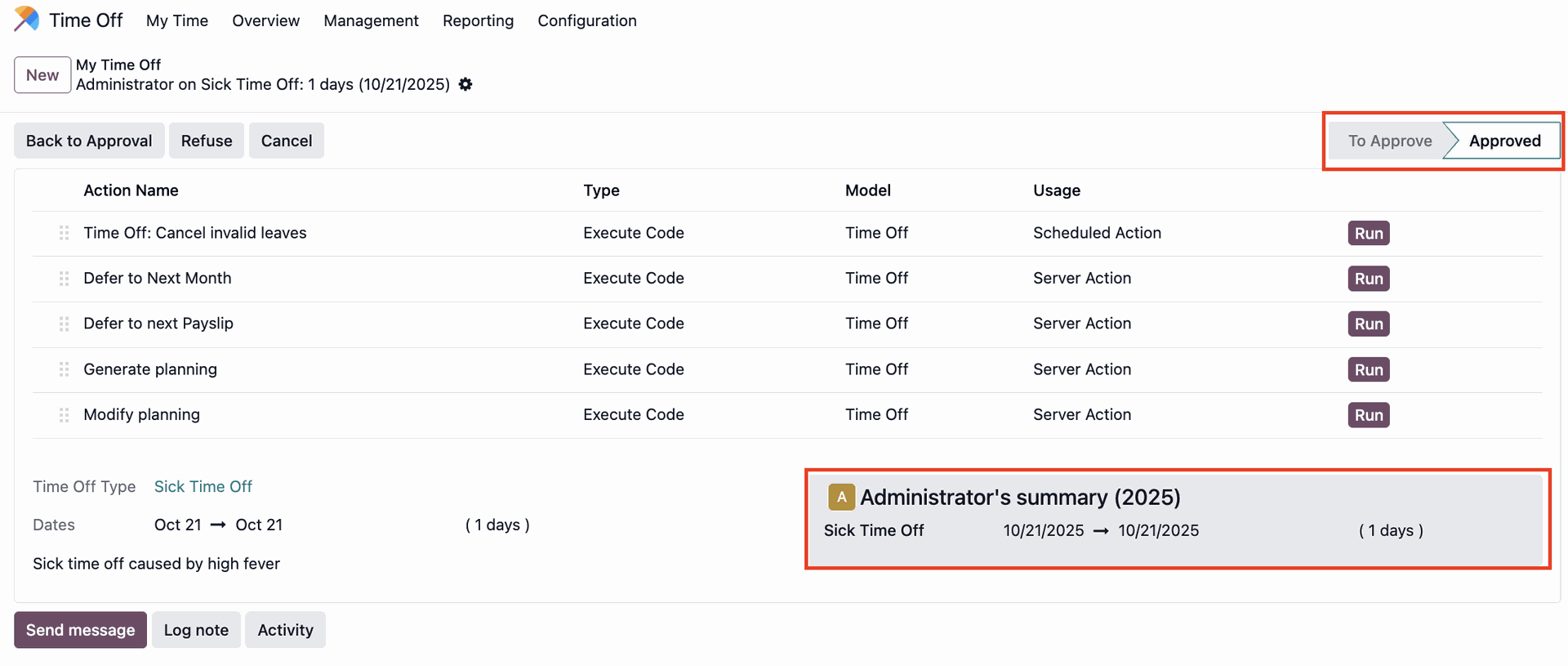 |
2. A new record will be created in Planning based on your time-off request Regardless of whether the request is drafted, approved, or validated, it will still appear in Planning. | 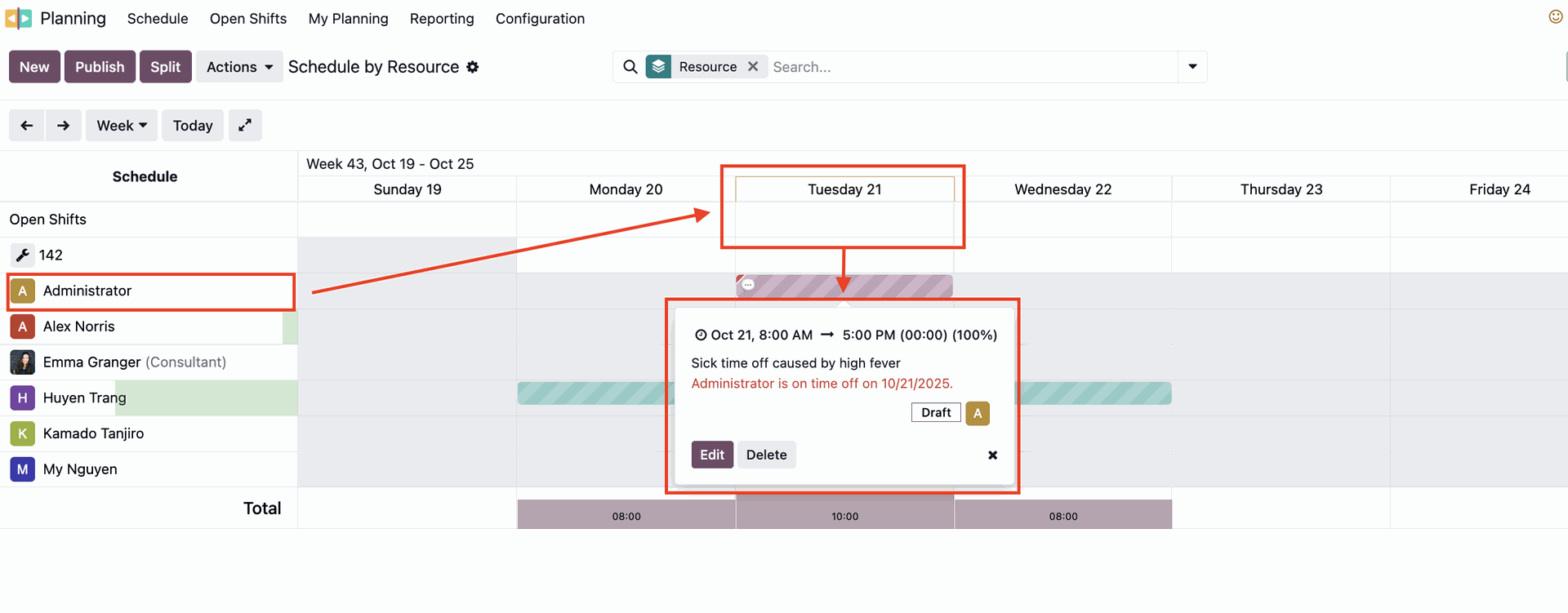 |
3. If the request is refused/ cancelled/ deleted, there will be no record in the planning | 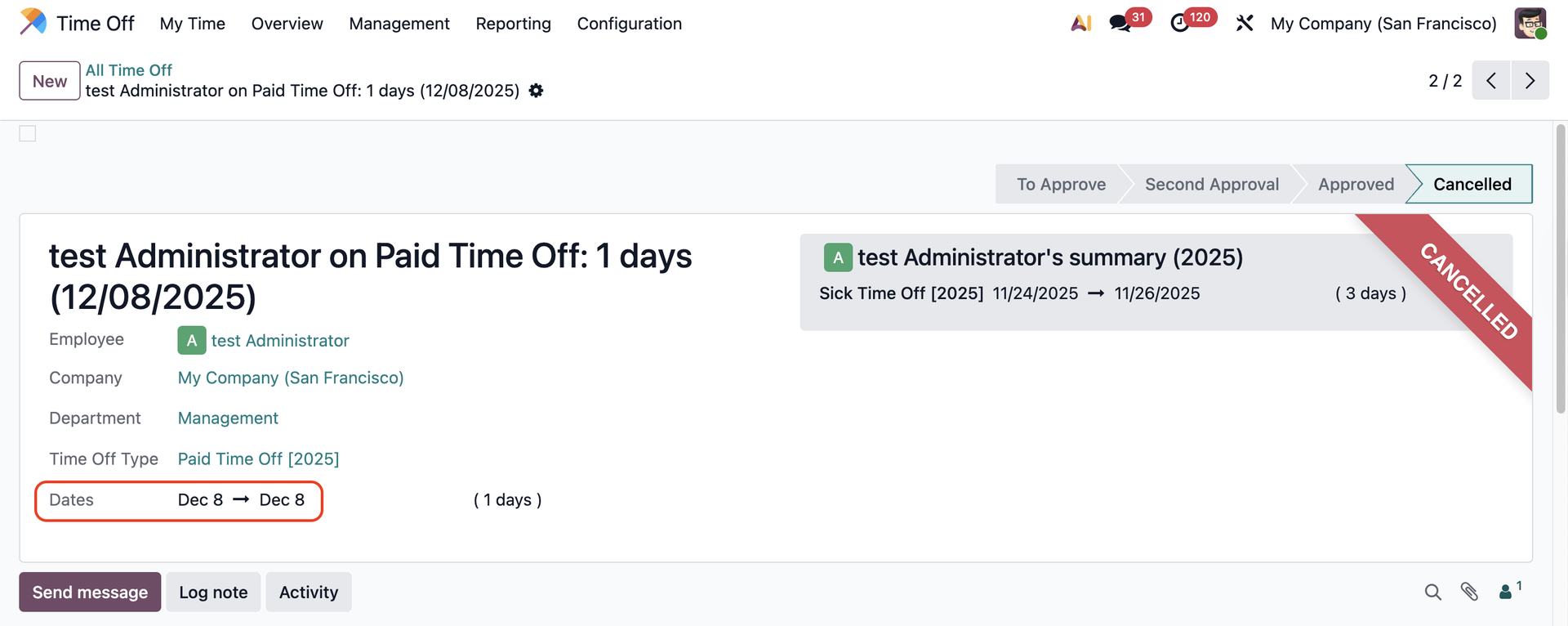 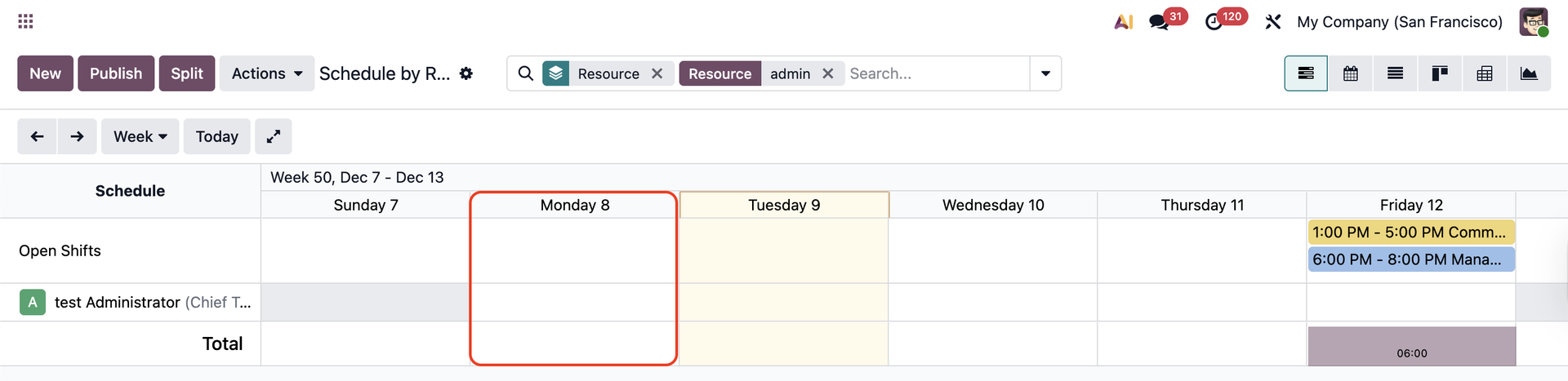 |
When I click Back to Approval > the time off will show up again in the planning | 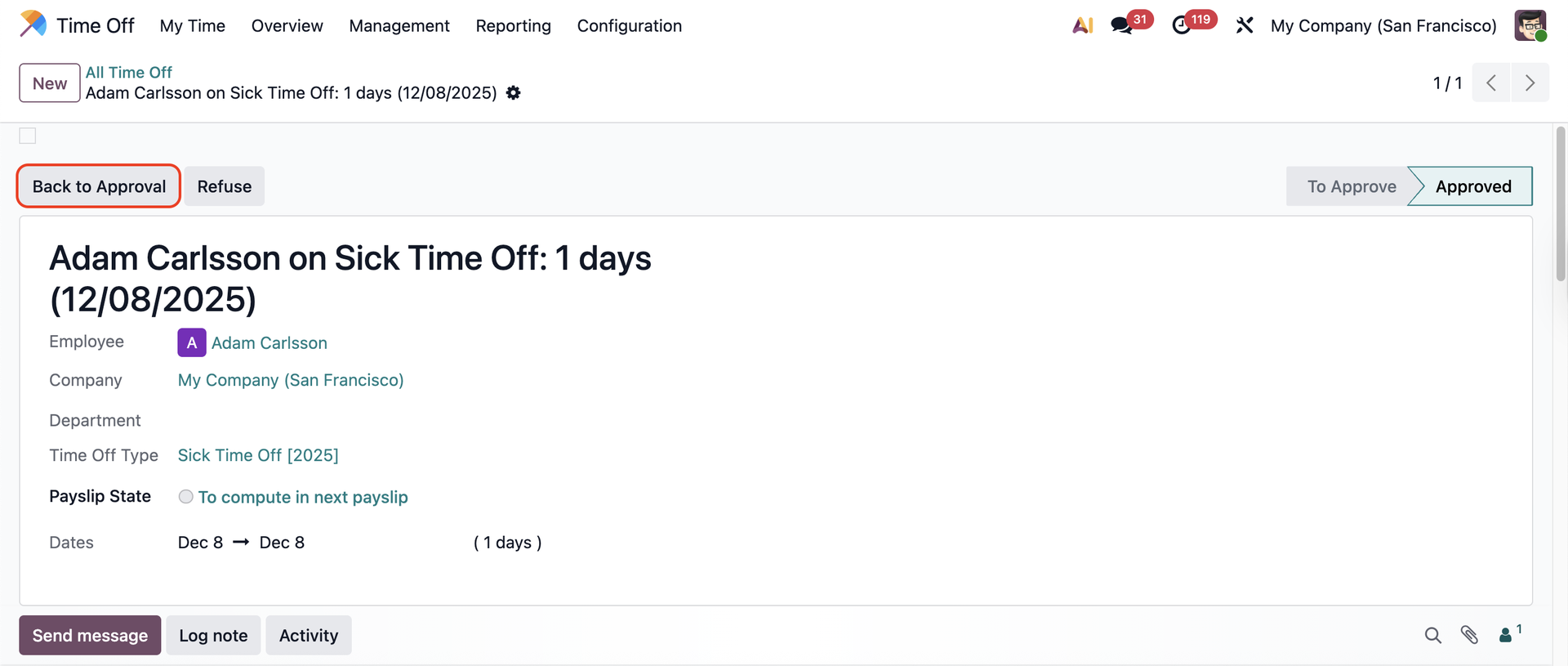 |
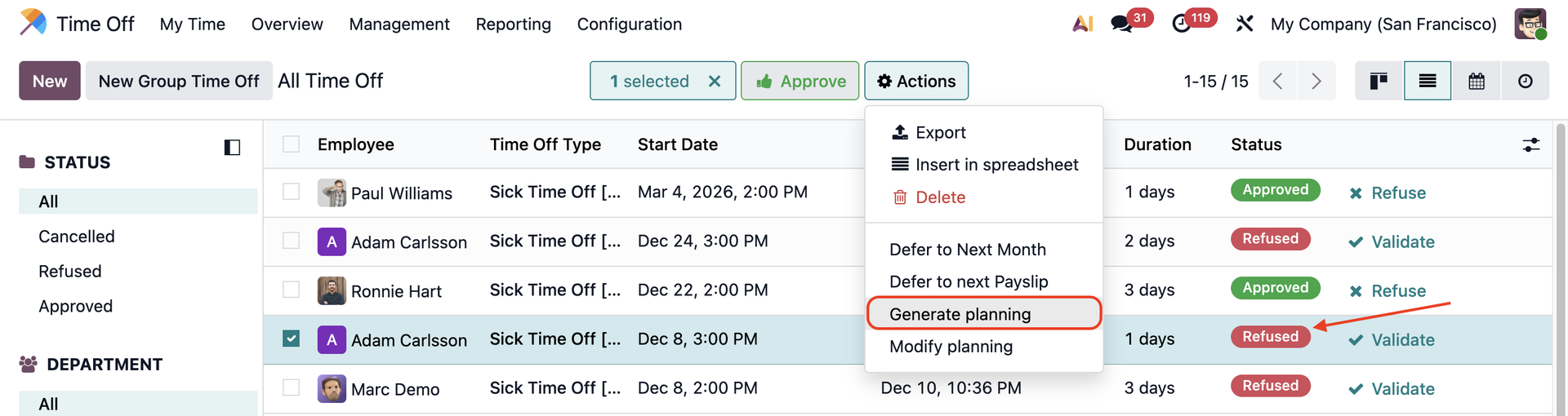
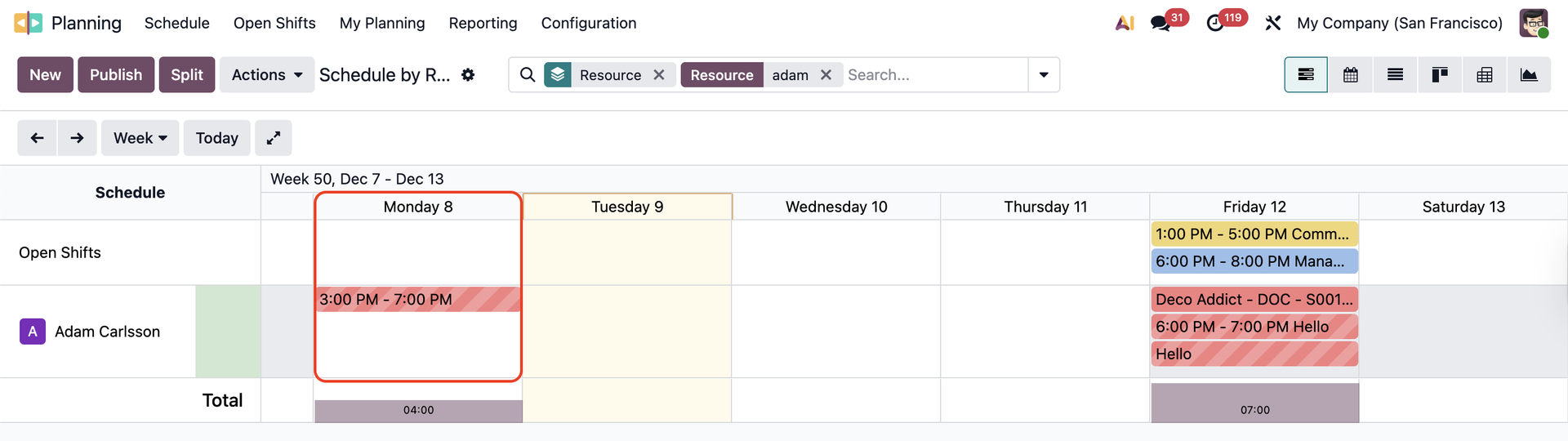
SERVER ACTION: GENERATE PLANNINGYou can add any timeoff (even the refused ones) to planning by choosing Actions > Generate Planning |
|
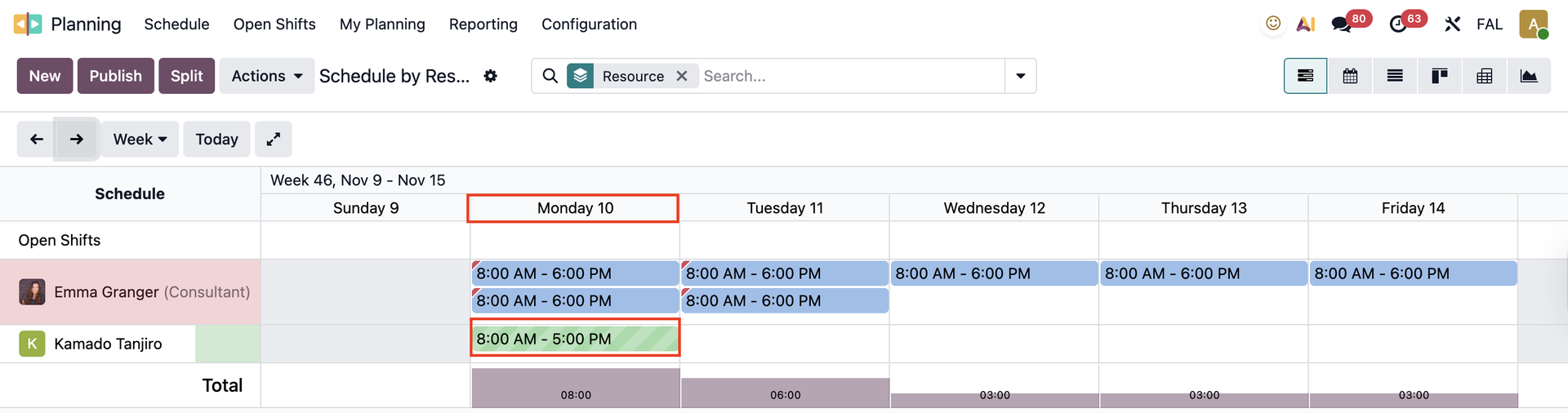
SERVER ACTION: MODIFY PLANNINGIf you have a working schedule from 8 am to 5 pm on Monday When you create a timeoff and add it to planning, it will show the same schedule |
|
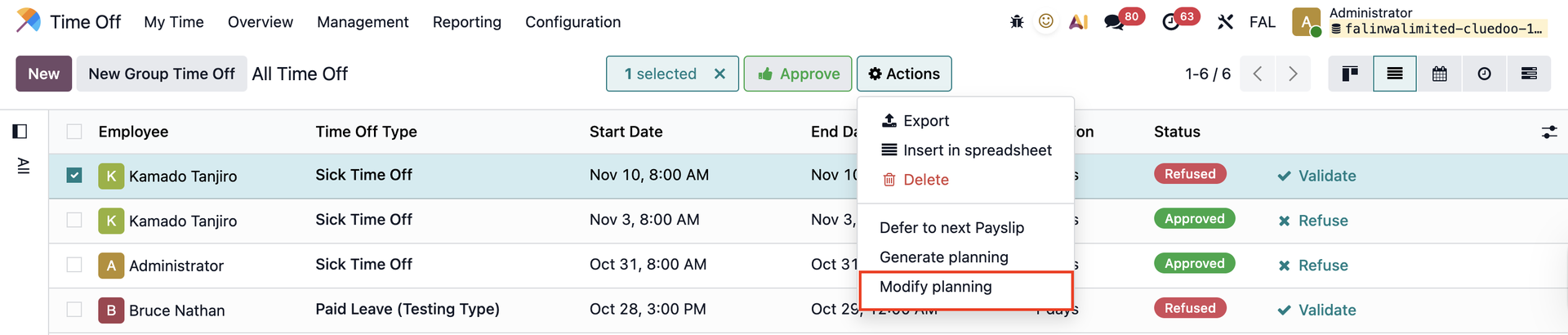
However, if your working schedule changes at some point (before your time off comes), from 9 am to 4 pm on Monday You can go to your future time off > choose Actions > Modify Planning |
|
The timeoff will change based on your new working schedule It will change in planning as well |
|
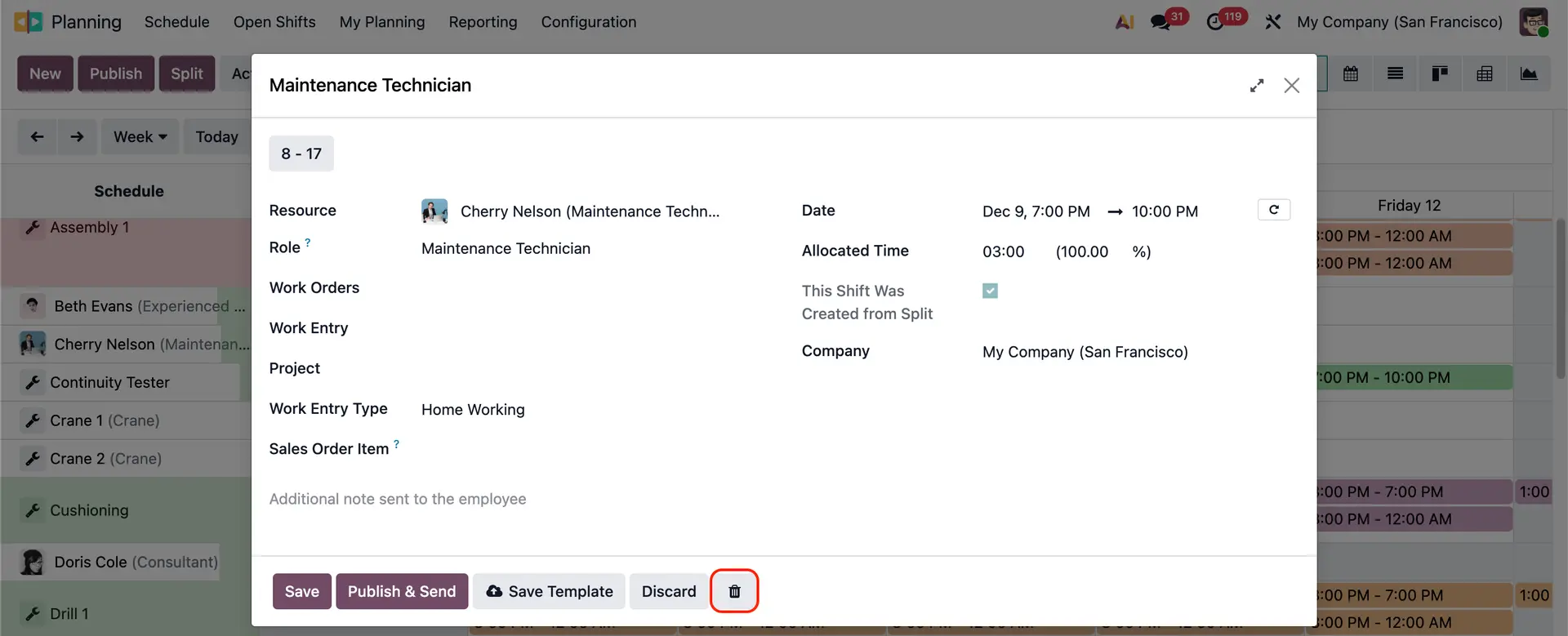
Note: The Delete/Trash button will be hidden on the Gantt view form in planning for type Time Off | 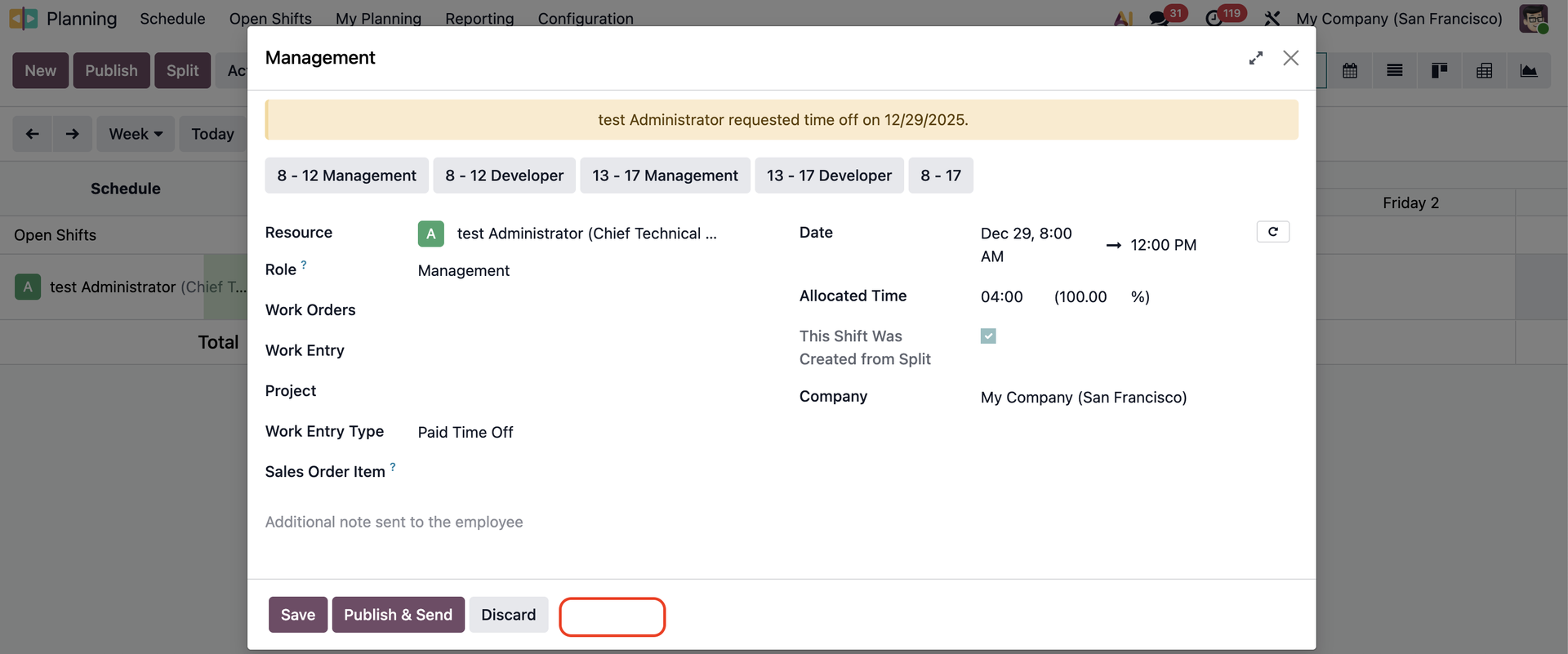 |
For other types |
|