


STORY BEHIND THE FEATURE
ODOO BEHAVIOR
CLUEDOO BEHAVIOR
MODULE +
HOW TO USE THIS MODULE
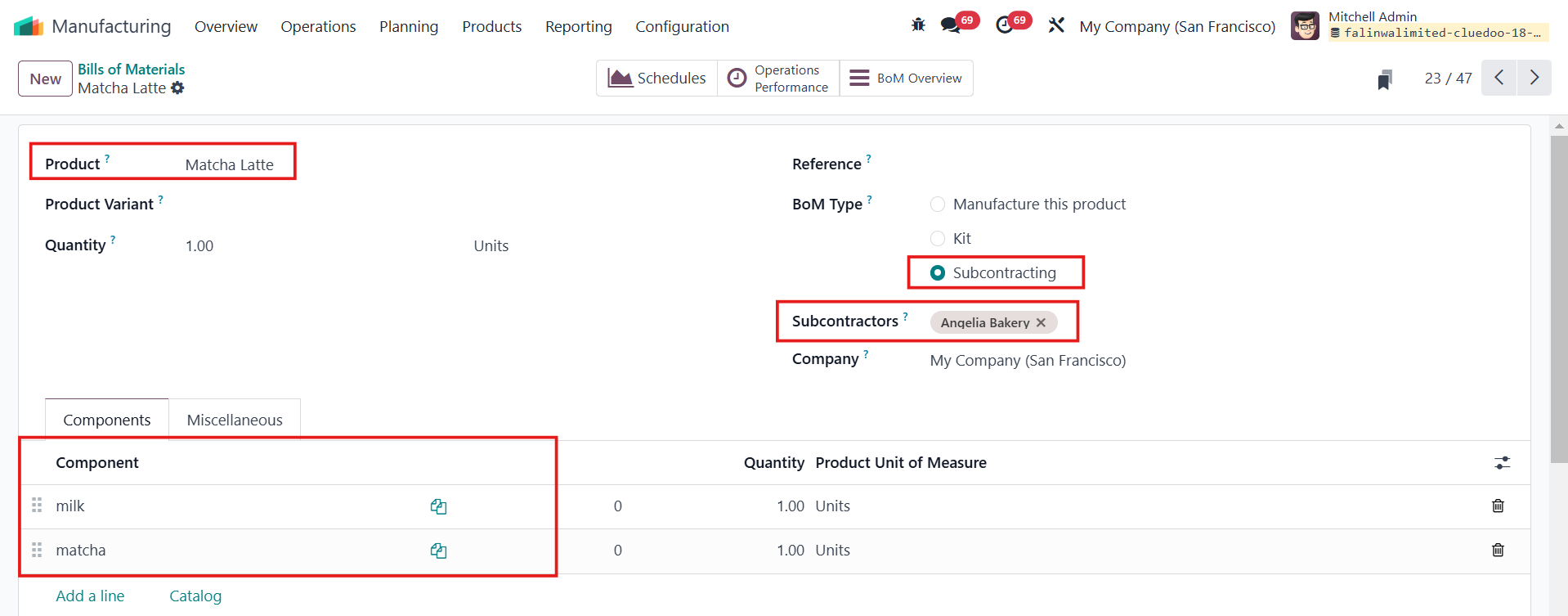
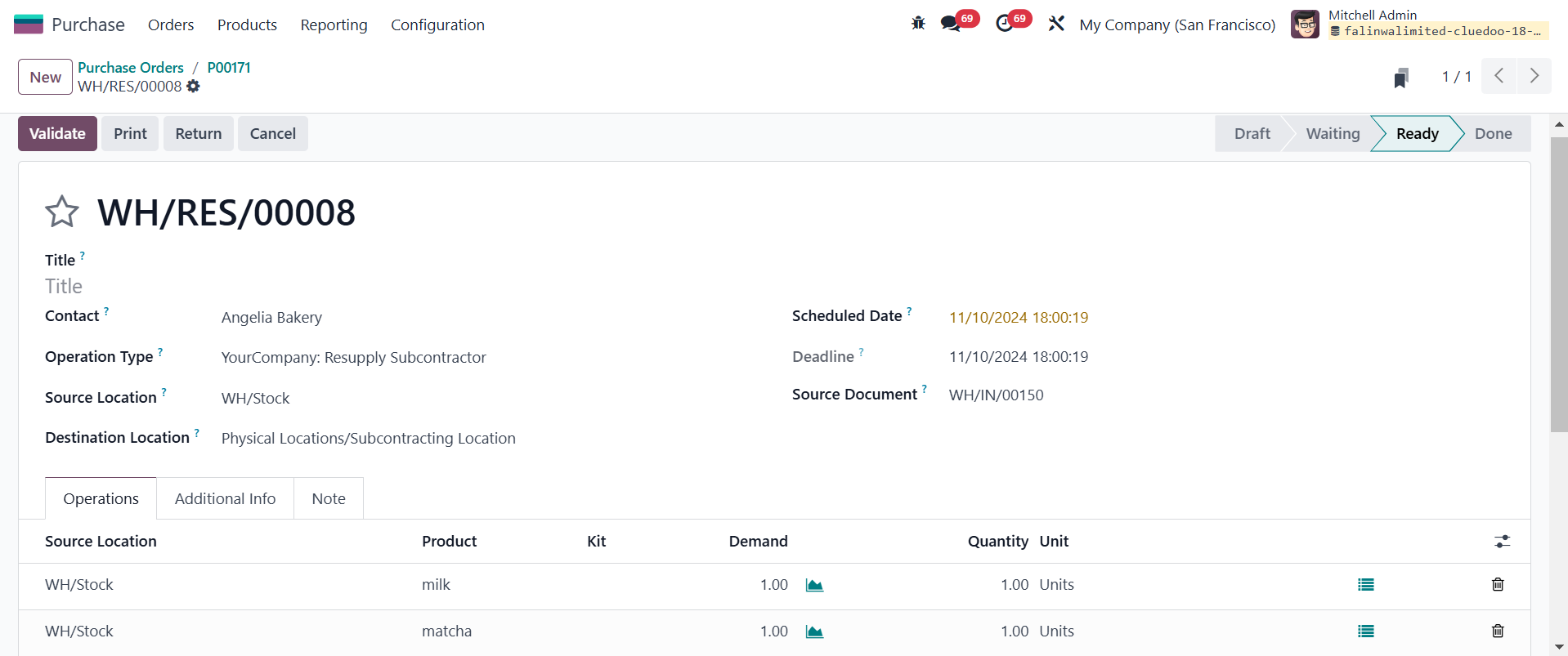
1. Go to Manufacturing > Products > Bills of Materials > Select a product to subcontract and fill in BoM Type and Subcontractors Make sure the components have Resupply Subcontractor on Order as their Routes. |
|
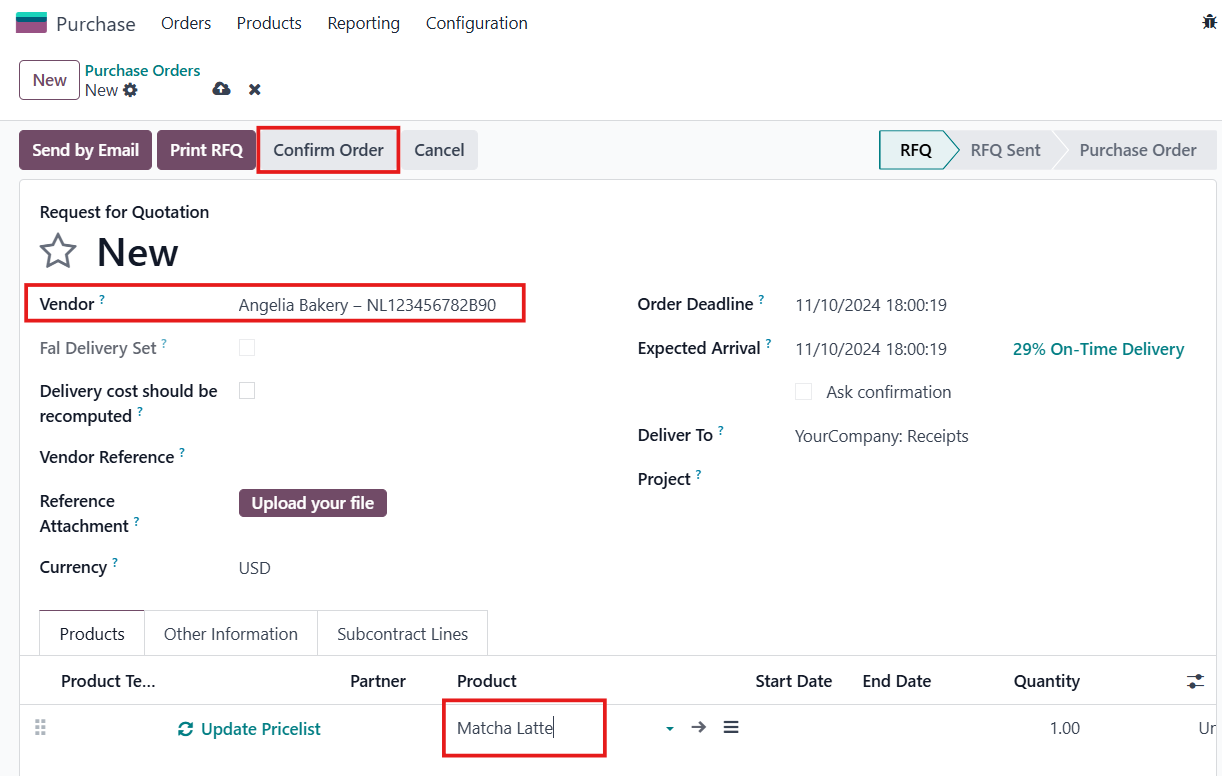
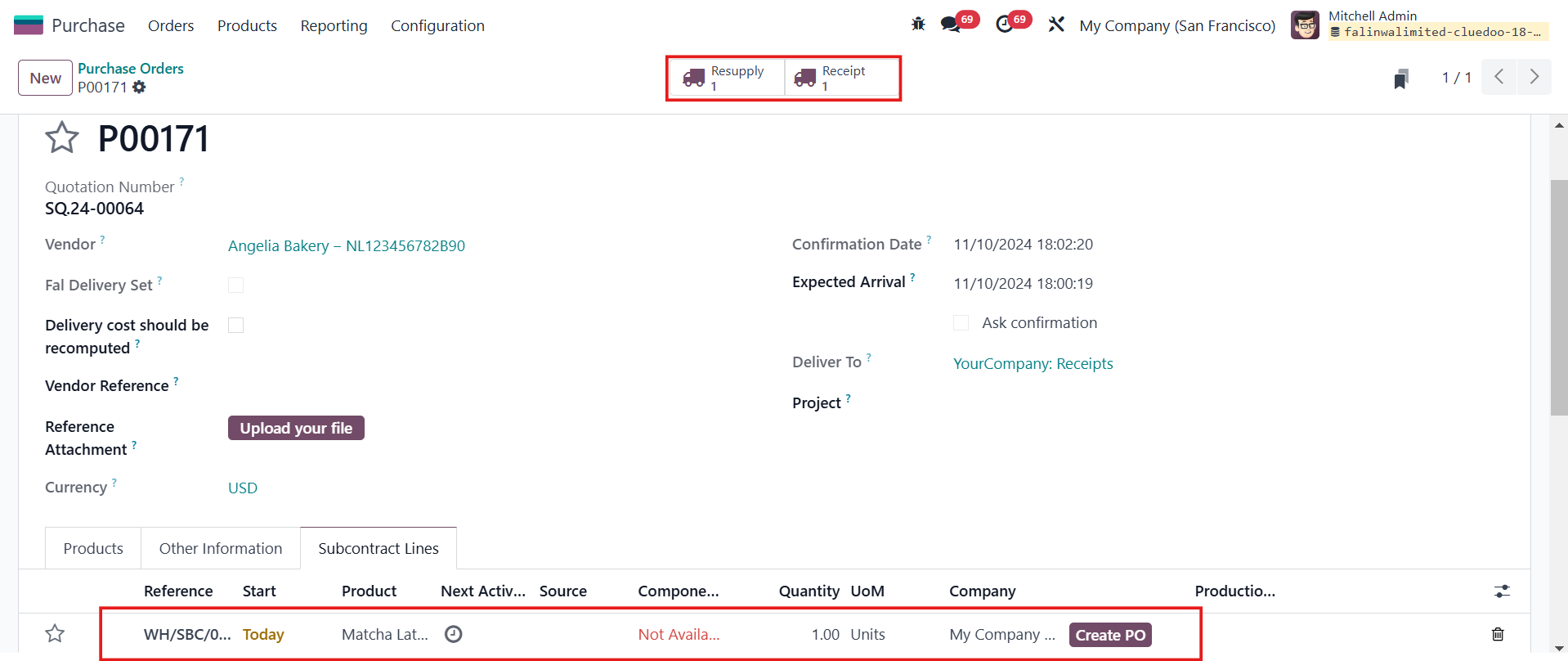
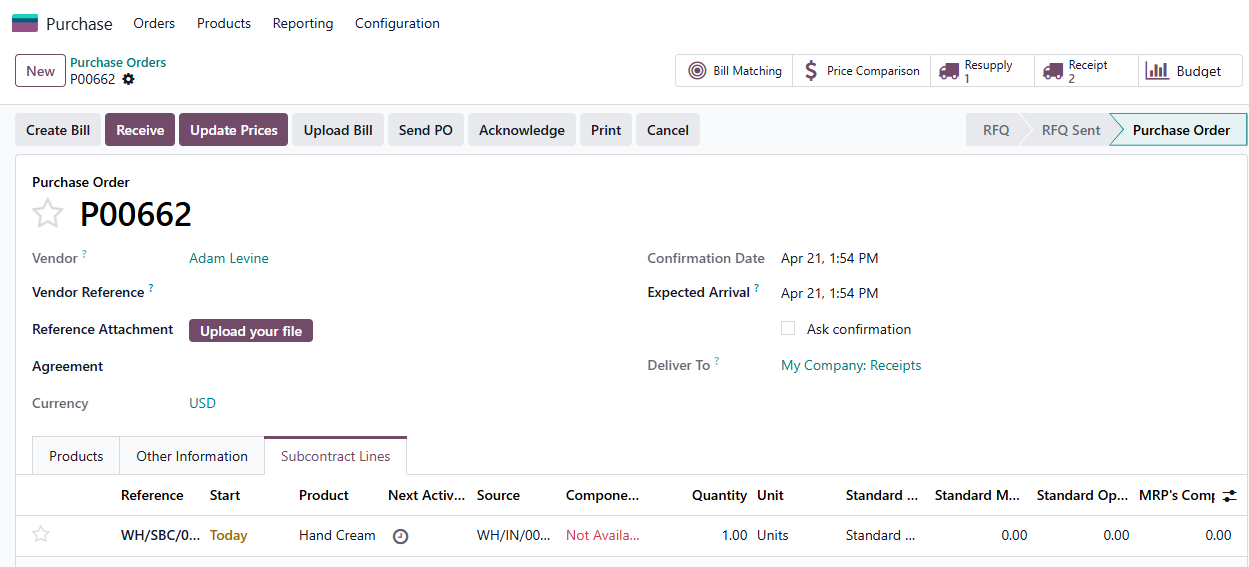
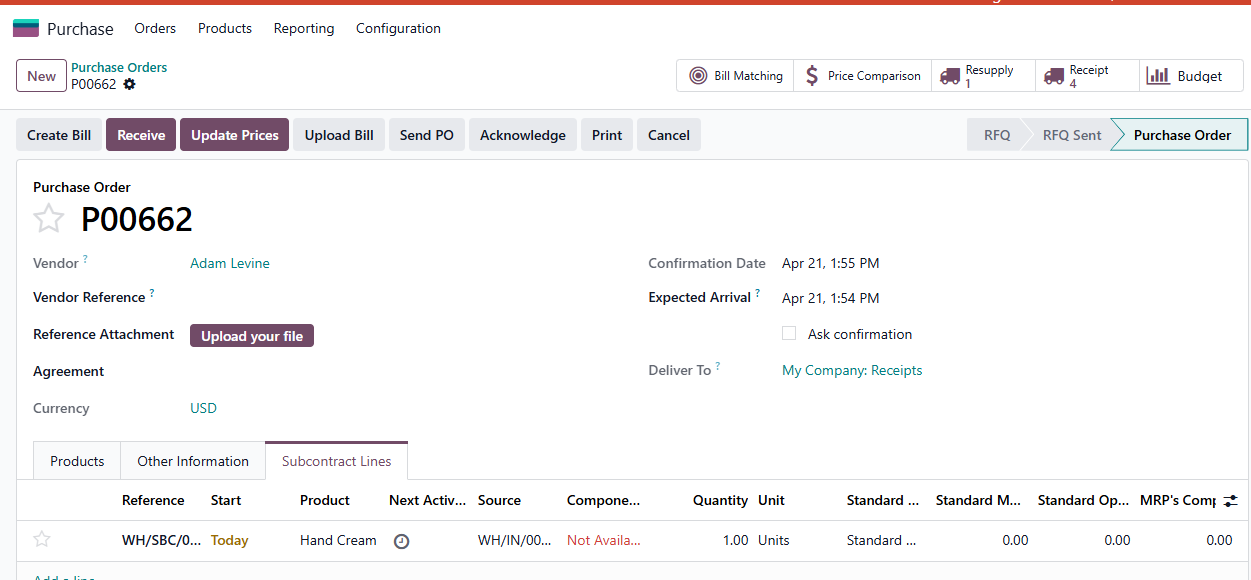
2. Go to Purchase Orders > New to create a new order for subcontracting > Fill in the necessary information > Confirm Order > Subcontract Lines will be updated automatically and a Receipt and Resupply transfer will be generated |
|
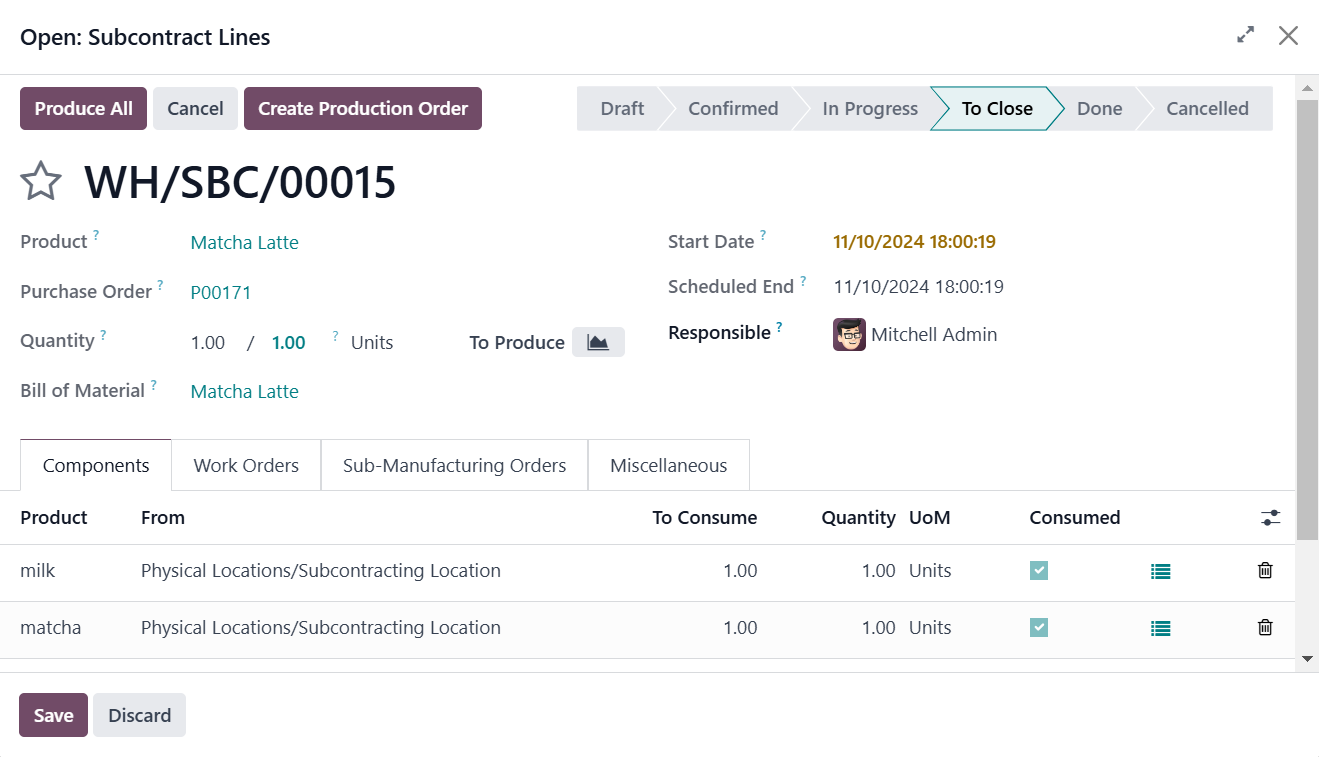
3. You have the option to Produce All the subcontract orders if you click on Subcontract Lines |
|
4. Under Operations, you have the Subcontracting menu as well |
|
5. You can click on the Resupply/Receipt smart button in Purchase Order to validate the transfer. Alternatively, you can head to Inventory > Resupply Sucontractor/Receipts |
|
A warning message when the Lot/Serial Number of the component is not updated according to the quantity of finished product | |
1. Go to Purchase Orders > New to create a new order for subcontracting > Fill in the necessary information > Confirm Order > Subcontract Lines will be updated automatically and the Transfer will be generated. Note: Remember to set up products with components tracked by Lot/Serial Number. | 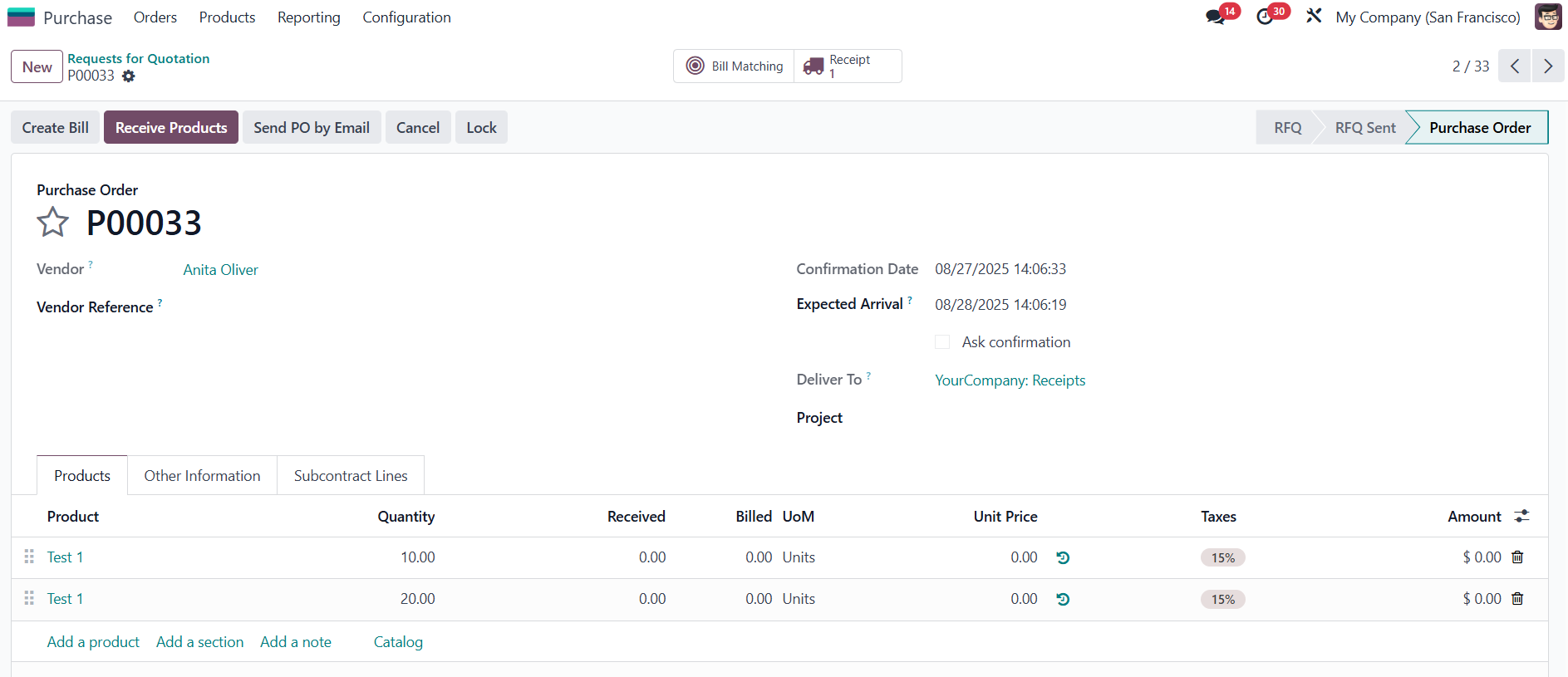 |
2. Choose one sub-manufacturing order to set the Lot/Serial Number for the product component > Save | 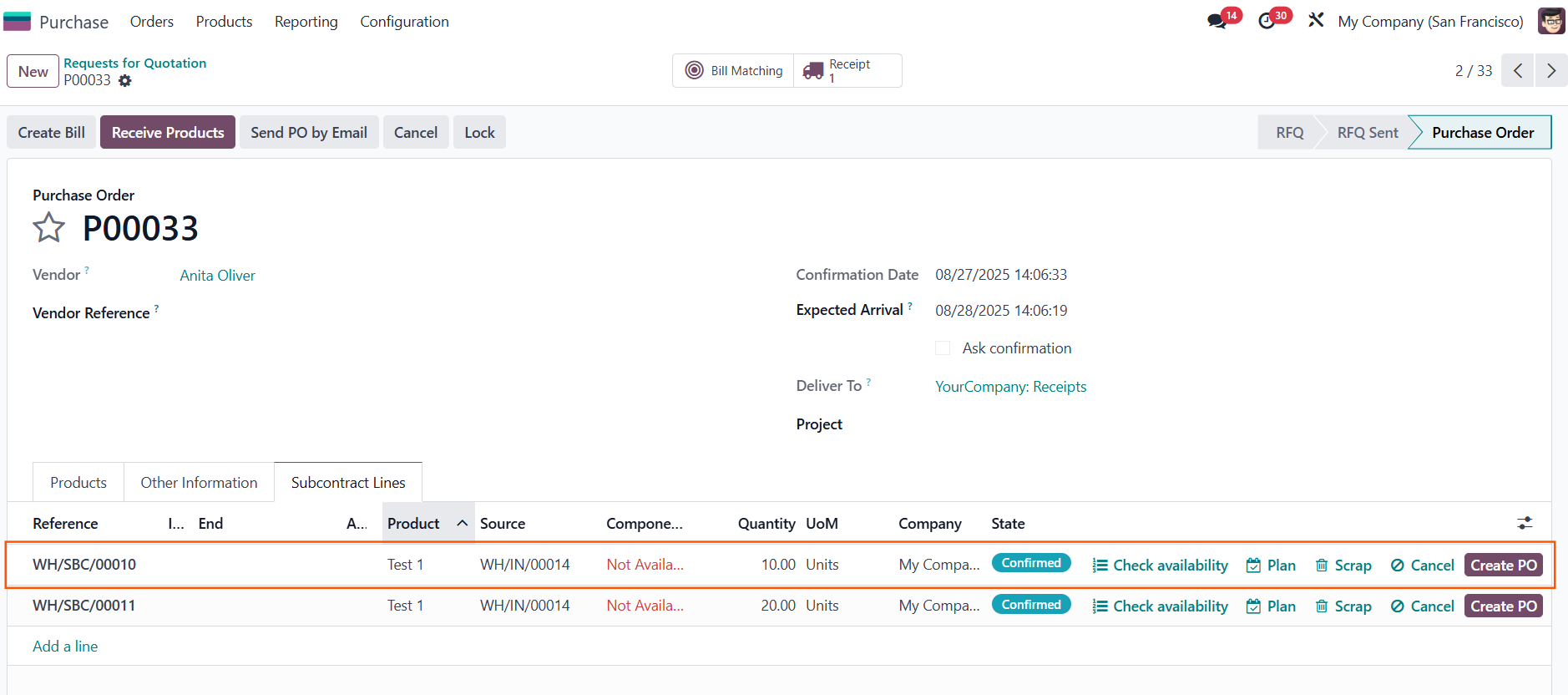 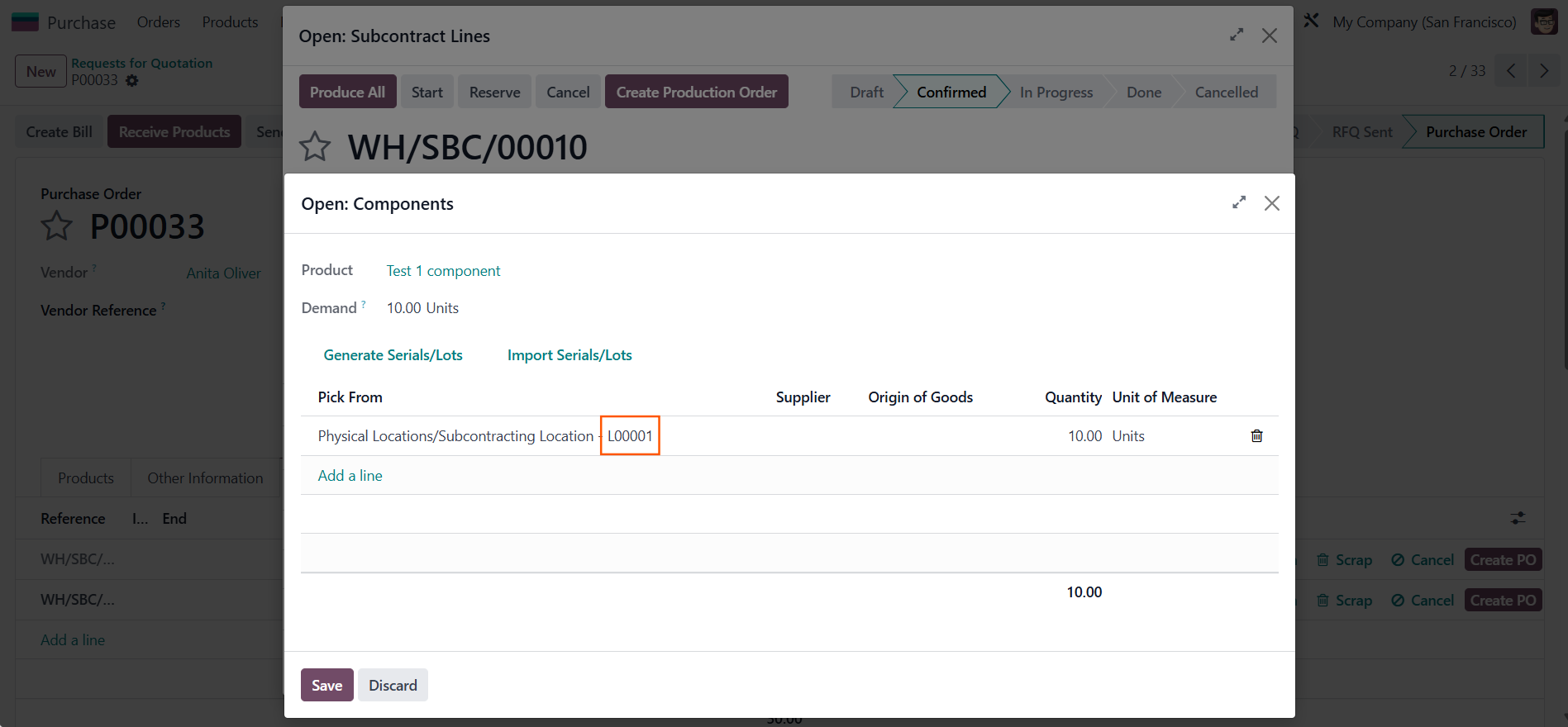 |
3. Adjust the product quantity in the Purchase Order Line > Save > Click the Receipt smart button to open the transfer | 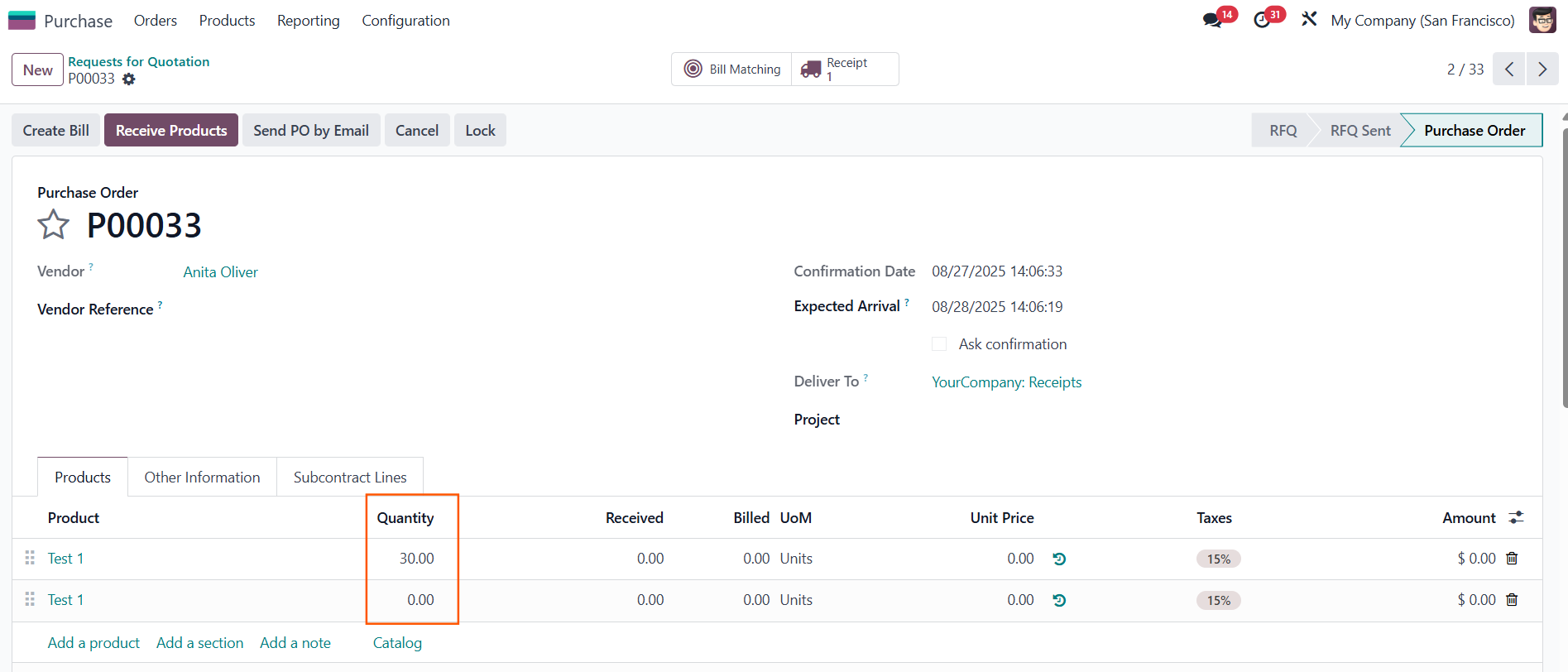 |
4. A warning message appears, as a result we can not validate the transfer. Select the Read components to fill in the remaining Lot/Serial Number of the product's component, so that the transfer can be validated. | 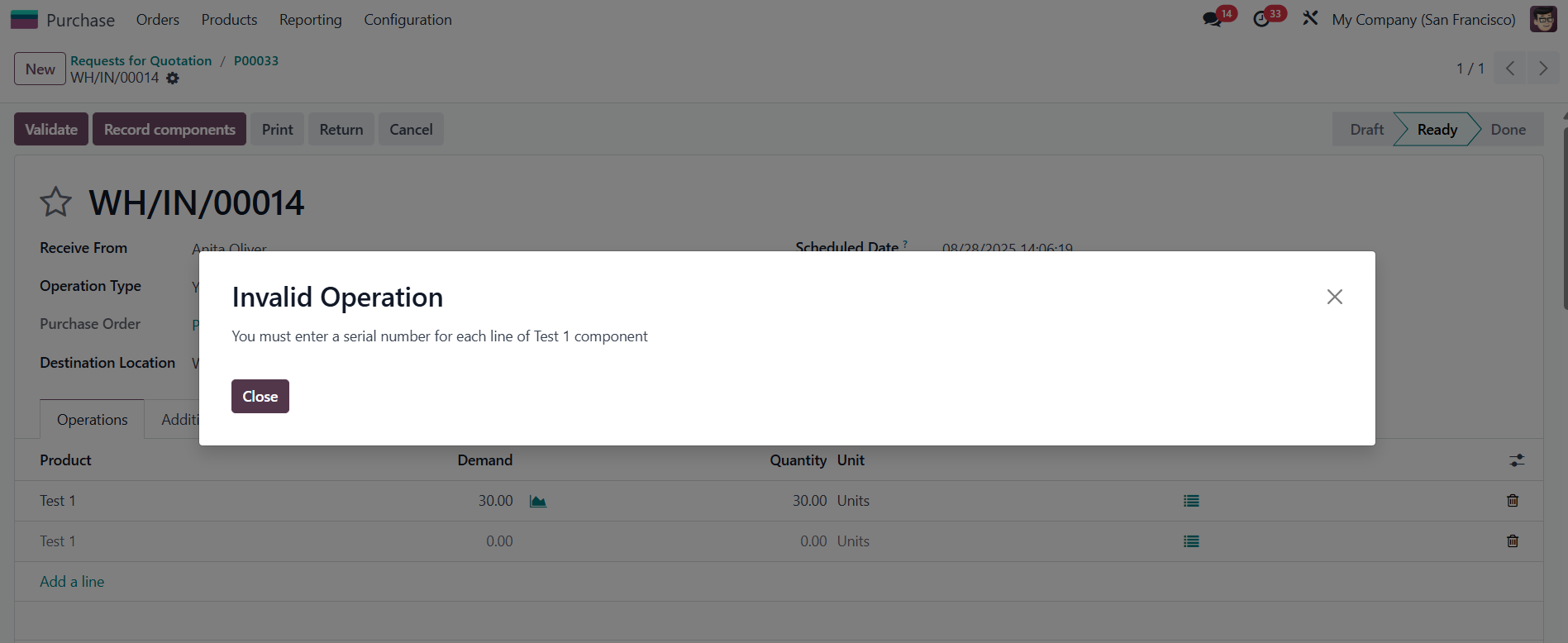 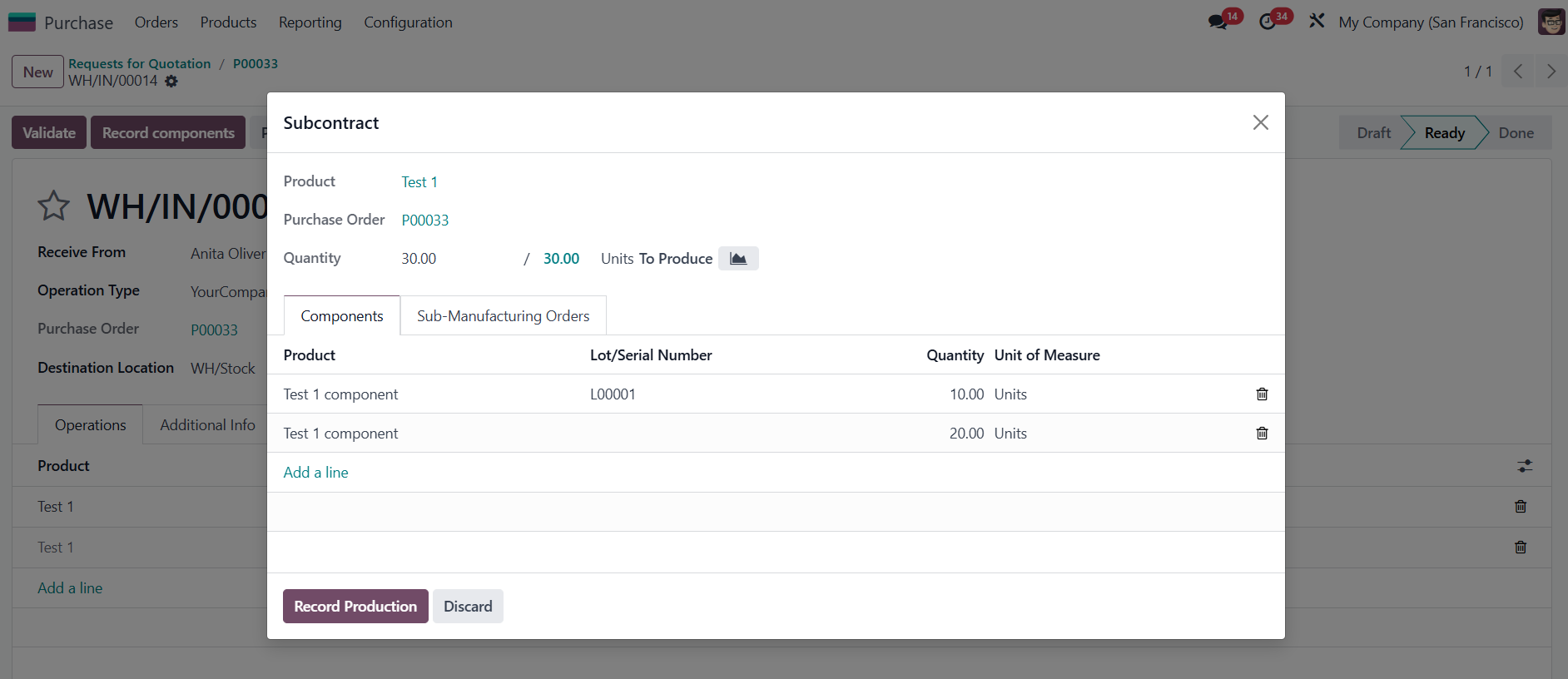 |
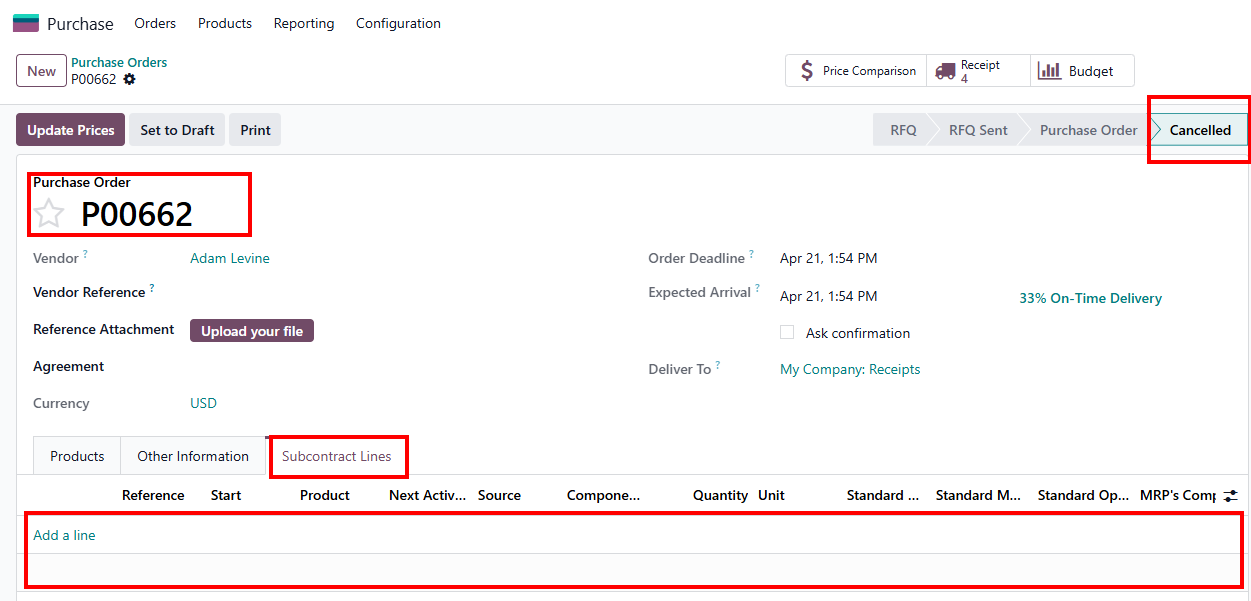
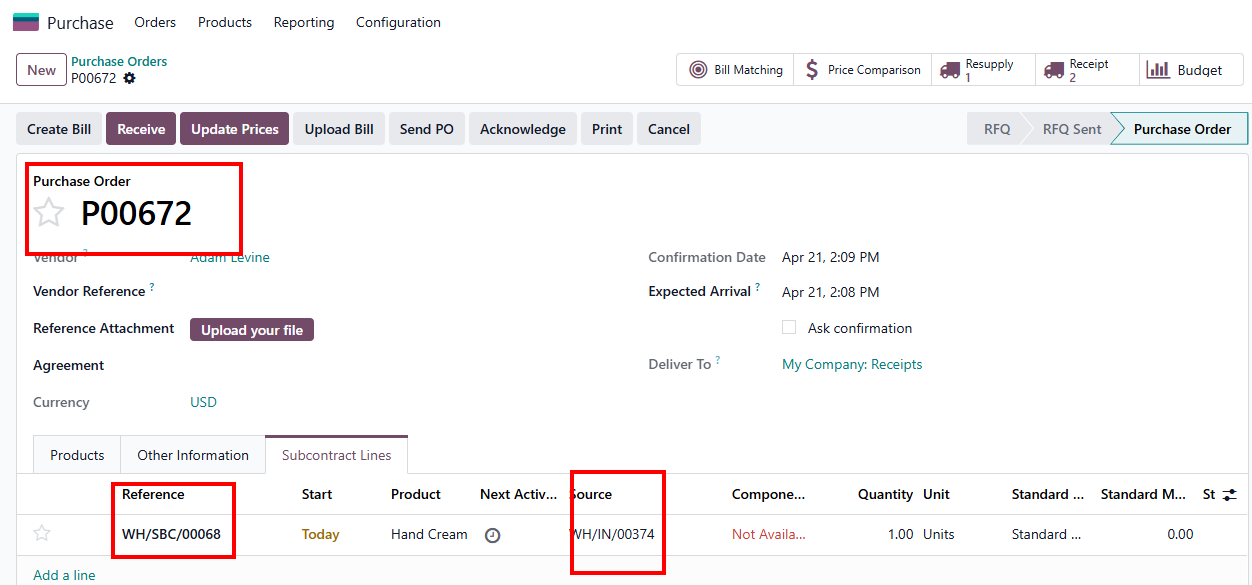
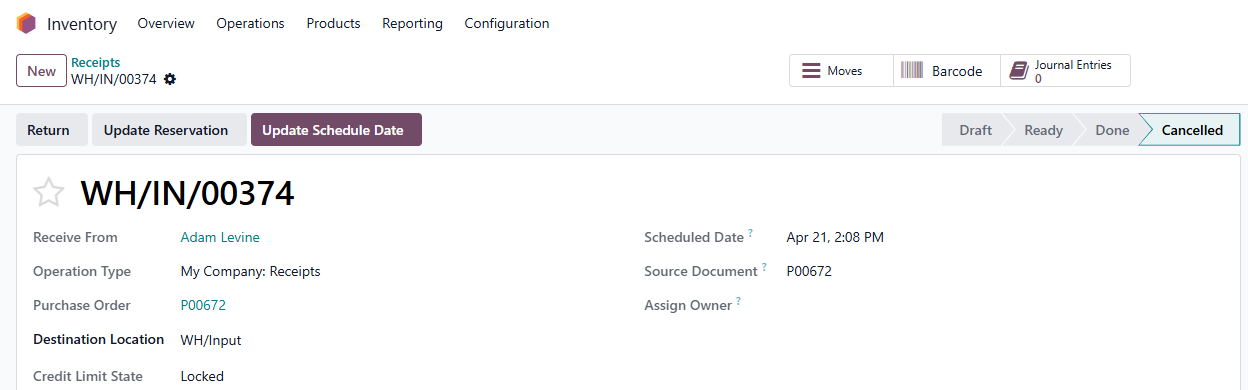
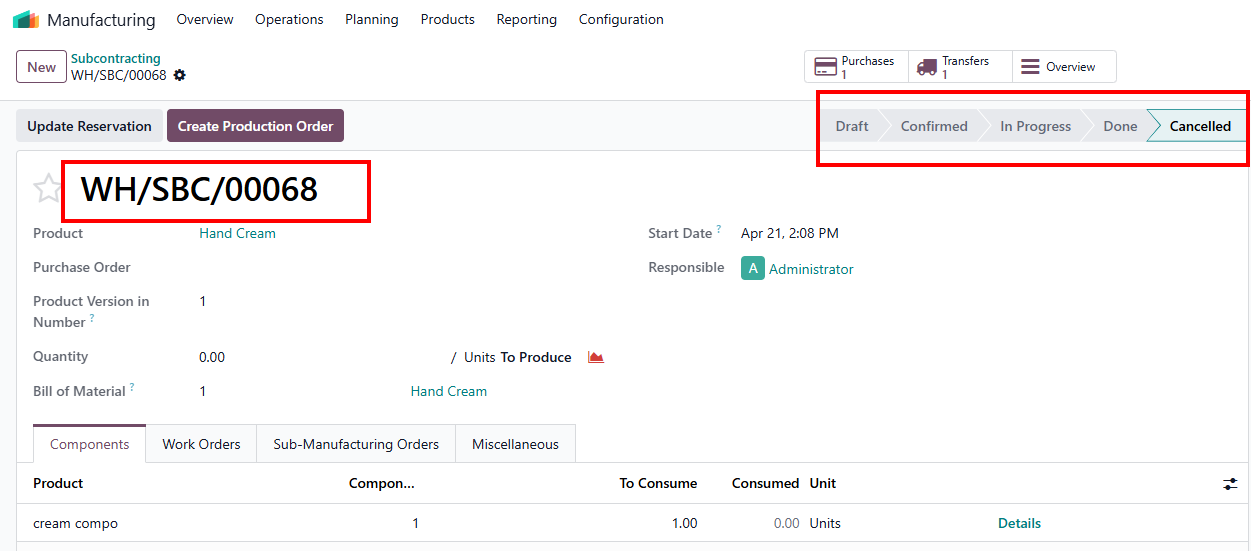
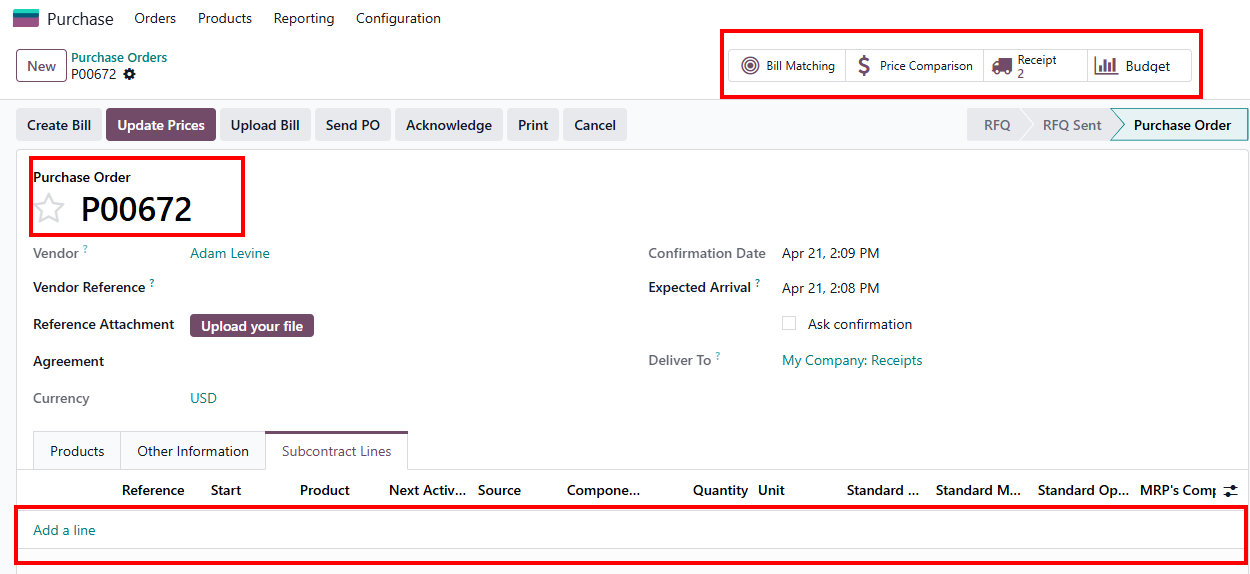
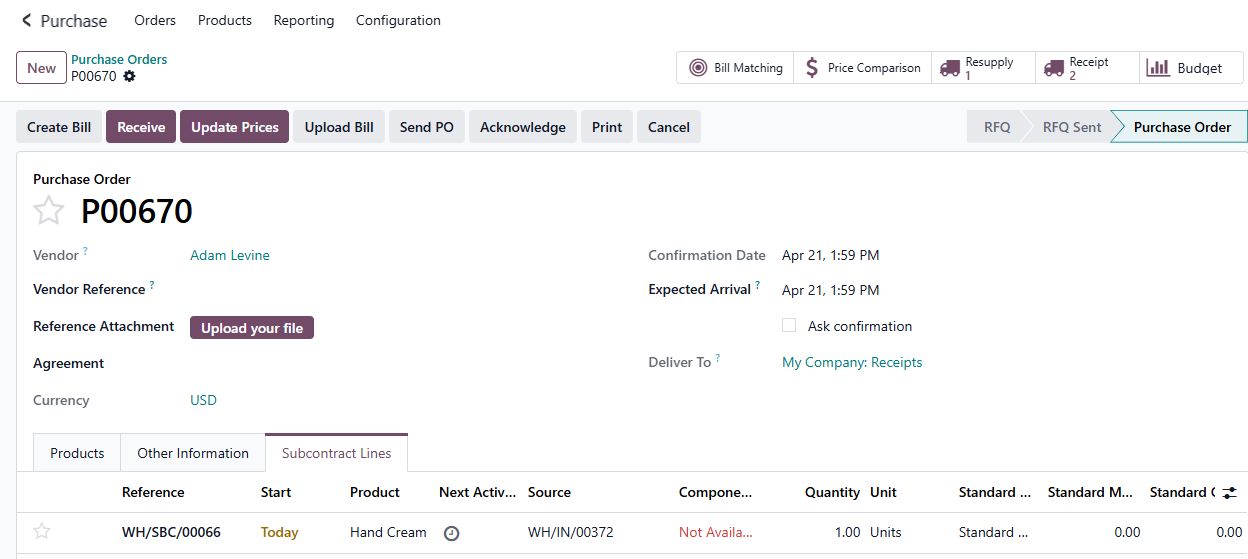
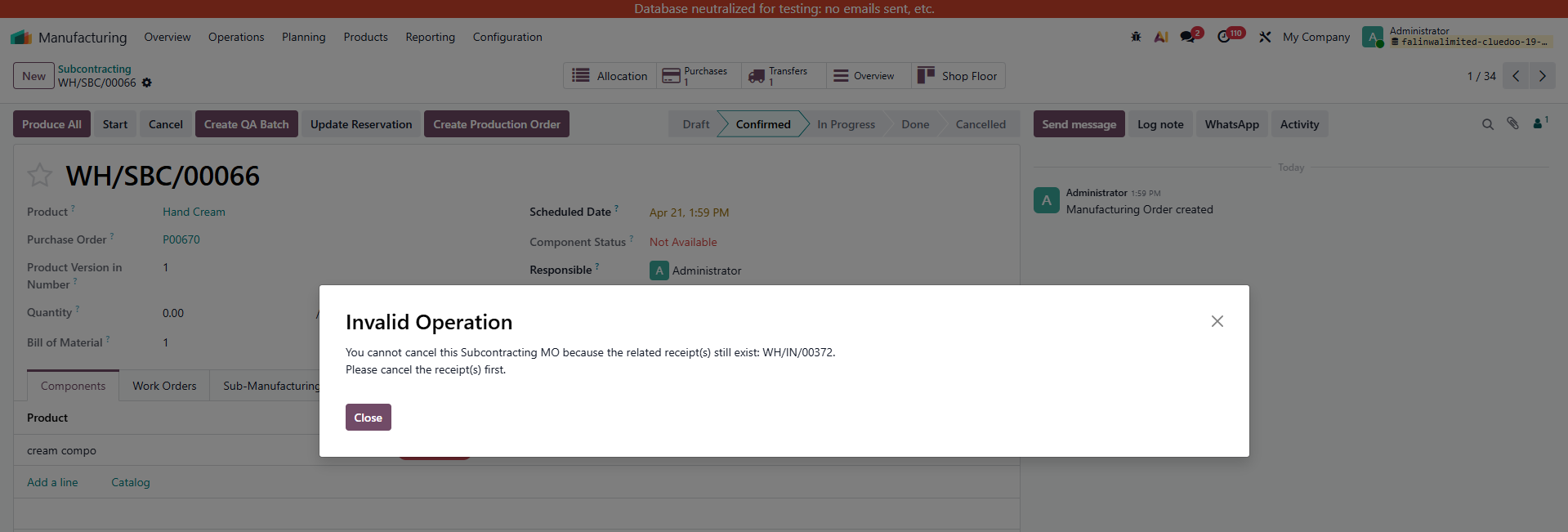
Additional Note: user can only cancel subMO if the transfer is canceled 1. User can cancel PO without having to cancel receipt 2. When PO is canceled -> receipt and subMO is canceled |
|
3. If PO is not yet canceled, receipt is canceled -> user still can cancel subMO (and PO still in confirmed stage) |
|
4. If receipt is not canceled then I cannot cancel subMO |
|