


ODOO'S FUNCTION
In Odoo, when the weight of purchased products exceeds the maximum weight of a warehouse location, the system does not automatically check or prevent the excess. It simply stores all the quantities in the configured location, and users cannot set conditions or choose an alternative warehouse when the weight limit is exceeded
CLUEDOO'S FUNCTION
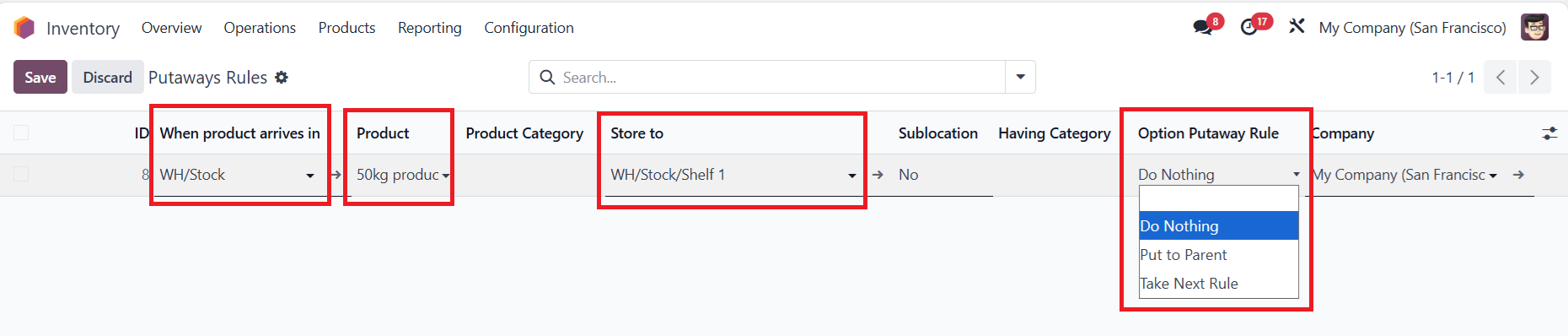
Cluedoo adds 4 new putaway rule options, allowing users to flexibly decide how to handle cases where the maximum weight of a location is exceeded. For example, moving to a parent location or another backup warehouse based on the configured rule.
1. Go to Product > Create new or choose an existing product > Click on Inventory tab > Set weight for the Product | 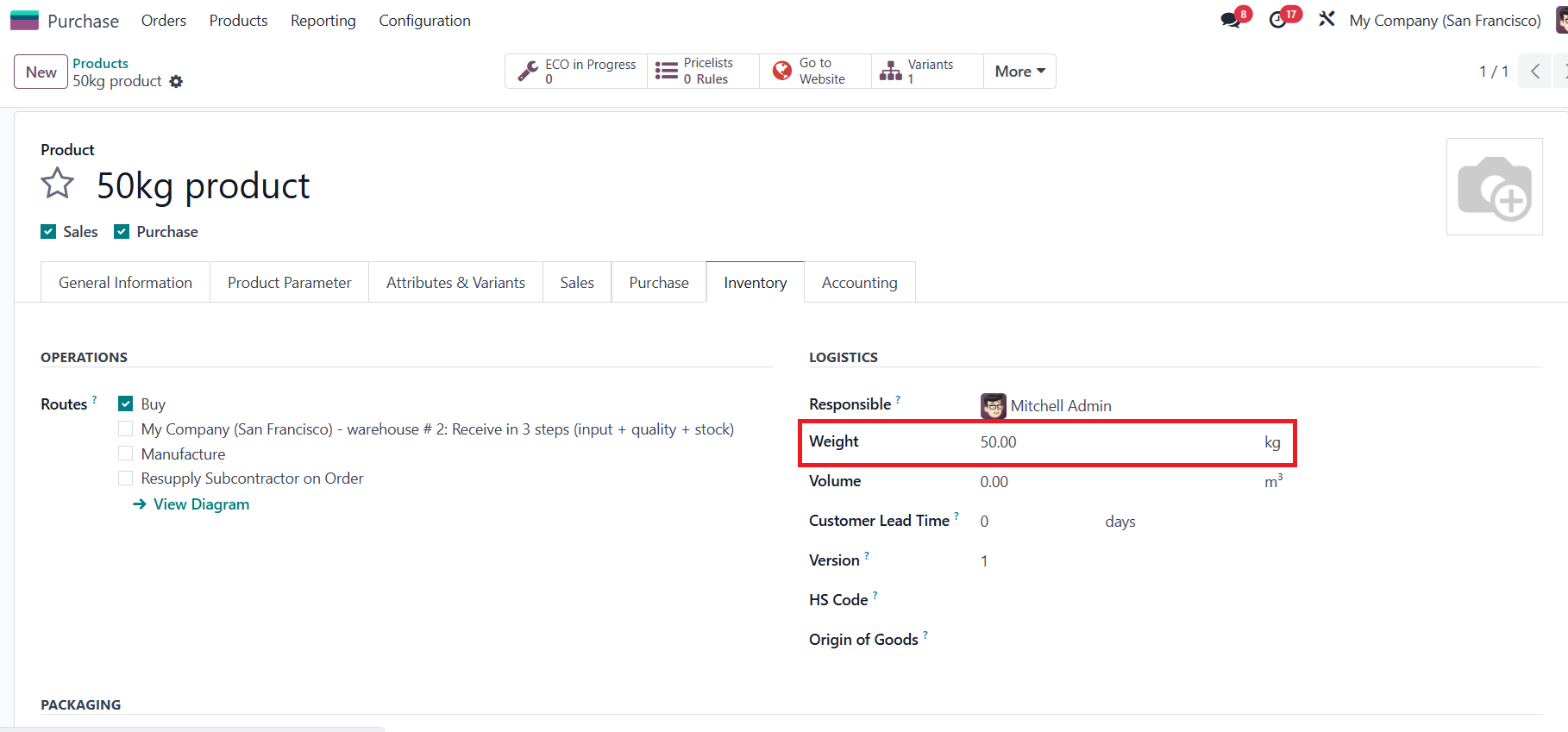 |
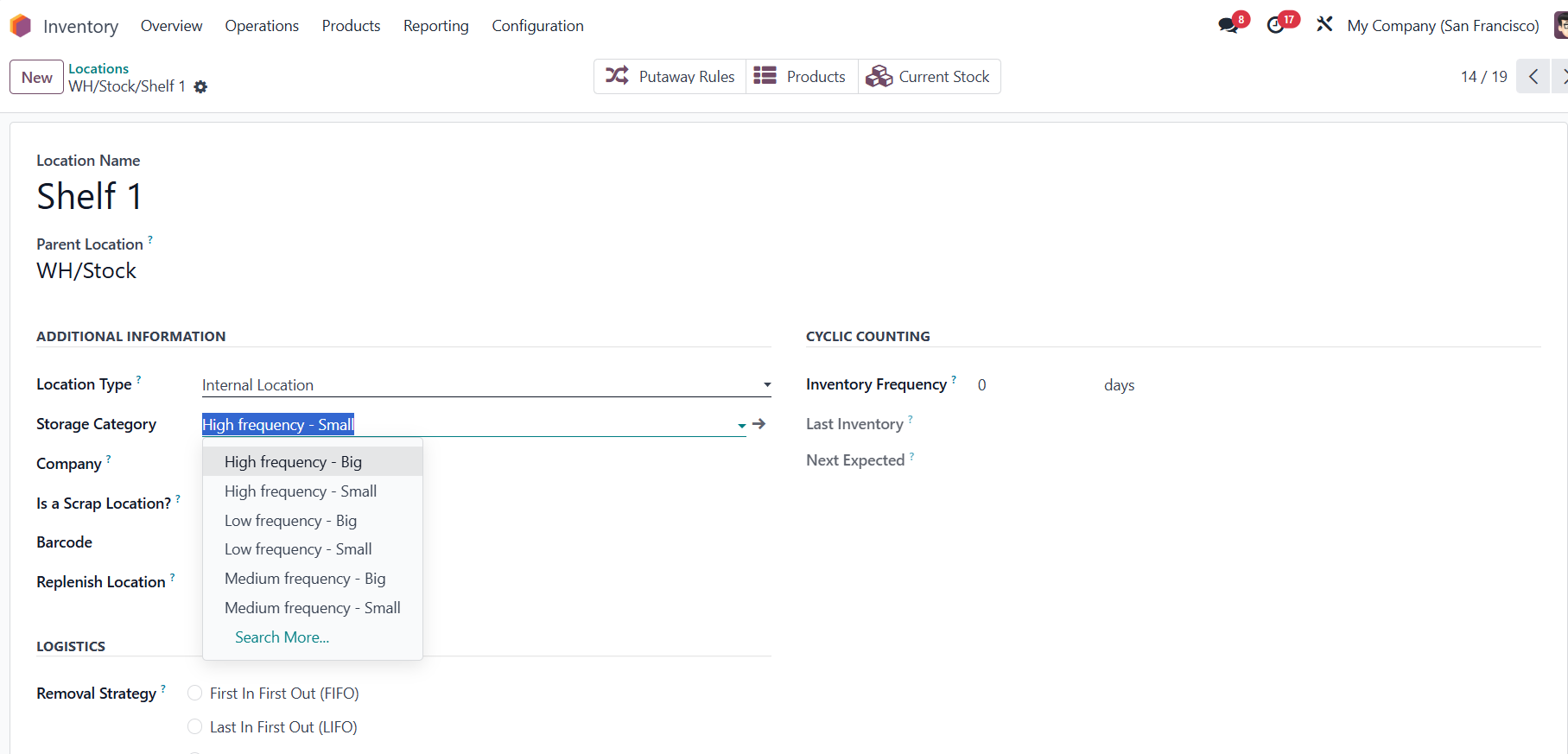
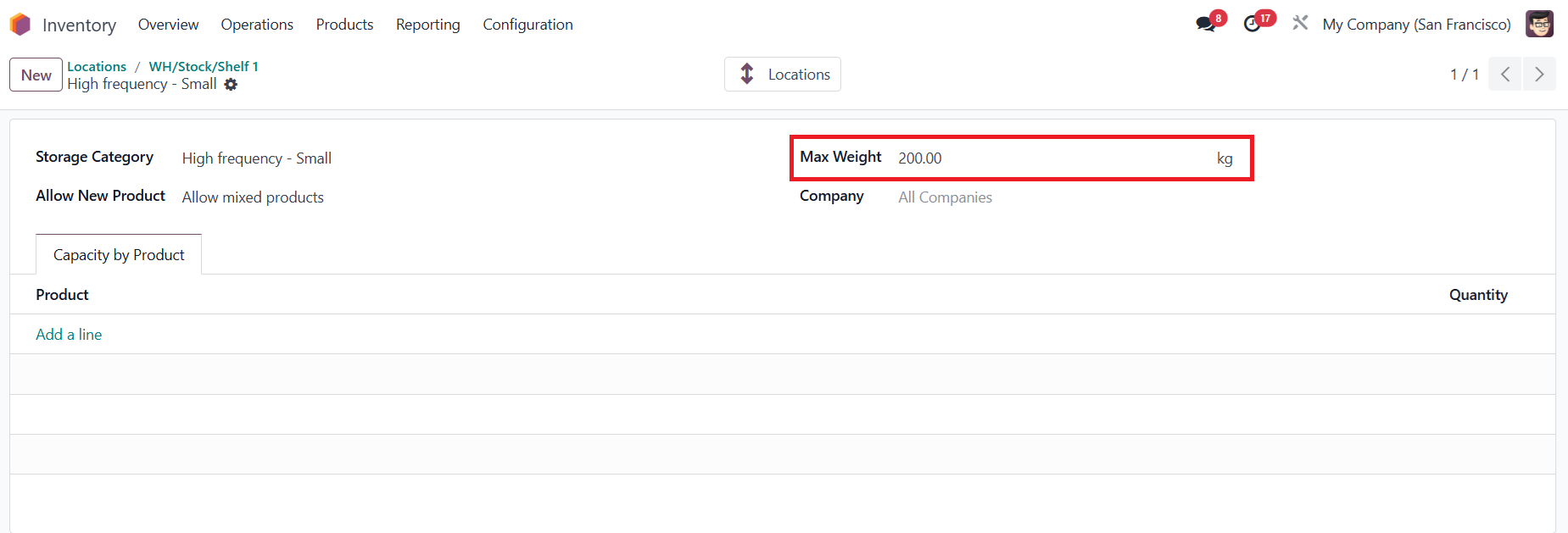
2. Go to Inventory app > Configuration > Locations > Set up the Location and Storage Category, define the maximum weight for each Location In this example, my product weighs 50kg, and each storage location has a maximum weight capacity of 200kg - meaning each location can contain up to 4 products.
|   |
3. Go to Putaway Rules > Create a new Putaway Rule Fill in necessary information (Destination location, Product, Store to, Option putaway rules) You can choose whether the rule applies to a specific product or an entire product category. In the Option Putaway Rule, we added 4 new options for selection: Blank, Do Nothing, Put to Parent, Take Next Rule
|  |
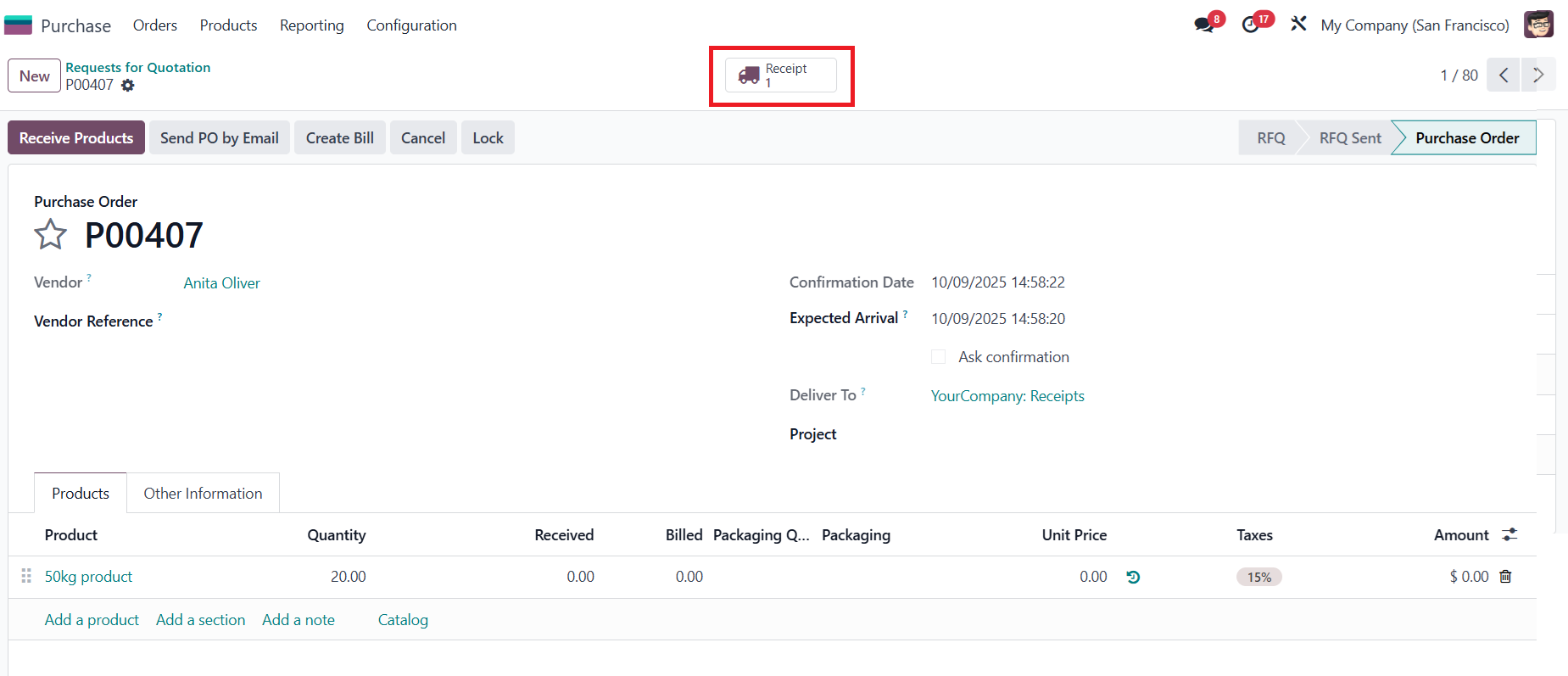
4. Create a Purchase Order > Confirm > Click on Receipt smart button |
|
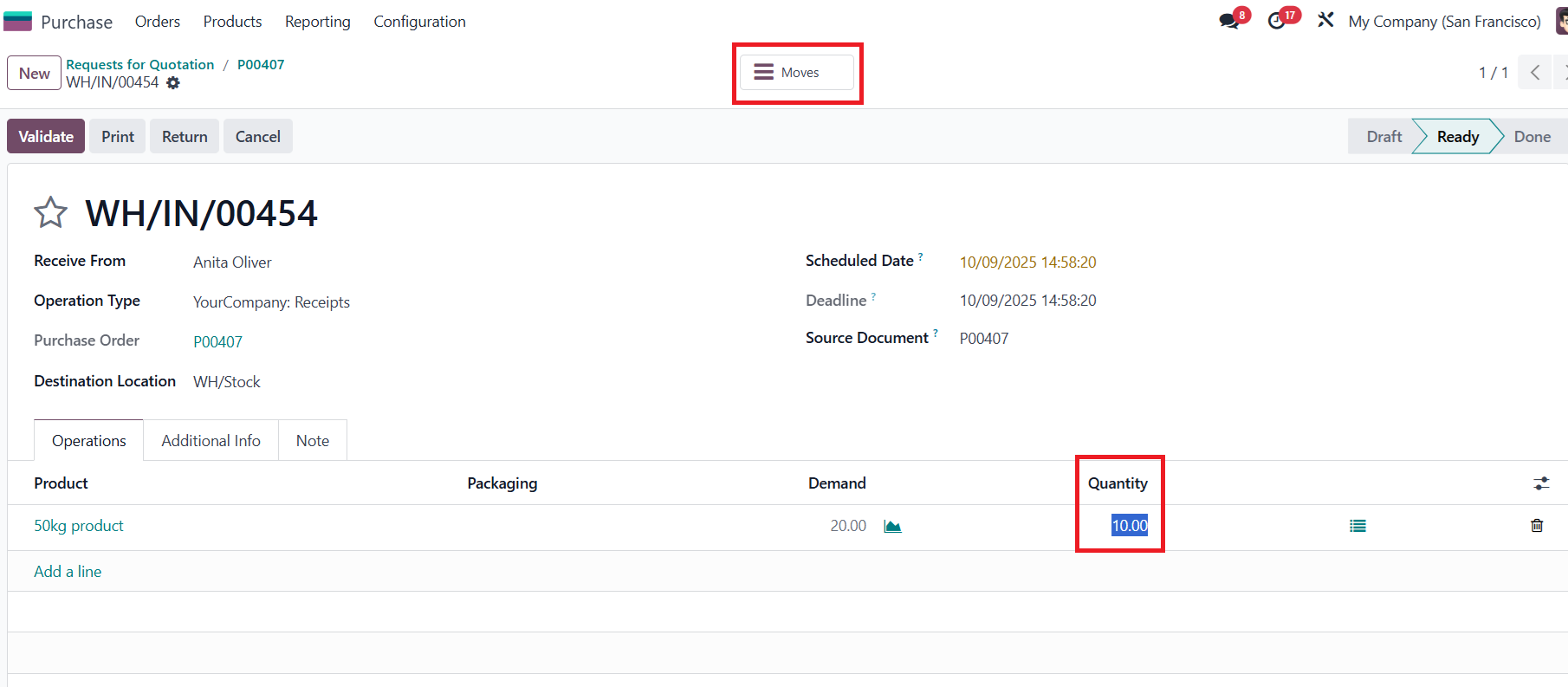
5. Input the received quantity and click on the Moves smart button to check the location where the products are stored If the total weight exceeds the maximum allowed, each Putaway Rule option will direct the products to different locations
|
|
OPTION: Do nothing If the maximum weight is exceeded, all of the quantity will be moved to the Destination Location |   |
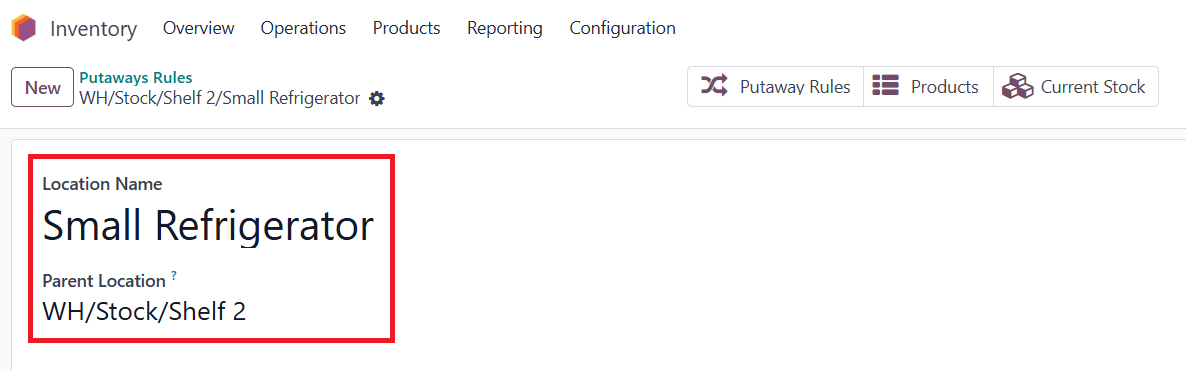
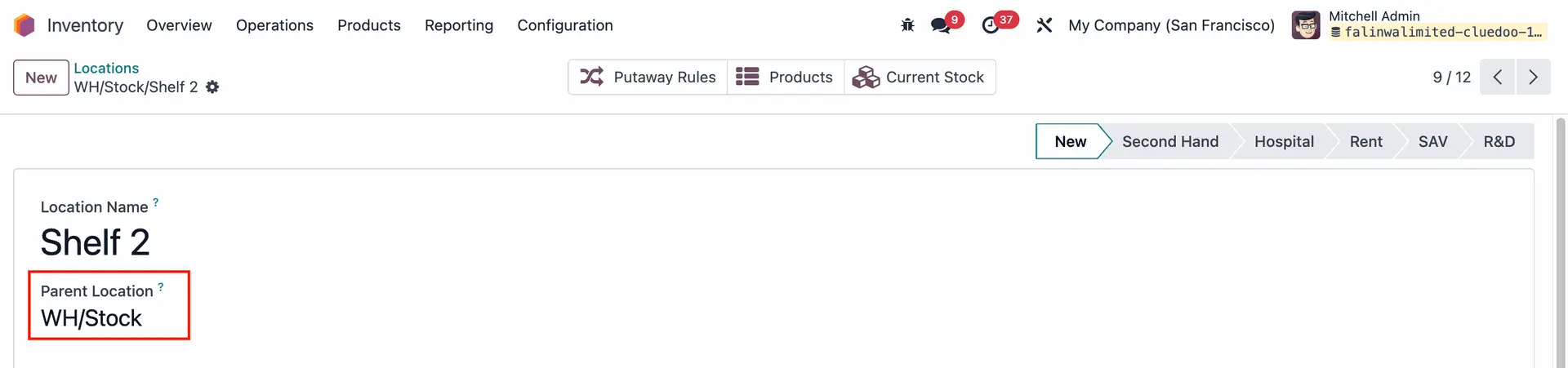
OPTION: Put to Parent My 'Store to' location is Small Refrigerator and its parent location is WH/Stock/Shelf 2 |
|
For this rule, if the maximum weight is exceeded, all products will be moved to the Parent Location of the ‘Store To’ location |
|
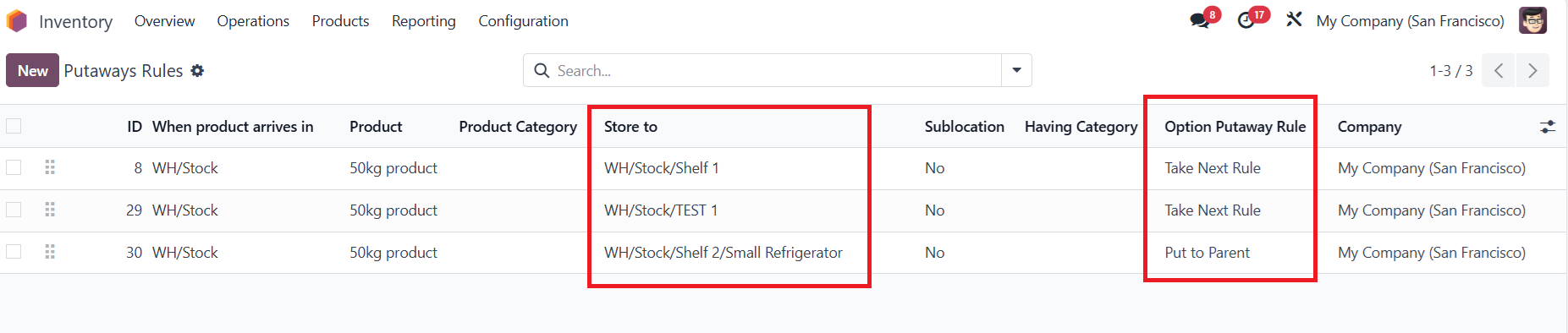
OPTION: Take next rule |
|
In this case, after Shelf 1 receives 4 quantities, it reaches its maximum capacity. The system will then follow Rule 2 and store the next quantities in the location defined in Rule 2 (TEST 1). Once TEST 1 also receives 4 quantities and becomes full, the remaining quantities will follow Rule 3. In Rule 3, since the option is set to ‘Put to Parent’, and the remaining quantity is 12, which exceeds the maximum weight limit, the system will automatically store it in the parent location
|
|