



ODOO'S FUNCTION
Odoo provides basic inventory adjustment capabilities, allowing users to manually correct stock levels when discrepancies are found. However, it does not fully support detailed inventory management processes or structured preparation and recording before adjustments.
CLUEDOO'S FUNCTION
CLuedoo extends Odoo by introducing a Stock Summary report to record inventory preparation before adjustments. It calculates inventory differences based on stock card variances instead of quants, then records and tracks the final adjustment results to support more complete inventory management.
1. Go to Inventory > Reporting > Stock Summary and then create a new one or choose the existing one in the Stock Summary List |  |
2. Add the number in the Counted Qty column, and the Difference column is automatically calculated Difference = Counted Qty - Balance |  |
3. Choose Apply to recalculate the balance quantity of each product, or Apply all to recalculate the balance quantity of all products at once. |  |
4. After choosing to apply, the balance quantity is the counted quantity.
|  |
Note: After the stock summary has been set to Done > the Set button will disappear |  |
5. Go to the product you have changed the inventory > Adjustment Valuation > The Date is the Date End in the Stock Summary List, and the Moved Quantity is the Difference quantity in the Stock Summary List |   |
6. 6.1. Go to Inventory > Operations > Adjustments > Physical Inventory > You can create a stock summary by clicking the Actions button > Stock Summary Wizard > A pop-up to set the period will appear This feature helps you to search for product movements in a selected location within the specified period Note: If the action is created from two locations, then two stock summaries will be generated, one for each location | 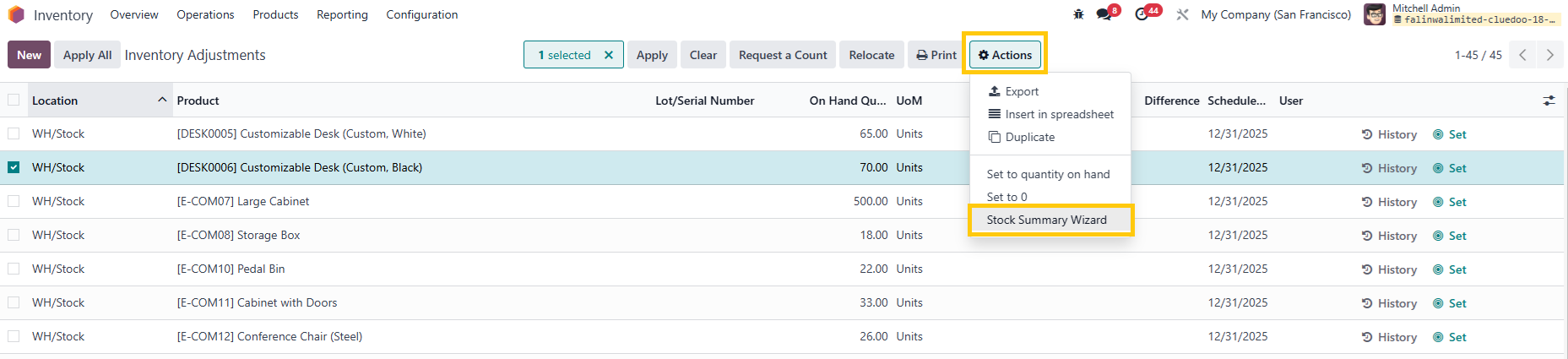  |
6.2. You can now add a Description for the Stock Summary and also add a Note for each line If the Note field in the line is not filled, the data from the Description field will be applied instead | 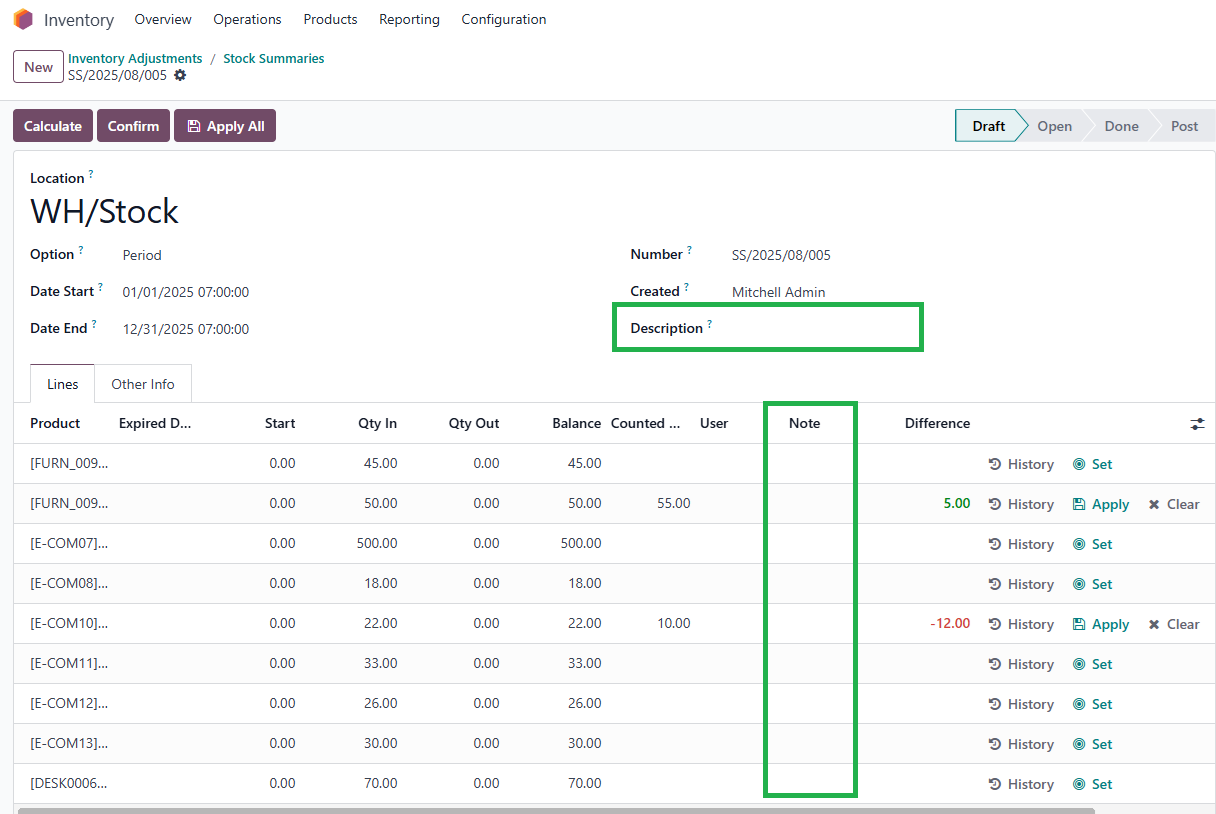 |
7. Server action: Re-compute Difference quantity 7.1 Go to Inventory > Reporting > Stock Summary and then Import records in the Stock Summary List |  |
For example, my importation includes fields like Location, Product, Start, Qty In, Qty Out, Balanecd and Counted Qty |  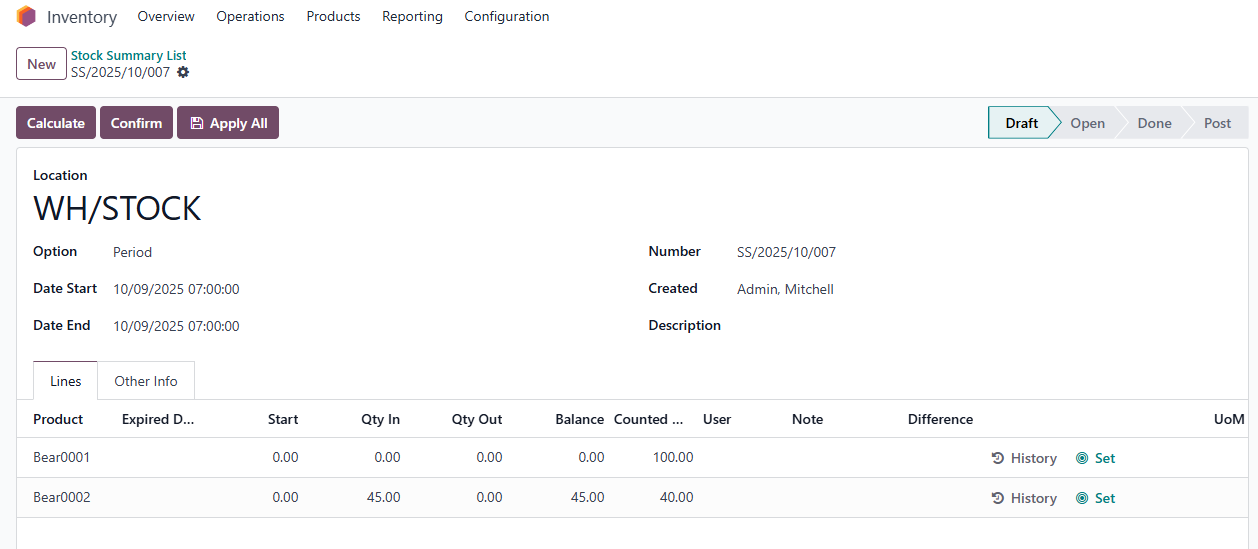 |
When the Counted qty field is imported by Excel, the Difference qty will not be automatically calculated Go to Actions > Choose Re-computed Difference Qty > The Difference qty is calculated |   |
HOW TO USE THIS MODULE?
1. Go to Inventory > Reporting > Stock Summary and then create a new one or choose the existing one in the Stock Summary List | 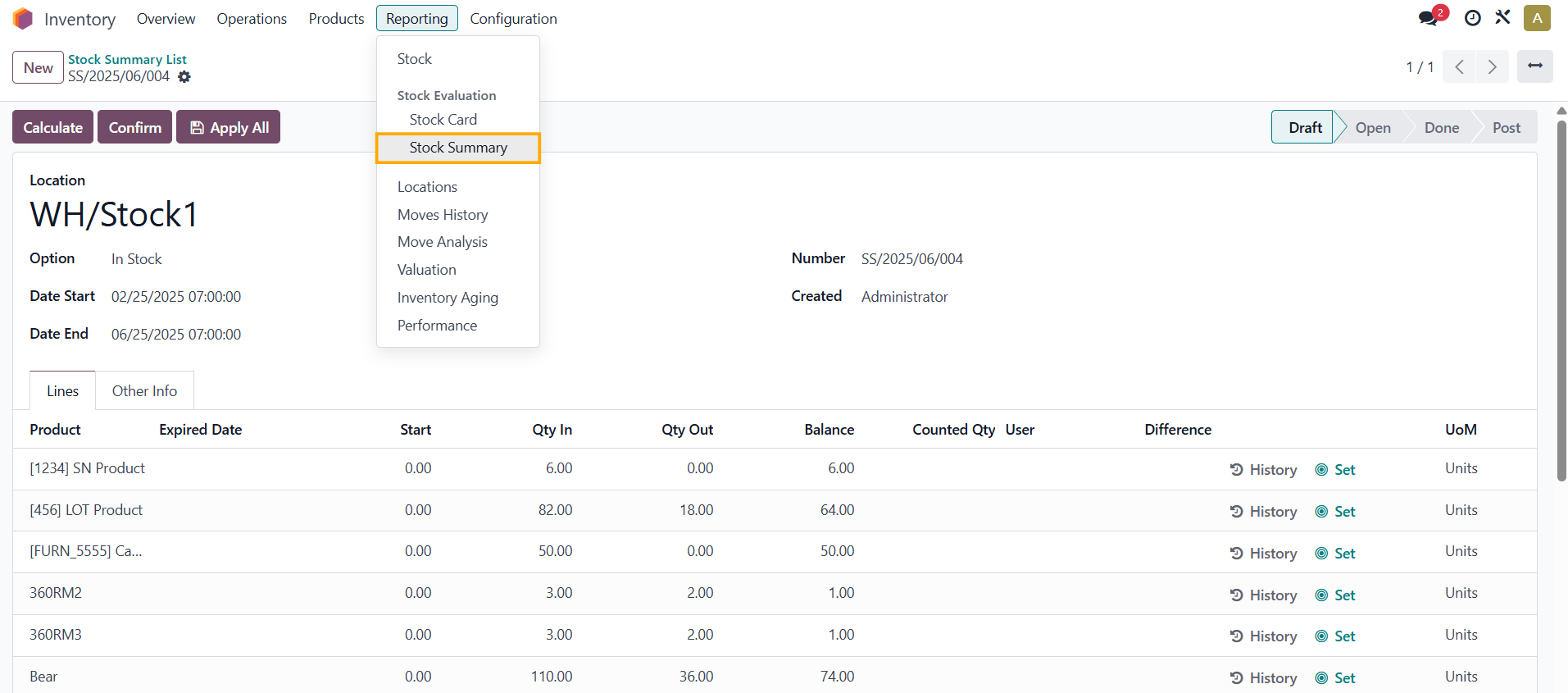 |
2. Add the number in the Counted Qty column, and the Difference column is automatically calculated Difference = Counted Qty - Balance | 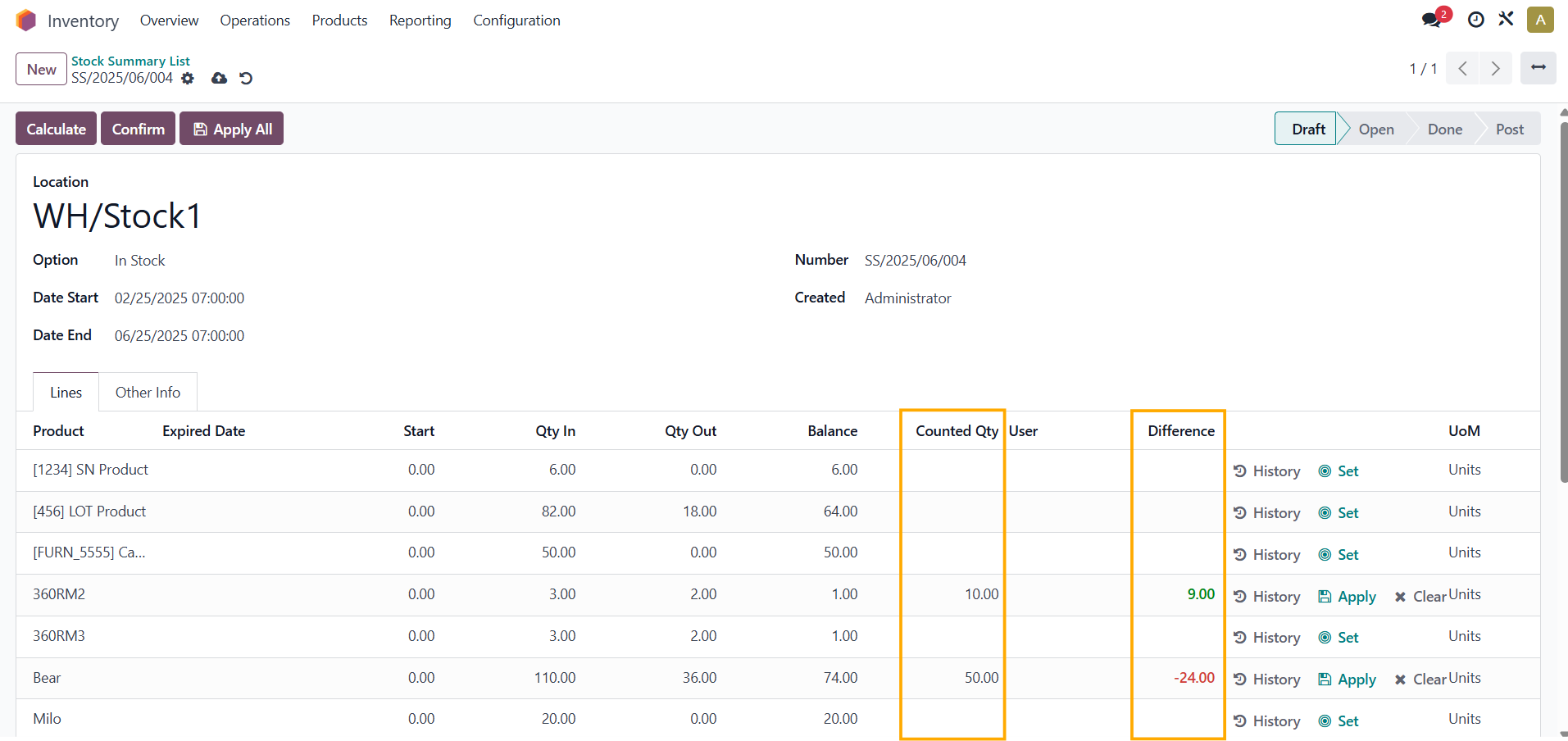 |
3. Choose Apply to recalculate the balance quantity of each product, or Apply all to recalculate the balance quantity of all products at once. | 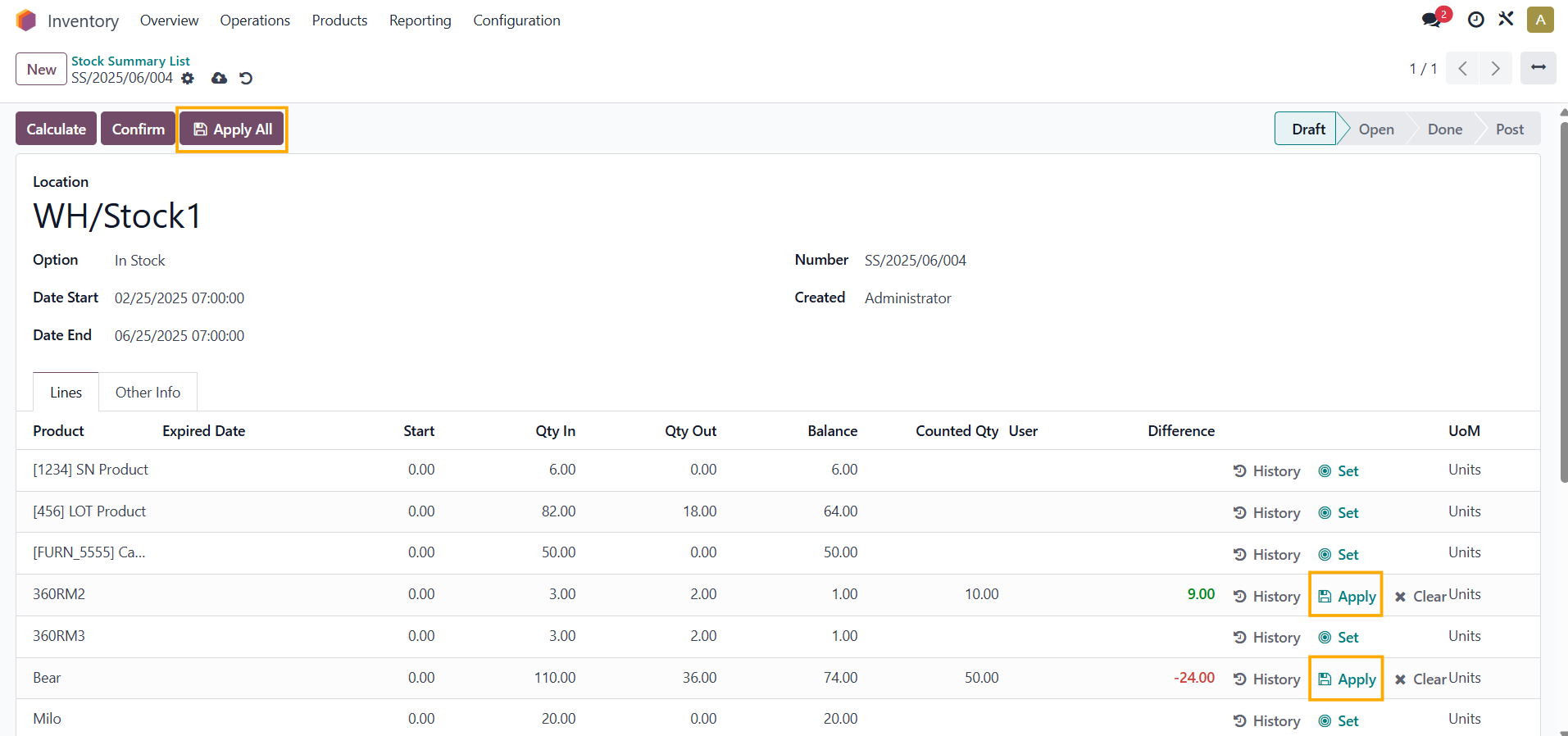 |
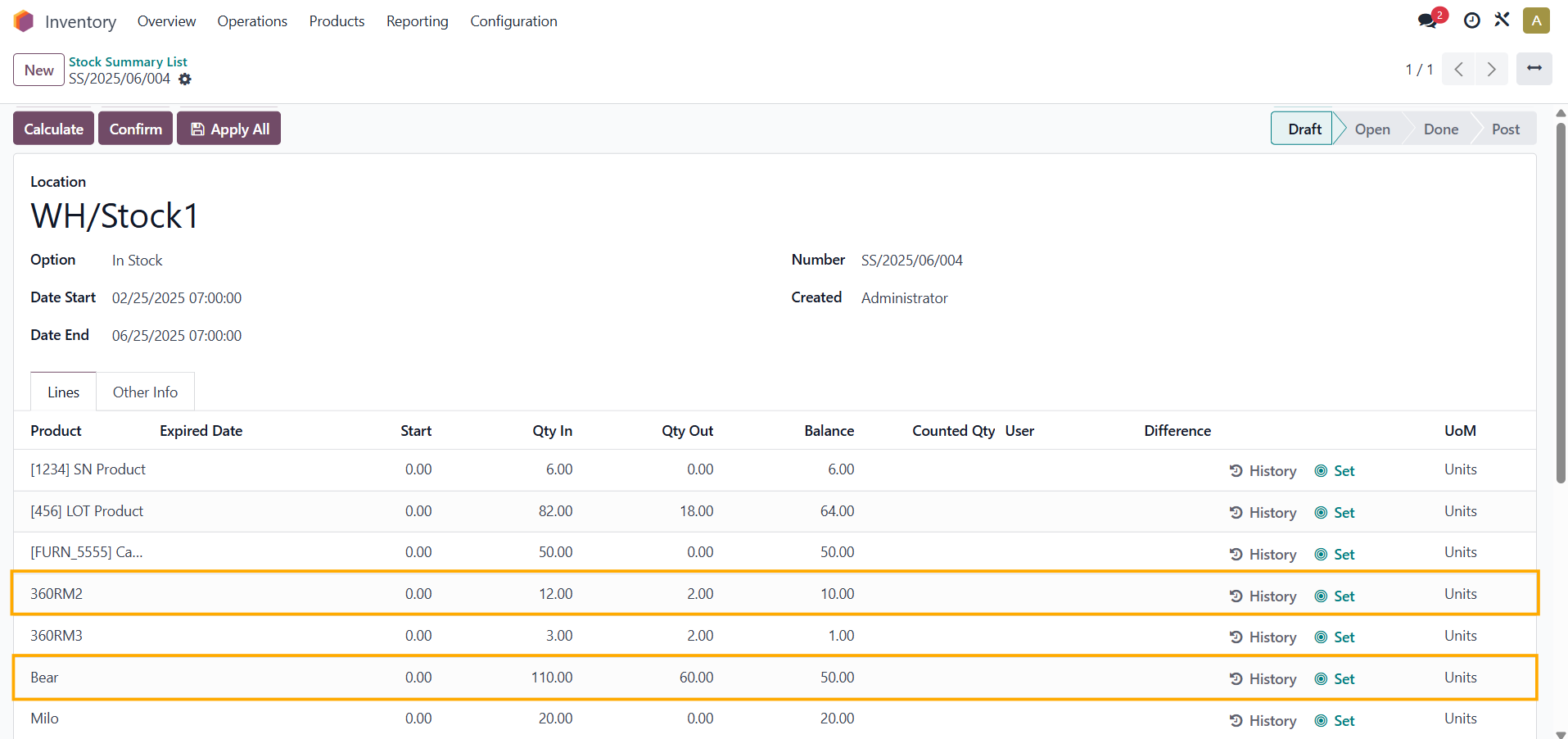
4. After choosing to apply, the balance quantity is the counted quantity.
|  |
Note: After the stock summary has been set to Done > the Set button will disappear | 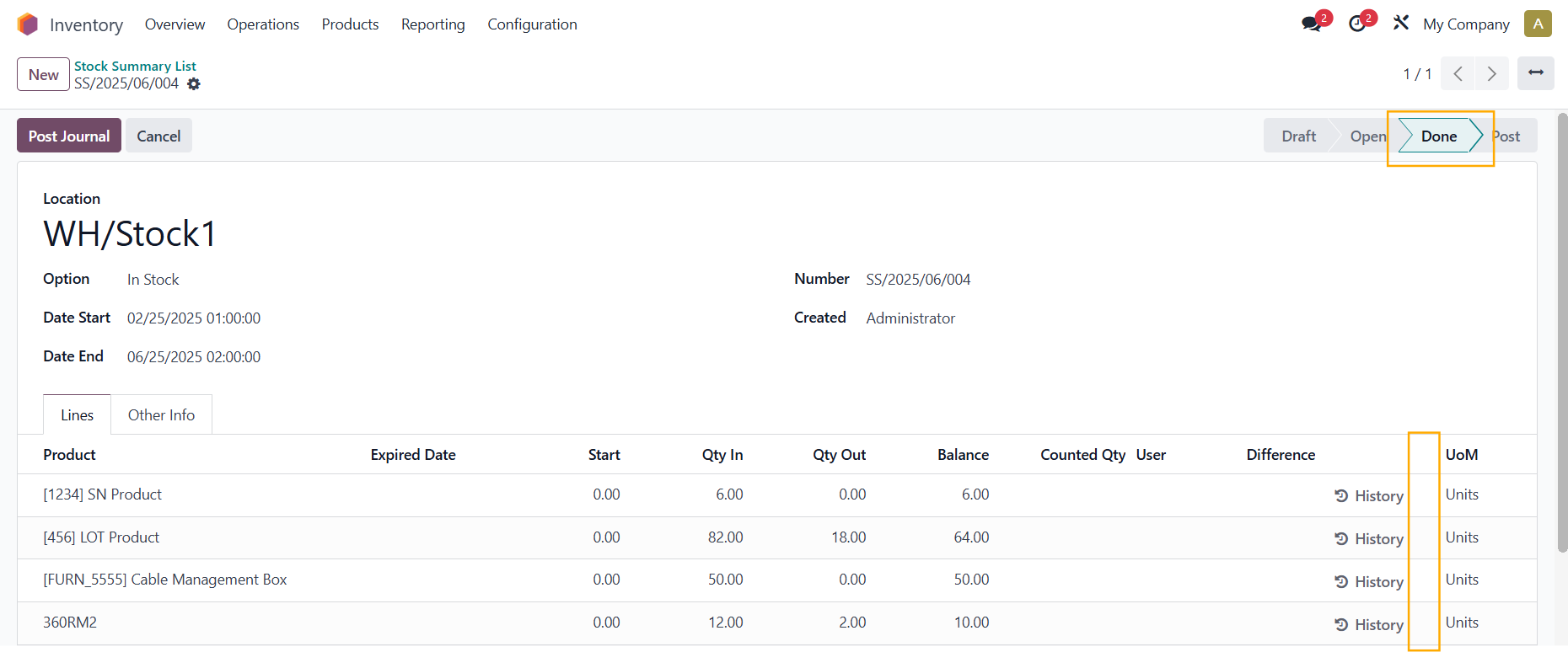 |
5. Go to the product you have changed the inventory > Adjustment Valuation > The Date is the Date End in the Stock Summary List, and the Moved Quantity is the Difference quantity in the Stock Summary List |  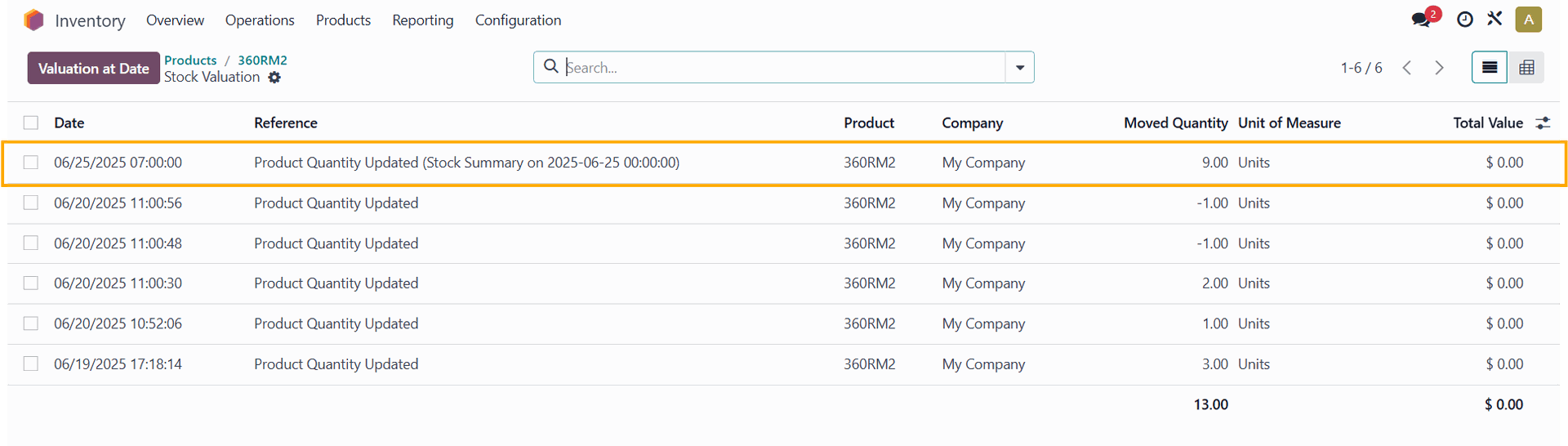 |
6. 6.1. Go to Inventory > Operations > Adjustments > Physical Inventory > You can create a stock summary by clicking the Actions button > Stock Summary Wizard > A pop-up to set the period will appear This feature helps you to search for product movements in a selected location within the specified period Note: If the action is created from two locations, then two stock summaries will be generated, one for each location | 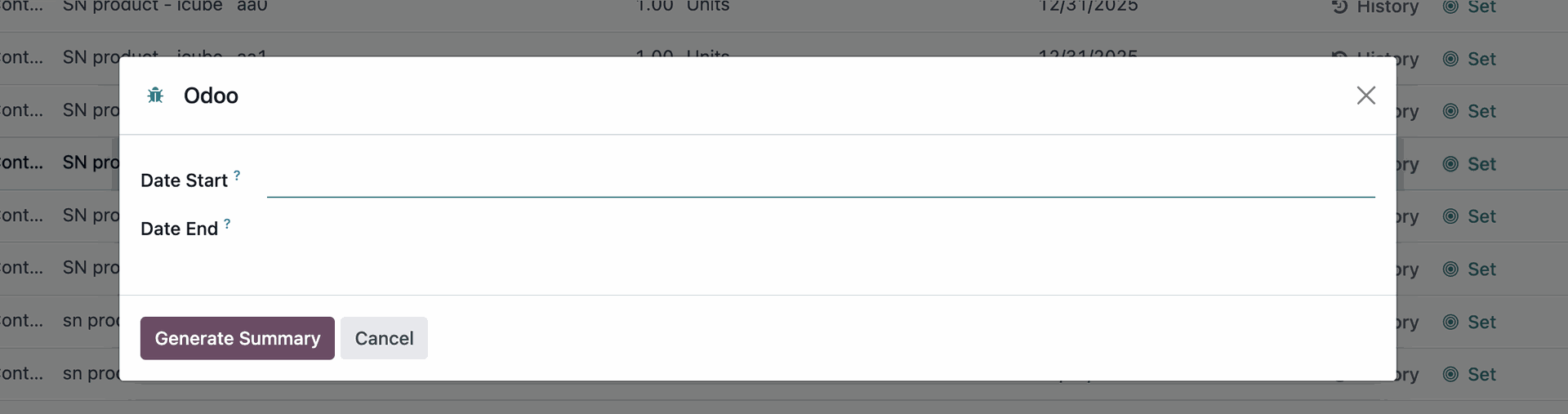 |
6.2. You can now add a Description for the Stock Summary and also add a Note for each line If the Note field in the line is not filled, the data from the Description field will be applied instead | |
7. Server action: Re-compute Difference quantity 7.1 Go to Inventory > Reporting > Stock Summary and then Import records in the Stock Summary List | 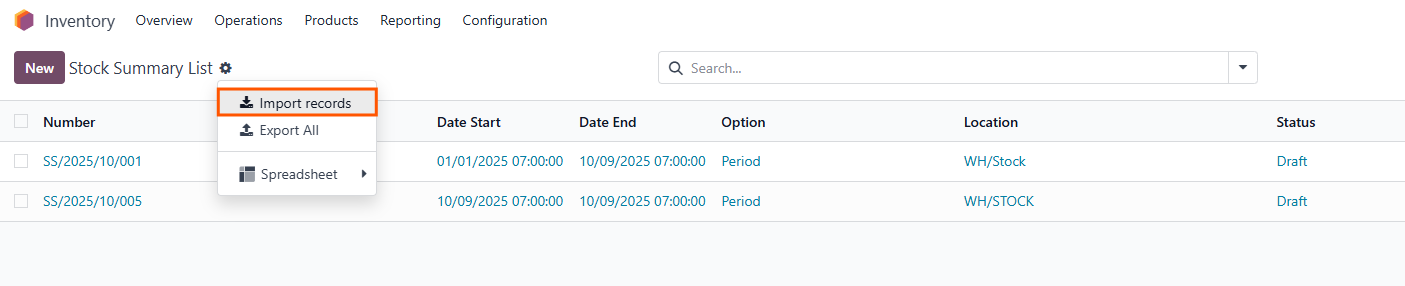 |
For example, my importation includes fields like Location, Product, Start, Qty In, Qty Out, Balanecd and Counted Qty | 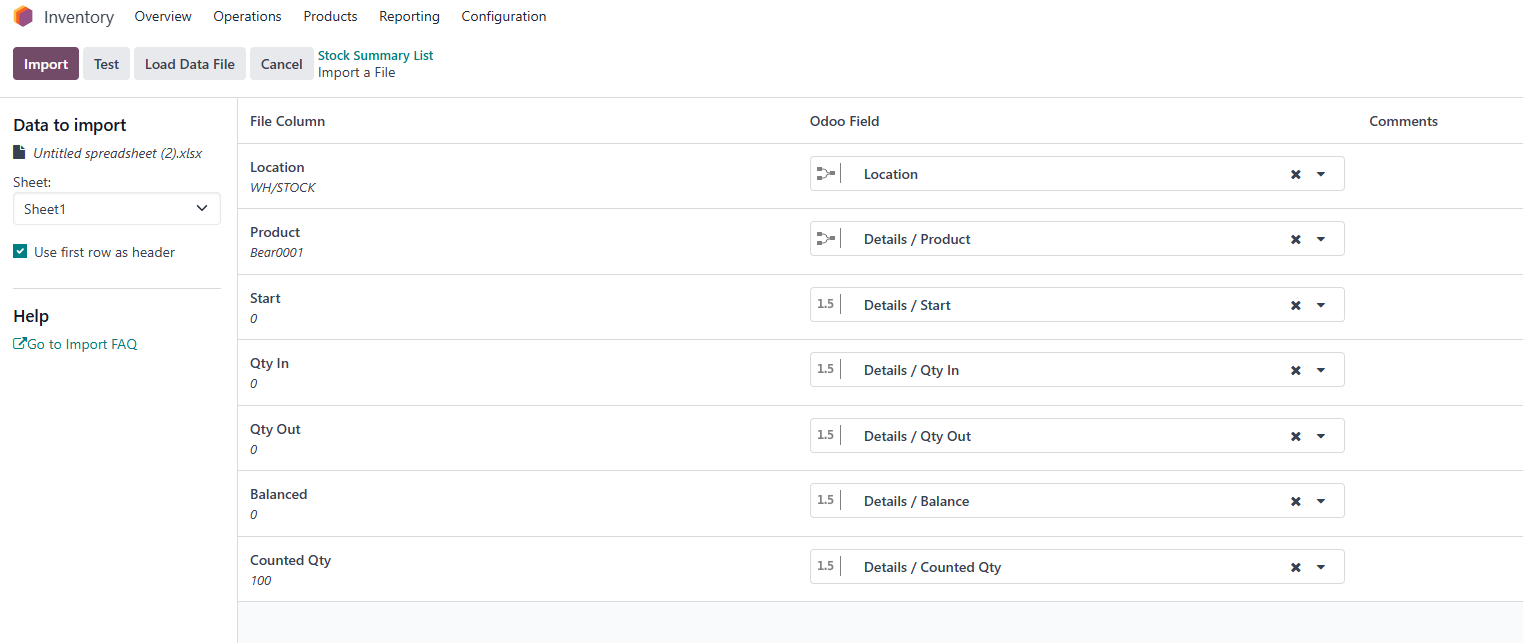 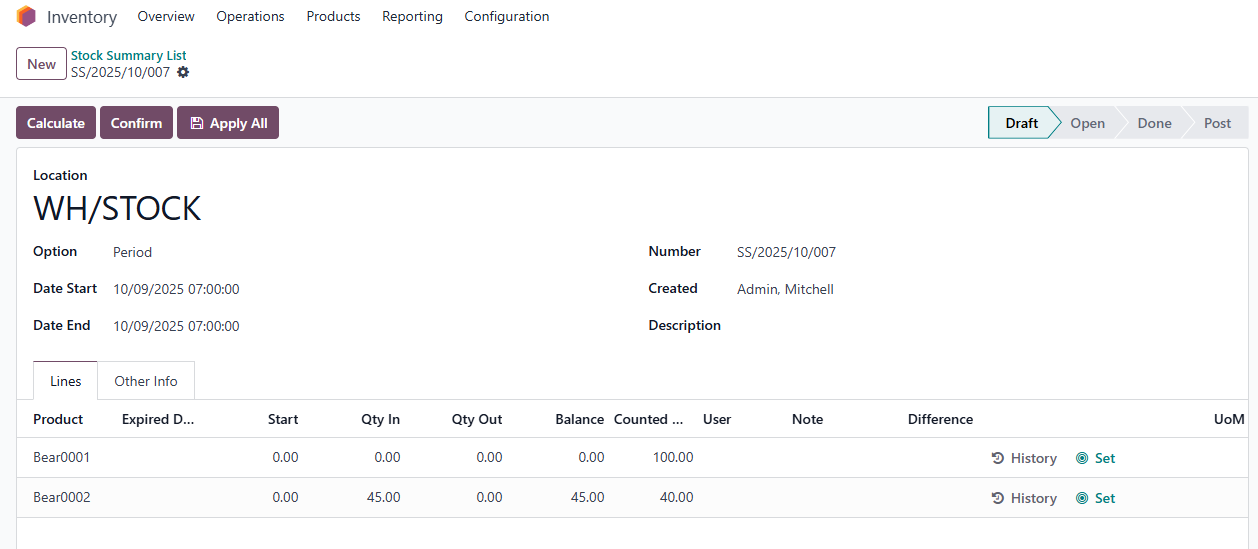 |
When the Counted qty field is imported by Excel, the Difference qty will not be automatically calculated Go to Actions > Choose Re-computed Difference Qty > The Difference qty is calculated | 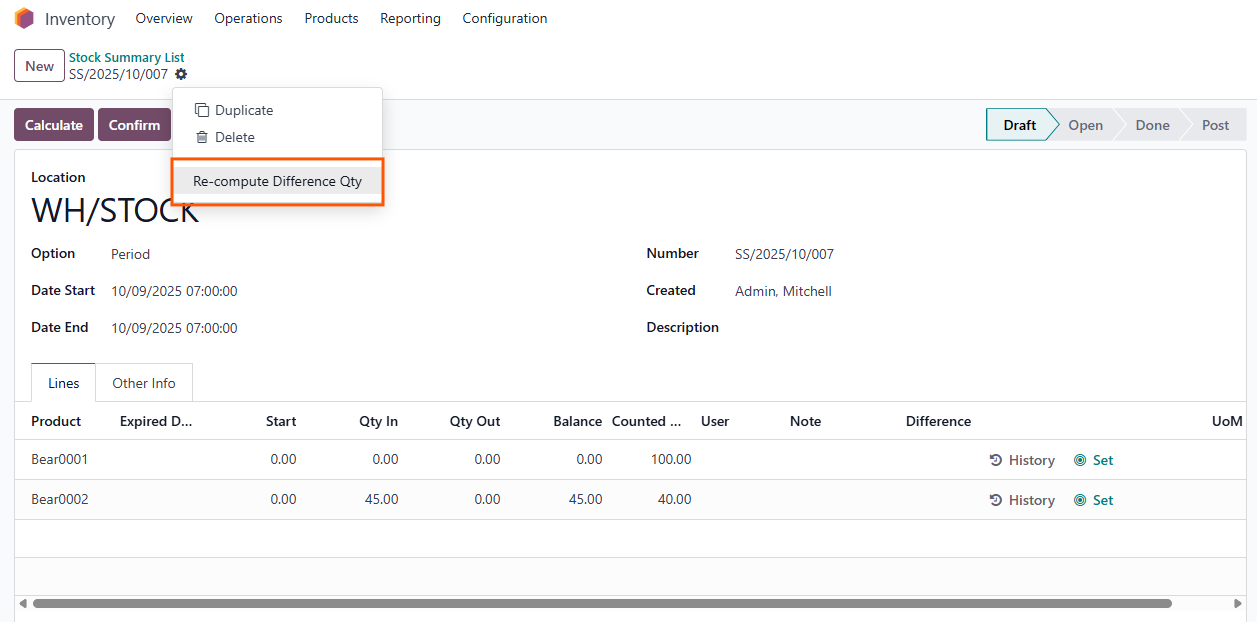 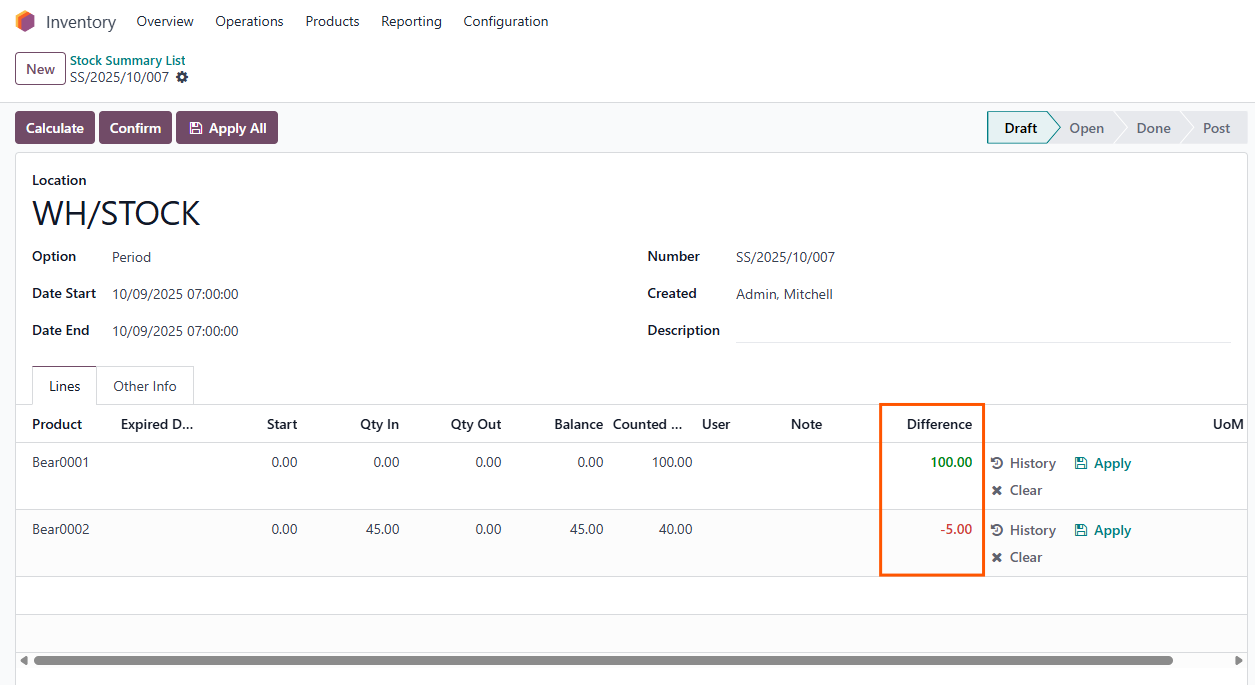 |