



STORY BEHIND THE FEATURES
ODOO BEHAVIOR
Odoo's inventory module just supports inventory adjustment but no inventory management and lacks the ability to automatically calculate the "Next Inventory Date" or update related fields like Scheduled Date and User for product categories and products.
CLUEDOO BEHAVIOR
CLuedoo defines Inventory Policy by calculating the Next Inventory Date (Initial Inventory Date + Inventory Period) and auto-updating Scheduled Date and Responsible User, reducing manual effort and ensuring consistency across product categories. Users can also manually adjust dates in Product Categories and Product, with changes reflected in Inventory Adjustment.
CLUEDOO RECOMMENDATION
Install on 100% of your database.
OUR FEATURES AS SOLUTIONS
Define the Inventory policy = Frequency + Next Date + Responsible
HOW TO USE THIS MODULE?
A. Change inventory date manually 1. Go to Sales > Configuration > Products > Product Categories | 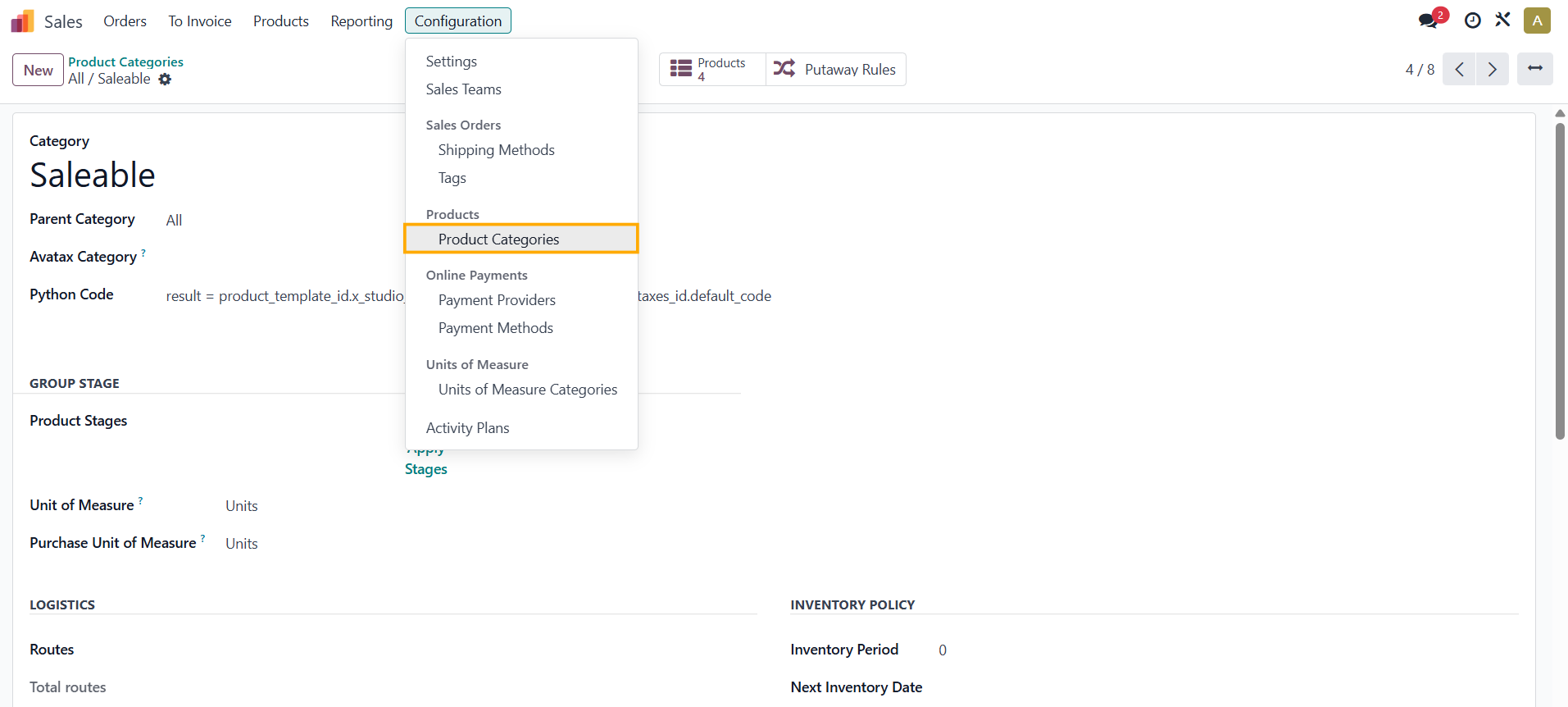 |
2. Choose a Product Category > Inventory Policy > Fill in the Inventory Period, Next Inventory Date, and the Responsible field. Please do not set the Next Inventory Date=today as it will not work | 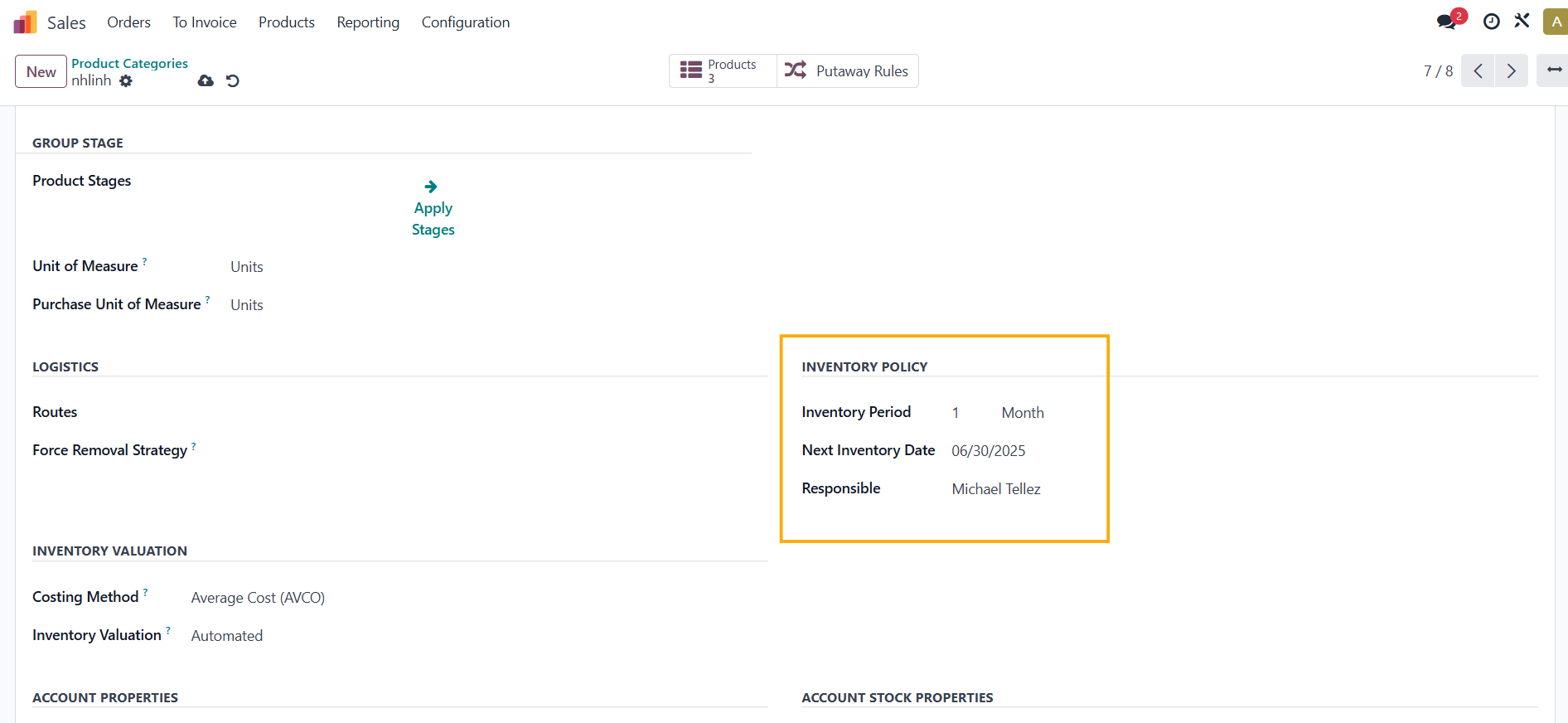 |
3. Go to Inventory > Operations > Physical Inventory and then filter the Product Category → The Scheduled Date and User fields will be auto-filled with the same contents that you set in the Product Category | 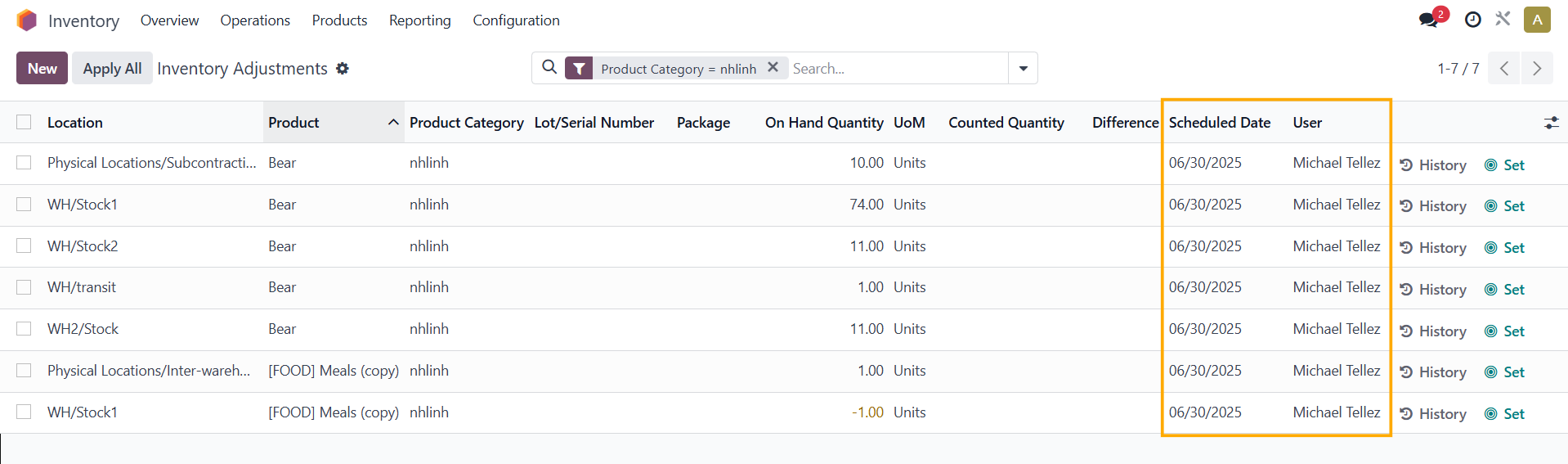 |
B. Change inventory date by running scheduled actions 1. Go to Product Categories and then set Inventory Policy | 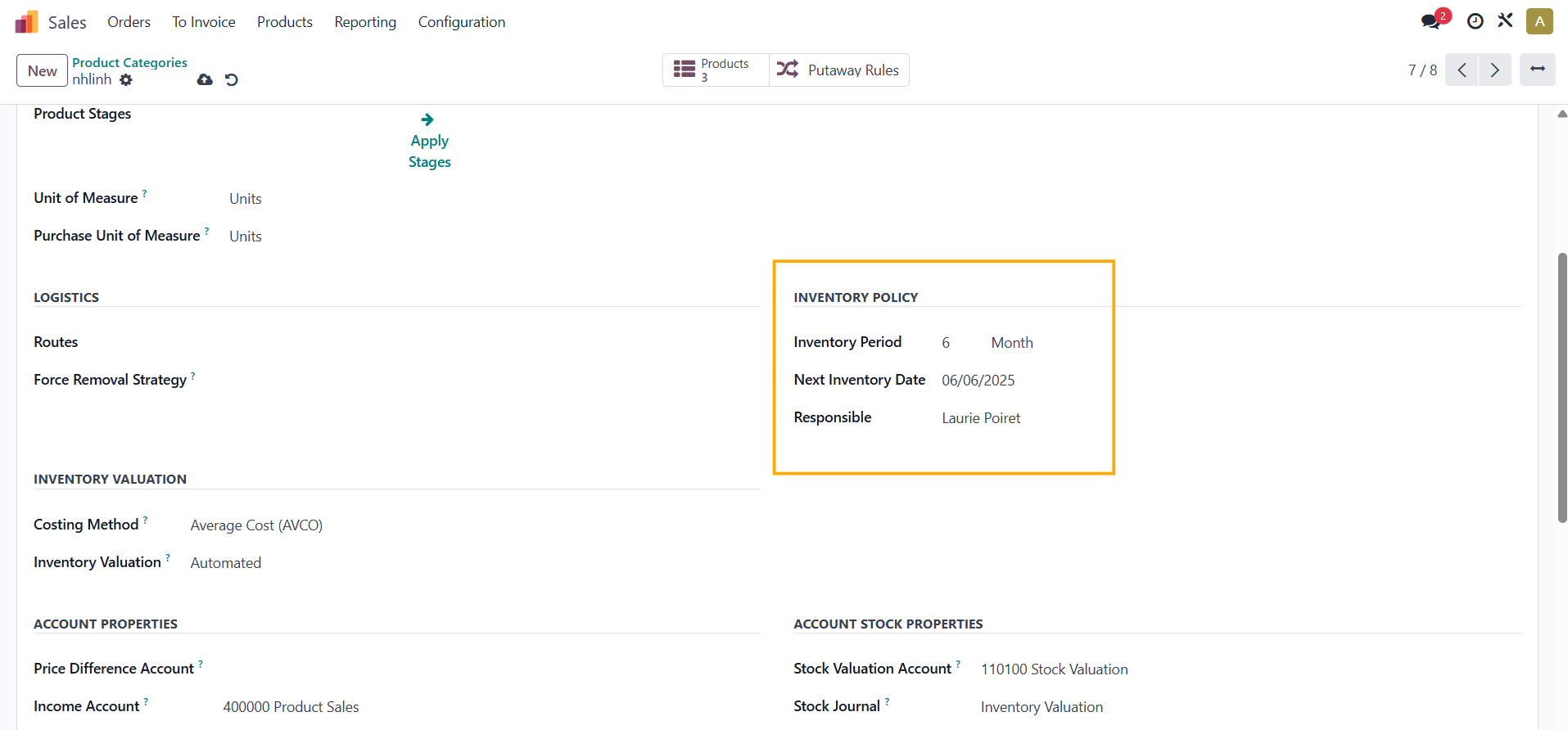 |
2. Go to Settings > Scheduled Actions > Choose Fal: Inventory Management Product Category > Click Run Manually | 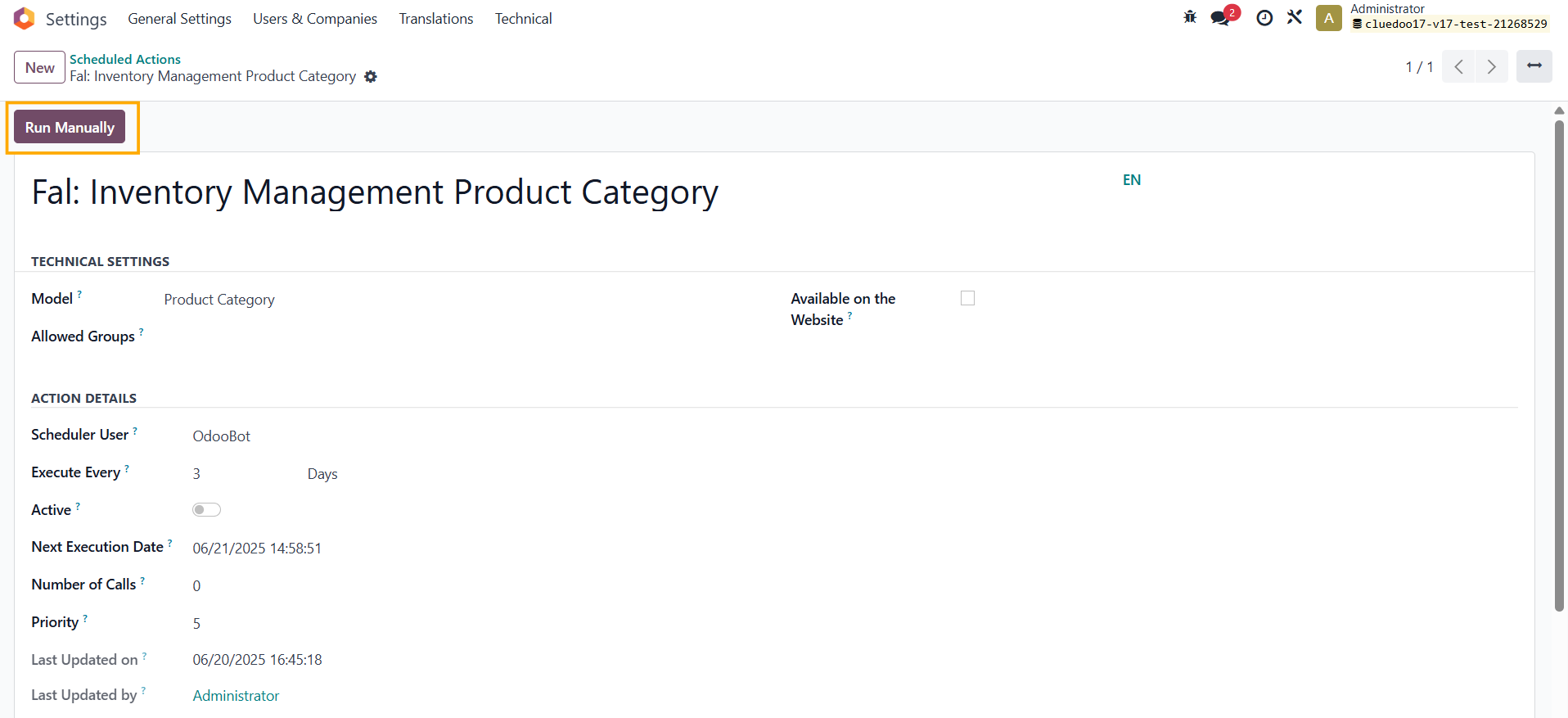 |
3. The "Next Inventory Date" is automatically calculated as the first Inventory Date plus the Inventory Period. | 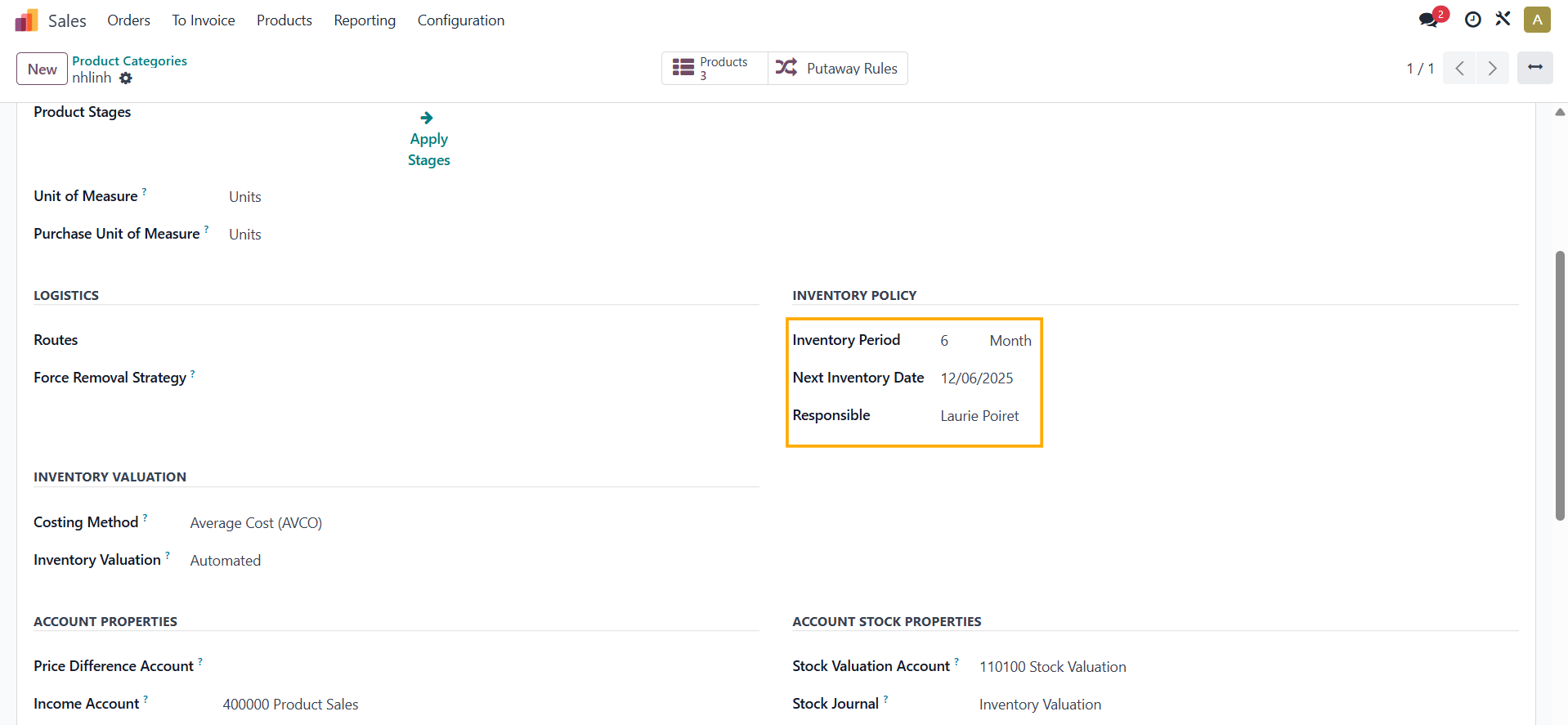 |
4. The Scheduled Date and User are automatically updated as well. | 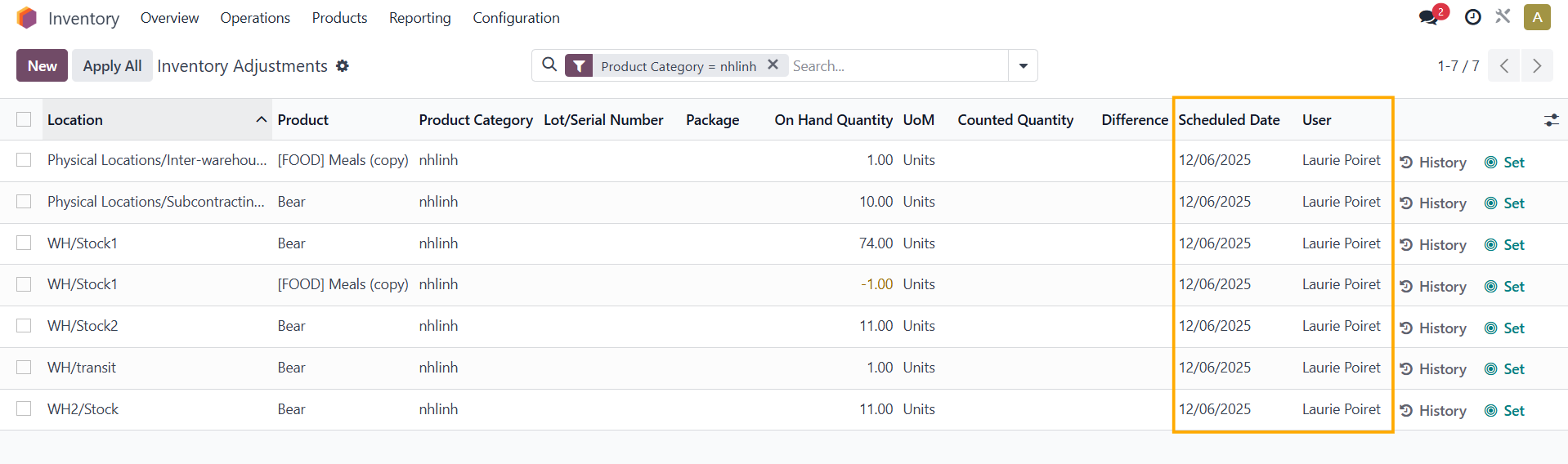 |
C. Define the Inventory policy in Product 1. You can do the same in the Product form. Note:
| 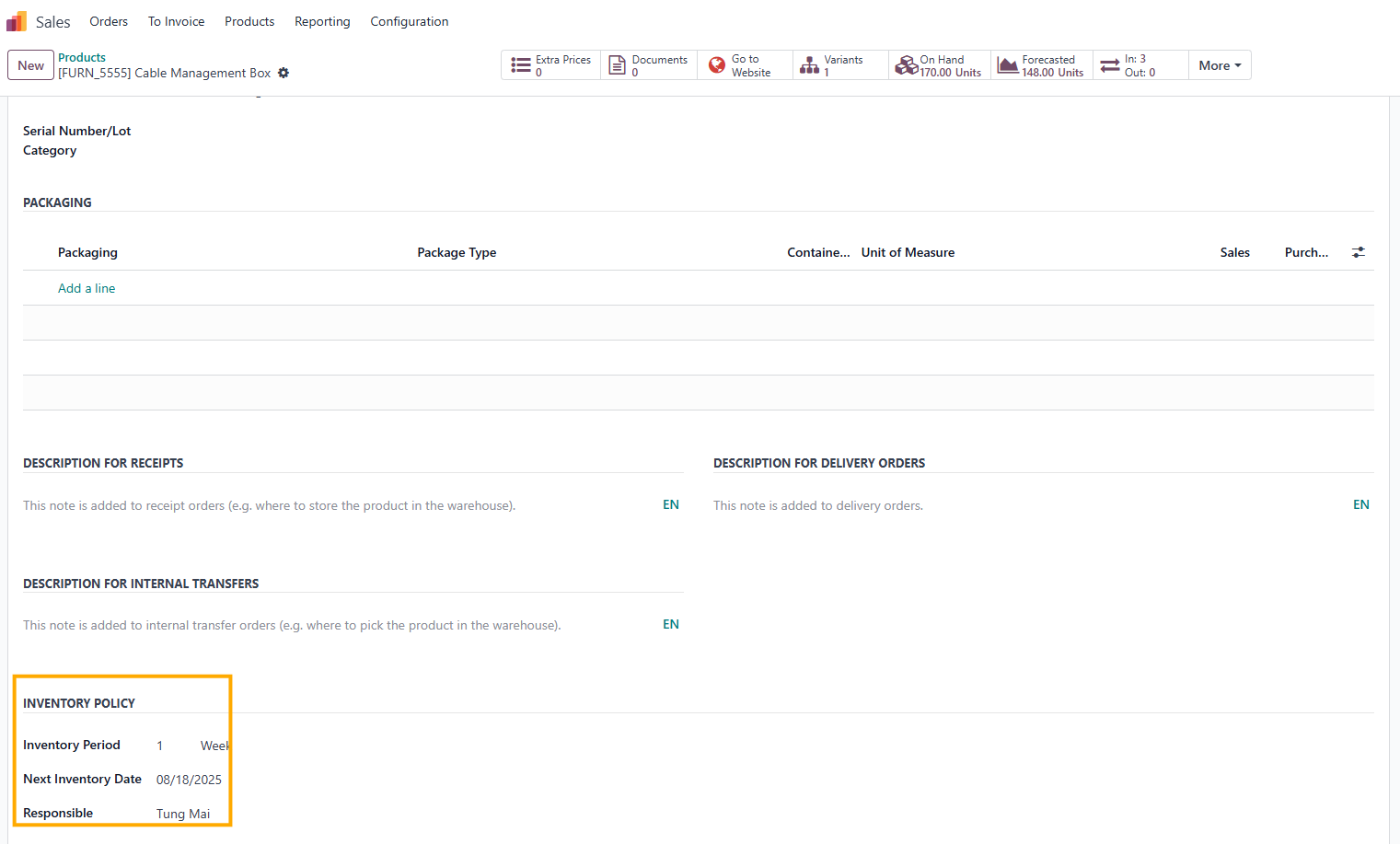 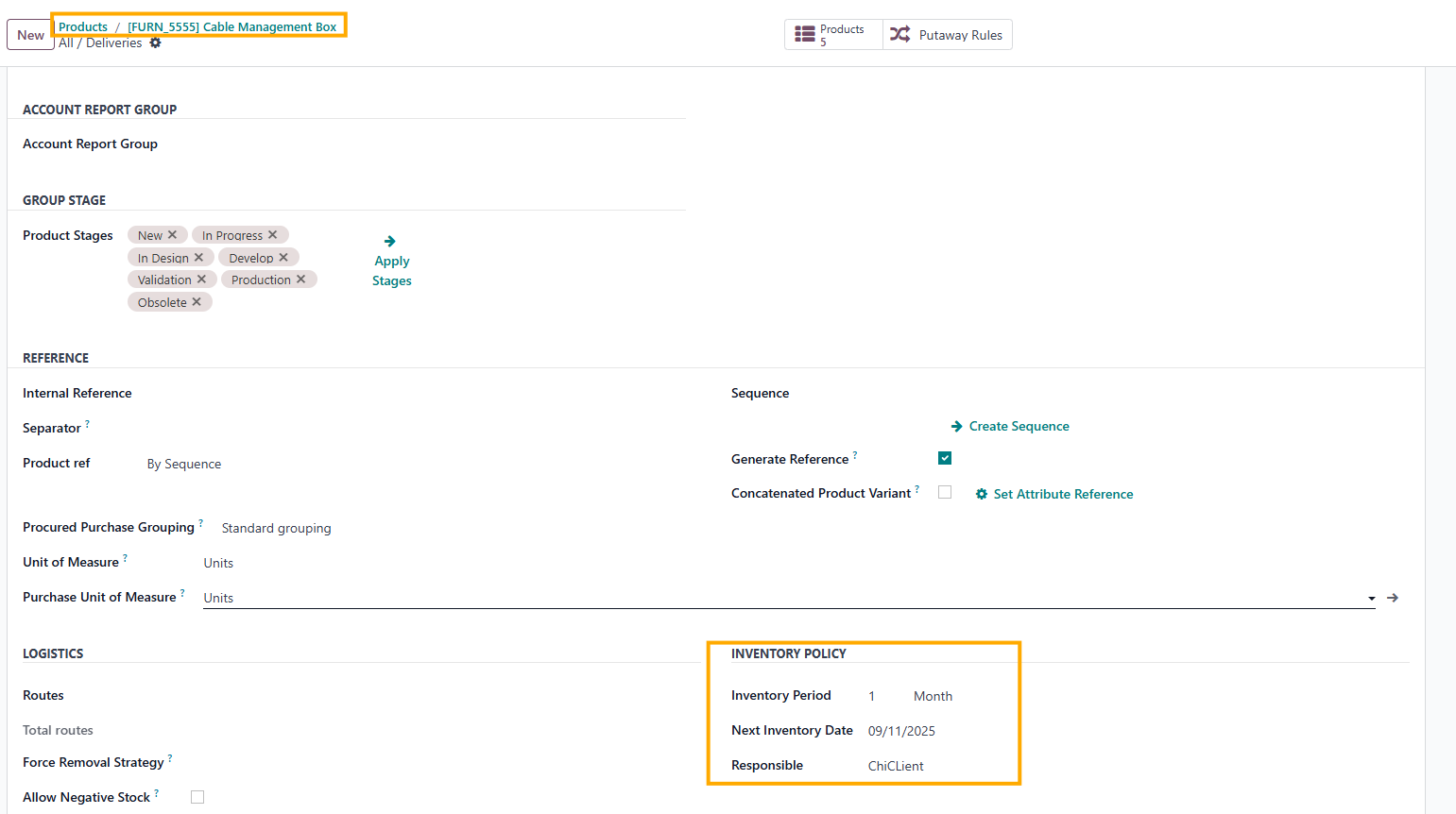  the module the module |
2. You can also use Scheduled Action to change the inventory date for the Product Template, the same as for the Product Category | 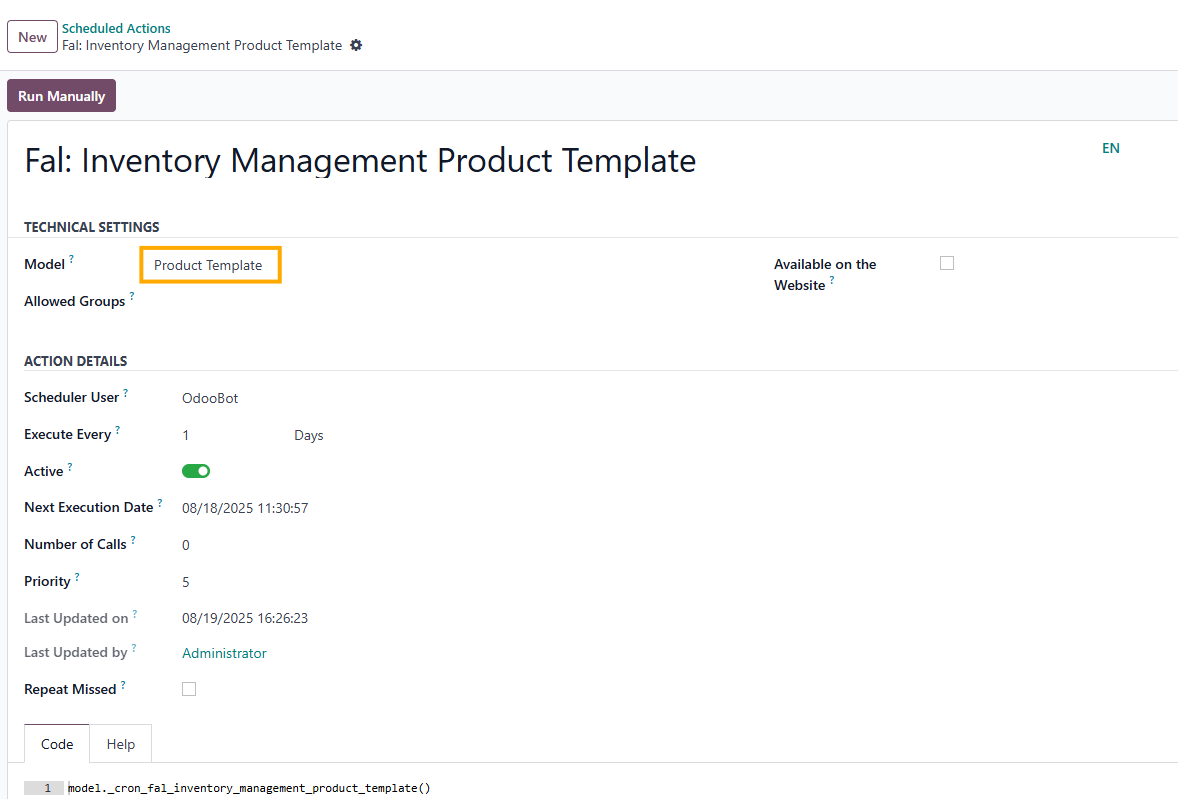 |