


ODOO'S FUNCTION
In the Barcode app, you need to scan the product barcode first before selecting or scanning its lot/serial number. The process is step-by-step and requires identifying the product before handling its tracking details.
CLUEDOO'S FUNCTION
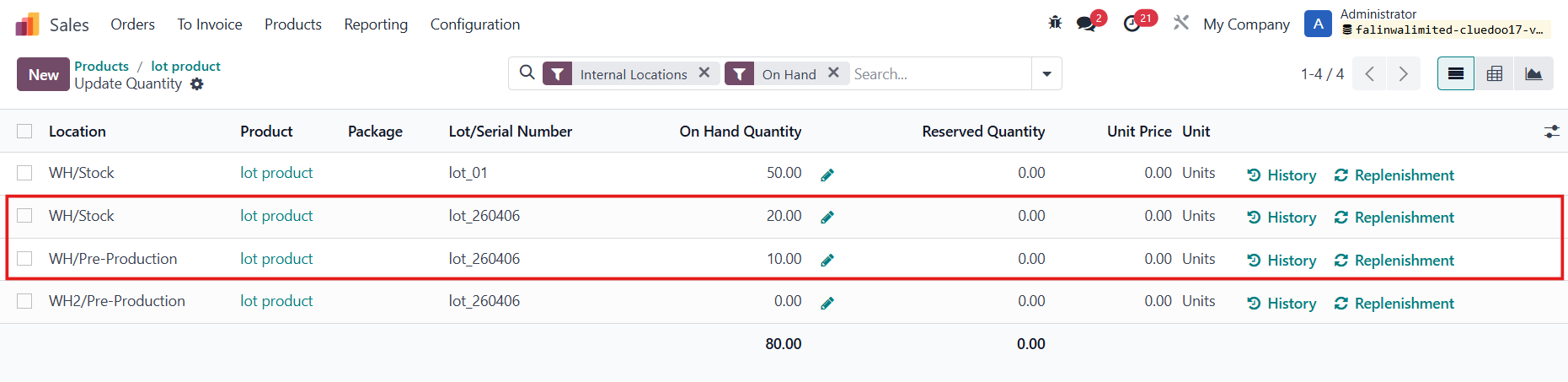
With CLuedoo, you can directly scan the lot/serial number barcode, and the system will automatically detect and fill in the related product. If the same lot/serial number is linked to multiple products, a warning will appear to alert you.
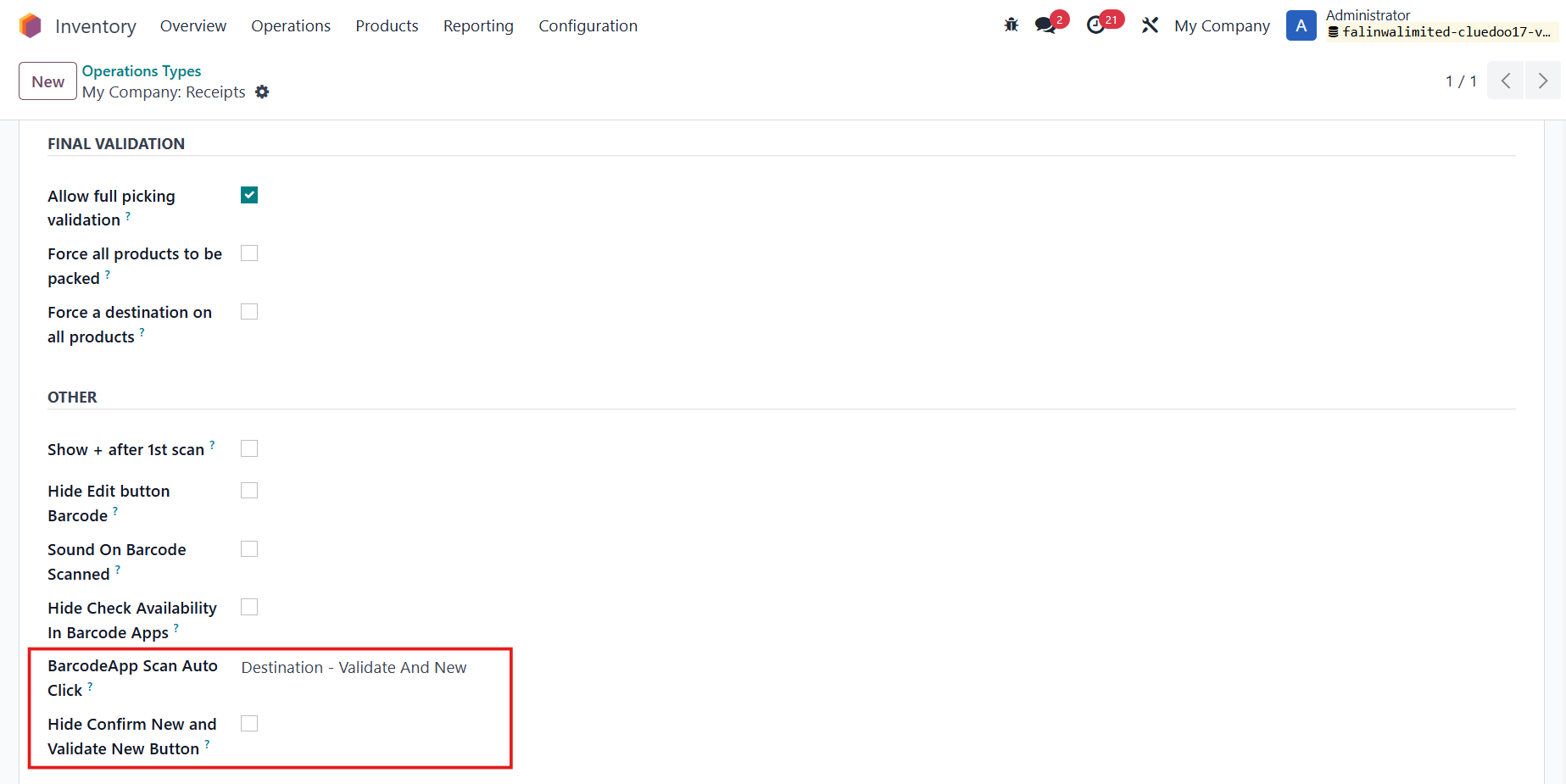
CONFIGURATION1. Go to Inventory > Configuration > Warehouse Management > Operations Types > Choose an operation type Under the Barcode App tab, select an option for BarcodeApp Scan Auto Click and check/uncheck the box Hide Confirm New and Validate New Button. There are 4 options in BarcodeApp Scan Auto Click:
|
|
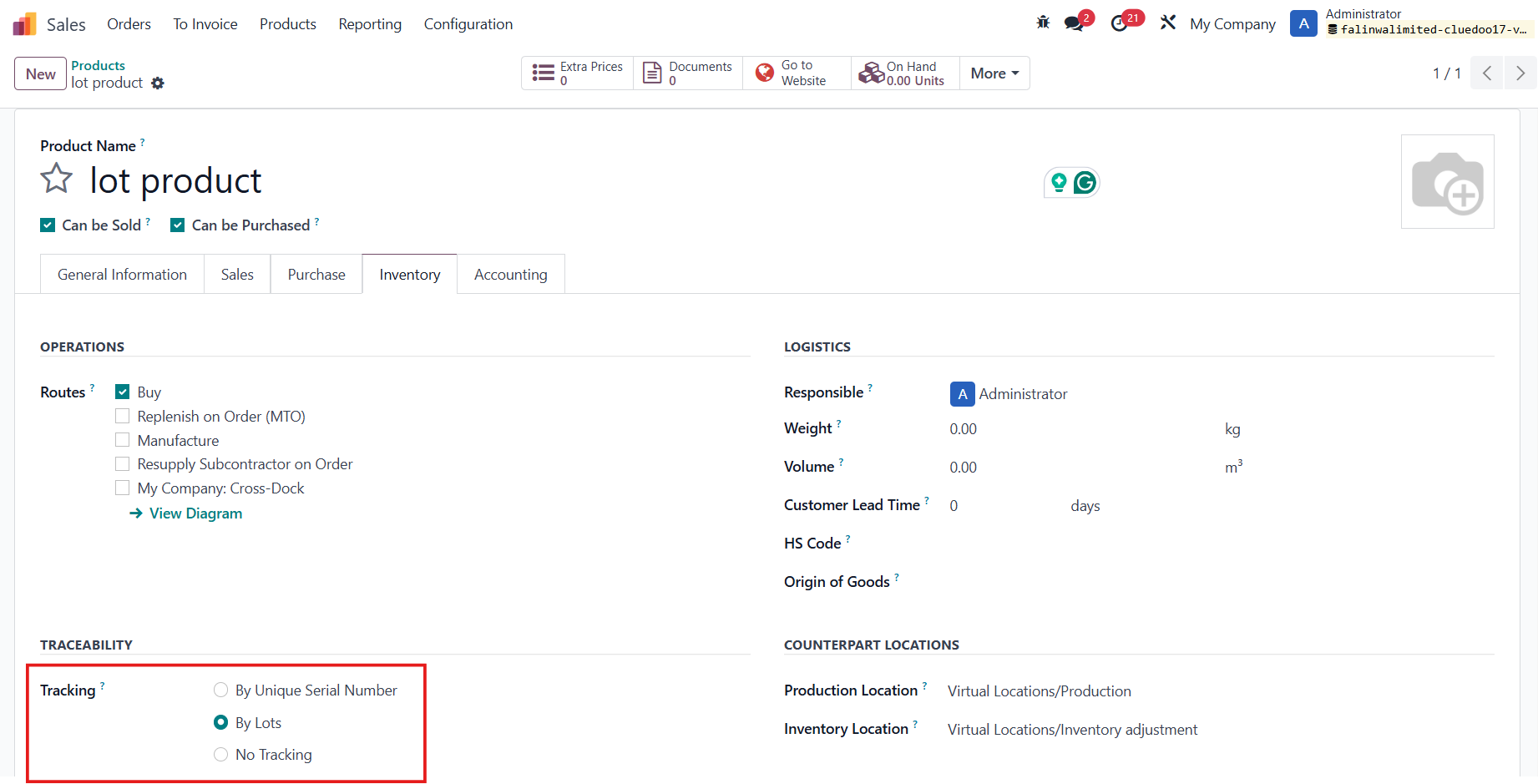
2. Create a new product tracked by Lot / Unique Serial Number |
|
USAGE1. Go to Barcode > Operations > Choose an operation Select an existing transfer or creating a new one > Add Product The Validate and New button appears or not based on the configuration you set before. | 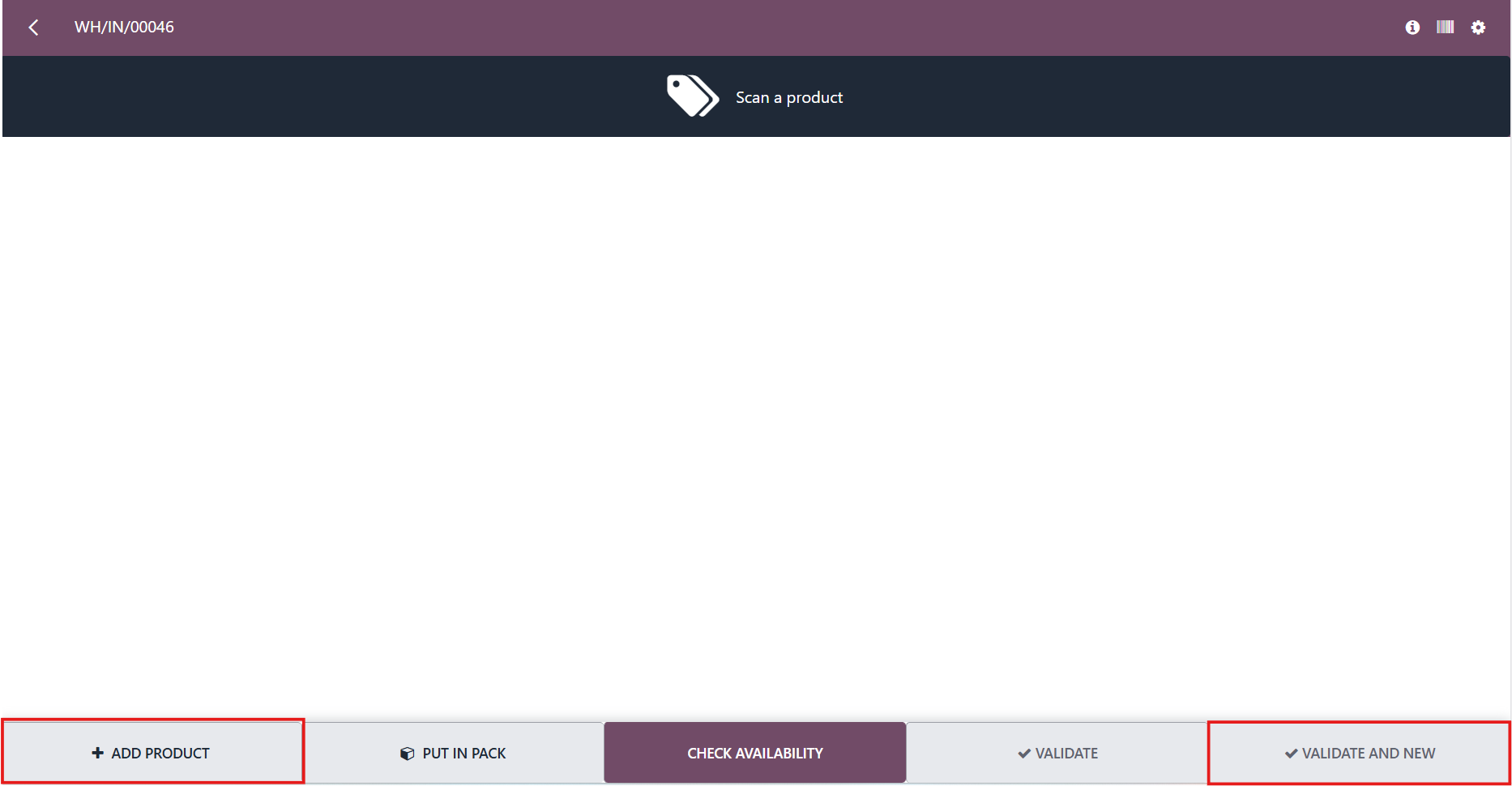 |
Click on the Barcode Serial/Lot Number field to scan the barcode. The Confirm and New and Validate and New buttons appear or not based on the configuration you set before. | 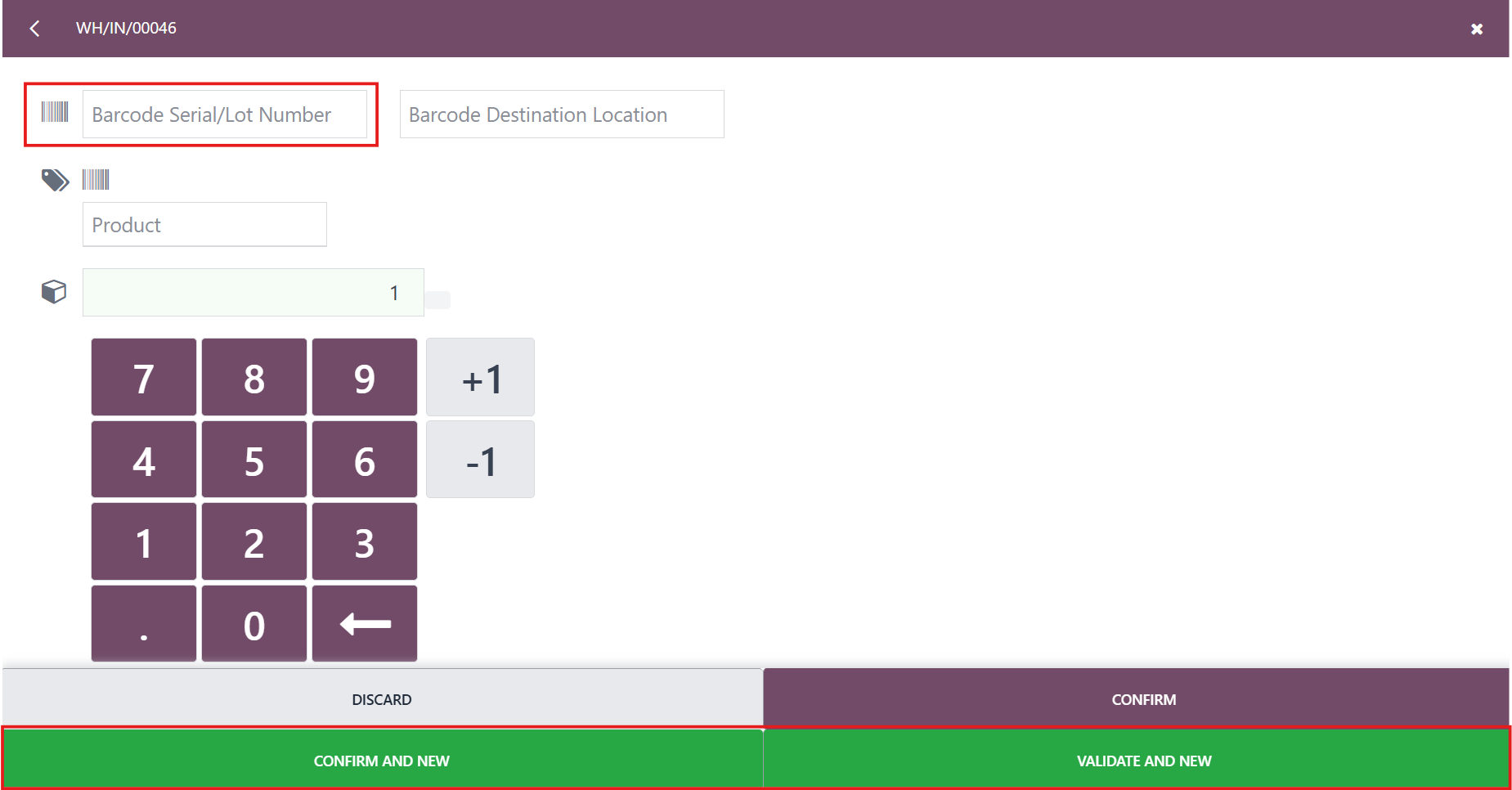 |
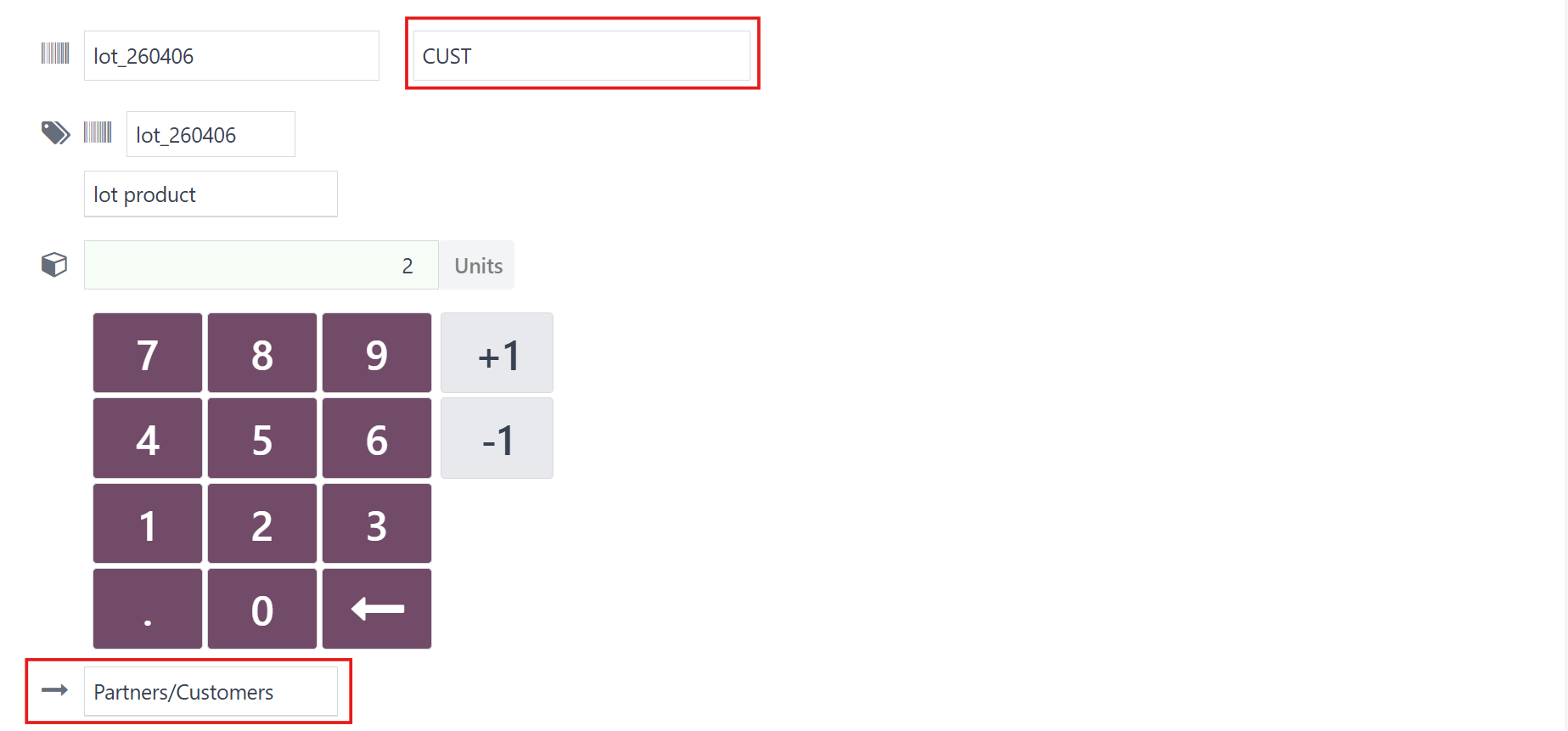
After you scan the lot/sn barcode > the lot/sn and the product fields will be automatically filled in. | 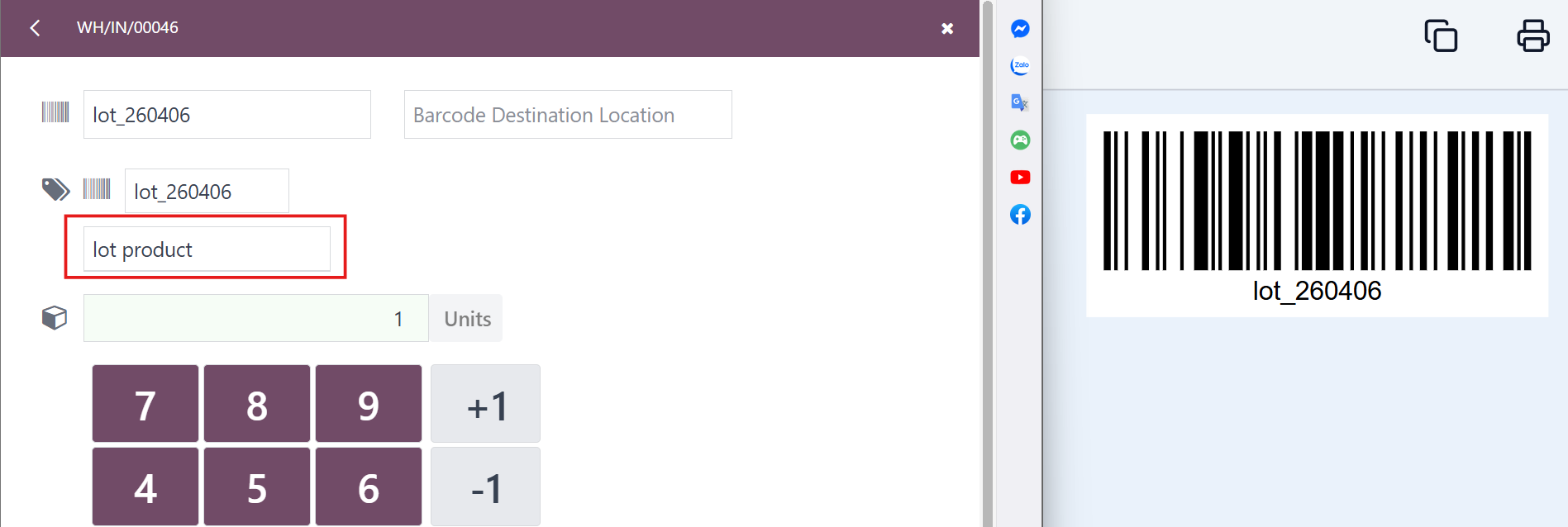 |
| 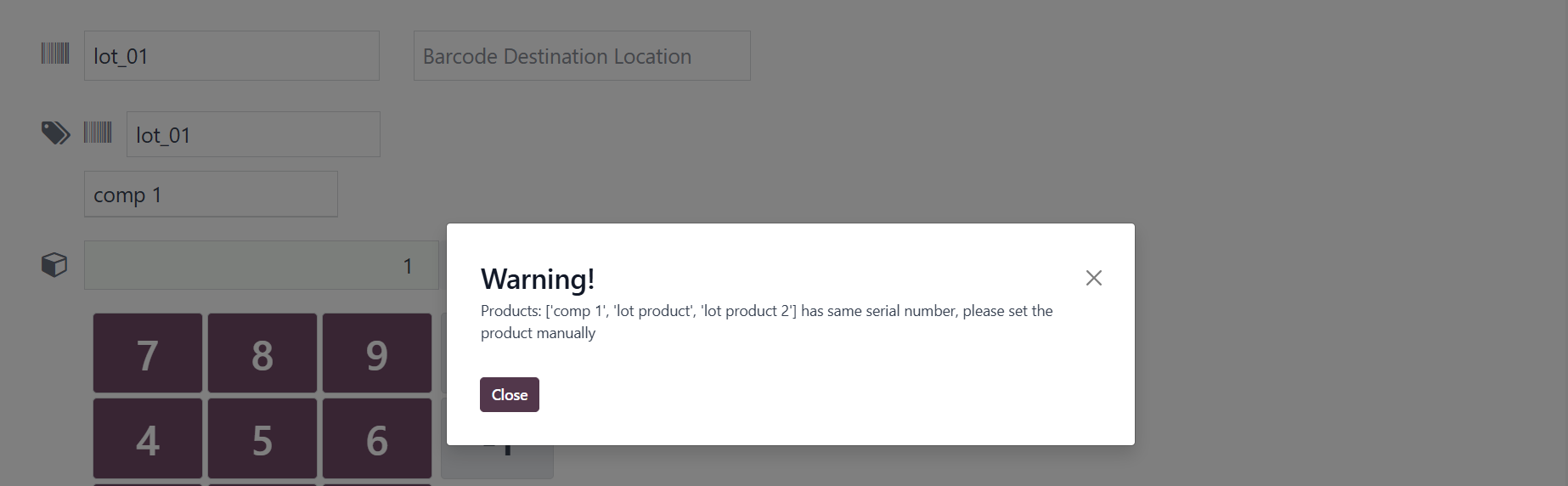 |
| 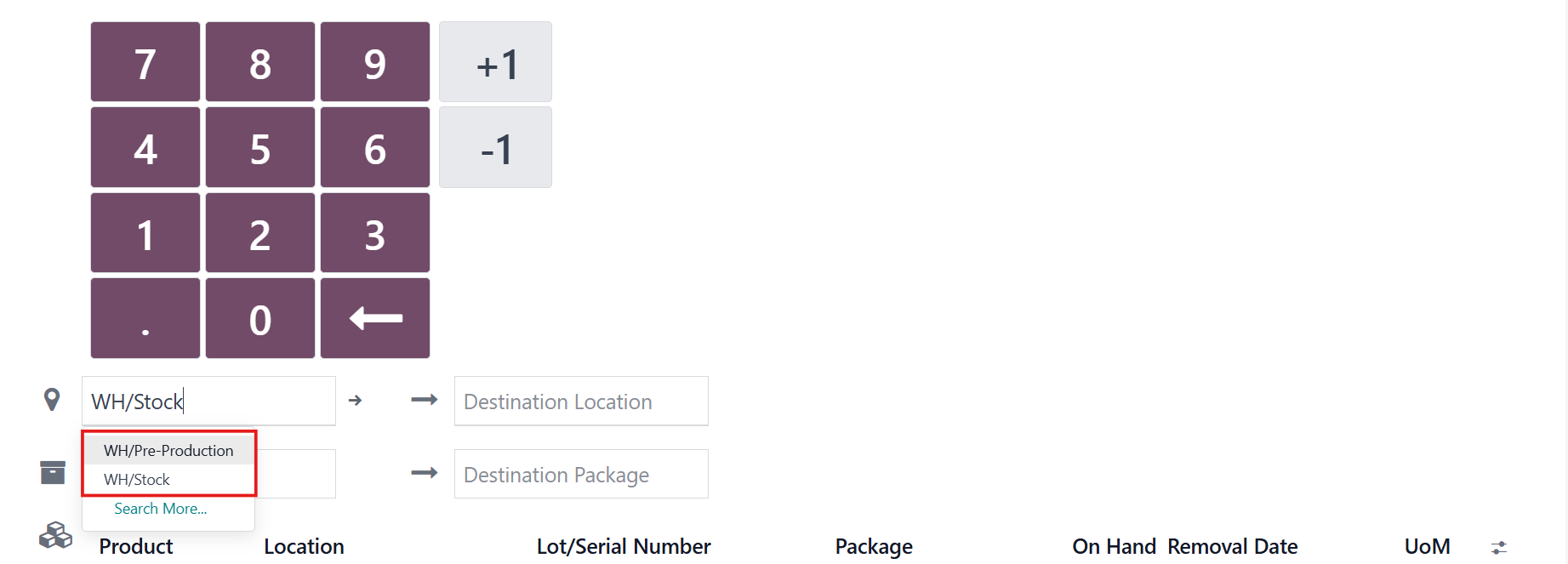  |
3. Fill in the barcode for the Destination Location as well. |
|