


ODOO'S FUNCTION
In Odoo, invoice terms management is on the products only and do not propose the options Milestone or Subscription.
- For Milestone invoice terms:
The milestone feature is an important missing invoicing terms in Odoo.
- For subscription invoice terms:
Odoo decided to manage subscription like an independant object, quite in parallel to sales order and not like an extra invoicing policy.
CLUEDOO'S FUNCTION
For Milestone Invoice Term:
1. Invoicing Type: Downpayment
On sales order, you can define an Invoice terms policy based on milestone (40%/40%/30% for instance), created from scratch or from a template and give the forecasted invoice date.
When the event occurs, you can define the milestone term invoice date. You will get the invoice related to the milestone automatically at the date.
2. Invoicing Type: Regular
This type allows you to automatically generate an invoice on the scheduled date with the specified quantity in the transfer, making the process more efficient and seamless.
For Subscription Invoice Term:
Cluedoo defines subscription invoice term as an extra invoicing policy you propose to your customer for a sales order.
For instance, for an order of 18 000€, you propose to your customer to invoice 100% at order (invoice based on ordered quantity) or you propose to your customer to invoice monthly 1 500€ (invoice based on monthly subscription). As the subscription is just an invoicing term option, we prefer to keep the management at the sales order level and not managing another object.
1. Invoicing Type: Downpayment 1. On Sales → Configuration → Invoice Rules Template, we can create a template for invoice rule. Set Percentage, Invoice date, and Invoice Forecast Date. We also can directly take this template by clicking Take Template button. | 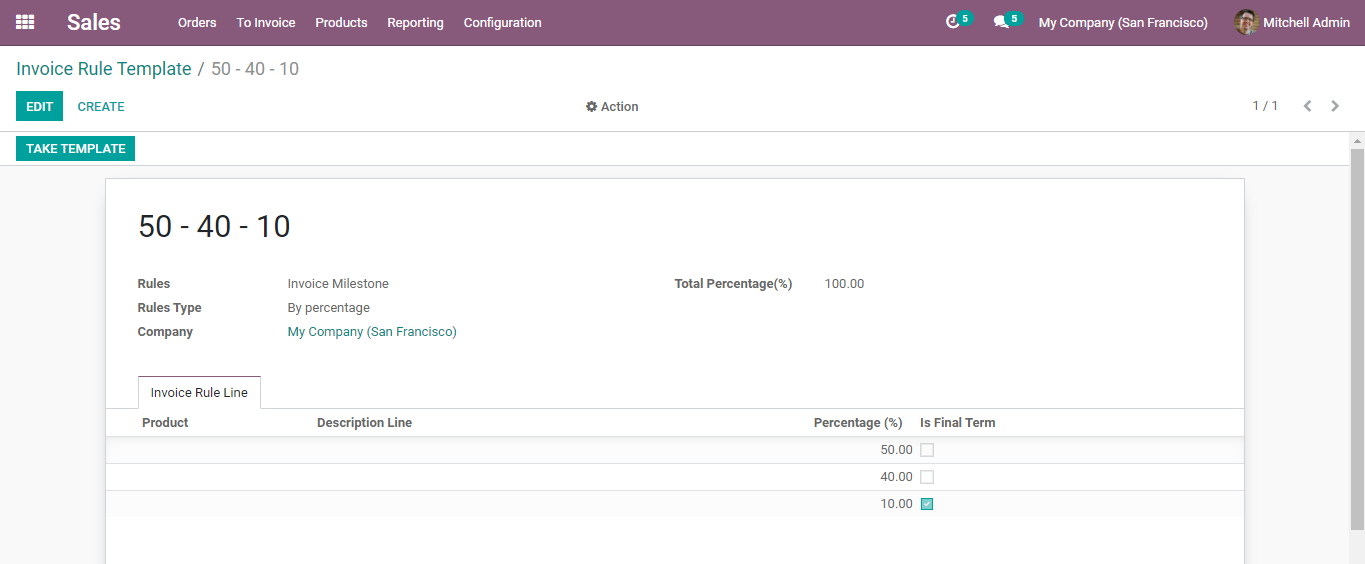 |
Sales → To Invoice → Invoice Rule. We directly have invoice term from the template. Give the invoice date | 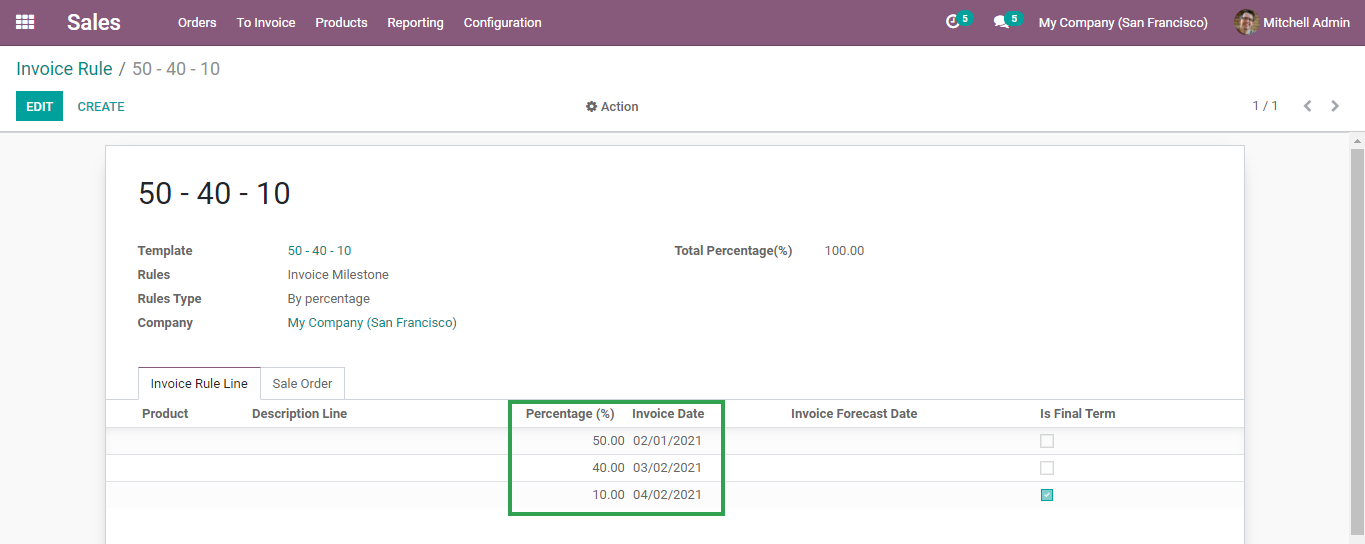 |
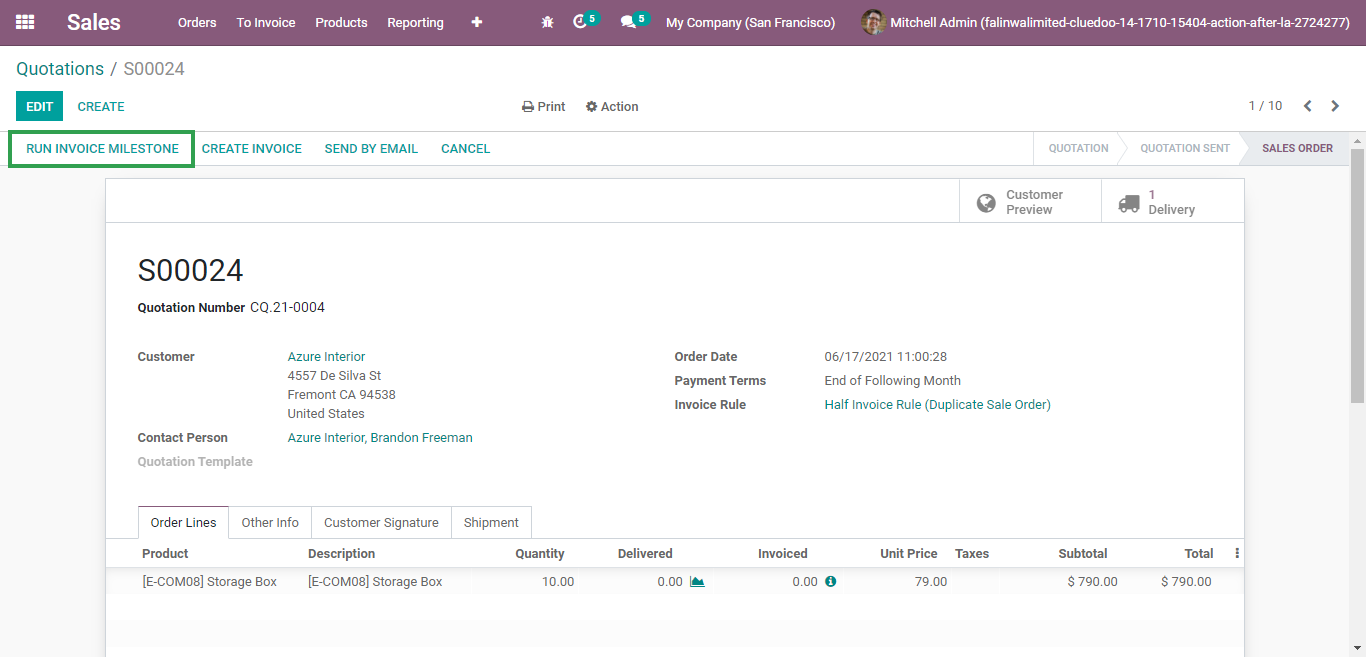
3. Create a Quotation > Select invoice rule > Confirm quotation, and you will have Run Invoice Milestone button. When you click that button, invoice will be created automatically based on the invoice date that we already set on invoice rules. In this example, first invoice rule is 50% for the date 02/01/2021. Today is 02/01/2021, so when we click Run Invoice Milestone, it creates the invoice for 50%. For the next invoice, it will be created automatically for the next date as we already set Auto Run Invoice Milestone. Warning: the autorun will work best for orders with less than 10 lines. If you have bigger orders, you may have to increase the server limit for the invoice milestone to work. | 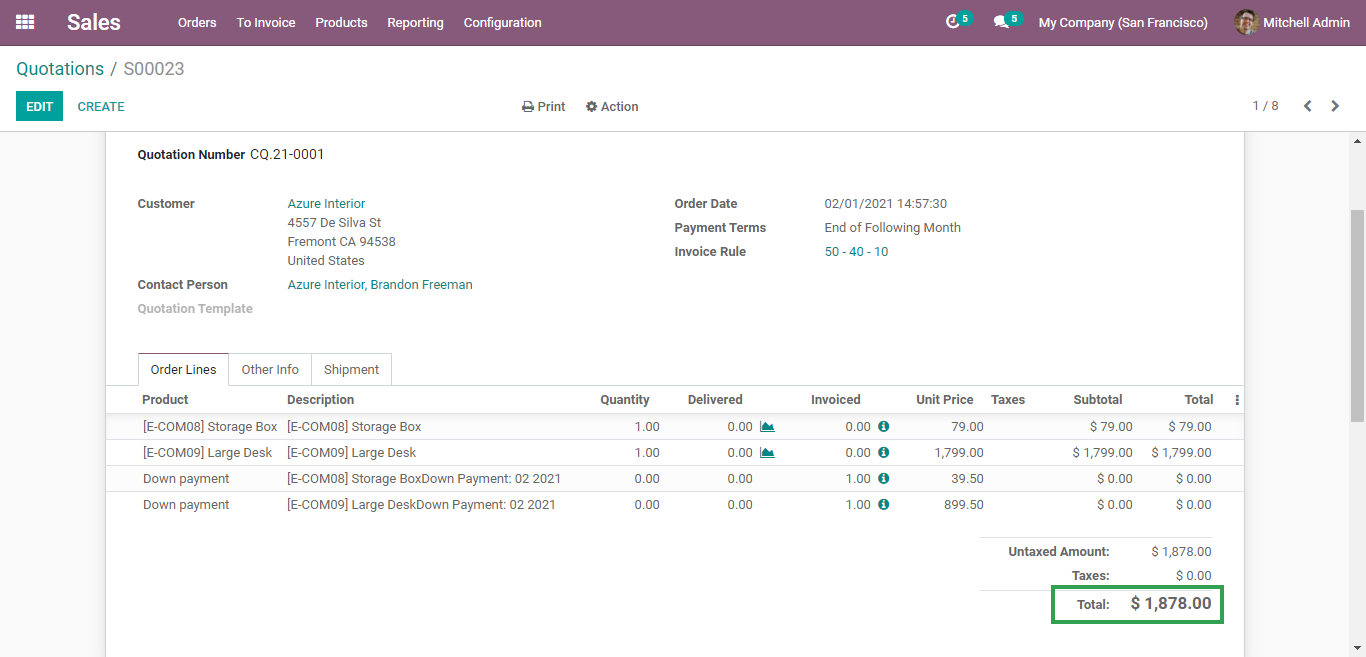 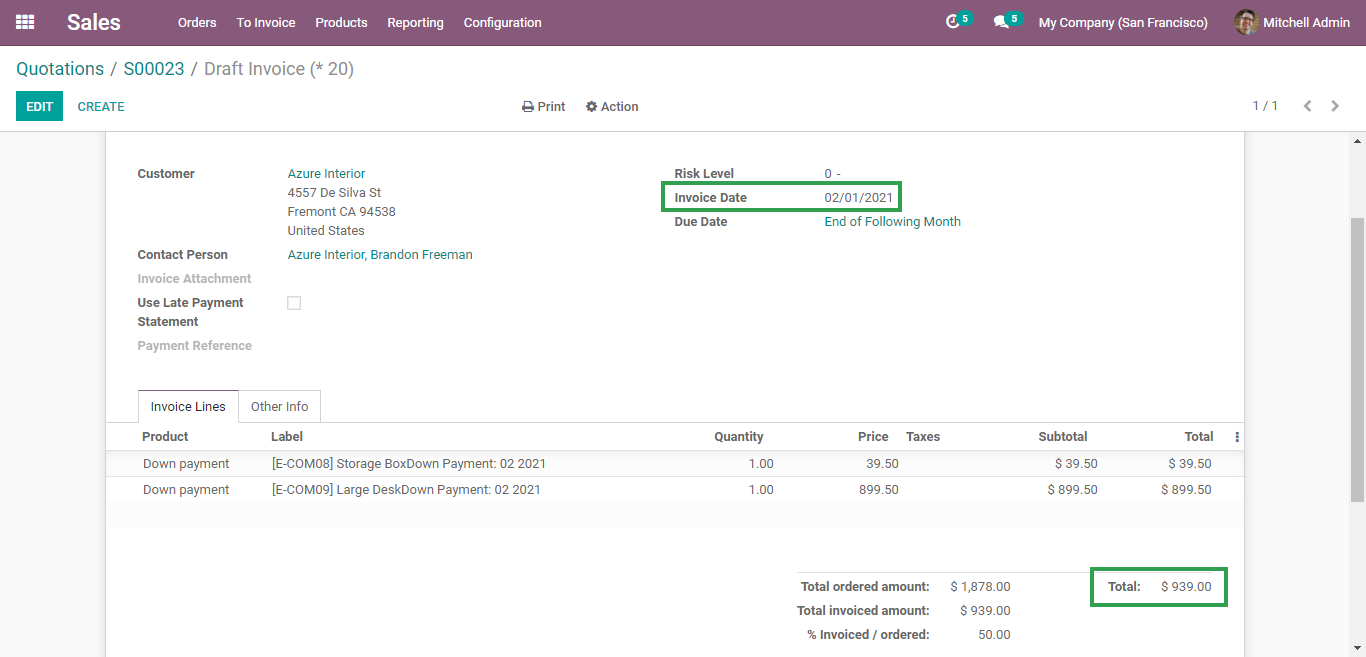 |
Custom Formula 1 Go to Sales → Configuration → Invoice Rule Template. On an invoice rule template, we can set formula in Python programming code. For example, we set formula to duplicate the sale order after last milestone is done. | 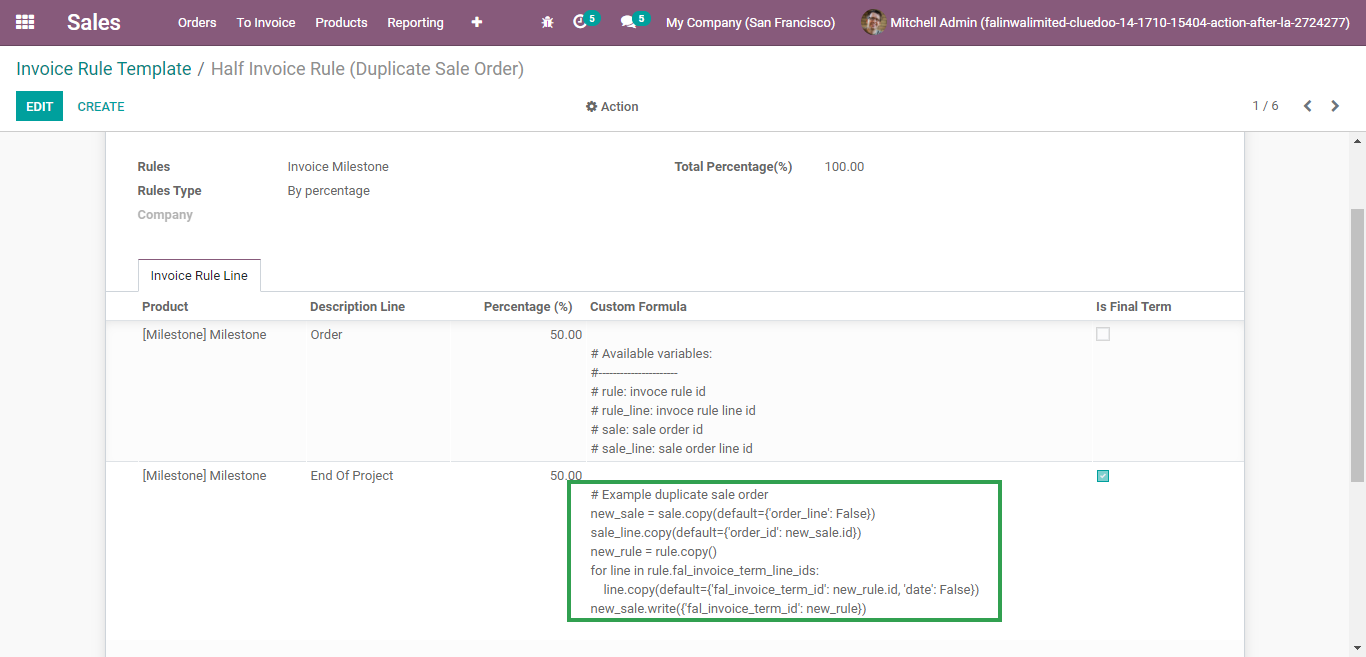 |
Create a quotation using the invoice rule template where we already set the custom formula (duplicate sale order) | 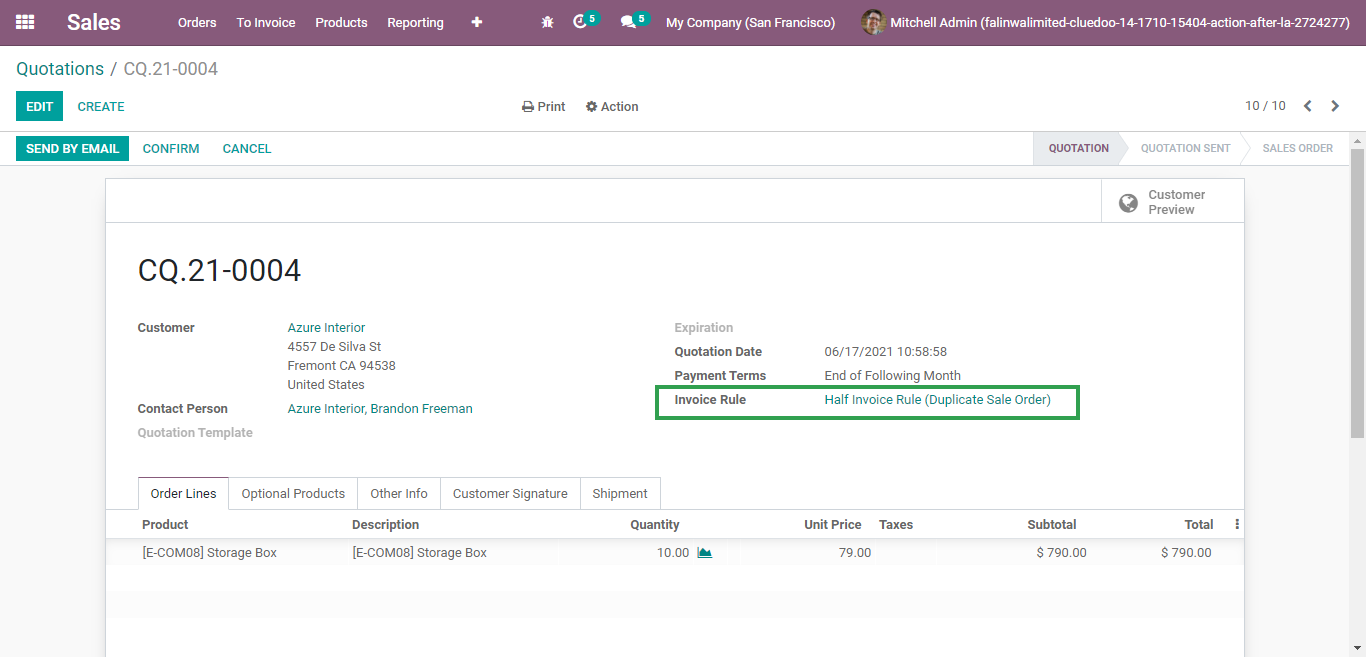 |
Click Run Invoice Milestone.
|
|
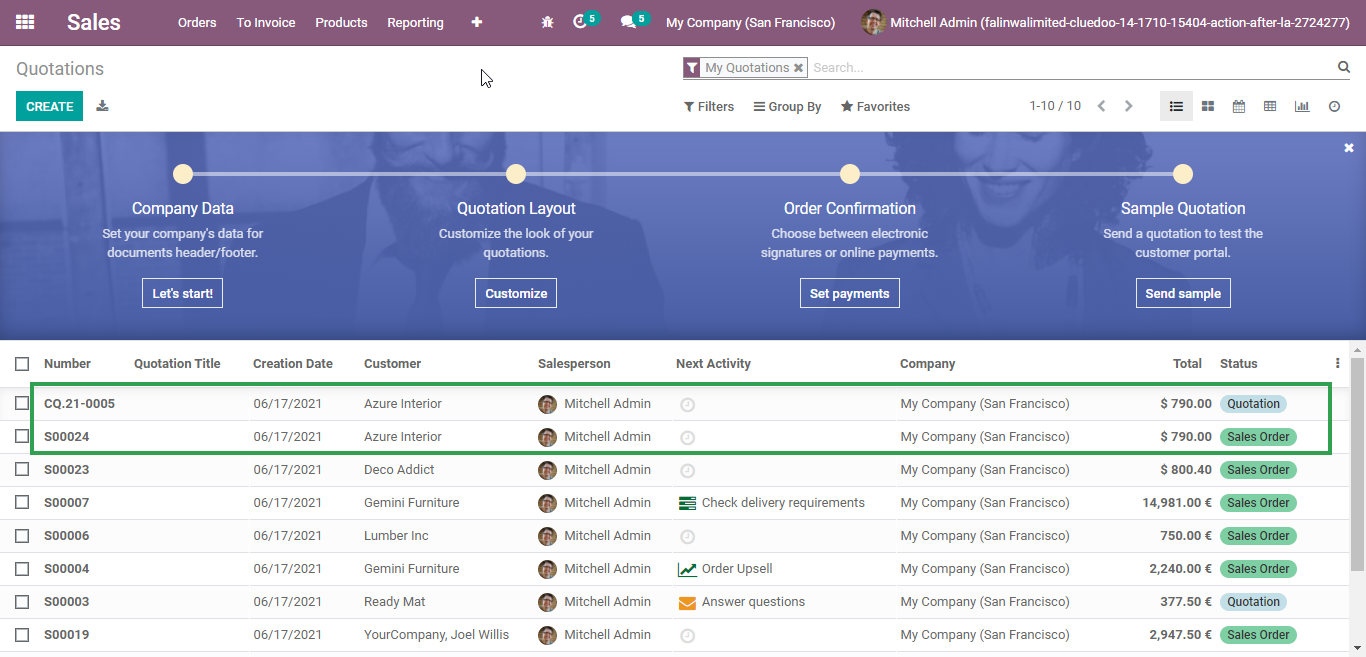
After clicking Run Invoice Milestone, the duplicated sales order is automatically created. |
|
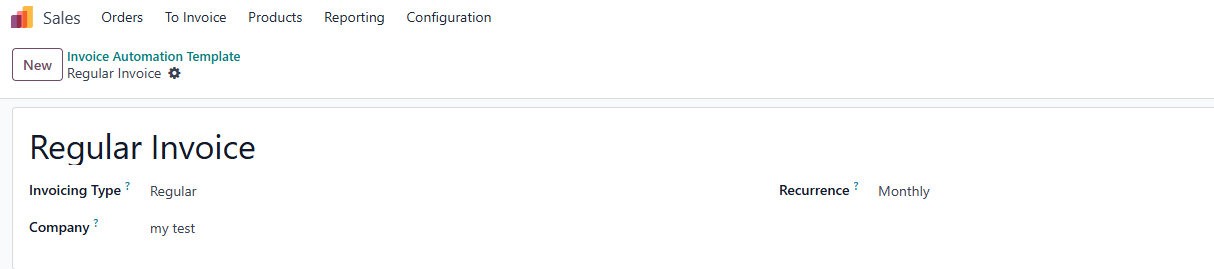
Update v18 Go to Sales > Invoice Automation Template > Create a new Template |
|
Invoicing Type: Regular 1 Set up Invoicing Type to Regular > Configure Recurrence EX: I want to create an invoice automatically each month, so I set up Recurrence to Monthly |
|
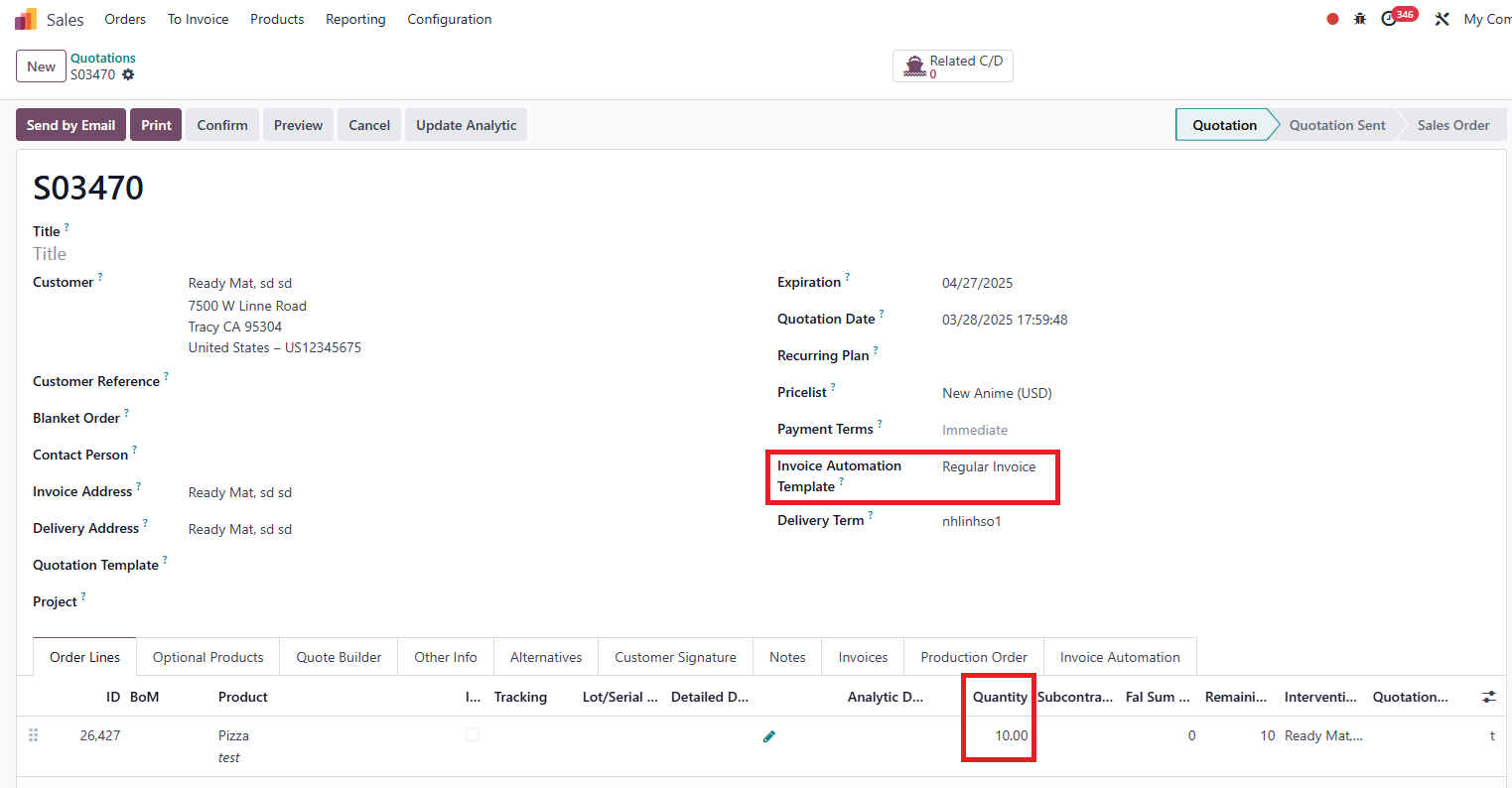
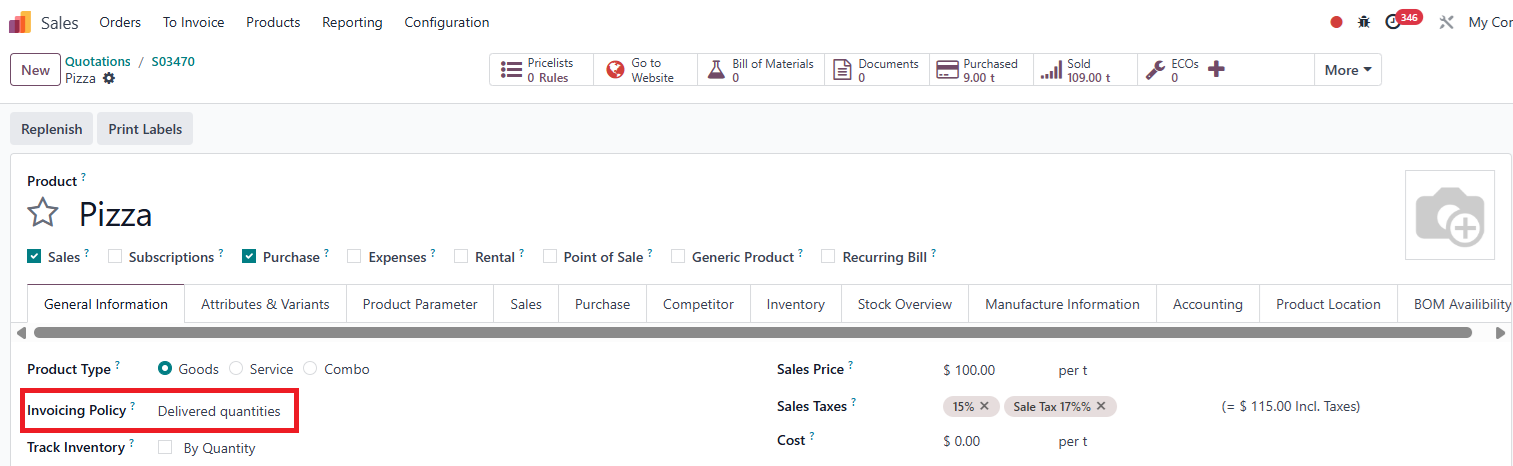
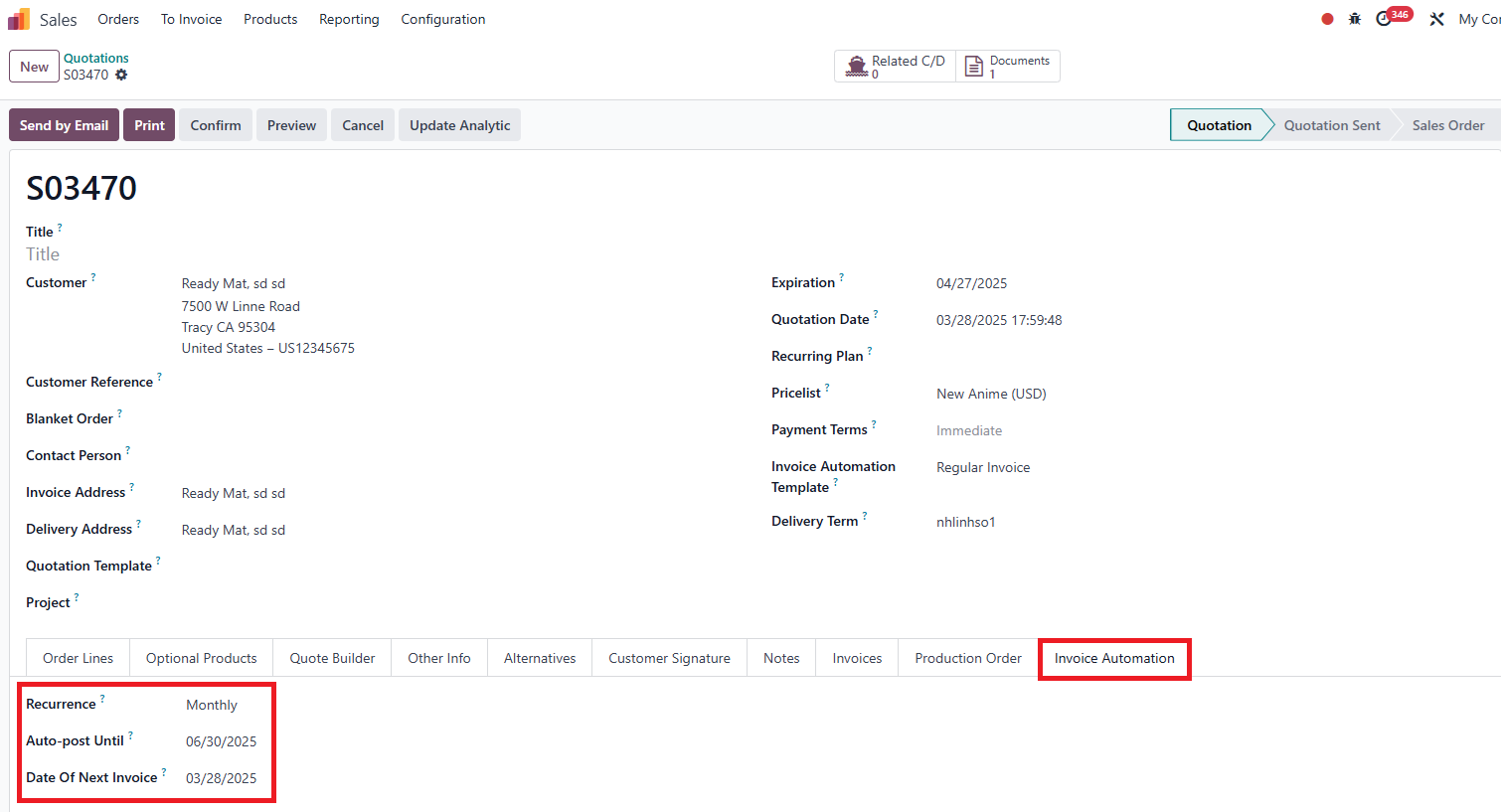
2 Go to Sales > Create a new Quotation > Select the Template that has just been created in the Invoice Automation Template > Add a product EX: Add a product with Quantity: 10 and Invoicing Policy: Deliveried Quantities Move to Invoice Automation Tab > Can see that Recurrence is automatically inherited by the set-up in the template > Configure the Date of Next Invoice and Auto-Post Until > Confirm the order Note: The Date of Next Invoice: When the date set in the Date of Next Invoice is reached, an invoice will be automatically generated Auto-Post Until: After the date set up in Auto-Post Until, there will be no invoice created automatically |
|
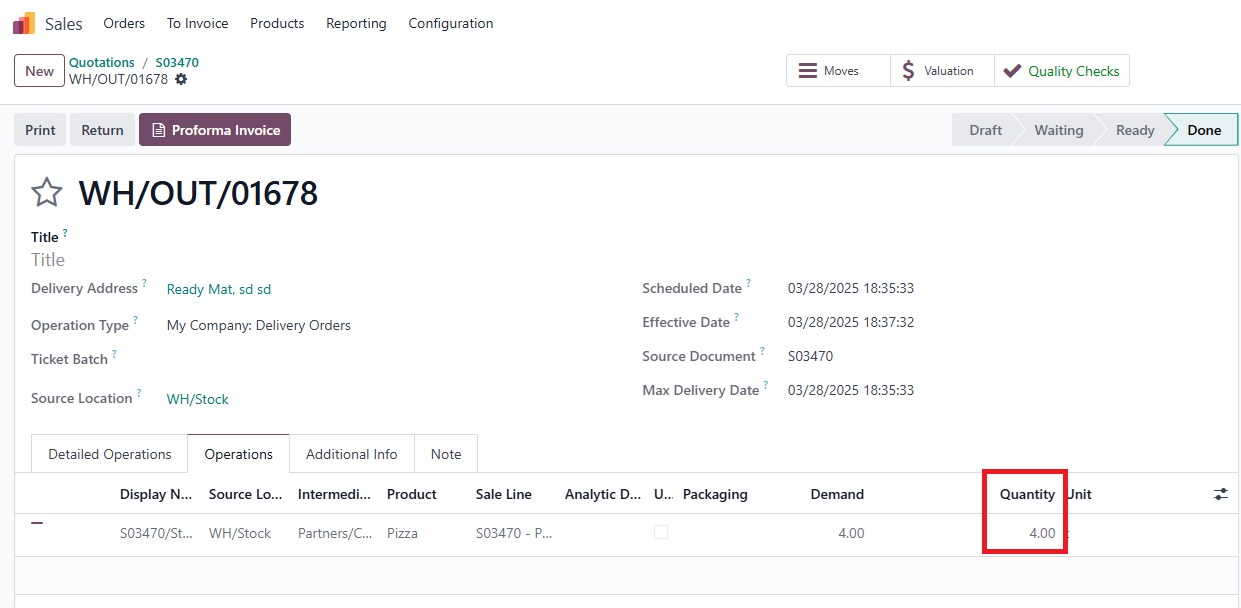
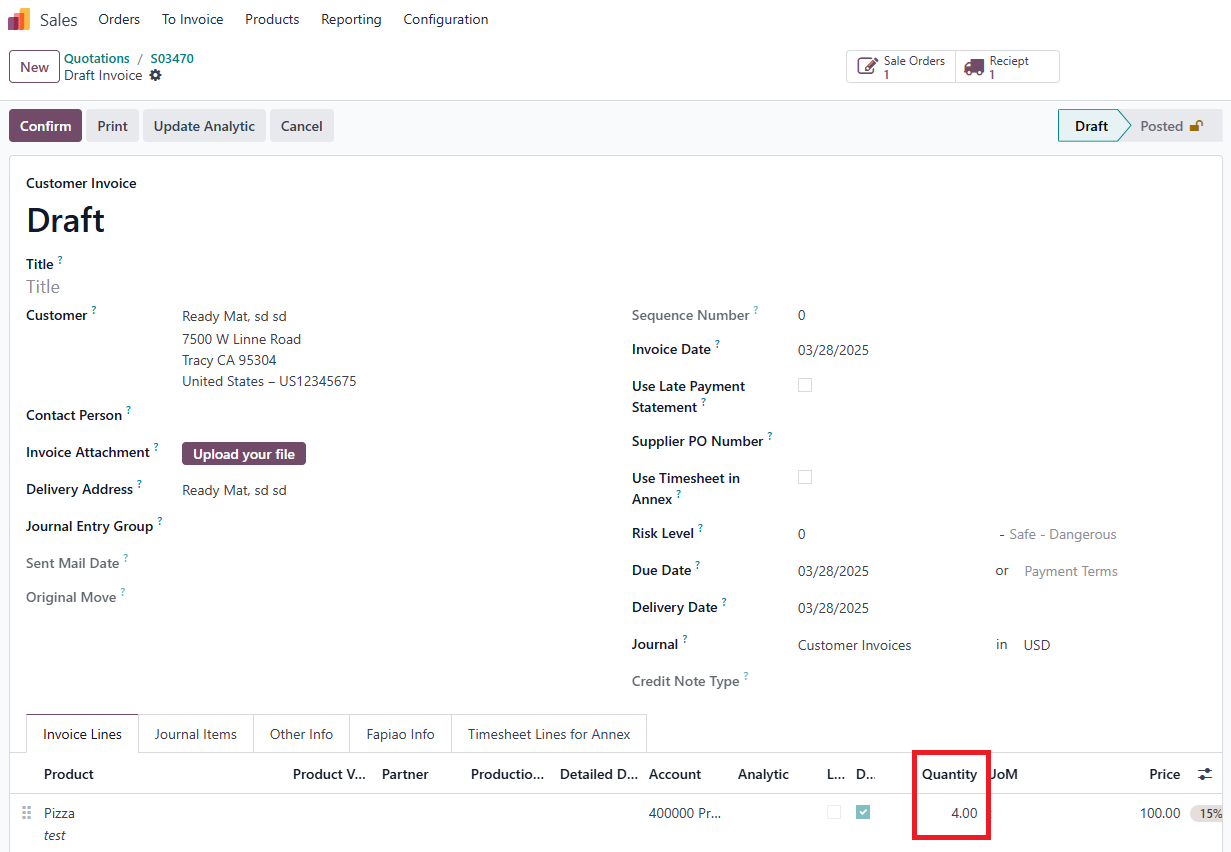
3 Go to Delivery > Set up the Quantity > Validate the Transfer EX: Set up the Quantity to 4 |
|
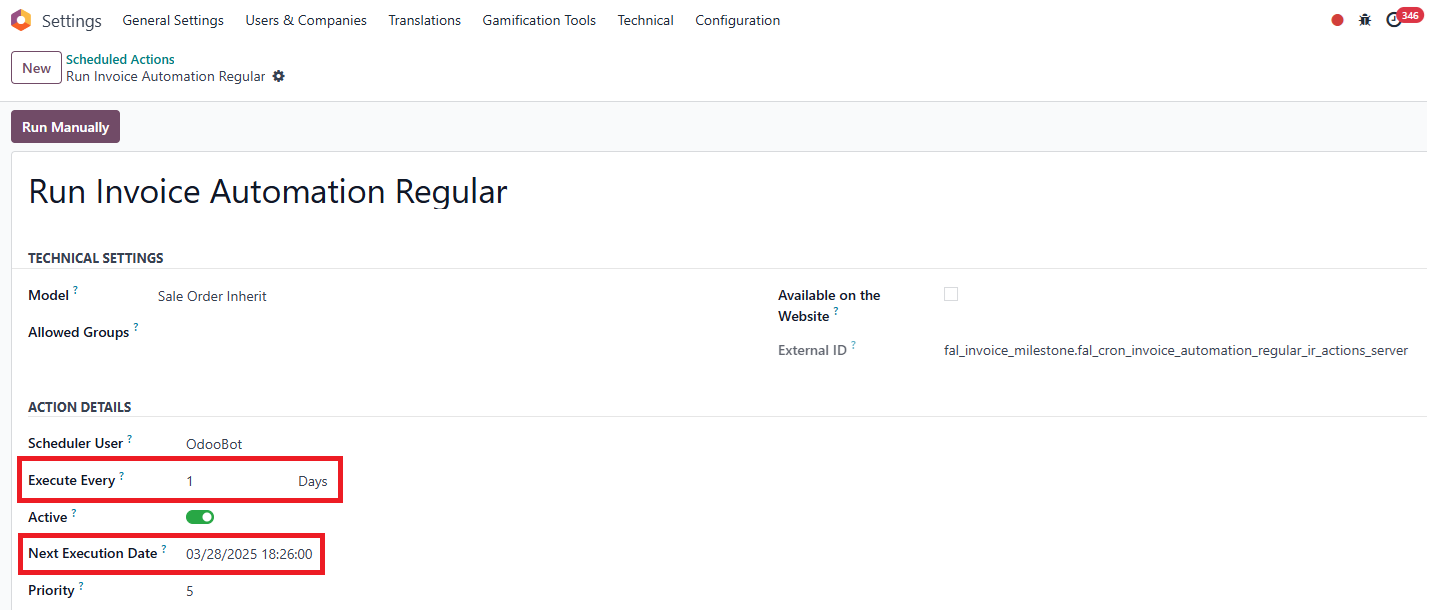
Go to Settings > Technical > Scheduled Actions > Search for Run Invoice Automation Regular > Click on Run Manually if you would like to create an invoice automatically immediately Or you can wait until the time set up in Next Execution Date, there will be an automatically created invoice Note: The behavior of this feature is to create invoices automatically based on pre-defined configuration EX: Based on the configuration of the two fields in the image, the system will automatically run every day and update the next scheduled date for the process |
|
Go back to the Order > Can see that an invoice has already been generated automatically because today is 03/28/2025, which matches the date set up in the Date of Next Invoice: 03/28/2025 > Notice that the Quantity of the Invoice is equal to the one set up in the Transfer because the Invoicing Policy of the product is Deliveried Quantities |
|
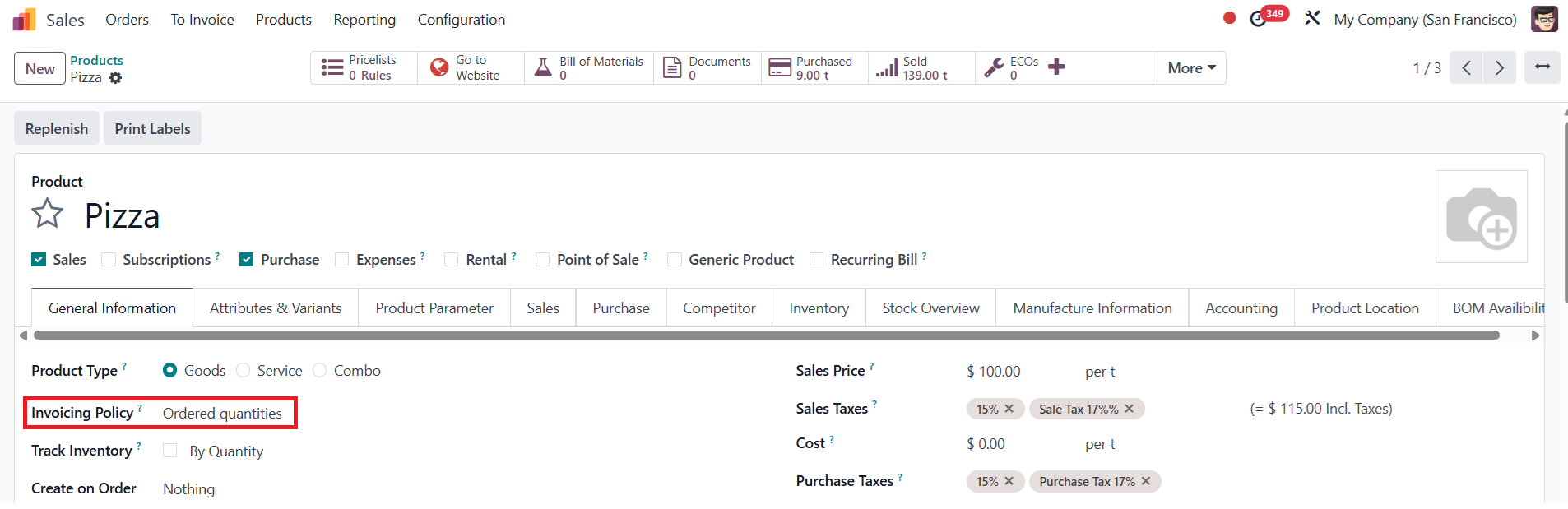
After the invoice is created, the Date of Next Invoice will be updated based on the Recurrence. That means an invoice will be created automatically in 04/28/2025 Note: In the case of an order including a product with Invoicing Policy: Deliveried Quantities, an invoice is created automatically only after the transfer is validated |
|
If users set up the Invoicing Policy of the product to Ordered Quantities, an invoice will be generated automatically regardless of the validation of the transfer |
|
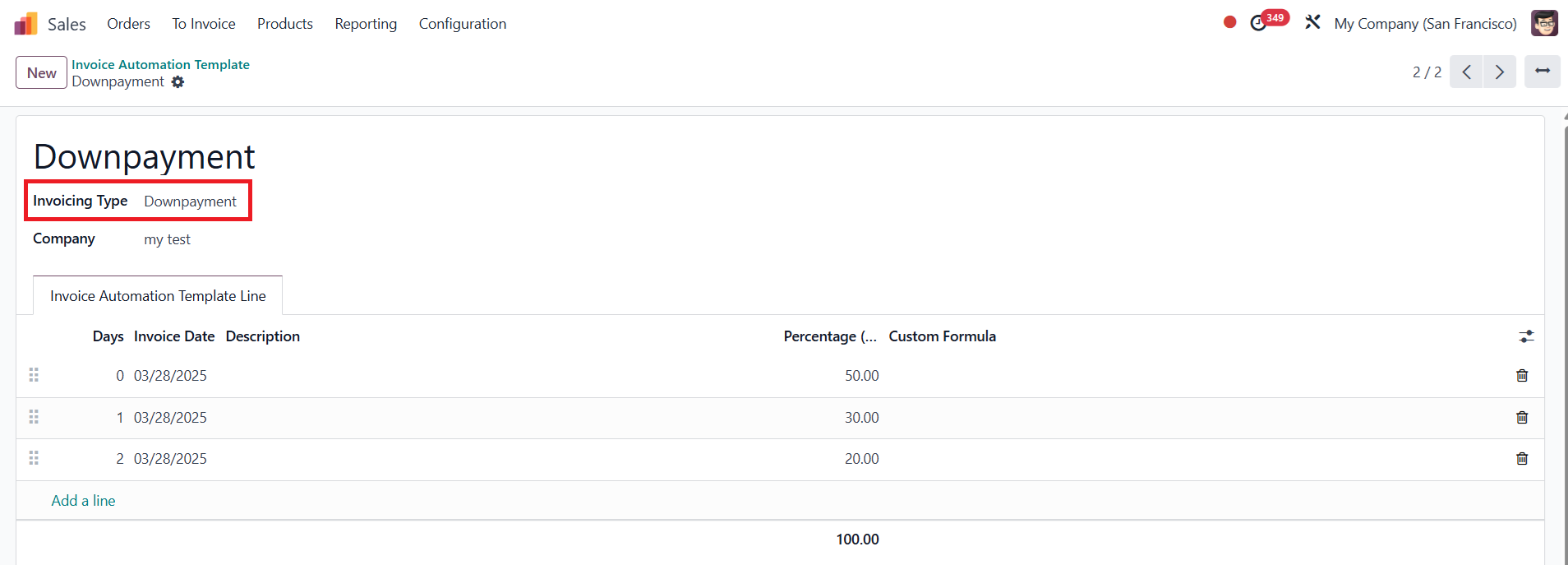
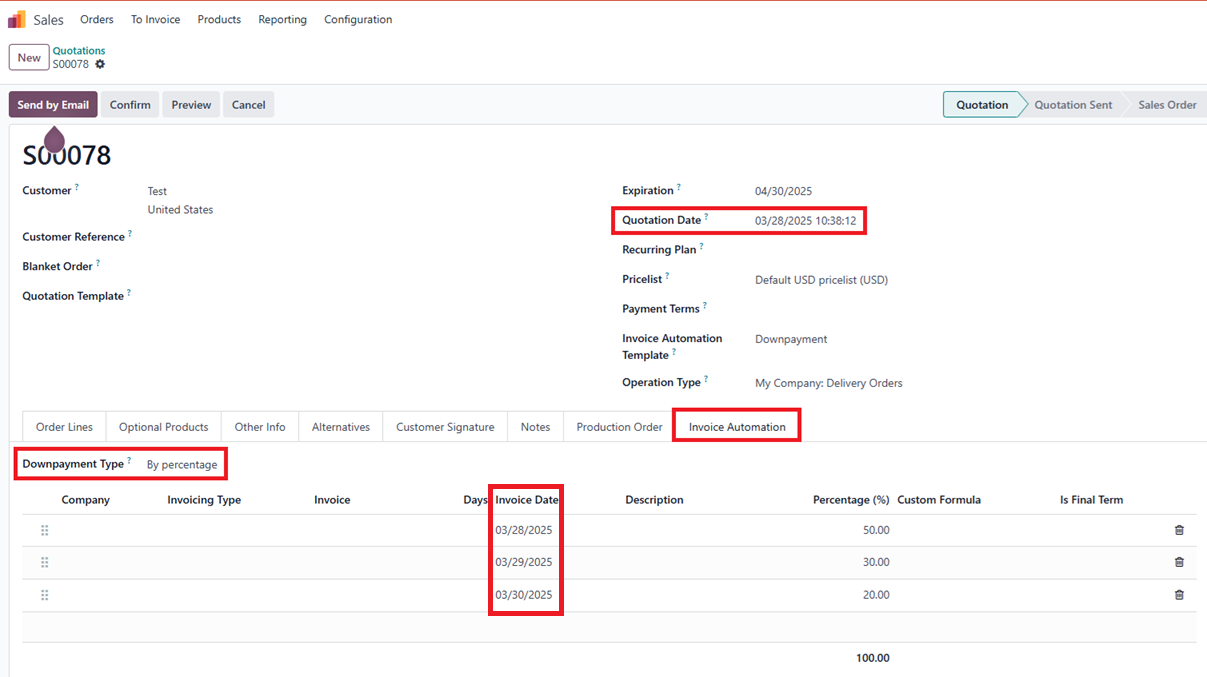
Invoicing Type: Downpayment 1 Set up Invoicing Type to Downpayment > Set up fields Note: the number in the Days feature means the number of days after the invoice date. EX: 1 Days + Invoice Date: 03/28/2025 = 03/29/2025, which means an invoice is created automatically in 03/29/2025 |
|
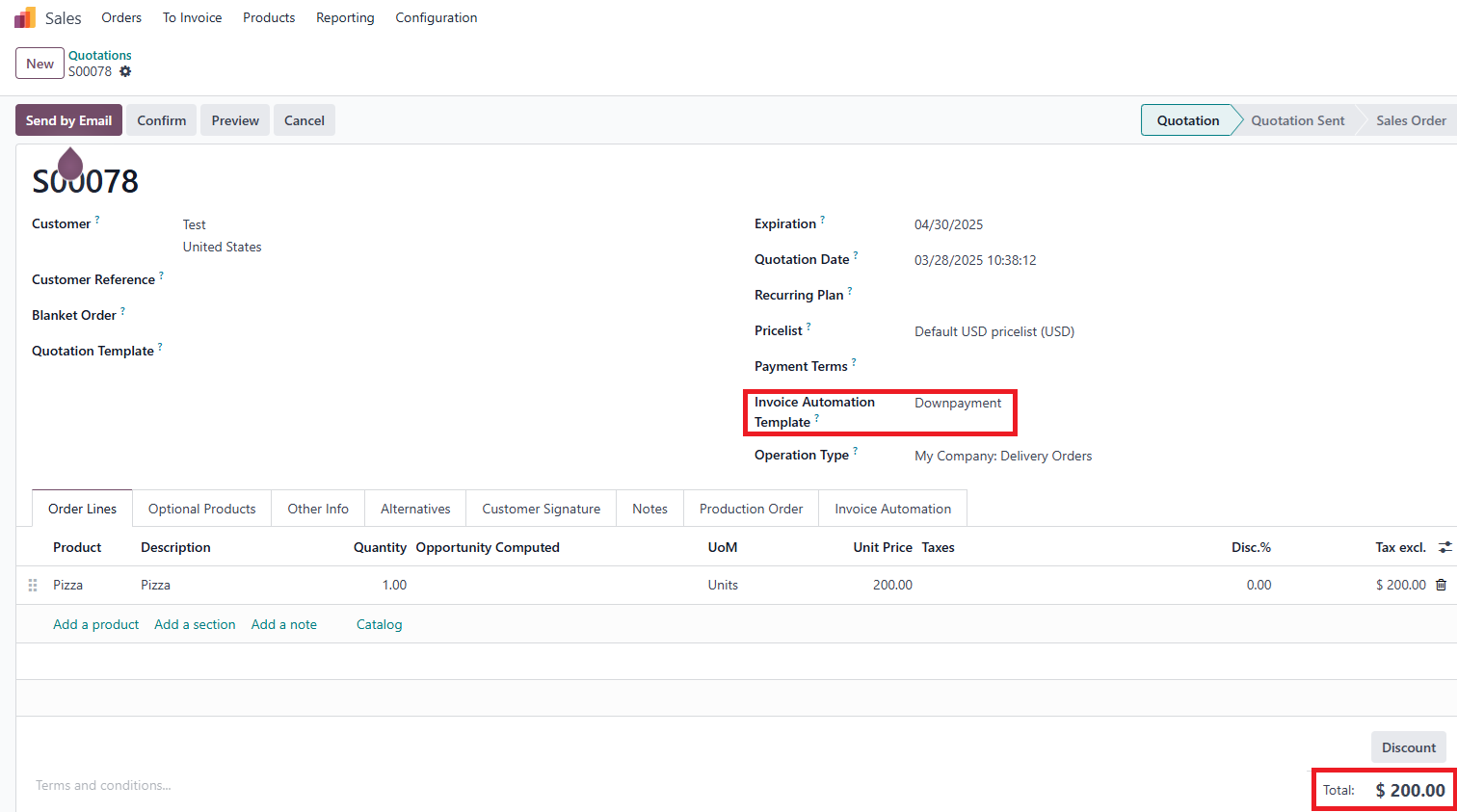
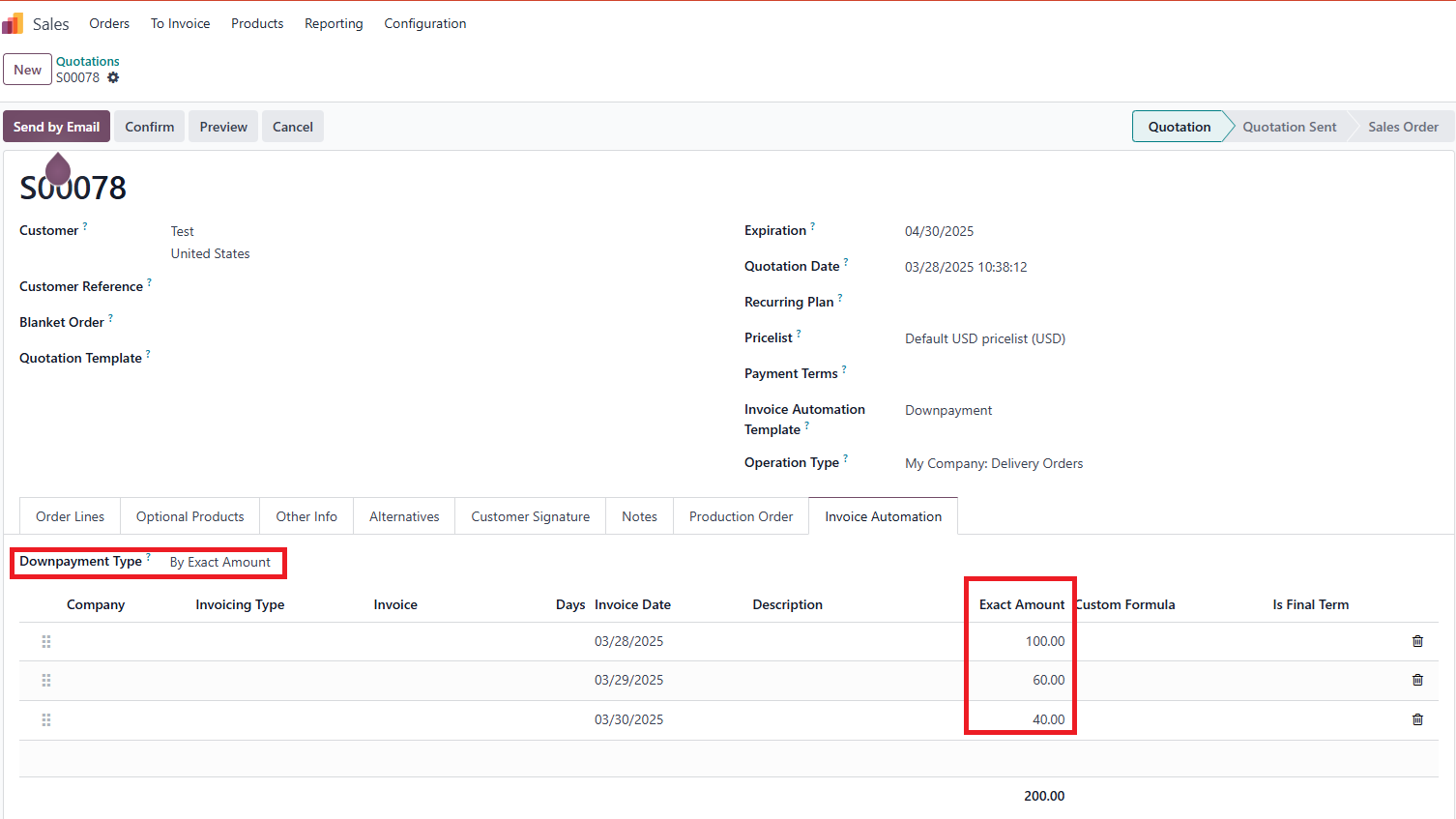
Go to Sales > Create a new Quotation > Select Invoice Automation Template > Move to Invoice Automation Tab to see details > Can switch the Downpayment Type to Exact Amount to see the exact cost calculated based on the set-up percentage and the total cost of the order Note: Invoice Date column shows the date on which there will be an invoice created automatically created with the corresponding percentage or amount |
|
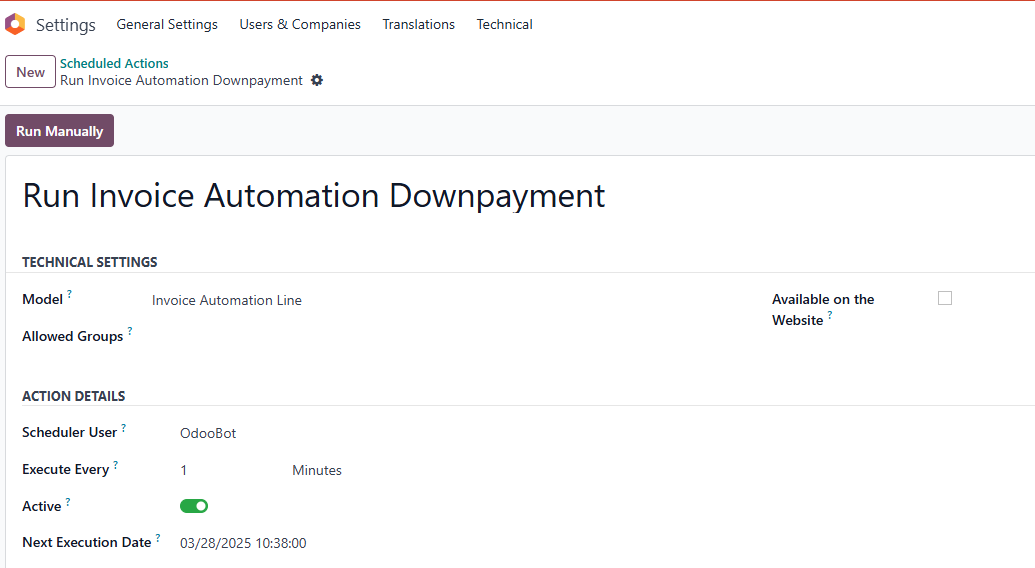
Go to Settings > Technical > Scheduled Actions > Search for Run Invoice Automation Downpayment > Click on Run Manually Note: This scheduled action's behavior is the same as Run Invoice Automation Regular |
|
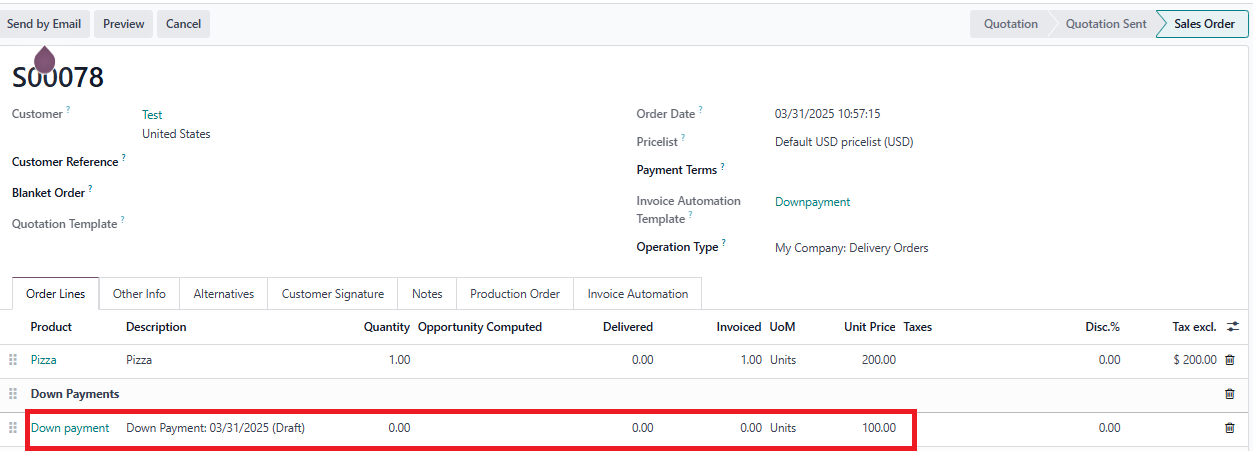
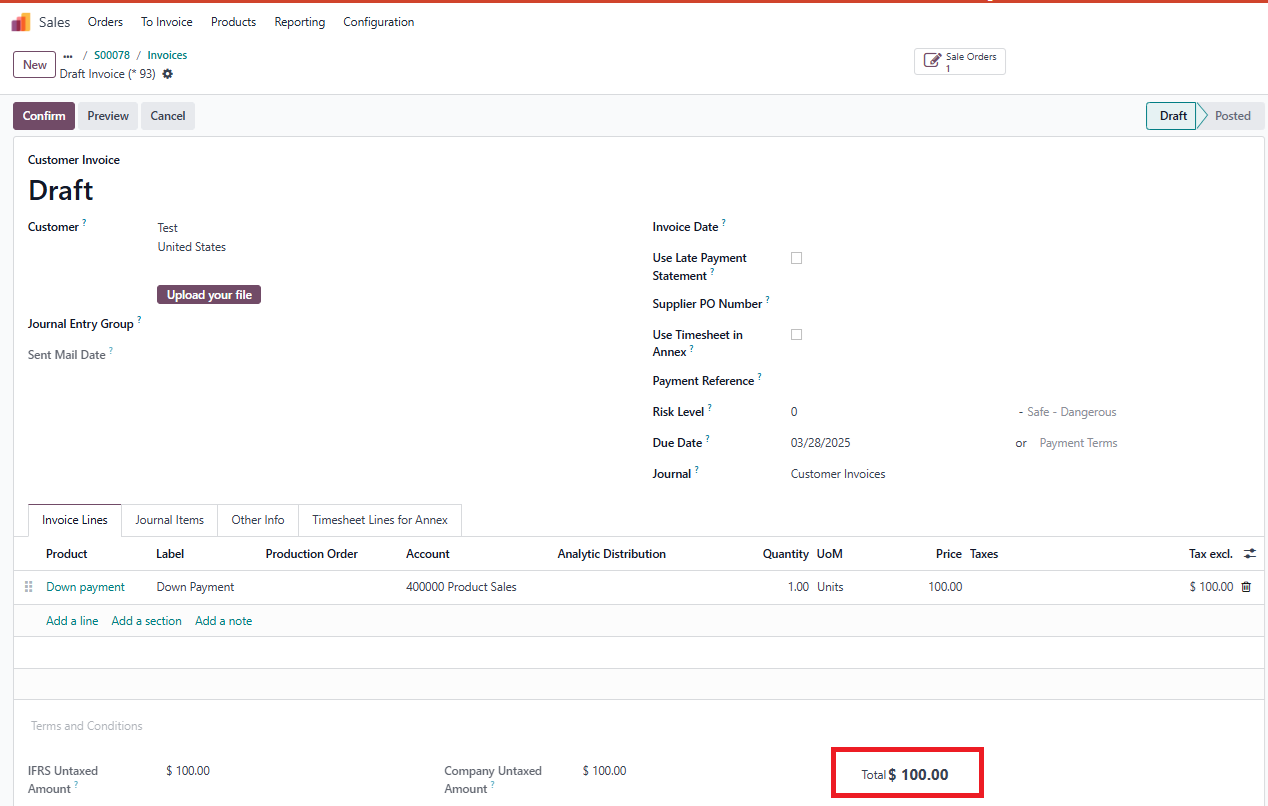
Go back to the Order > Can see that an invoice has already been generated automatically because today is 03/28/2025, which matches the date set up in the Date of Next Invoice: 03/28/2025 > Notice that the total cost of the invoices is calculated based on the set-up percentage and the total cost of the order On the next intended date, an invoice will be generated (as a draft) automatically Note: In terms of Invoice Automation Template: Downpayment, invoices are created automatically regardless of the Invoicing Policy of products |
|
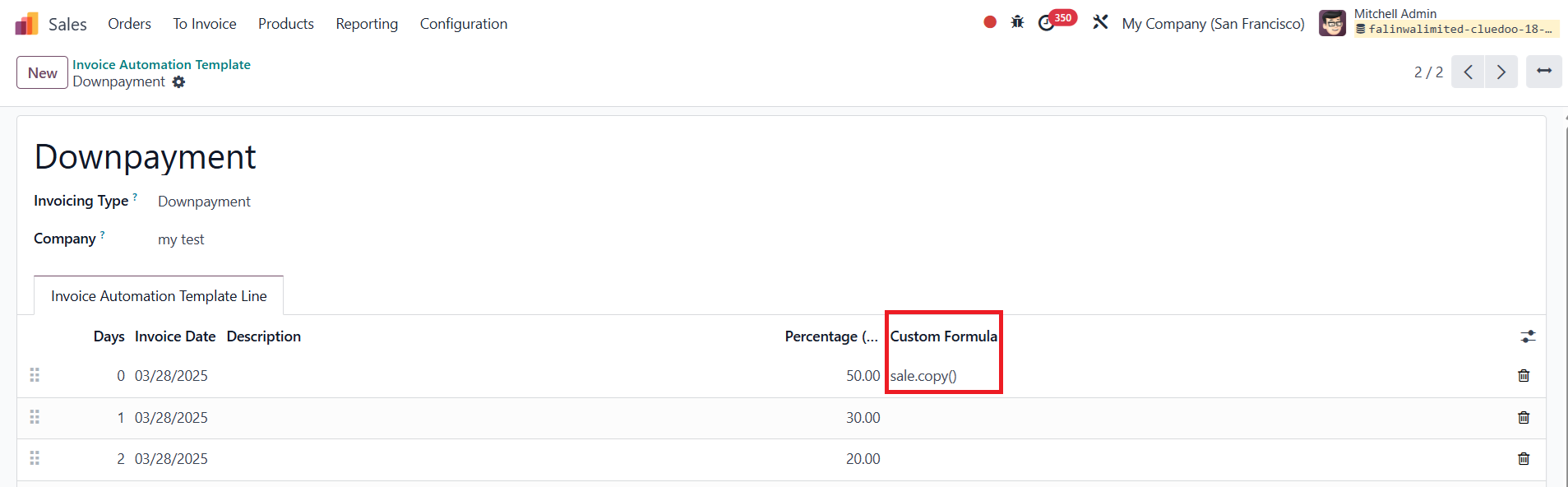
Custom Formula Set up Custom Formula EX: Code: sale.copy(), which means that for each automatically generated invoice on the intended date, a quotation will also be automatically created with the copied information |
|