



- CLuedoo Connector Base (cds_connector_base)
ODOO'S FUNCTION
Odoo does not provide native integration with Telegram. This means conversations with Telegram clients must be handled outside Odoo, leading to scattered discussions, manual follow-ups, and no direct link between chats and business data.
CLUEDOO'S FUNCTION
Cluedoo enhances Odoo by integrating Telegram directly into the Odoo Discuss app, centralizing all client communications in one place. This connector enables teams to:
1️⃣ Send and receive Telegram messages directly from Odoo Discuss.
2️⃣ Exchange text messages, images, documents, and voice messages seamlessly.
3️⃣ Automatically create or link contacts from Telegram conversations.
4️⃣ Connect Telegram chatbots with Odoo, enabling automated interactions and the ability to create Helpdesk tickets directly from Telegram conversations, improving support efficiency and traceability.
5️⃣Assign an Odoo user to conversation, ensuring the right team member can respond to customer messages directly from Odoo.
6️⃣ Keep all client discussions connected to Odoo records, improving traceability and collaboration.
1. Go to Apps > Install CLuedoo Connector Base and Telegram Connector | 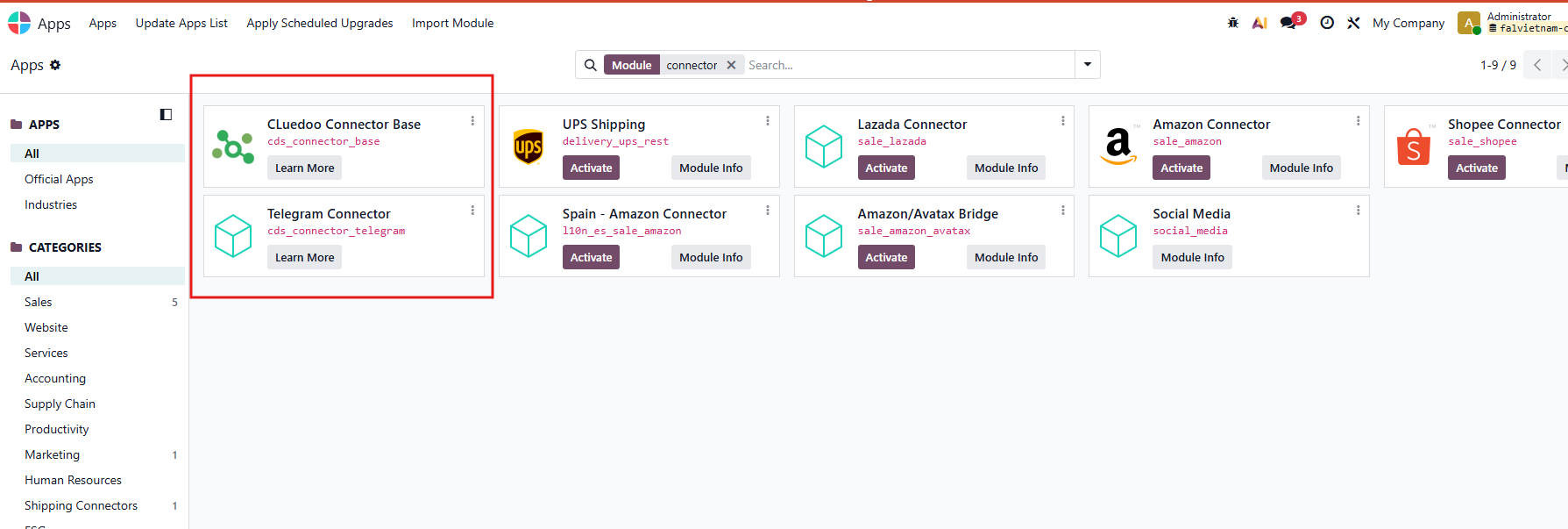 |
2. Go to Telegram > Search @botfather > Create your new chat bot > Copy your Bot Token | 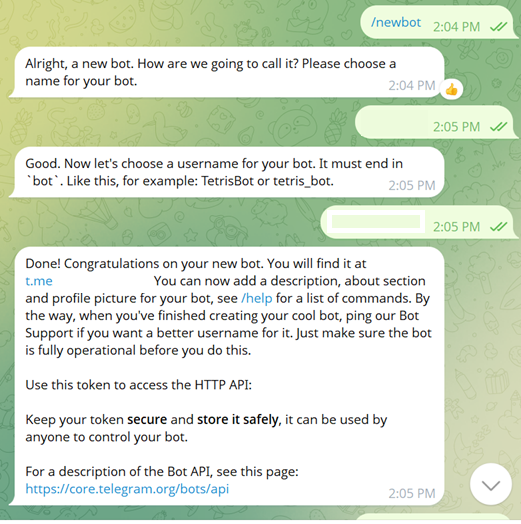 |
2. Go to Connector > Setup | 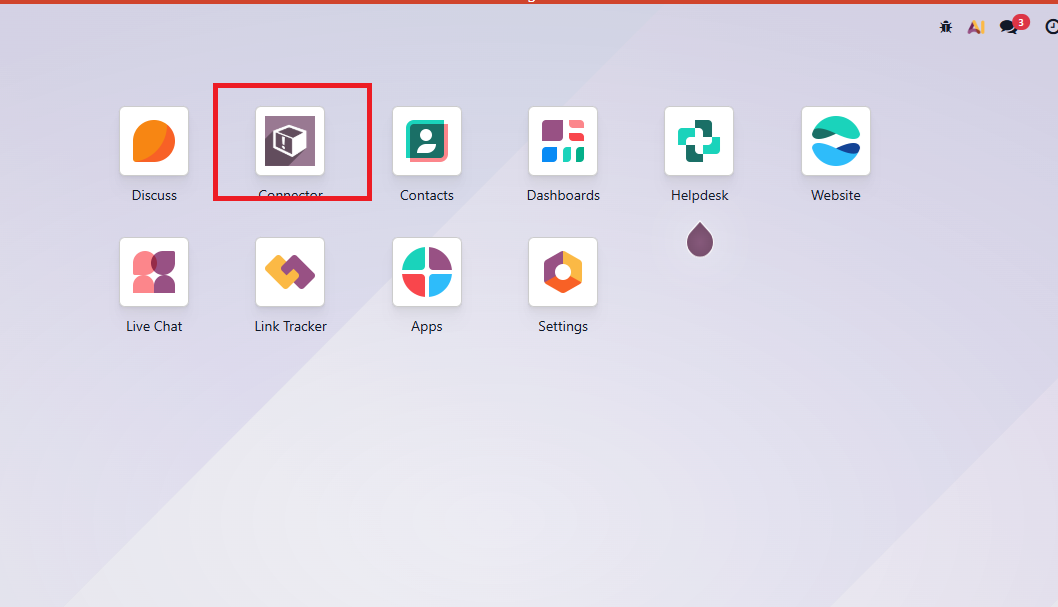 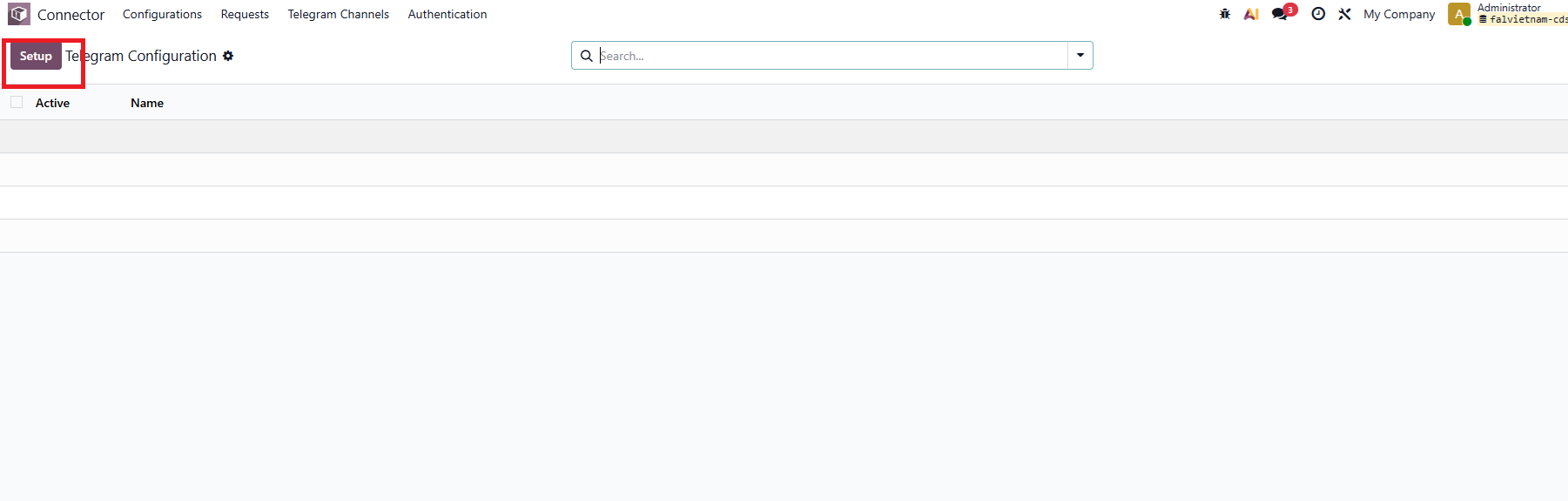 |
3. Bot Token Stage
Paste the Bot Token.
Select the Odoo user who will be able to send and receive Telegram messages from Odoo.
Choose the Live Chat channel to be used by the bot.
Click Next. This feature is linked to the Live Chat module in Odoo, so the bot script and Live Chat channel must be configured beforehand. Webhook stage Click Next to continue | 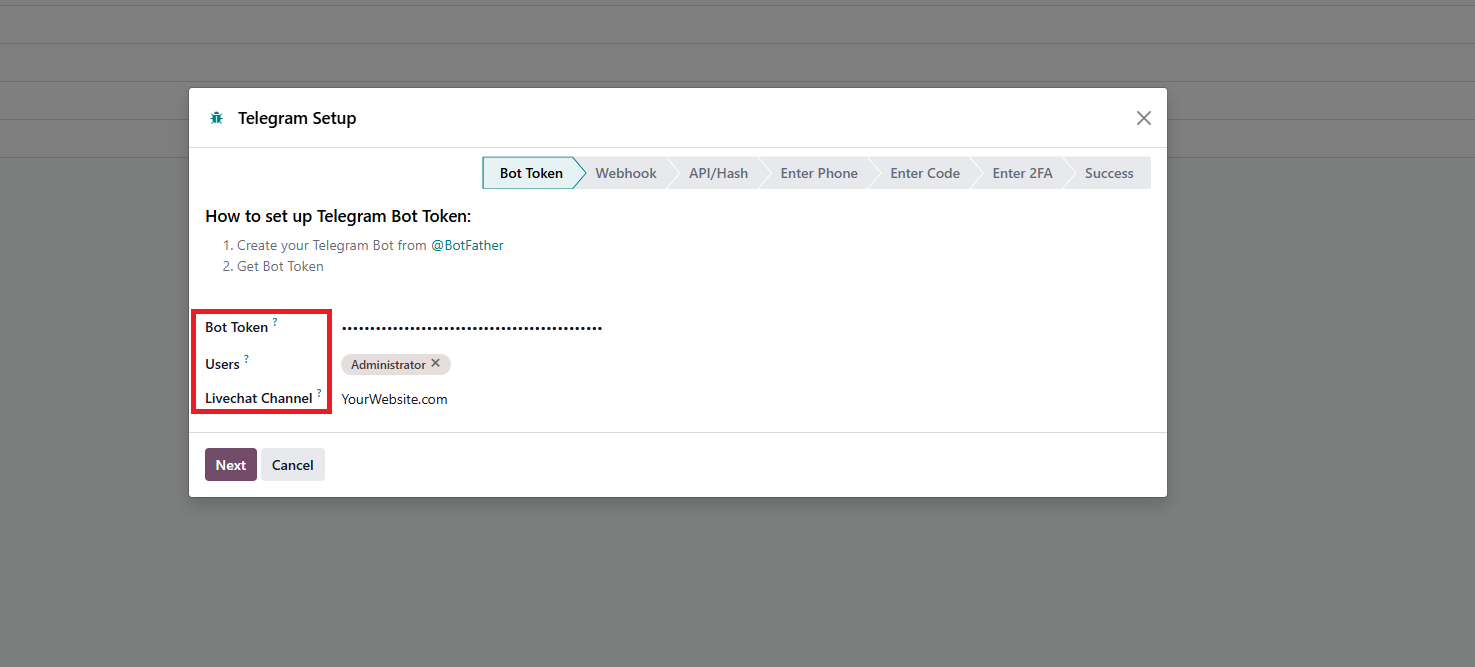 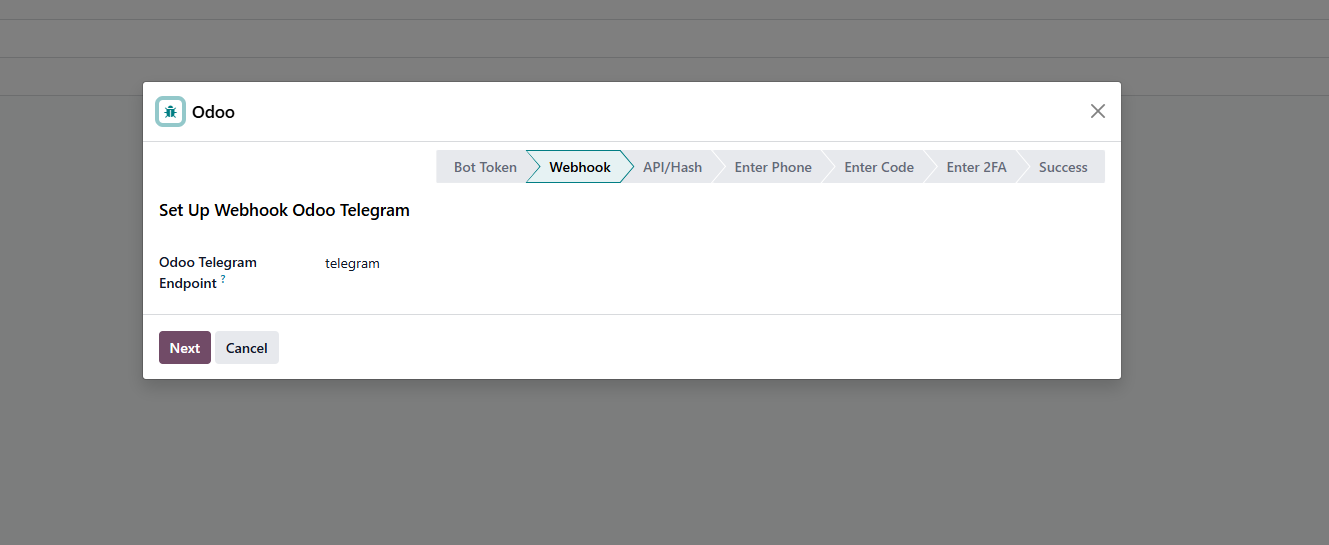 |
4. API / Hash Stage Go to my.telegram.org and log in using your Telegram account. Copy the API ID and API Hash, then paste them into Odoo. Click Next. | 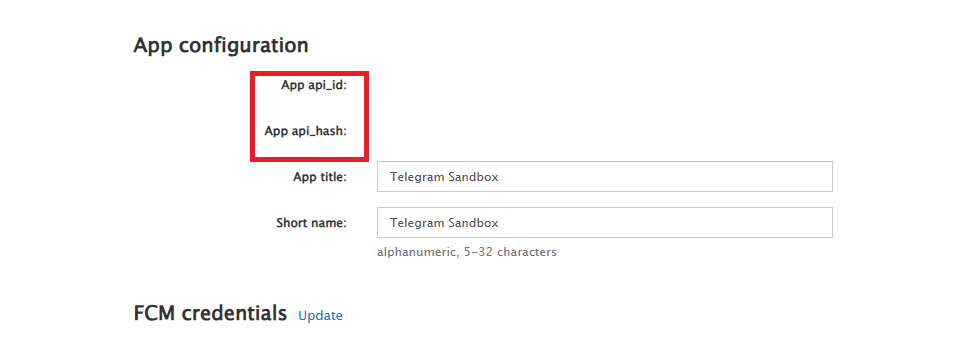 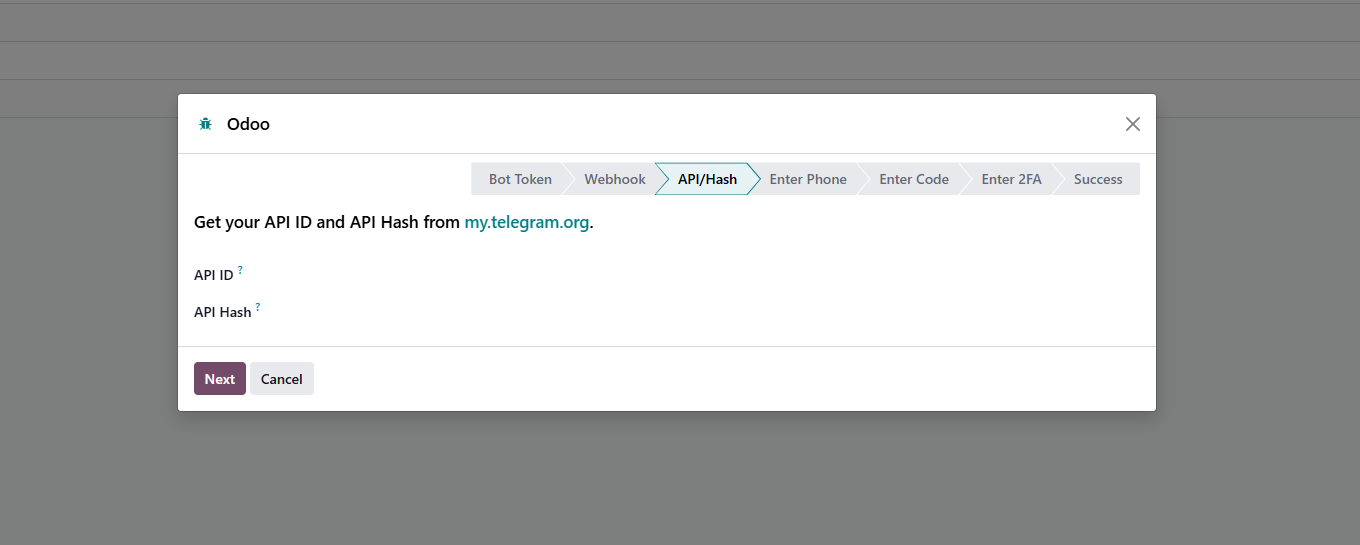 |
5. Enter Phone Phase Enter your Telegram Business phone number, then click Send Code. Telegram will send a login code to your Telegram account. | 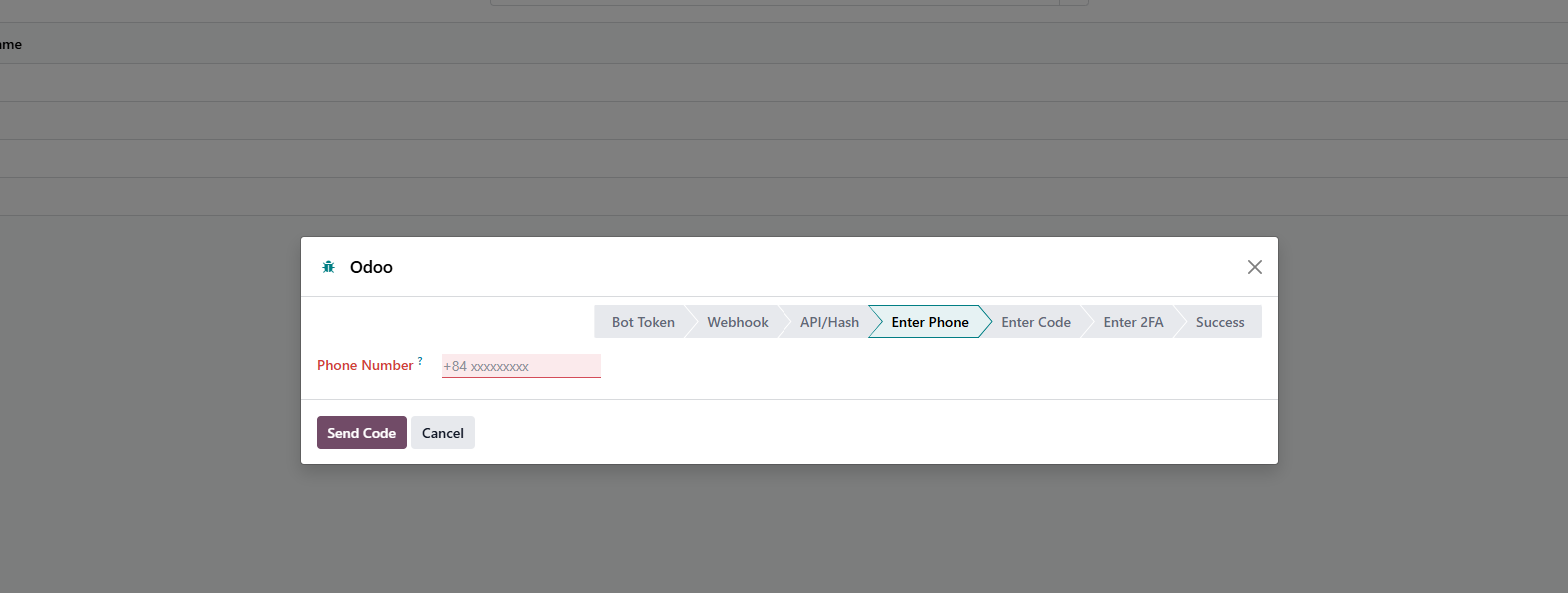 |
6. Verification Phase Enter the code you just received in the Verification Code field, then click Verify. Your Telegram bot configuration is now complete. | 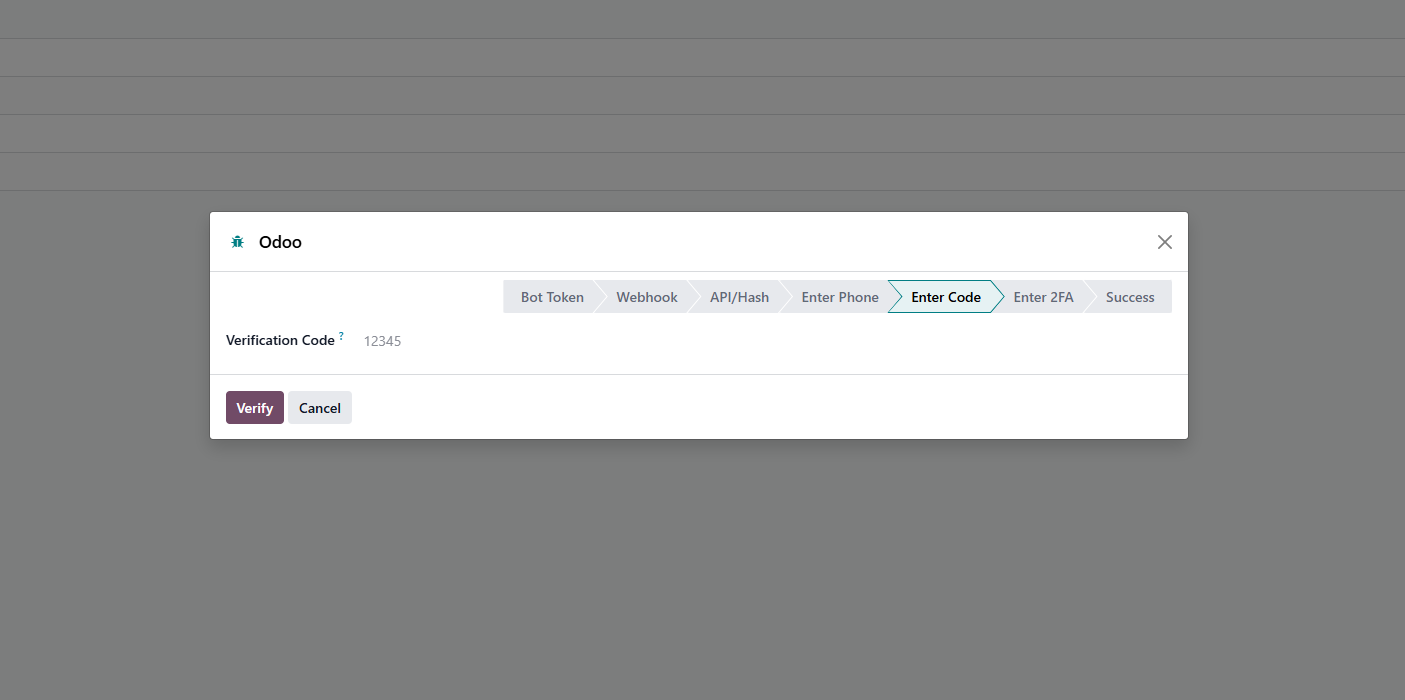 |
7. Go Start the conversation with your client, you can go to Discuss > Search conversation > Create Tele Chat > Add New Contact > Search Telegram user name or phone number | 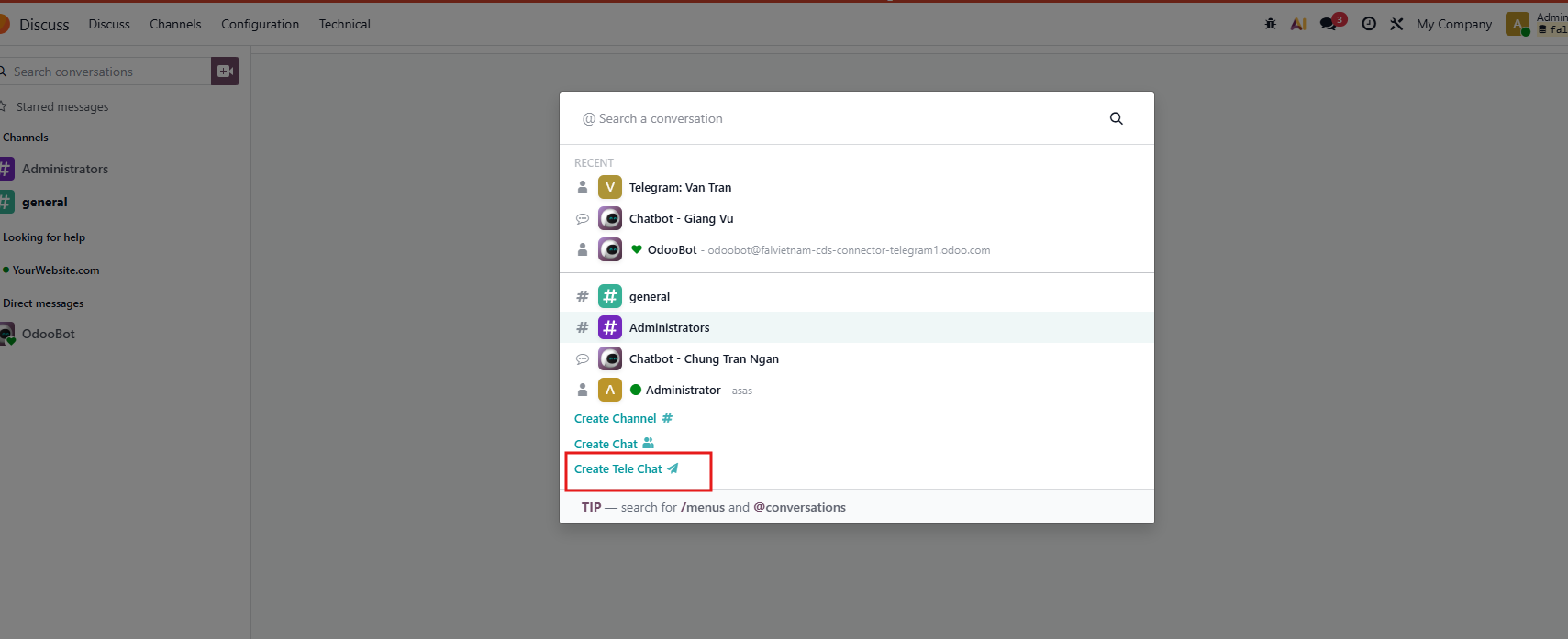 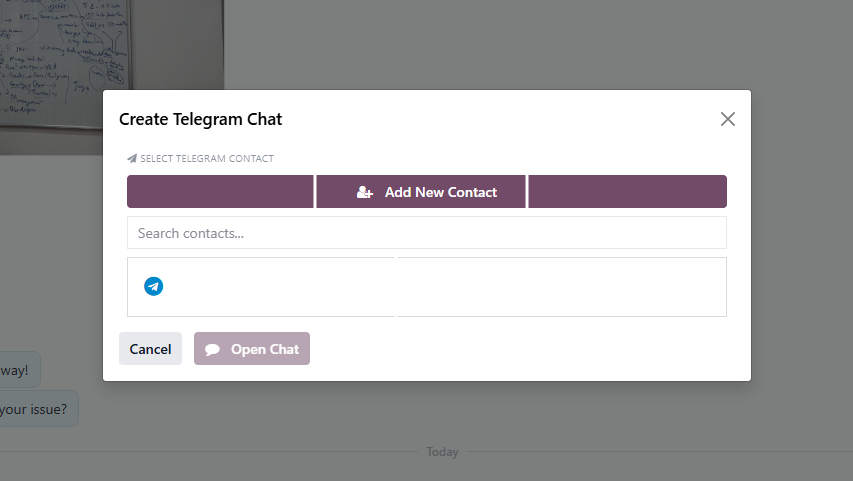 \ \ |
8. Customer will receive a message from the Telegram account. Both sides will be able to send and receive messages, documents, voice messages, and images. | 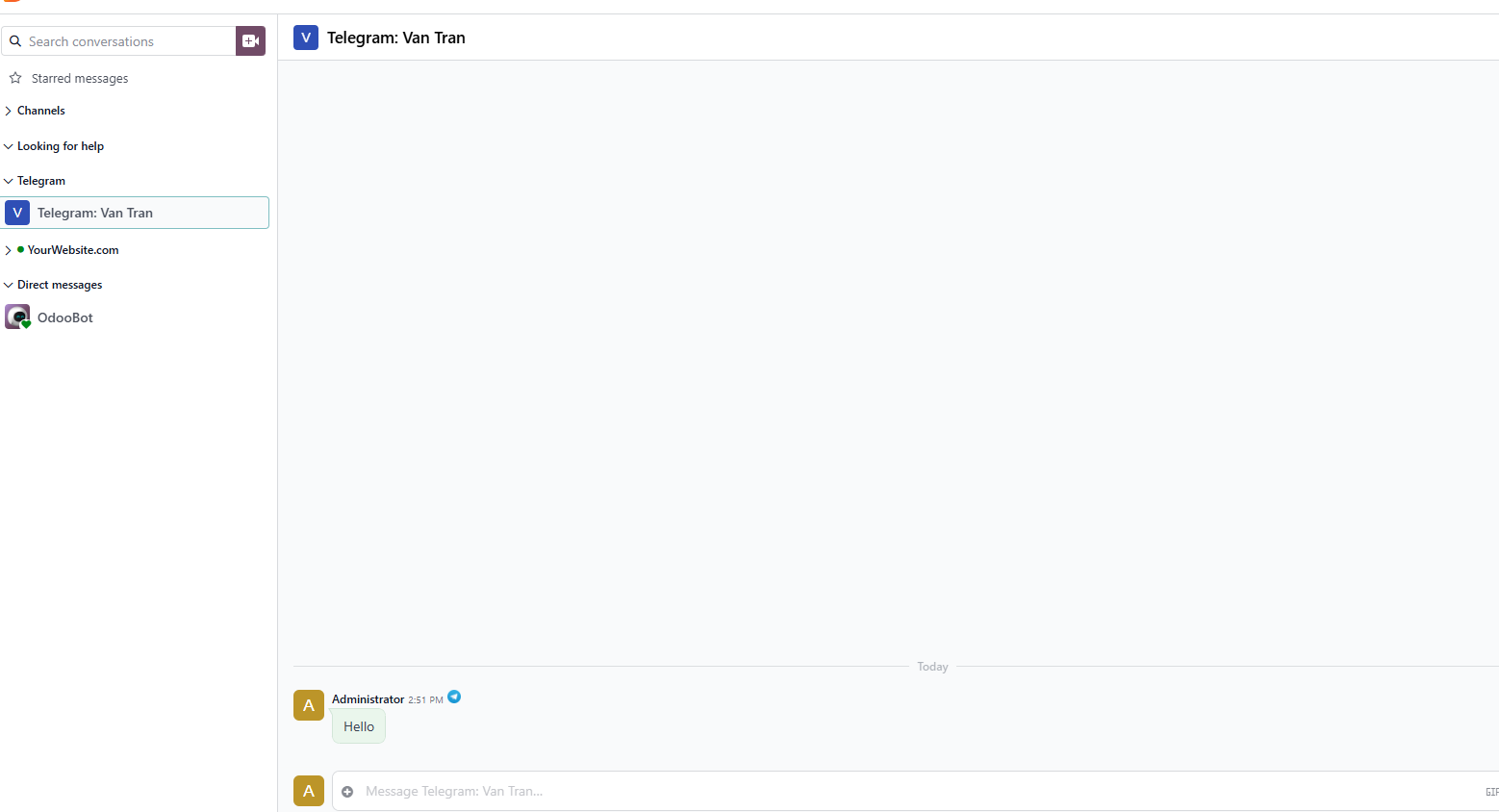 |
9. In the case of using a chatbot, the customer needs to start the conversation by searching for the bot name and clicking “Start.” The bot script configured in Odoo will then begin running. If the script includes a message with the step type “Question,” it will also be possible to see which option the customer selects. | 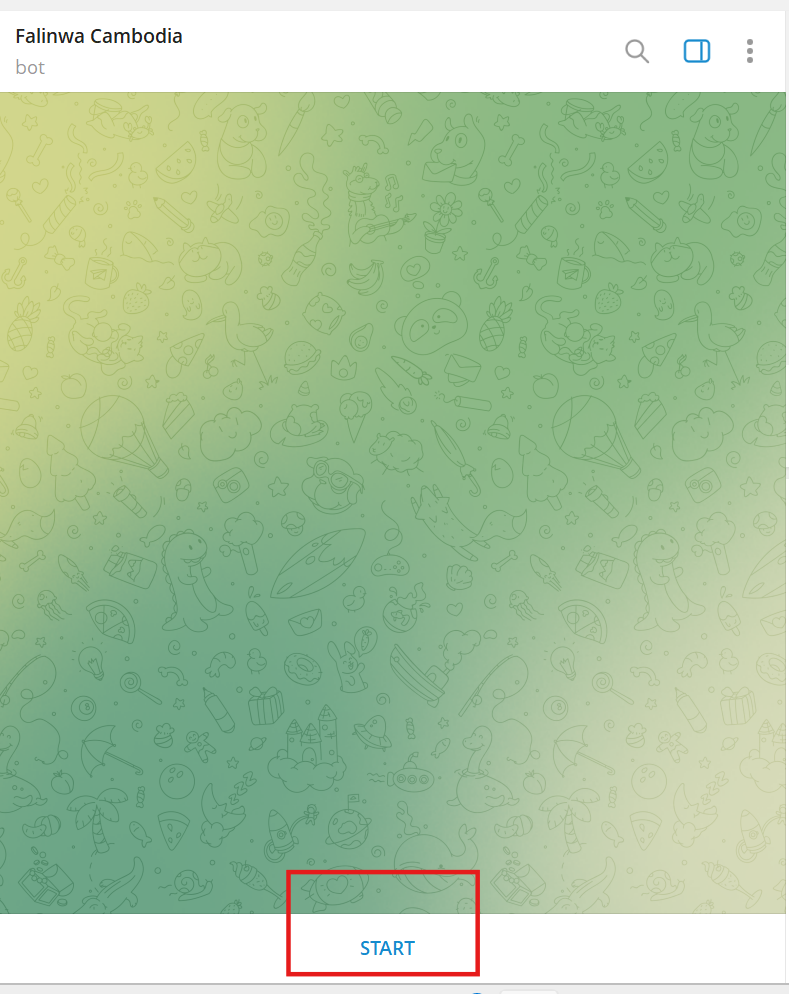 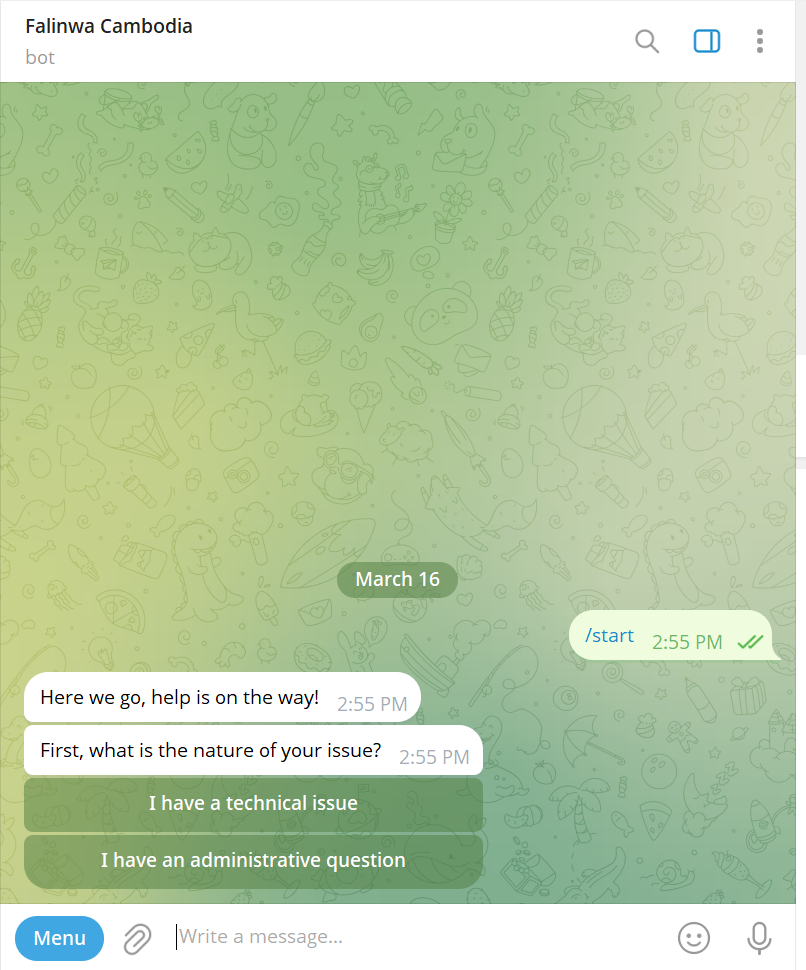 View from Telegram 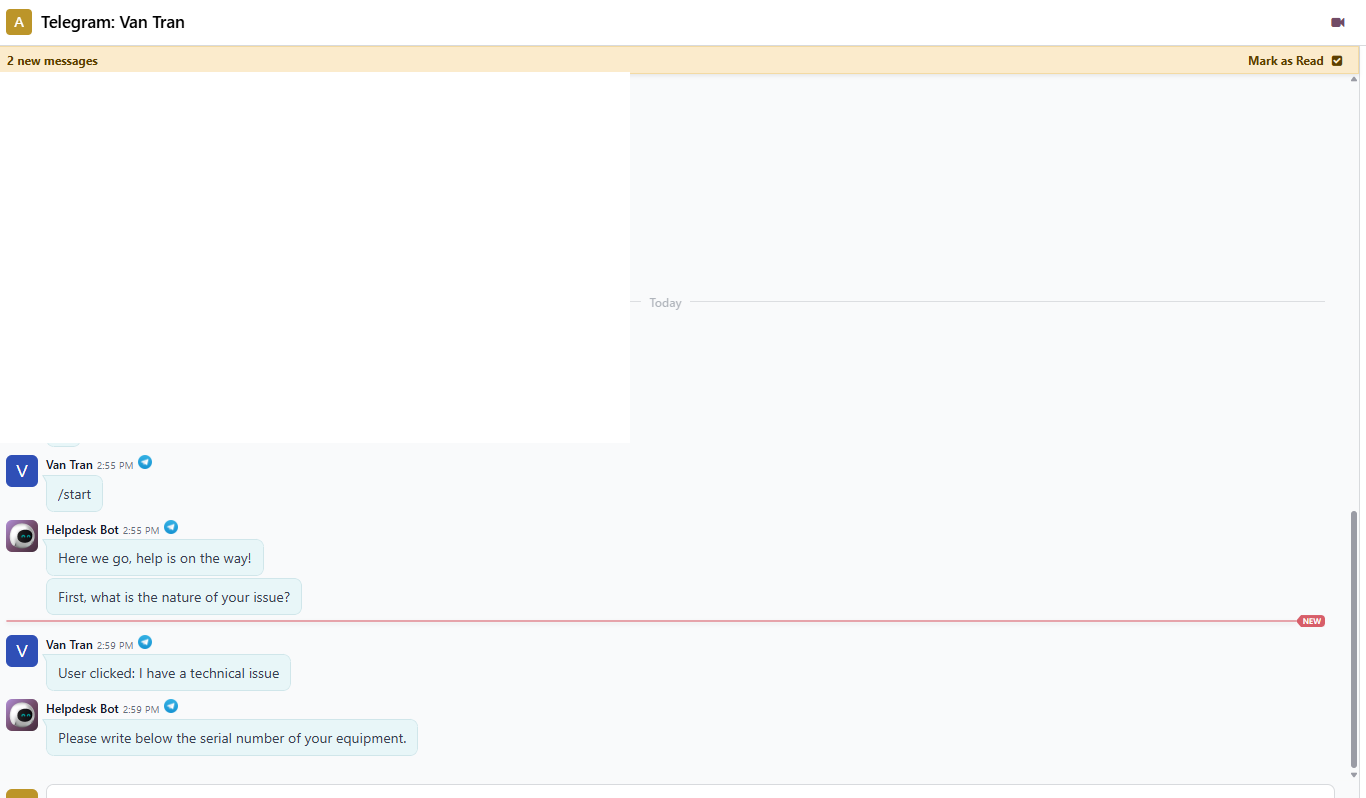 View from Odoo |
10. The conversation that is initiated manually with the client and the conversation started by the client with the chatbot will be separated into two threads. However, in the chatbot conversation, it is still possible to join the discussion and chat directly with the client. | 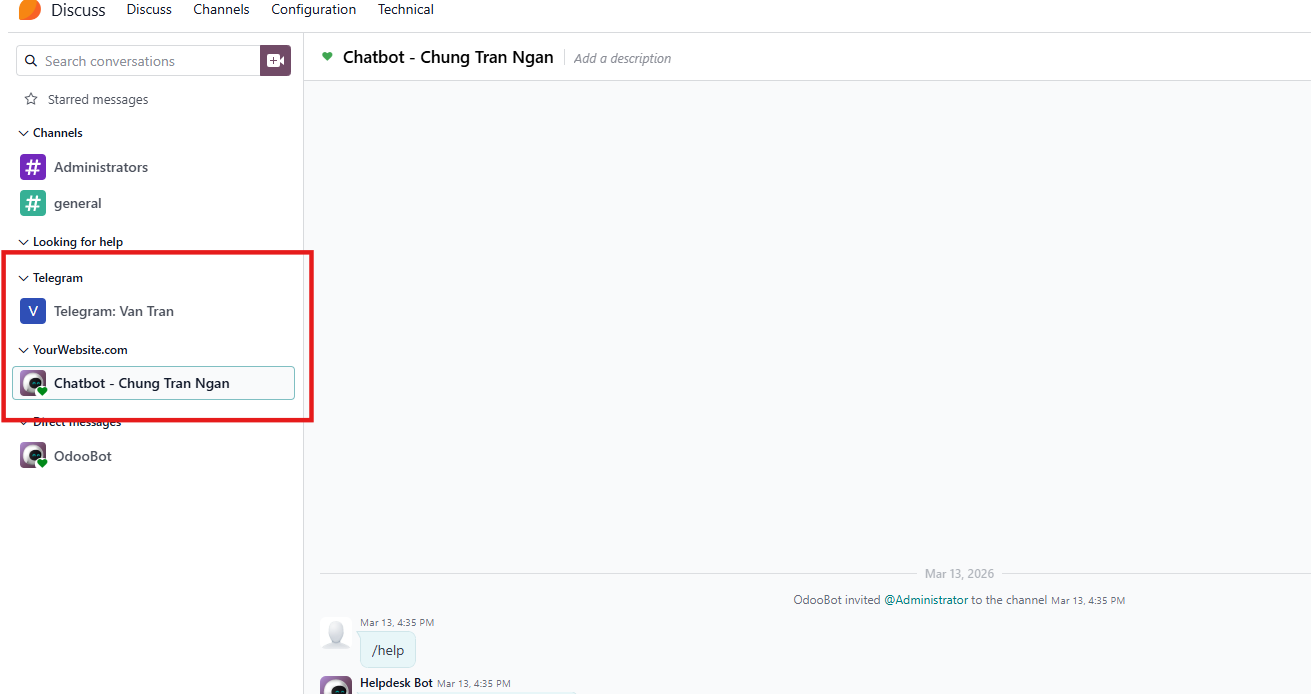 |
11. A pop-up notification will appear whenever a new message is received. To find client messages more easily, there is also a Telegram tab available in Discuss. | 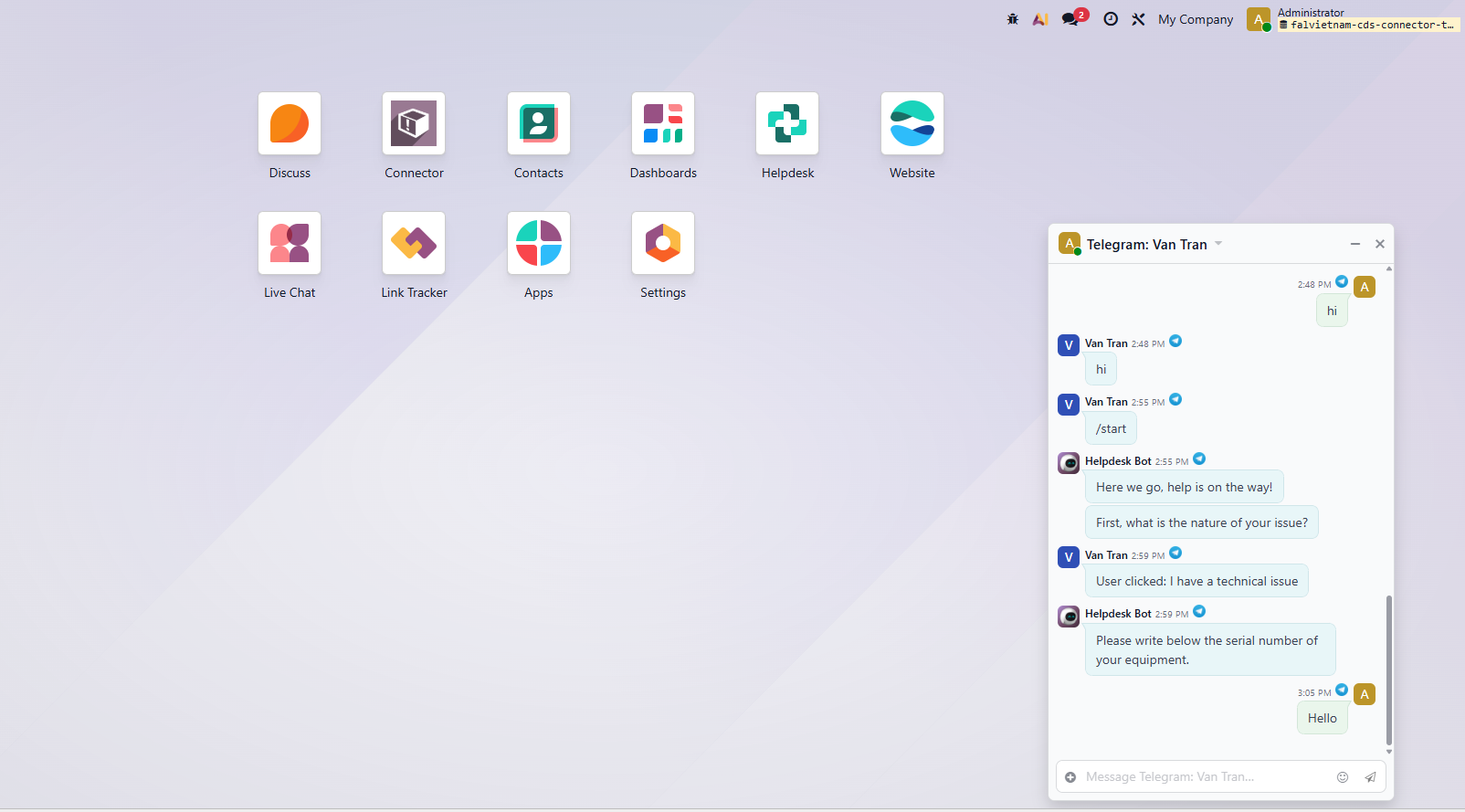 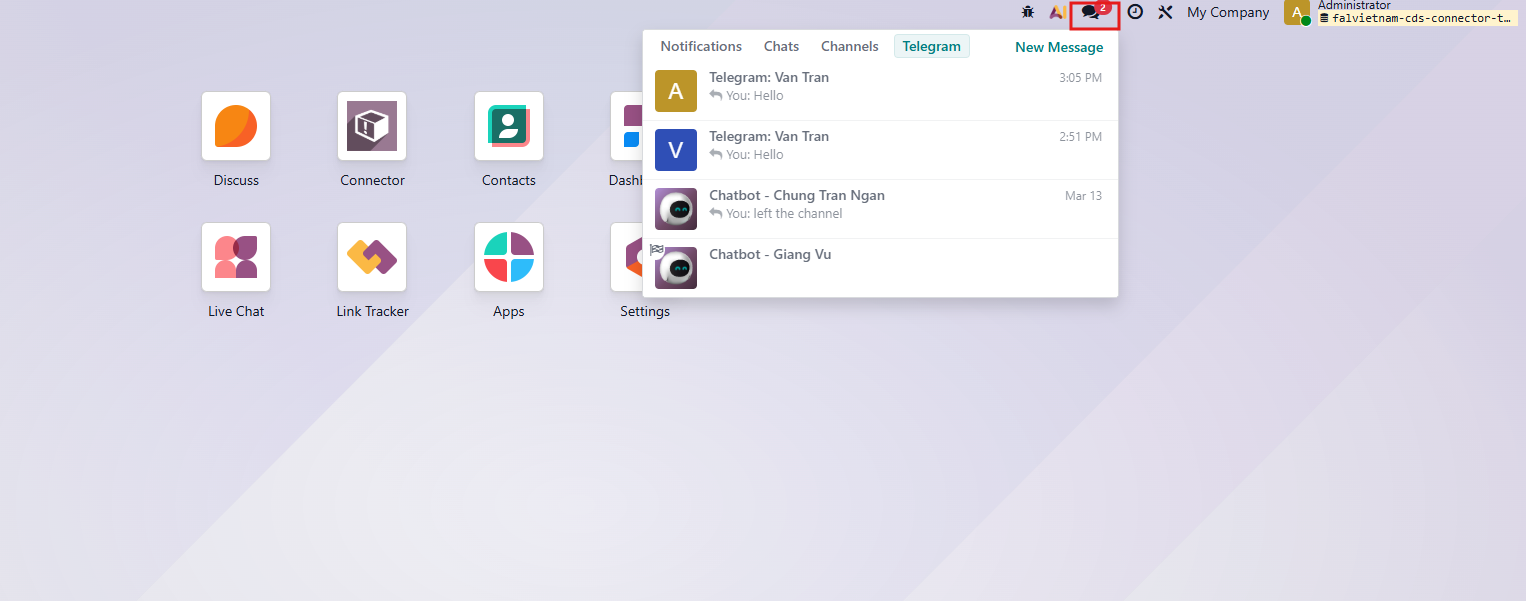 |
12. We also have a call feature. If the Call button is clicked, the customer will receive a Telegram group call link. | 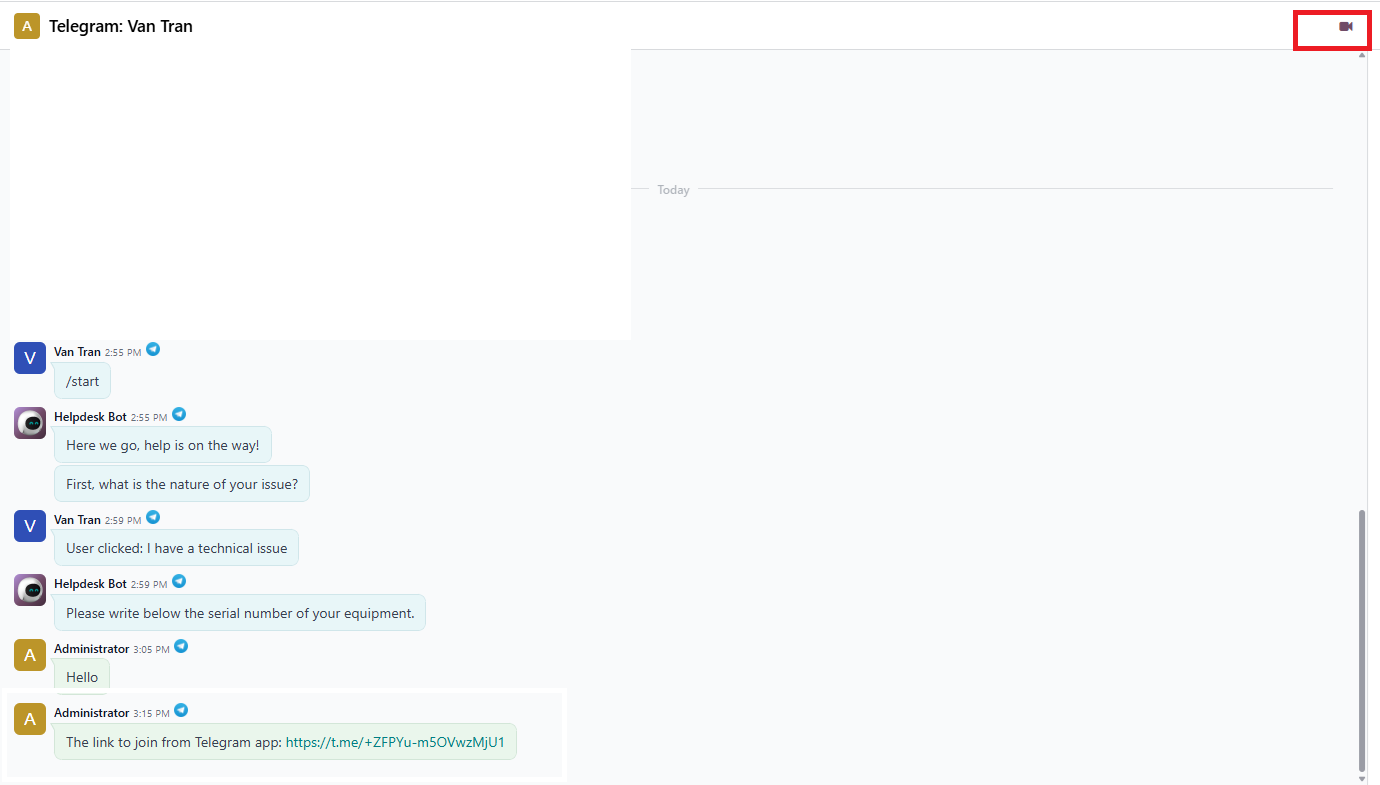 |