



STORY BEHIND THE FEATURES
ODOO'S BEHAVIOR
Odoo allows users to quickly input multiple serial numbers for a product if it has multiple quantities. However, when a Sales Order/Purchase Order contains several different products, users still have to click into each product line individually to input serial numbers.
CLUEDOO'S BEHAVIOR
Cluedoo improves this process by letting users input serial numbers for all products in Sales Order/Purchase Order at once, including products with multiple quantities. This means you can mass-enter serial numbers for multiple products in a single step, saving significant time and effort.
CLUEDOO RECOMMENDATIONS
Install this template in 100% of your databases
HOW TO USE THIS MODULE
Mass Import SN in Purchase Order
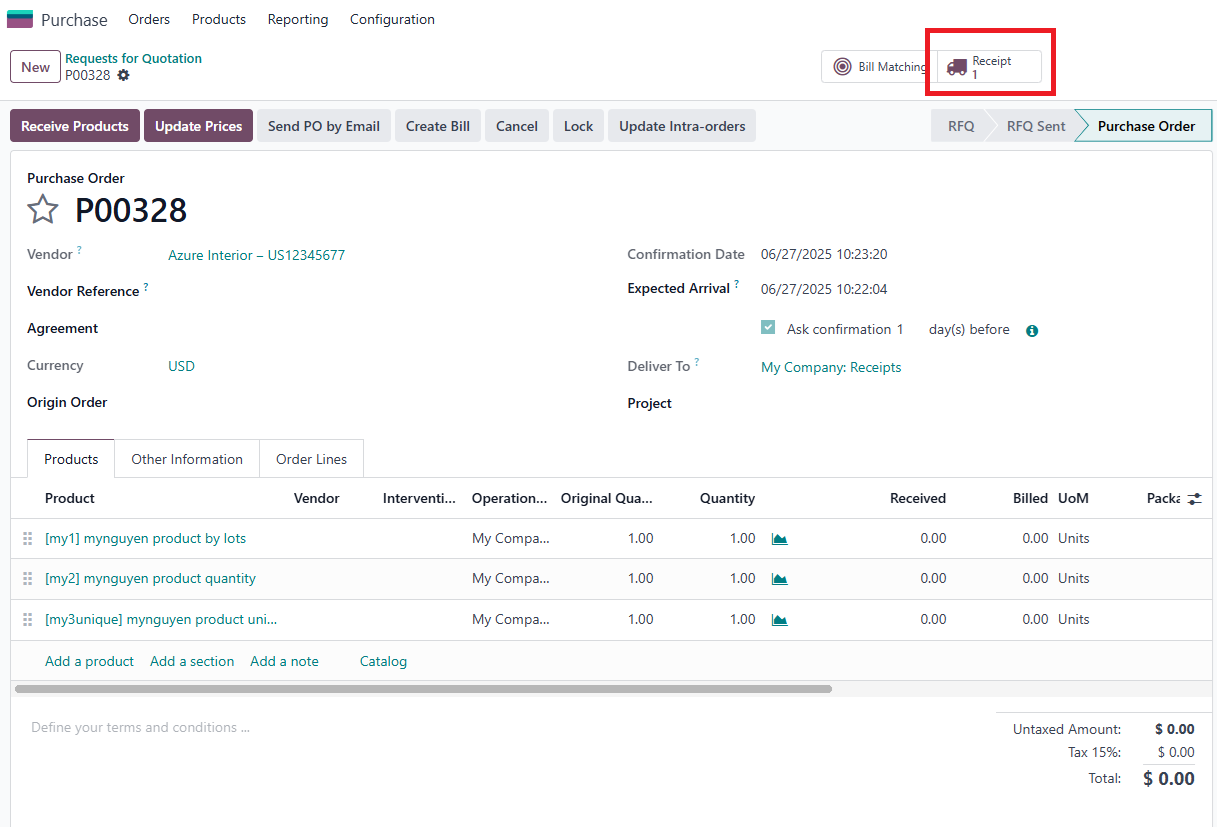
1. Create a new Purchase Order > Confirm Order You will see the Receipt smart button |
2.
|  |
3. Back to PO > Click Import > Mass Import Serial Number |   |
4. Copy the data from the Excel file and paste it > Click Generate |  |
5. You will see all the serial numbers created for various products > Click Save |  |
6. All the quantities have now been summed up, and you can proceed to validate the receipt | 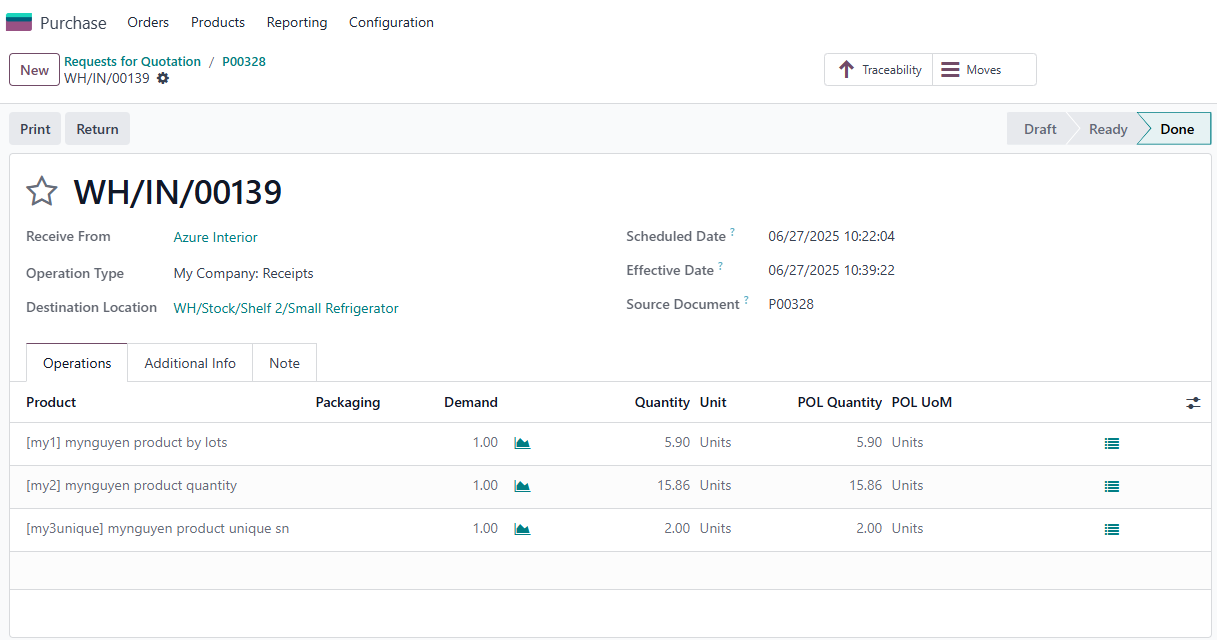 |
Mass Import SN in Sales OrderNote: You can import serial numbers in bulk on a Sales Order only if a Purchase Order with the same product and serial numbers has already been created However, if you want to create new L/SN for a Sales Order, you must go to Inventory > Configuration > Warehouse Management > Operation Types > Delivery Order, then check the checkbox 'Create New' in the Lot/Serial Number field |  |
1. Create a Sales Order and Confirm it > You will see the Delivery smart button |  |
2. Prepare an Excel file with three columns that contain: Internal Reference, Serial Number, and Quantity (of the product). Each serial number must be unique on every line. |    |
3. Copy the data from the Excel file and paste it > Click Generate |  |
4. You will see all the serial numbers created for various products > Click Save |  |
5. All the quantities have now been summed up, you can proceed to validate it |  |
Note: You can use this module with all 3 types of Track Inventory |  |
*