


ODOO'S FUNCTION
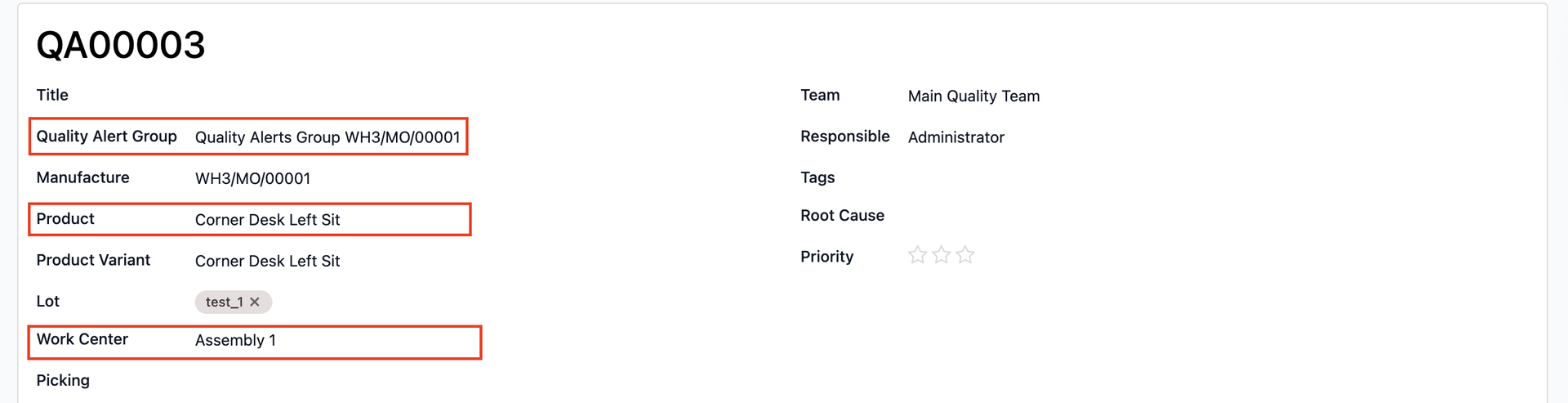
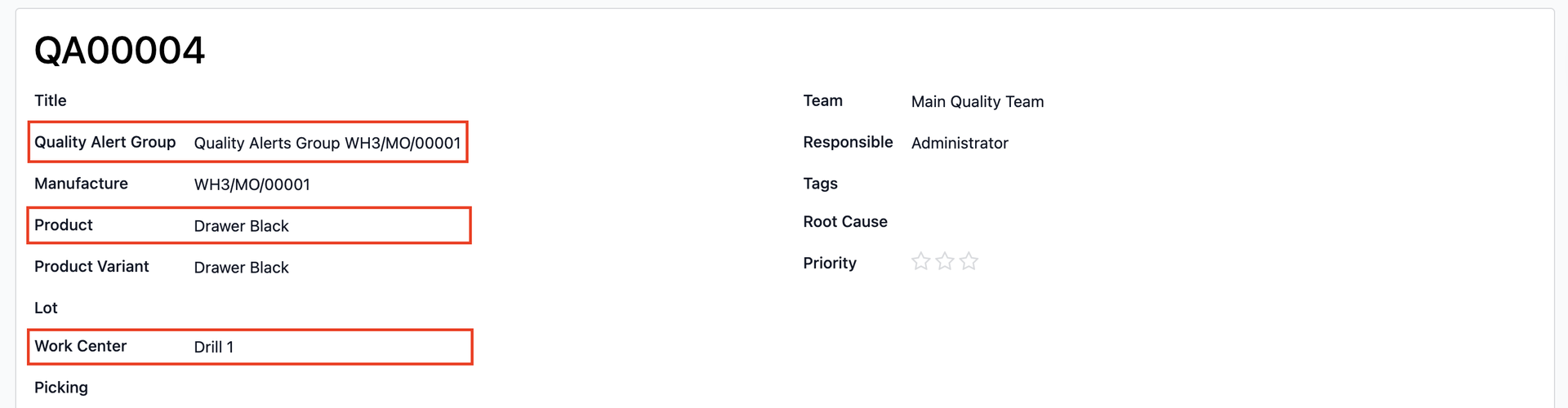
Odoo quality alerts are created for individual lots only, following a one-lot-one-alert structure. This approach is limiting when multiple lots are affected by the same quality issue, as users must create separate identical alerts for each affected lot, leading to duplication and inefficiency in quality management processes.
CLUEDOO'S FUNCTION
Cluedoo introduces Quality Alert Groups that allow users to:
1️⃣ Create a QA Group that gathers multiple related Quality Alerts (QAs)
2️⃣ Link existing or new QAs to the same group for centralized follow‑up and decision‑making.
3️⃣ Create QA Batch on MO and Shop Floor:
QUALITY ALERT GROUPS1. Go to Quality > Quality Control > We have a new menu Quality Alerts Group where we can create a new group or access existing ones | 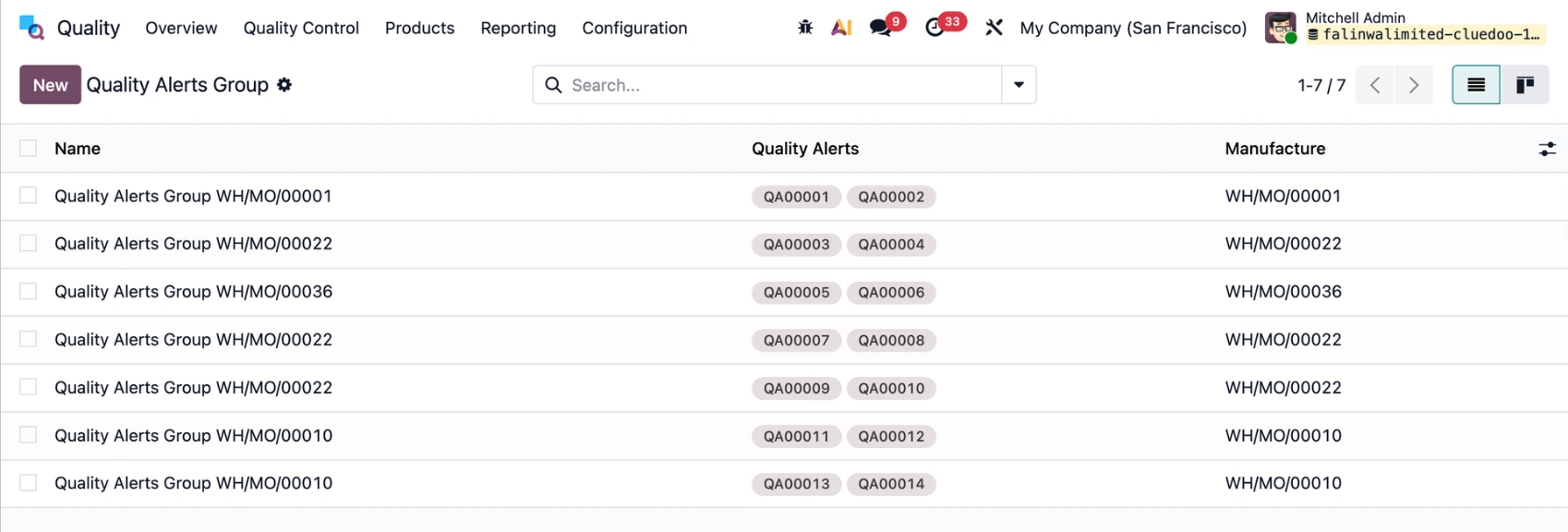 |
1. Go to Quality > Quality Control > Control Points > Create/ access a quality control point. | 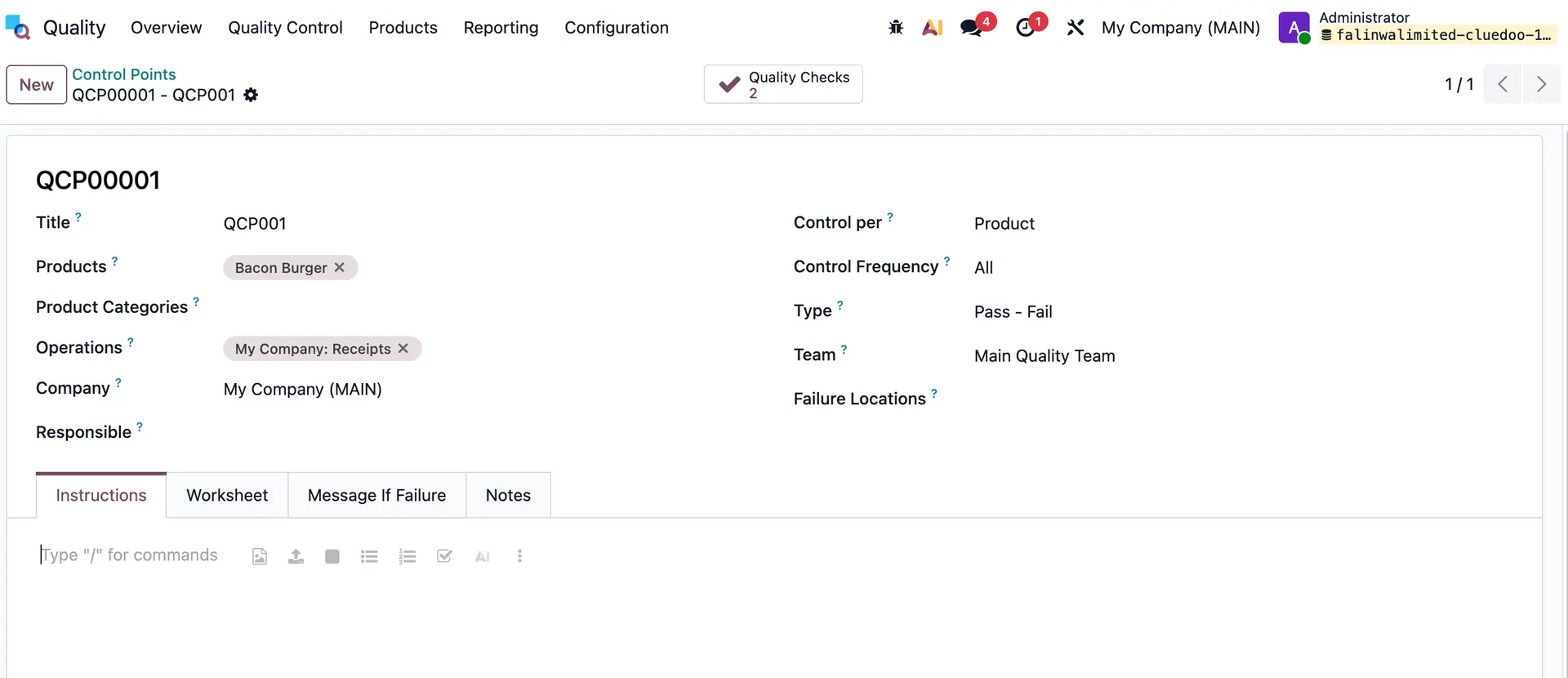 |
3. Go to Purchase > Create an RFQ > Fill in the same product as QCP > Confirm Order. | 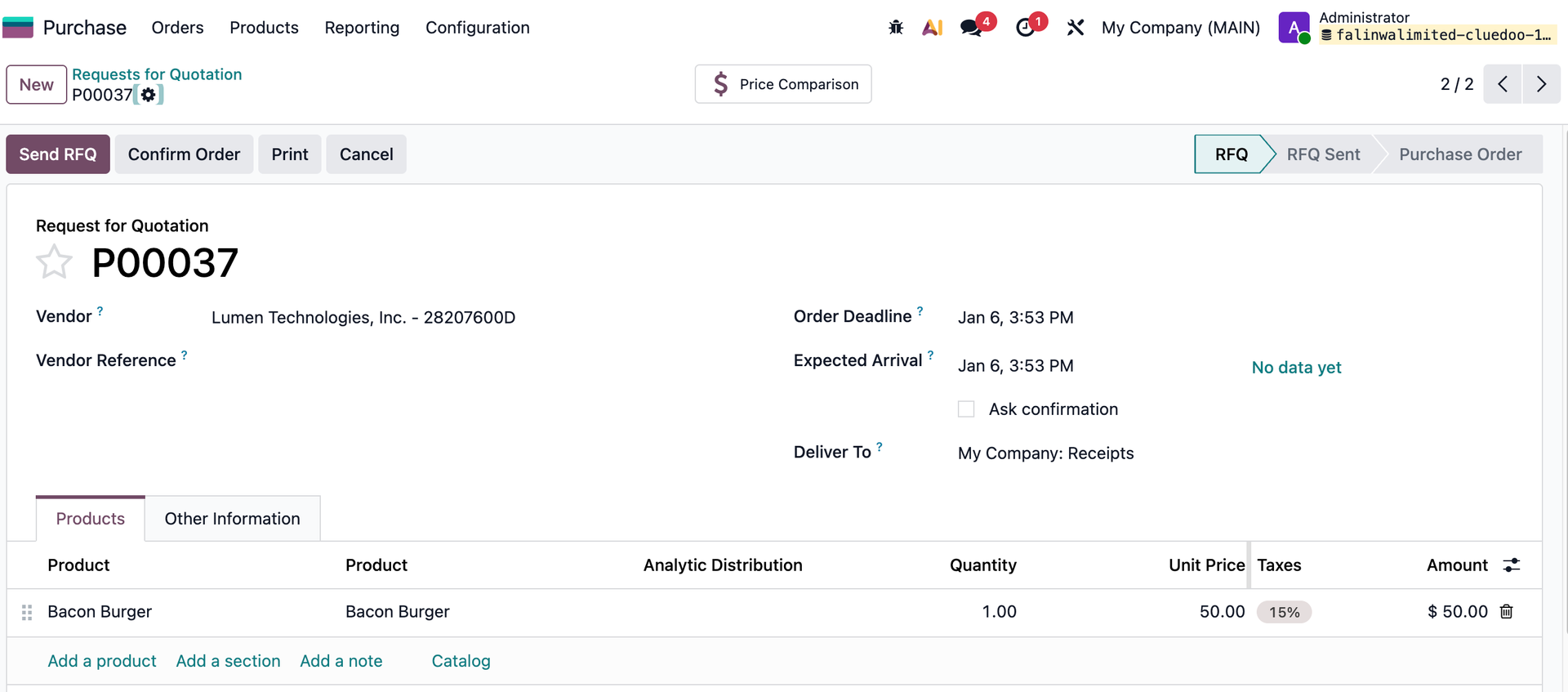 |
4. Go to Receipt > Click on Quality Checks > Choose Fail > Create a Quality Alert. | 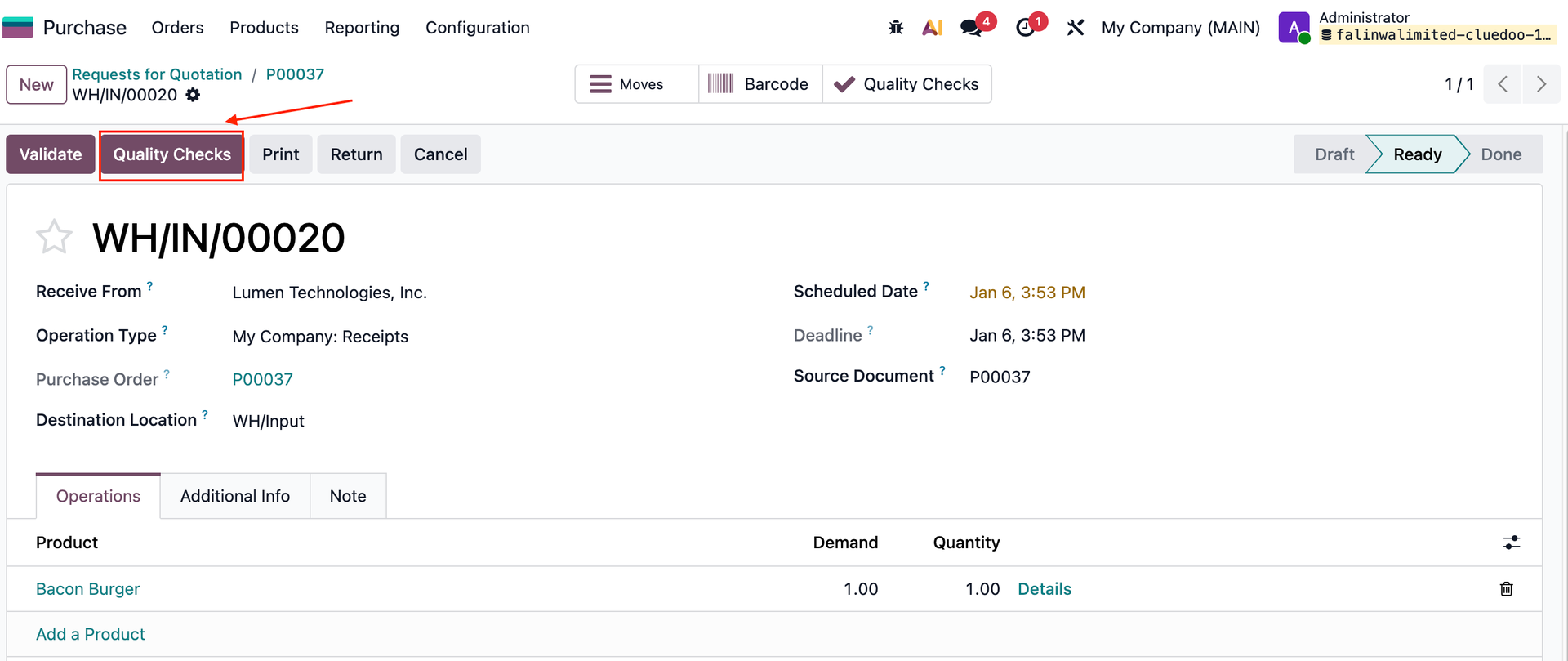 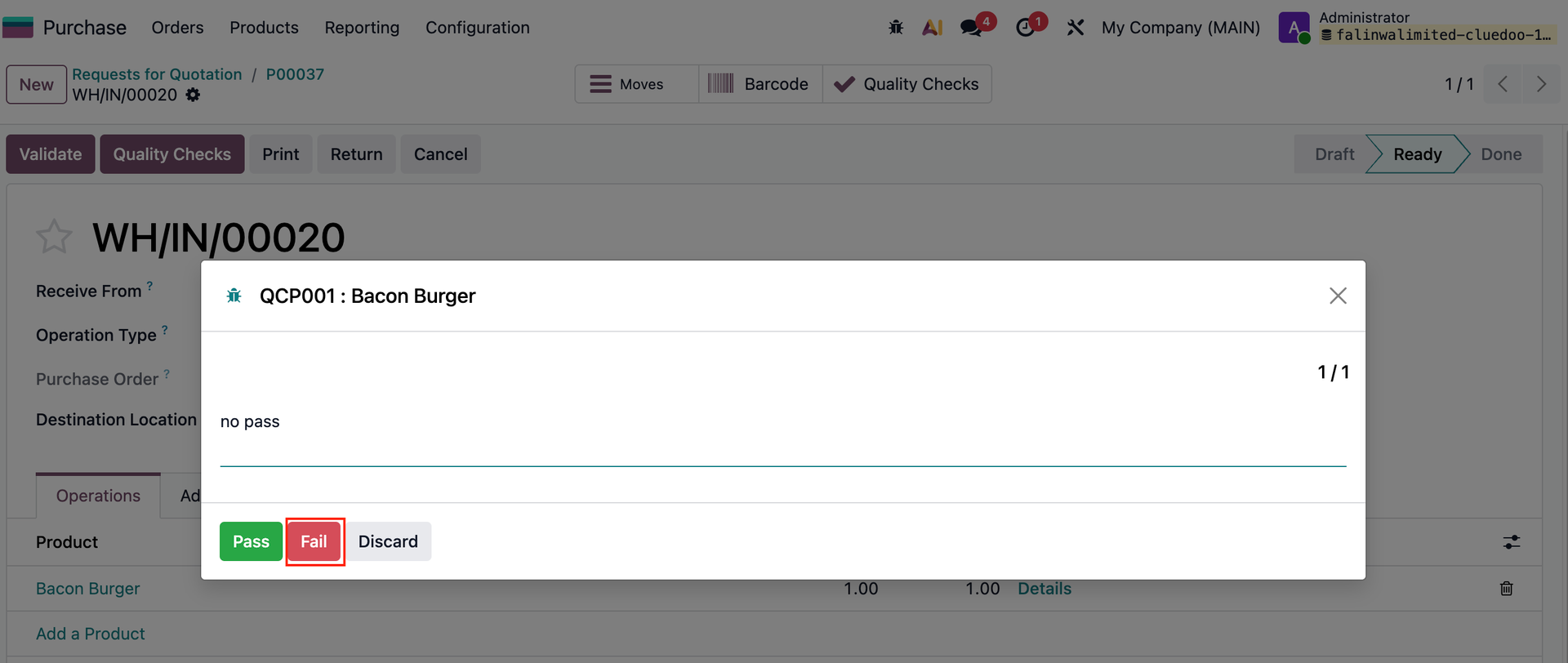 |
5. On the Quality Alert form, we can choose Quality Alert Group. | 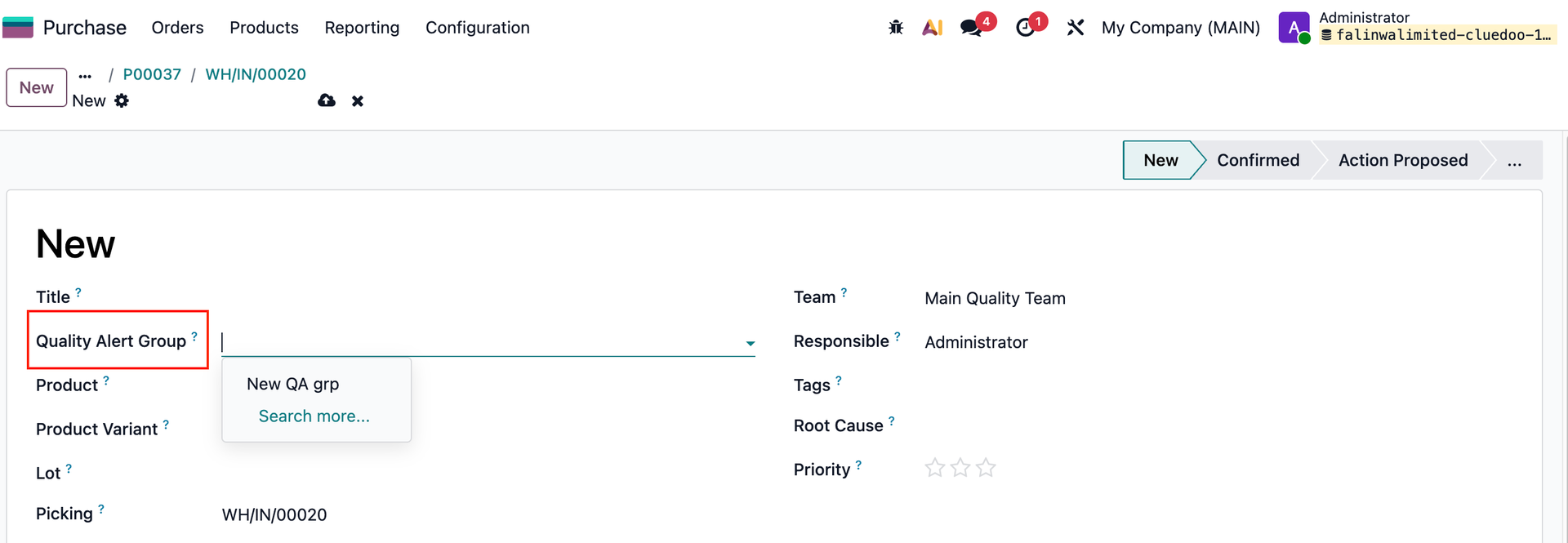 |
All Quality Alerts in the same group can be seen in the menu. |  |
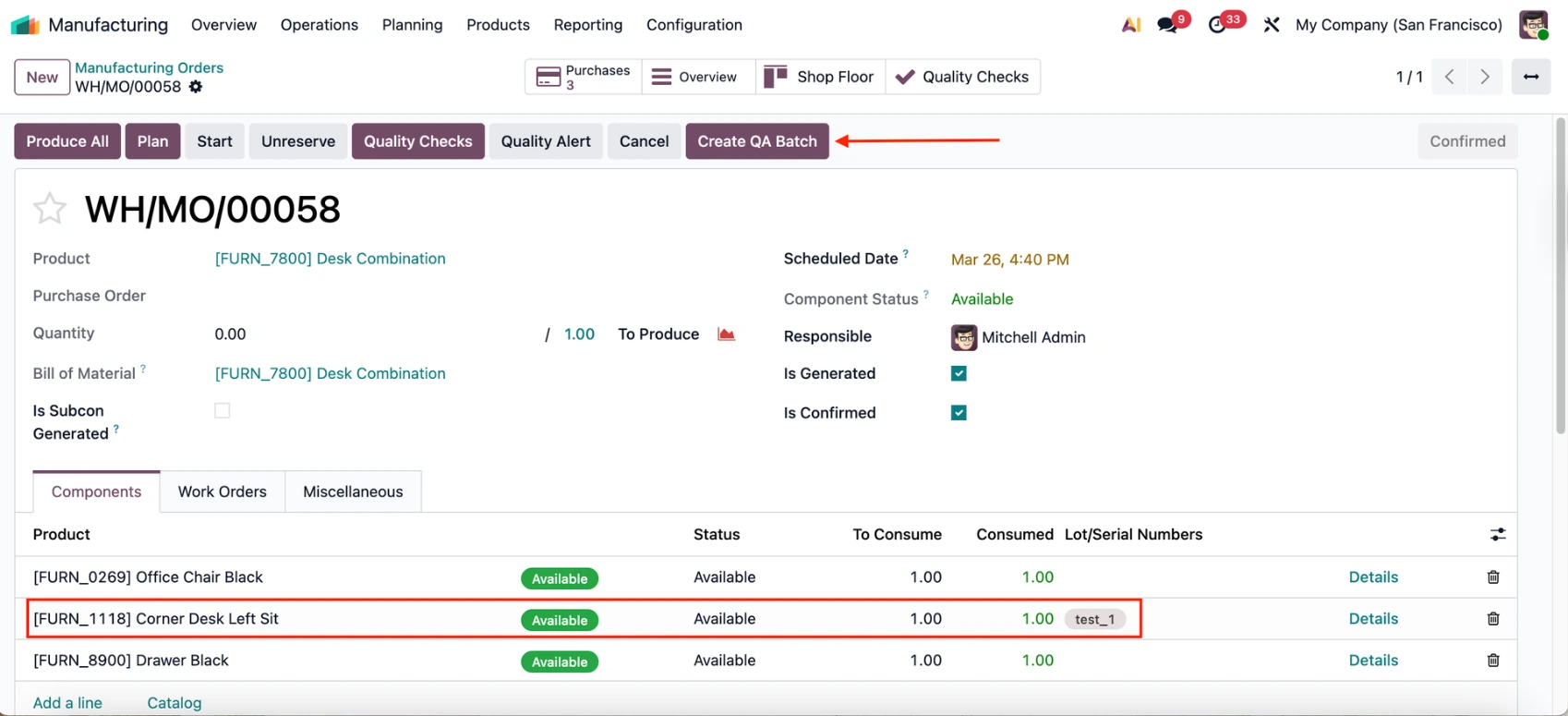
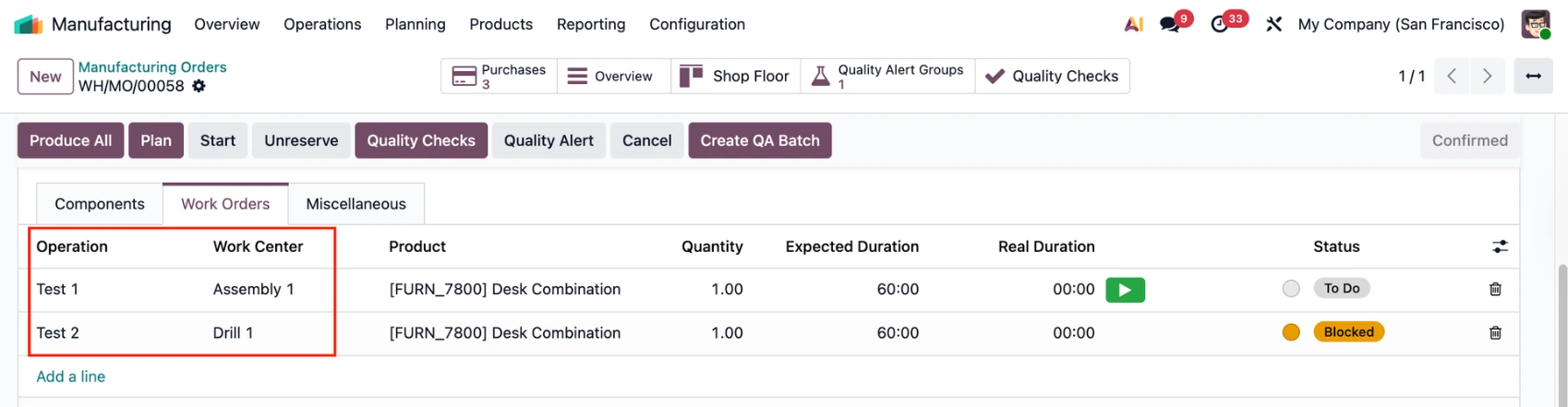
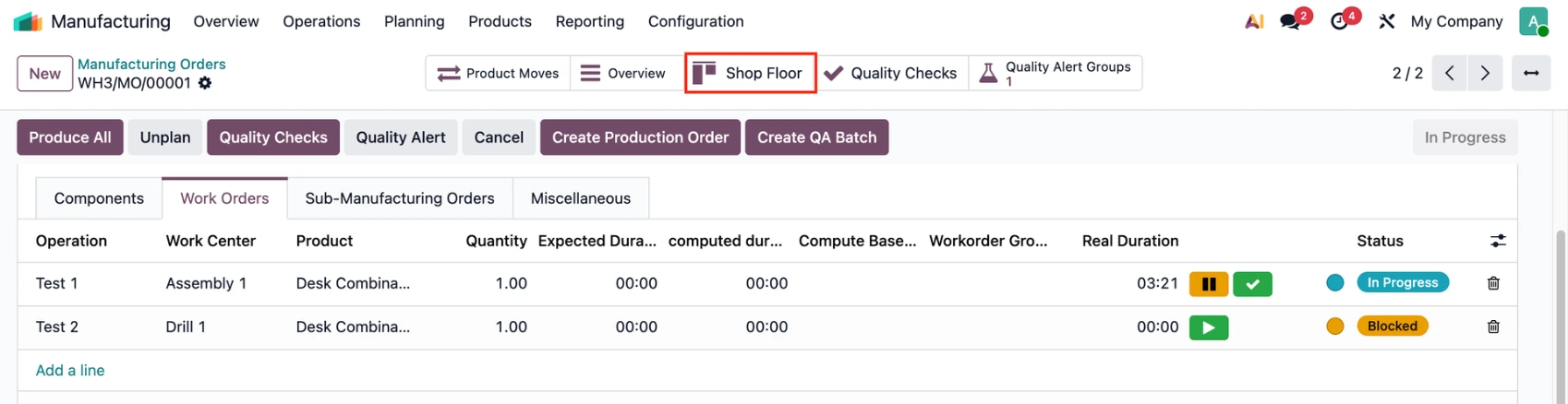
QUALITY ALERT BATCHON MANUFACTURING ORDERS 1. Create a QCP for operation Manufacturing then create a Manufacturing Order > Fill in the product(s) > Confirm A new smart button Create QA Batch is added to the MO. Add lot/sn for the component(s) if needed. |
|
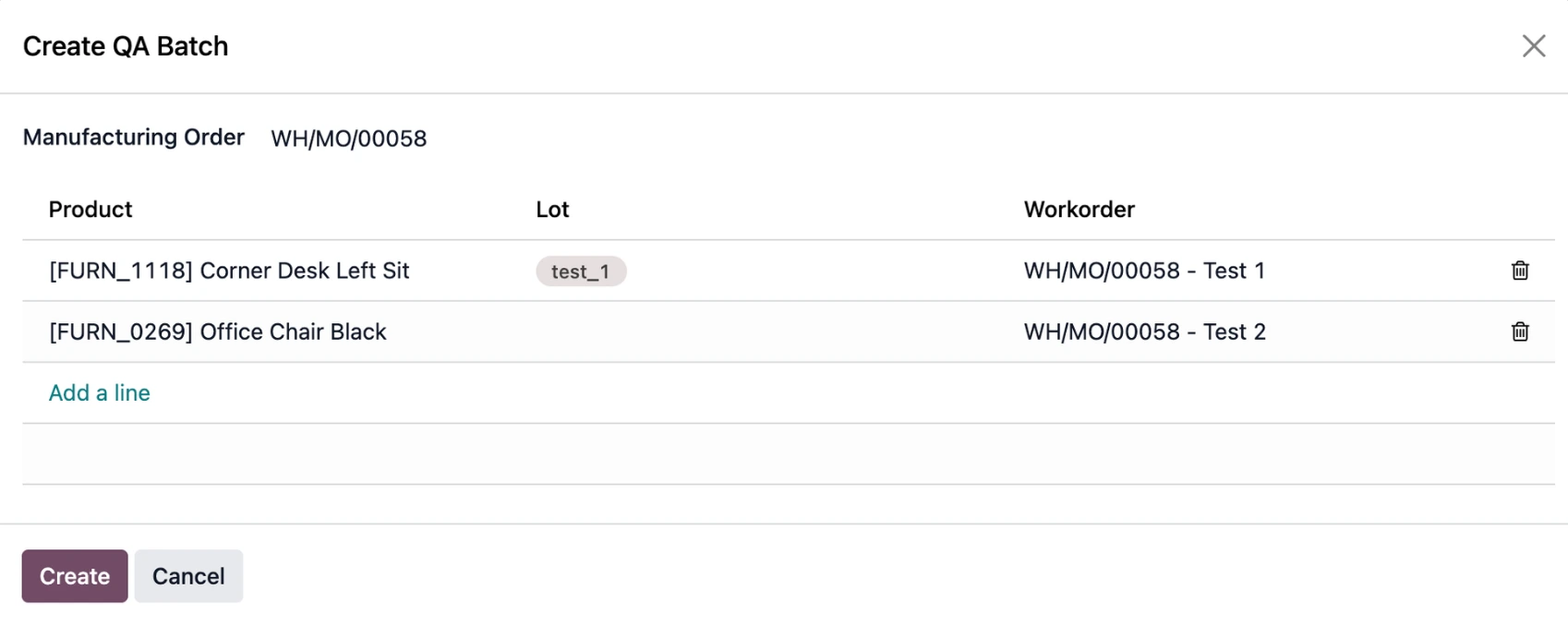
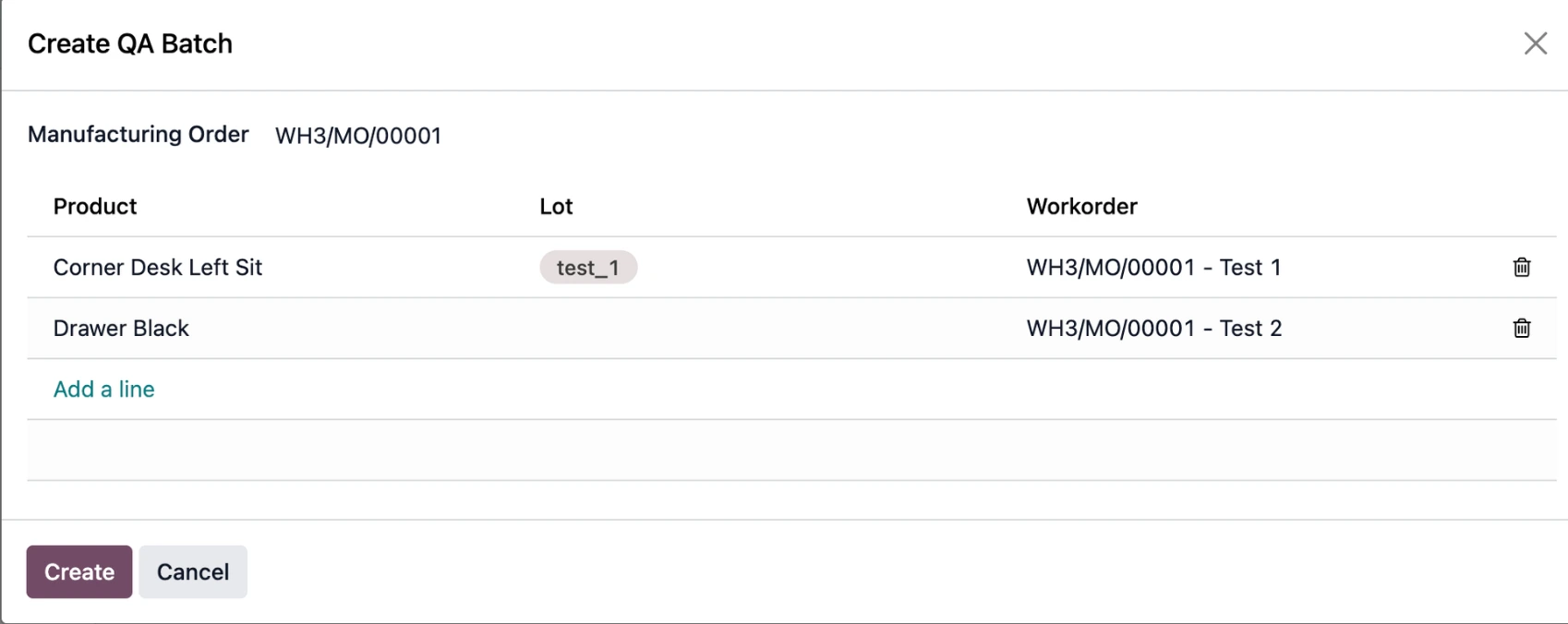
2. Click Create QA Batch > A wizard appears and we can choose the component(s) that we want to create QA(s) > Create |
|
3. Quality Alerts will be created for each component and put into one group and linked to the MO via the Quality Alert Groups smart button. |
|
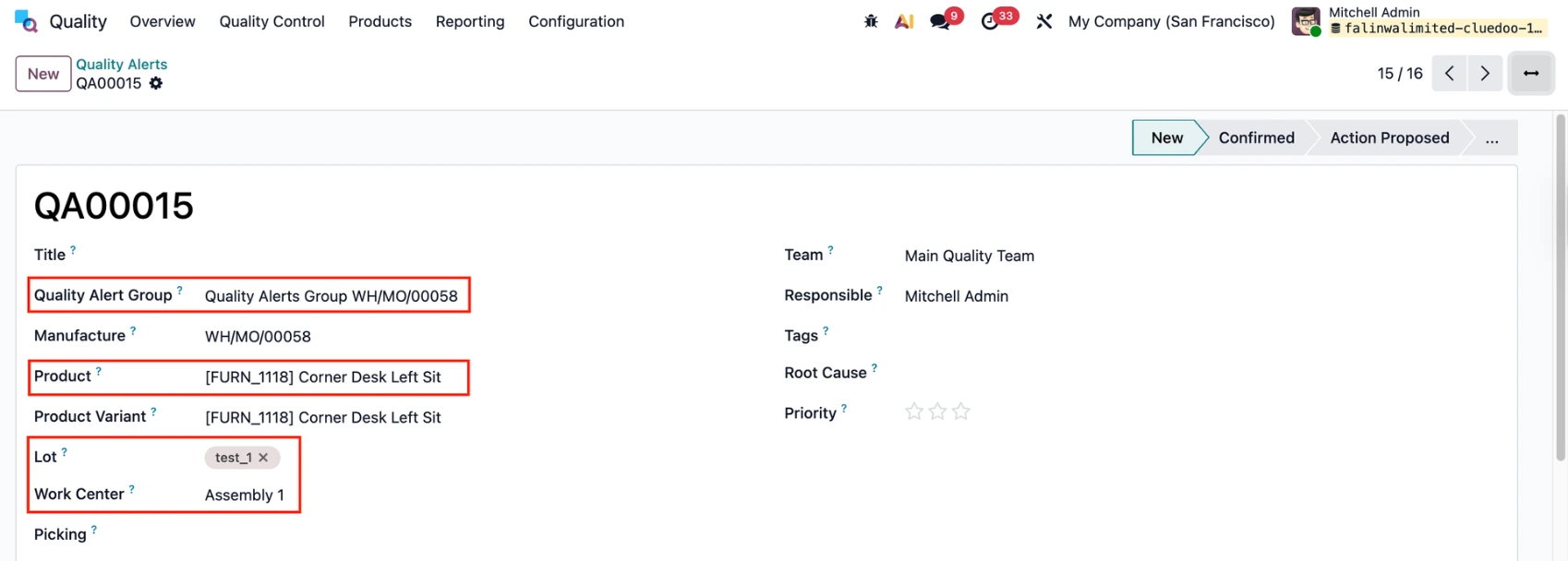
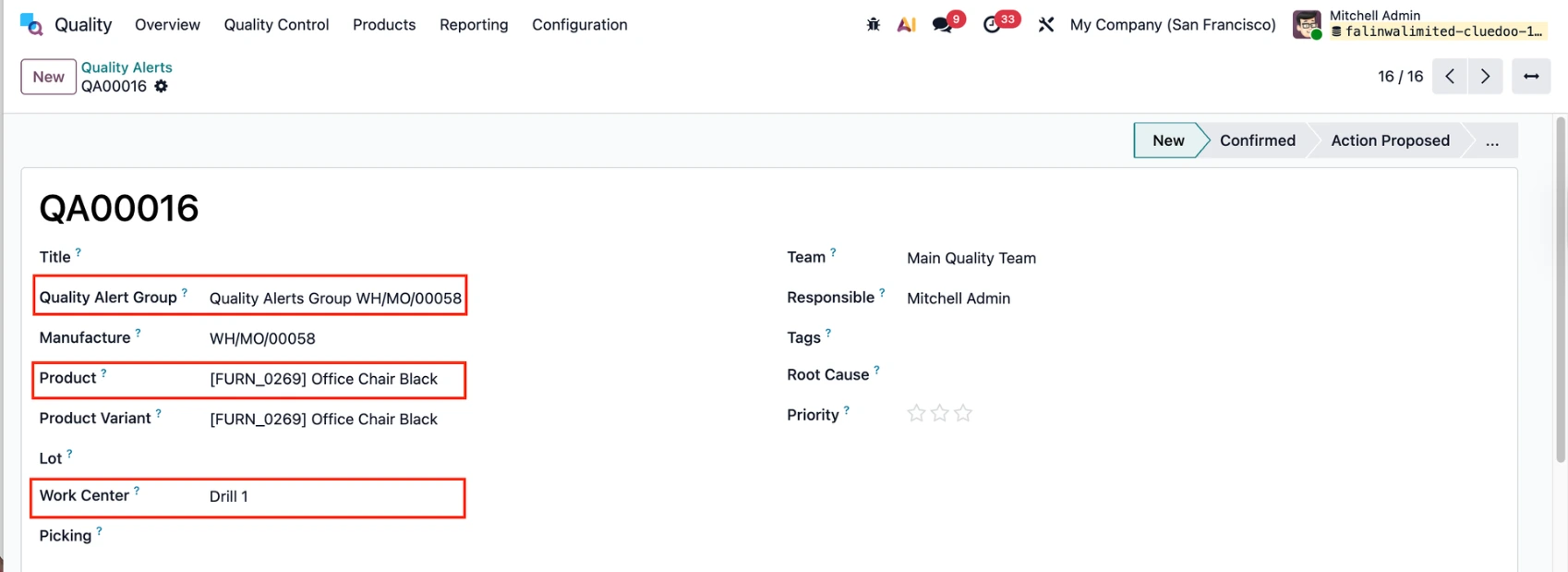
4. Go to Quality Alerts > All the information will be correctly inherited in each QA. |
|
FROM SHOP FLOOR 1. Start the work order and open the Shop Floor |
|
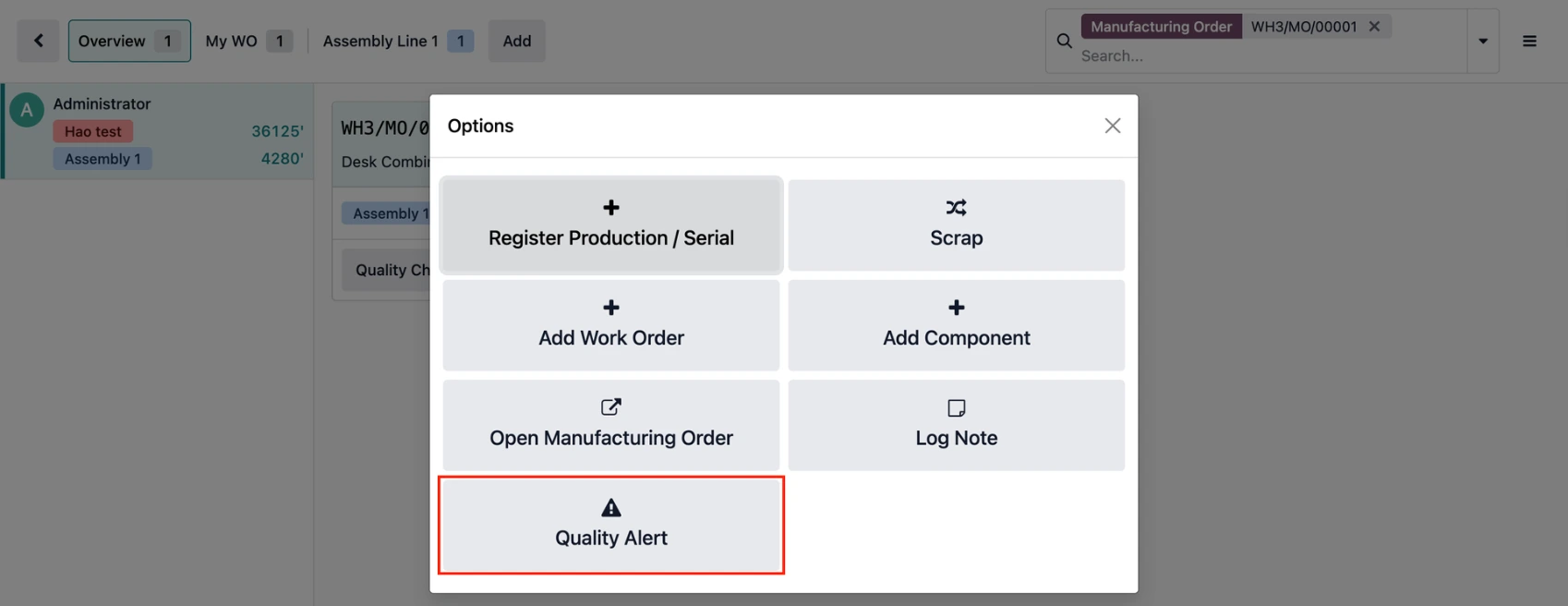
2. From here, you have the option to create QA batch as well. |
|
3. Fill in the information |
|
4. Quality Alerts will be created for each component and put into one group and linked to the MO via the Quality Alert Groups smart button. |
|
5. The information will be correctly inherited in each QA. |
|