


ODOO'S FUNCTION
Odoo allows users to configure Reordering Rules (Replenishment Rules) that automatically or manually trigger the creation of Request for Quotation (RFQ) when stock falls below minimum levels.
❌ However, Odoo does not provide any approval workflow before generating the RFQ:
RFQs are created immediately when replenishment is triggered, either manually or via scheduled actions.
No way to hold, validate, or control automatic purchase creation.
Difficult to enforce internal purchasing policies or budget approvals.
CLUEDOO'S FUNCTION
✅ Introduces an Approval Workflow for replenishment operations:
For each Replenishment Rule, users can configure whether approval is required before creating RFQs.
✅ When replenishment is triggered (manual or automatic):
The system checks if approval is needed.
If so, it creates an Approval Request instead of generating the RFQ.
The RFQ will only be created after the request is approved.
✅ Seamlessly integrates with Odoo's Approval module:
Supports standard approval templates, users, and steps.
Ensures traceability of who approved and when.
✅ Applies to all standard replenishment flows:
Manual Replenishment from the UI.
Scheduled Replenishment Actions (cron job).
✅ Ensures cleaner procurement operations:
Prevents unauthorized purchases.
Adds a layer of control for critical or expensive items.
Aligns with internal control and audit practices.
1. Set up Approvers for RFQs: Approvals > Configuration > Create RFQ’s > Fill in Approver | 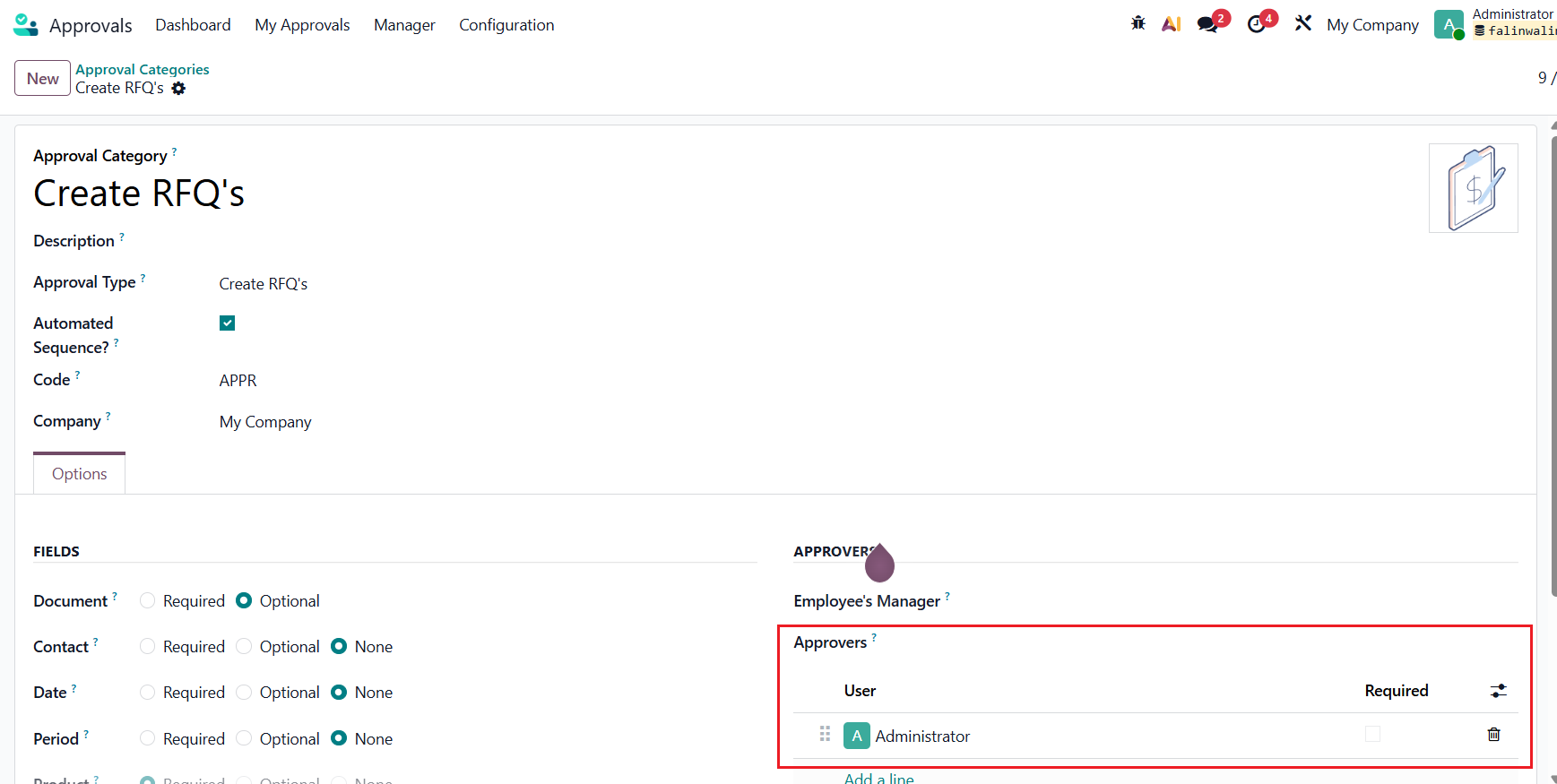 |
2. Create New Product or choose existing one > Tick on Need Approval for Replenishment > Set up Reordering Rules and fill in vendors in Purchase field | 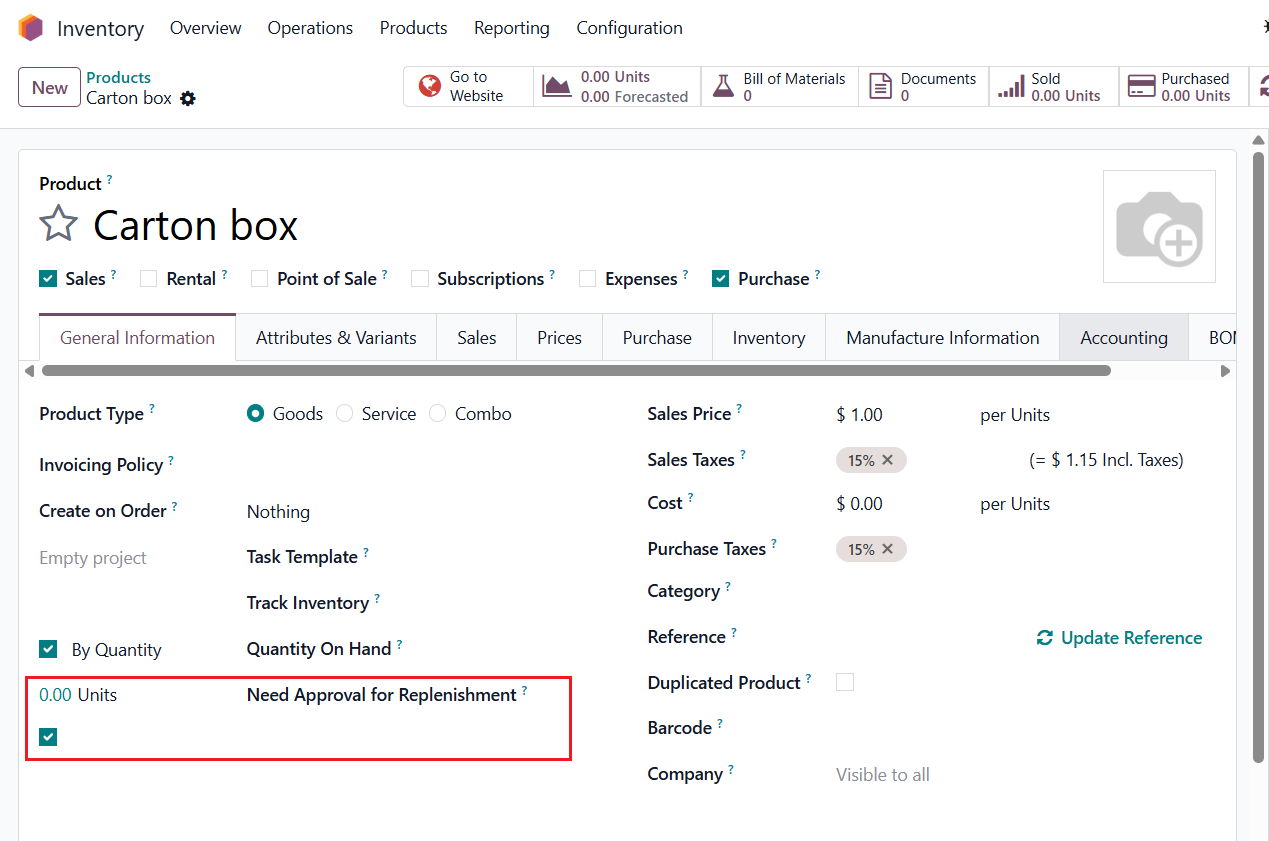 |
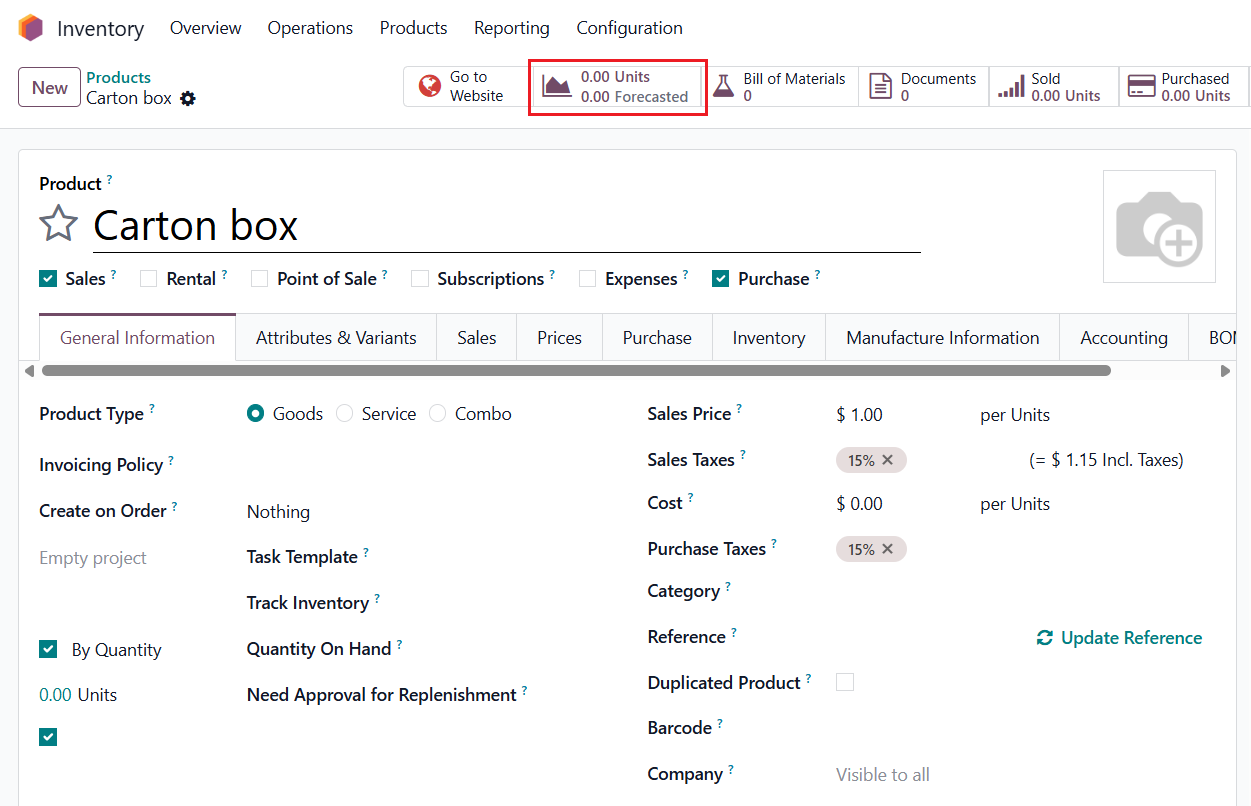
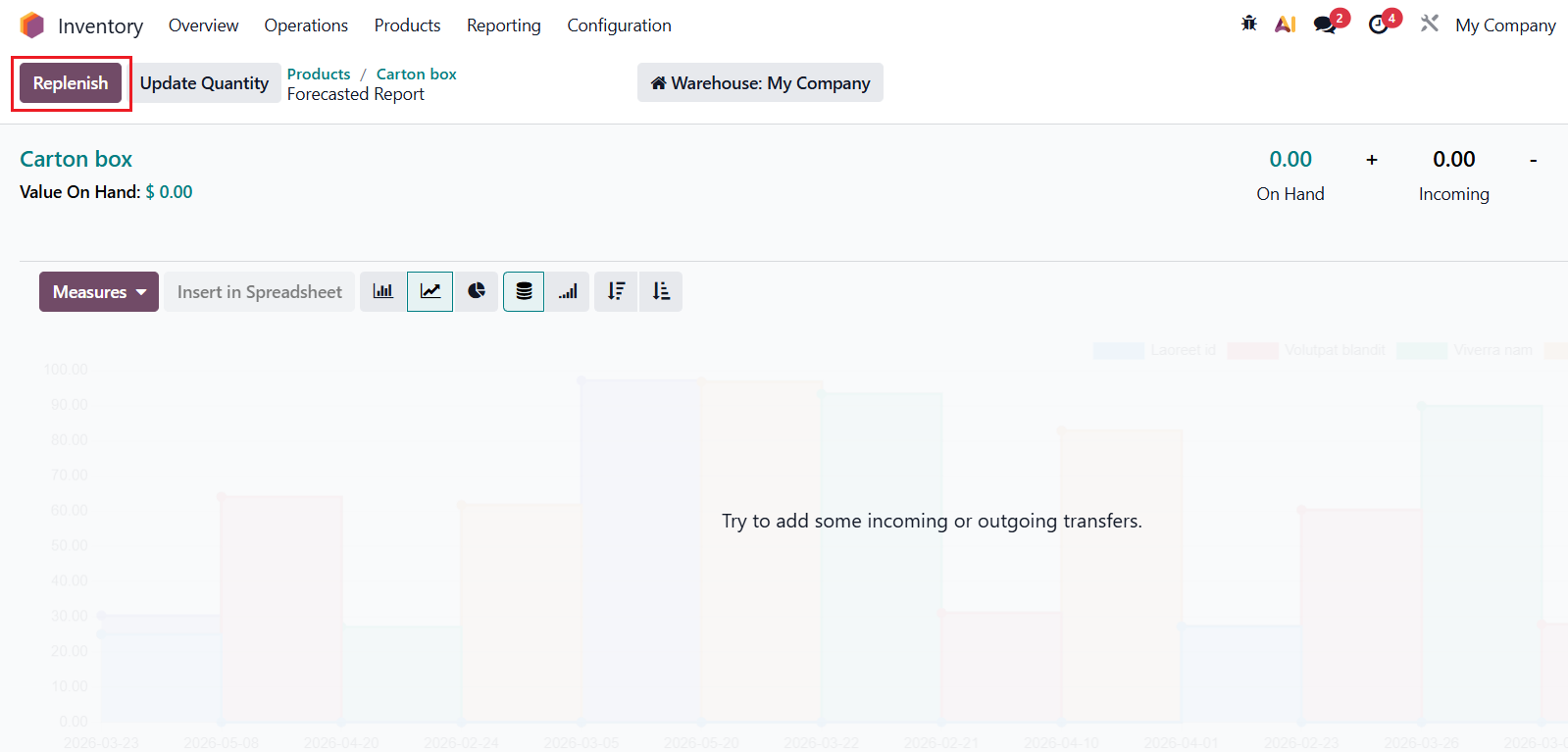
3. In Product Template > Forecasted > Click Replenish button |
|
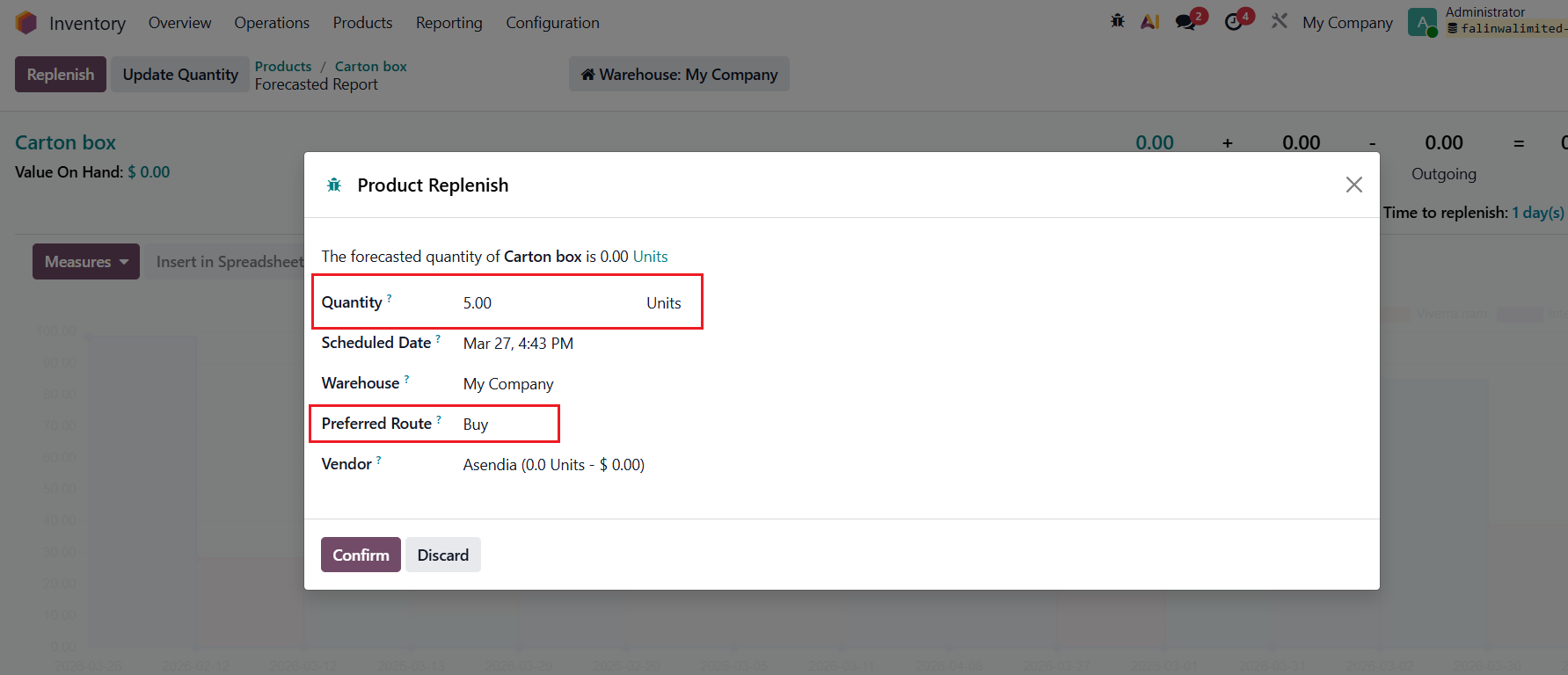
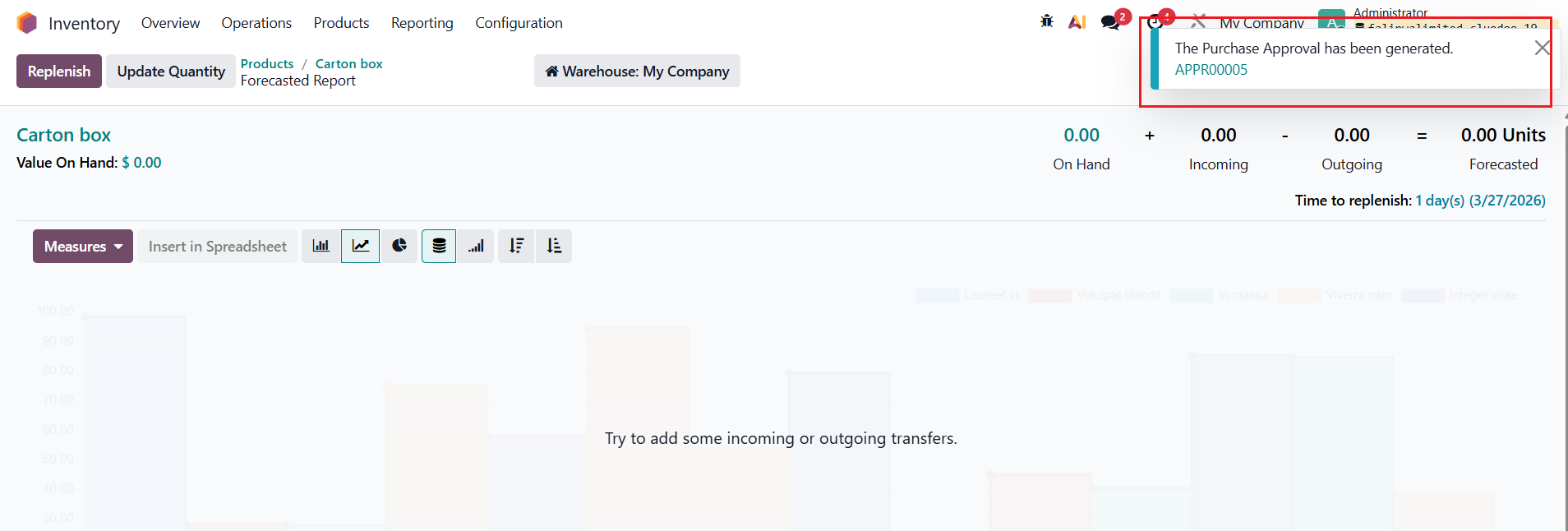
4. Fill in Quantity and choose Preferred Route as Buy > The Purchase Approval is automatically created |
|
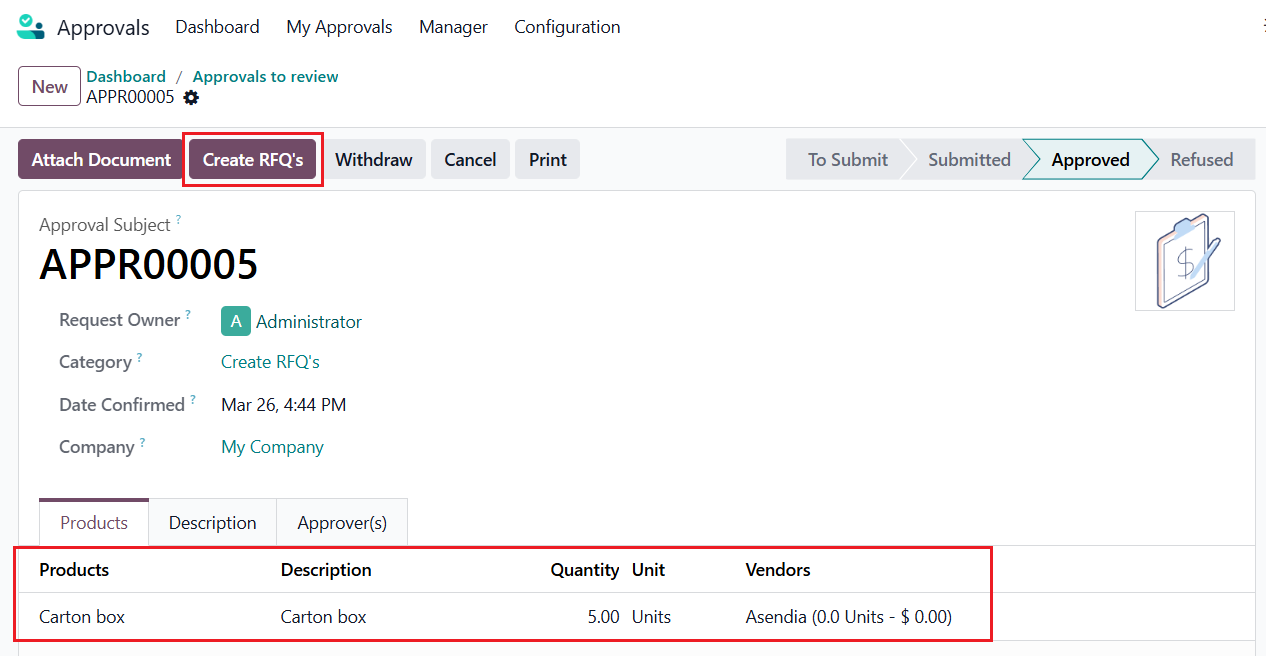
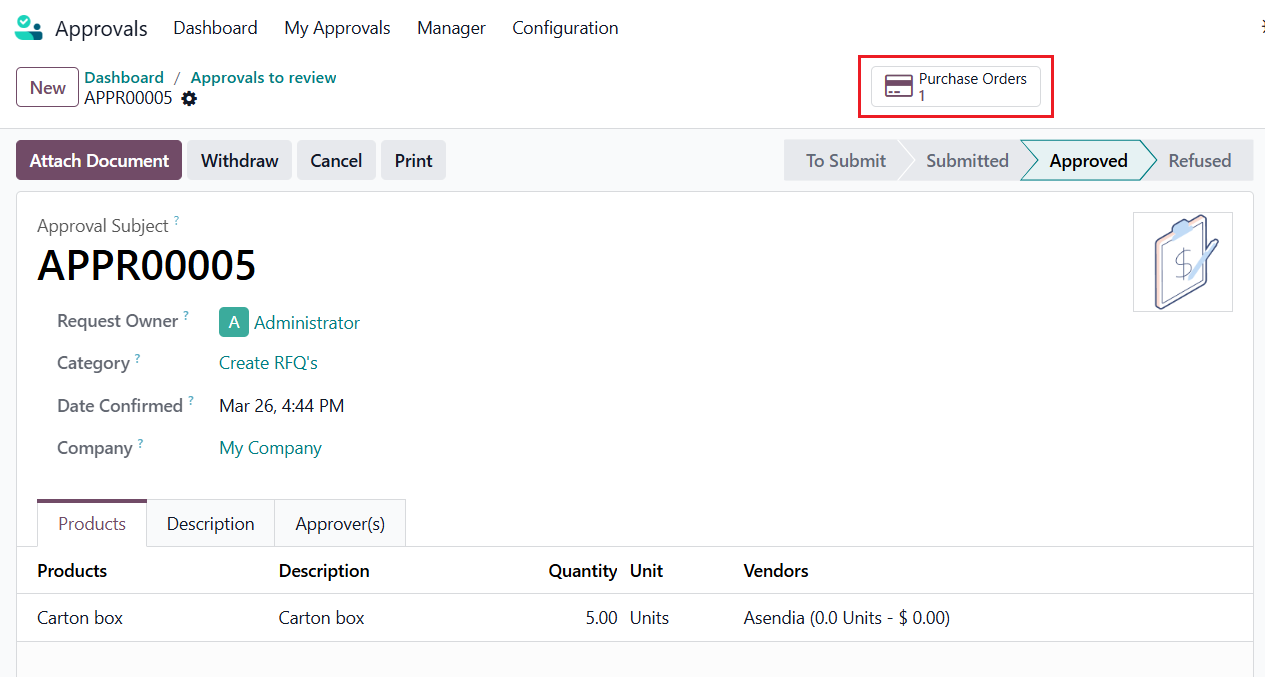
5. Go to Approvals > Approve > Create RFQ's > A RFQ will be created |
|
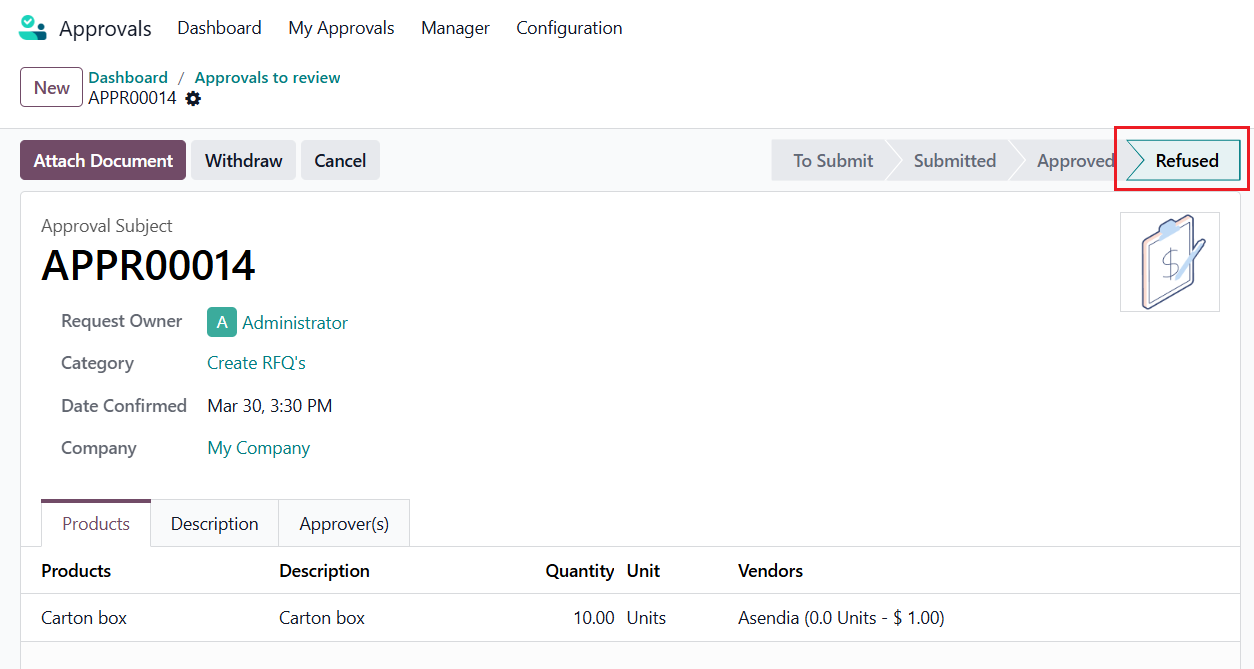
6. If the Approver refuse, Create RFQ's button will not appear. |
|
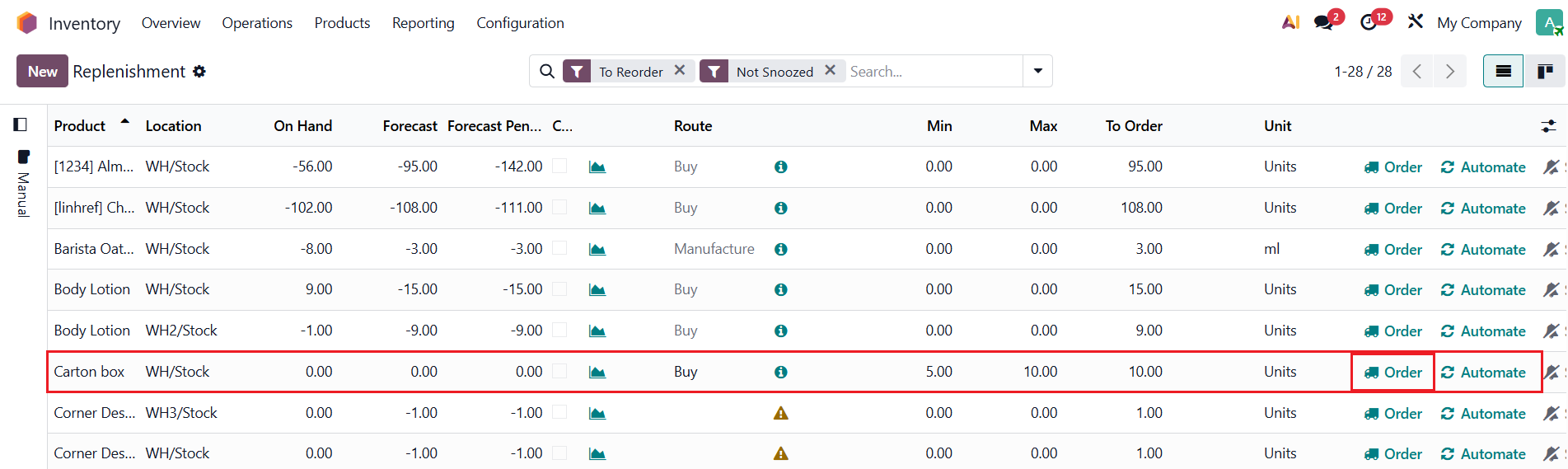
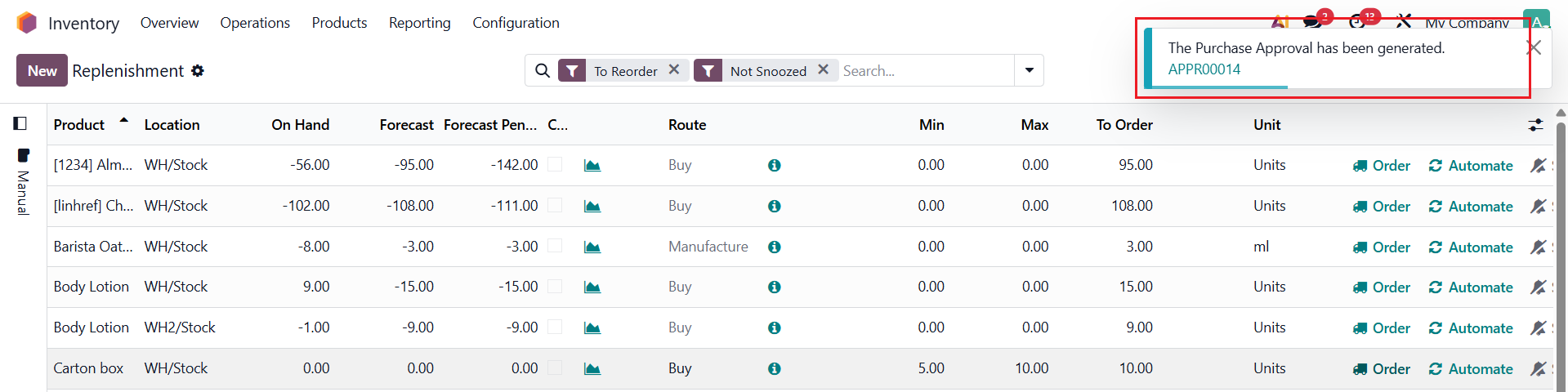
7. You can also go to Inventory > Replenishment > set product route "Buy" > click order > RFQ Approval will be created. |
|