


ODOO'S FUNCTION
Odoo Projects make it easy for service-based businesses to manage project work by automatically create a new project or reuse an existing one, based on the product configuration, when a Sales Order is confirmed.
CLUEDOO'S FUNCTION
CLuedoo enhances this flow by introducing Project Templates and Task Templates:
1️⃣ Project Templates: allow projects to inherit predefined durations and tasks from a template when the project is created.
2️⃣ Task Templates: let tasks inherit predefined sub-tasks, automatically schedule activities, and assign responsible users according to the template configuration.
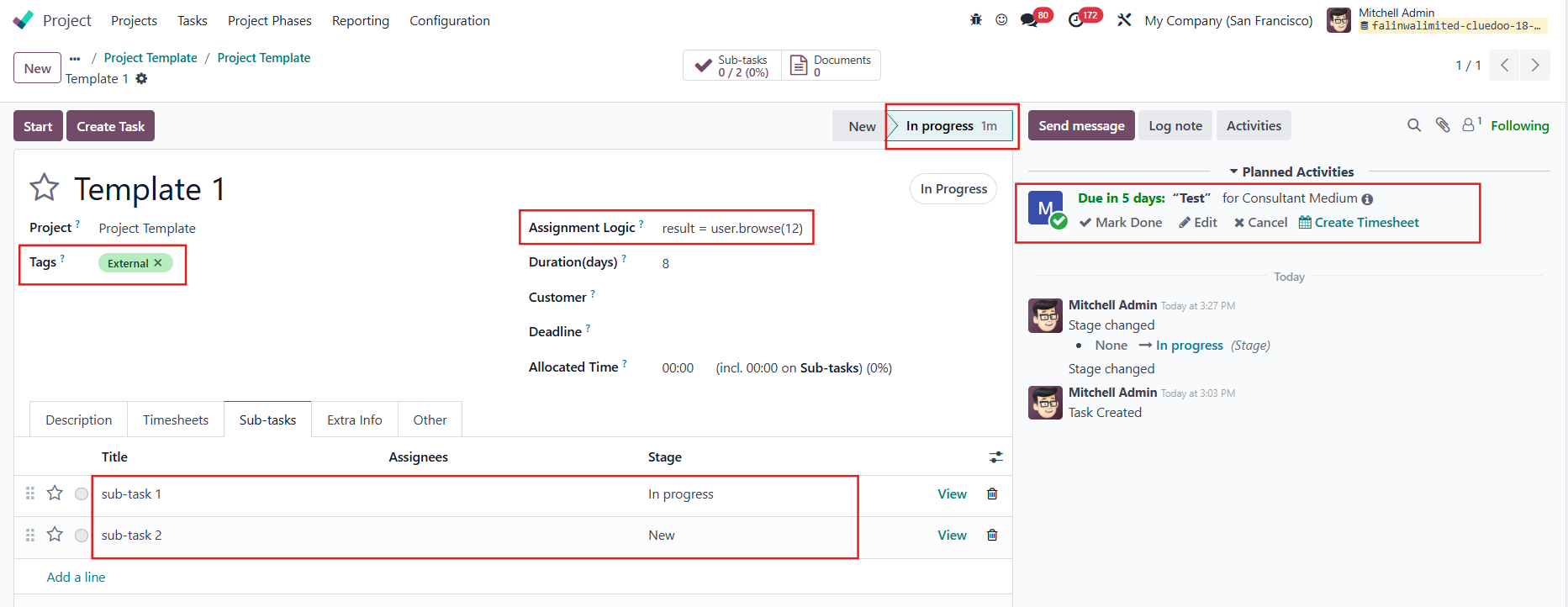
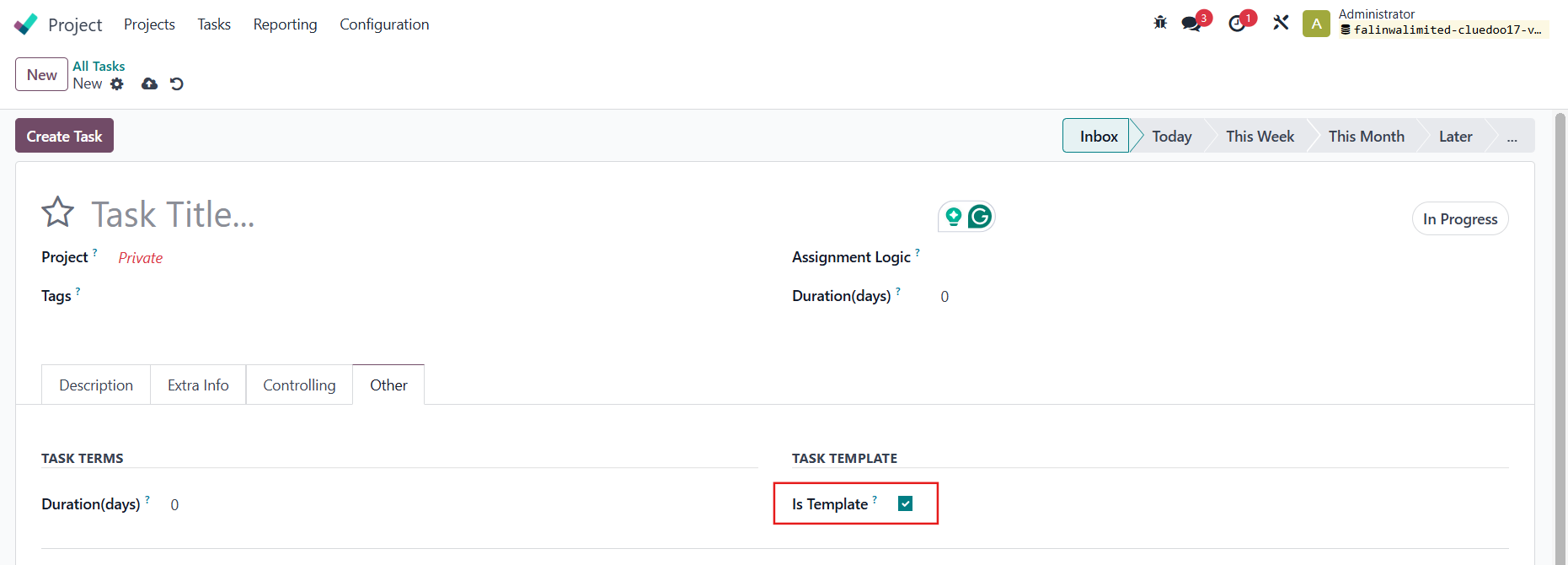
TASK TEMPLATESGo to Project → Configuration → Task Template → New to create a template OR Go to Tasks → New to create a new task and tick Is Template to turn it into a task template The task template can either be an independent task (not belonging to a specific project) or be assigned to a project template. Fill in the neccessary information, for example:
|  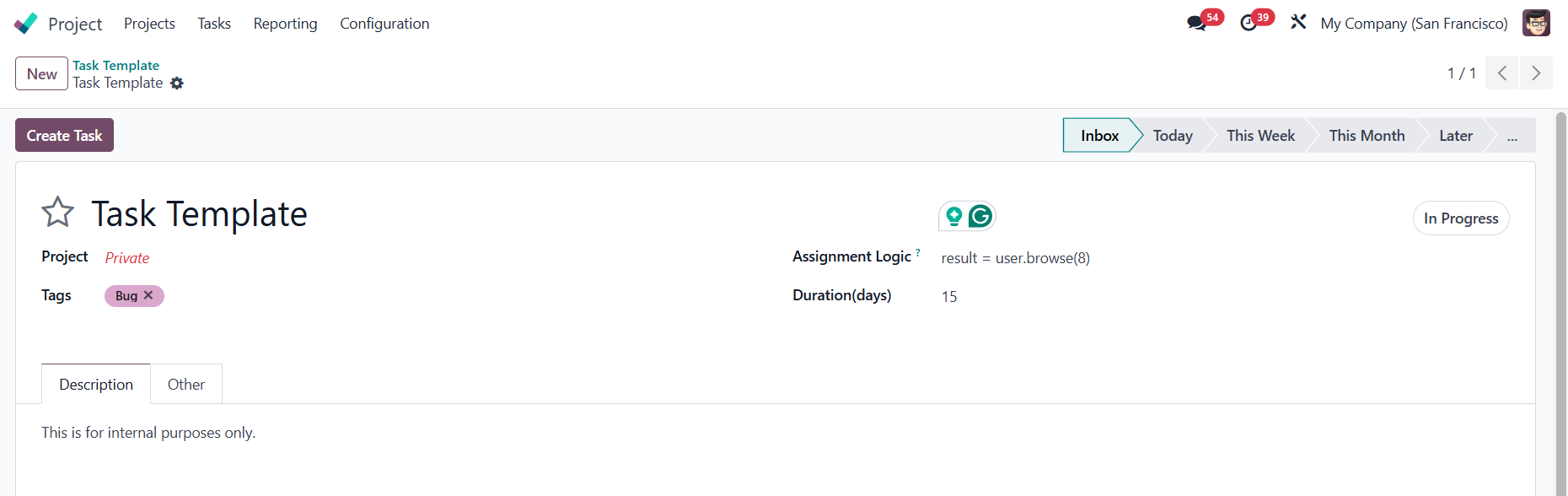 |
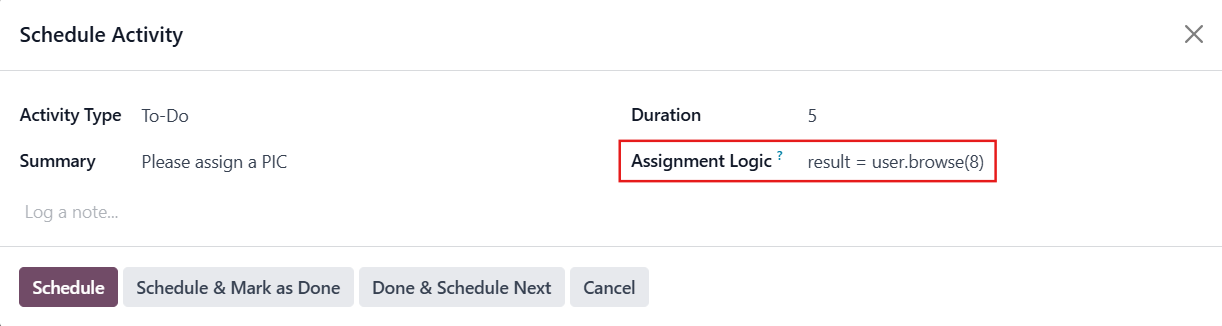
The user can set the assignee for the task using the following formula with Assignment Logic:
e.g., here I choose John Doe, user id = 8 | 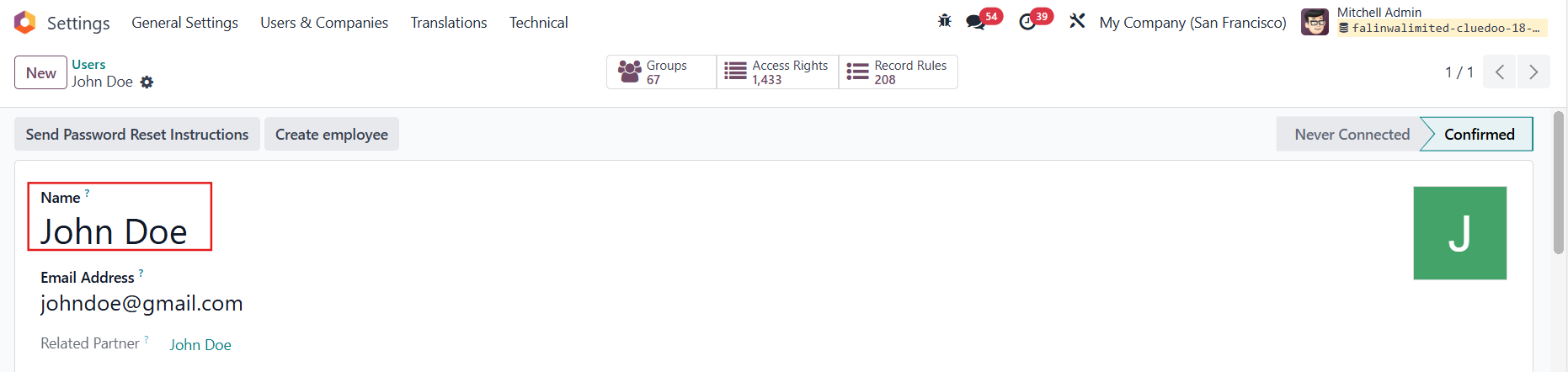 |
User can schedule activities for task template using the mentioned assignment logic. |
|
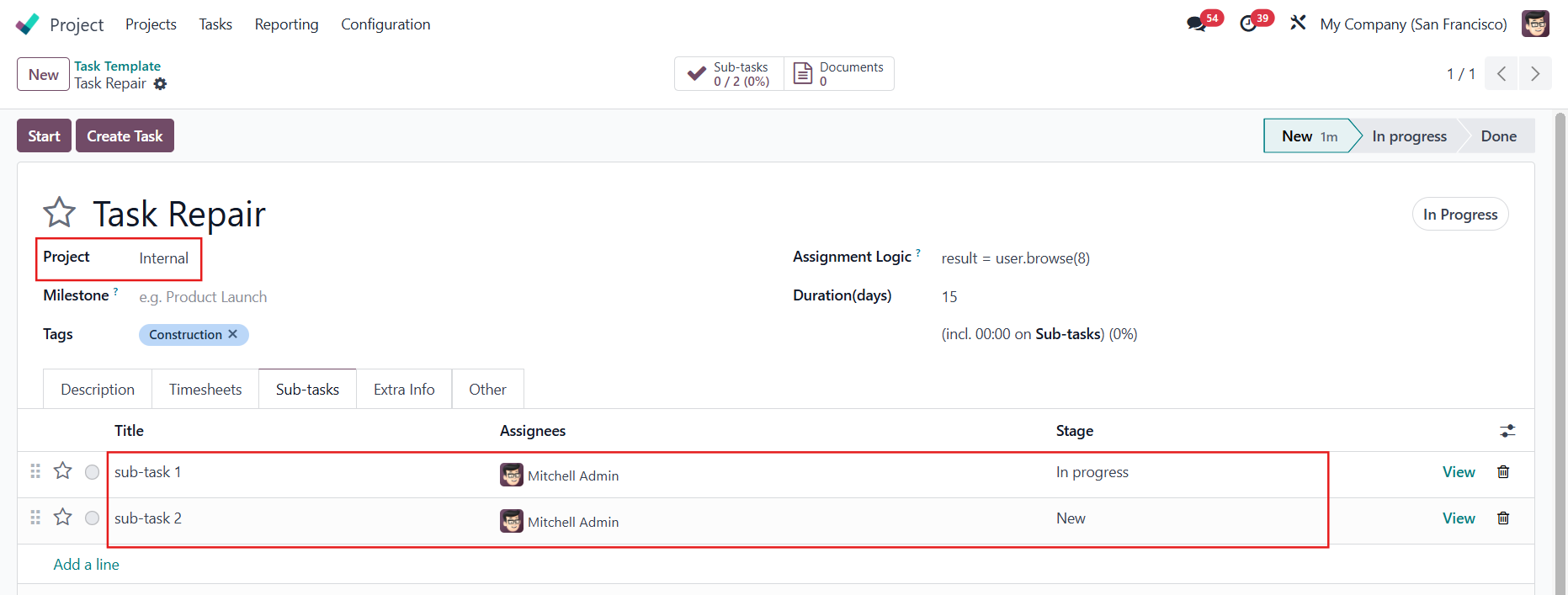
Note: If the task template belongs to a project, you can also create sub-task templates, and they will be carried over when creating a task from the template as well. |
|
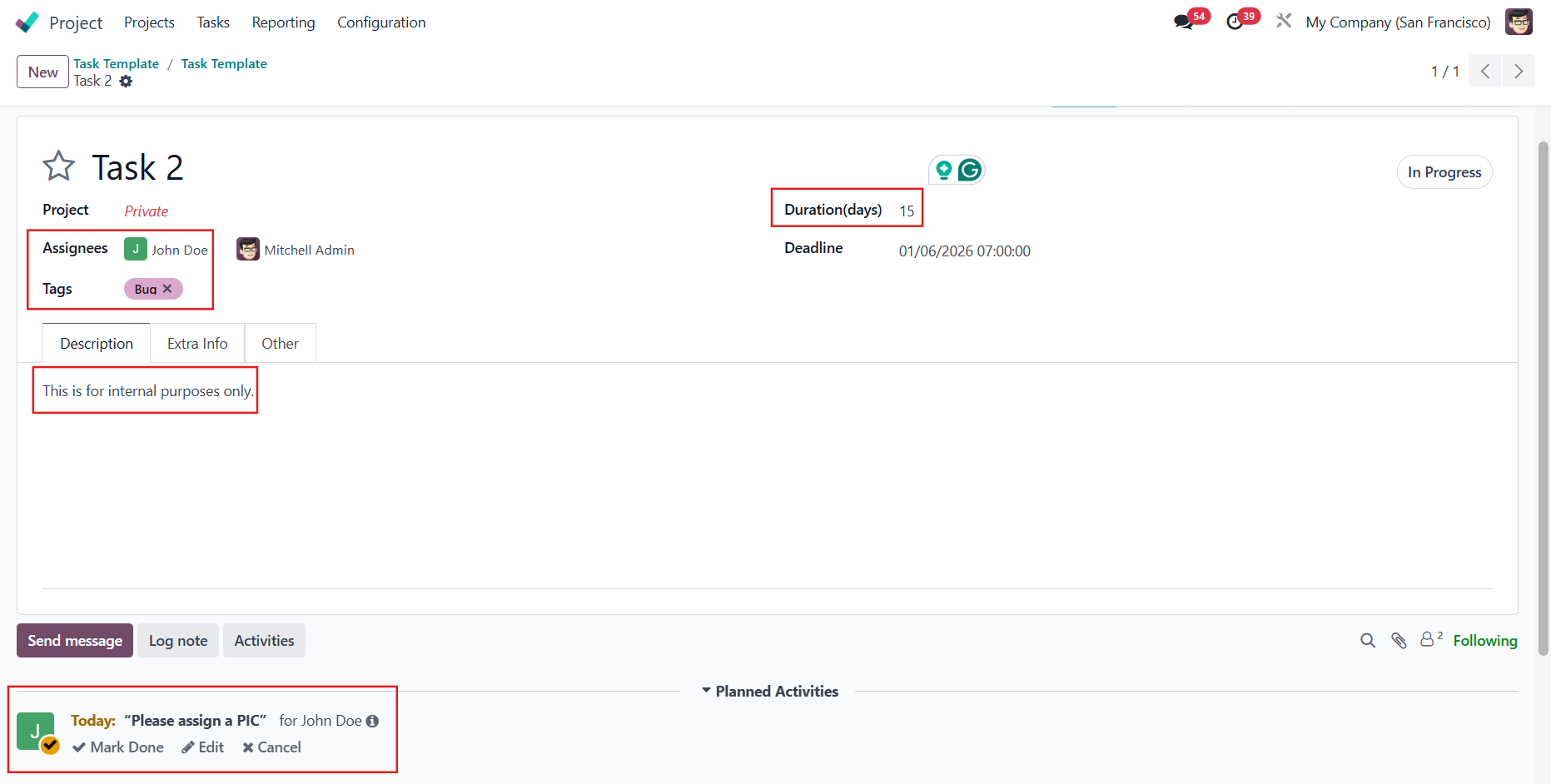
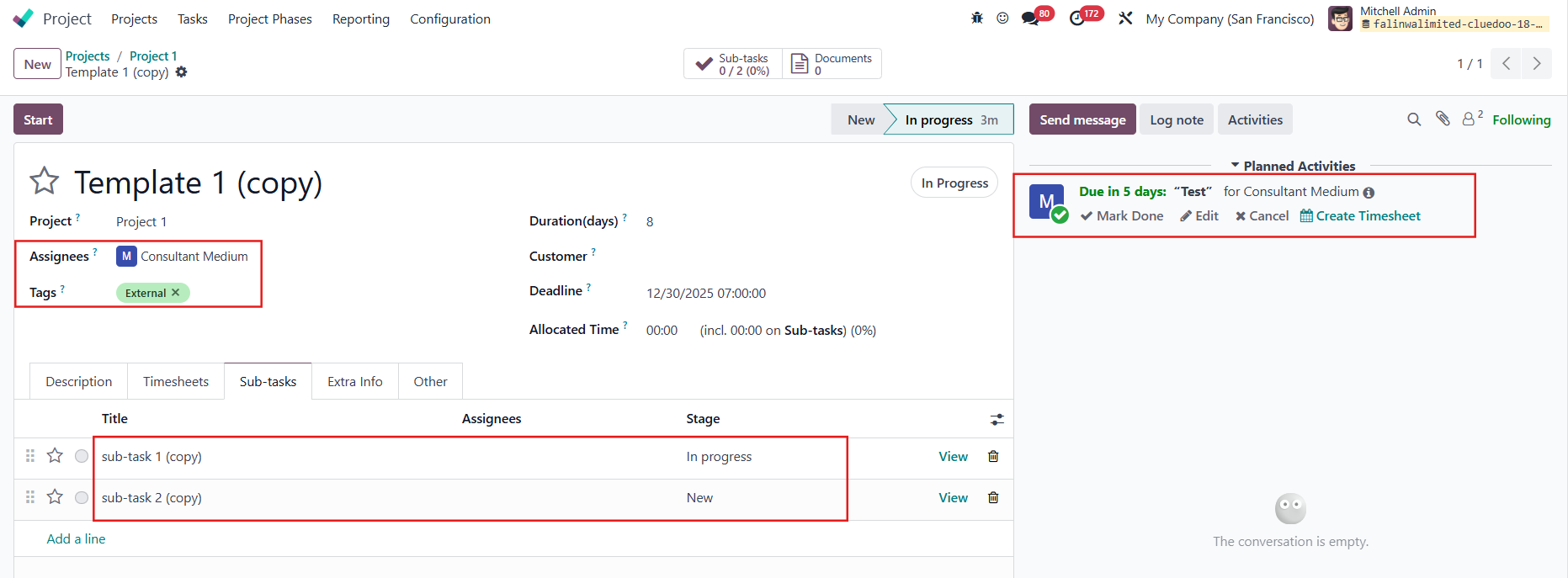
CREATE TASK FROM TASK TEMPLATEClick Create Task → All the information from the template will be propagated to the project Under the Other tab, you can check which template the task is created from. |
|
LINK TASK TEMPLATE TO TASKGo to Tasks → New to create a new task Under the Other tab, you can choose a template for the task and all the information from the template will be propagated. |  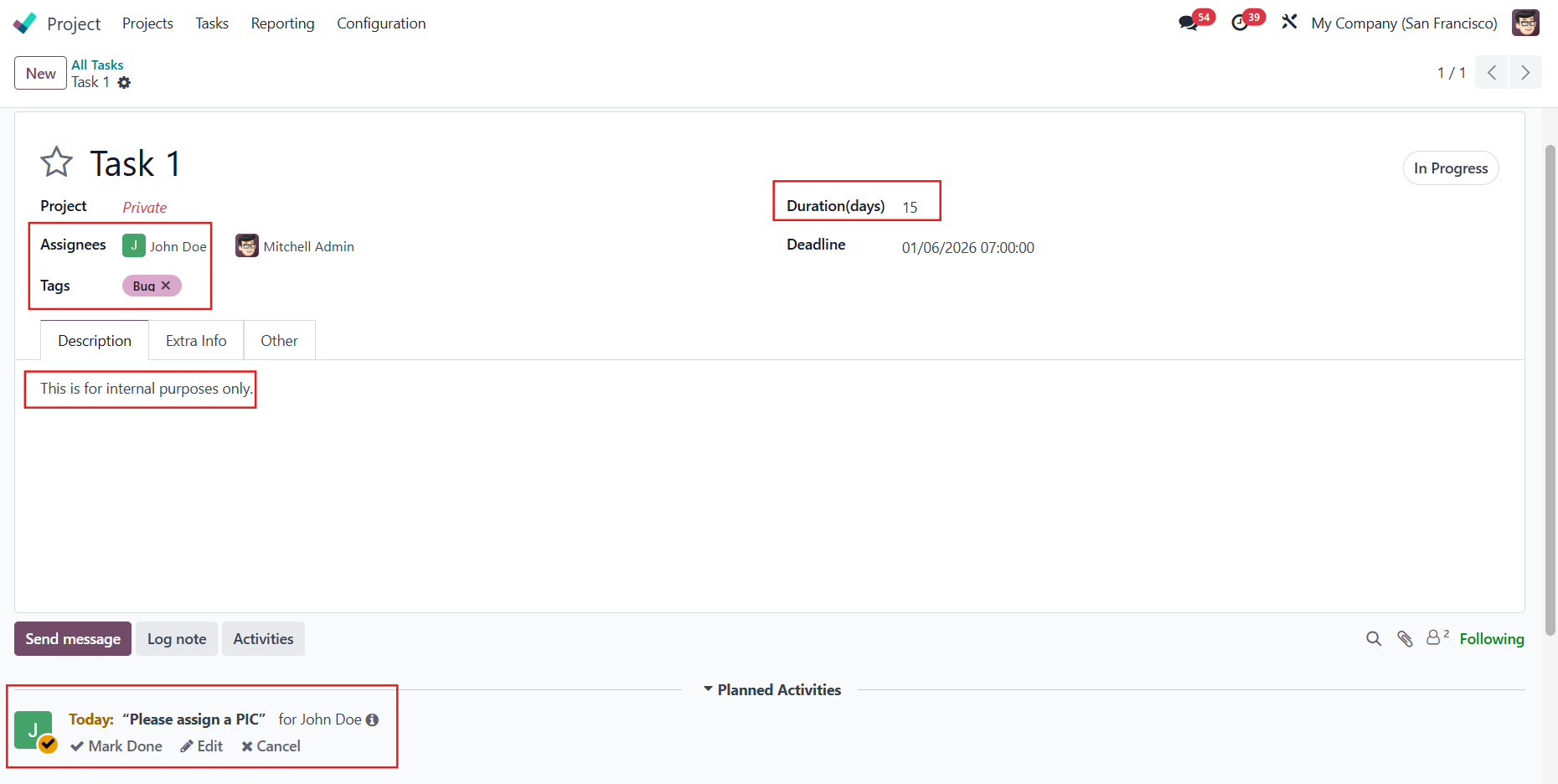 |
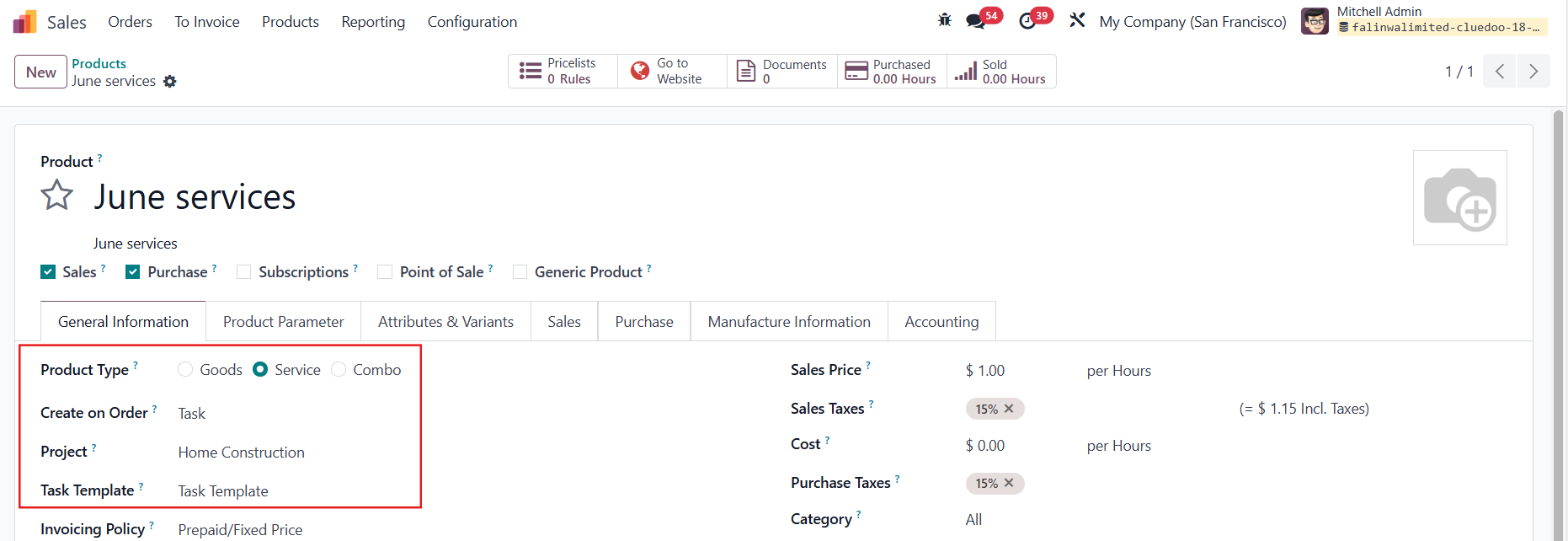
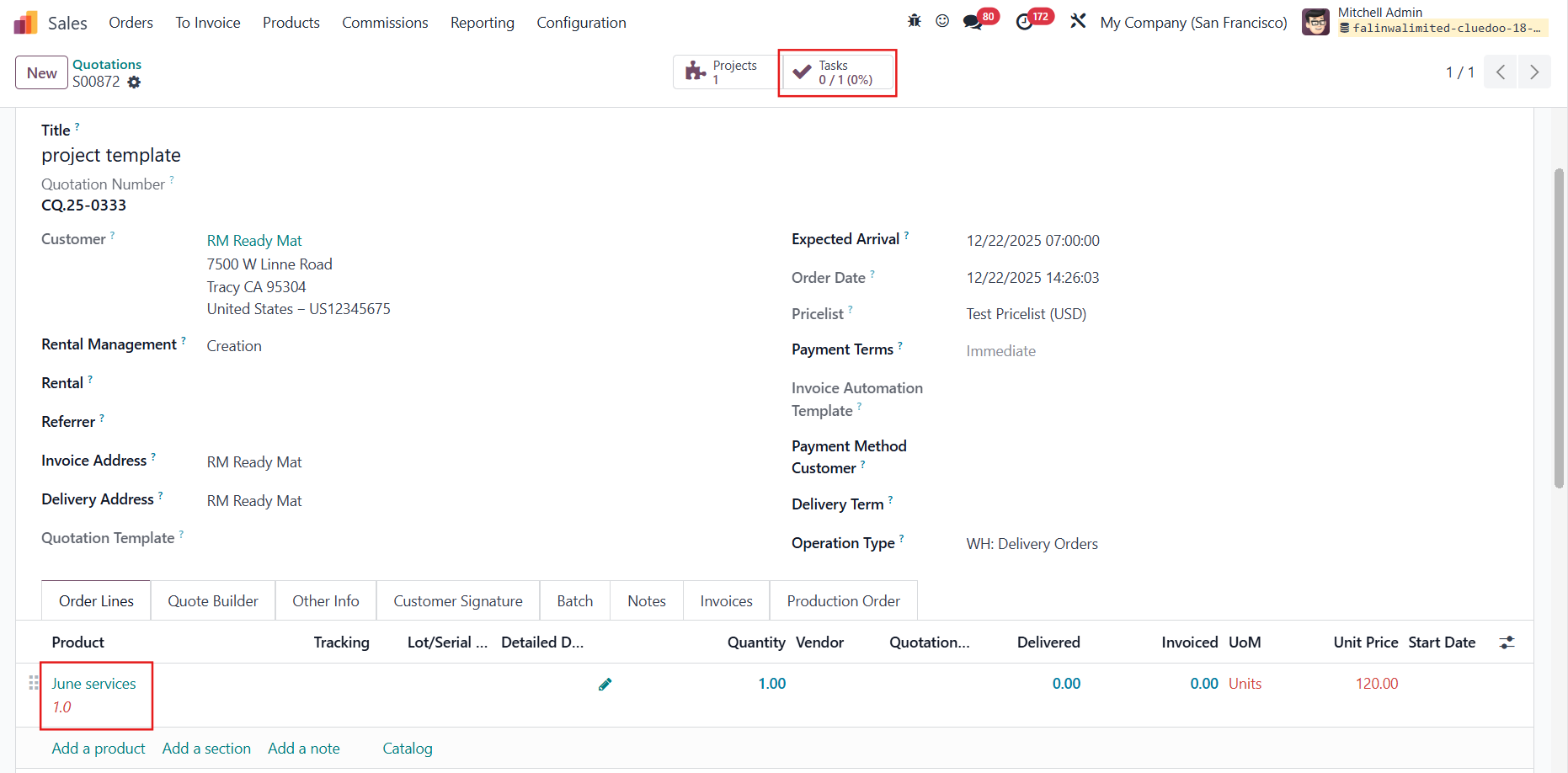
CREATE TASK FROM SALES ORDERCreate a service product with a task created on order, using the Task Template created previously. The task template can be linked to any billable project. |
|
Confirm the SO that contains the service product |
|
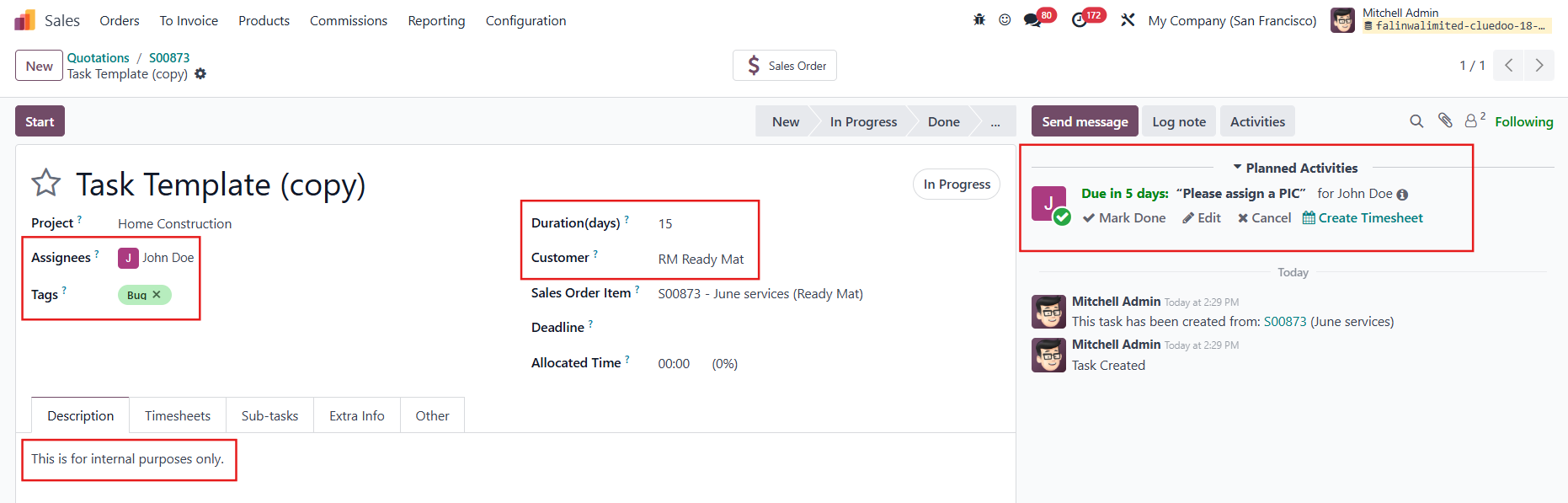
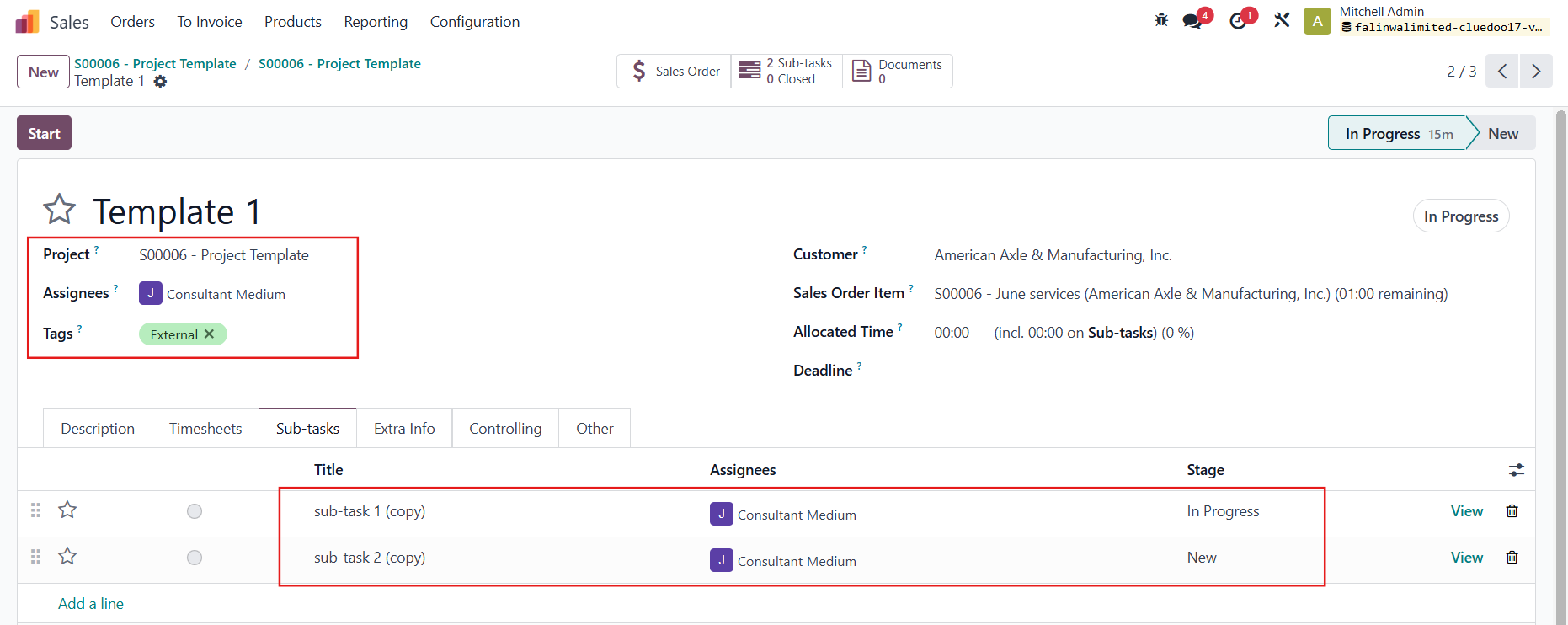
A new task will be created with the information set as per the task template. The Customer from the SO will be inherited as well. |
|
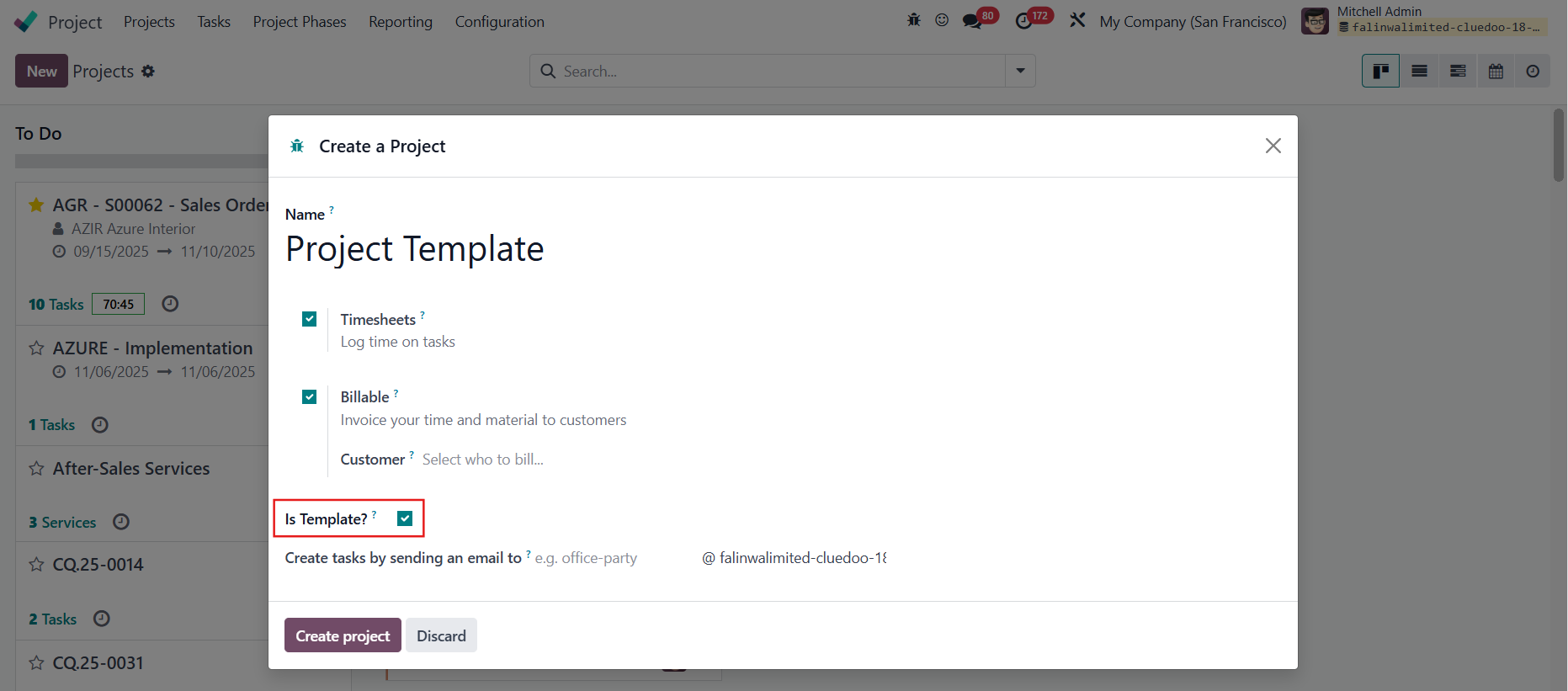
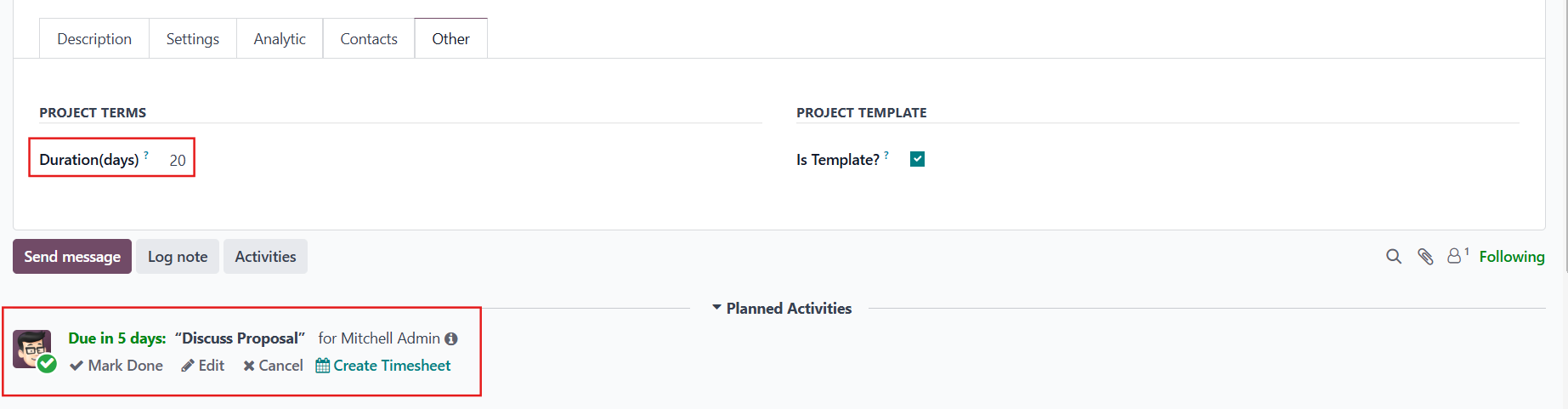
PROJECT TEMPLATESGo to Project → Configuration → Project Template → New to create a template OR Go to Projects → New to create a new project and tick Is Template to turn it into a project template |
|
Fill in the neccessary information, for example:
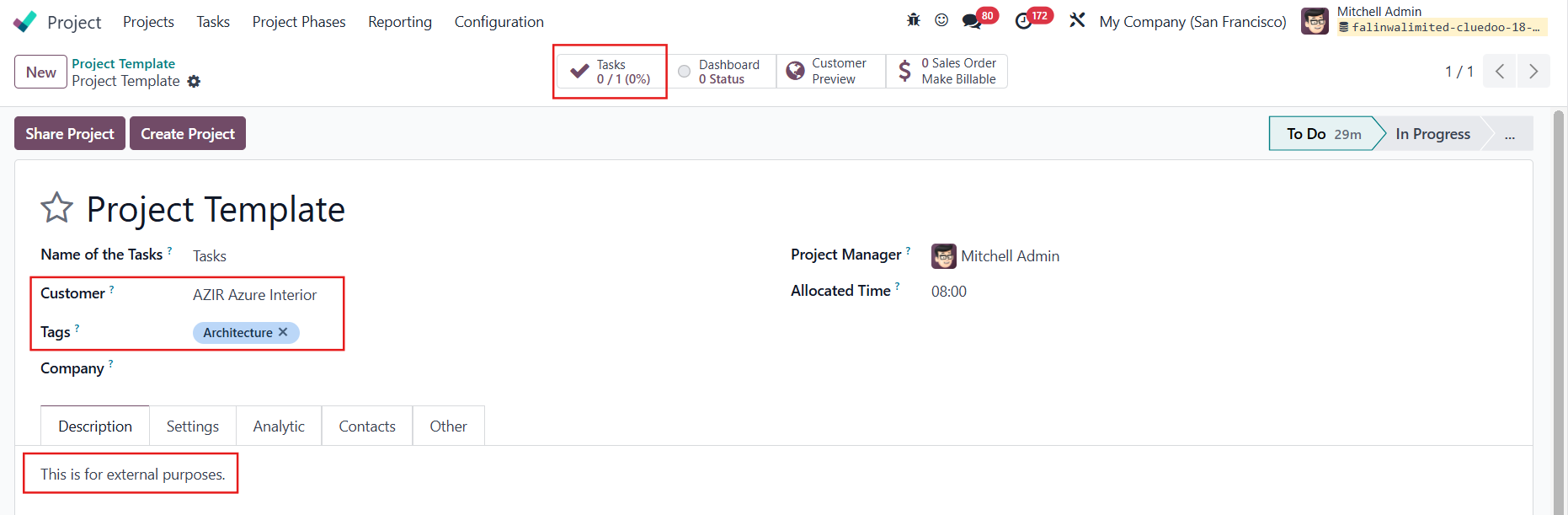
| Project template
Task template inside the project template
|
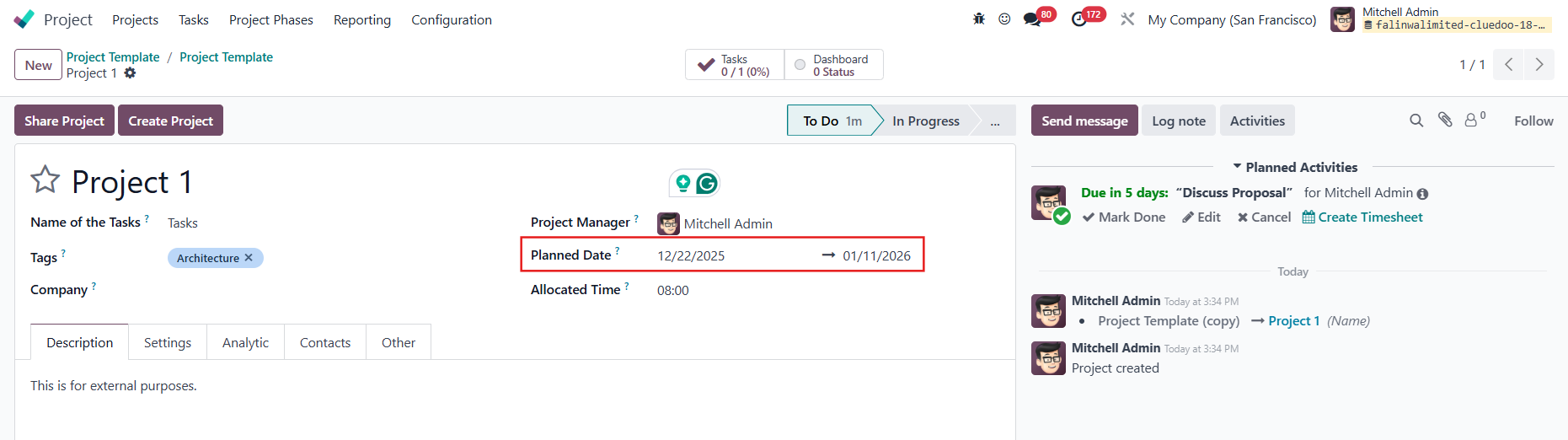
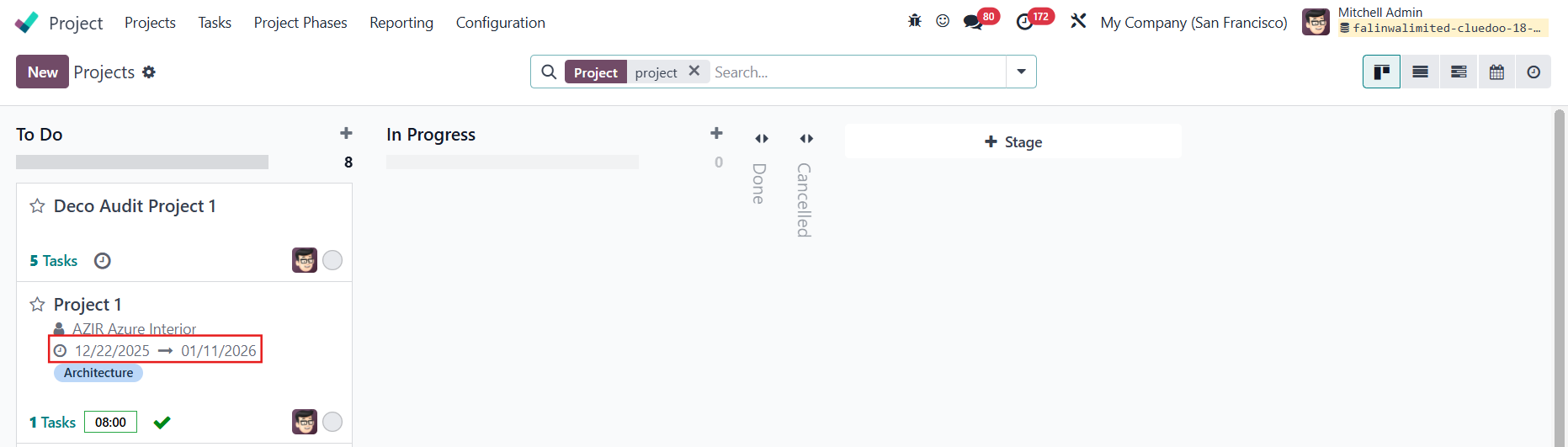
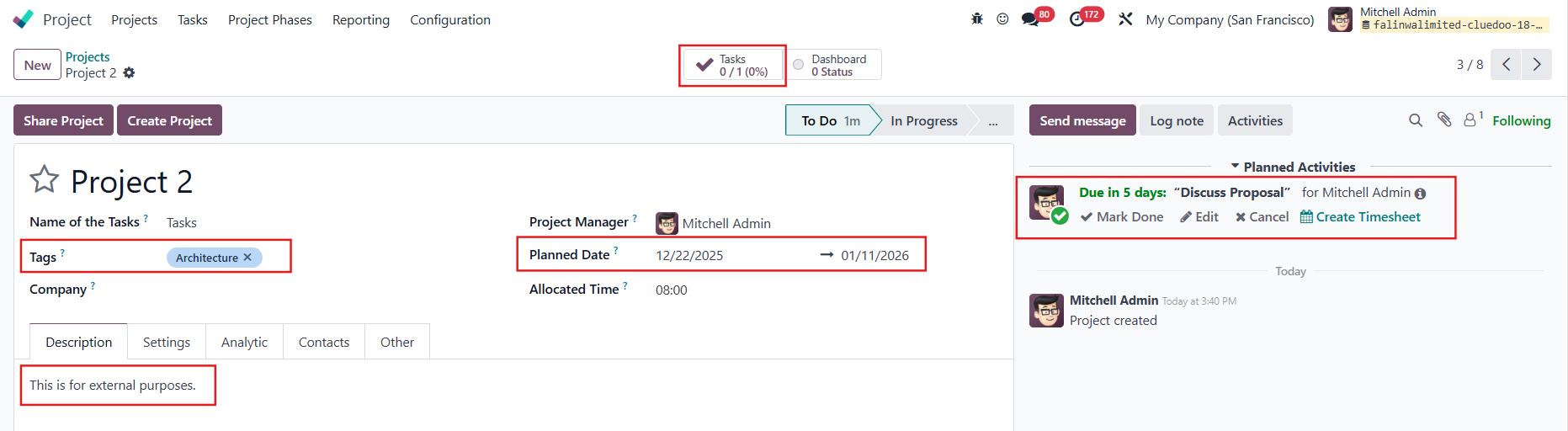
CREATE PROJECT FROM PROJECT TEMPLATEClick Create Project → All the information from the template will be propagated to the project The Planned Date (start date and end date) will be automatically set as per duration of the template. Under the Other tab, you can check which template the project is created from. |
|
You can also see the start date and end date of a project from the kanban view. |
|
LINK PROJECT TEMPLATE TO PROJECTGo to Projects → New to create a new project Under the Other tab, you can choose a template for the project and all the information from the template will be propagated. |
|
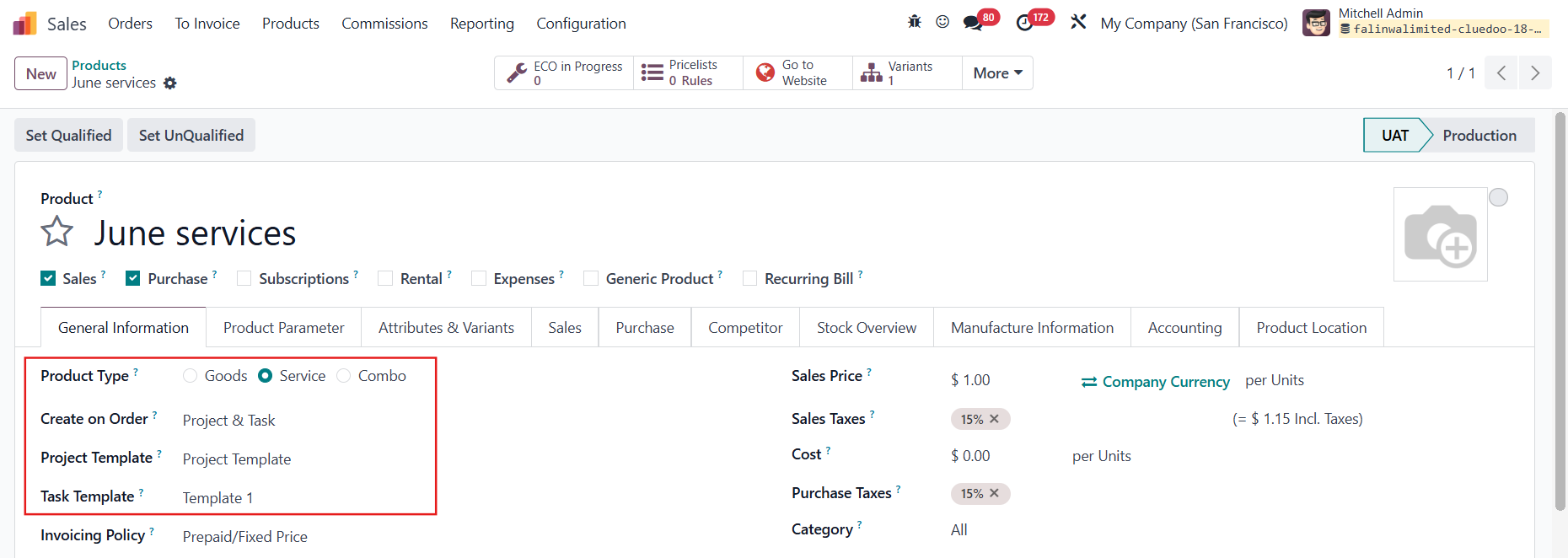
CREATE PROJECT FROM SALES ORDERSCreate a service product with project and task created on order, using the project template and task template that you set up before. |
|
Confirm the SO that contains the service product | 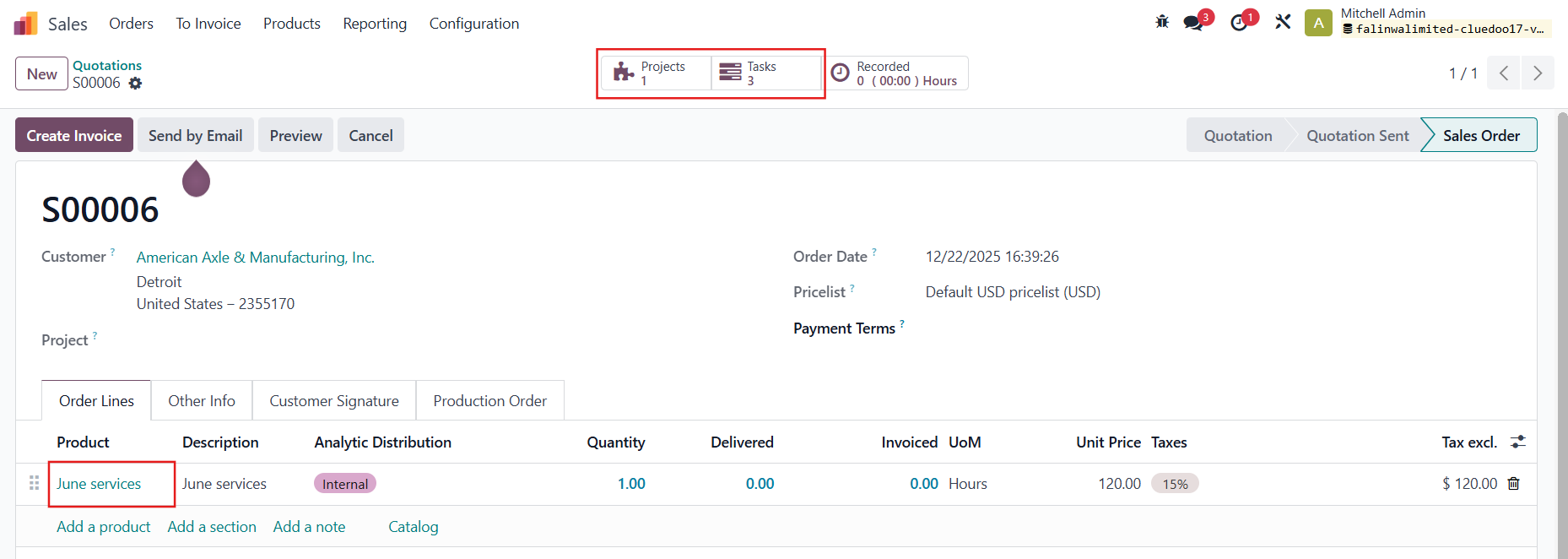 |
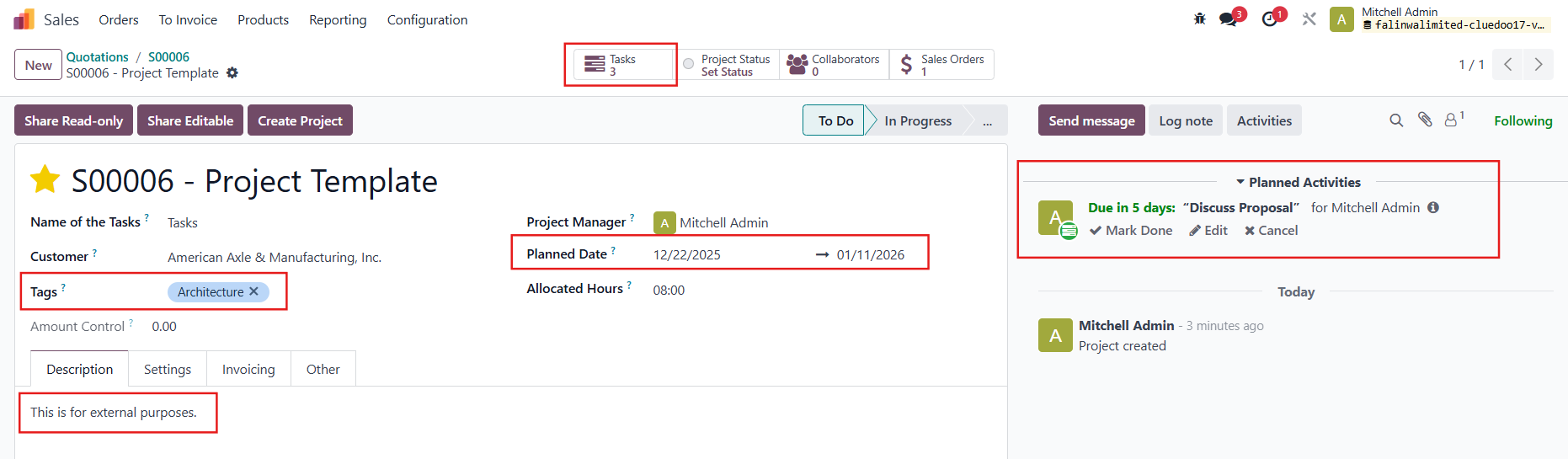
A new project and a new task (with its sub-tasks if any) will be created with the information set as per the templates. |
|
UPDATE FROM ODOO 19TASK TEMPLATES | |