



ODOO'S FUNCTION
In Odoo, certain advanced functionalities, particularly in Manufacturing Resource Planning (MRP) and Product Lifecycle Management (PLM), are not natively available in Odoo’s standard, which means users cannot set advanced product parameter management, BoM status tracking, flexible version labeling, batched ECO handling, serial number management, automated quality checks, and document synchronizatio
CLUEDOO'S FUNCTION
CLuedoo introduces fal_mrp_plm_version_letter designed to streamline user management and enhance efficiency by enabling flexible version labeling with numbers or letters in Settings.
1 Go to Settings > Choose the version of BOM/ Product/ Serial Number as a number/ letter | 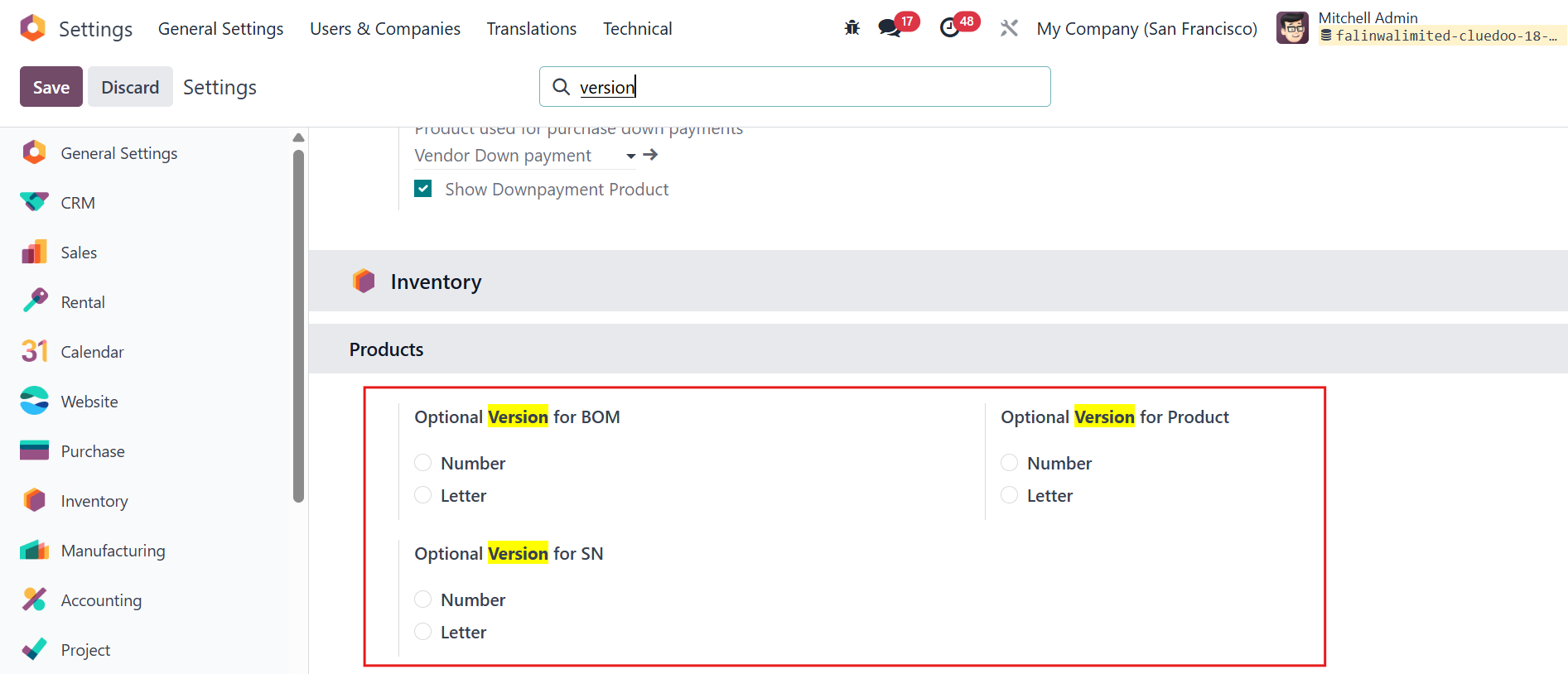 |
2 Go to Products > Access a specific product > Can see that the Product Version displays according to the selected option in Settings | 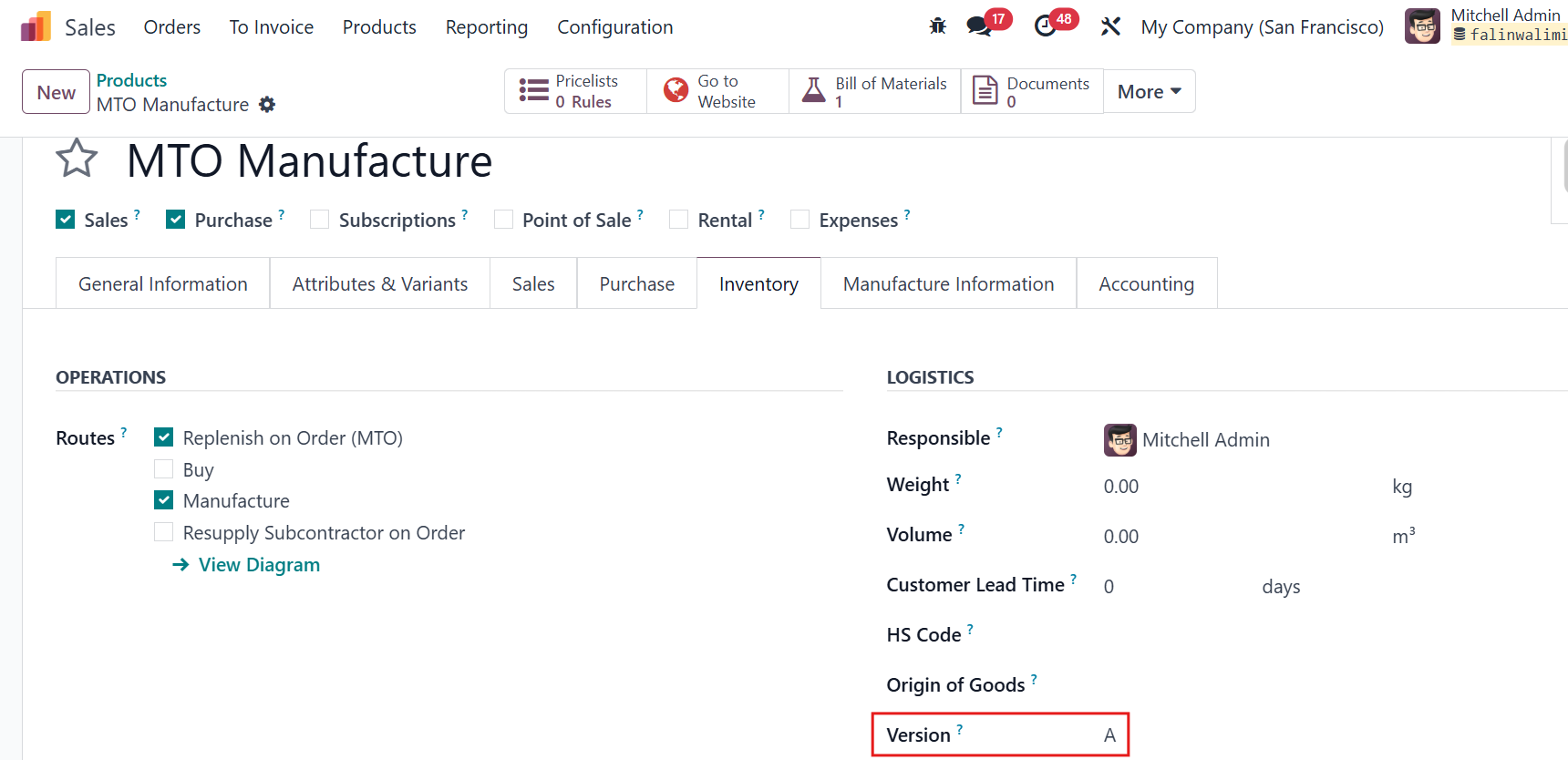 |
3 Go to Inventory > Lot/ Serial Numbers > Access an existing one > This module adds 3 fields:
> They show corresponding to
the selected option in Settings and are recorded the Version at the time the lot/ serial number is created EX: Product: MTO Manufacture At the time the Serial Number: 000353-TEST is created from Lot/ Serial Numbers Menu or Receipt or Manufacturing, its Product Version and BOM Version are A and 2 respectively => They show A and 2 on this Serial Number form | 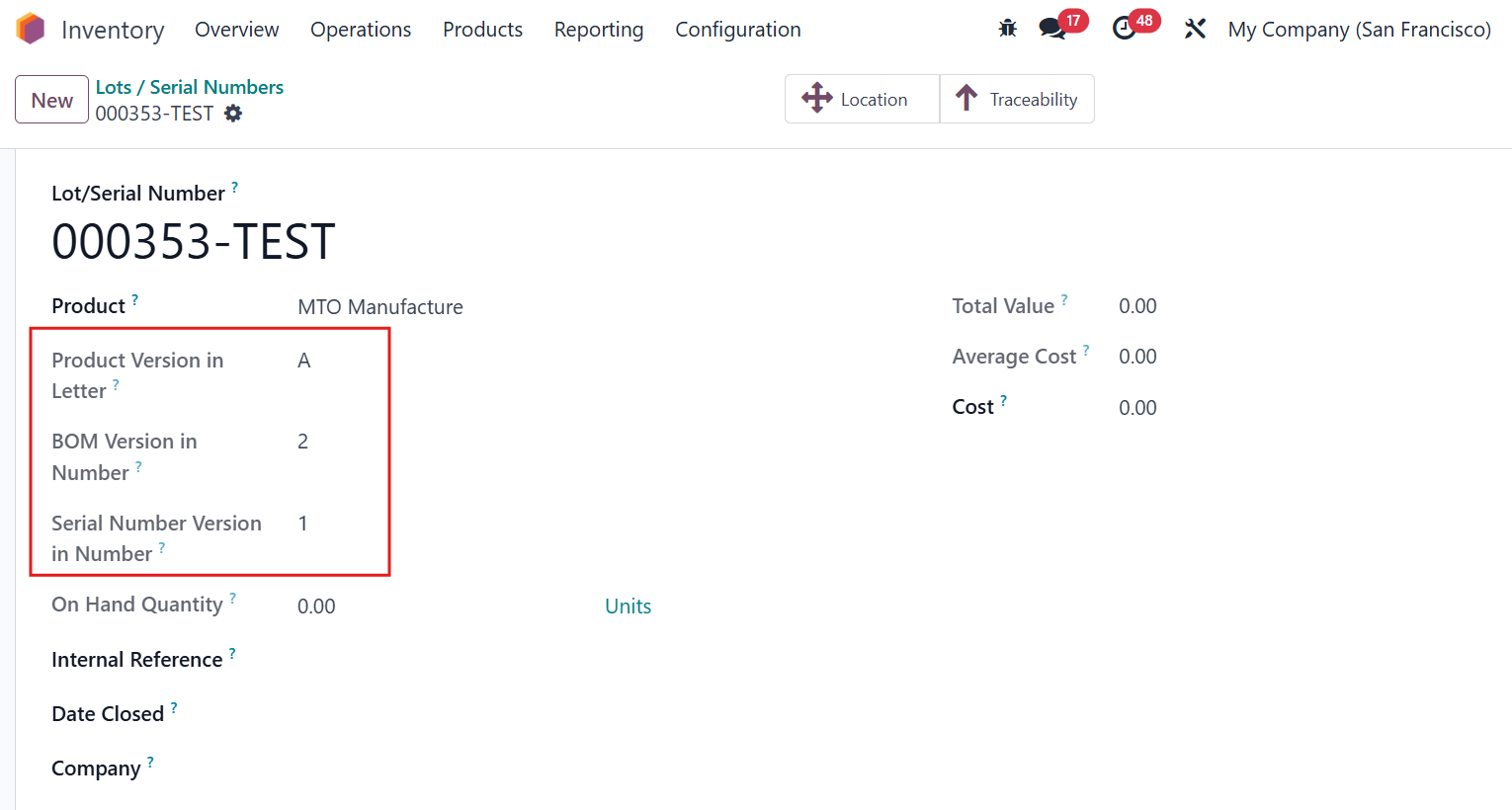 |
4 Go to Manufacture Orders > Access an existing order/ Create a new one > This module adds 2 fields on the Manufacture Order form:
> They show corresponding to
the selected option in Settings and display the Version at the time the Manufacture Order is created | 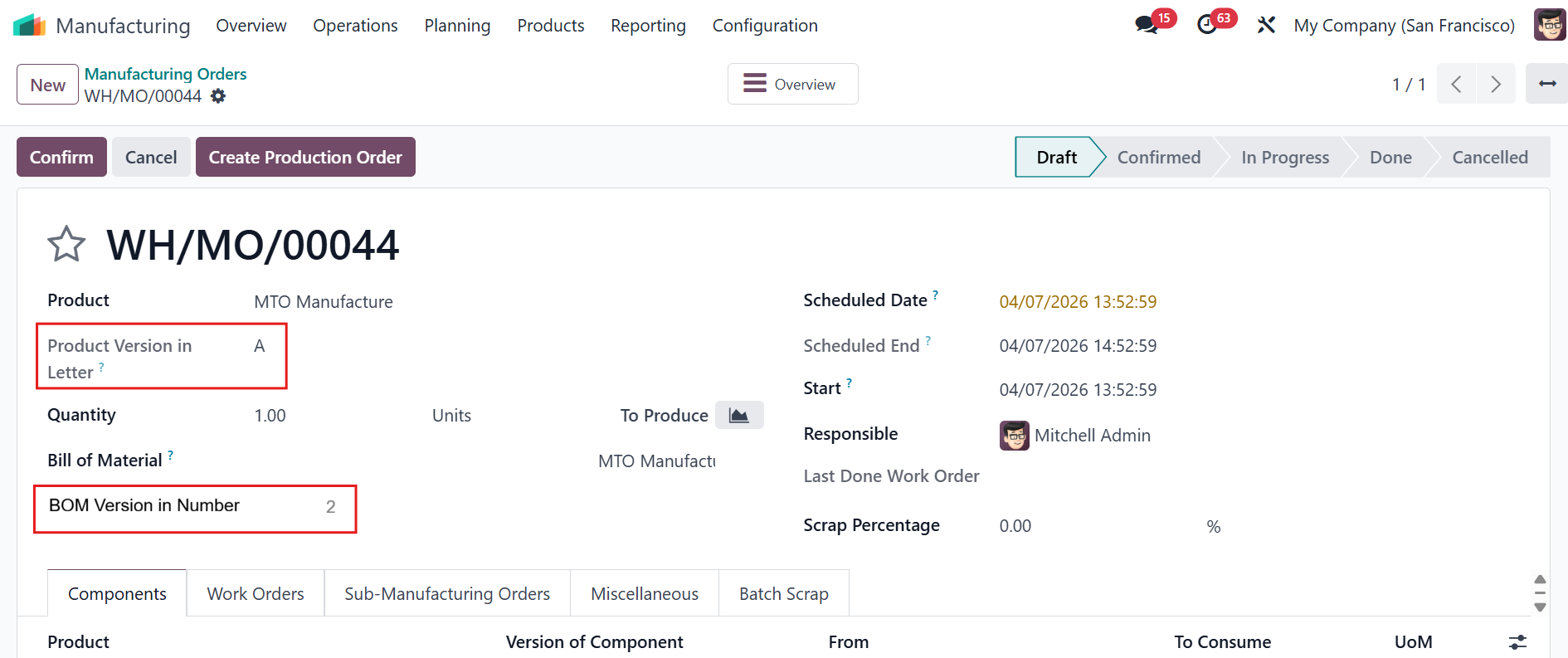 |
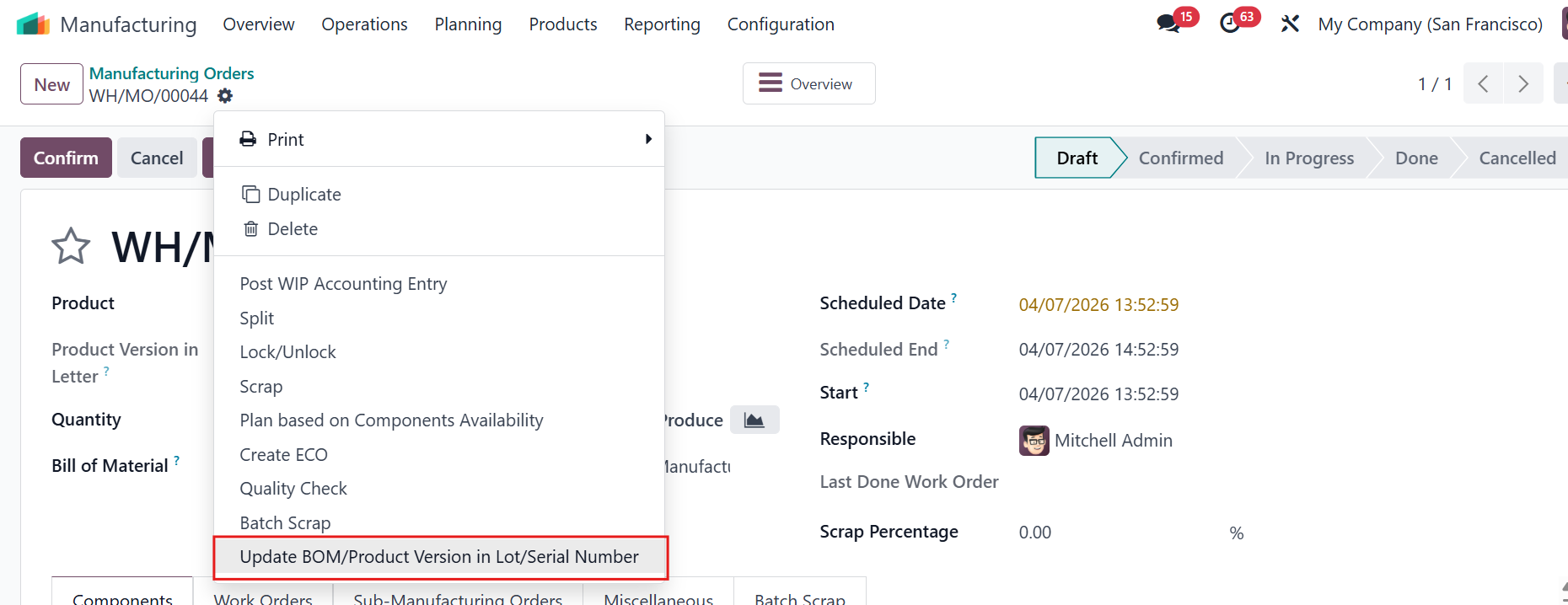
4.1 In the case that we manufacture a product tracked by Lot/Serial Number & the Lot/Serial Number is generated after updating the Product Version and BOM Version via ECO > Then, we want to revert these versions to the value at the time the Manufacturing Order was created > To handle this, we use the Update Version of BOM and Product Server Action on the Manufacture Order
|  |
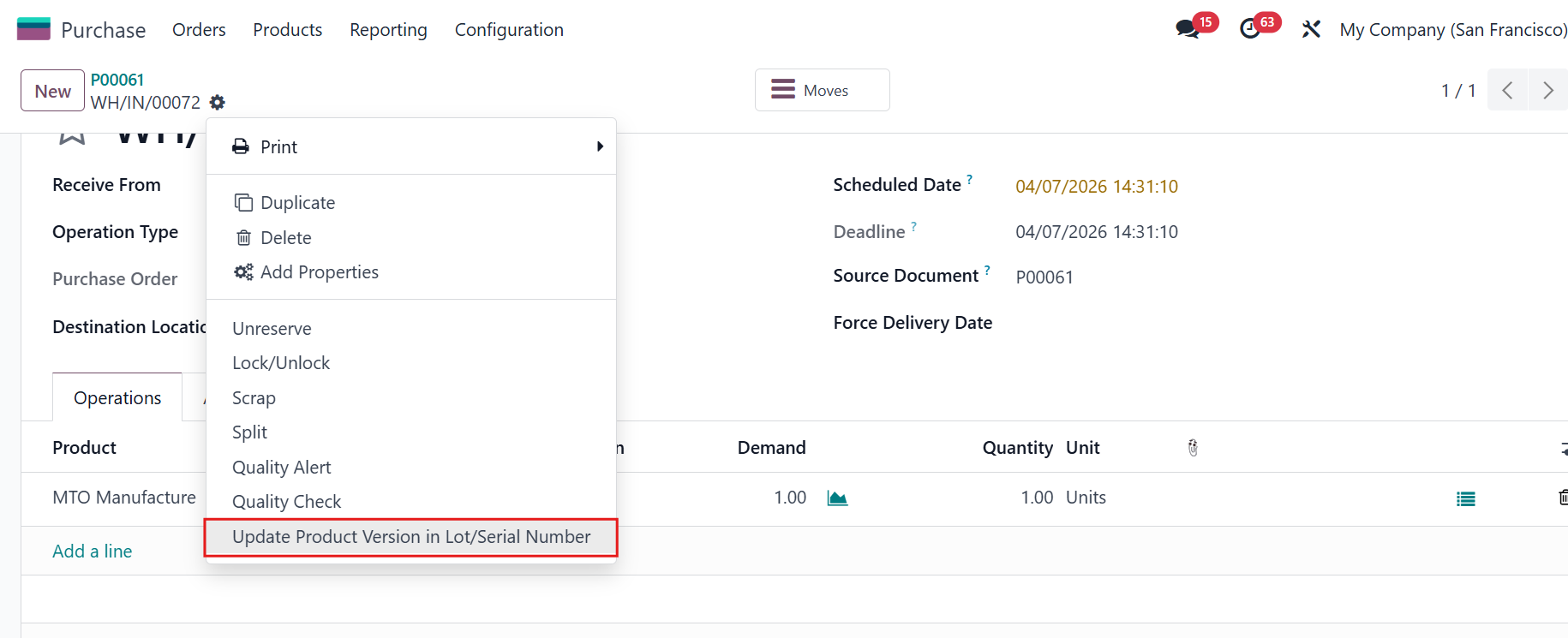
5 In the case that we purchase a product tracked by Lot/Serial Number & the Lot/Serial Number is generated on the Receipt after updating the Product Version via ECO > Then, we want to revert this version to the value at the time the Purchase Order was created > To handle this, we use the Update Version of Product Server Action on the Receipt EX:
|  |