ODOO'S FUNCTION
In Odoo, while a Manufacturing Order (MO) creates a specific transfer to pick components, the system is generally more flexible (and prone to human error). If workers manually edit consumed quantities, they can accidentally consume components sitting in the pre-production location that were intended for a different MO.
CLUEDOO'S FUNCTION
CLuedoo introduces a strict Dedicated Reservation setting configured directly on the Operation Type
1️⃣ Dedicated Reservation: When a Manufacturing Order (MO) generates a transfer under this dedicated Operation Type, the system automatically locks the components in that transfer exclusively to the origin MO. Other MOs are mathematically blocked from reserving or stealing from this specific move.
2️⃣ Validation Guardrails: If a worker attempts to manually process or change component quantities on the MO before the dedicated warehouse transfer is actually "Done," the system triggers a warning, preventing them from accidentally stealing stock reserved for other orders.
2️⃣ Strict Check by Lot (New): Beyond simple quantity locking, CLuedoo now evaluates the exact Lot/Serial Numbers. When a specific lot is designated for an MO, the module ensures that only that exact lot can be consumed. If a user attempts to manually bypass the warehouse transfer by typing or picking a different, unreserved lot number directly inside the MO's component list, the system blocks the action and enforces strict lot consistency.
1. Go to Inventory > Configuration > Warehouse Management > Warehouses Configure the Manufacture route to 2 or 3 steps | 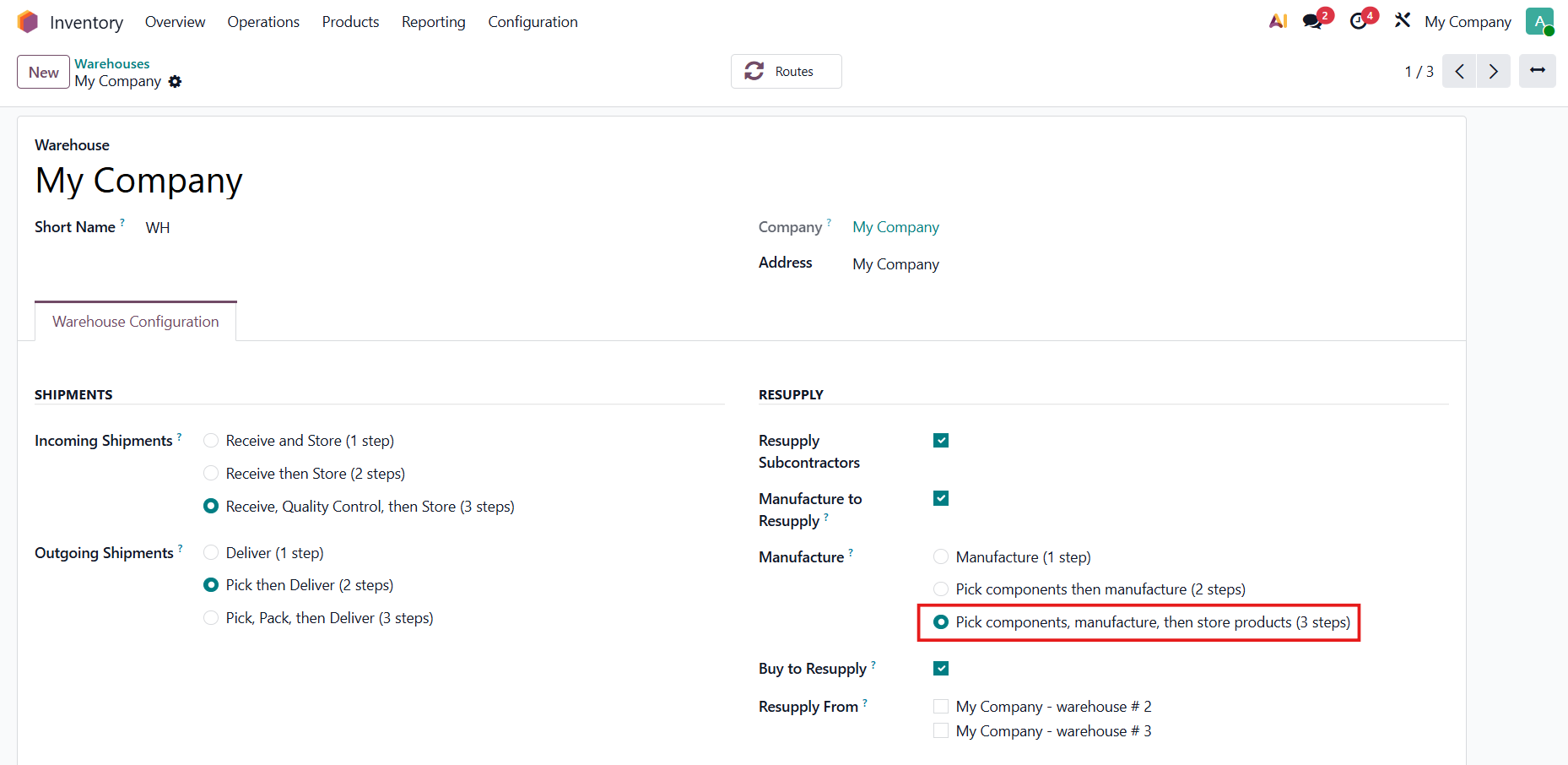 |
2. Choose an Operation Type and check Dedicated Reservation e.g., Manufacturing | 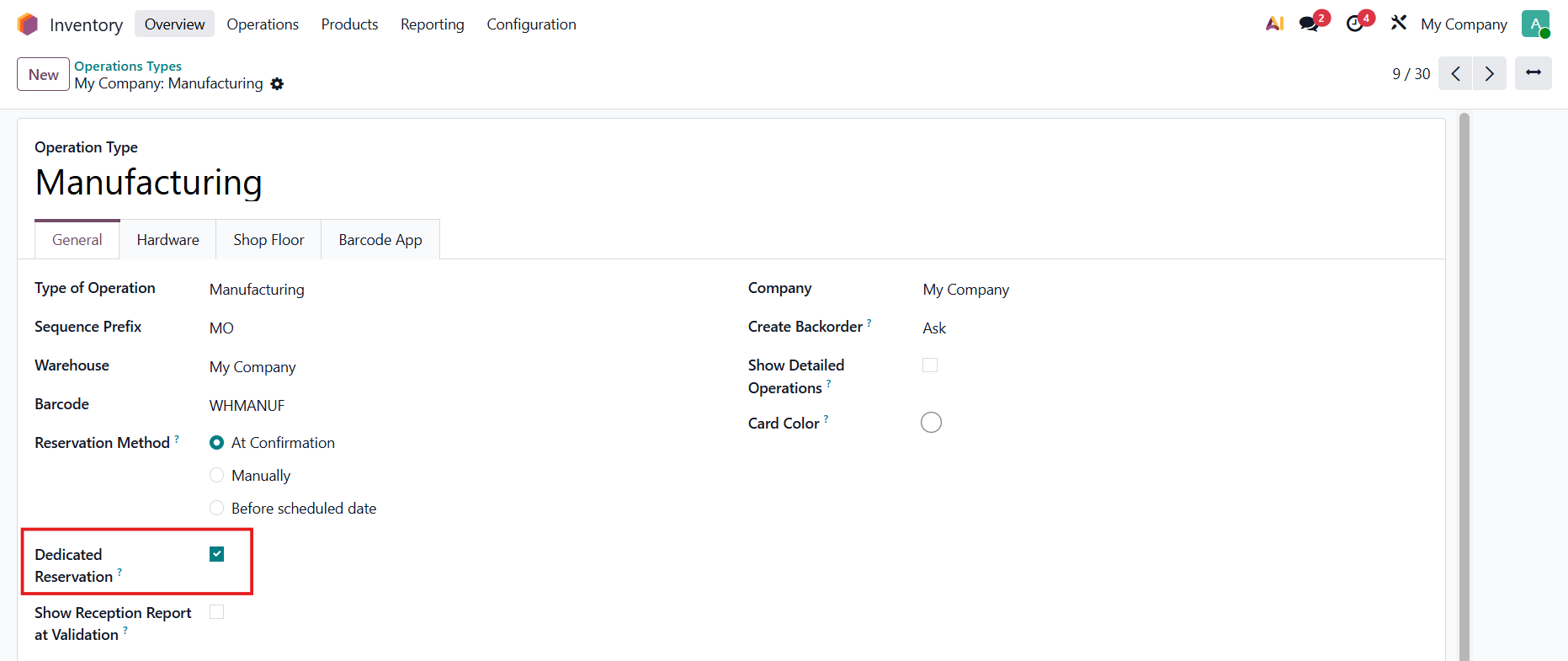 |
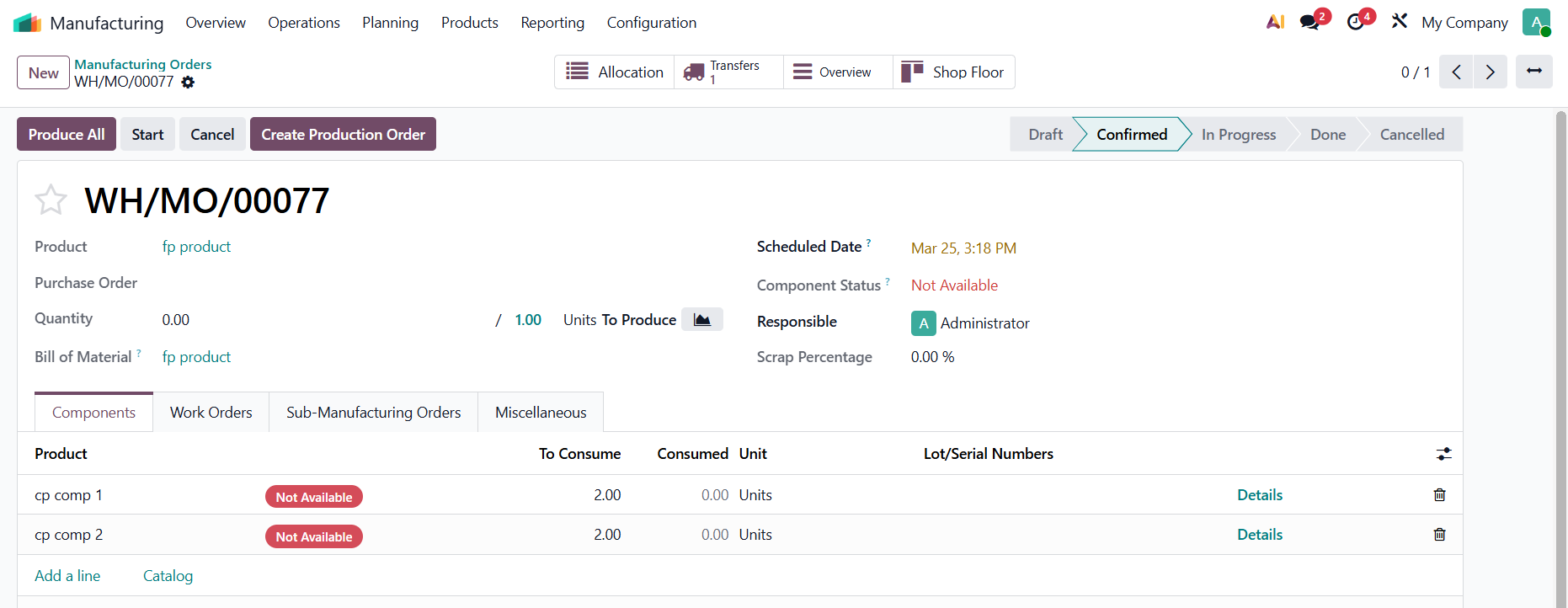
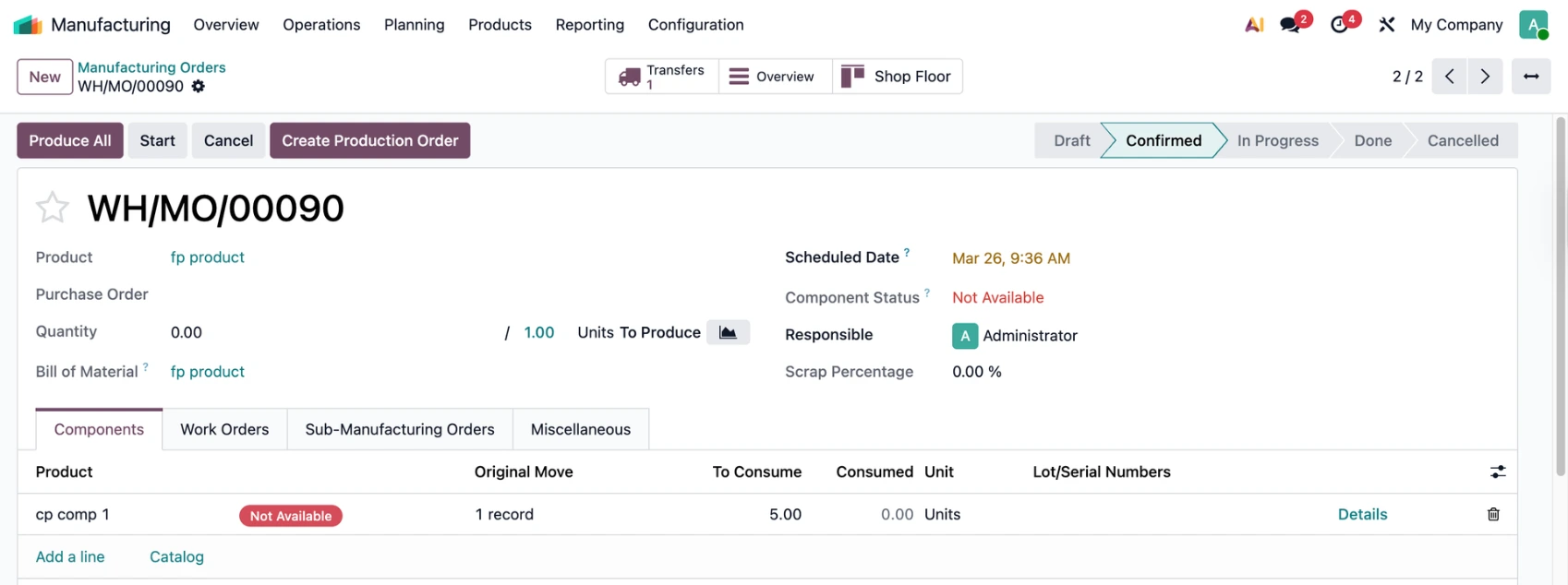
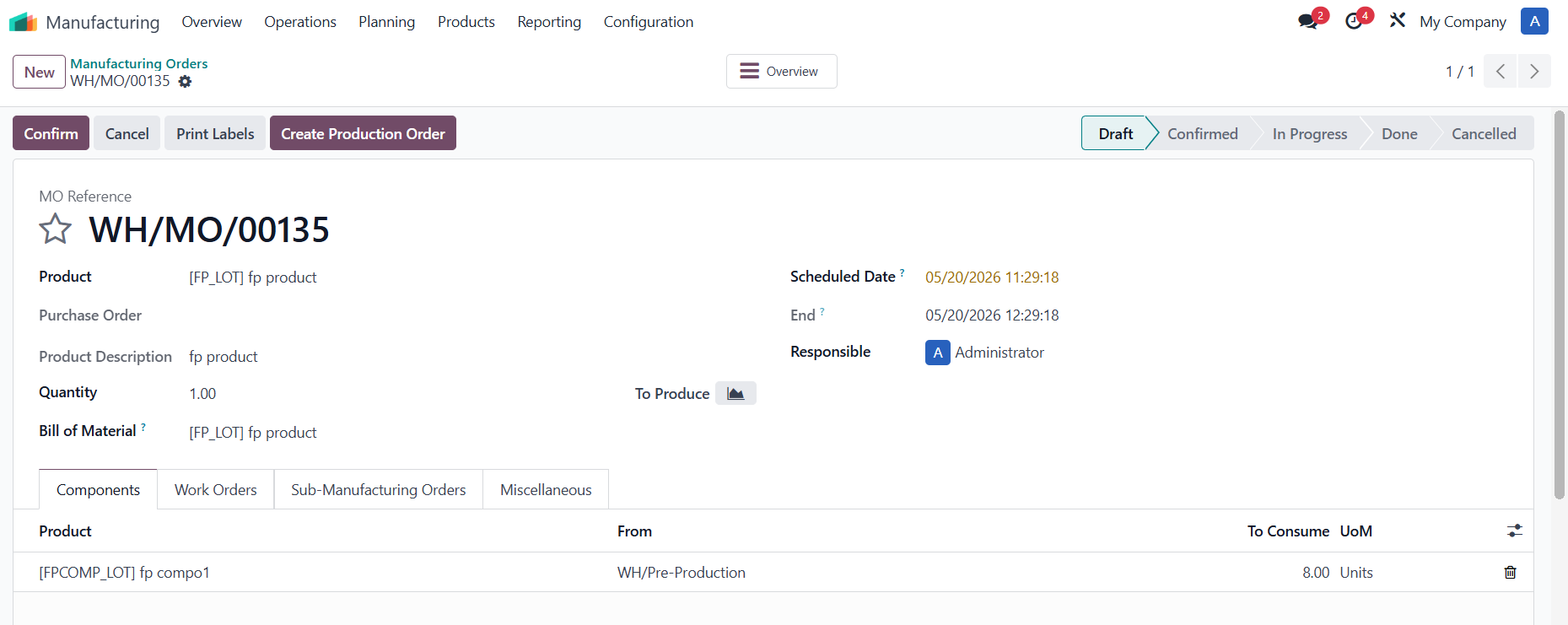
CASE 1: SCRAP (MOVE OUT)3. Create a Manufacturing Order > Choose a product > Confirm | 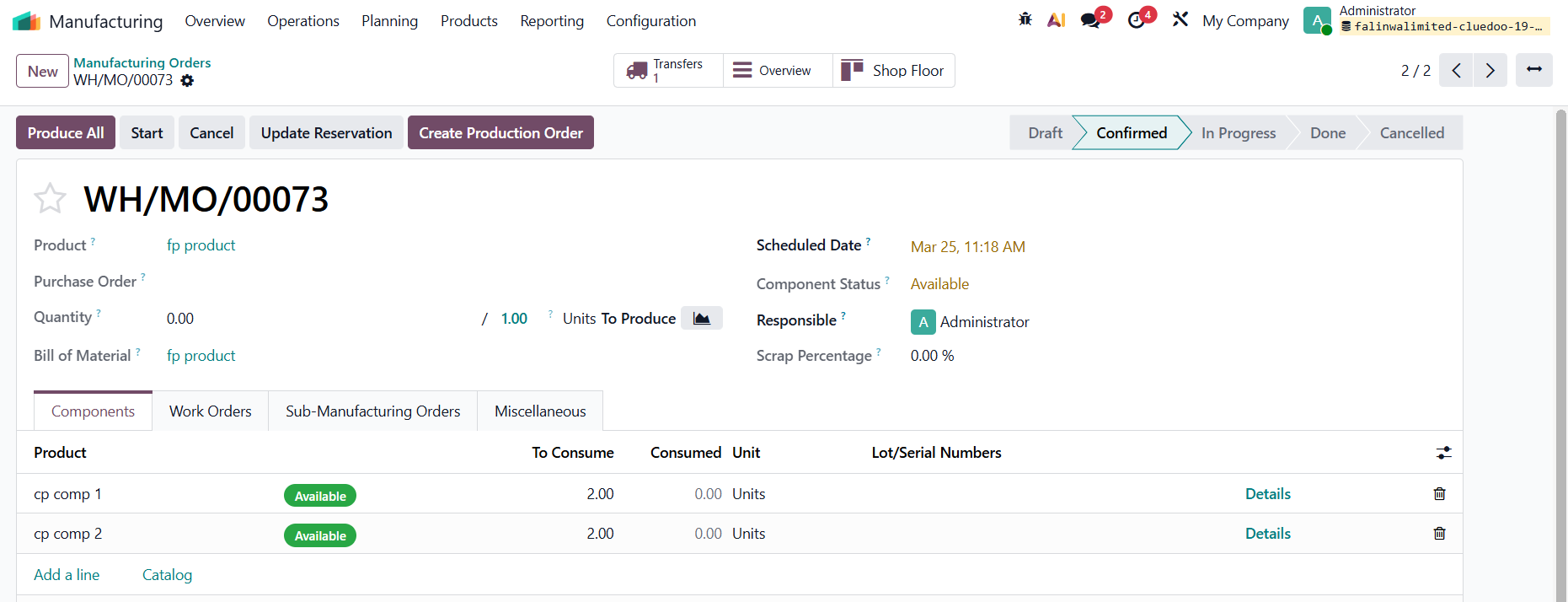 |
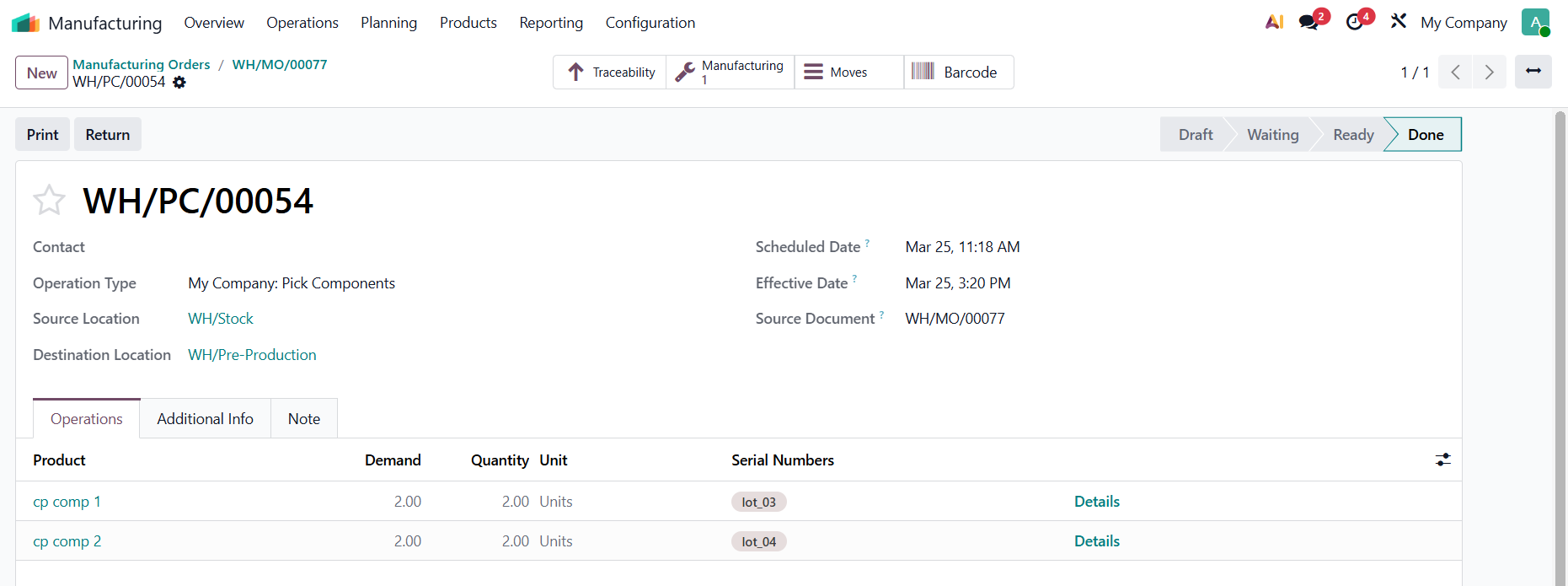
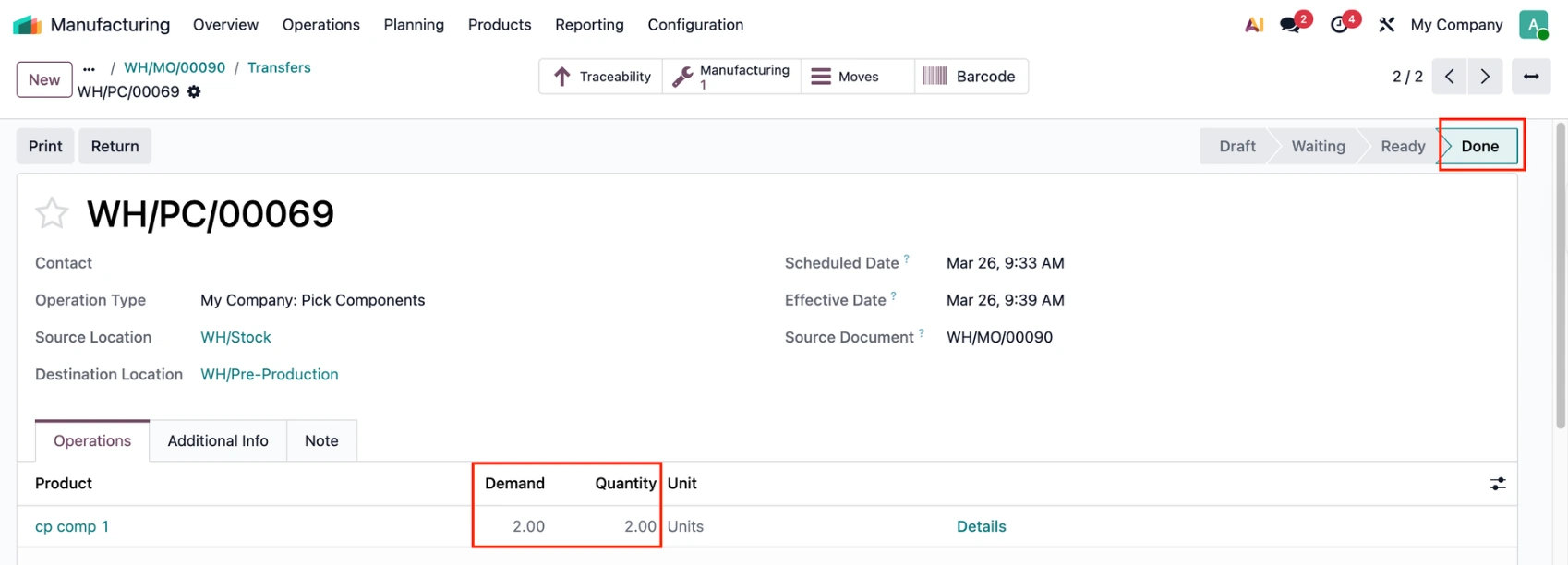
4. Go to the transfer > Assign lot/SN for the component(s) > Validate | 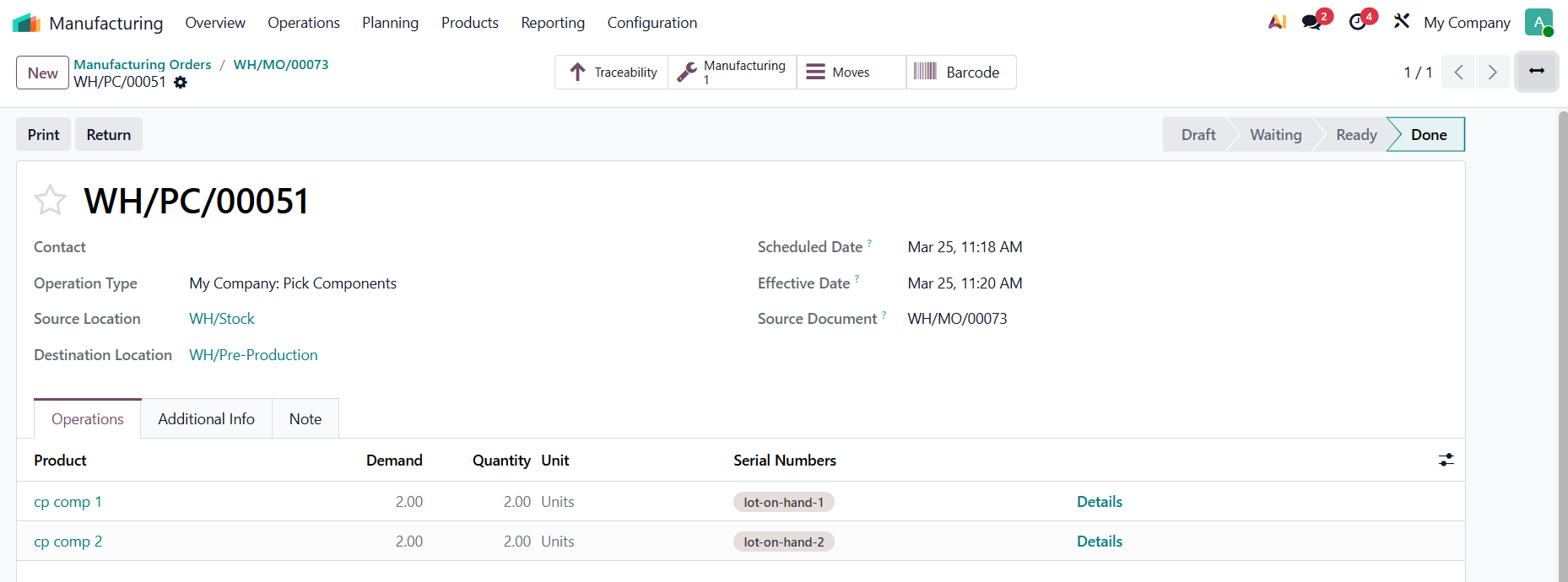 |
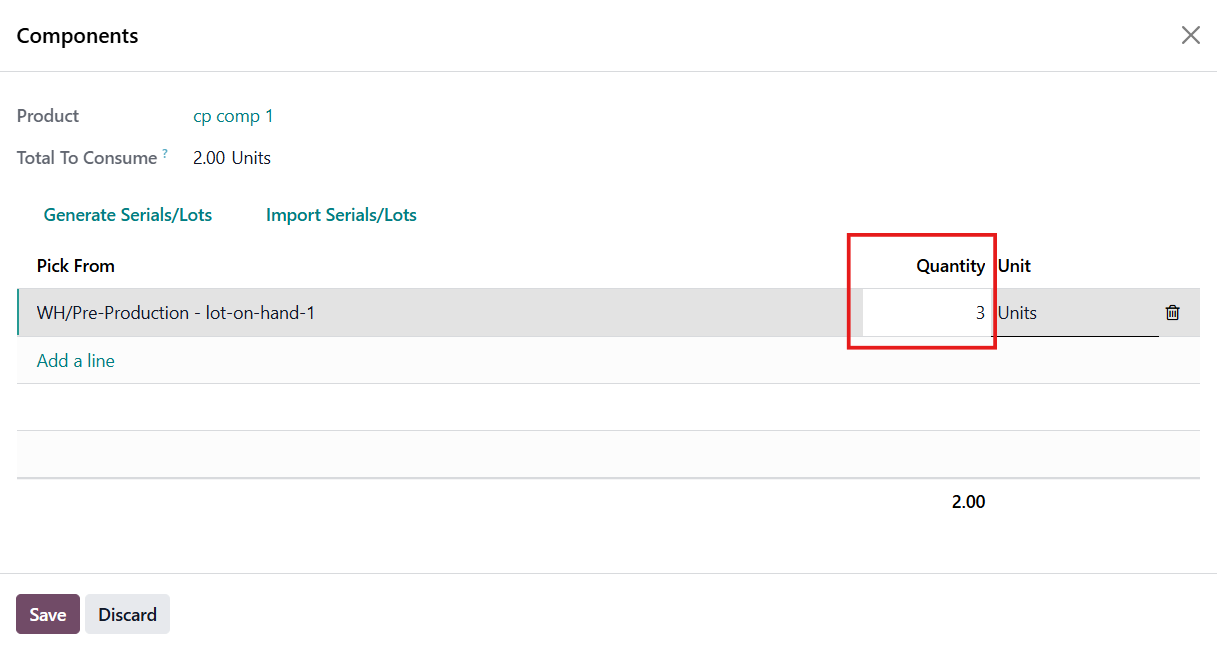
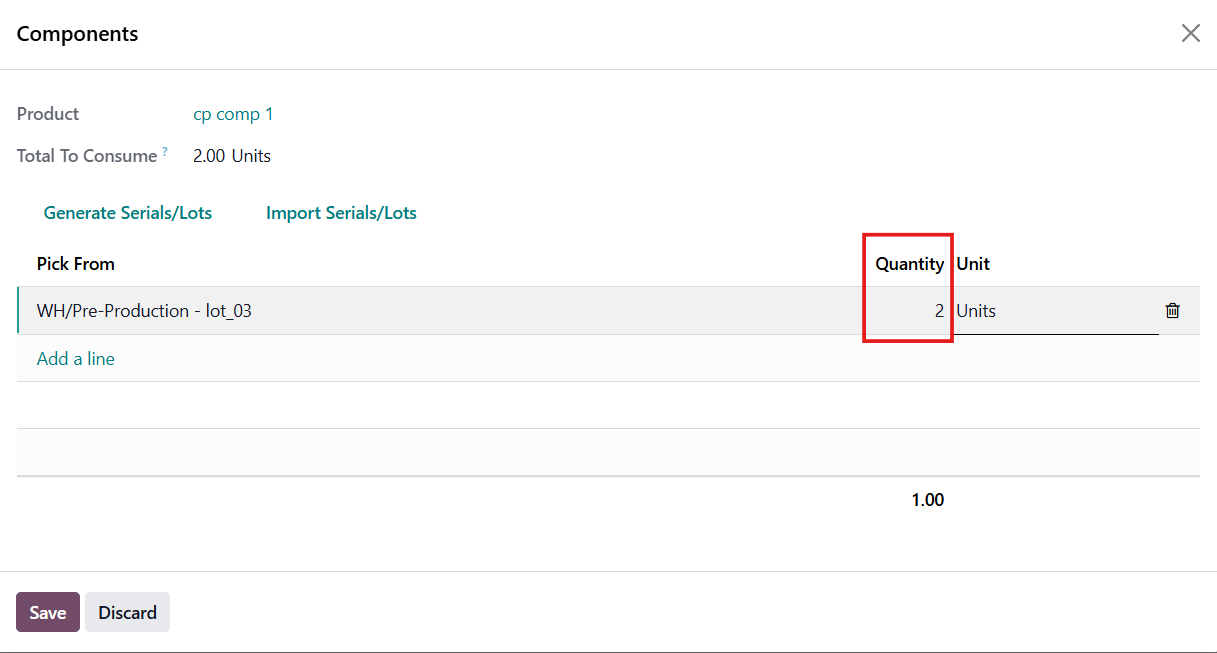
5. Go back to the MO > Scrap a component with your desired quantity > Scrap Products e.g., Consumed quantity on MOL is 2, but I scrap 1 > Dedicated quantity is 1 only. | 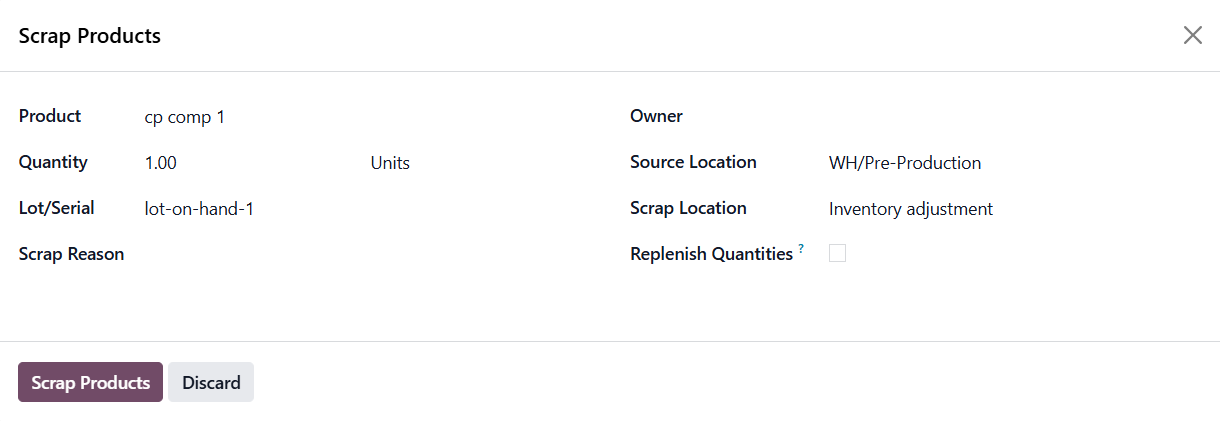 |
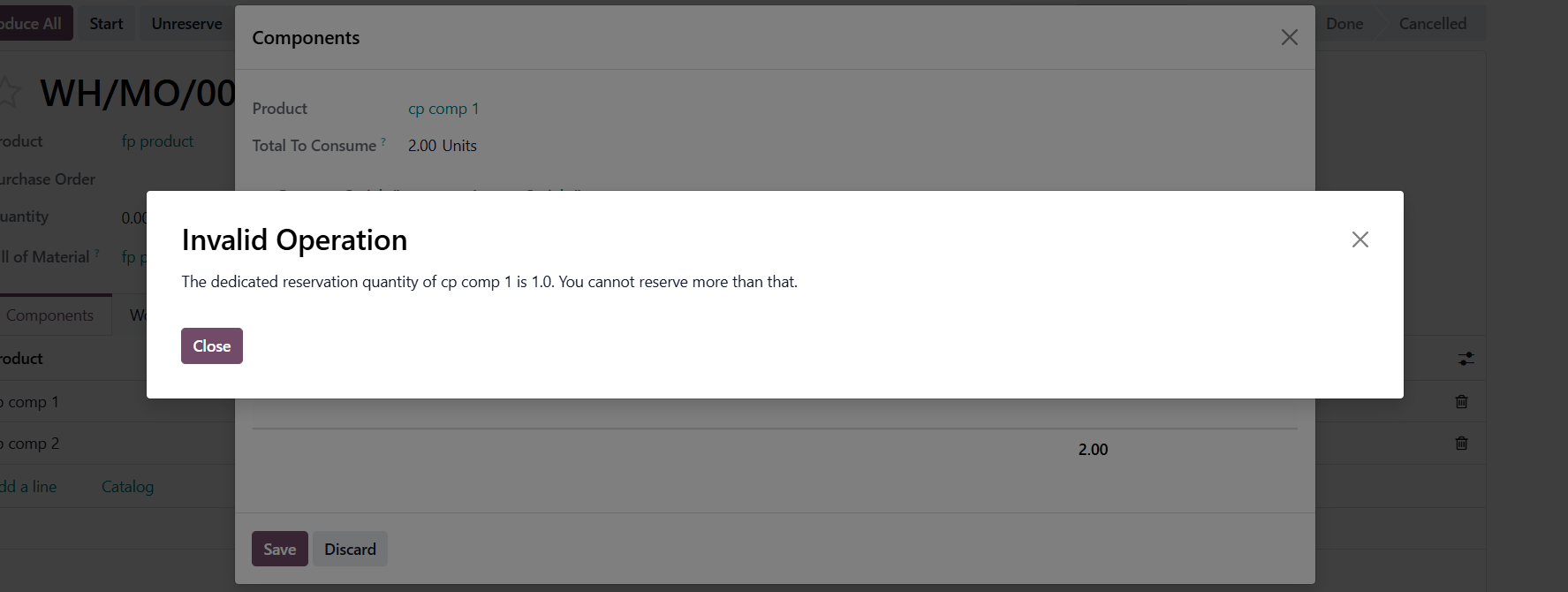
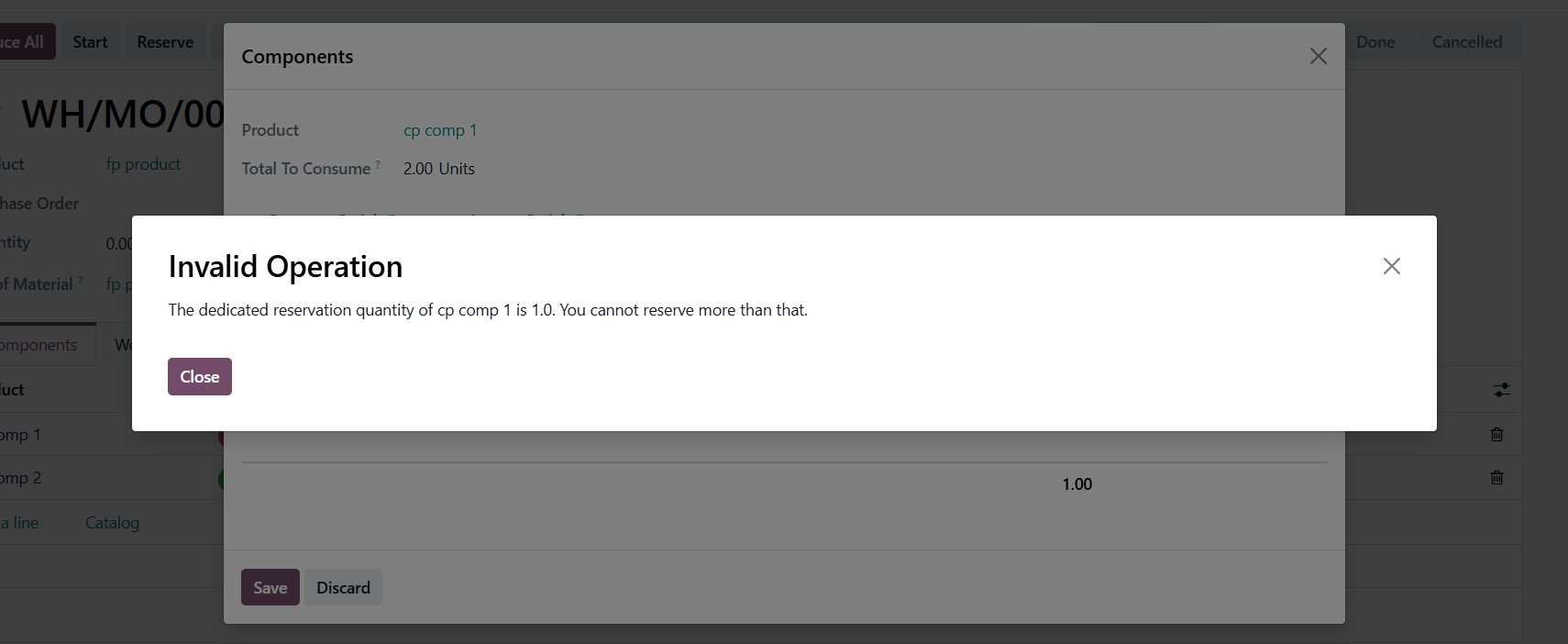
If you try to reserve this component with more than 1 quantity |
|
A warning will show up. |
|
CASE 2: RETURN1. Create a Manufacturing Order > Choose a product > Confirm |
|
4. Go to the transfer > Assign lot/SN for the component(s) > Validate |
|
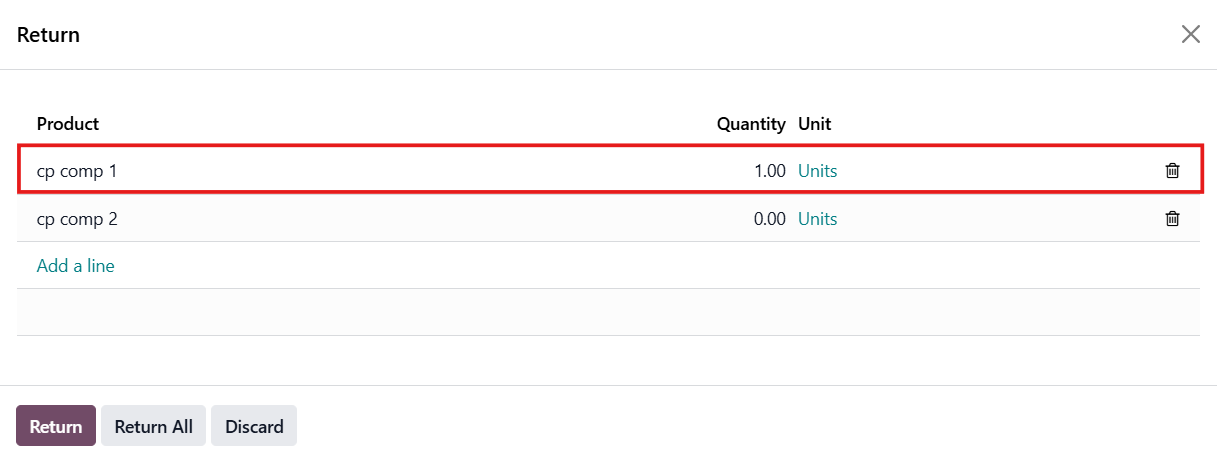
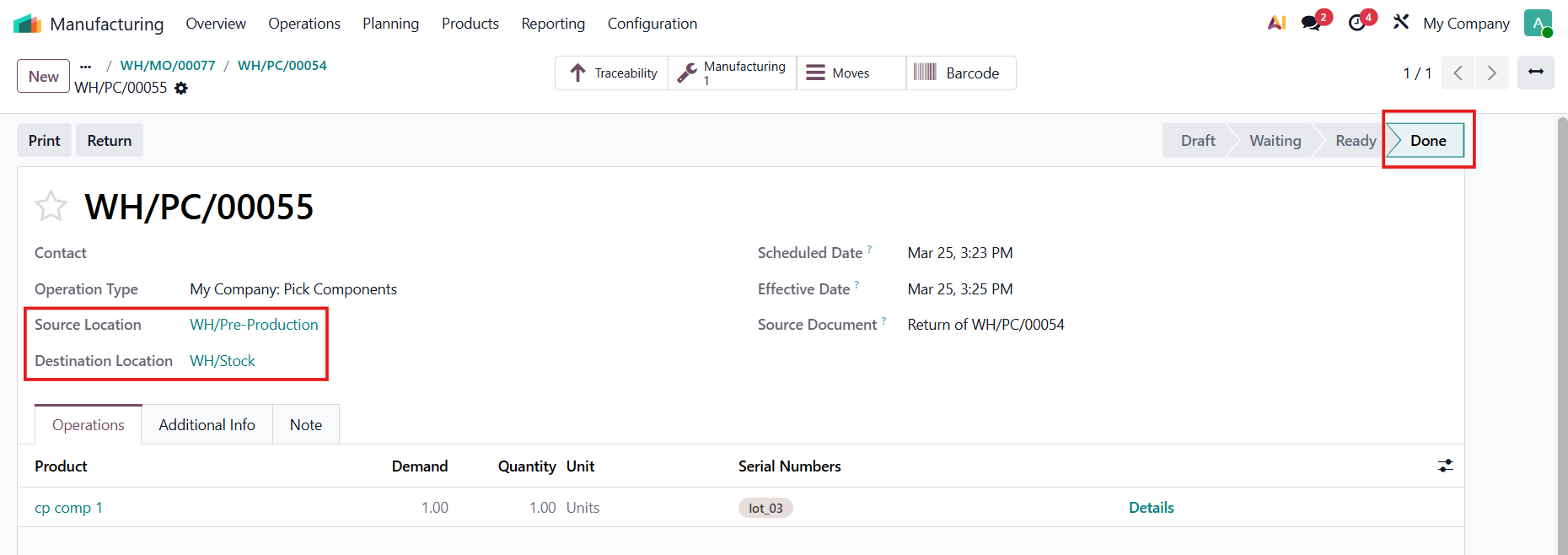
3. Return a component with your desired quantity e.g., I validated 2 quantities, I return 1 cp comp 1 > Dedicated reservation is 1 only. Validate the return transfer |
|
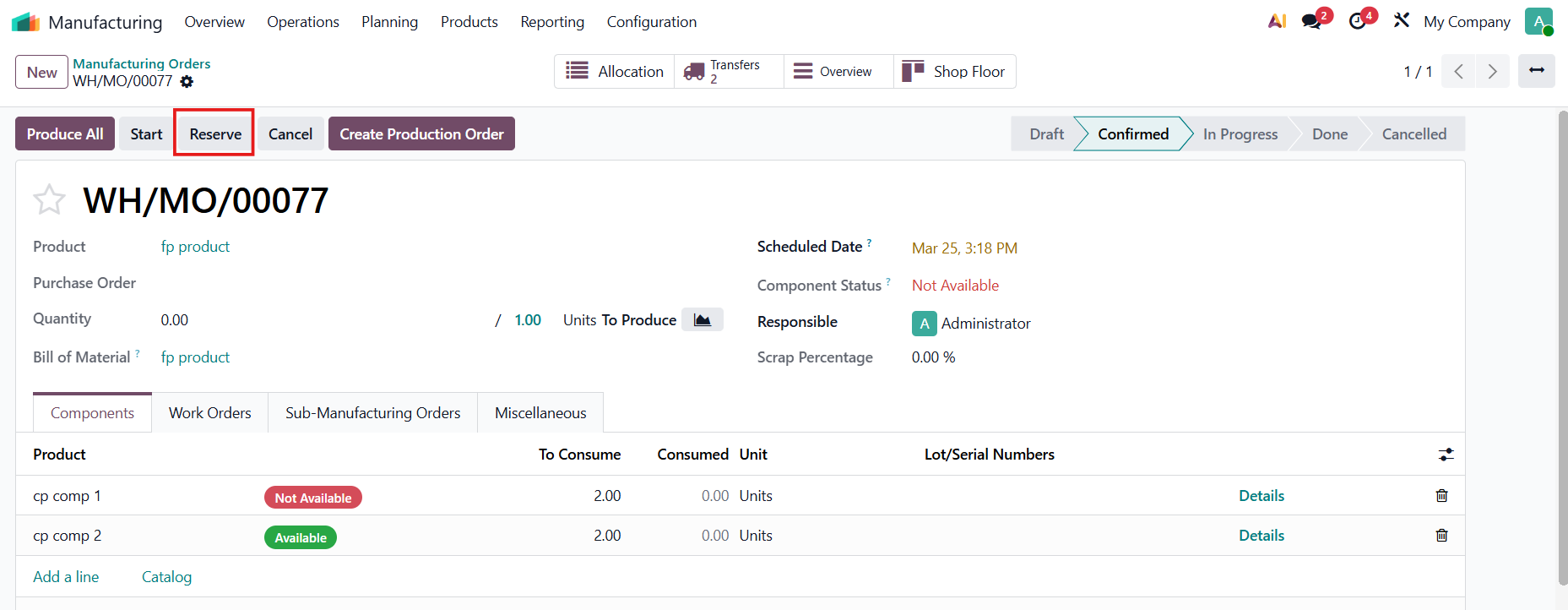
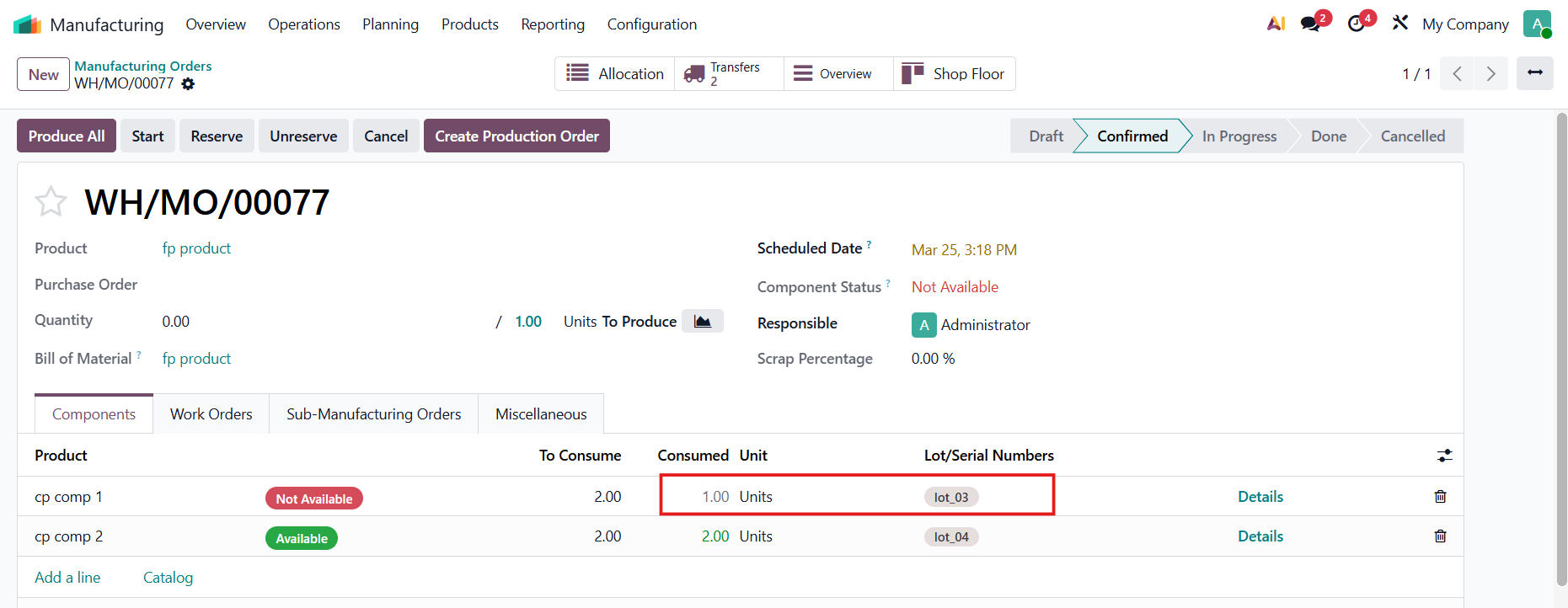
4. Go back to the MO > Click Reserve |
|
Only 1 is consumed on the MOL |
|
5. If you try to reserve more than the consumed quantity |
|
A warning will show up. |
|
CASE 3: MOVE IN1. Create a Manufacturing Order > Choose a product > Confirm |
|
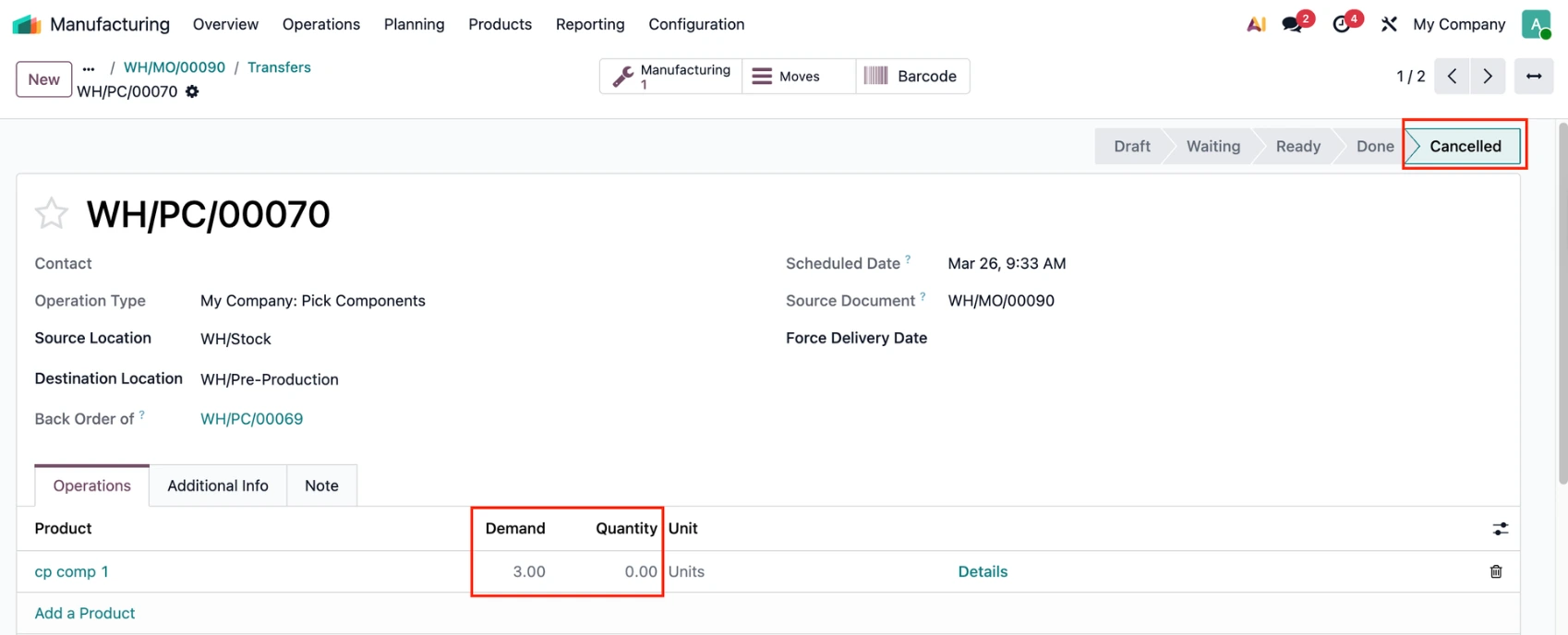
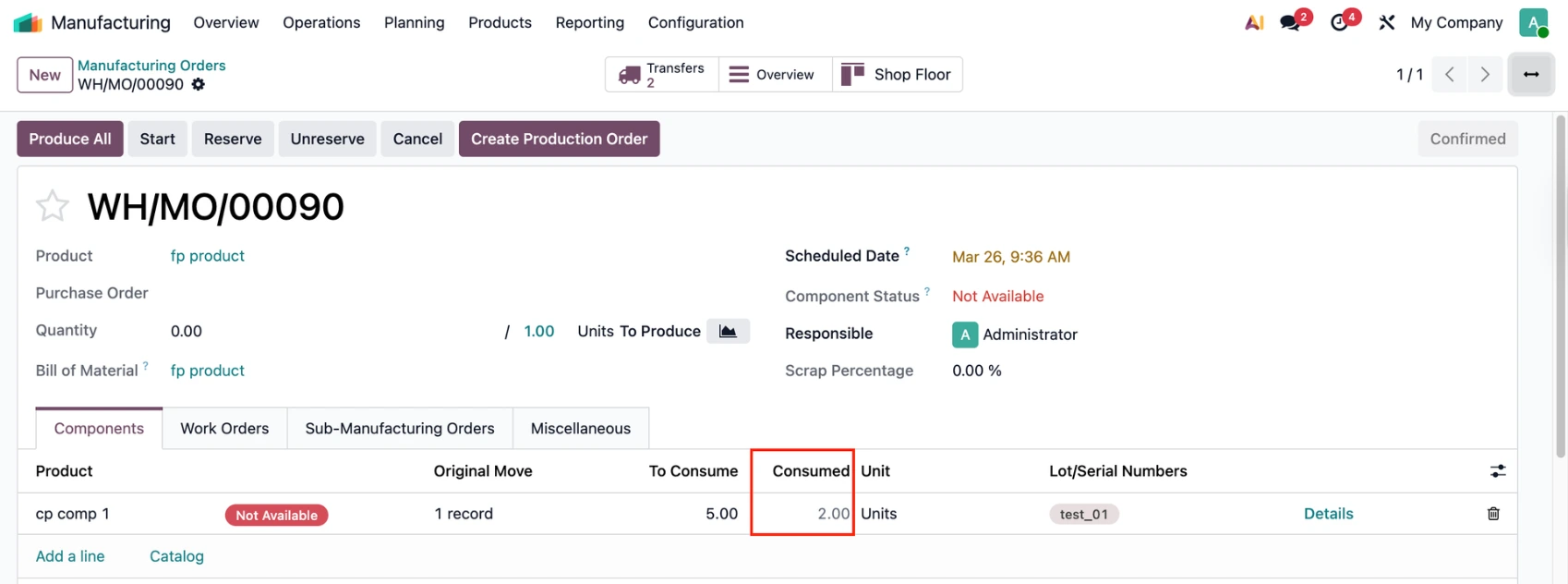
2. In case you have 1 validated transfer and 1 cancelled |
|
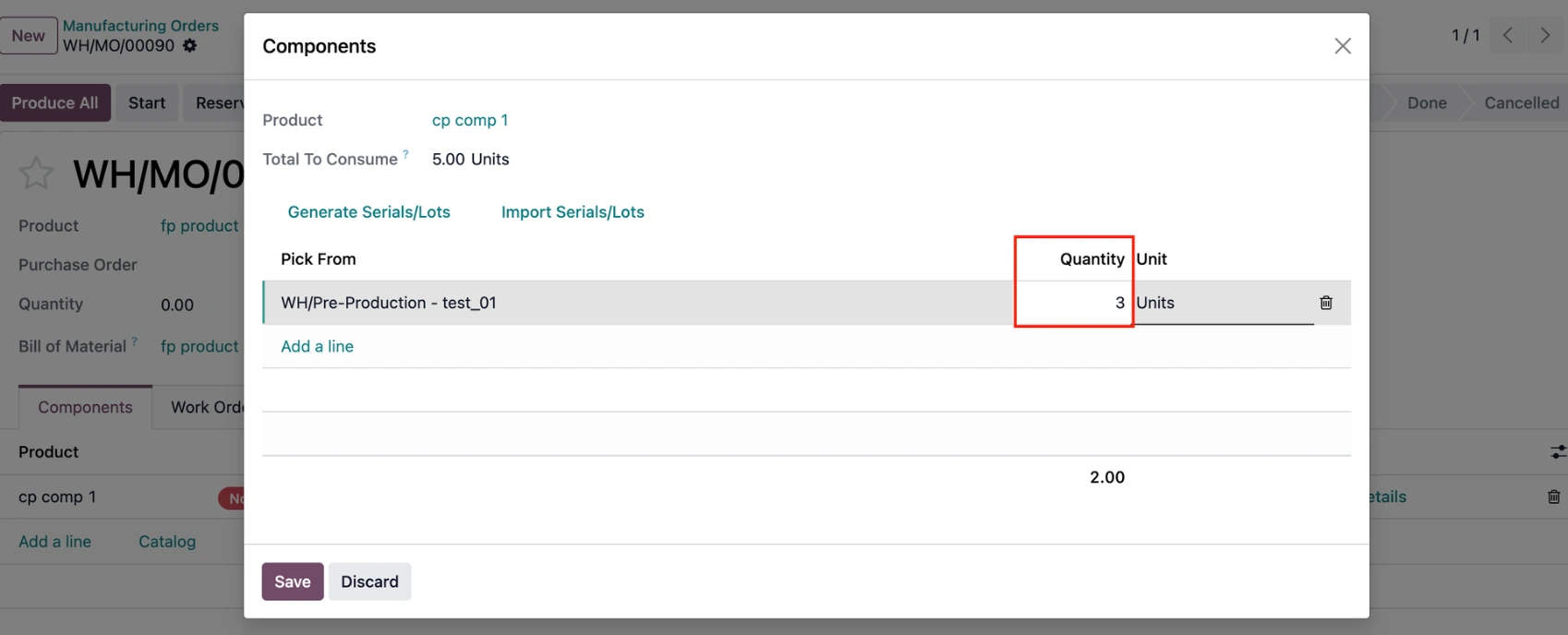
If you try to reserve more than the consumed quantity |
|
A warning will show up. |
|
CASE 4: PARTIAL TRANSFER1. Create a Manufacturing Order > Choose a product > Confirm |
|
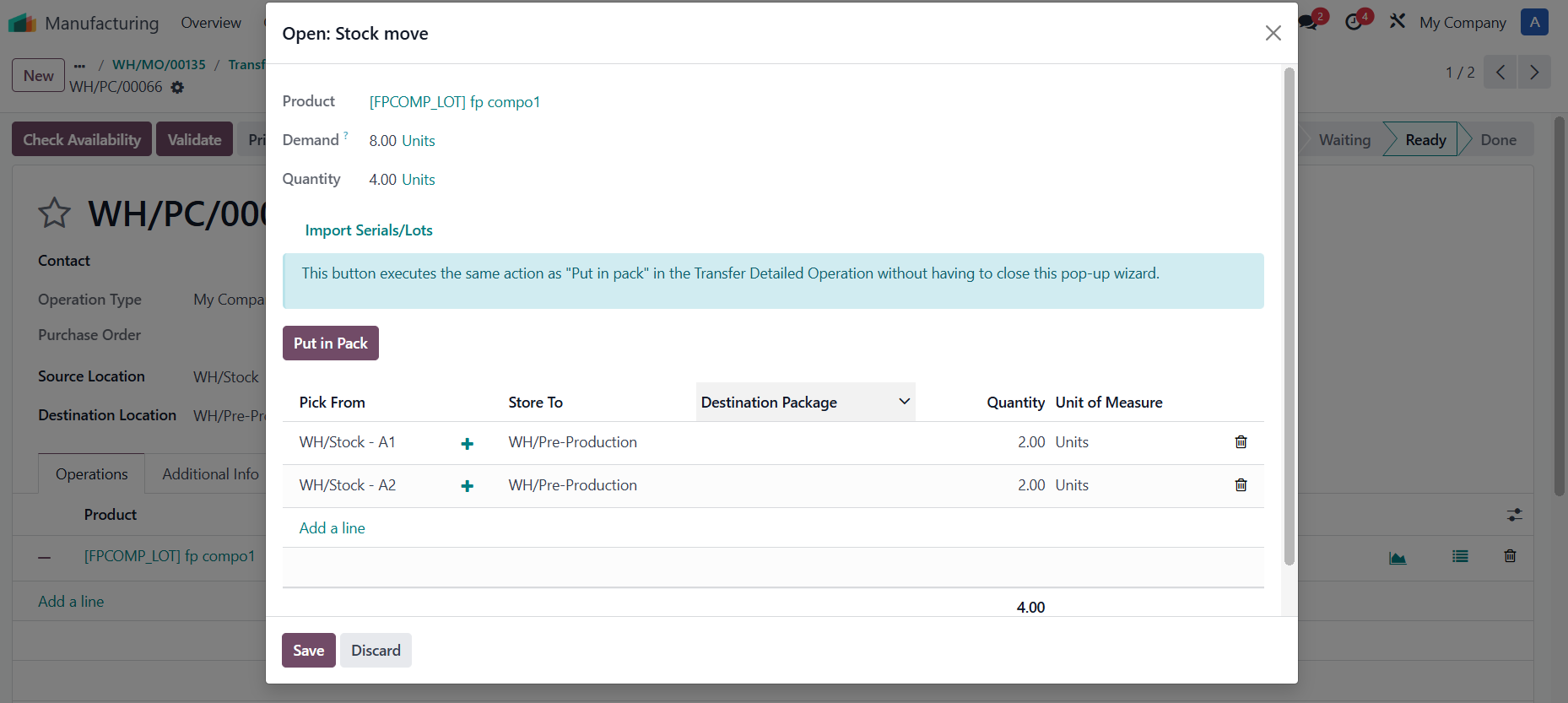
2. In case you have 2 transfer. The first transfer: we take less than the total picking that we need => Validate => Create a Backorder.
|
|
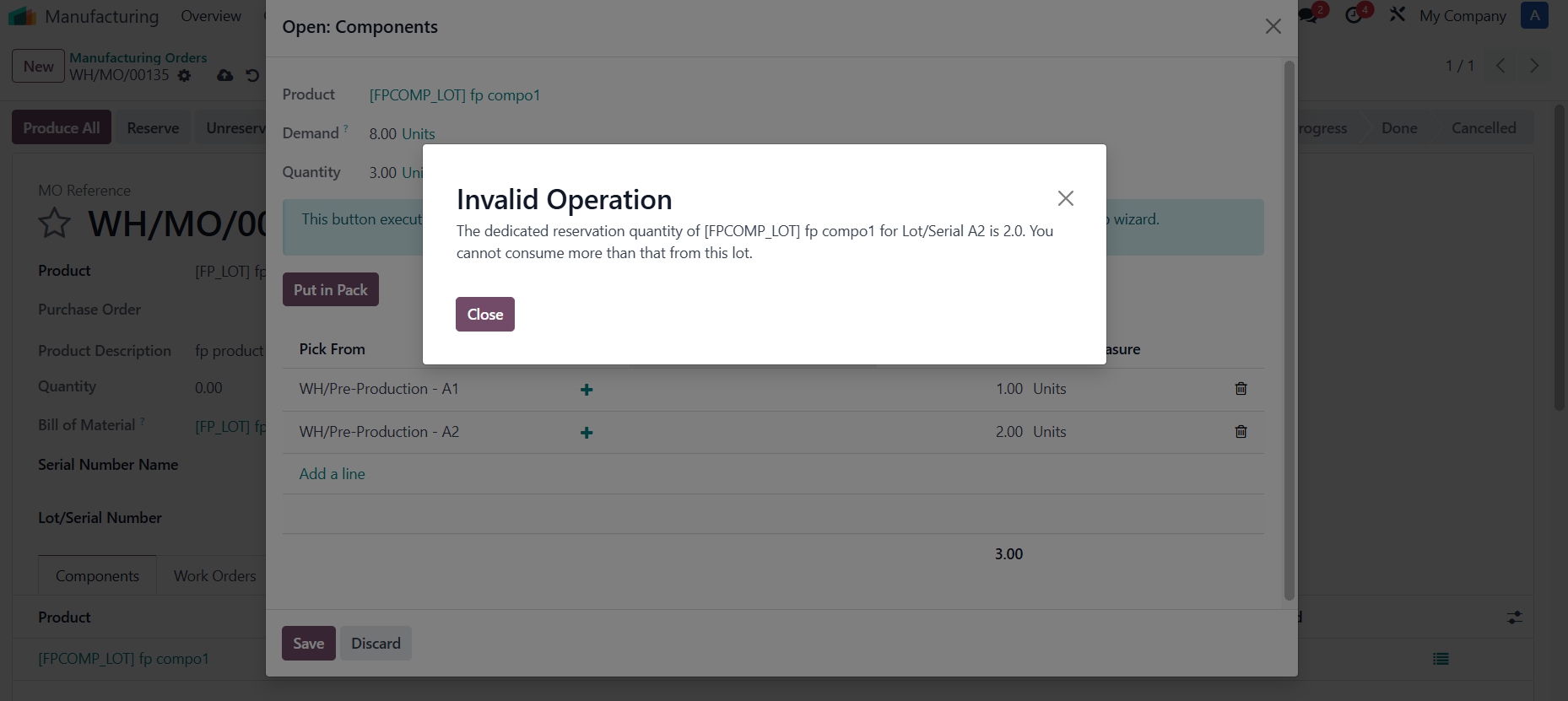
Back to MO => modify Lot A1 = 1, Lot A2 = 3 => A Warning will show up for Lot A2 |
|
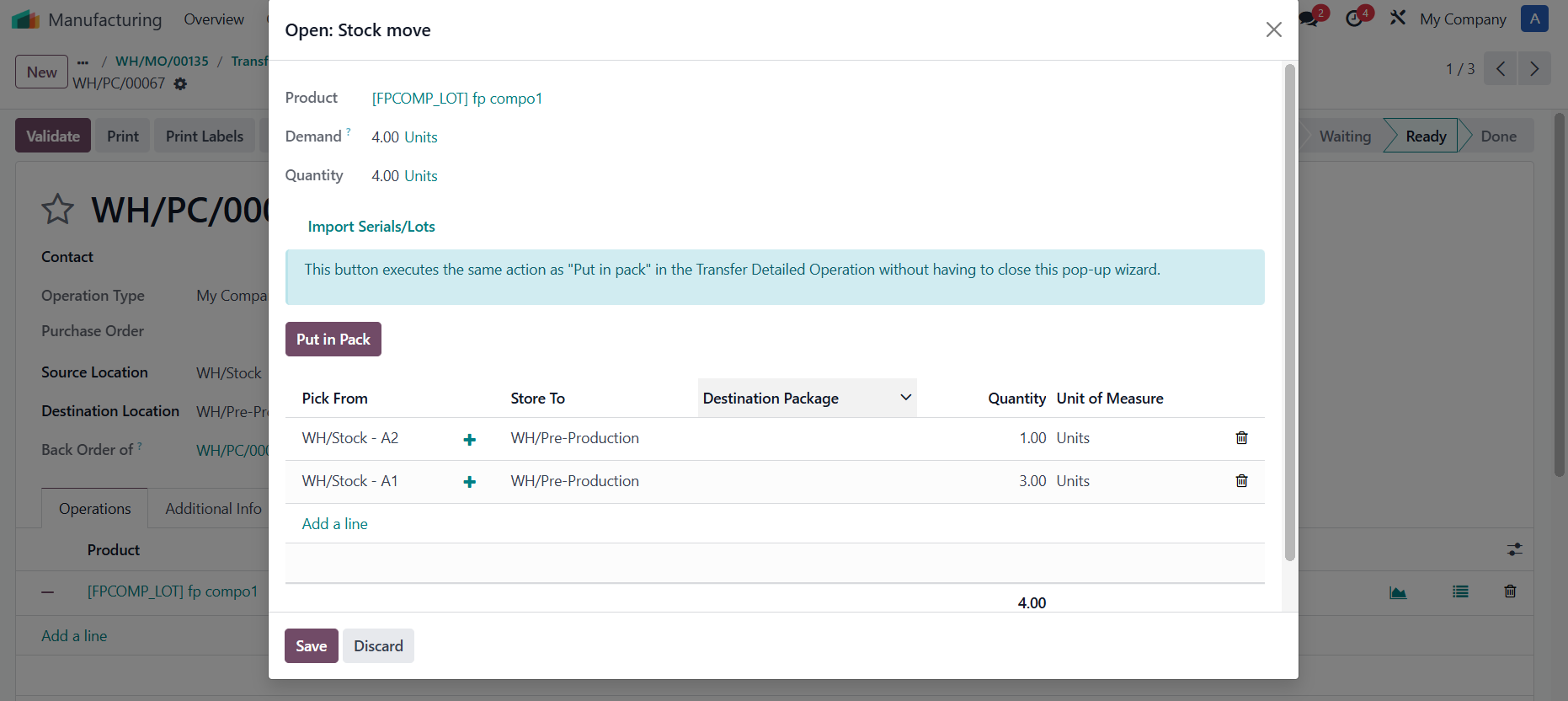
Second Transfer, We take 4 left. with A1 = 3, A2 = 1 => total 8/8 picking with A1 = 5, A2 = 4. |
|
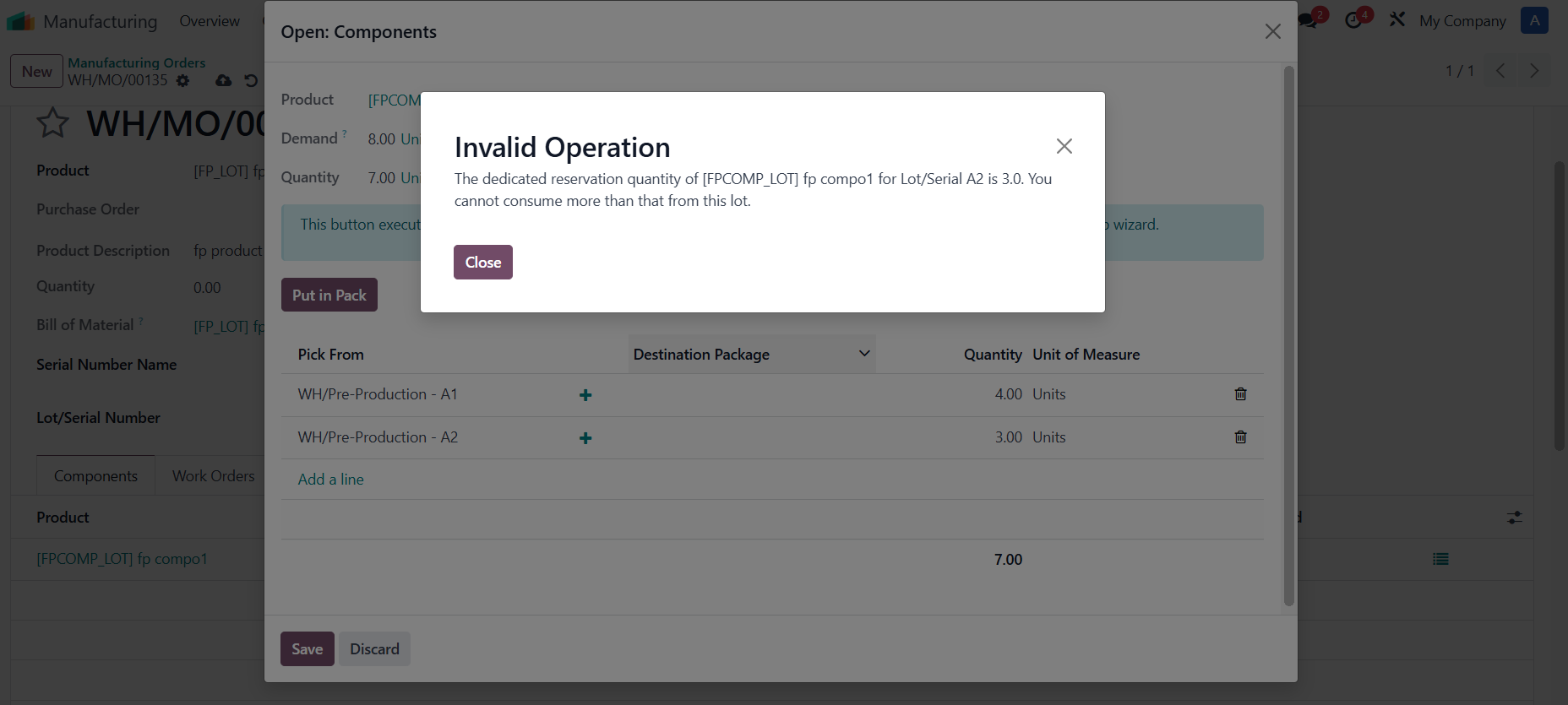
Back to MO => Test with A1 = 4, A2 = 4 => A Warning will show up for Lot A2 |
|