ODOO'S FUNCTION
Odoo does not automatically update component quantities in sub-manufacturing orders when the main MO quantity changes.
CLUEDOO'S FUNCTION
CLuedoo allows users to change MO quantity (increase or decrease) and automatically updates the component quantities of linked sub-MOs accordingly.
1. Create or choose a product that has a Subcontracting BOM type | 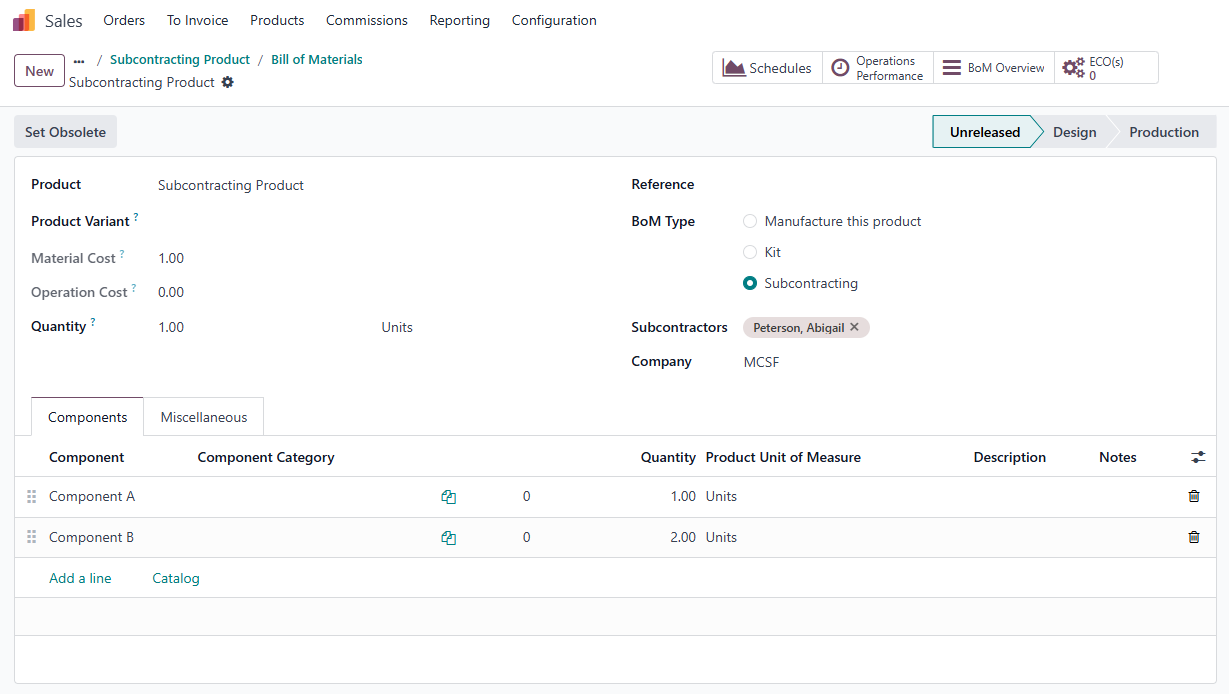 |
2. Create a Purchase Order for the product > Set the vendor to be the same as the BOM’s subcontractor > Confirm Order > Click on the Receipt smart button | 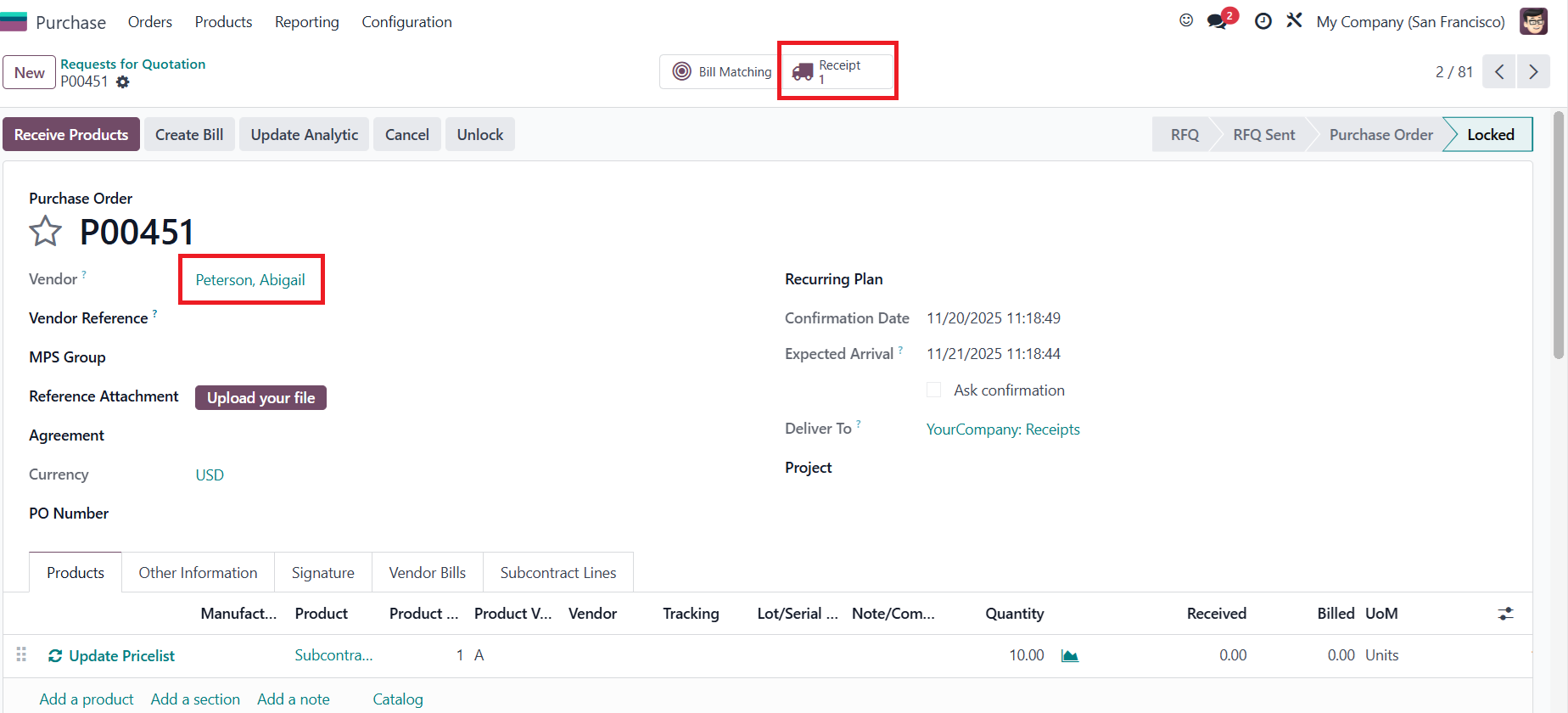 |
3. Click on the 'Details' icon > Set Lots/SN and quantity for the product > Save | 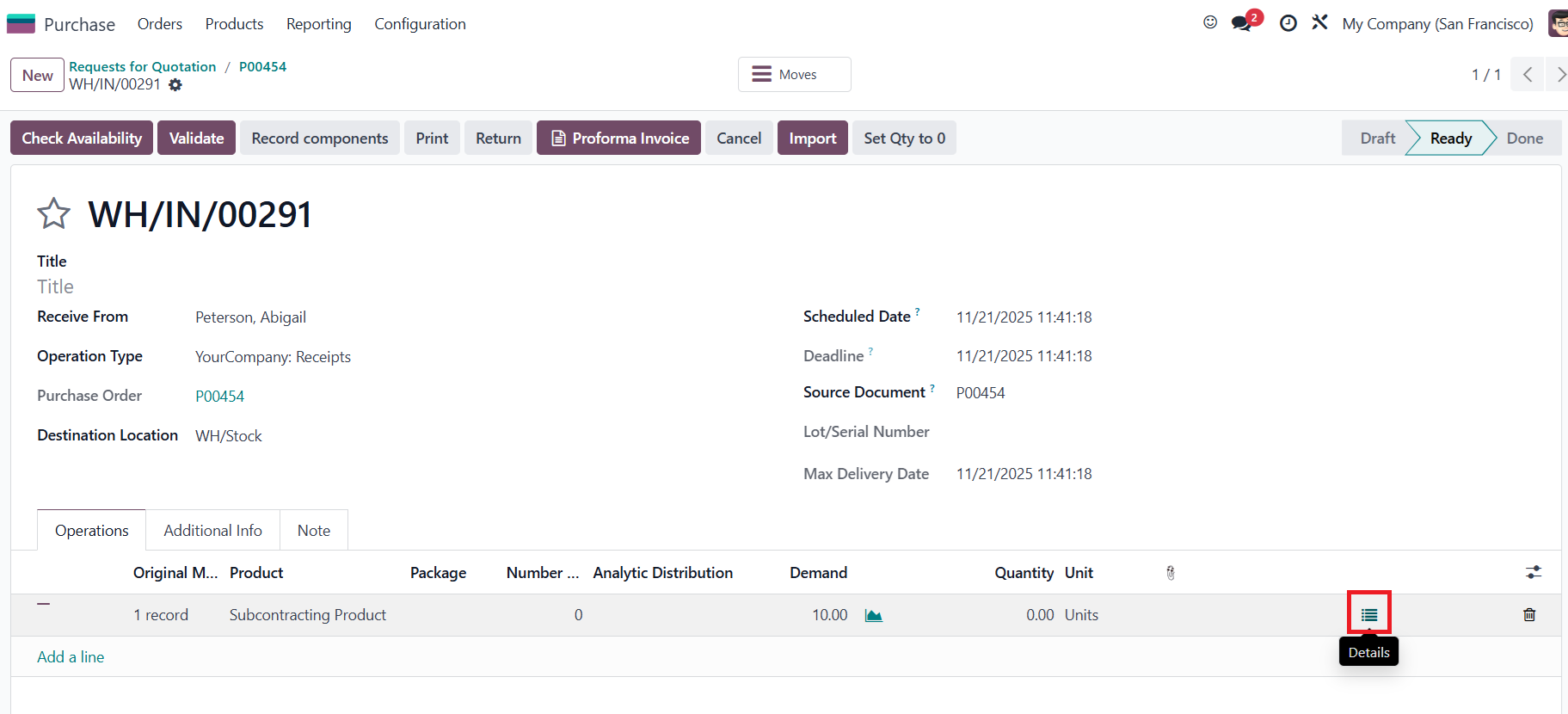 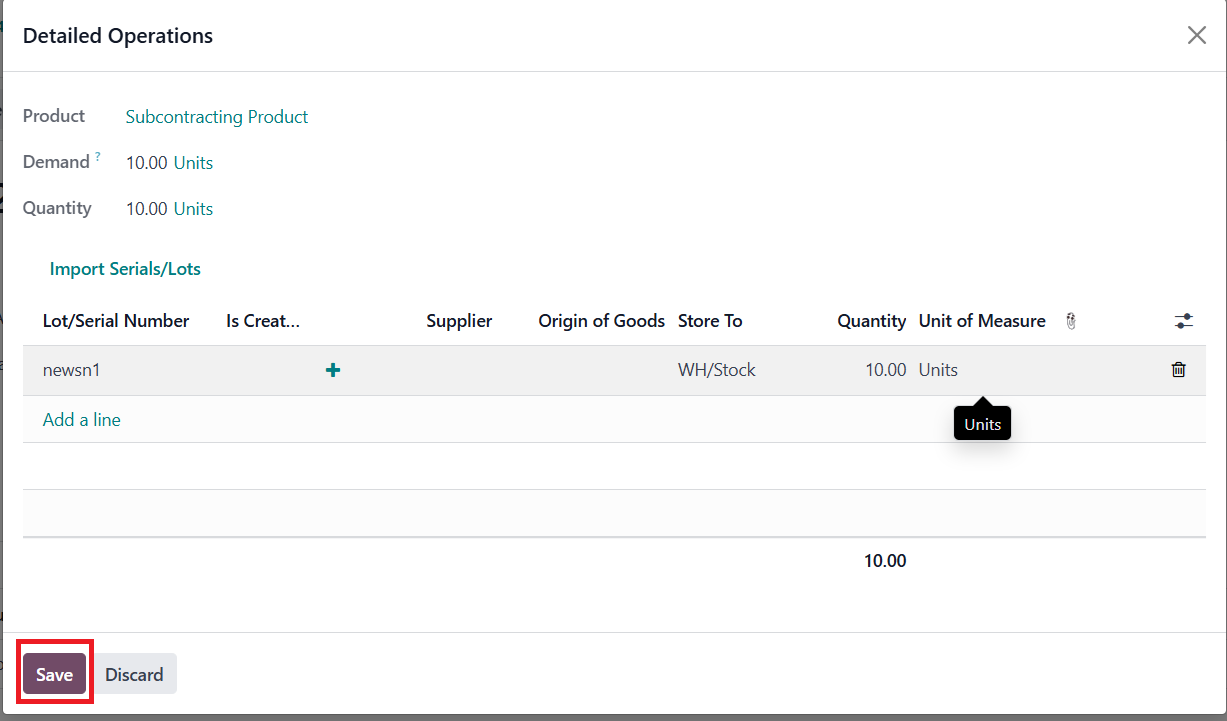 |
5.
Back to the Purchase Order, you can increase or decrease the product quantity. I add another product line and split it into 7 and 3 (originally there was 1 line with an amount of 10) Note: Remember to unlock the Purchase Order first if it's locked before adjusting product quantities | 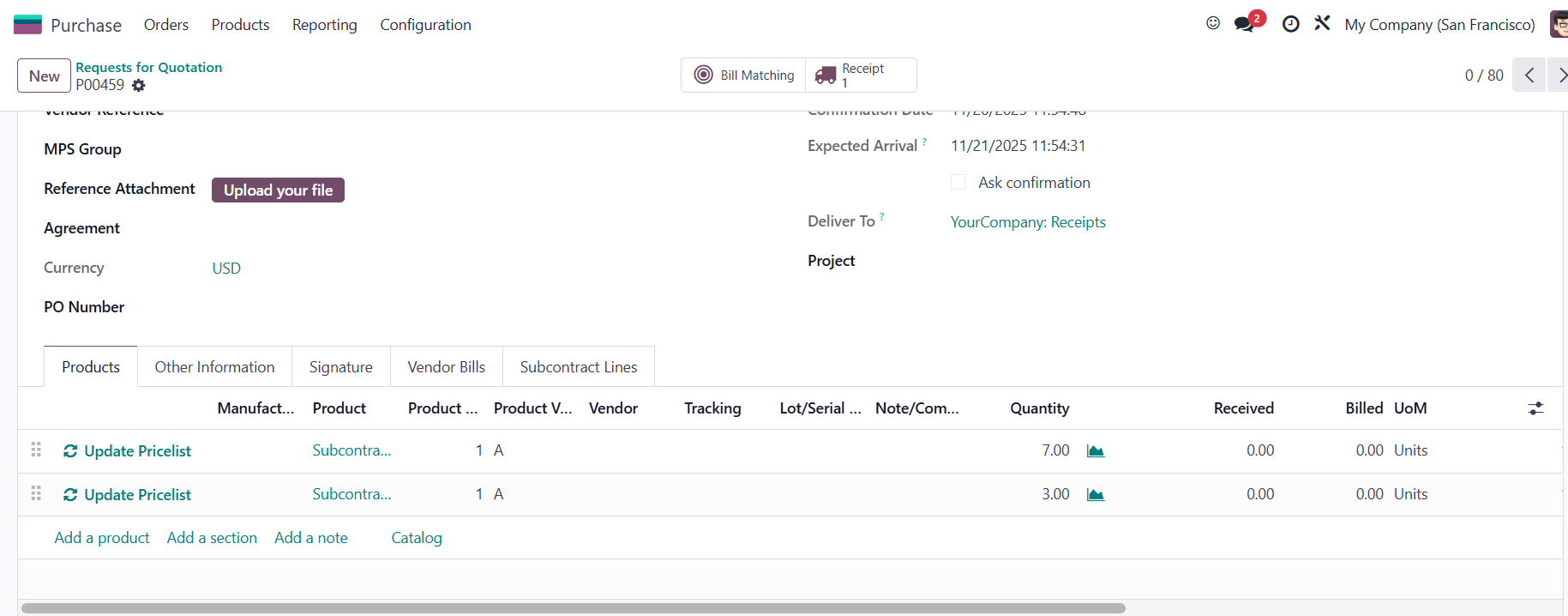 |
6. Go to Receipt > Click on the details icon > Set Lots/SN and quantity for the new line > Save | 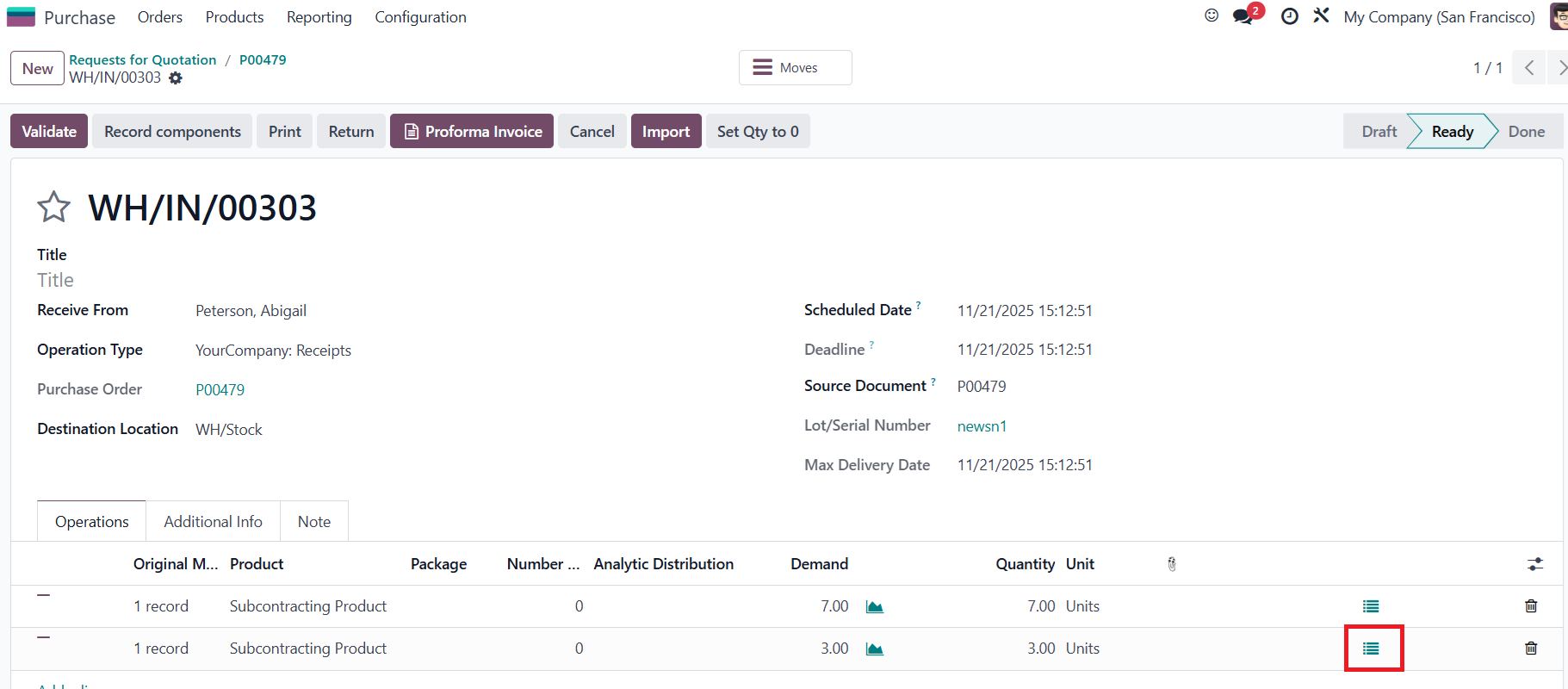 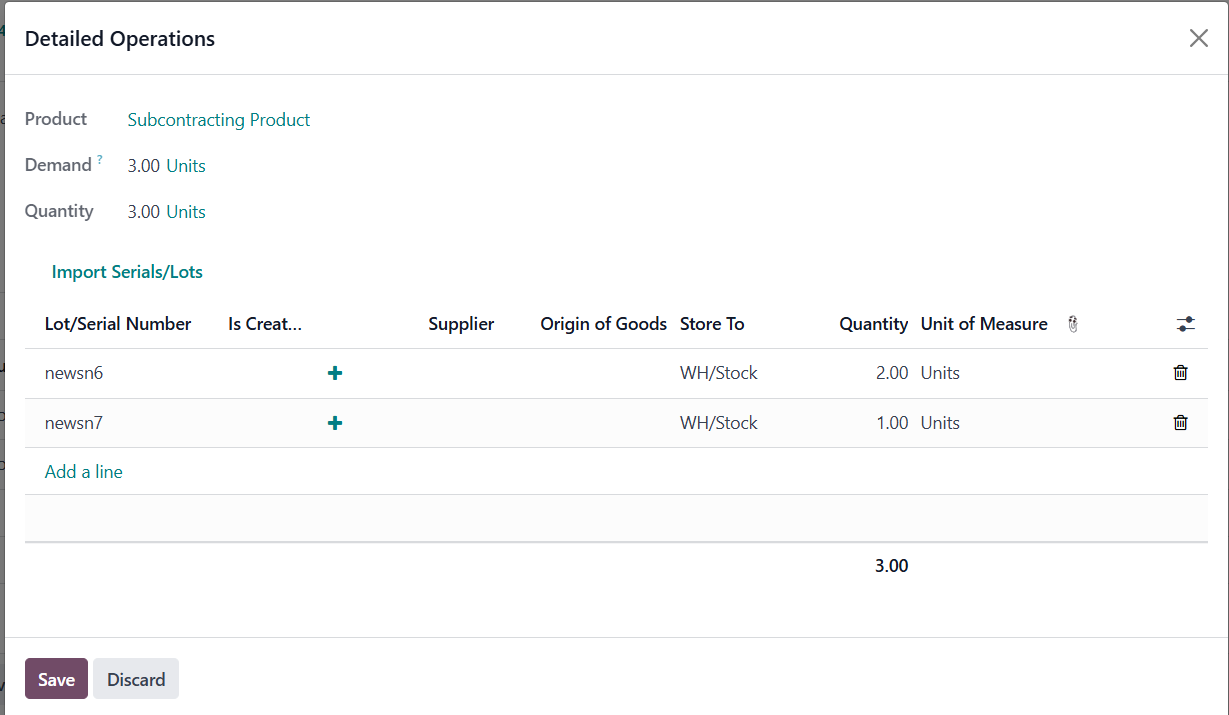 |
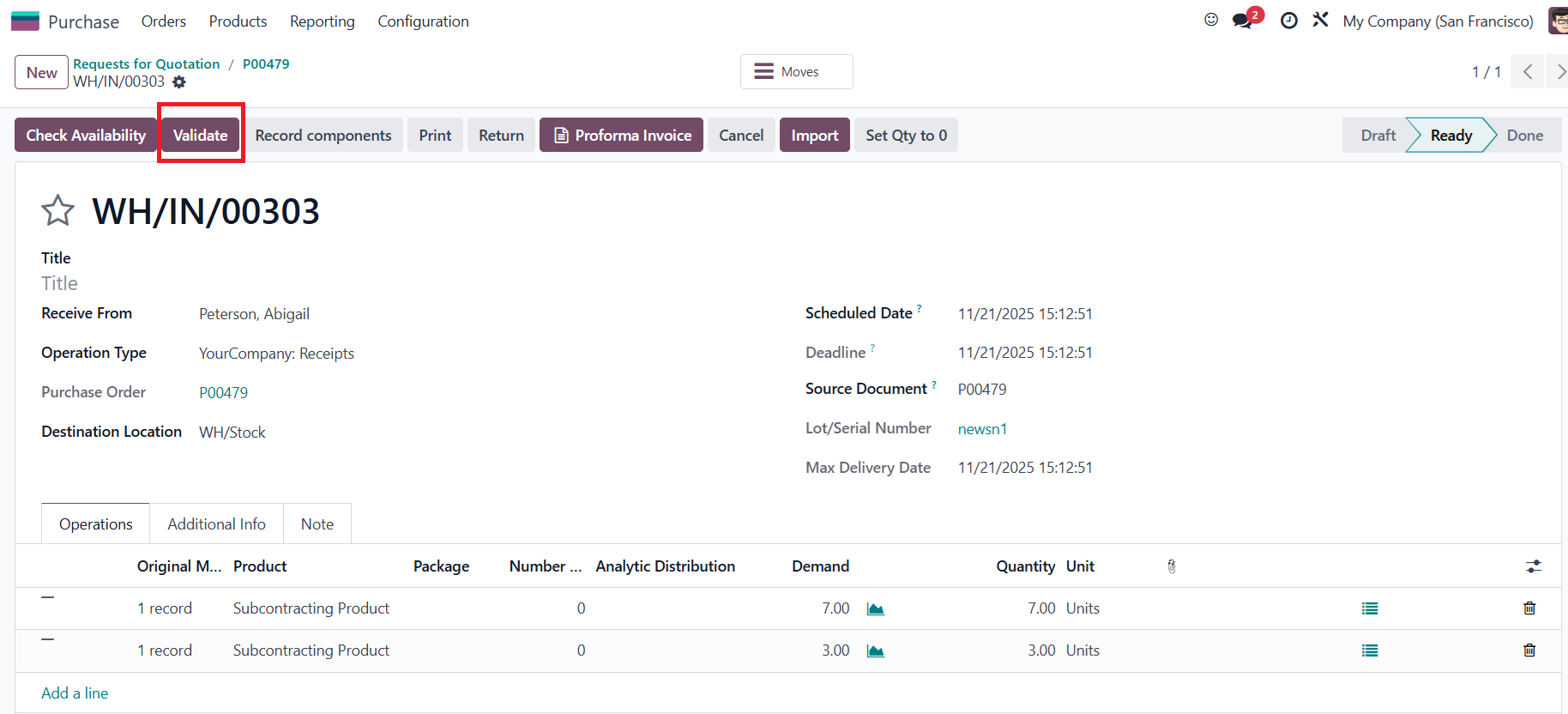
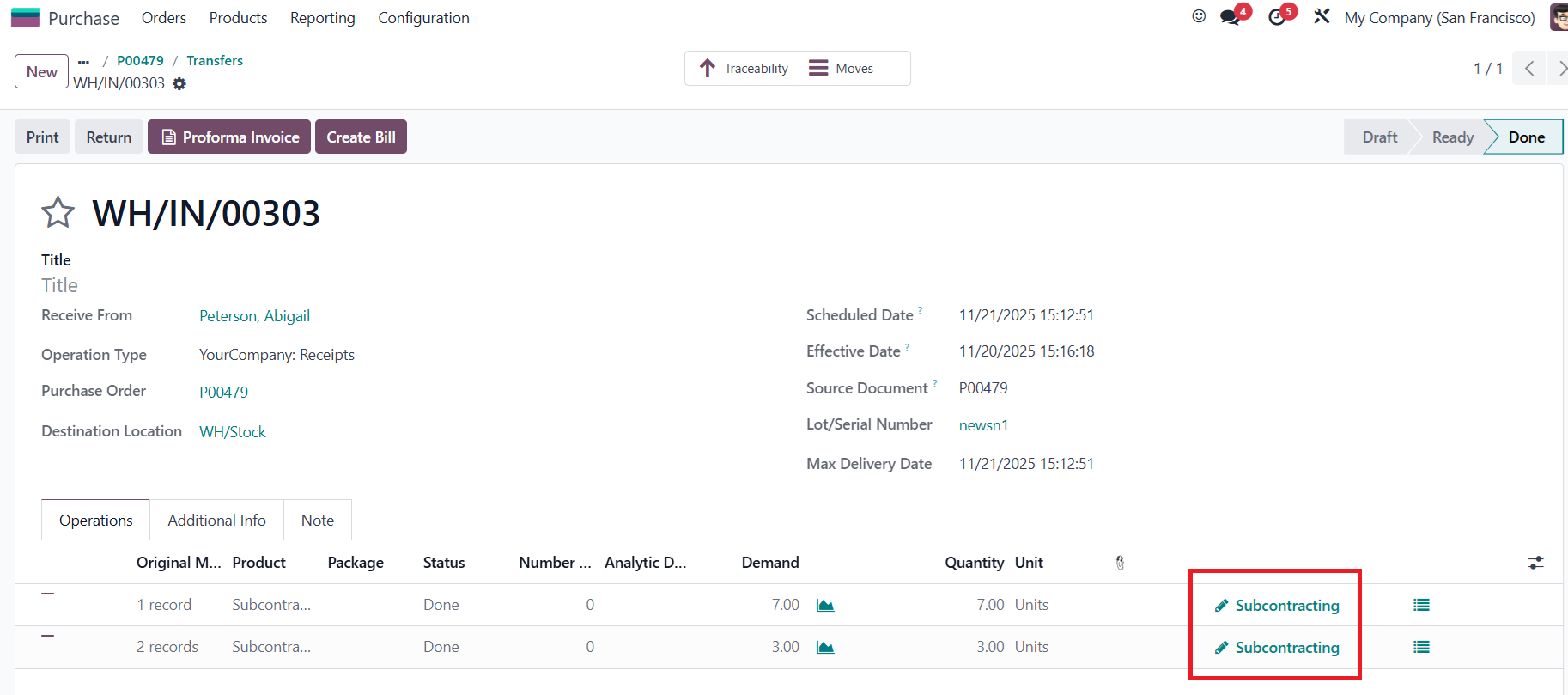
7. Click Validate > The Subcontracting icon will appear |
|
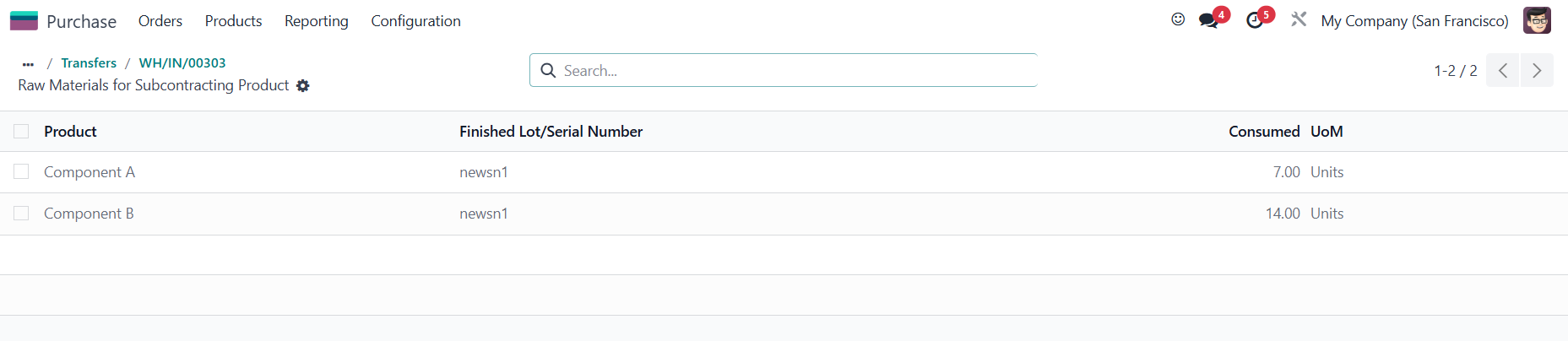
Result: You can see the first line (with decreased quantity) has its component quantity updated according to the new quantity, and the Lot/SN number is kept. |
|
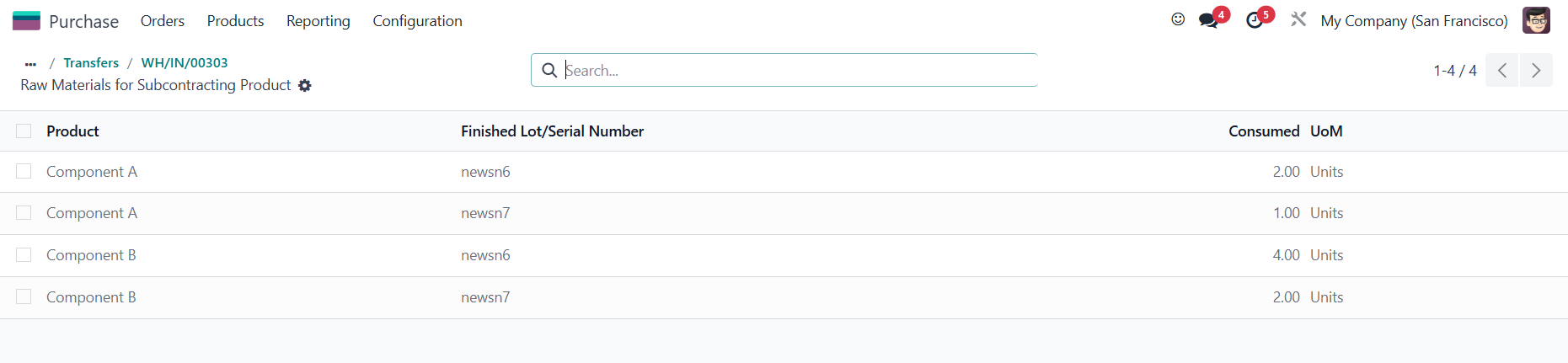
The new product line and its component are also separated from the first line, and the added quantity is correctly applied. |
|