



ODOO'S FUNCTION
By default, Odoo’s Sales module allows users to create Sales Orders and set prices based on pricelists, but it does not provide a mechanism to dynamically adjust prices by comparing the unit price in Sales Order Line (SOL) with the product’s cost and applying a specific pricelist (e.g., SAV Pricelist) when the SOL price is lower than the cost.
CLUEDOO'S FUNCTION
This CLuedoo module introduces a settings to enable sales price checking of product to its cost and applying the specific pricelist for sales price that is lower than the cost.
You can configure a checkbox in Settings to enable the SAV Pricelist, allowing users to select a custom pricelist for dynamic pricing in Sales Orders.
- Automatically adjusts Sales Order Line (SOL) prices based on the rule.
- Links Proforma Invoices to delivery transfers, ensuring accurate pricing is reflected when printing from the transfer.
Go to Sales > Product > Pricelist > set your pricelist rule (e.g SAV Pricelist). | 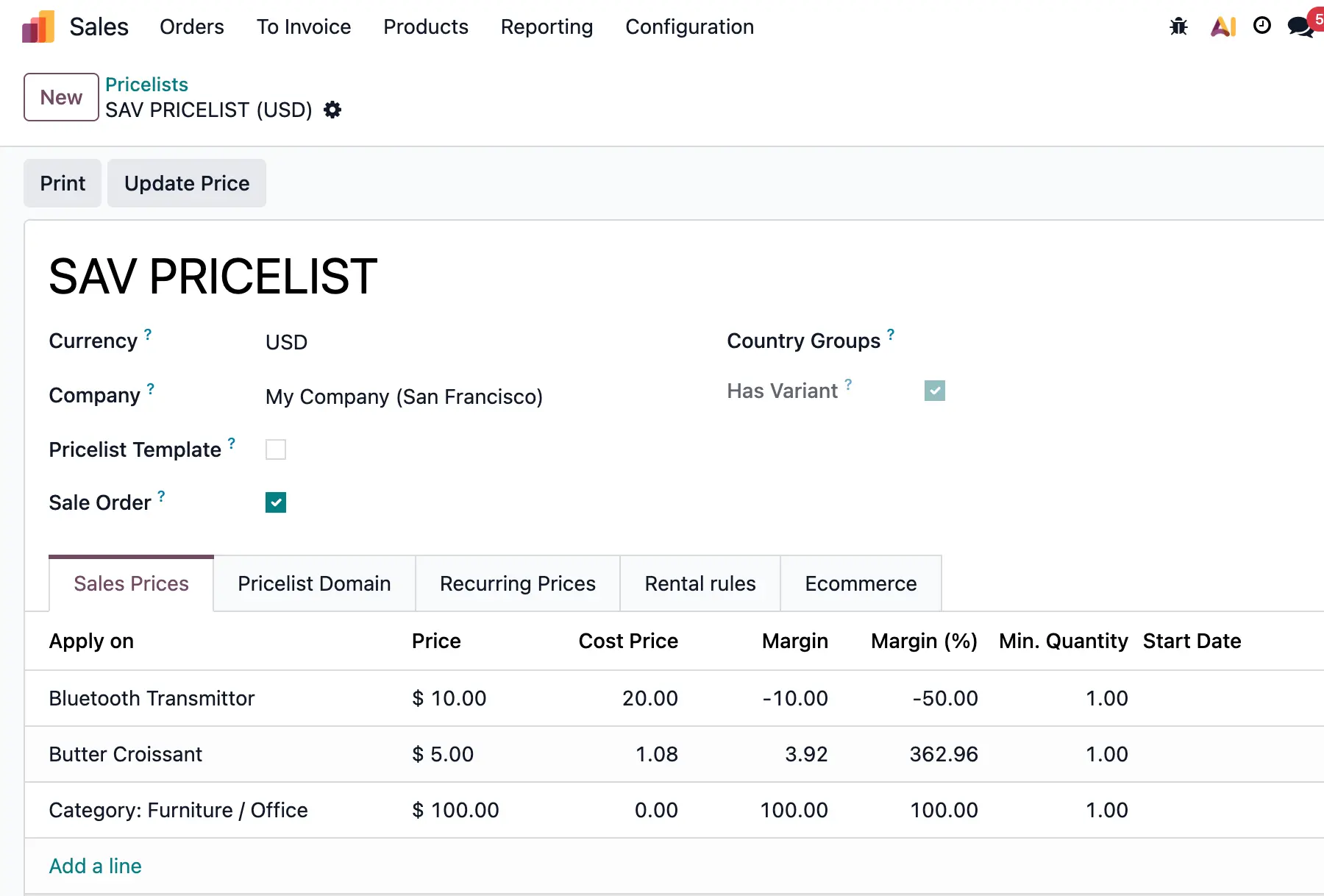 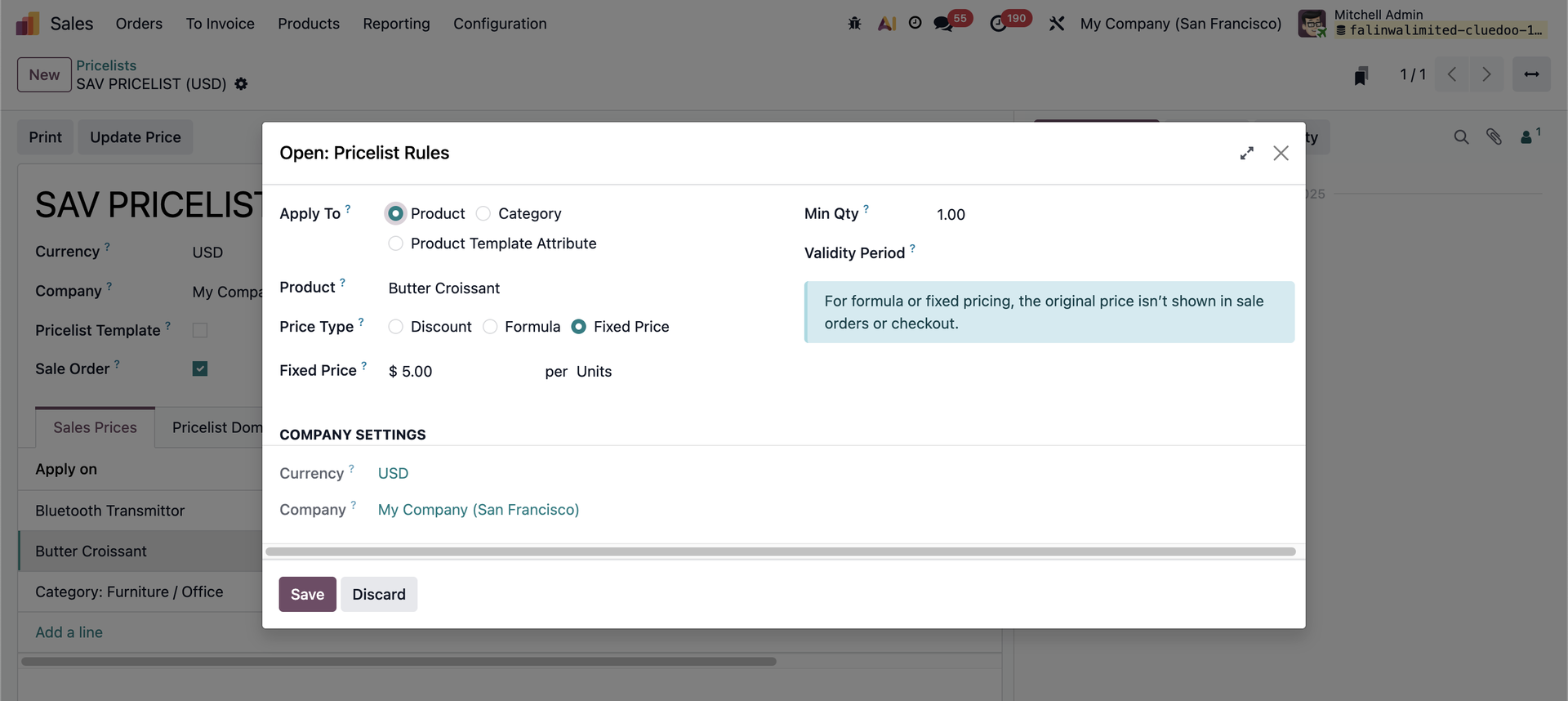 |
Note: cost price is taken from the cost defined on product form. | 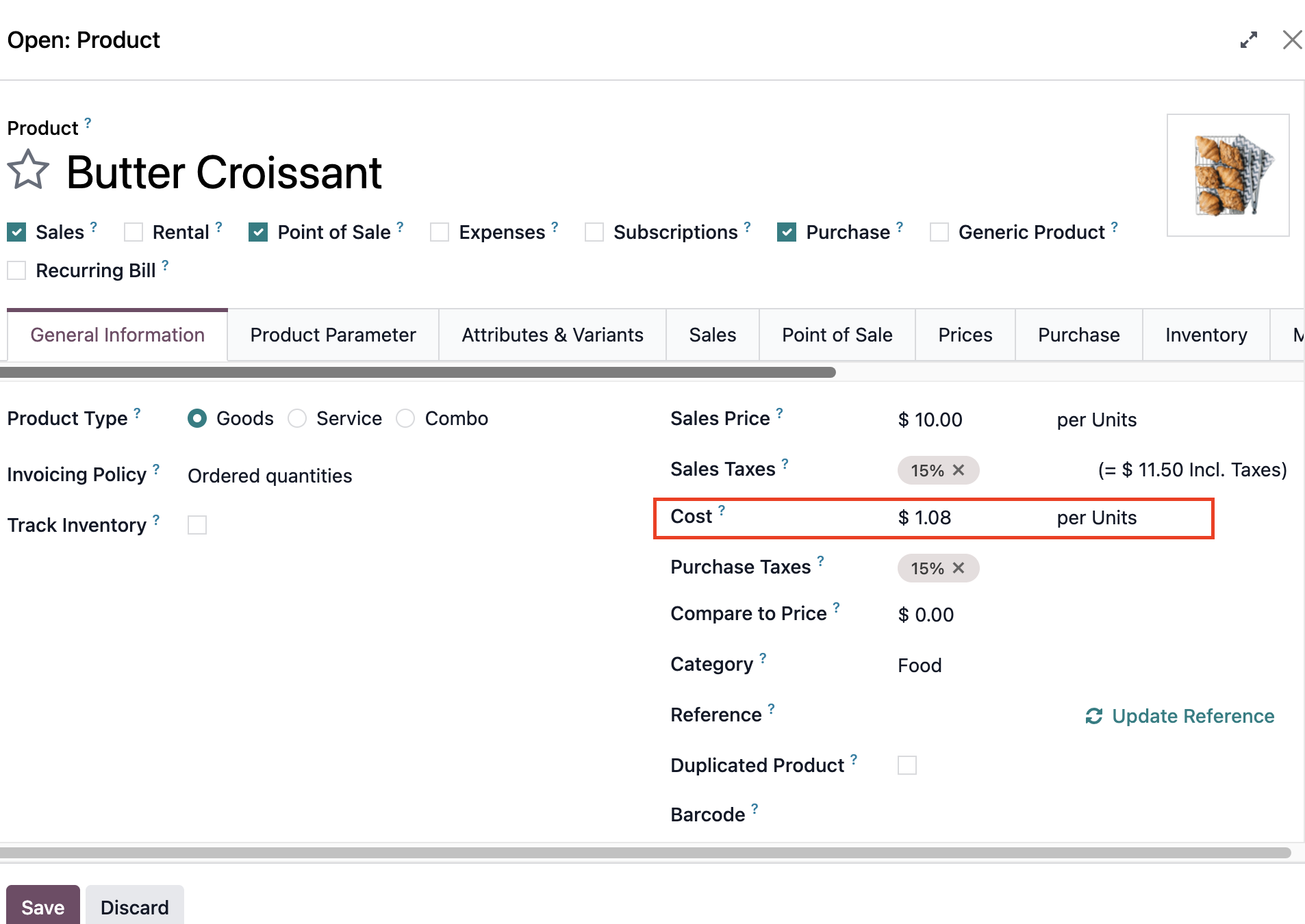 |
Go to Settings > tick "ProForma on Transfer" option > tick "Using Default SAV Pricelist" option > choose the SAV pricelist you created previously. | 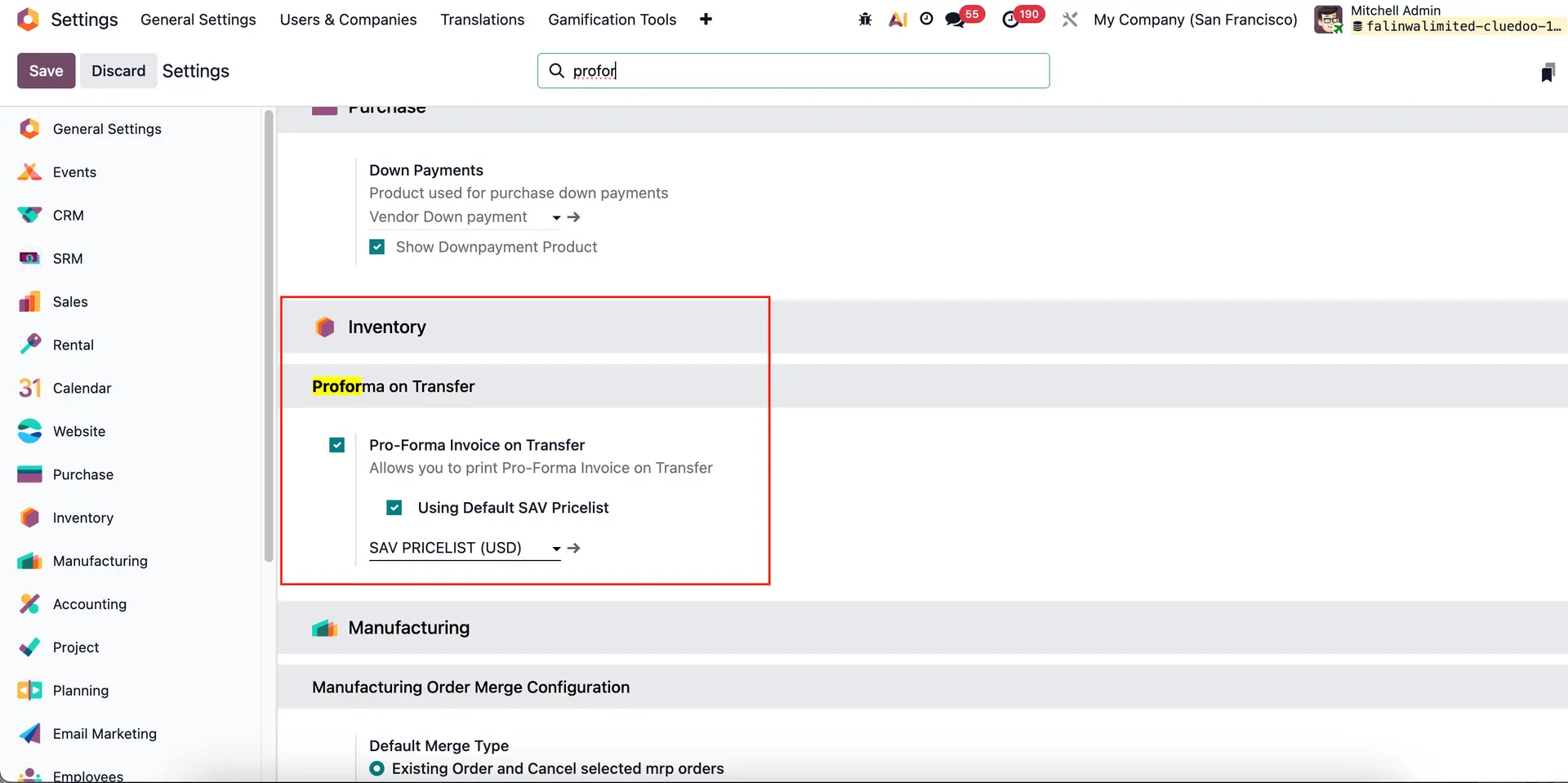 |
Create SO and choose SAV pricelist > add products > fill the price. For example:
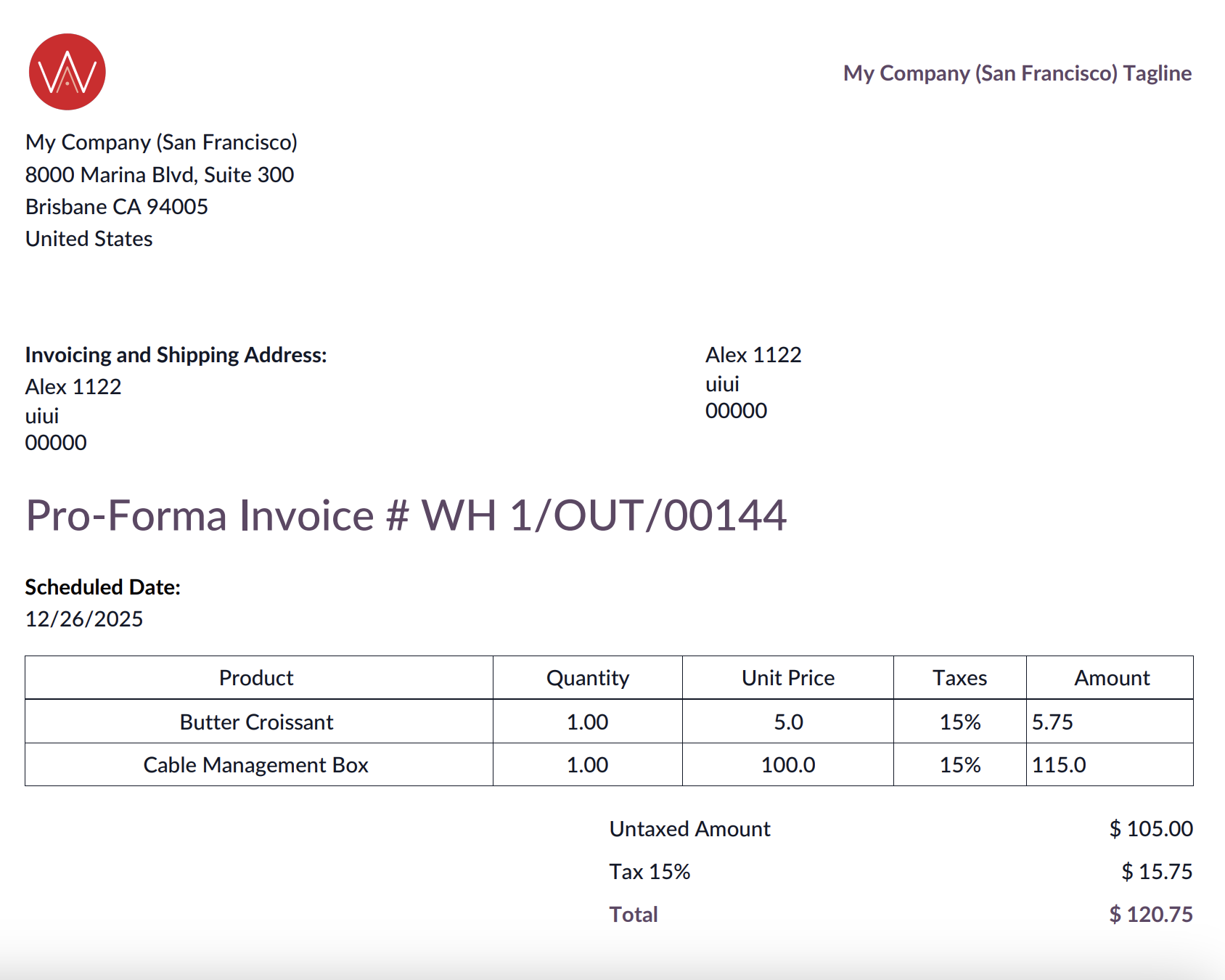
2. Cable management box (in Cat: Furniture/ Office) has SOL < product cost (65 < 90) but the proforma invoice take SOL price = 60 > so proforma invoice take SAV pricelist instead = 100. 3. Product type service won't be printed in Proforma | 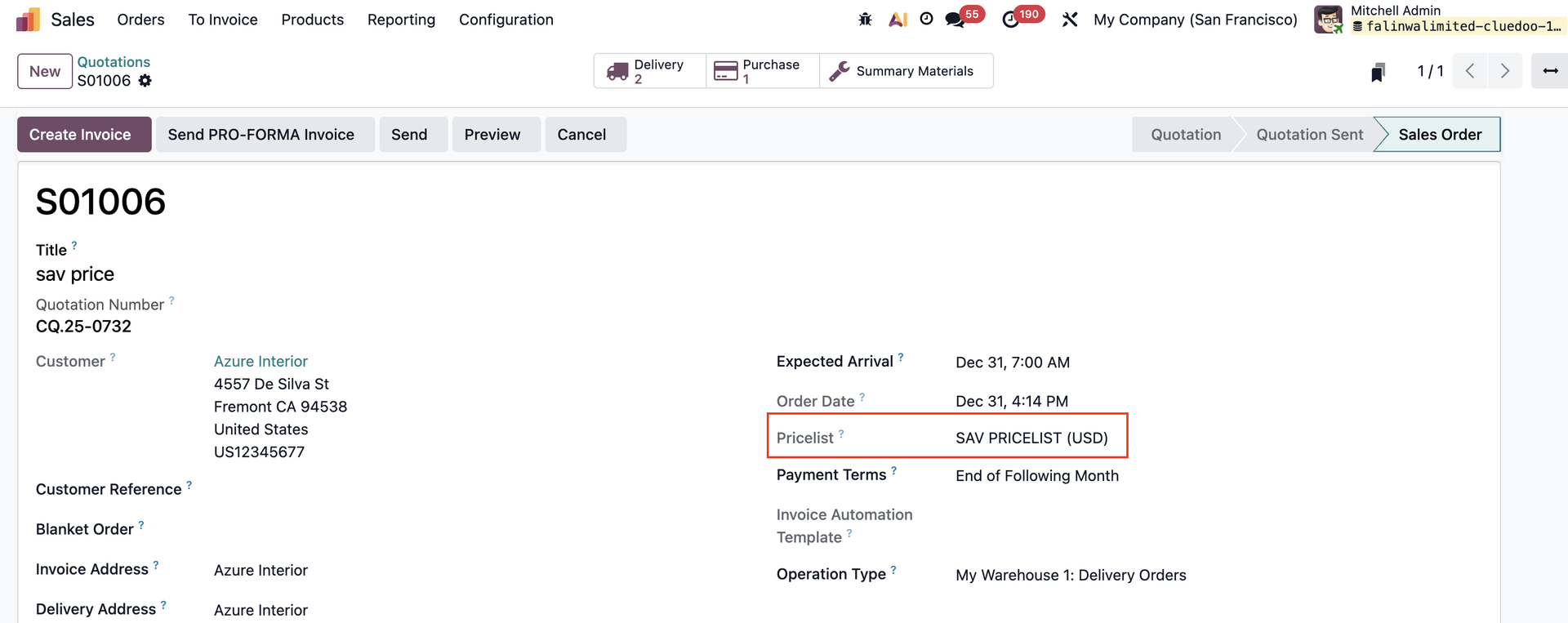 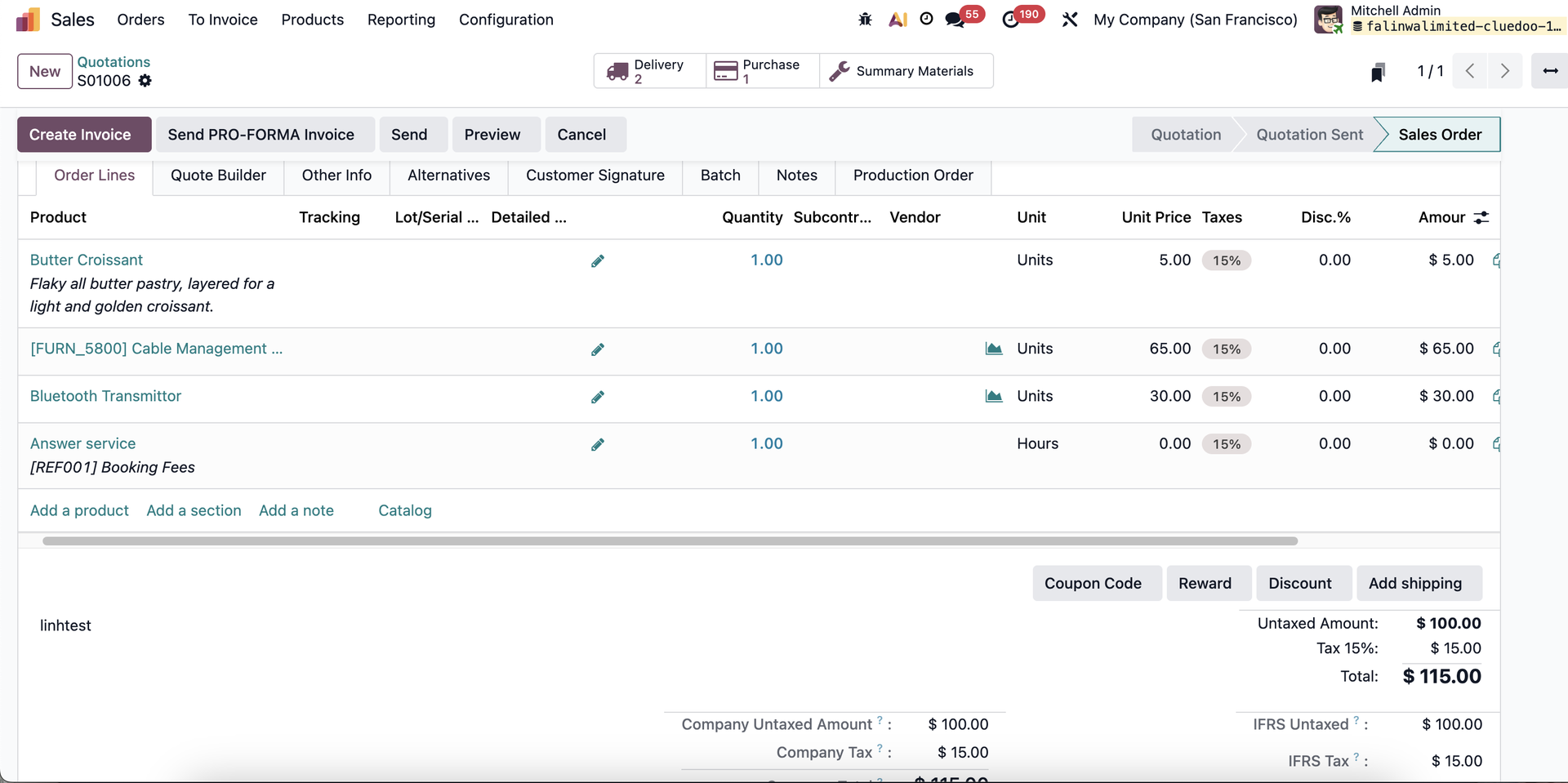 |
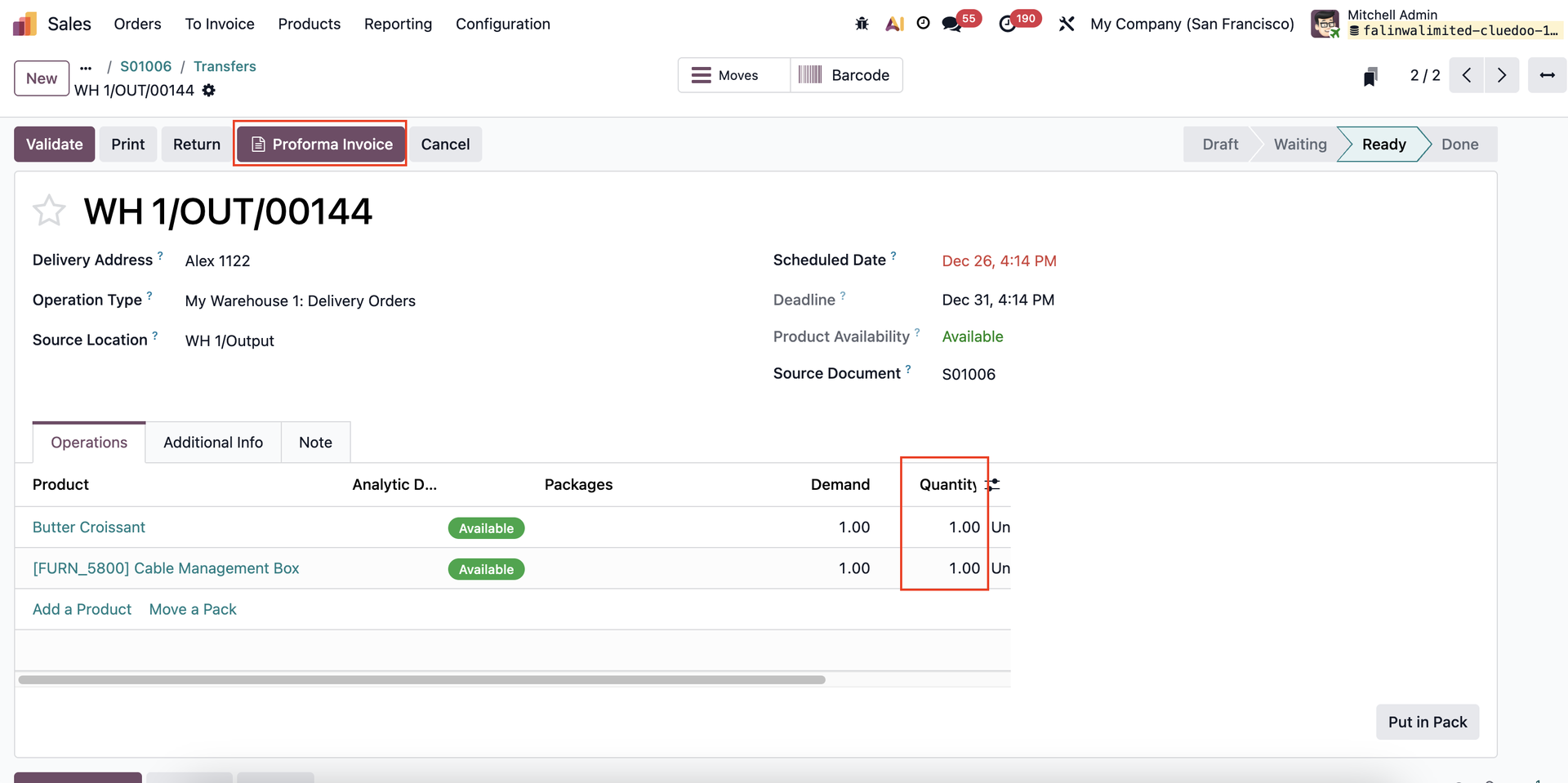
Confirm SO > Go to transfers > Fill in quantity > validate transfer > print Proforma > check the price
|   |