


ODOO'S FUNCTION
In Odoo, users can book appointments by selecting either a single user or a single resource (like a room), but cannot book multiple resources simultaneously for the same appointment.
CLUEDOO'S FUNCTION
CLuedoo enhances appointment booking by introducing Resource Combo Booking:
1️⃣ Combo Resource Definition: Configure multiple resources (rooms) with sequential timing rules
2️⃣ Automatic Group Booking: When any resource in the combo is booked, all related resources are automatically reserved for their defined durations.
This allows booking complex multi-stage appointments (like interviews) with one action, ensuring all required rooms/spaces are synchronized without manual coordination.
RESOURCE COMBO SETUP | |
1. Go to Appointments > Configuration > Resources. | 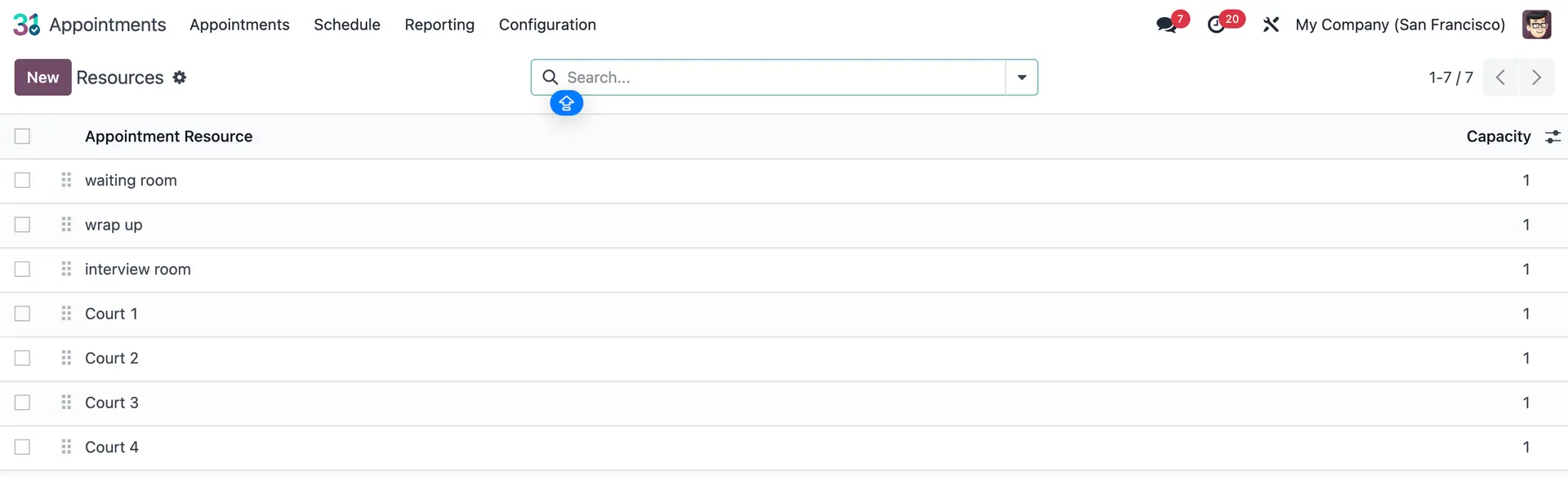 |
2. Create 3 resources: main room and a combo > set the Timezone for all the resources. Main resource:
Combo:
For example, the interview room is the main resource a.k.a a resource combo with a waiting room and a wrap up. The “interview room” combo has the following process: (1) waiting room lasting 15 min > (2) main interview lasting 30 min > (3) wrap up lasting 15 min. Set time gap for the waiting room as -0.25 (starts 15 mins before the interview room) and the wrap up as 0.00 (starts right after the interview room is finished). | 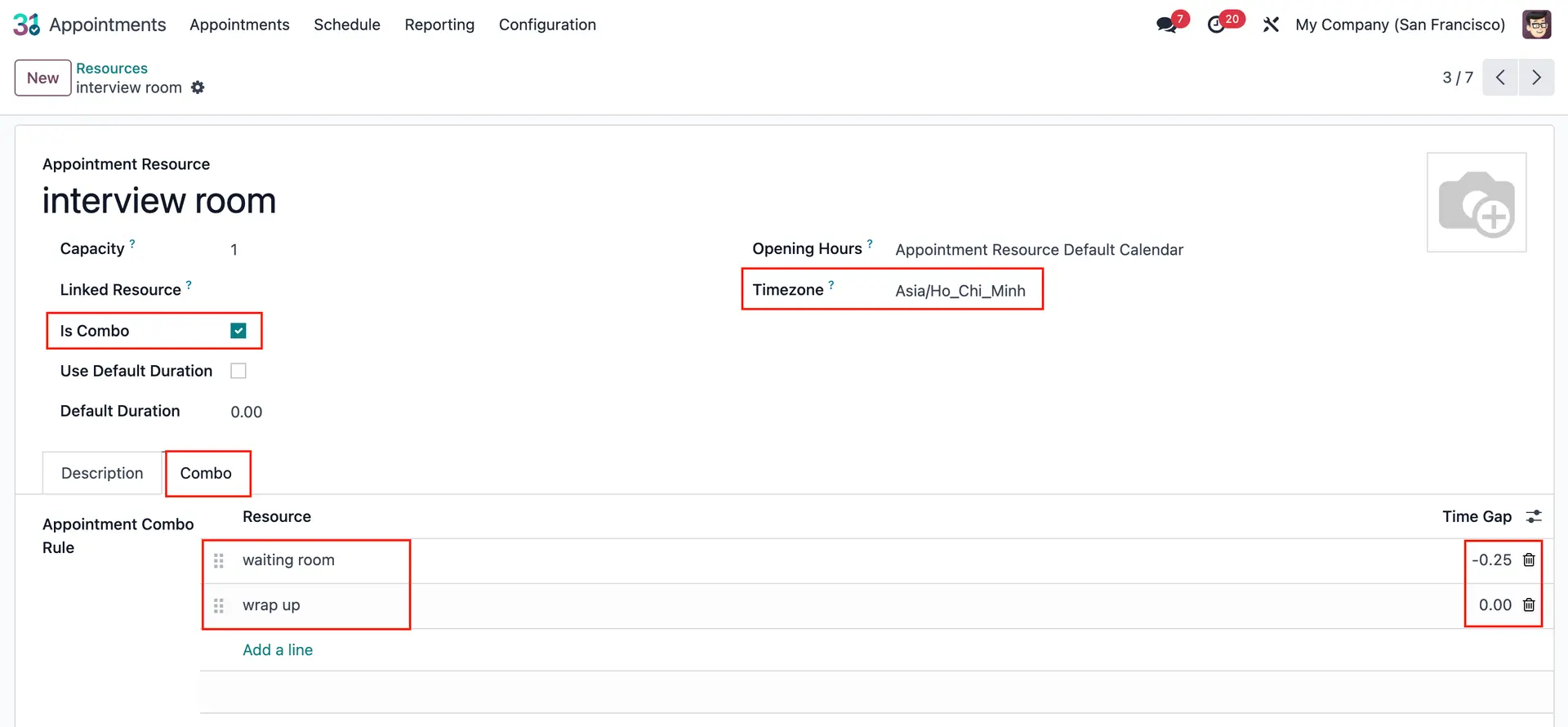 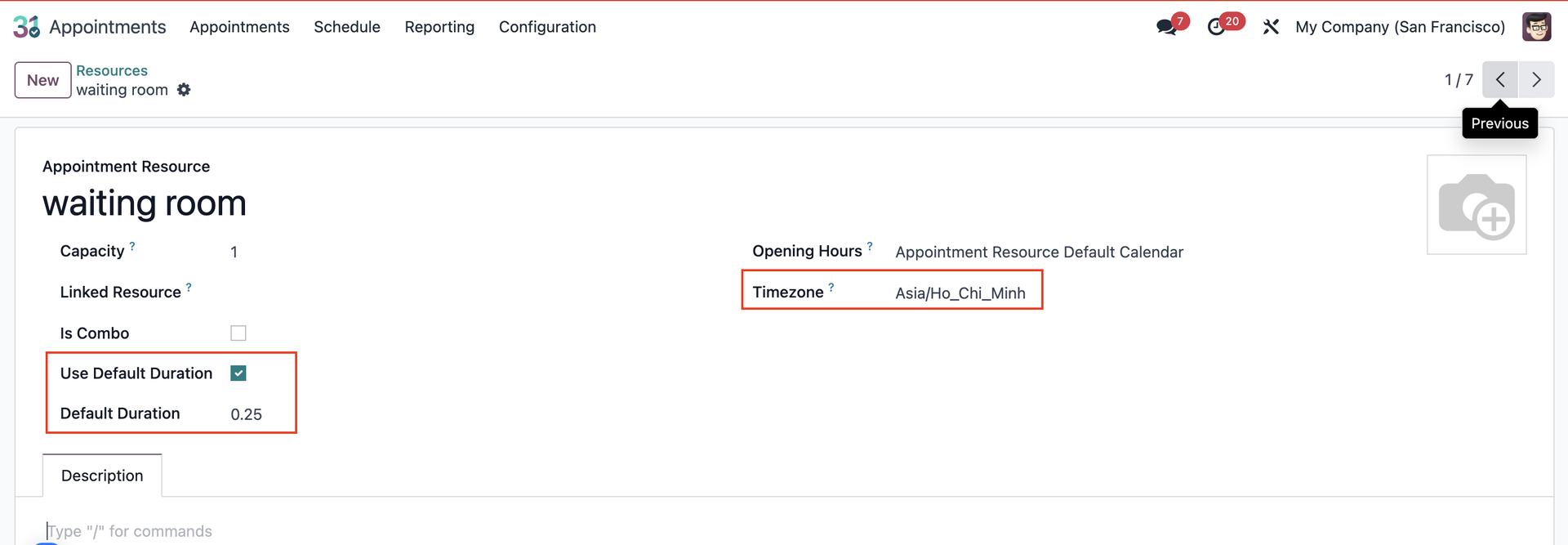 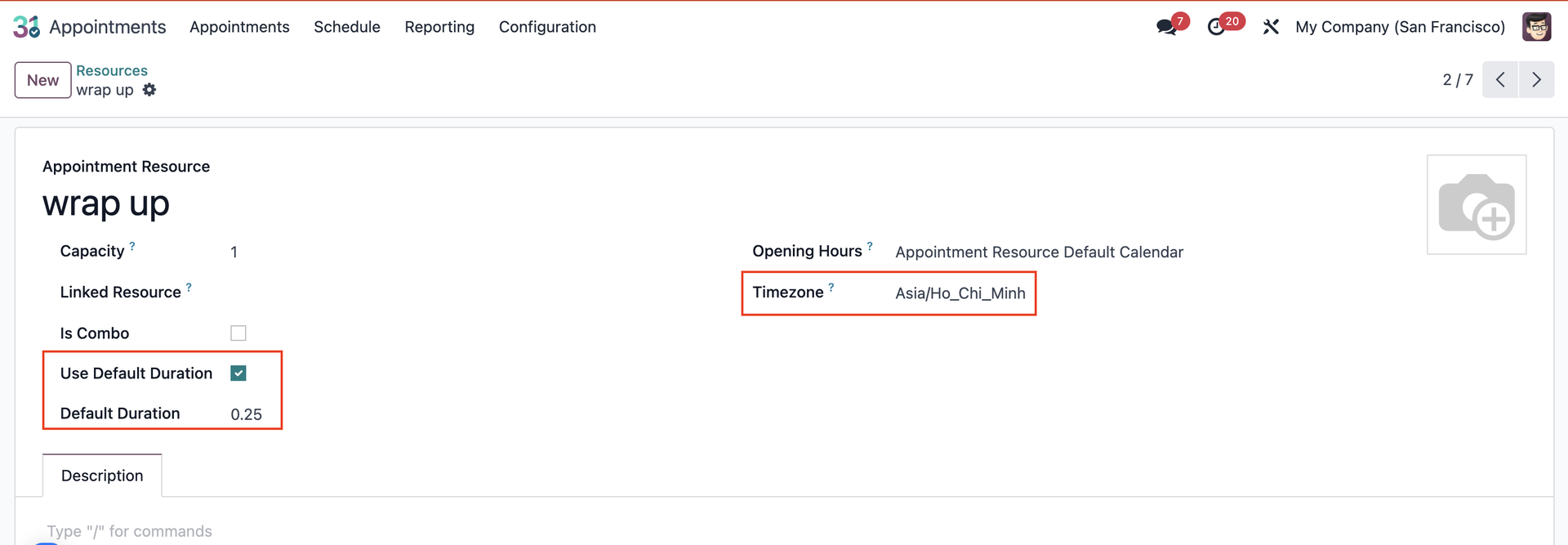 |
BOOK APPOINTMENT WITH RESOURCE COMBO | |
3. Go to Appointments > Create a new appointment or choose an existing one. e.g., I choose “interview BA” with a duration of 30 mins. Remember to set the Timezone for the appointment (under the Options tab) as well. | 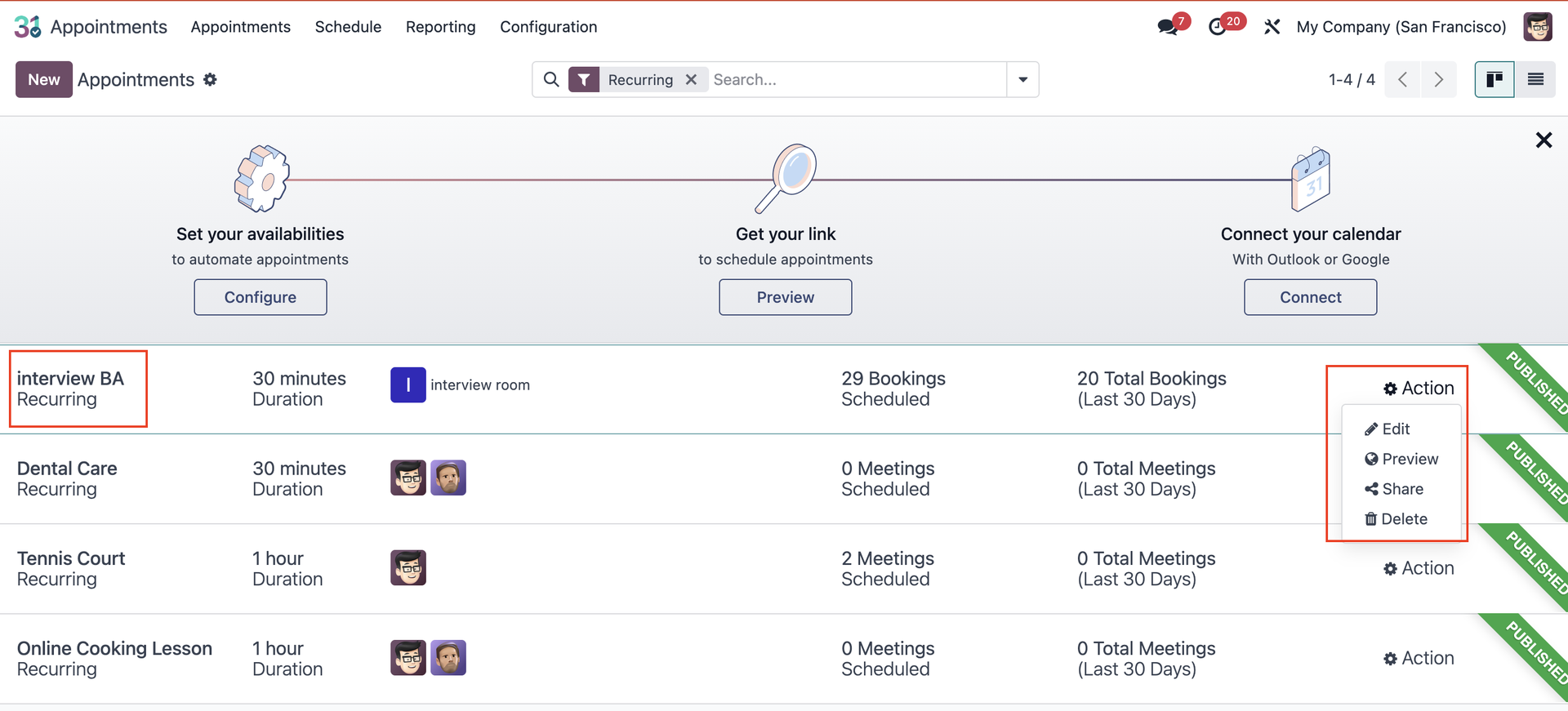 |
4. On field Availability on, choose Resources. On field Resources: choose the resource combo > click on Preview or Go to Website | 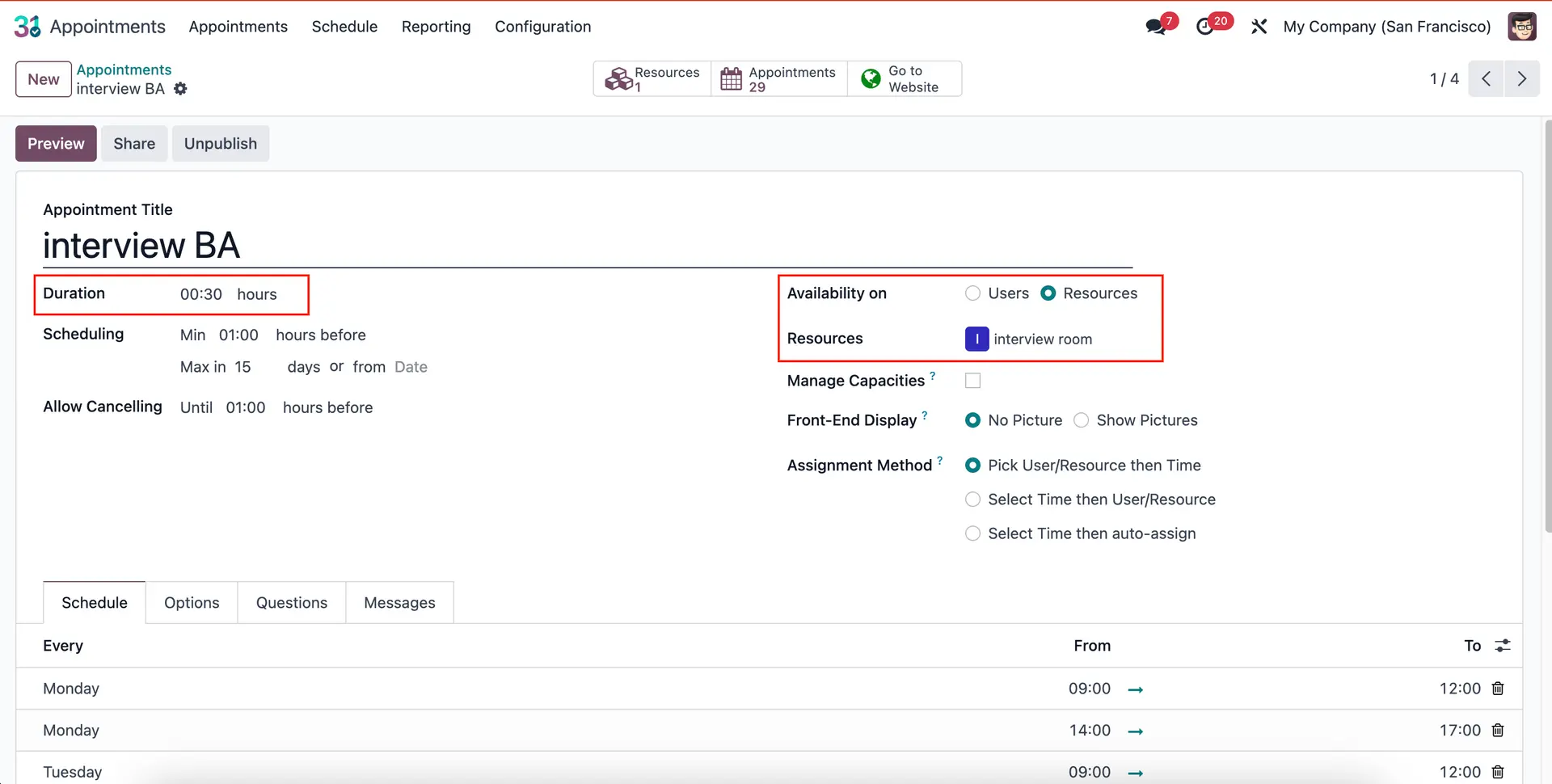 |
5. Select date and time for the appointment > Confirm Appointment. | 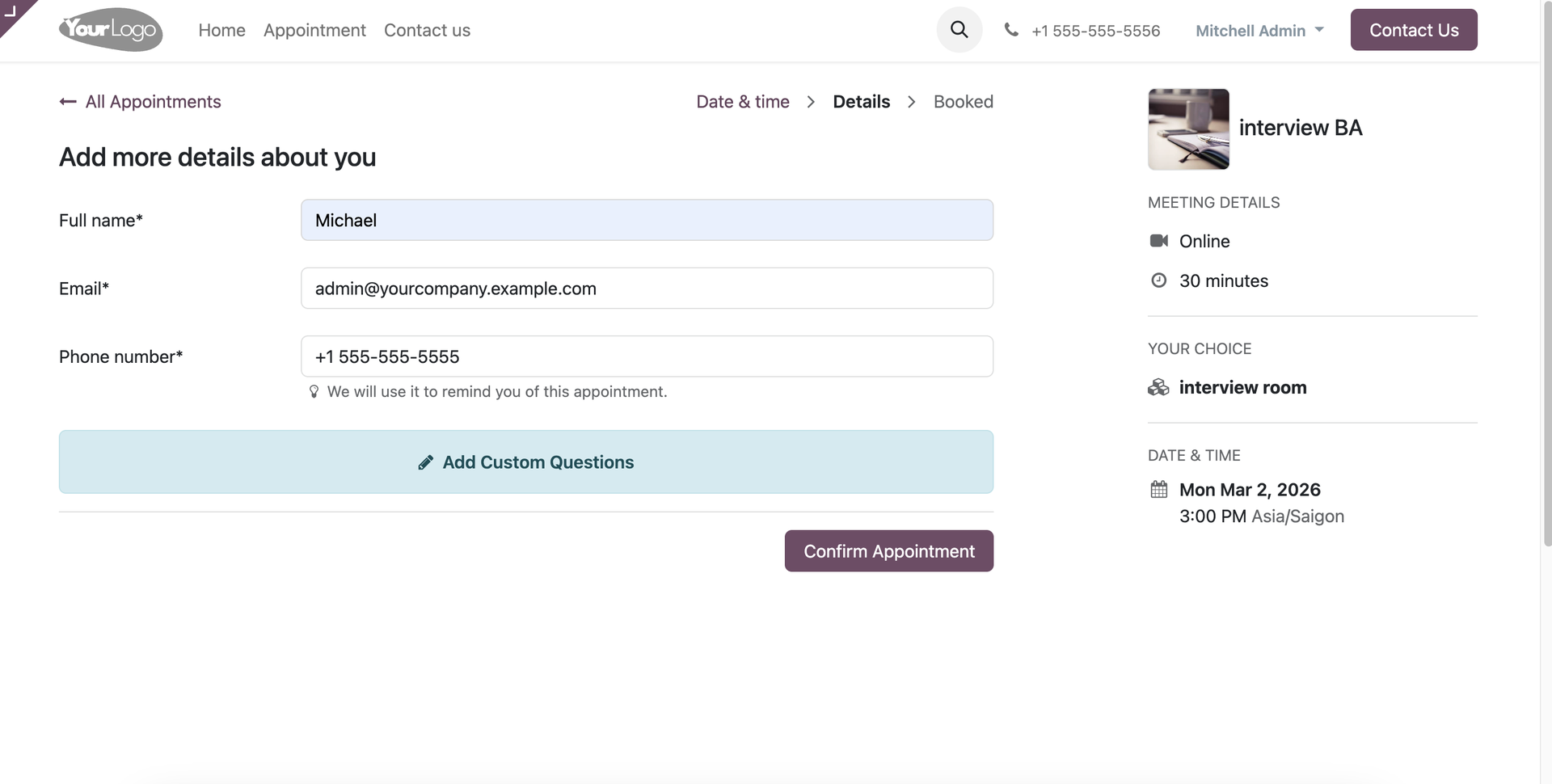 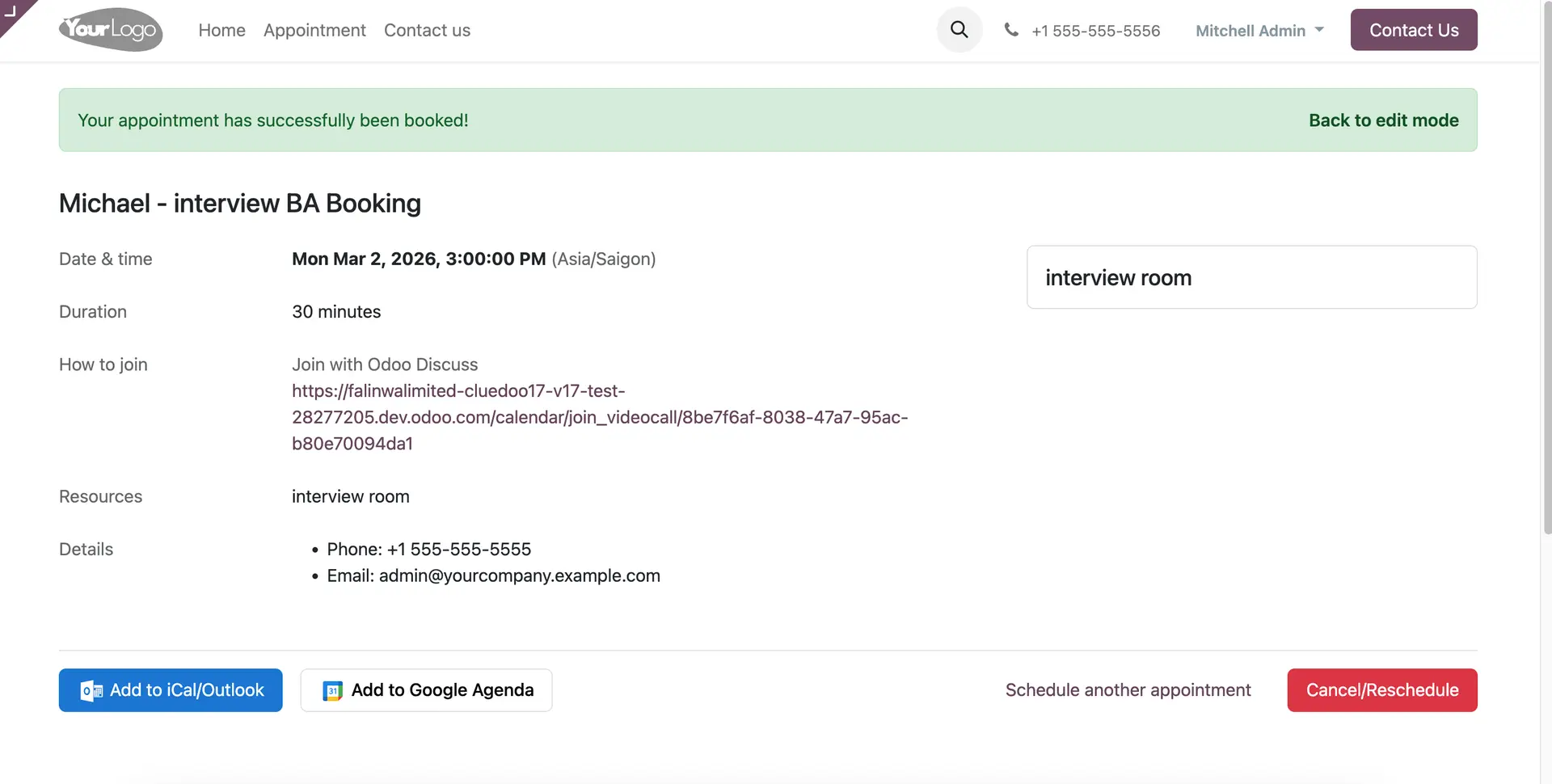 |
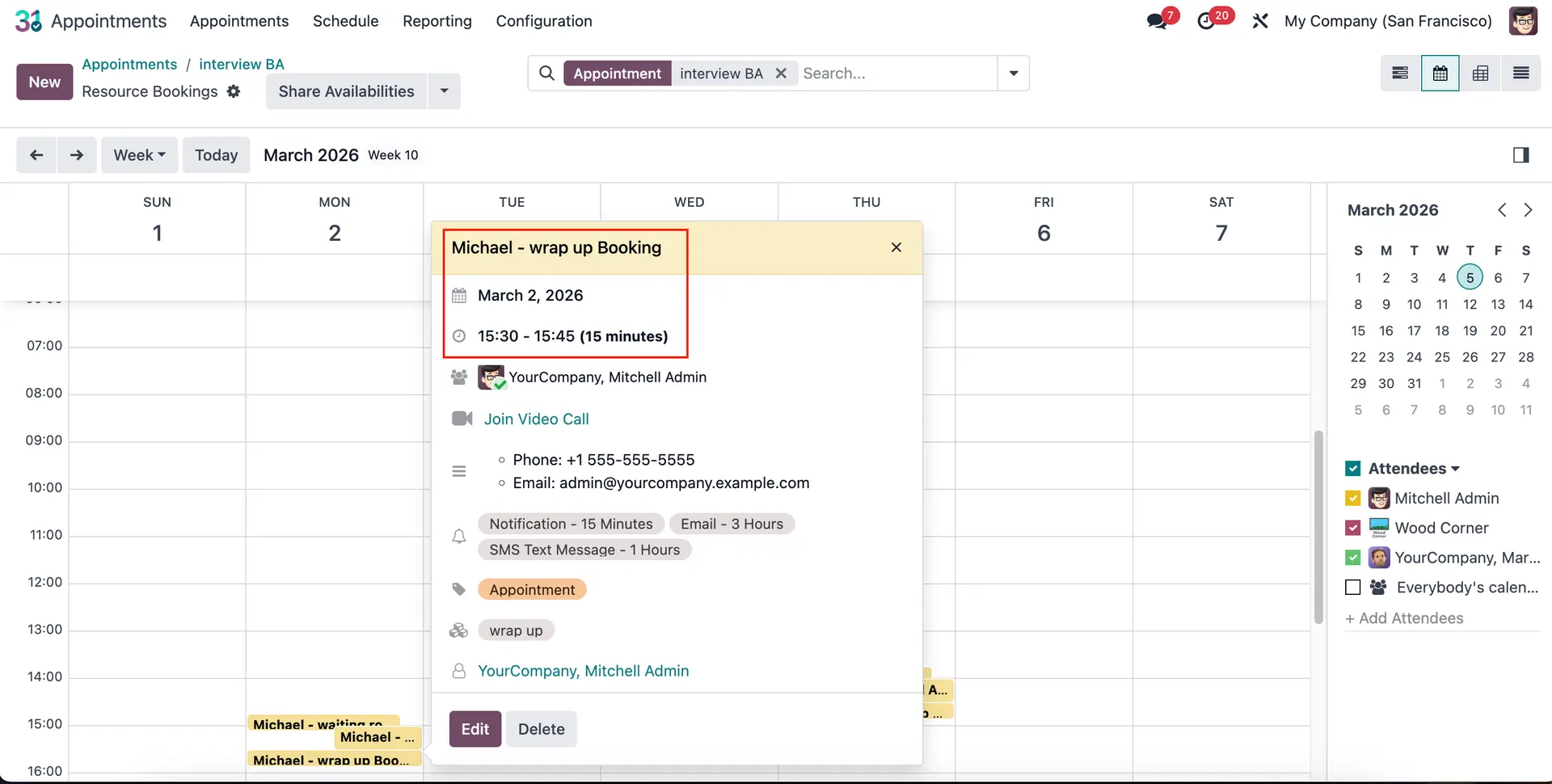
6. On the appointment form view > Access the Appointments smart button > Choose the calendar view. OR Go to Schedule > Resource Bookings | 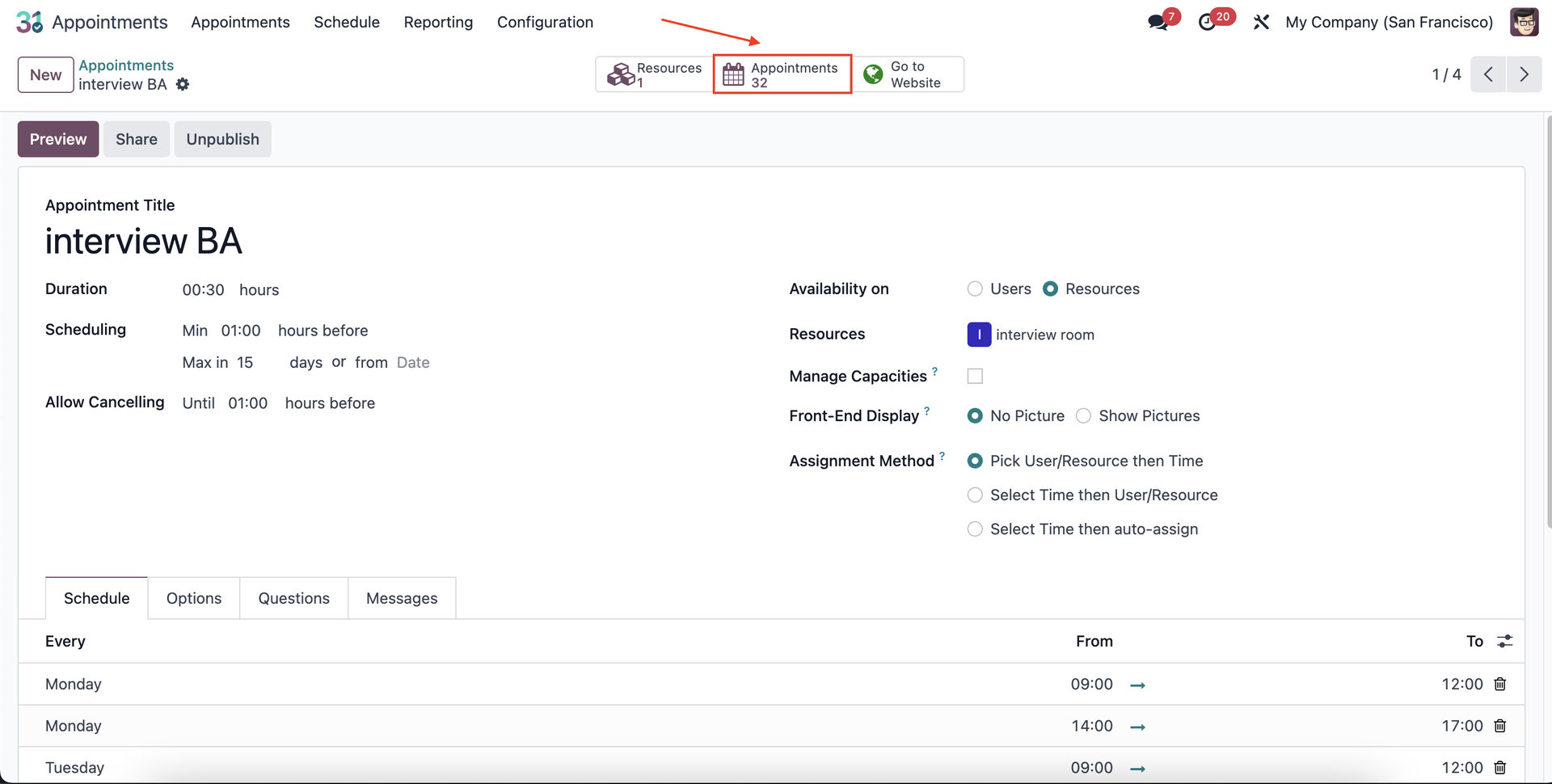 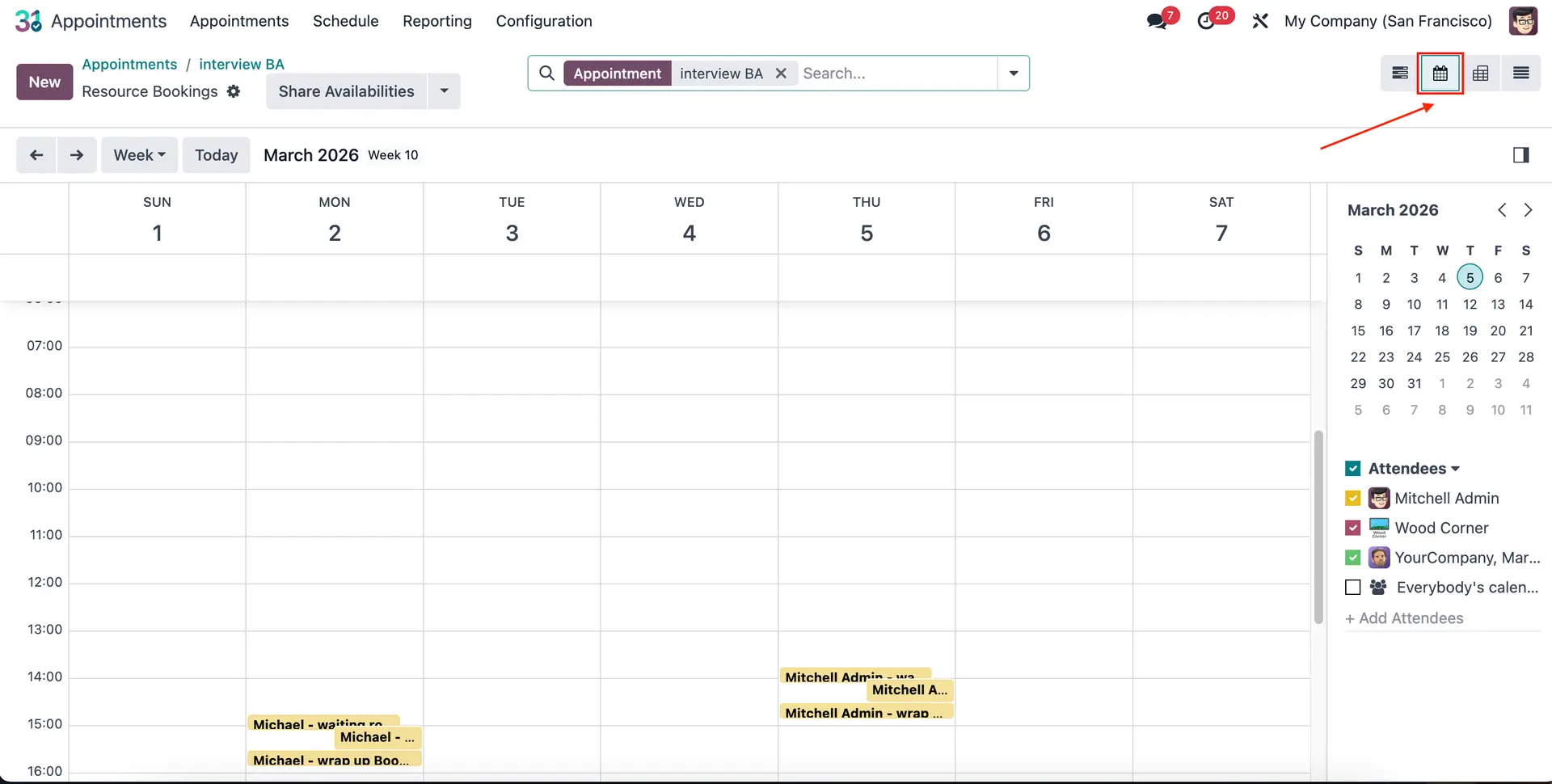 |
For exemple, I booked “interview BA” appointment on March 2nd at 3 PM > waiting room and wrap up are booked 15 mins before and after the interview room. | 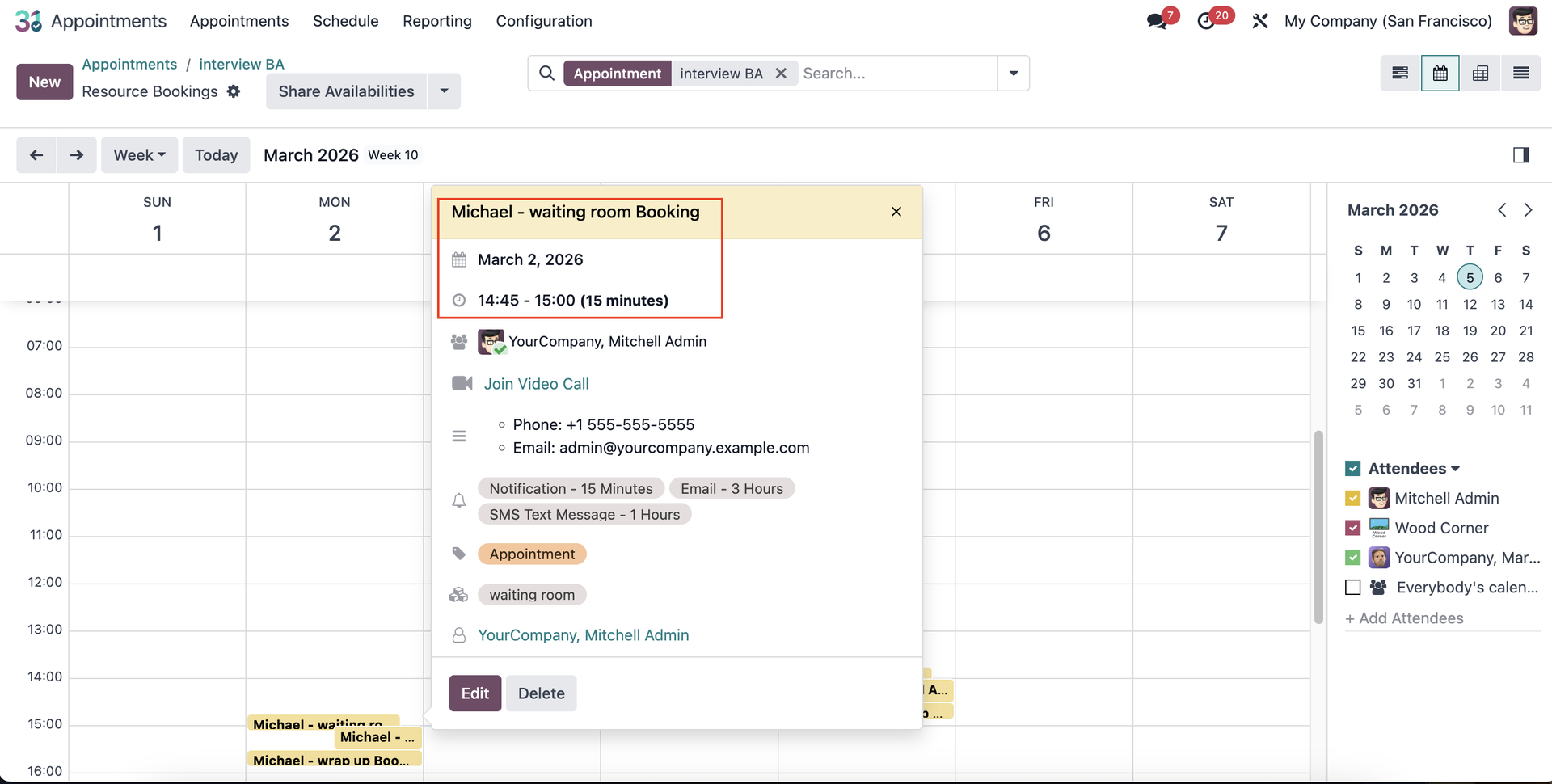 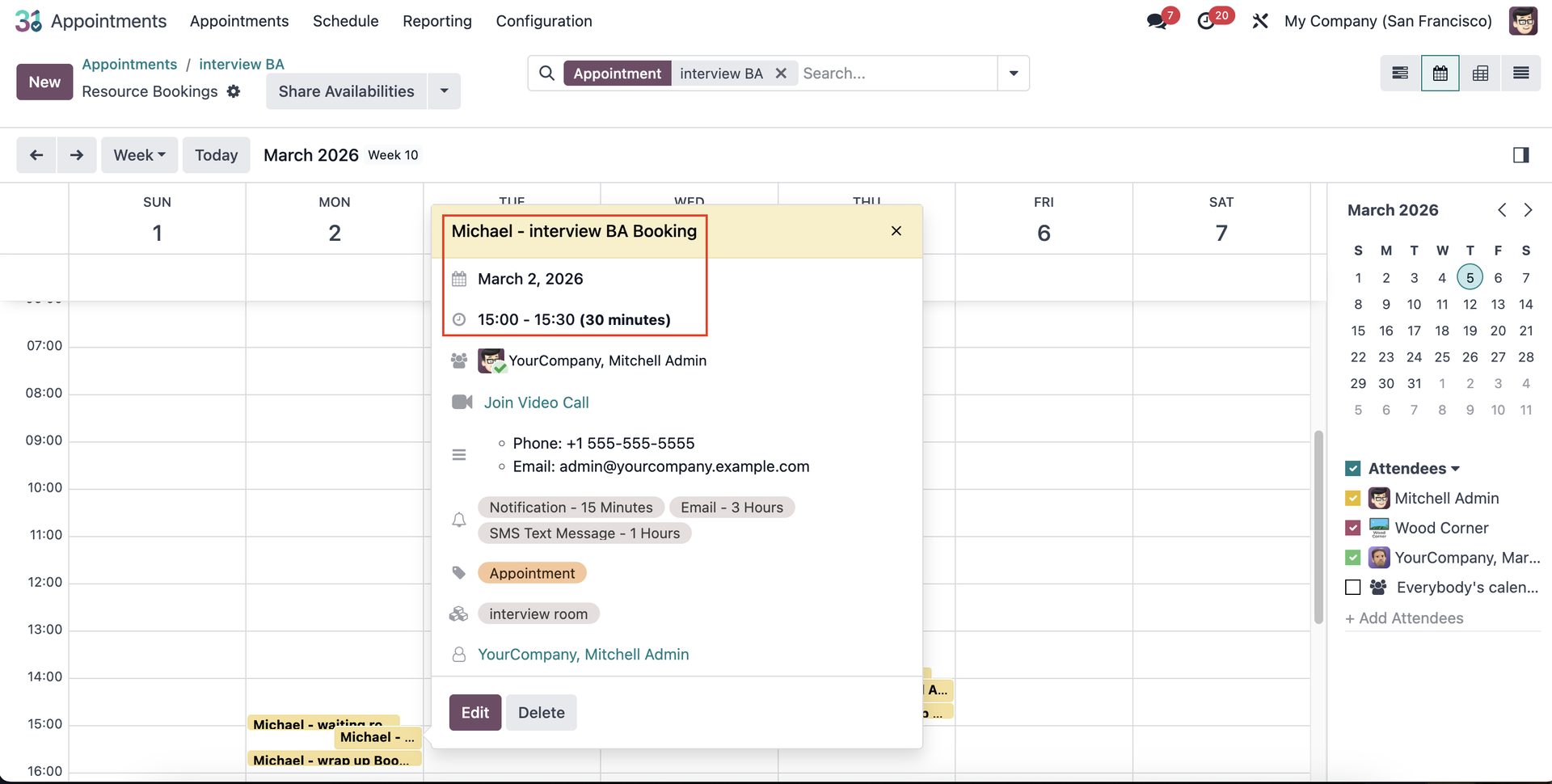
|
Note: If you cancel the appointment > all bookings will disappear. | 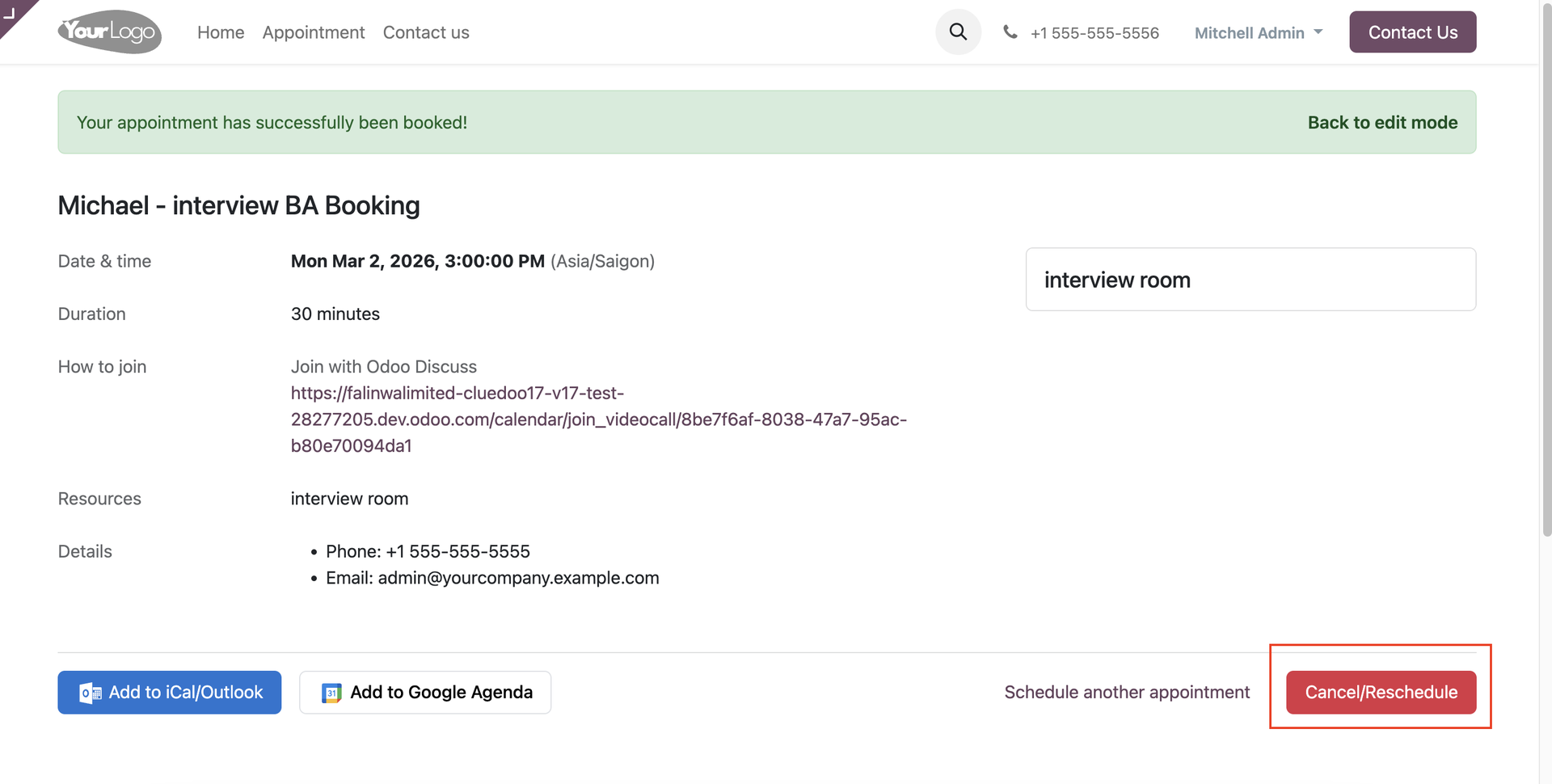 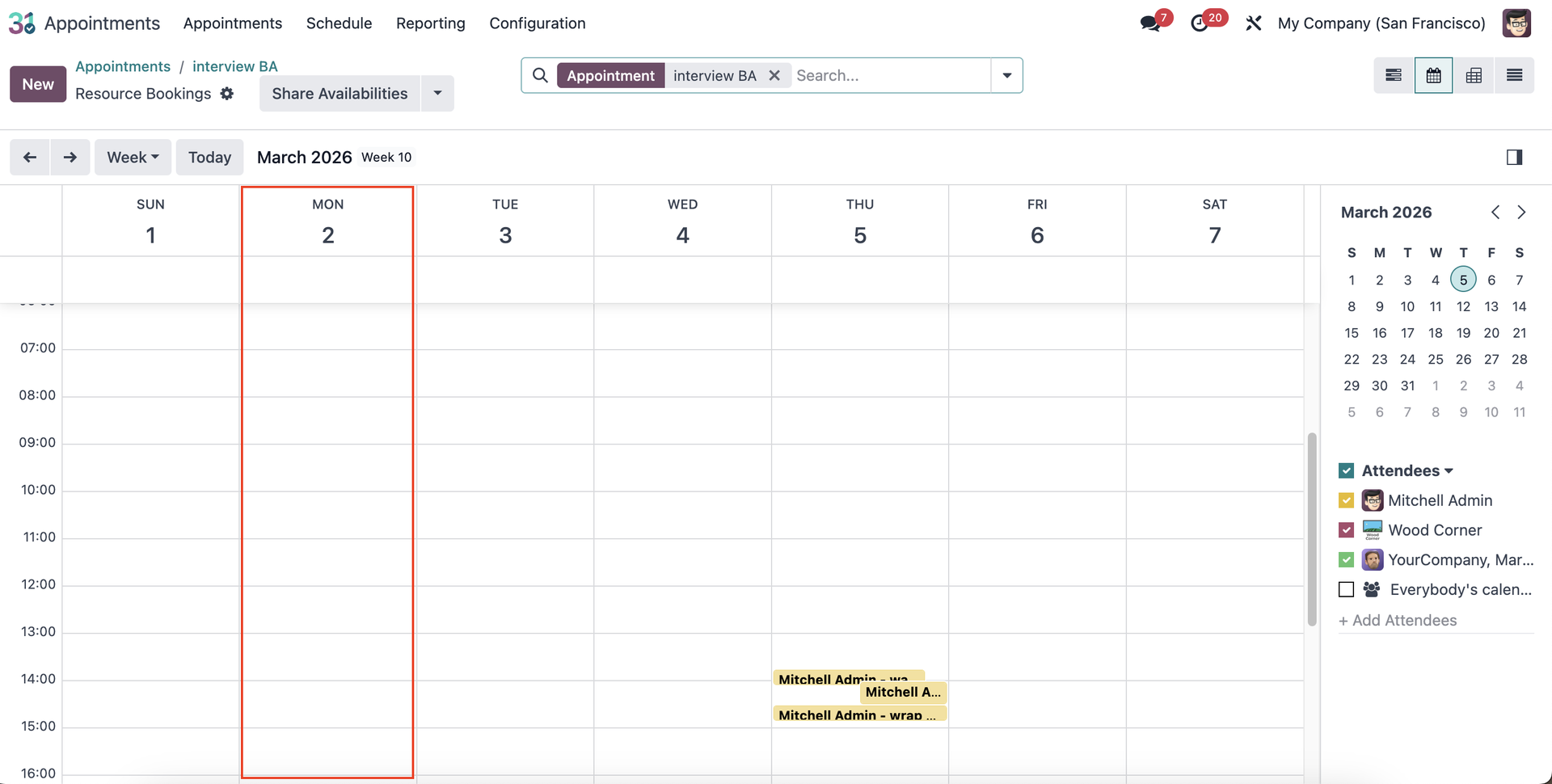 |