ODOO'S FUNCTION
Standard Odoo focuses on the Recruitment-to-Employee transition, allowing users to create job roles, set hiring targets, and publish vacancies. It effectively manages the recruitment dashboard, website applications, and automatically maps job titles to employee profiles once a candidate is hired.
CLUEDOO'S FUNCTION
CLuedoo extends this by focusing on Job Governance & Hierarchy. It introduces:
1️⃣ Job Position hierarchy view to visualize the position structure independently of employees.
2️⃣ Job Position Templates to standardize requirements.
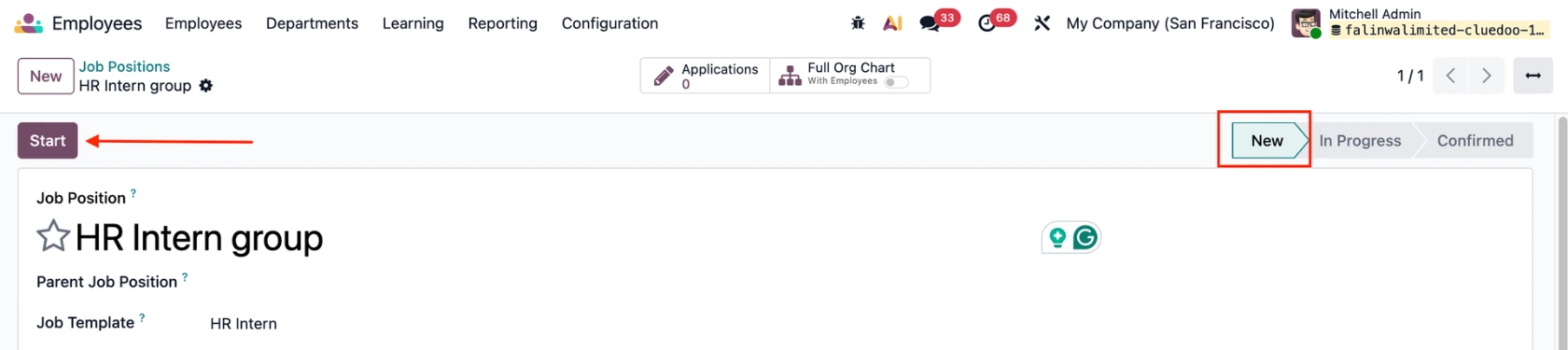
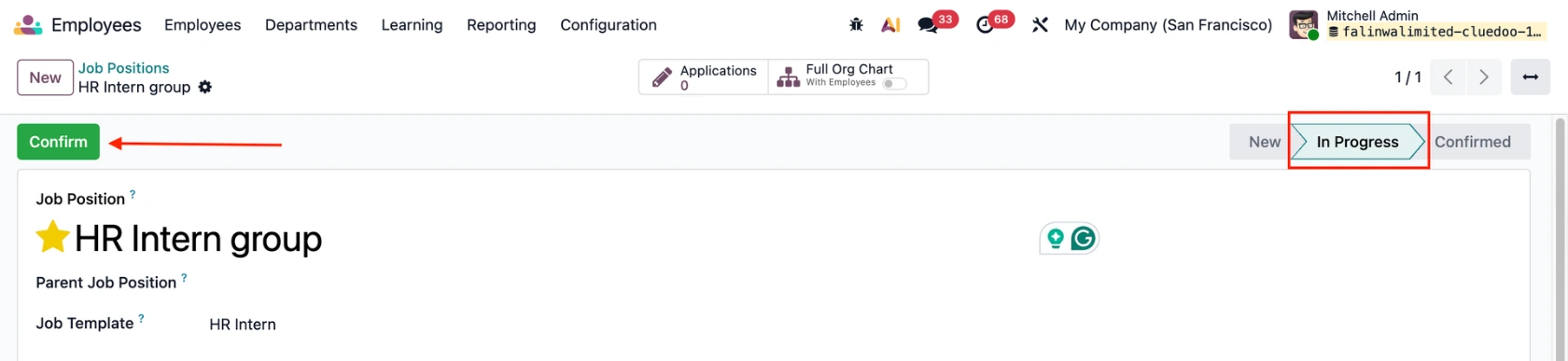
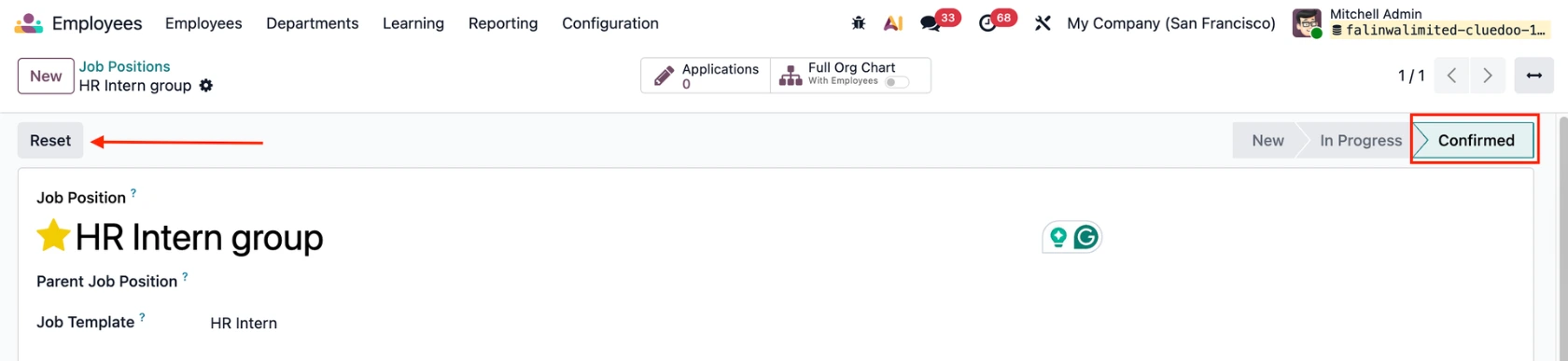
3️⃣ Job Position Statuses: to enable approval rules (if required) to ensure roles are approved before recruitment begins.
JOB POSITION TEMPLATES | |
1. Go to Employees > Configuration > Job Position Templates > Create a new job template. Fill in the neccessary information > Save | 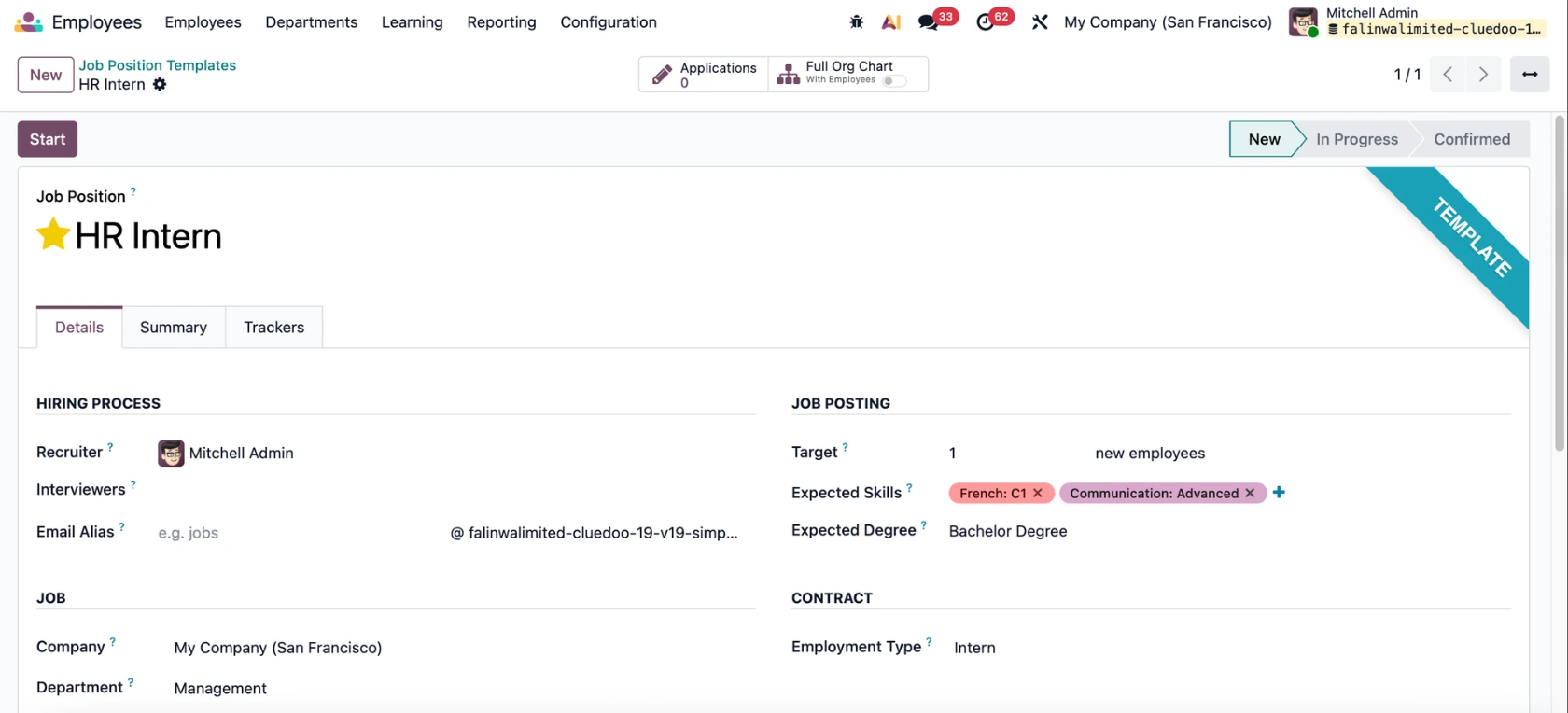 |
2. Create a new position from this template. Go to Employees > Configuration > Job Positions > New. In the Job Template field, choose the previous set up template. Result: All information set up in the Job Template is inherited and auto-filled in the new job position. | 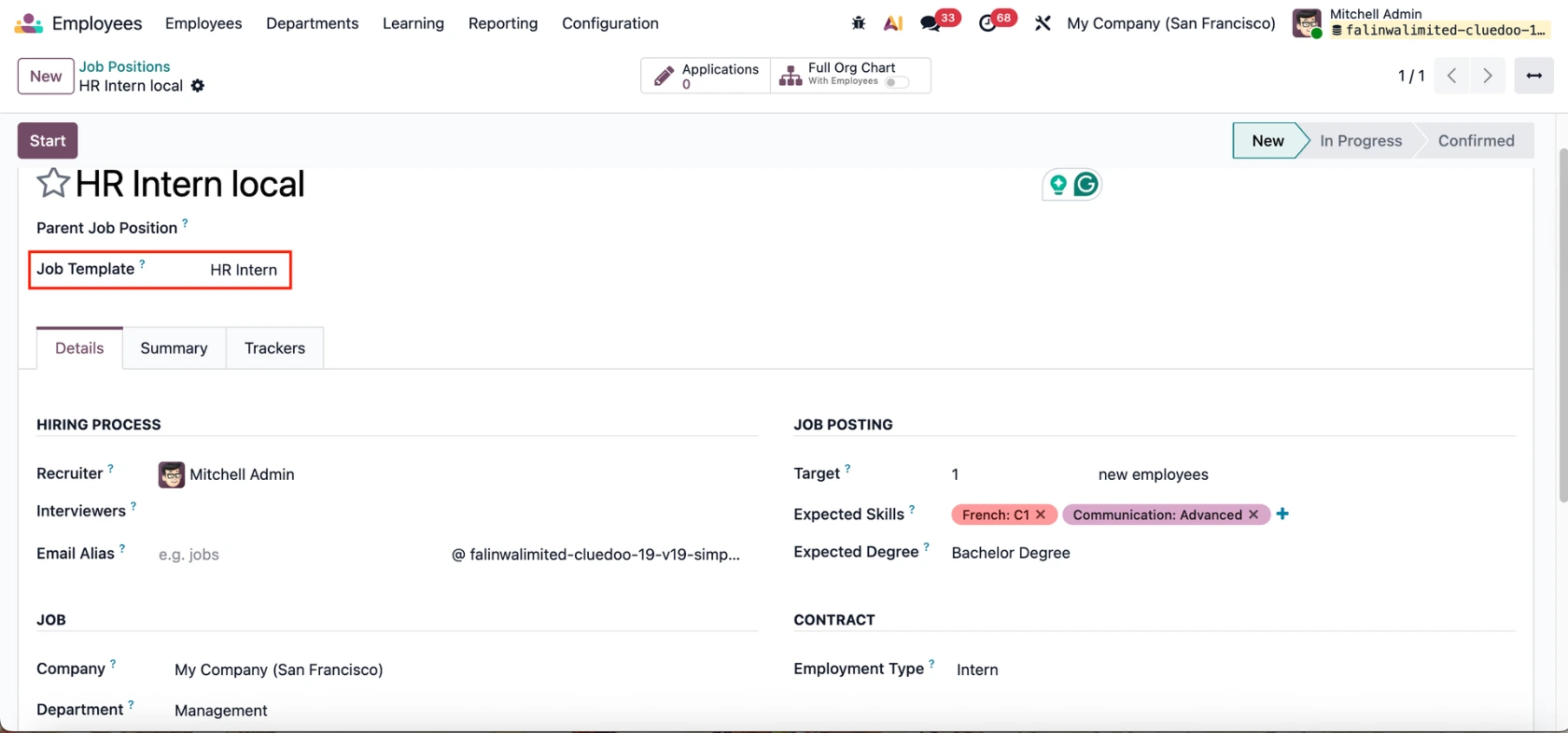 |
JOB POSITION STATUSES | |
In the job position template/job position, there are 3 stages/statuses: New/ In Progress/ Confirmed A go-to button is added.
|
|
JOB POSITION ORGANIZATION CHART | |
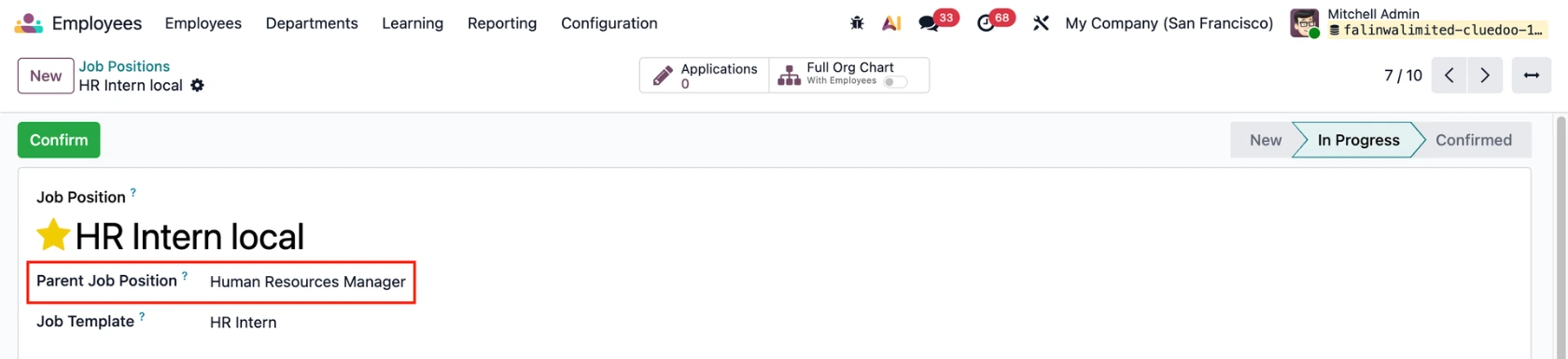
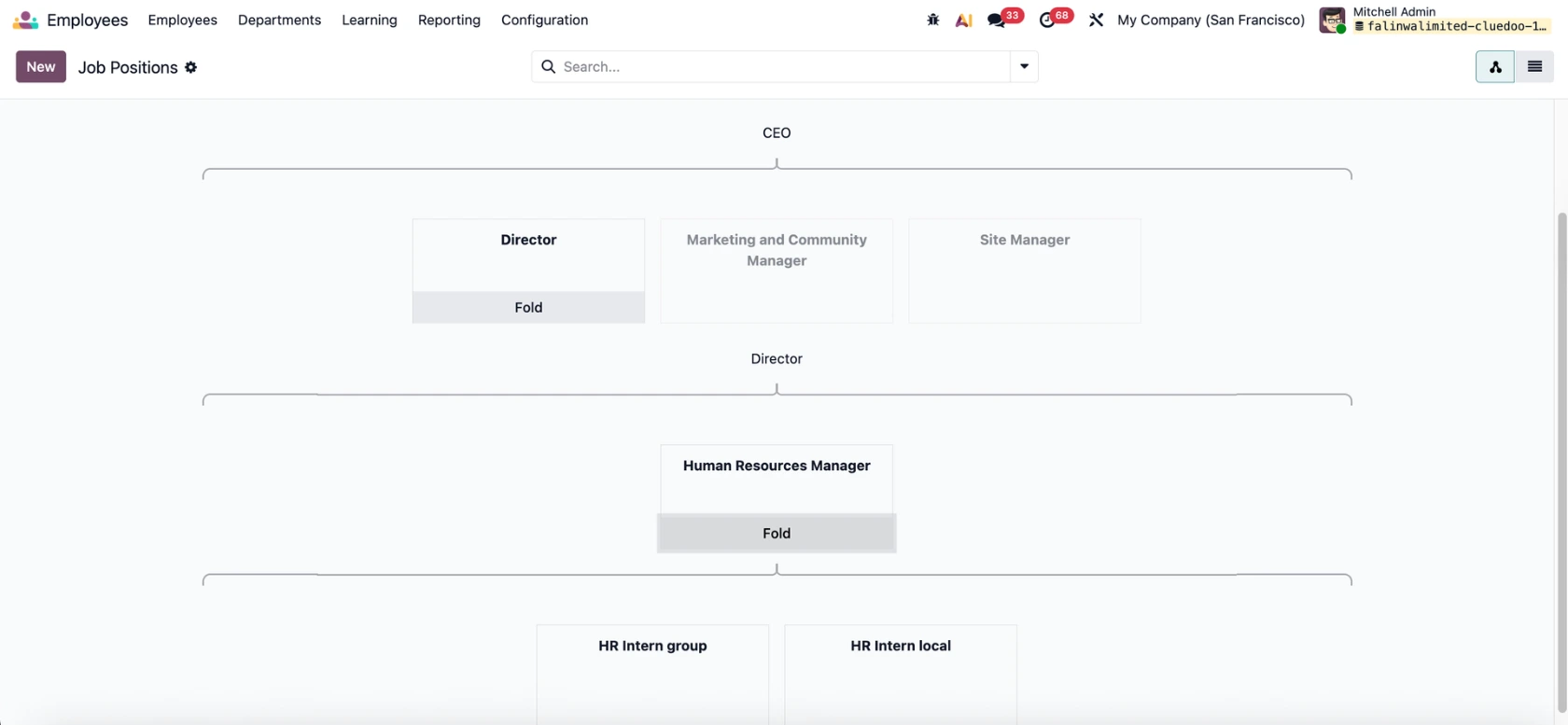
ORG CHART WITHOUT NAMES Create some job positions and fill in the Parent Job Position field to create a hierarchy. |
|
In the Job Positions hierarchy view, click Unfold |
|
Result: The full organization chart will be displayed. |
|
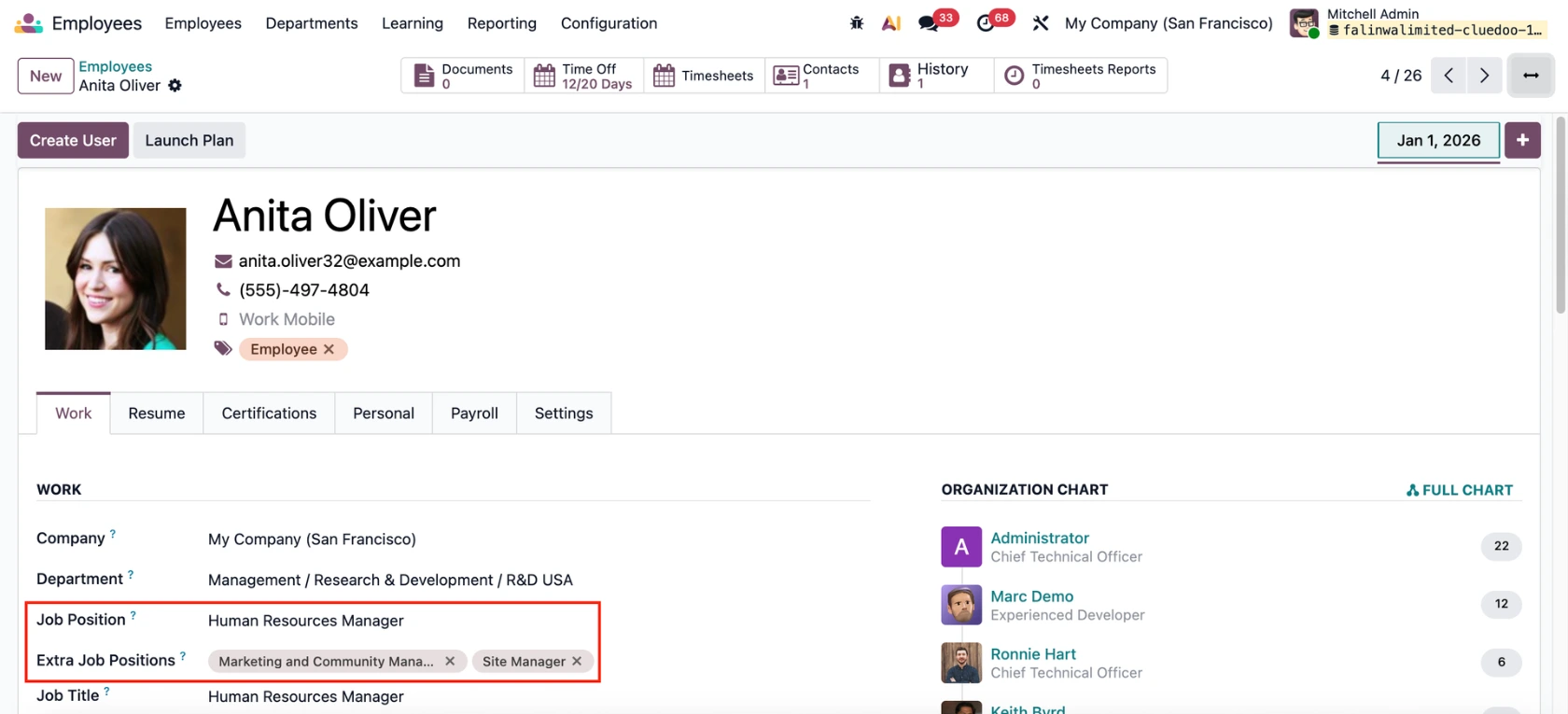
ORG CHART WITH EMPLOYEE NAMES Navigate to Employees and create some employees. Fill in the Job Position and the Extra Job Positions if needed. |
|
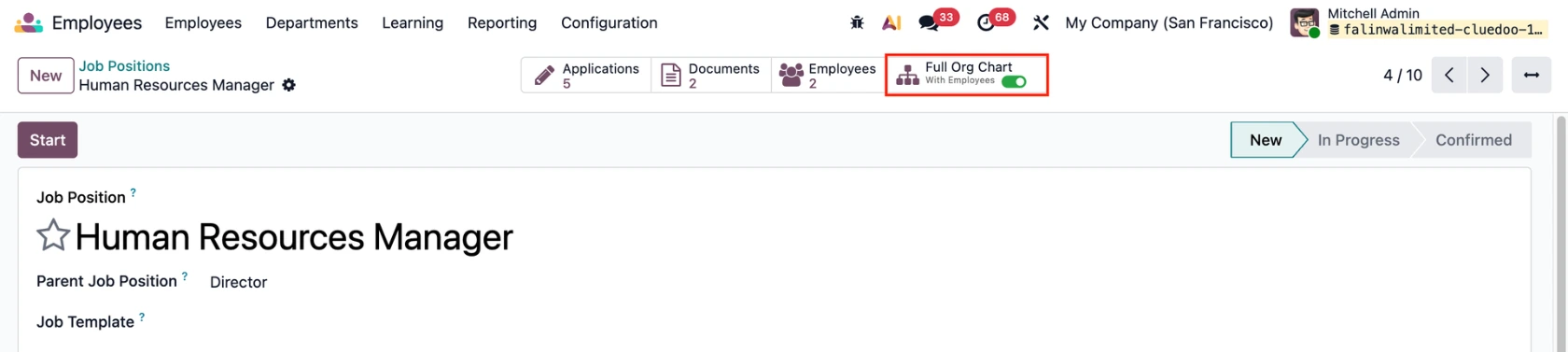
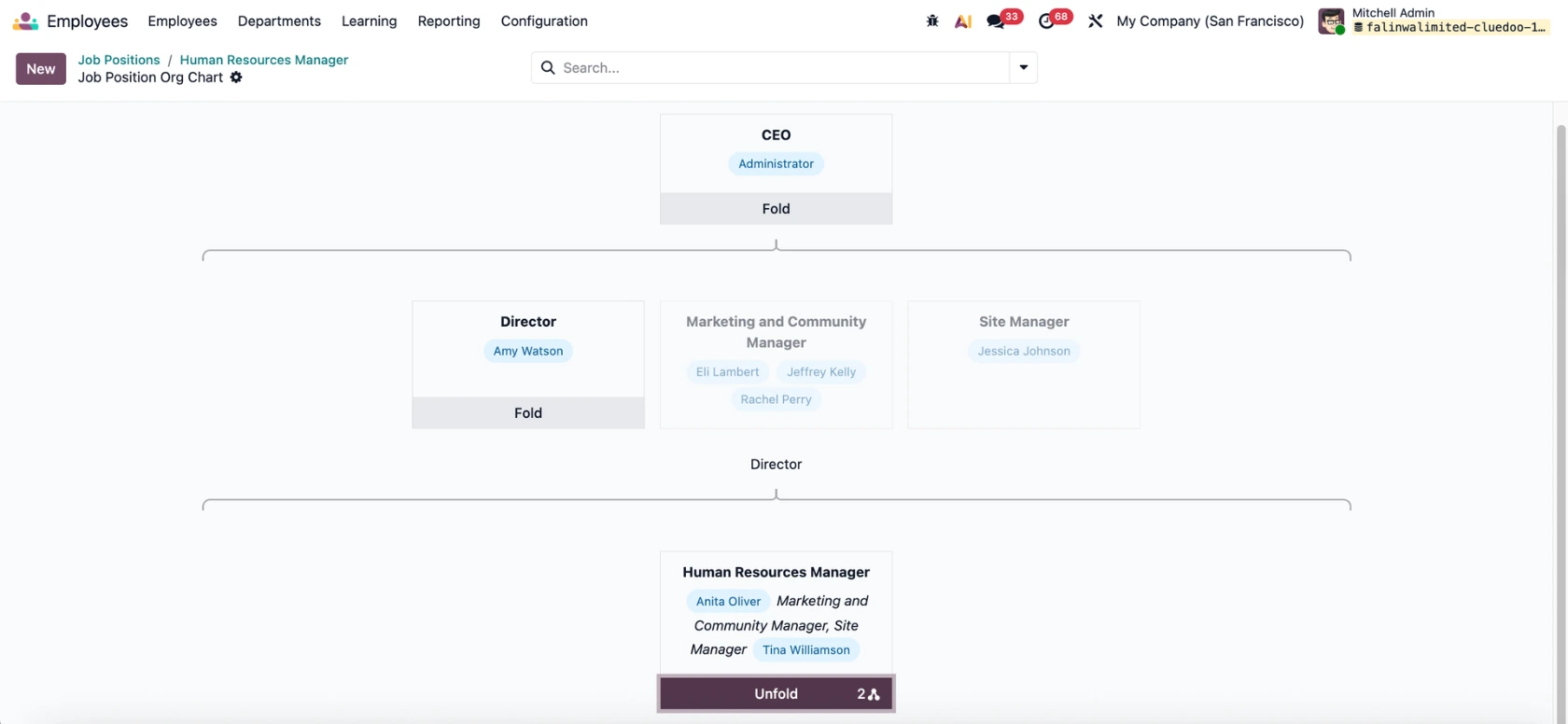
Go back to Job Positions and enable the Full Org Chart in all the positions that you want to show the employees' names. Click on the Full Org Chart button to access the hierarchy view with names. |
|
Result:
|
|