

ODOO'S BEHAVIOR
In Odoo, after participants completed a survey, no message was sent to inform them of their score. Additionally, users could not easily check a participant's score through their profile; the only way to access the results was by going to the Surveys tab. This limited the visibility of survey outcomes for both participants and administrators.
CLUEDOO'S BEHAVIOR
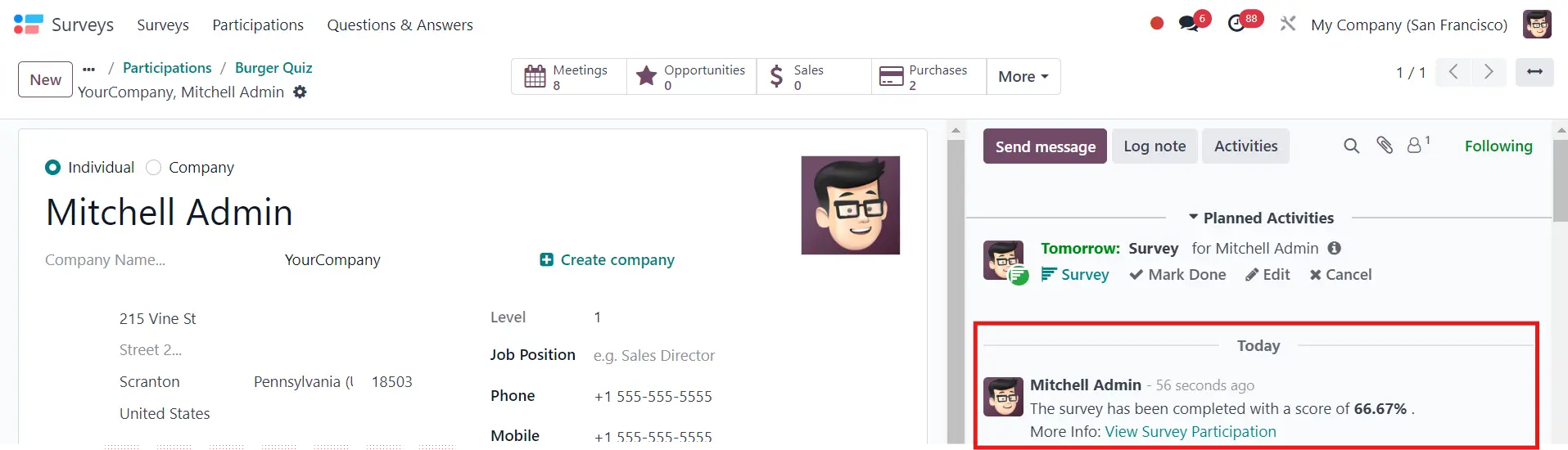
Cluedoo introduces an improved feature that links the survey score directly to the participant's profile after they complete the survey. A message is automatically sent to inform the participant about their score. Furthermore, Cluedoo adds a Survey smart button in the participant's profile, allowing them to easily review the surveys they've completed and check their results.
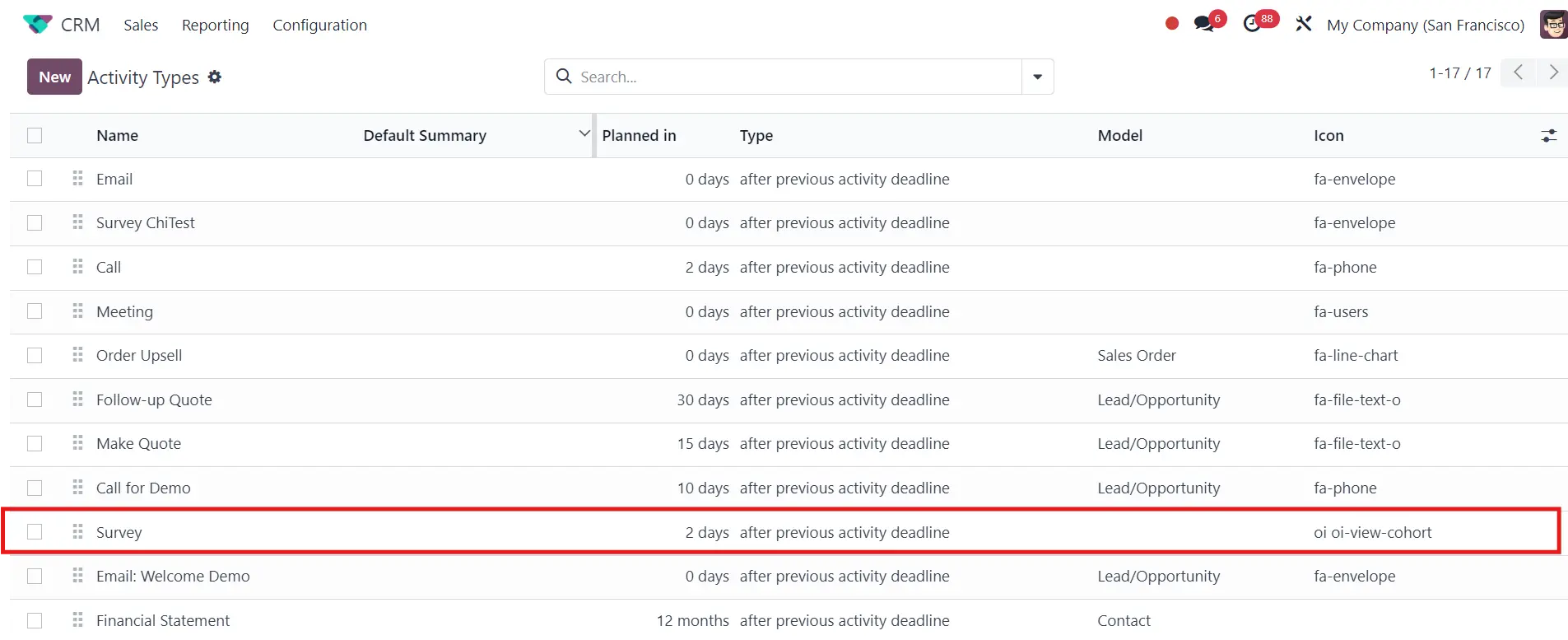
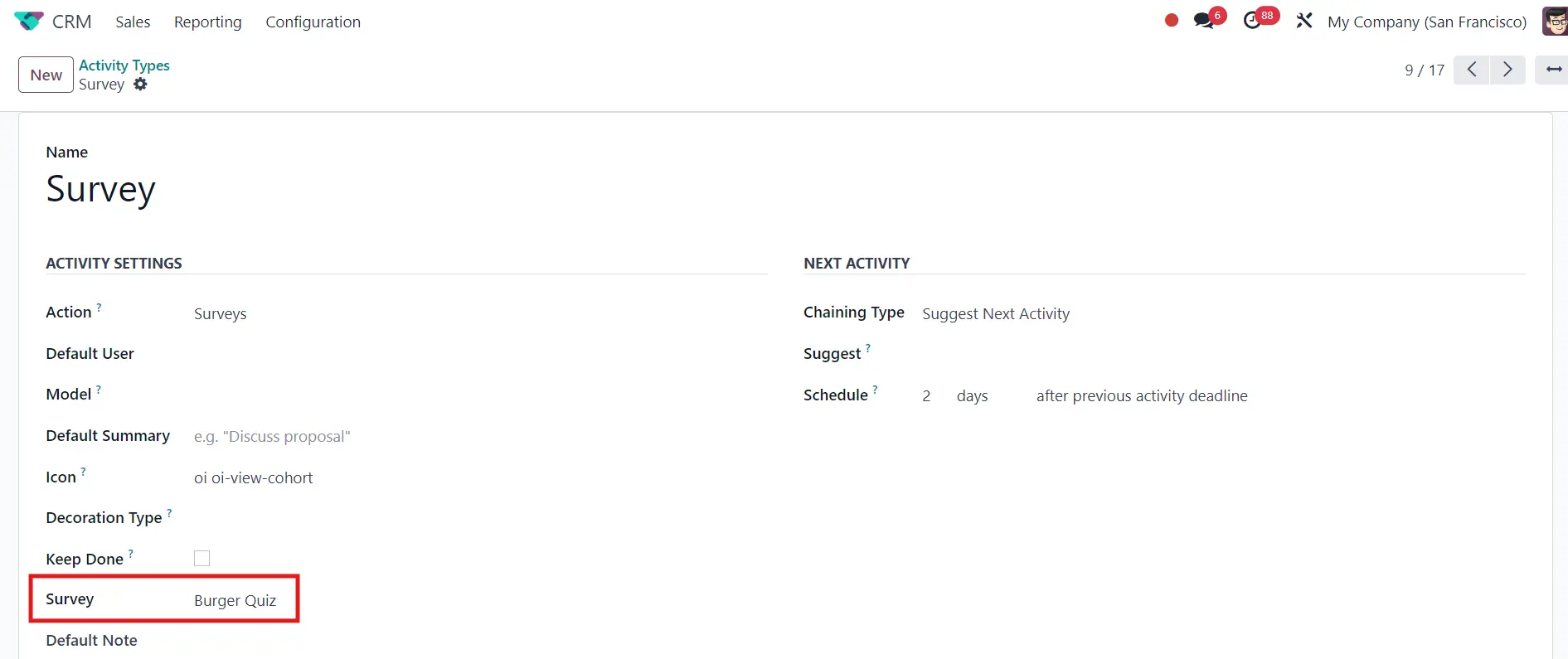
1. Go to CRM > Configuration > Activity Types > Survey and choose a survey that you already created > Save e.g. I choose Burger Quiz
|  |
|  |
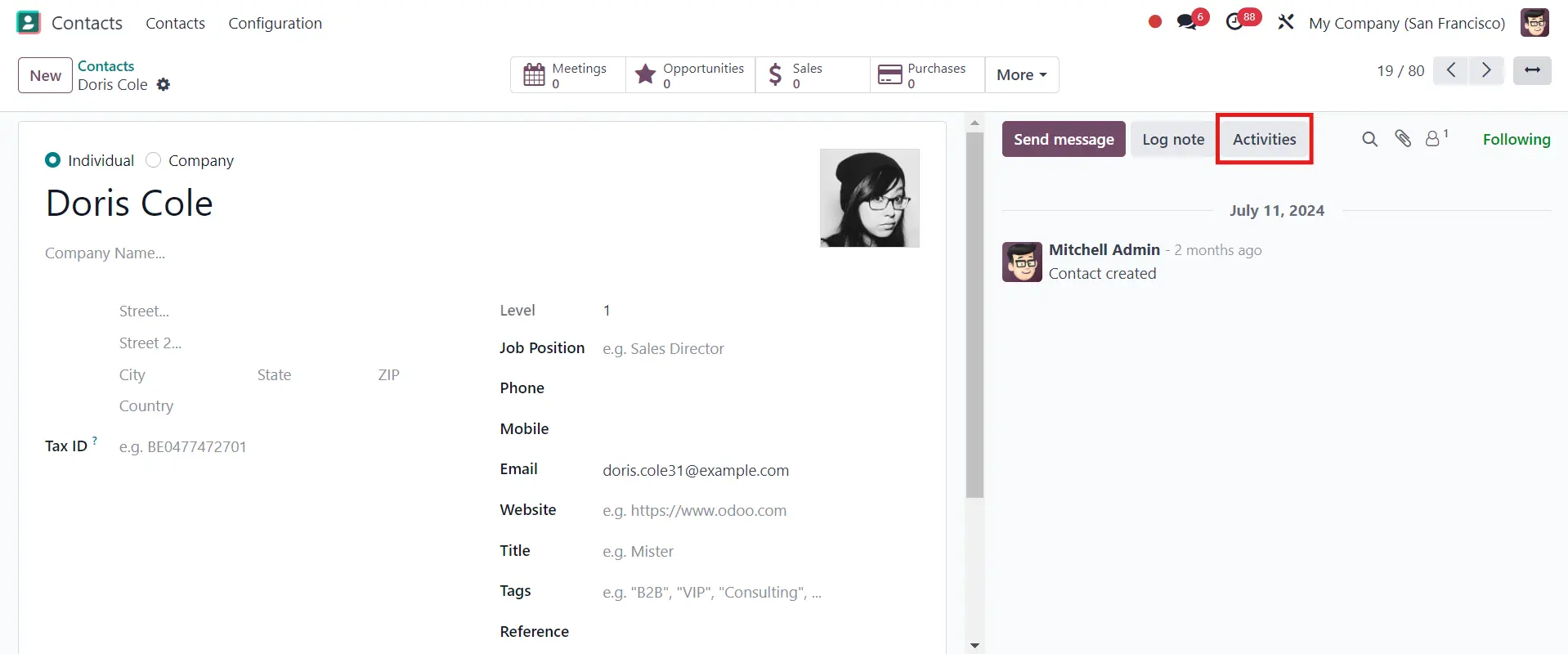
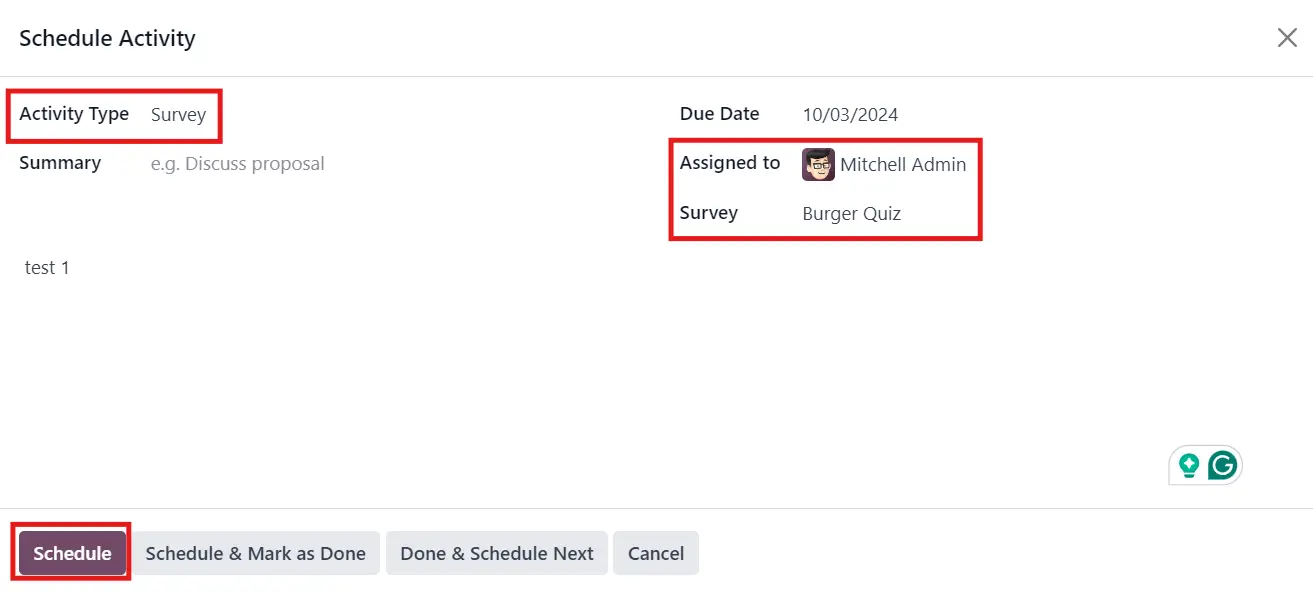
2. Go to Contacts > Choose the employee that will trigger the survey > Activities > Fill in the Activity Type and the Survey's name will be automatically added > Assign the survey > Schedule
|  |
 | |
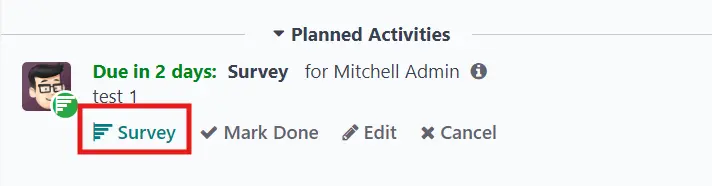
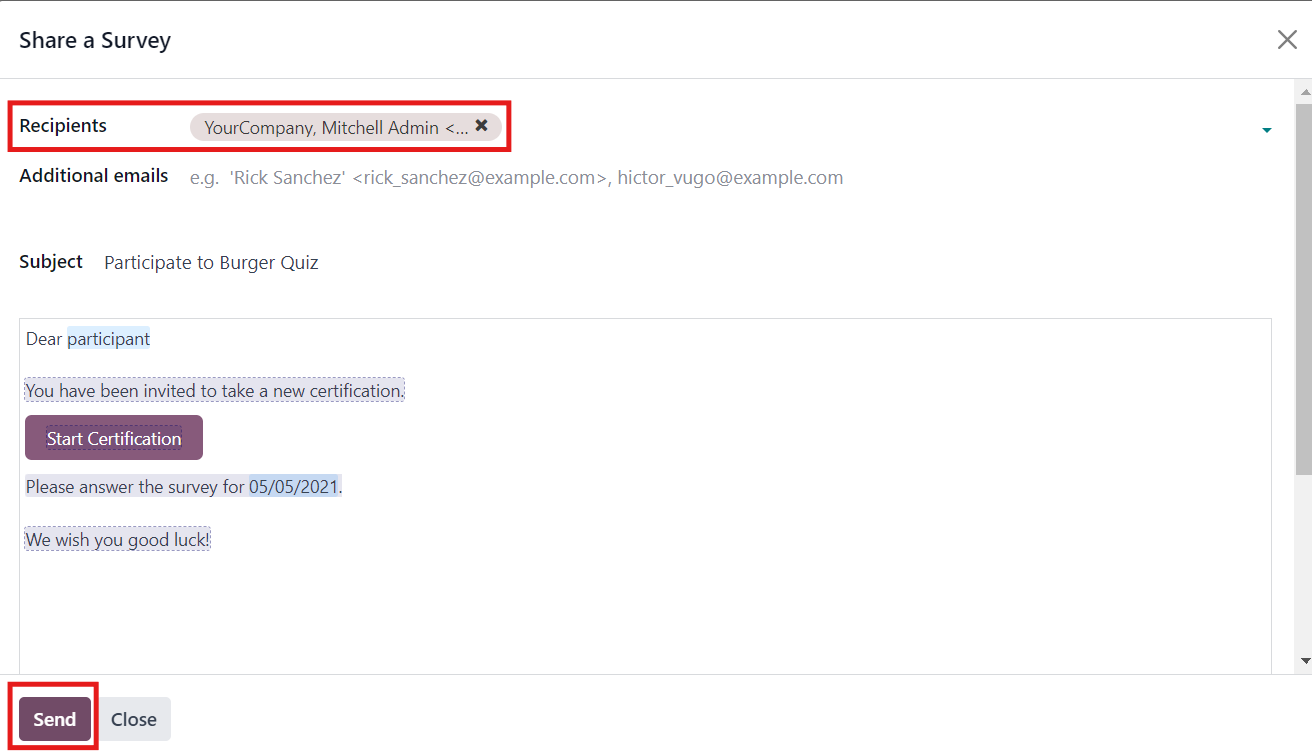
3. Click on Survey > Share > Send Note: Remember to check if the Recipients are correct
|  |
 | |
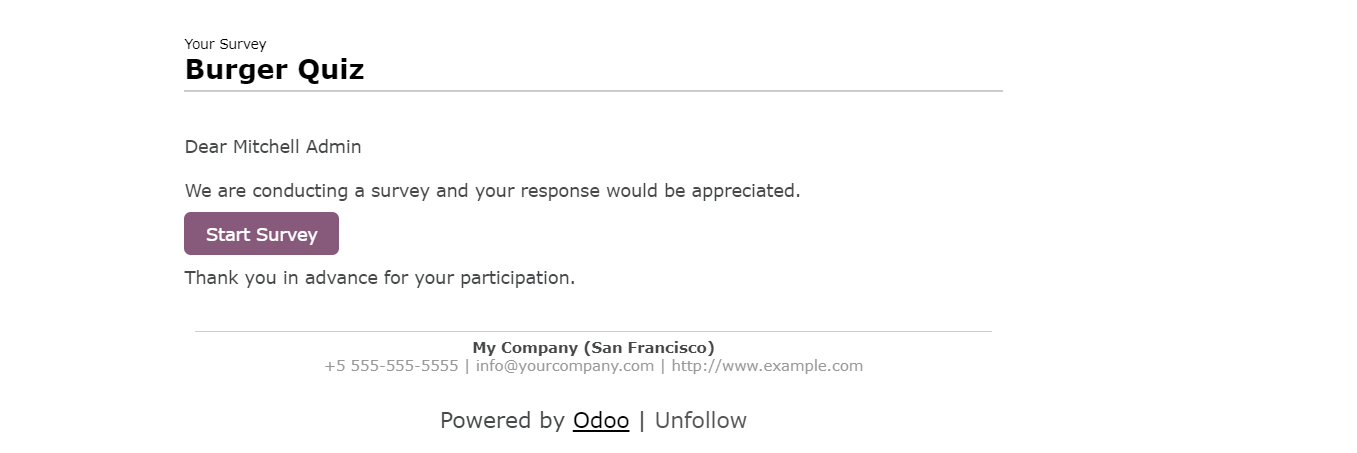
4. For participant, go to Settings > Technical > Email > Emails and you will see an invitation sent to you > Start Survey After you finish, click Submit or press Enter > Your score will appear on the screen Note: The survey will pop out on a new tab
|  |
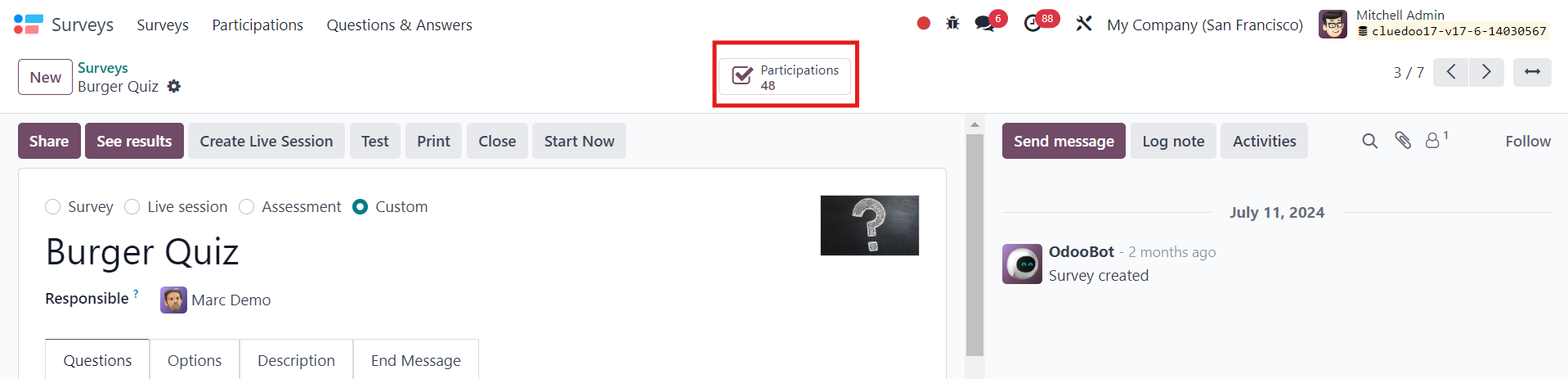
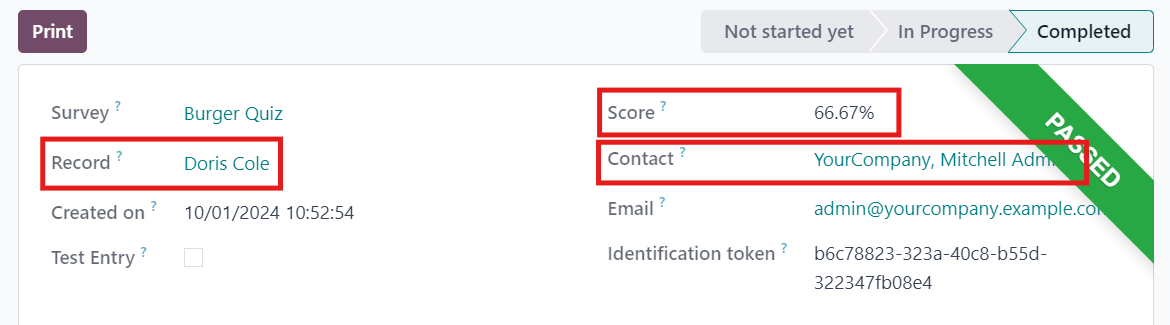
5. Head to Surveys > Choose the survey (e.g. Burger Quiz) > Participations and you will see that the Record has been linked to the person who sent out the survey and the participant's Score is visible as well
|
 |
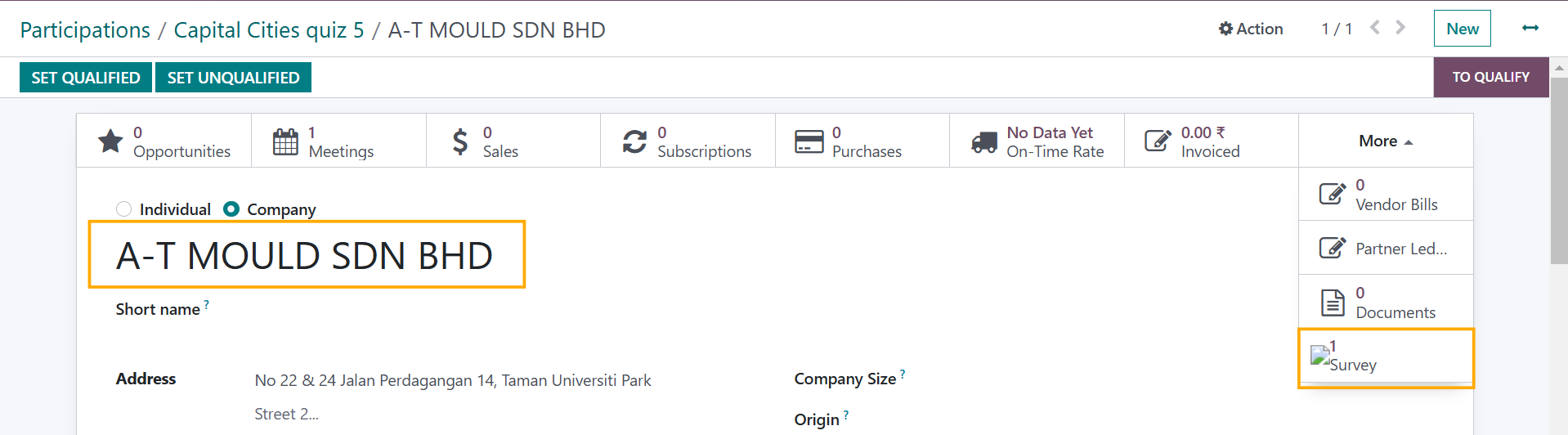
6. Click on Record, the participant's score has been sent to Doris Cole's profile for easy tracking | 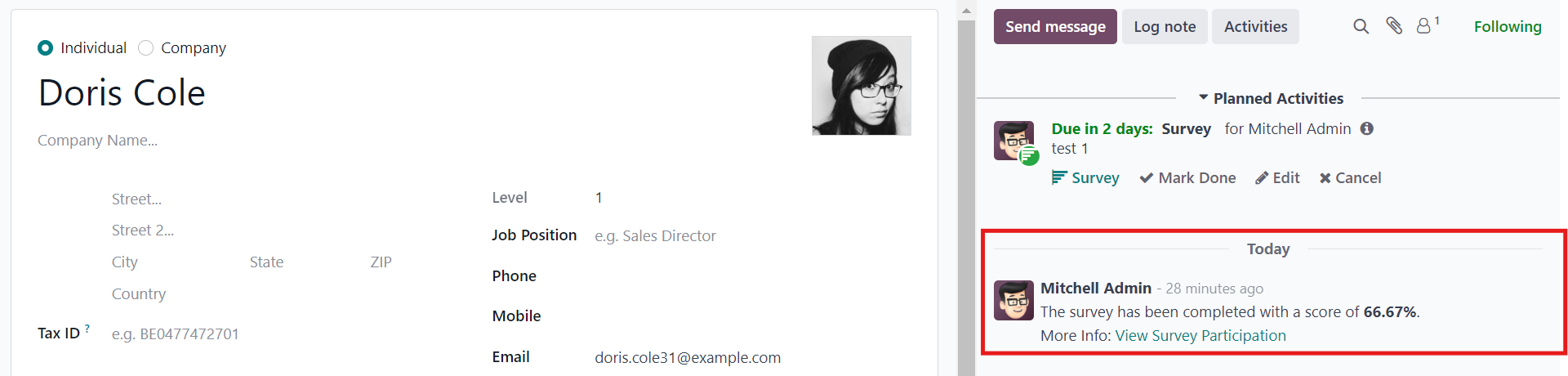 |
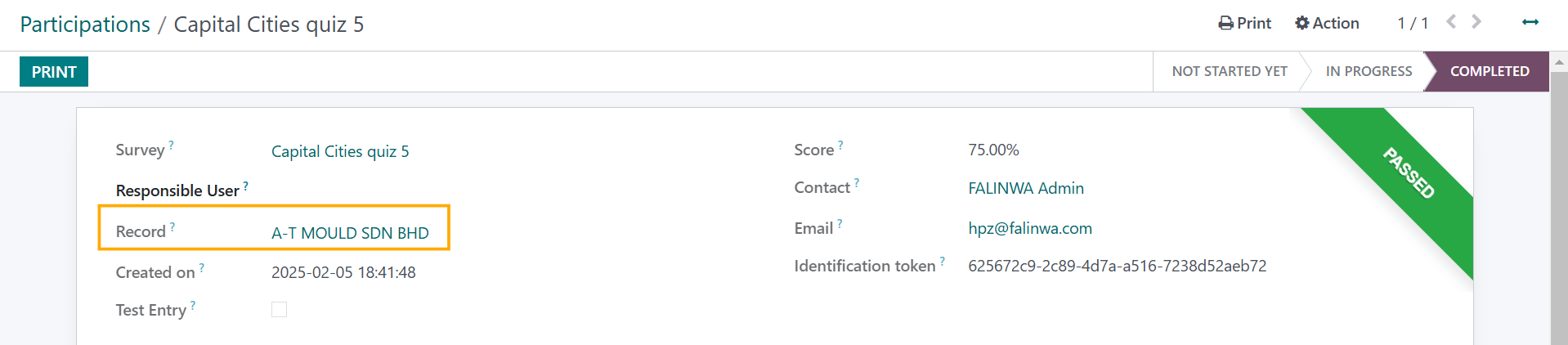
The survey's information can also be viewed on the Record's profile via the Survey smart button
|    |
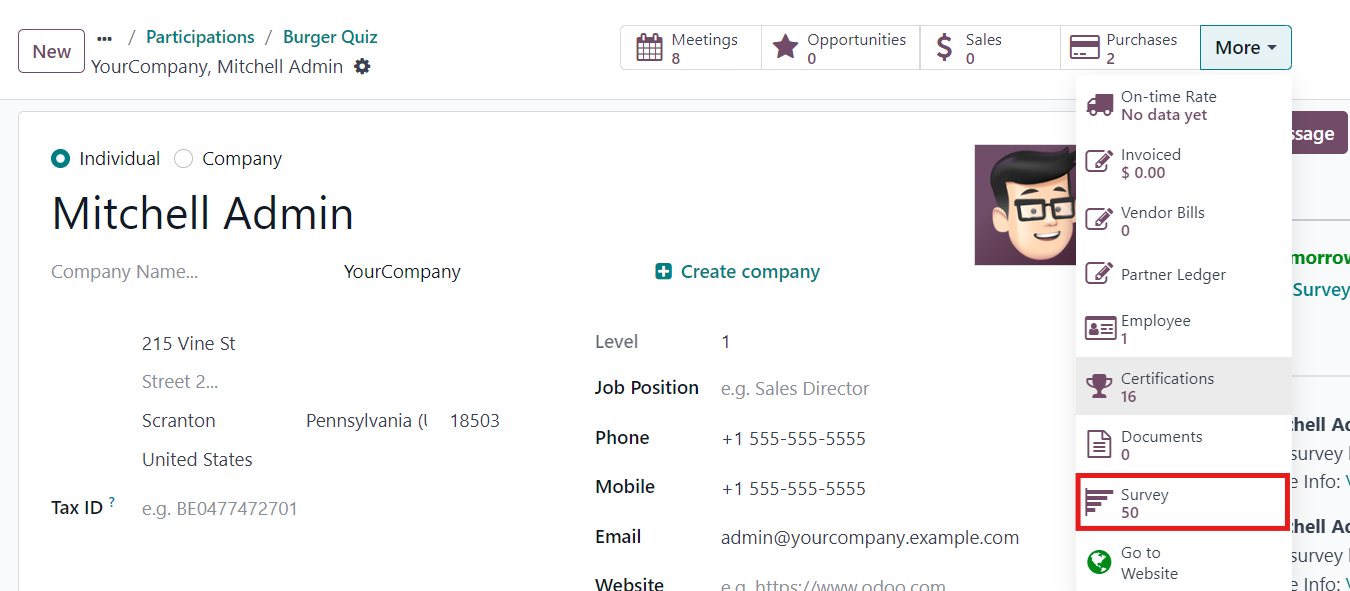
7. Click on Contact, the participant's score has been sent to their profile as well > More > Survey, all the completed surveys will be here for easy review Alternatively, you can click on View Survey Participation to see the one you just completed
|
 |