



ODOO'S FUNCTION
By default, Odoo’s Accounting module supports managing Deferred Revenue and Deferred Expense entries, but it does not provide a dedicated menu for Journal Items specifically linked to these deferred entries.
CLUEDOO'S FUNCTION
CLuedoo enhances the management of deferred entries by introducing:
This allows users to easily access and manage deferred entries in a separate, clean view and provides the flexibility to retroactively update historical data to ensure accurate tracking.
Deferred Revenues Entries Menu Go to Accounting > Reporting > Deferred Revenues Entries | 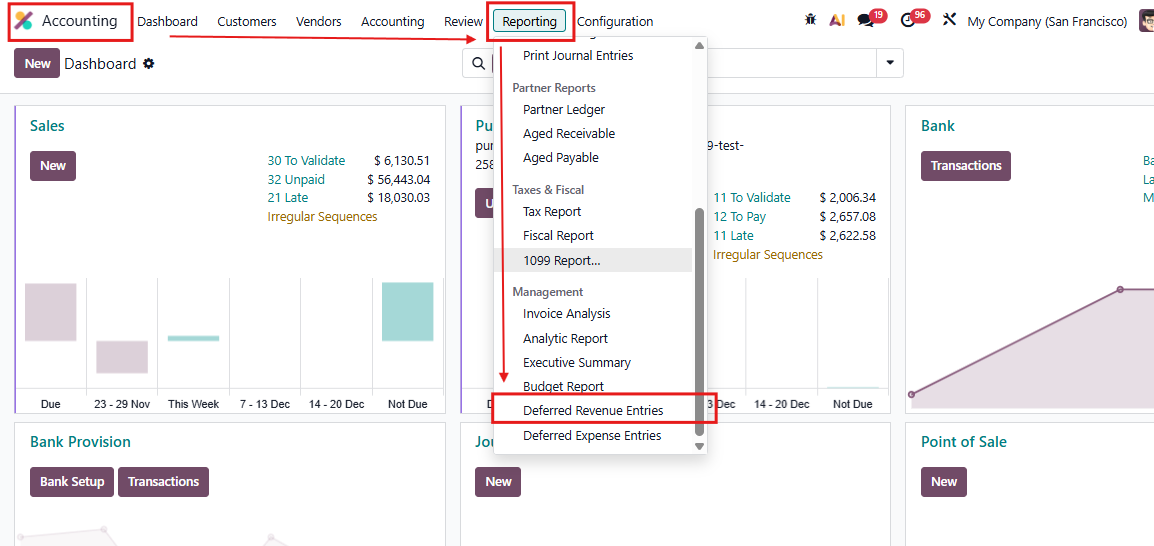 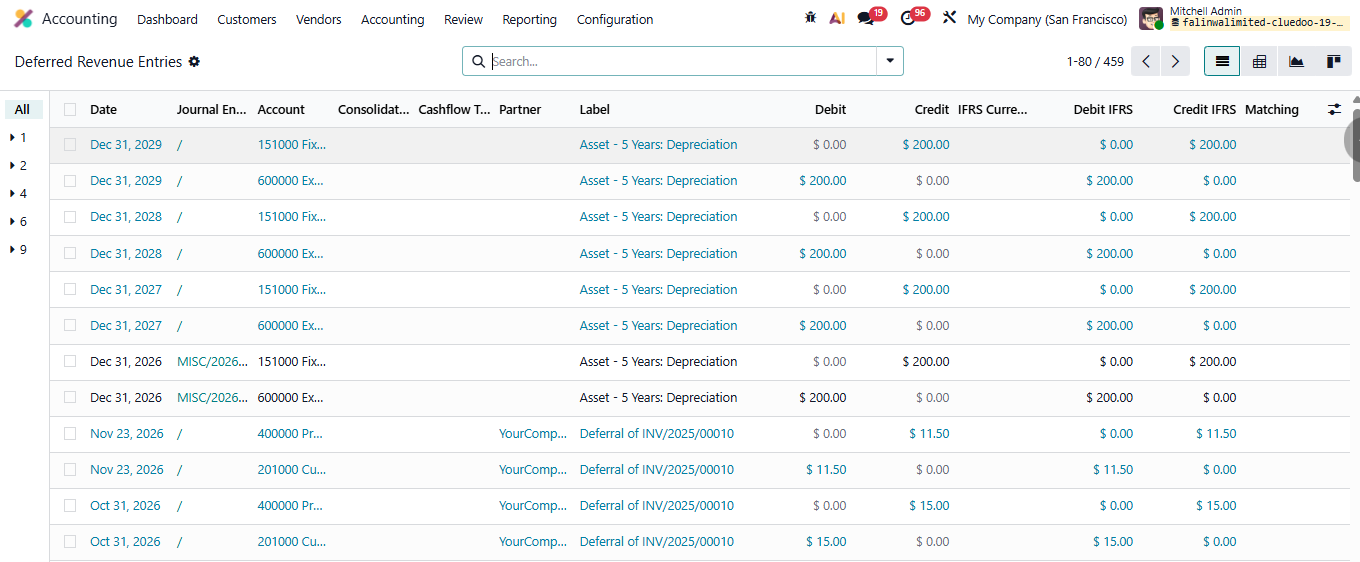 |
Option to define whether each line creates deferred entries In an Invoice, tick/untick the checkbox on each line. For example, the invoice line with the Screw product will not generate Deferred Entries. | 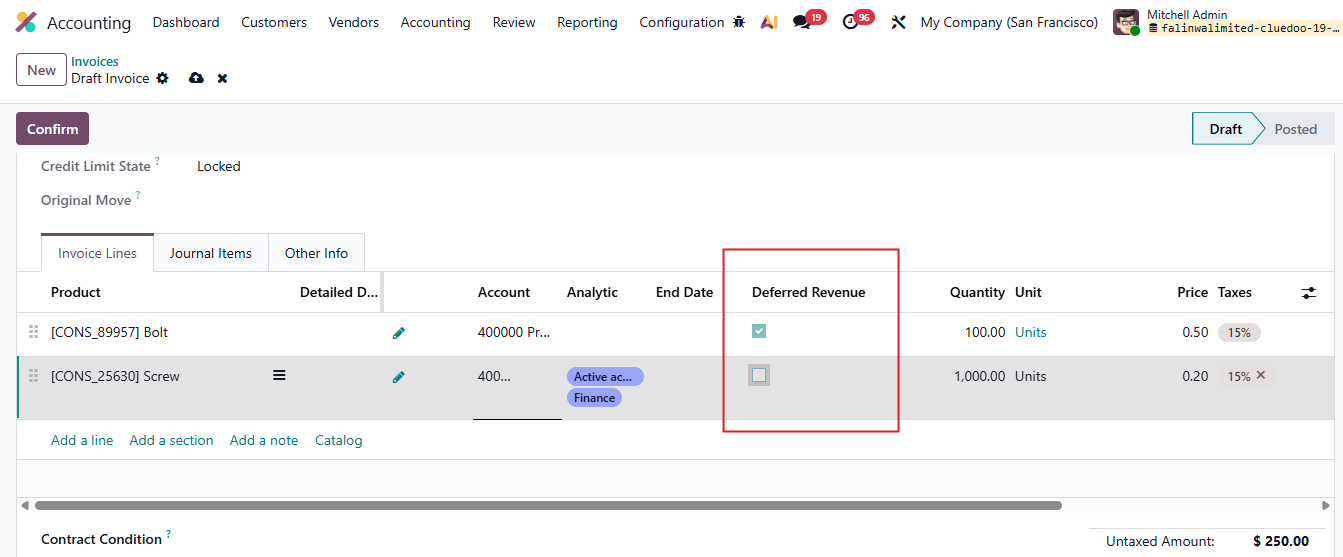 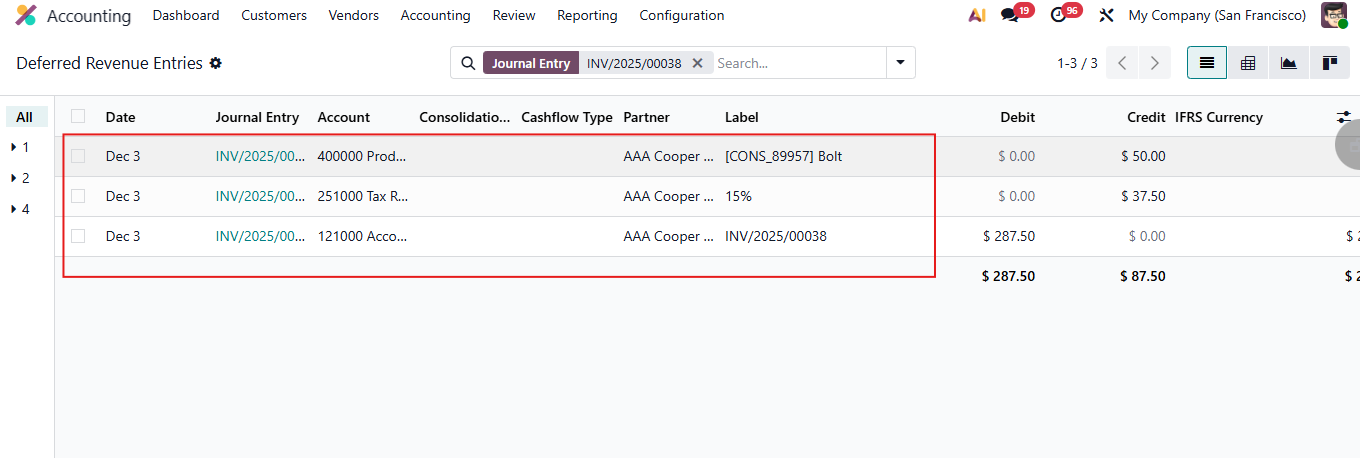 |
Option to manually set into menu Deferred Revenue Entries Go to Journal Entries Choose the desired JE > Actions > Set Into Deferred Revenue Entries Menu → All the Journal Items of this entry will be added in the Deferred Revenue Entries Menu For example, after choosing Set Into Deferred Revenue Entries Menu, Journal Item containing product Screw is in Deferred Revenue Entries too. | 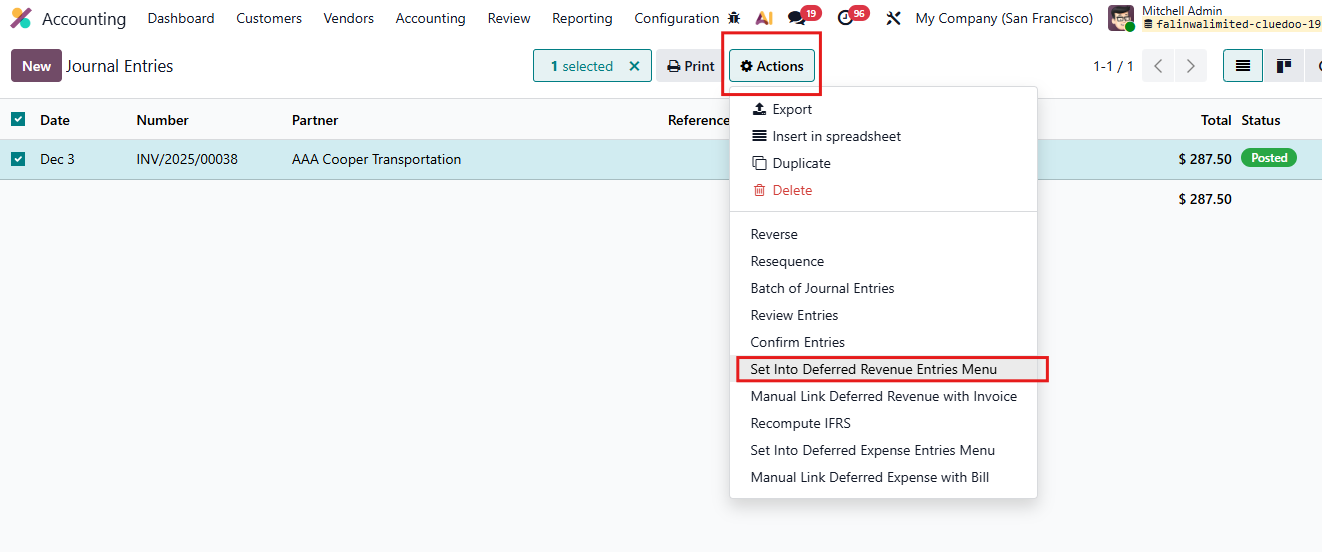 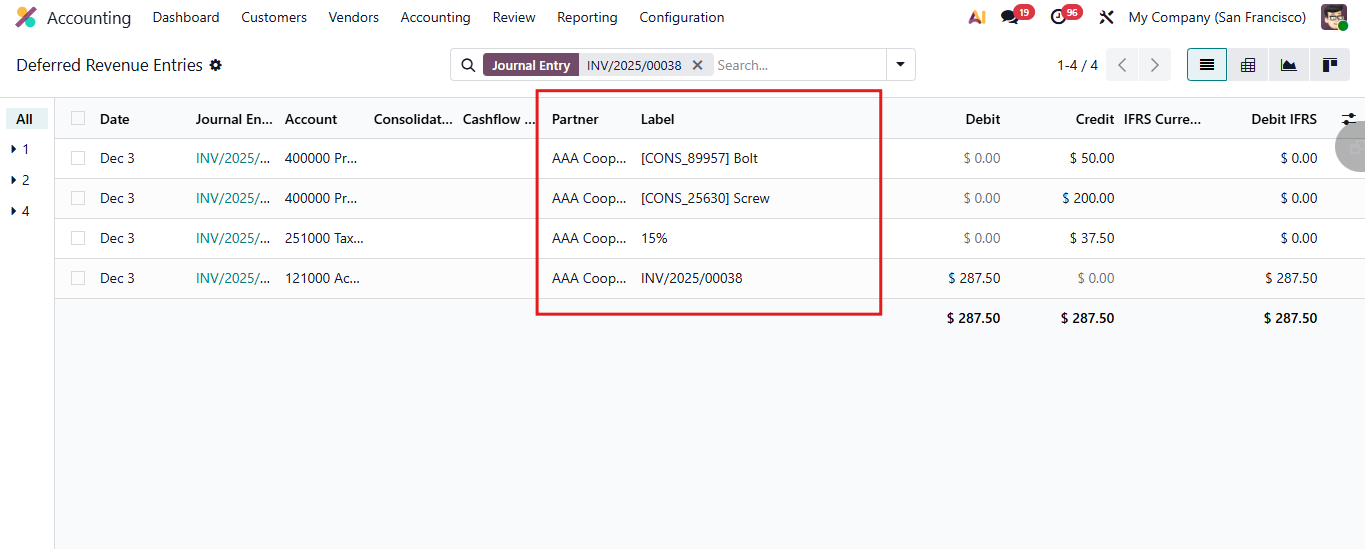 |
Option to manually link Deferred Revenue with Invoice Choose some existing Journal Items > Actions button > Manual link deferred Revenue with Invoice > Choose an Invoice Note: make sure your selected journal items are already pushed into the Deferred Revenue Entries Menu first |  |
Go to Customer Invoices > Select the invoice that you chose to link > Deferred Entries |  |
Check that the Journal Items are already linked. |   |