ODOO'S FUNCTION
Standard Odoo surveys do not natively link questions to your existing database records or support file attachments. If you need users to select an option like a Country or a Product, the choices must be entered manually during the survey setup. Additionally, there is no built-in question type for users to upload documents or images directly within the survey form.
CLUEDOO'S FUNCTION
CLuedoo's upgrade completely transforms your surveys with two powerful new features:
Odoo List & Conditional Triggers: Pulls live options directly from the database (displaying all records or specific ones via filter) and allows showing dependent questions instantly based on what the respondent selected.
File Attachment & Question Categories: Allows respondents to upload documents or photos directly inside the survey, and lets you group questions into custom categories that automatically link straight to the answers.
This saves administrative time, ensures data accuracy, and keeps all survey responses, workflows, and files perfectly organized in one place.
CONFIGURATION | |
Go to Survey > Create New Survey > Fill in the Title and Add a question. | 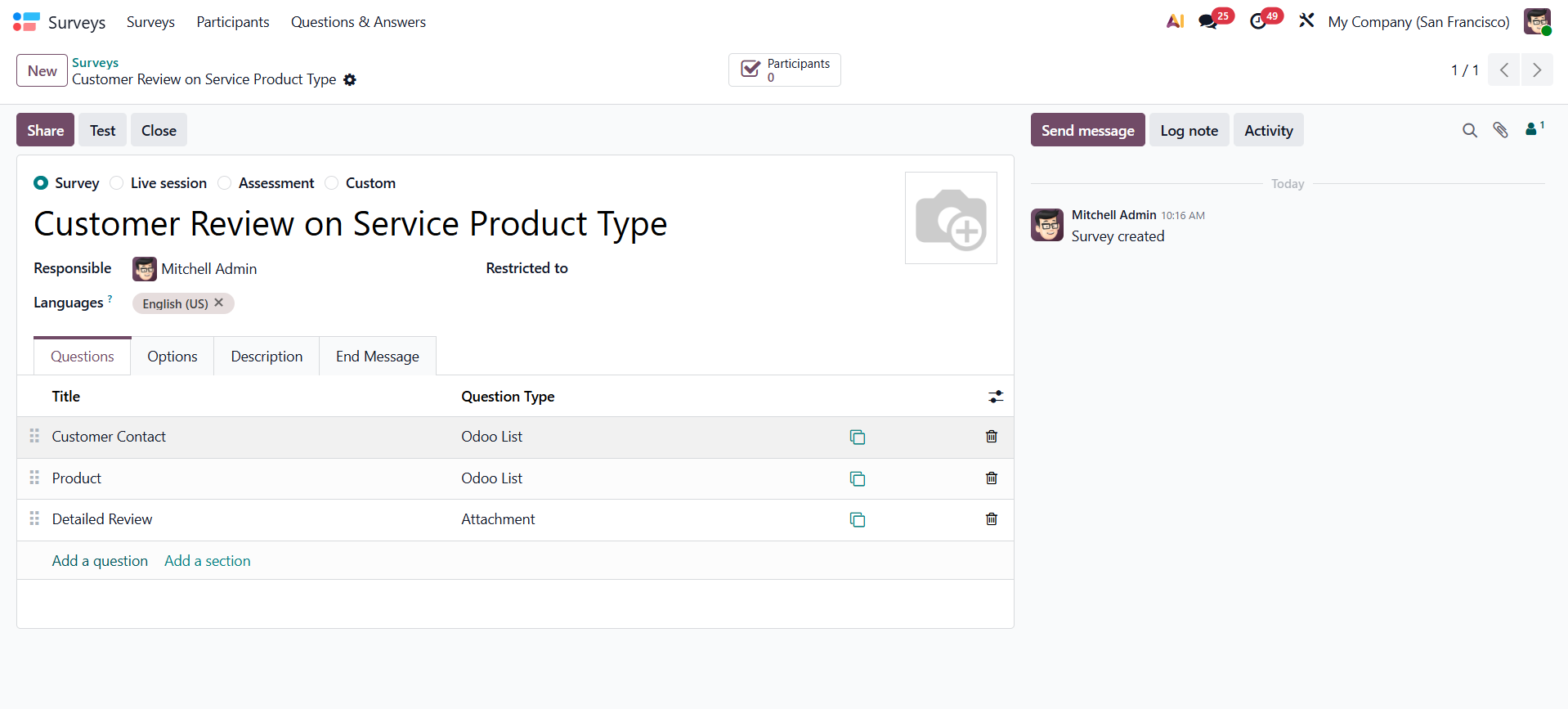 |
USAGE | |
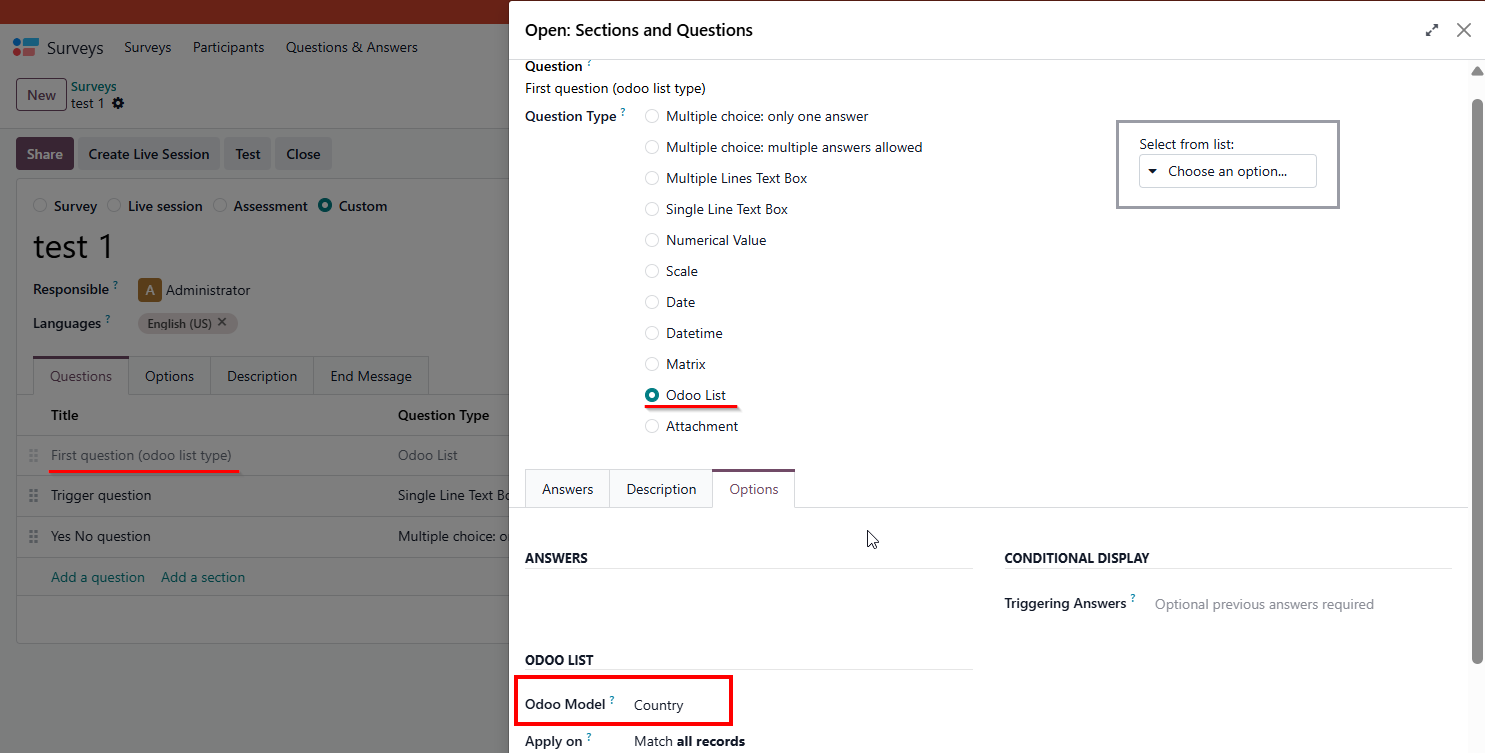
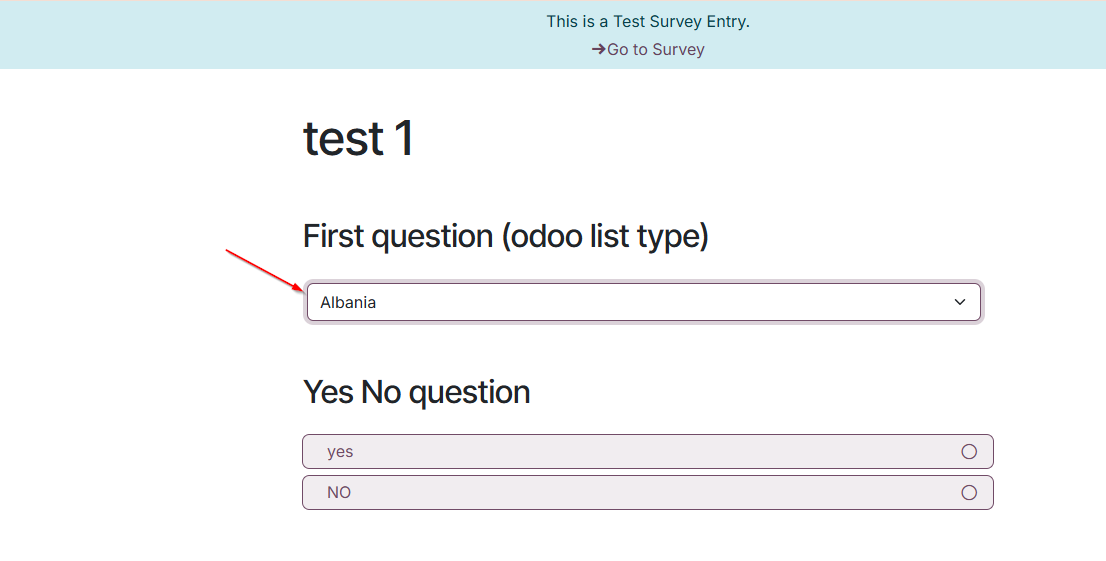
A. ODOO LIST Select Odoo List as the Question Type. Under the Options tab, choose your desired Odoo Model. By default, this will automatically apply to all records. Domain can be selected as needed. | 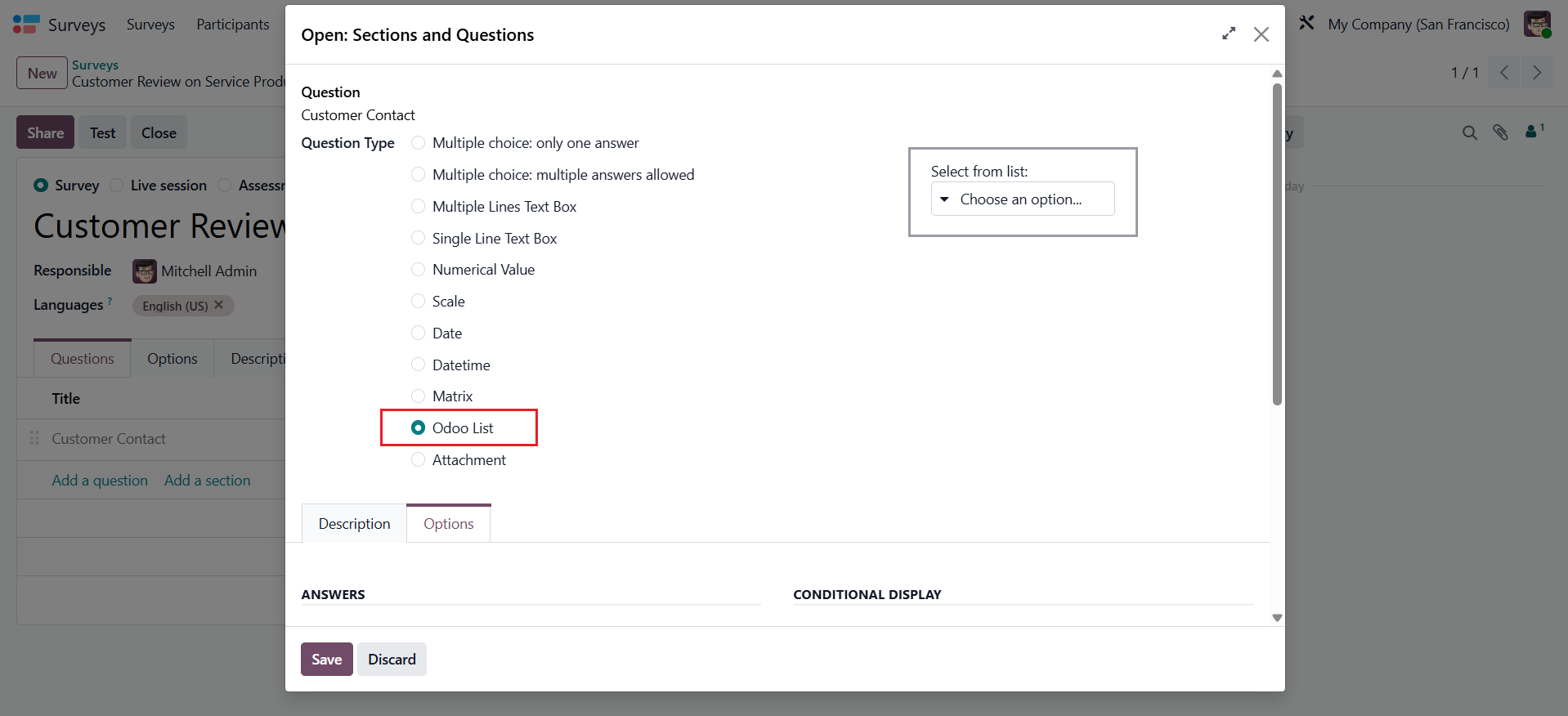  |
On the survey form, all records from the selected model will appear as choices. | 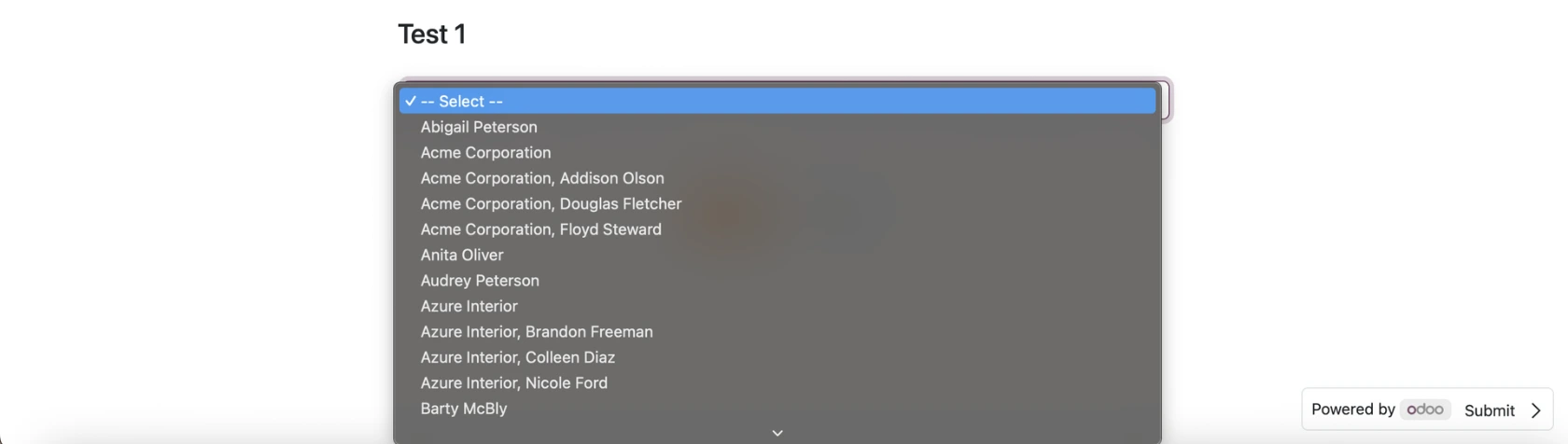 |
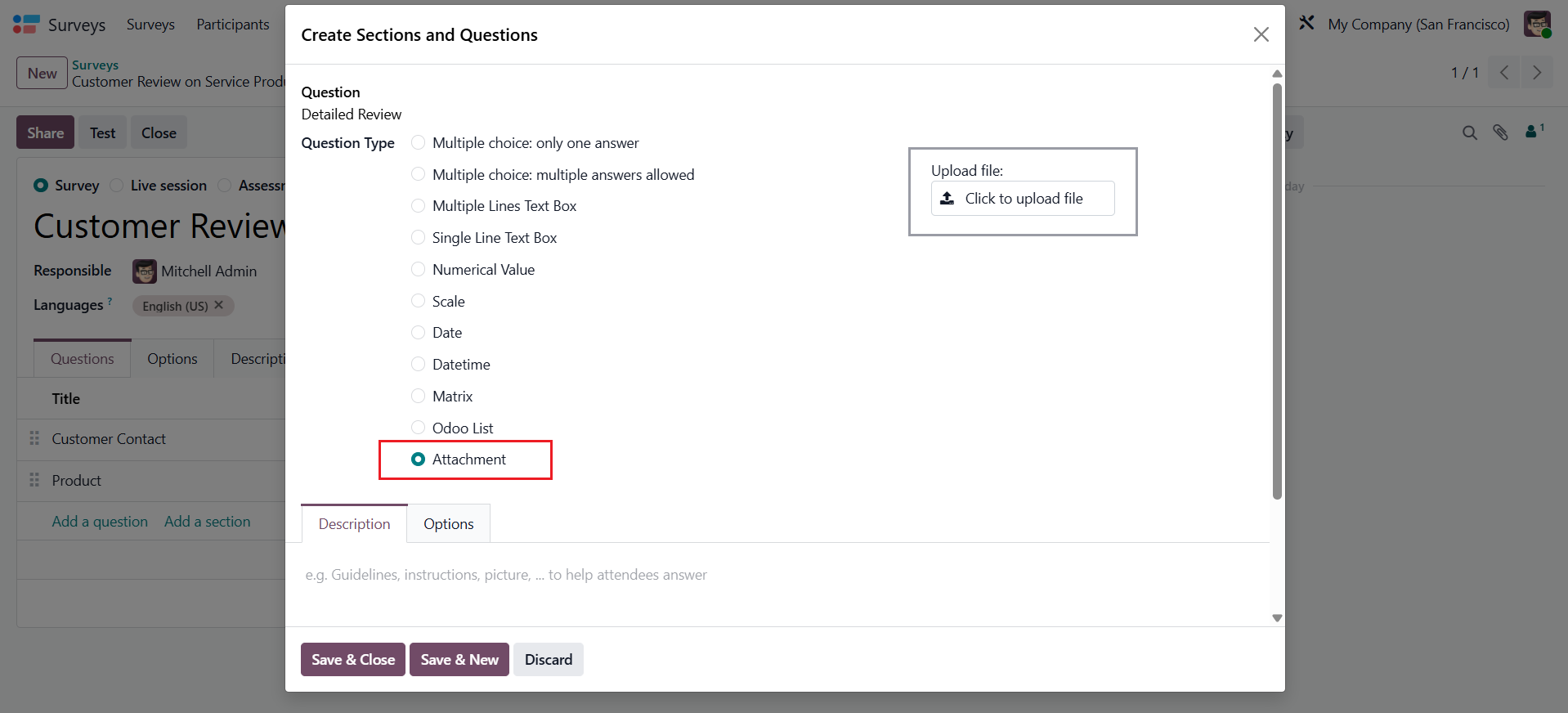
FILE ATTACHMENT To allow file uploads, choose Attachment as your Question Type. |
|
C. CONDITIONAL TRIGGERS FOR ODOO LIST Create the first question with the Odoo List type, then select your target model under the Options tab |
|
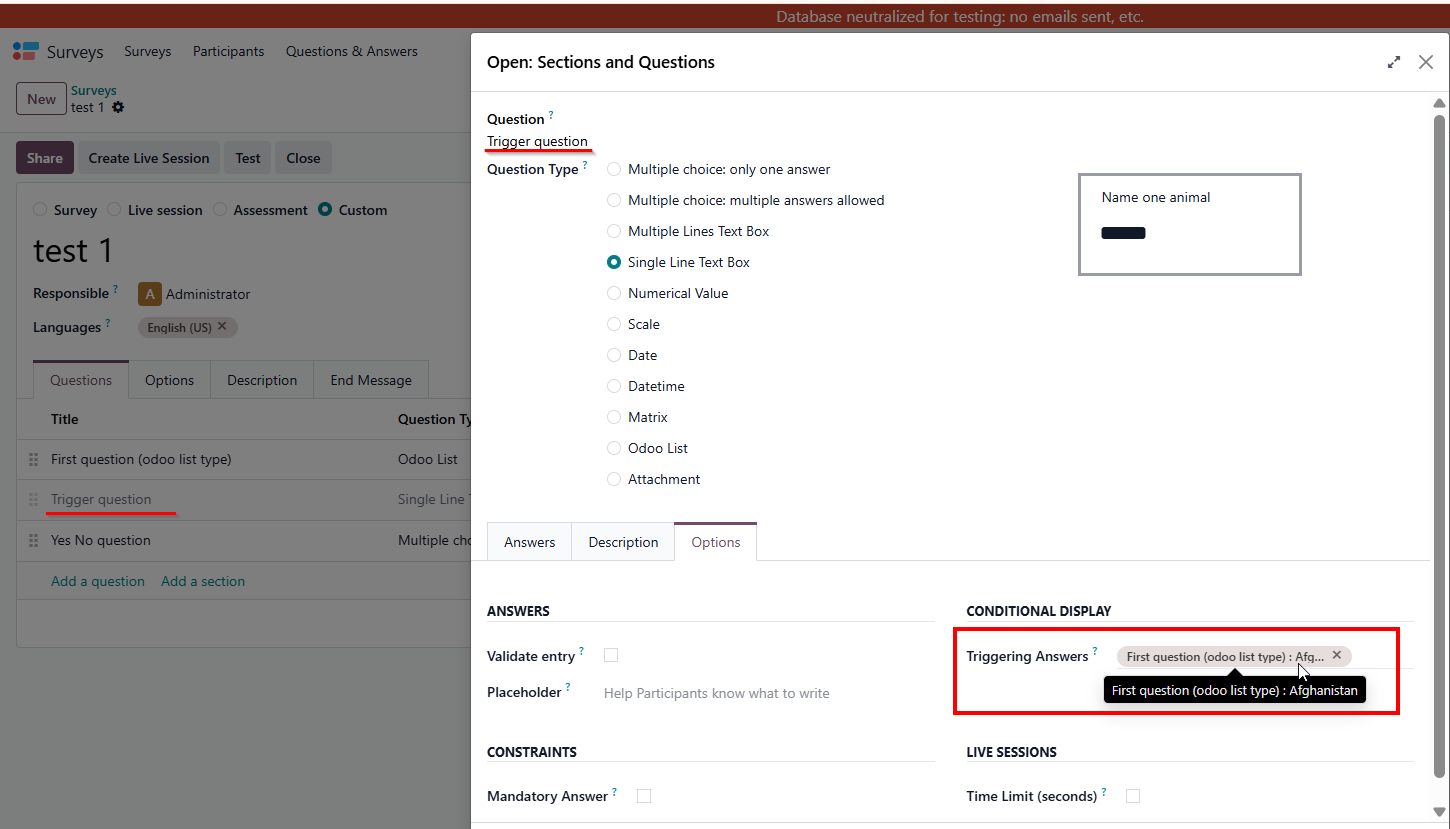
Create the dependent question, go to the Options tab, and configure Conditional Display -> Triggering Answers by selecting the specific record from question 1 |
|
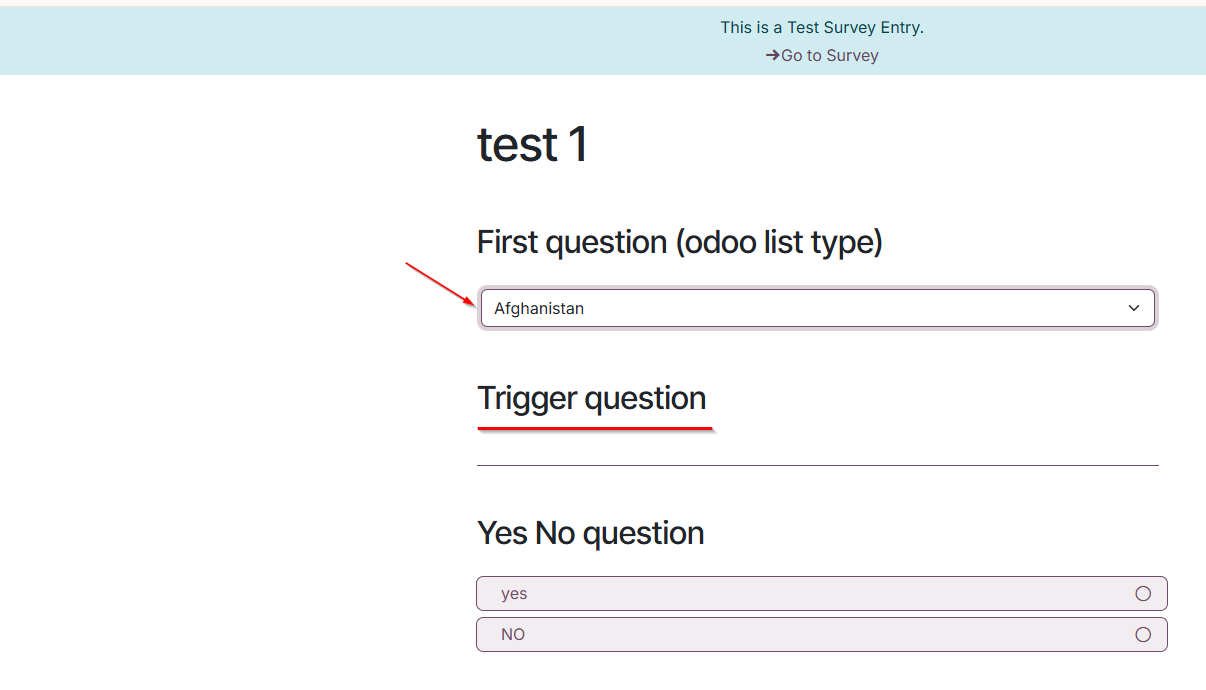
Click Test on the survey; selecting the configured record in the first question will instantly display the triggered question. If any other answer is selected, the triggered question will remain completely hidden. |
|
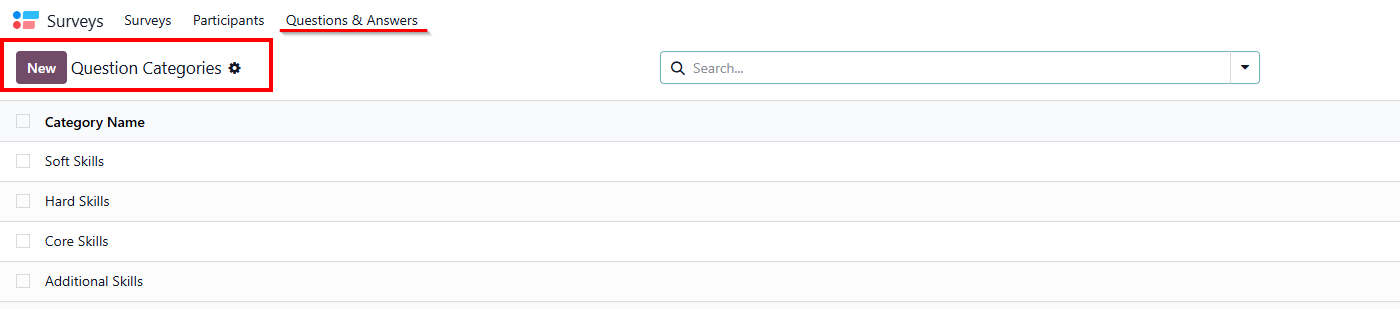
D. QUESTION CATEGORIES Go to Surveys > Questions & Answers > Question Categories > Create new category objects or use existing categories to define custom classification groups. |
|
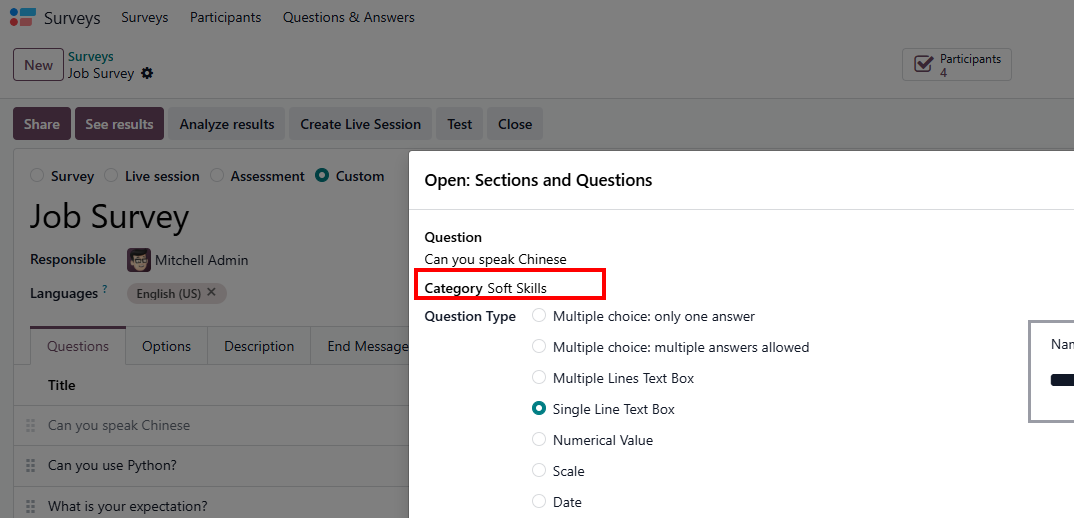
Go to your Survey questions, select and assign the newly created Category to each specific question. (Note: Leaving the field blank is also supported, allowing you to submit surveys without assigning a category). |
|
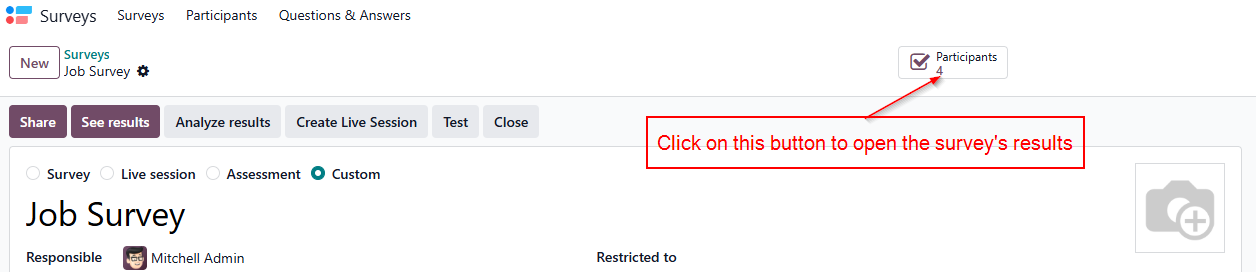
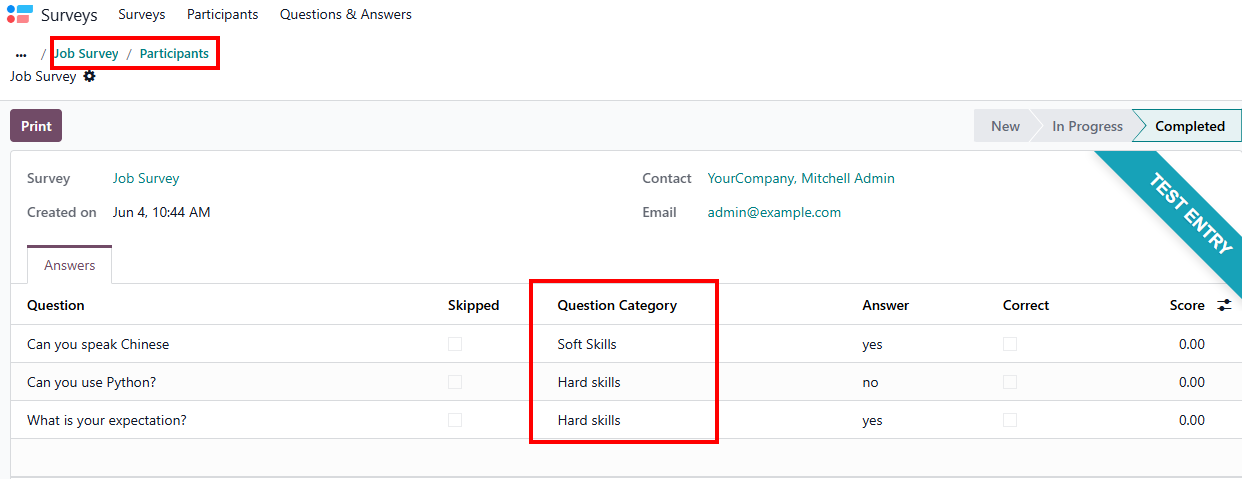
Conduct and submit the survey > Then check the survey results by Click on the button Participants. |
|