ODOO'S FUNCTION
In Odoo standard, users can view a Manufacturing Order and its related stock operations, but they usually need to manually open the linked component transfers or other related pickings to trace the full logistics flow.
CLUEDOO'S FUNCTION
This allows users to easily identify and access all logistics documents connected to a manufacturing process, improving traceability, efficiency, and operational visibility.
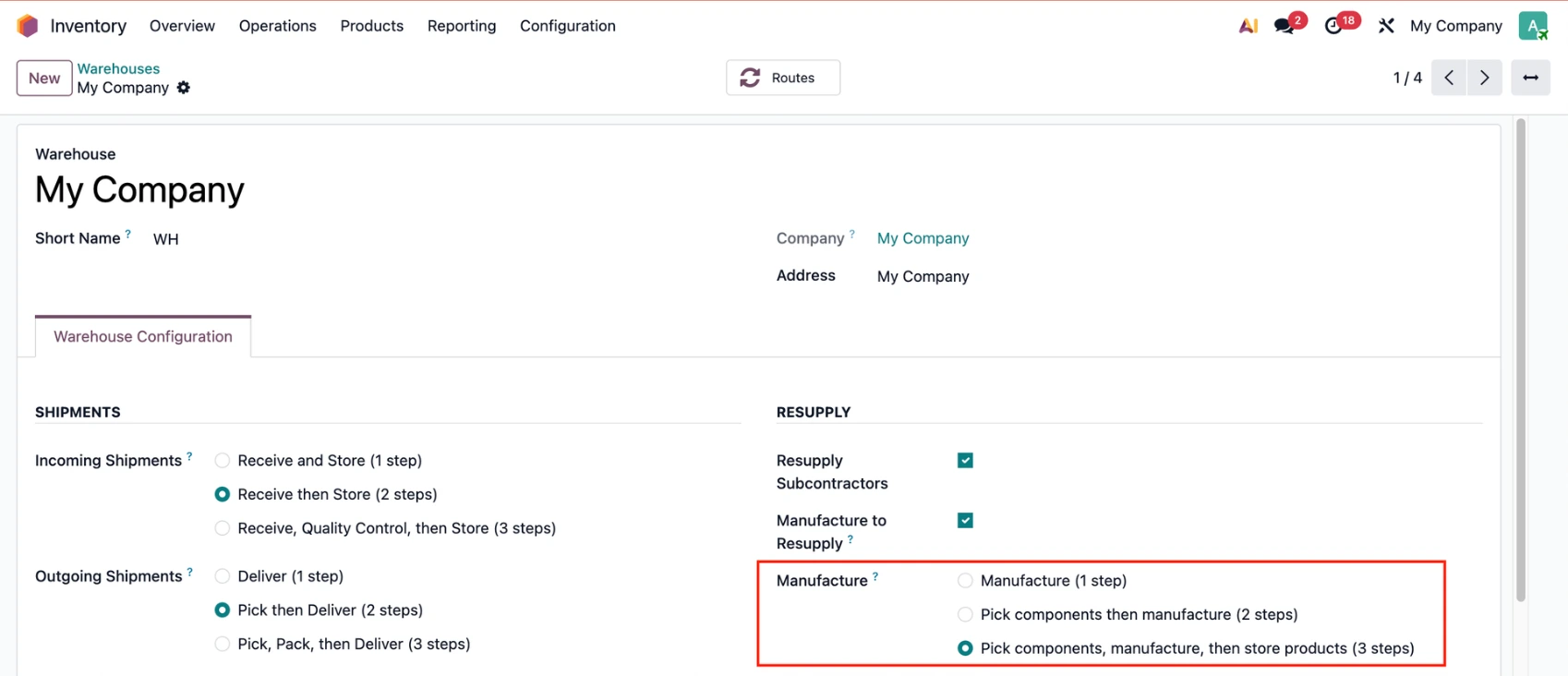
CONFIGURATIONGo to Inventory > Configuration > Warehouses > Choose a warehouse and configure the Manufacture route as needed. |
|
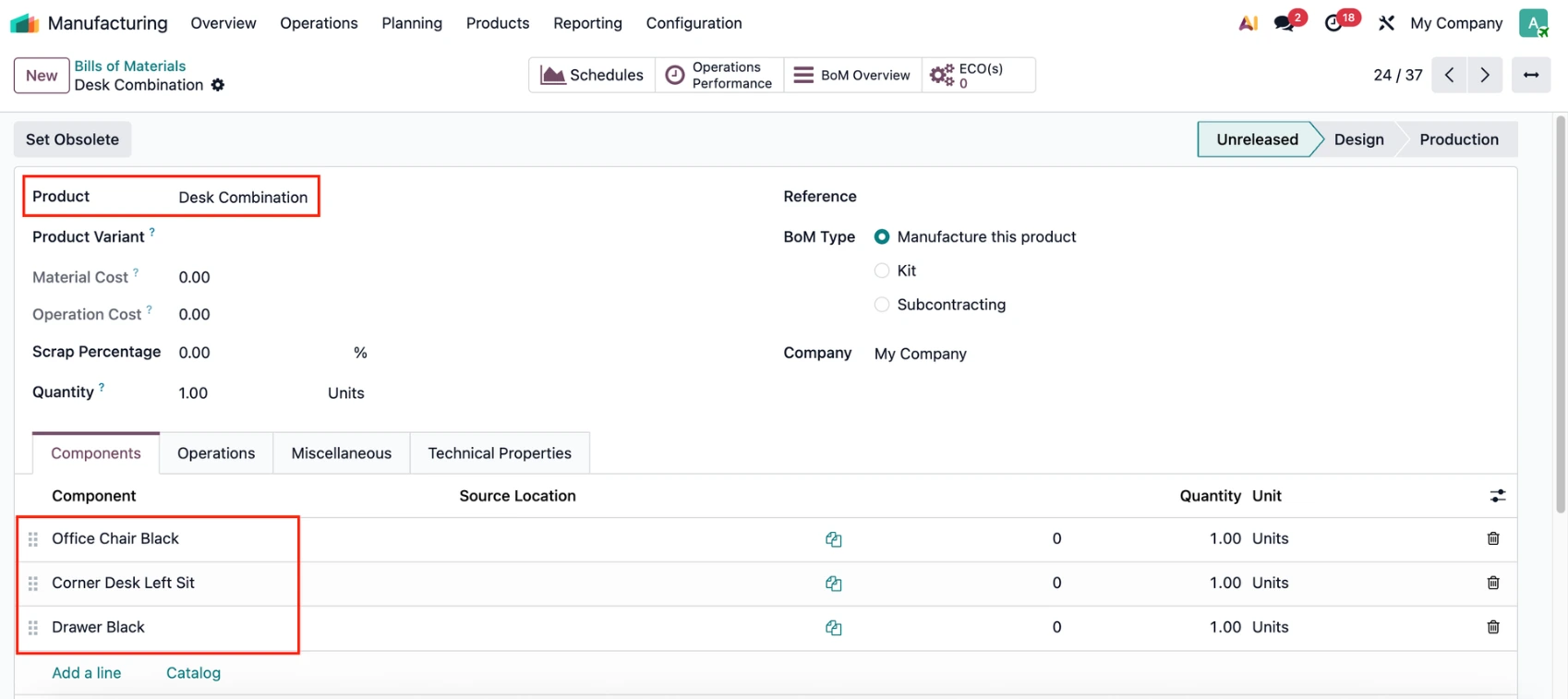
Create a Bill of Materials and add the component(s). |
|
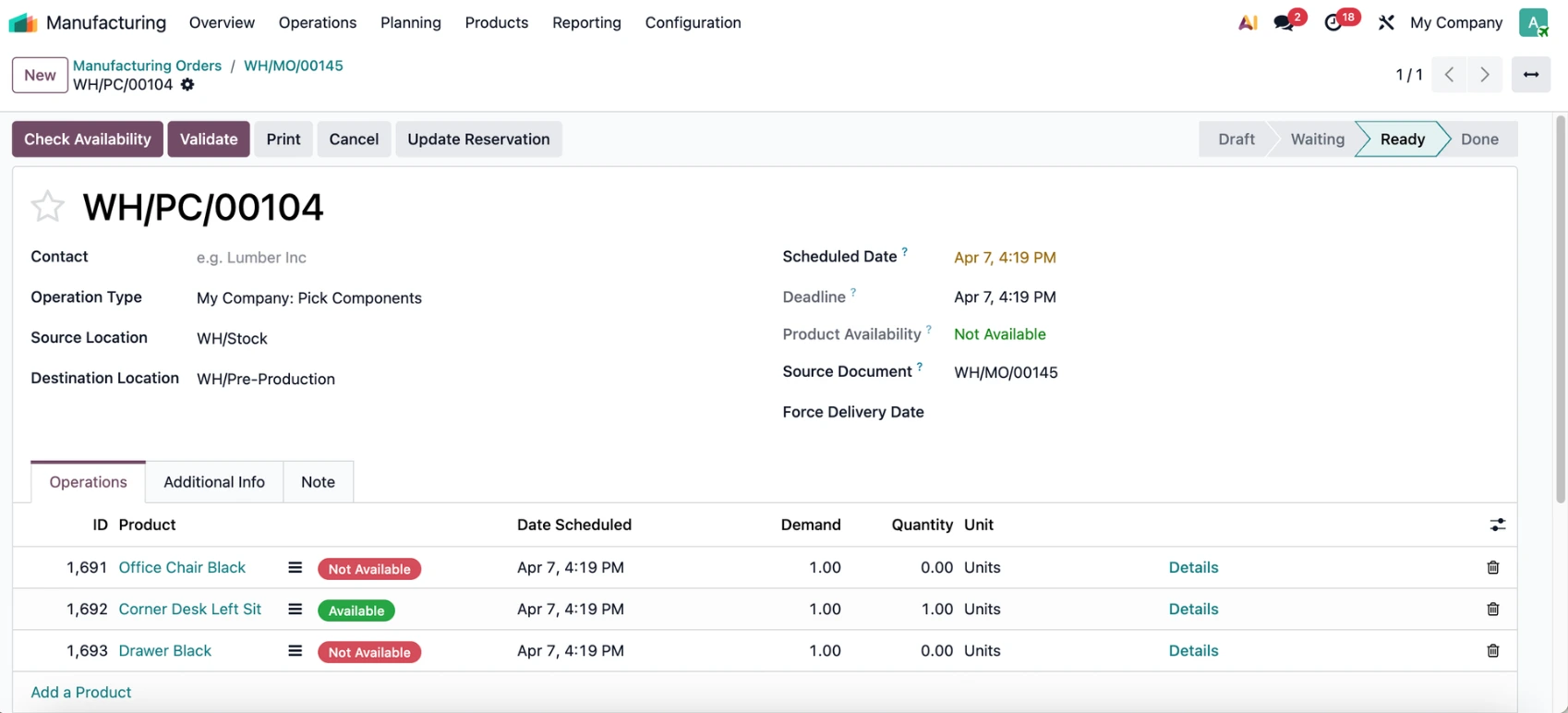
USAGE1. Go to Manufacturing > Create a Manufacturing Order > Confirm > Click on the Transfers smart button to view the transfer. |
|
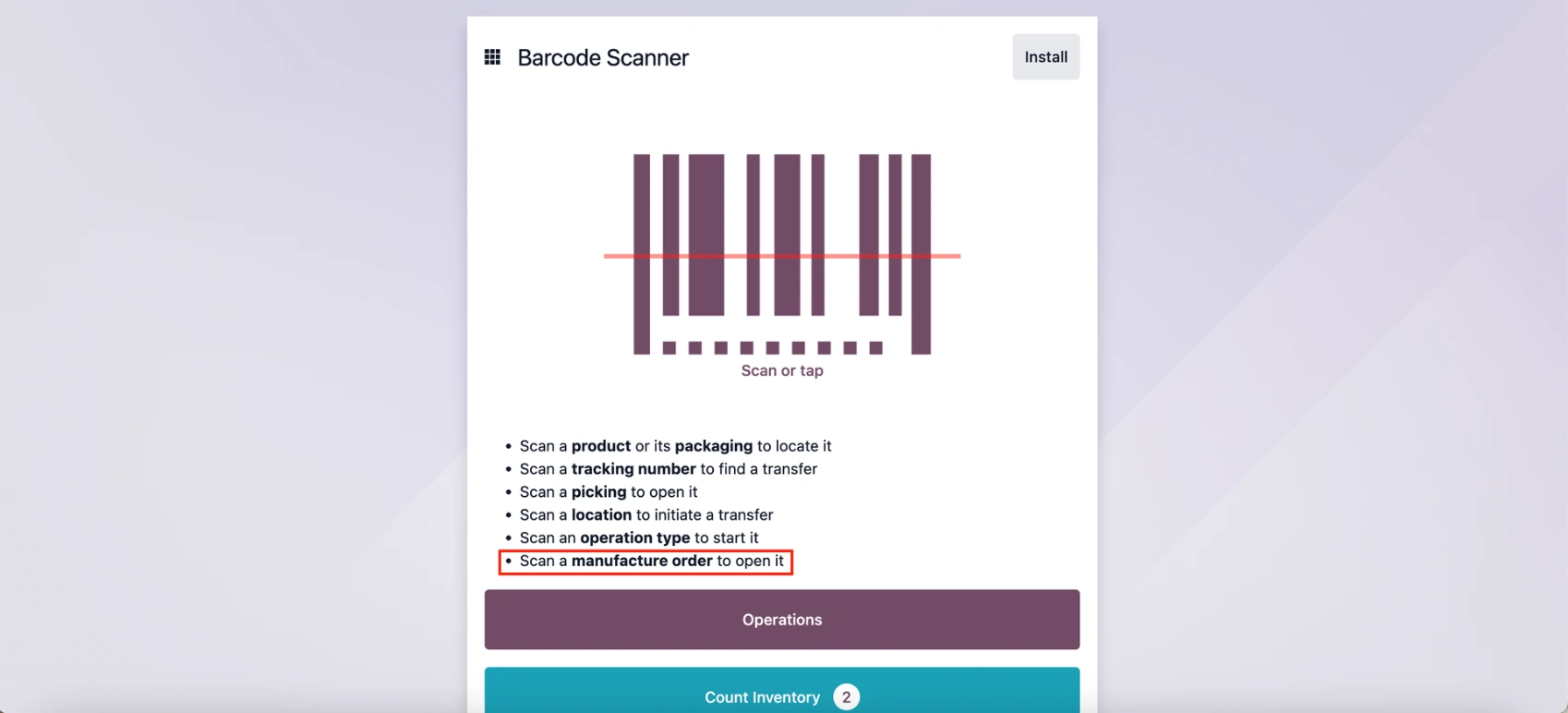
2. Go to the Barcode app, now you can scan an MO to open it. |
|
Scan the MO and it's related transfer(s) will appear with the list of all the available components. | 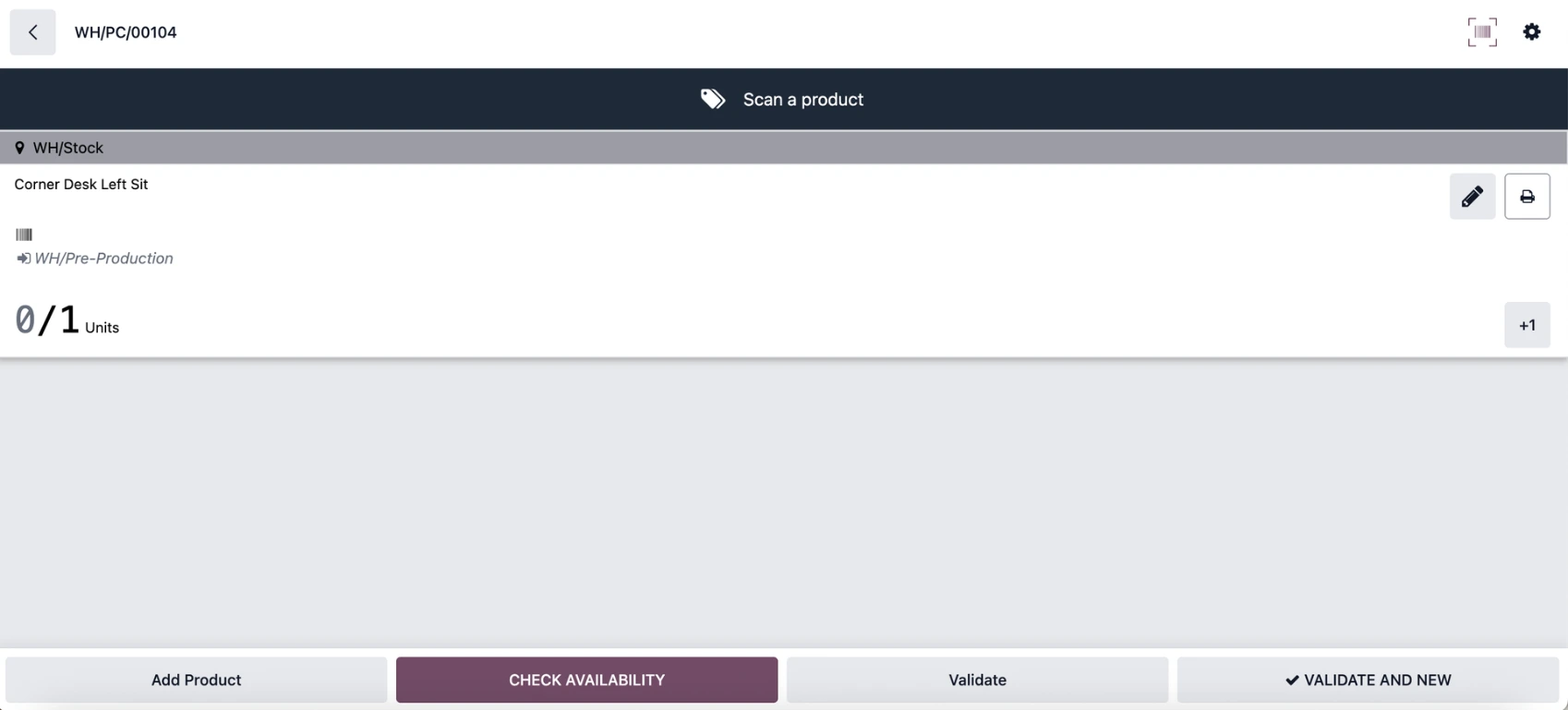 |
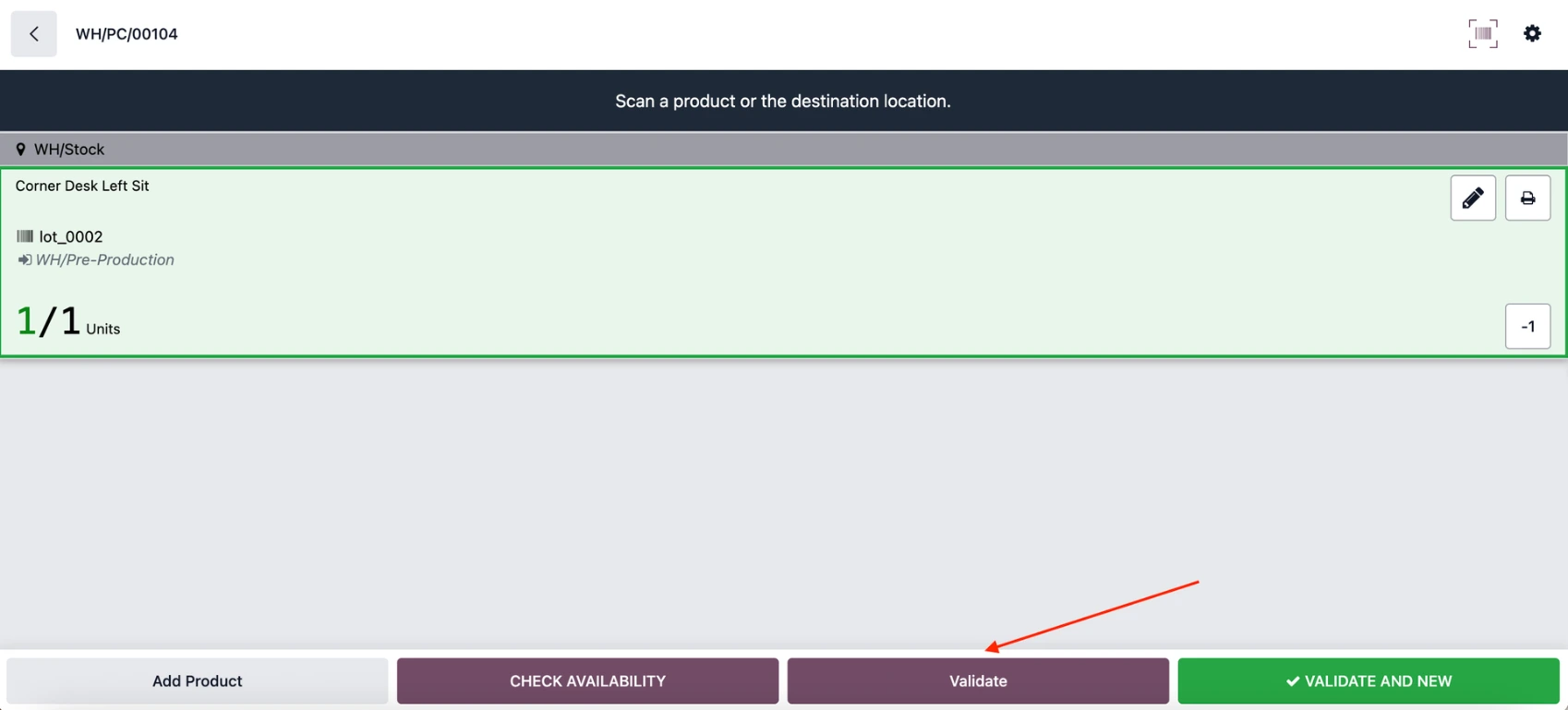
3. Add the quantity for the compnent(s) and click Validate. |
|
4. Go back to the MO and access the transfer > it will be validated. | 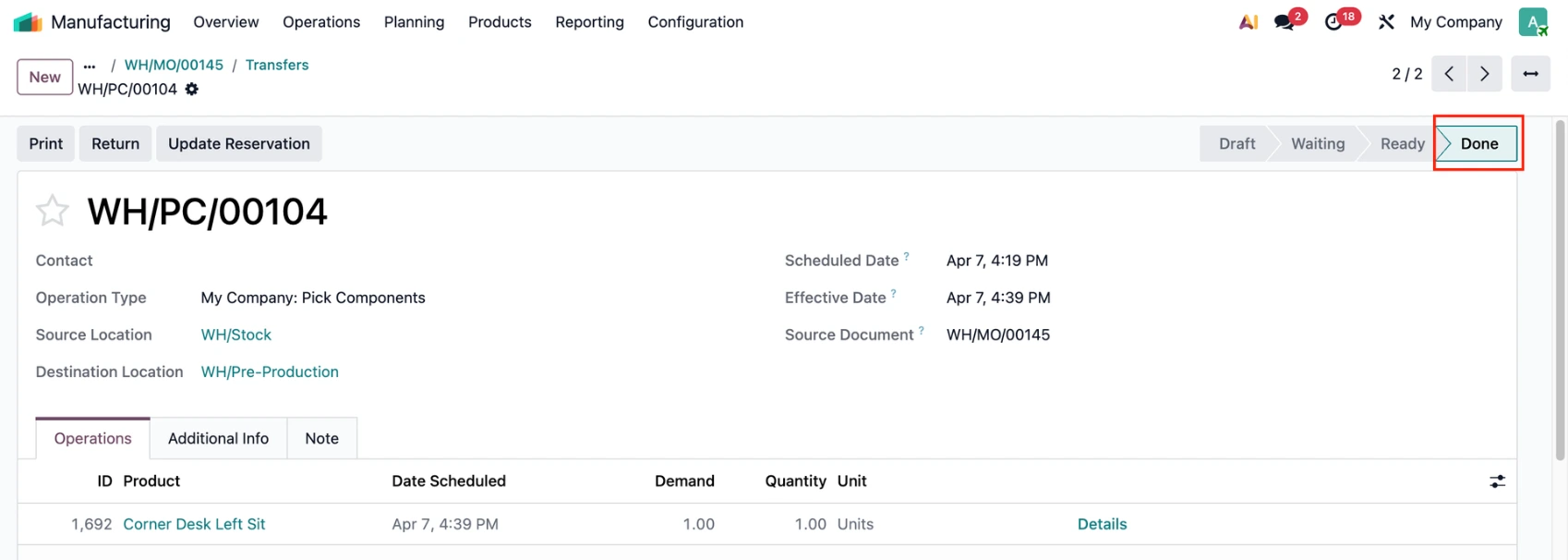 |
Note:
|
|