


ODOO'S BEHAVIOR
You have each week to select back your project and your tasks, even if you are working on the same one for several weeks
CLUEDOO'S BEHAVIOR
Each employee has a template which can be configured at the beginning and then is dynamically modified based on the previous week
1. (Take Time-Sheet as Template) Go to Timesheets > Configuration > Timesheet template > Create new template. To create time-sheet template fill the information: Name: Template name Employee: Employee name Type: Time-sheet period
Start Date and End Date: when the time-sheet is active.(keep empty if template is always the same) Is Automatic Update ?: check mark if new activity will be put to this template Time-sheet Line Template: Add project for your time-sheet template Note: The "Start Date and End Date" no longer exists from v17 onward. | 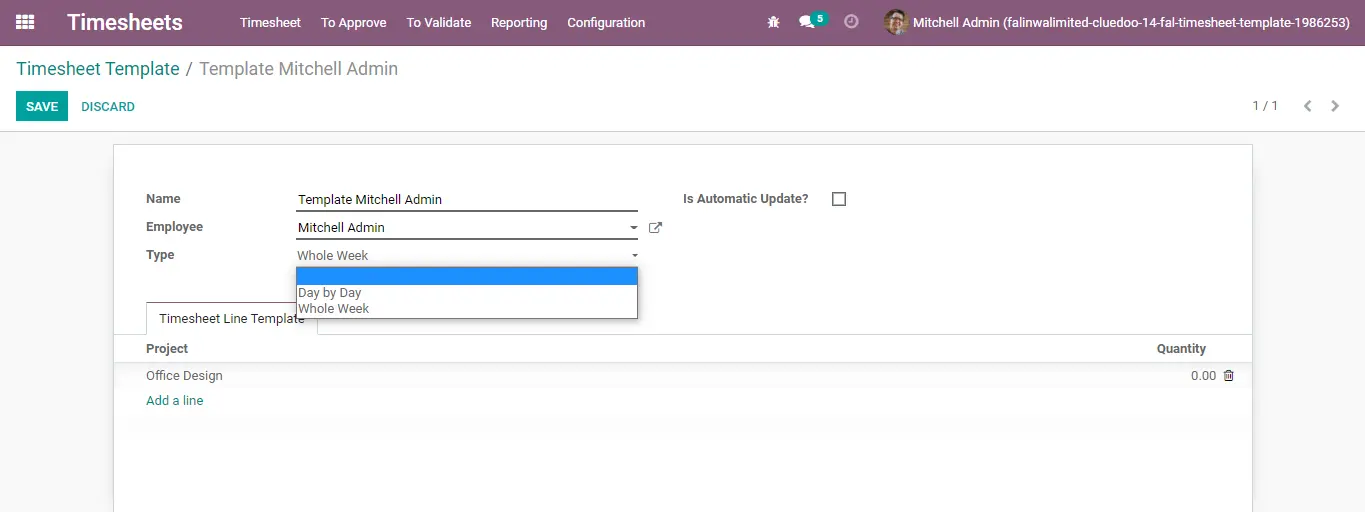 |
2 Create Time-sheet Template From Weekly Activity on the Time-sheet Activity Form View, click on button Take Time-sheet as Template" Go to Setting / Time-sheet Template Your template will be created | 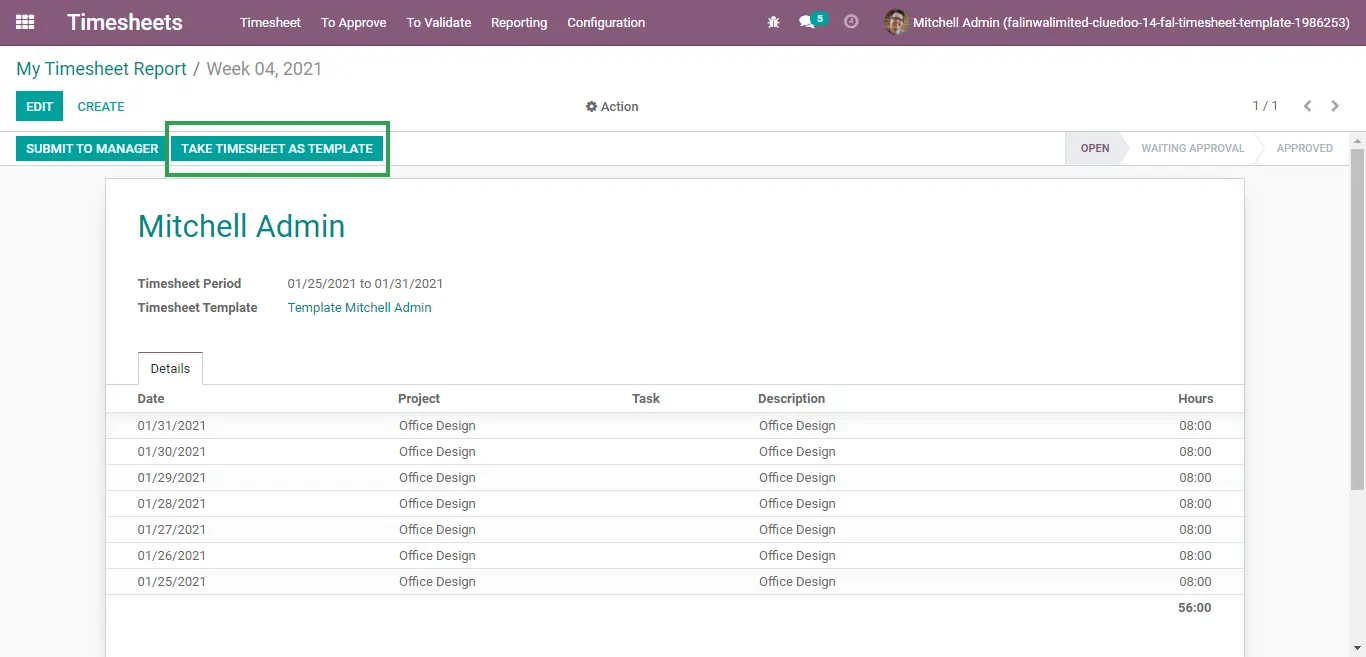 |
3 Your template will be created | 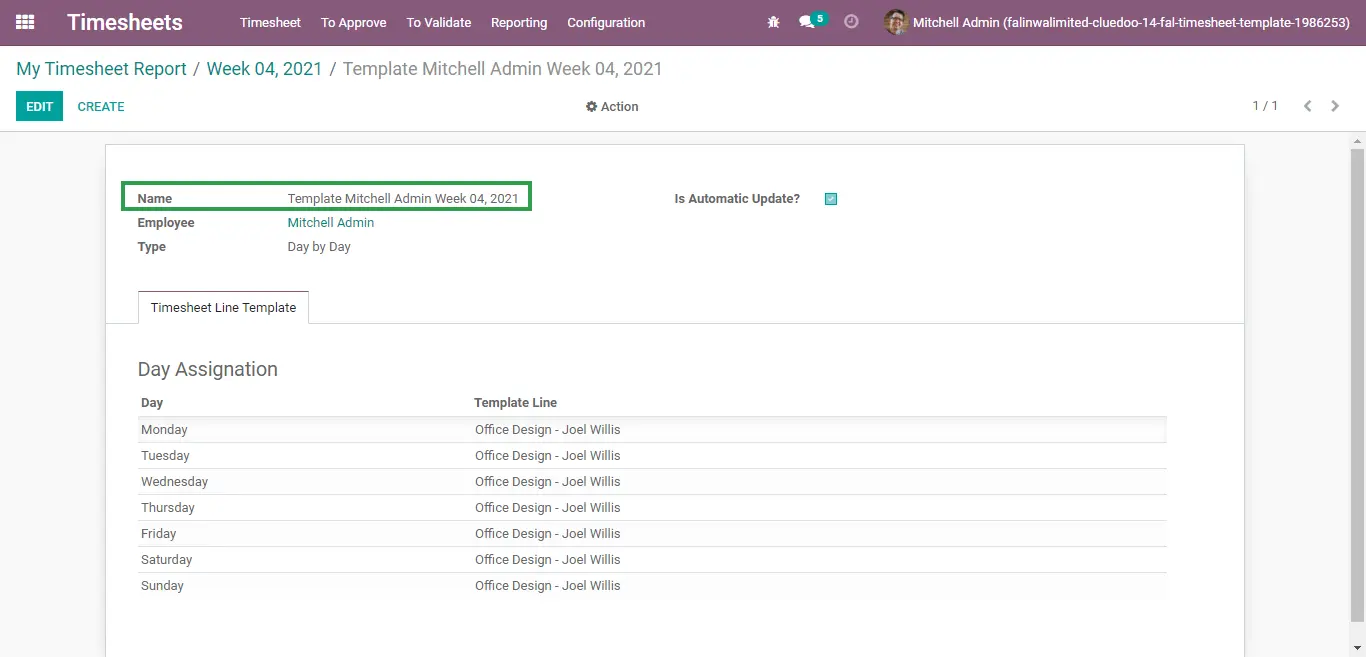 |
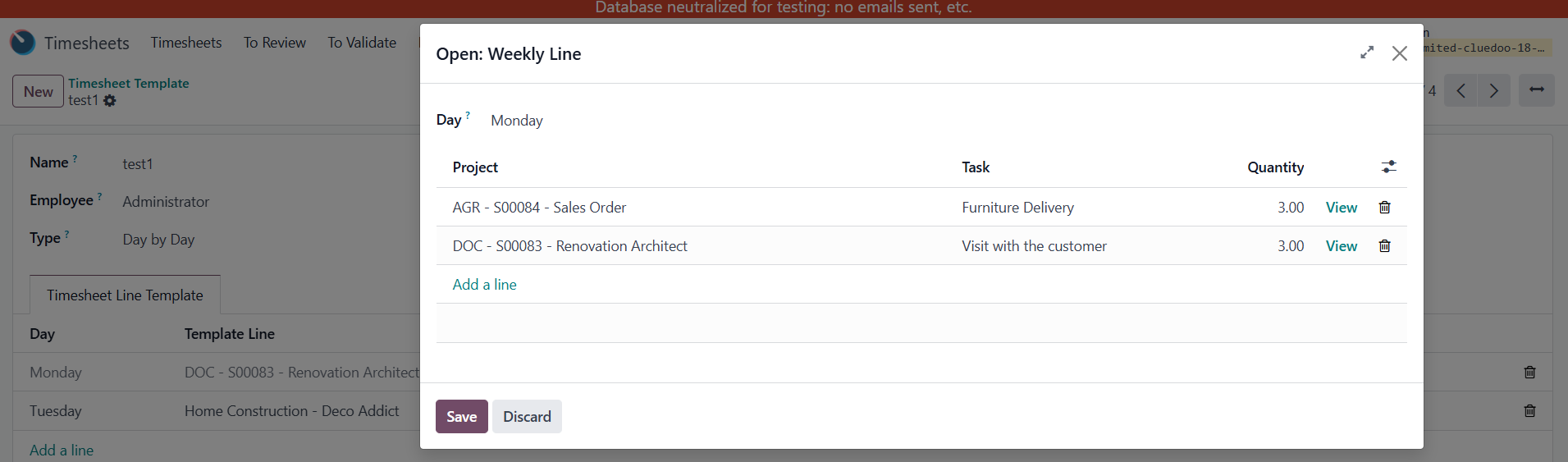
Update v18, 19 I. Day-by-Day Timesheet Template 1. Update Automatically 1.1 Check the Is Automatic Update checkbox in timesheet template > Open the detailed pop-up for Monday > Look at the detailed information in the second picture. | 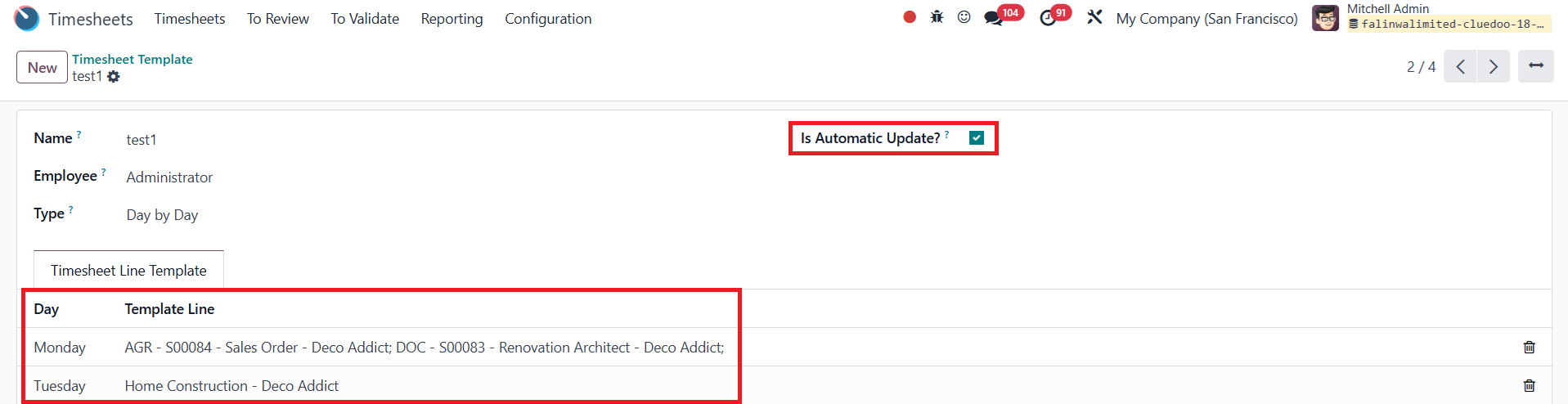
|
1.2 Go to Timesheets > All timesheet report > Create a new Timesheet Report based on the above timesheet template > Try changing some information > Submit to Reviewer > Approve EX: Edit the information for Monday - 6/1/2026 | 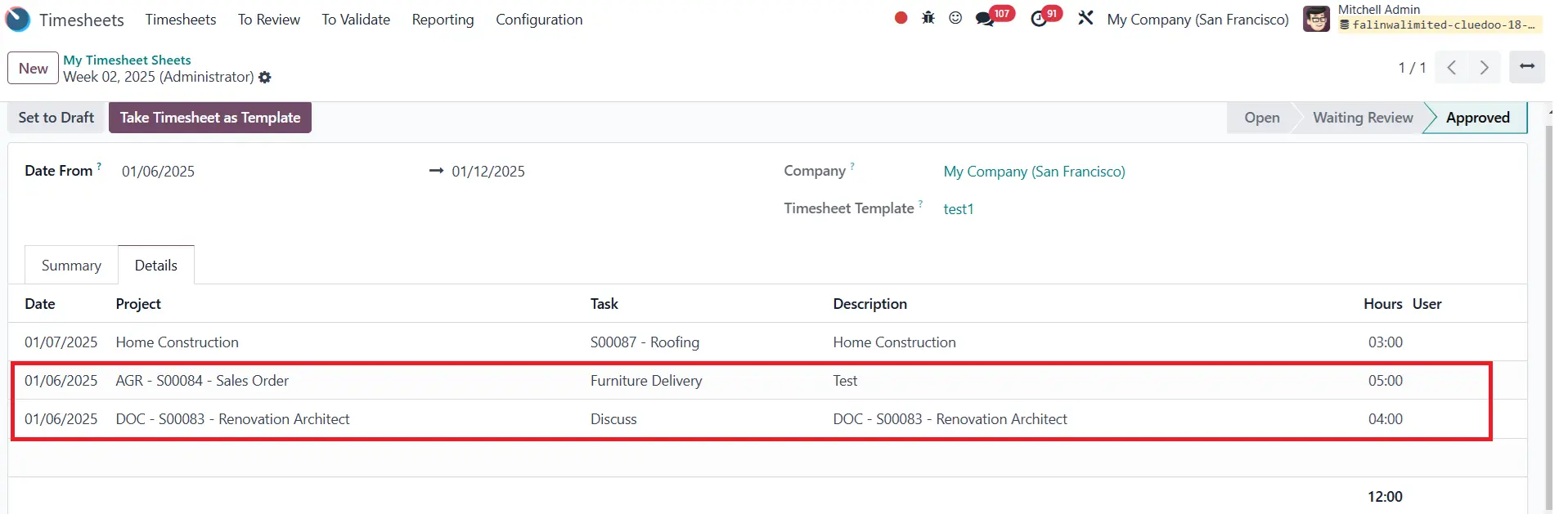 |
1.3 Go back to the Timesheet Template from which the above timesheet sheet is created > Can see the corresponding detailed information automatically updated here Note: All information on the template needs to remain after submitting and approving the timesheet if there are no changes in the timesheet 2. Not Update Automatically If the check box Is Automatic Update is not selected, all information on the Timesheet Template will remain unchanged after the timesheet sheet is modified, submitted, and approved | 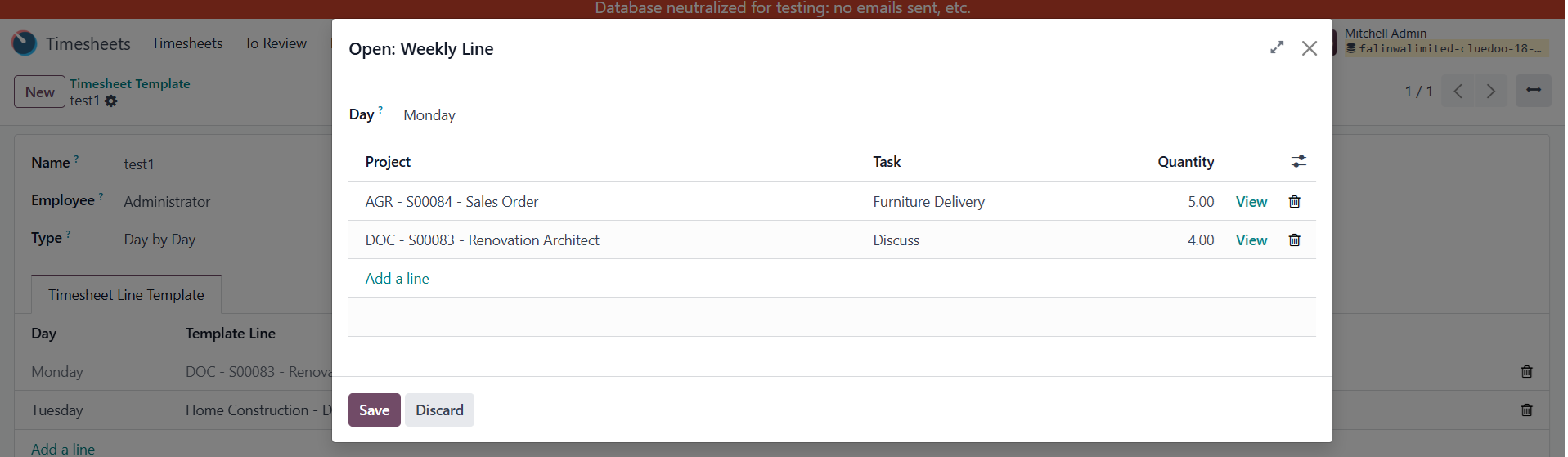 |
Take Timesheet as Template Result: | 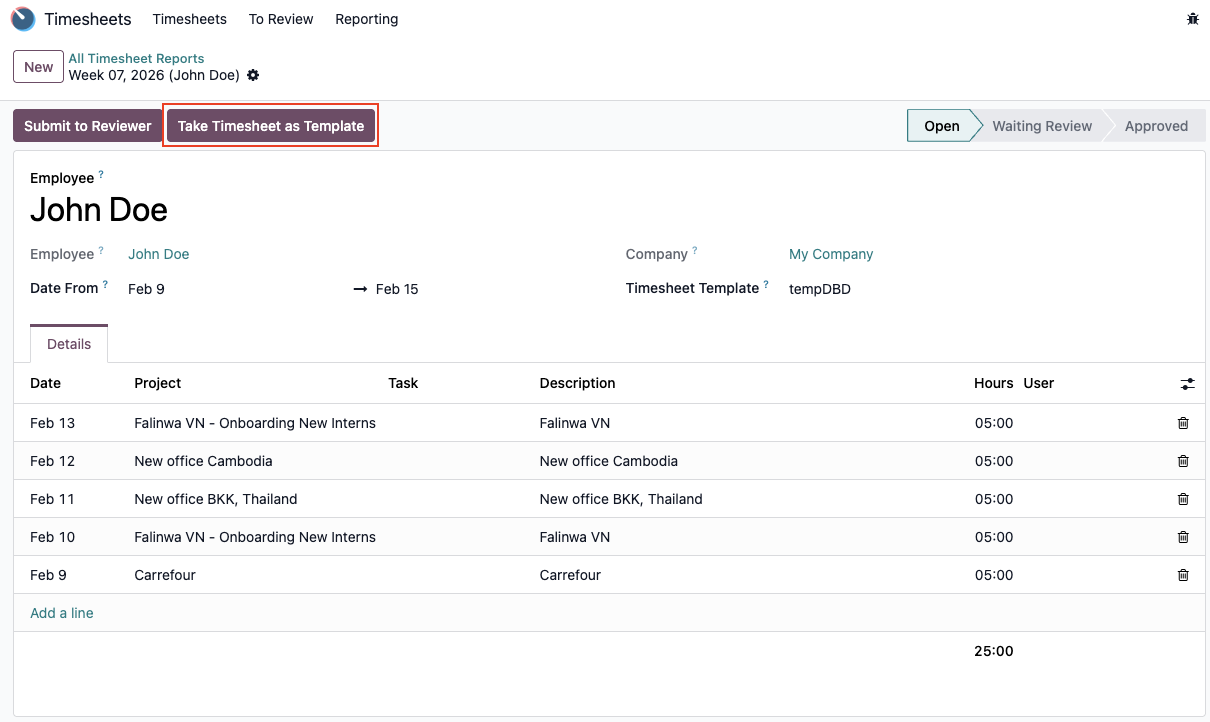 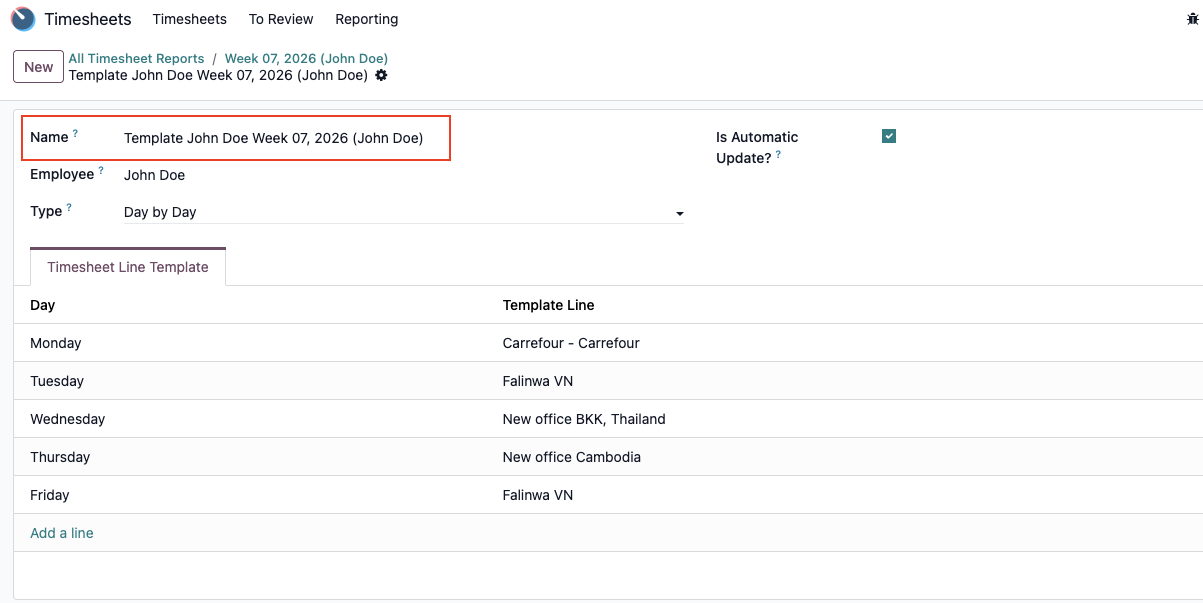 |
II. Whole Week Timesheet Template 1. Update Automatically In this case, should not change any information in the timesheet sheet which is created from a whole week timesheet template because changing the information would not align with the logic here 2. Not Update Automatically If the check box Is Automatic Update? is not selected, all information on the Timesheet Template will remain unchanged after the timesheet sheet is modified, submitted, and approved | 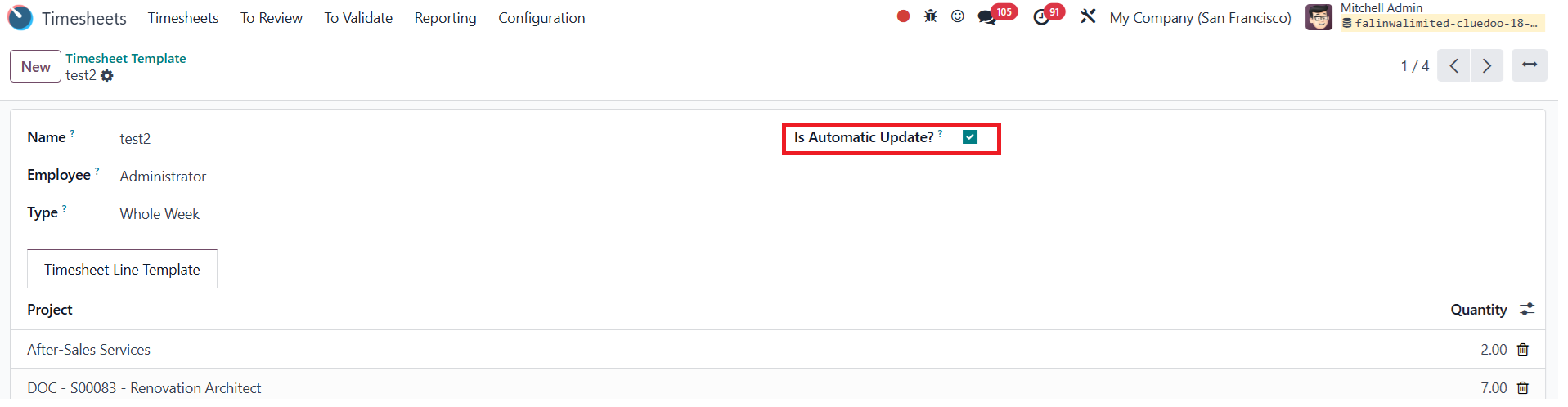 |