



ODOO'S FUNCTION
By default, Odoo does not allow you to exclude or restrict certain combinations of attributes (e.g. if you don't want to offer a certain color in a particular size). All combinations of attributes are generated unless you manually delete or archive variants after they’re created.
CLUEDOO'S FUNCTION
Cluedoo adds the extended feature of excluded attribute values with Python code to address several limitations in Odoo’s standard product variant management. This feature helps users better manage complex product catalogs and prevent unwanted or impractical product combinations.
|  |
2. Go to the Products form view, click on Configure → Open a product variant value. You can set code as well as Python code. i.e: X < 100. This means for value 'Custom', we cannot input a value lower than 100 to Allow Reconciliation | 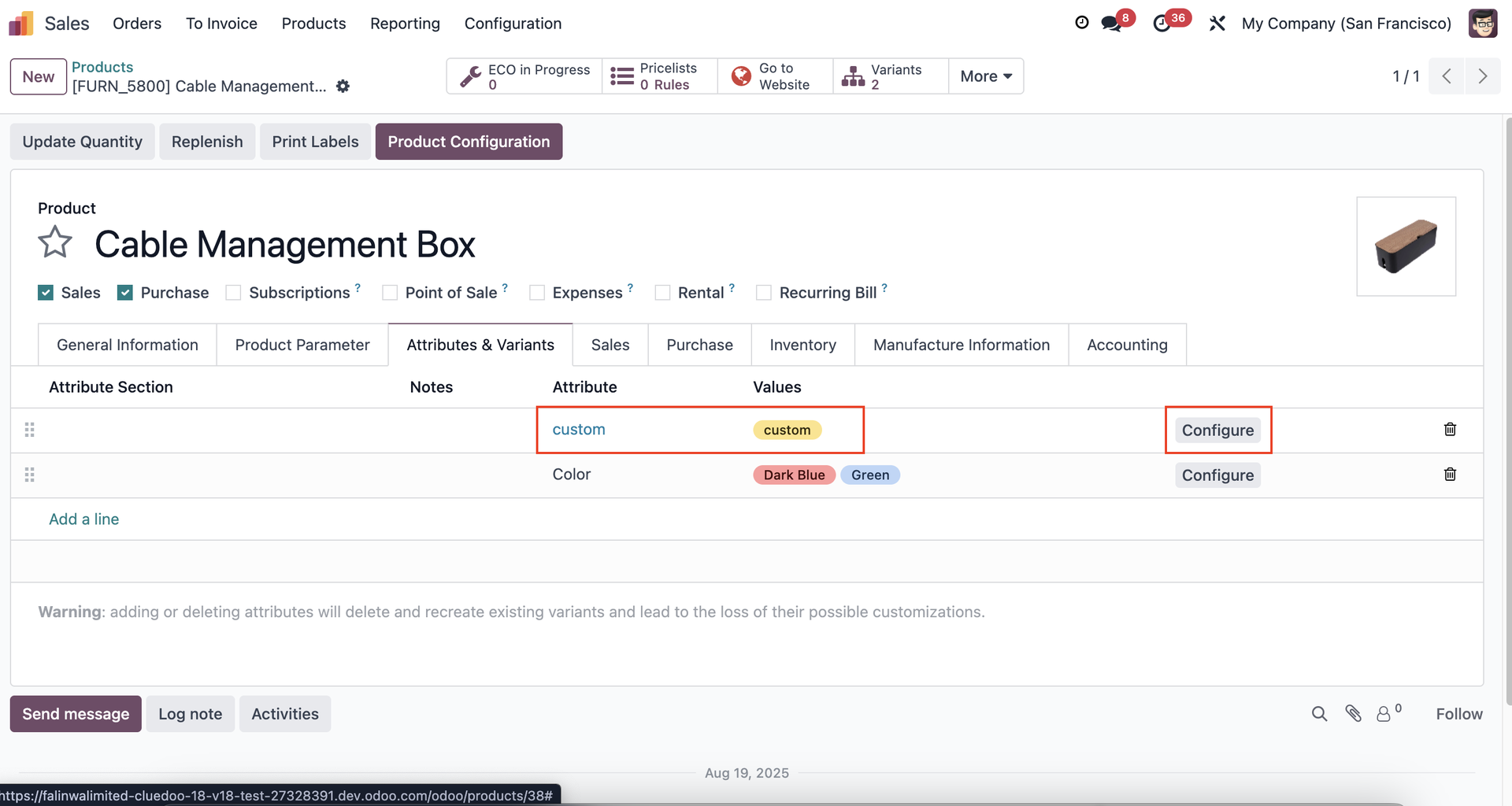 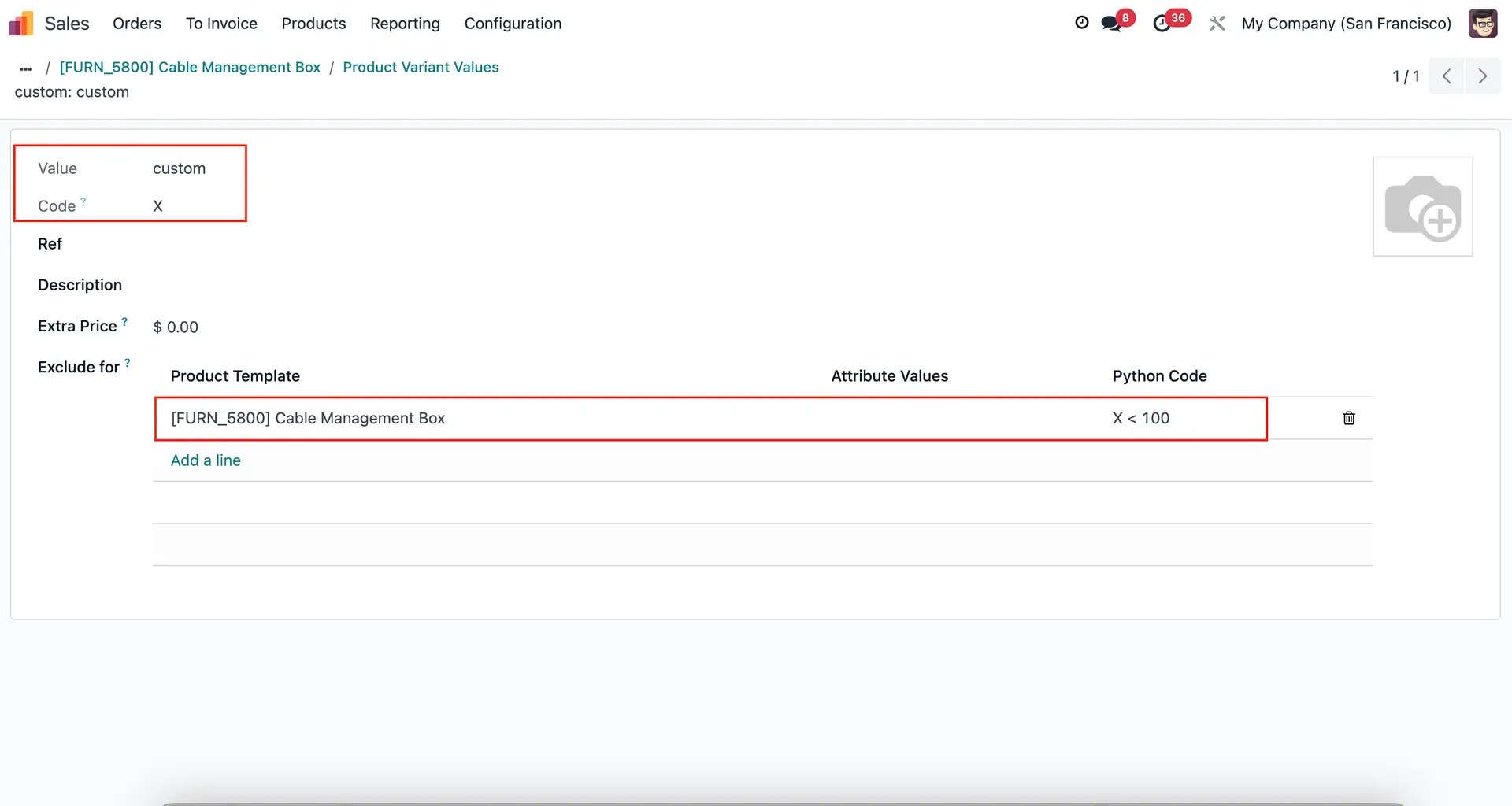 |
3. When we create a sales order, select a product that has variants. When we configure the variant and set the custom value as 90 (below 100), there will be a warning message that reads: "This combination does not exist." | 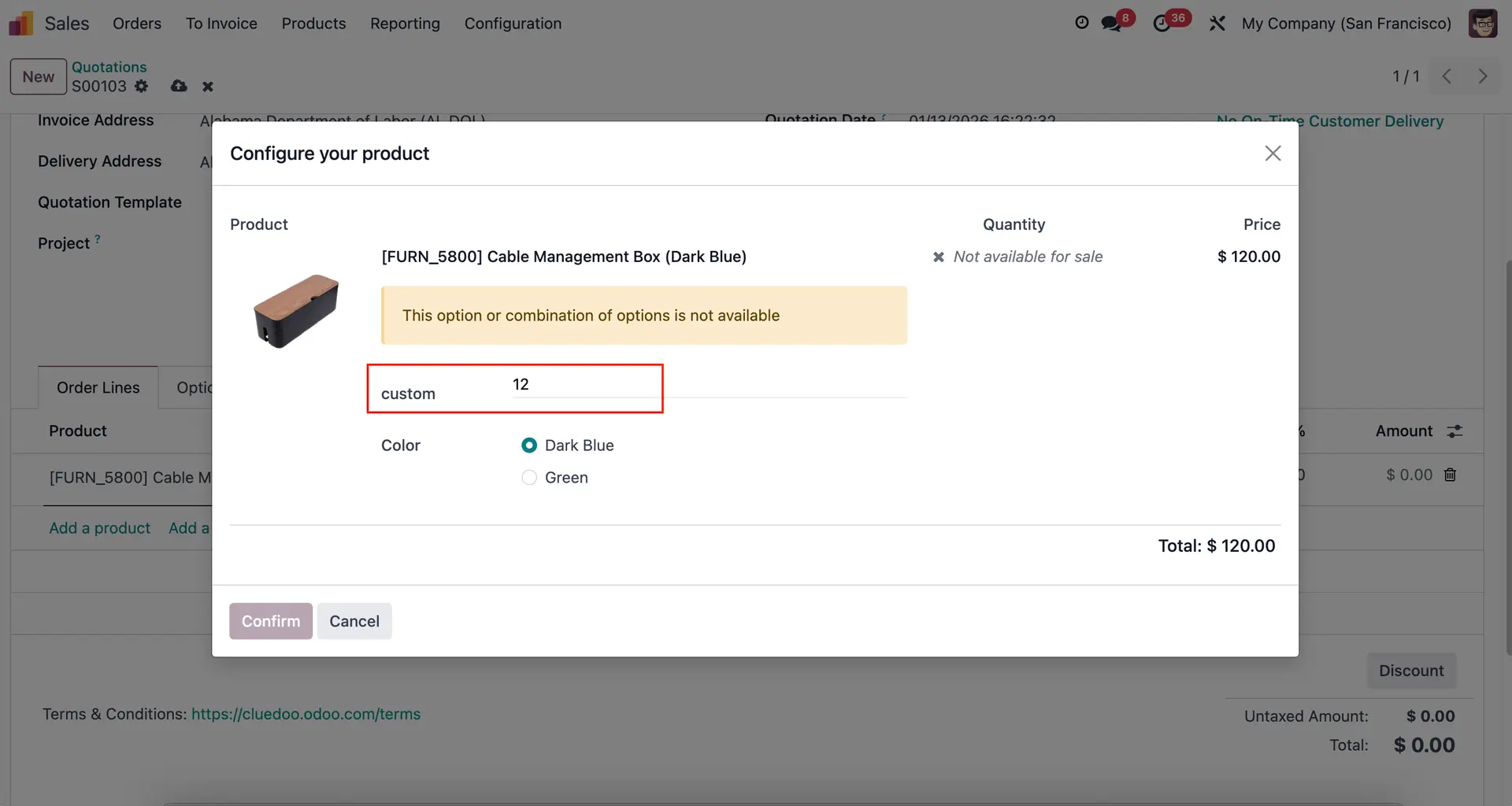 |
If we set the number greater than 100, there will be no warning message. | 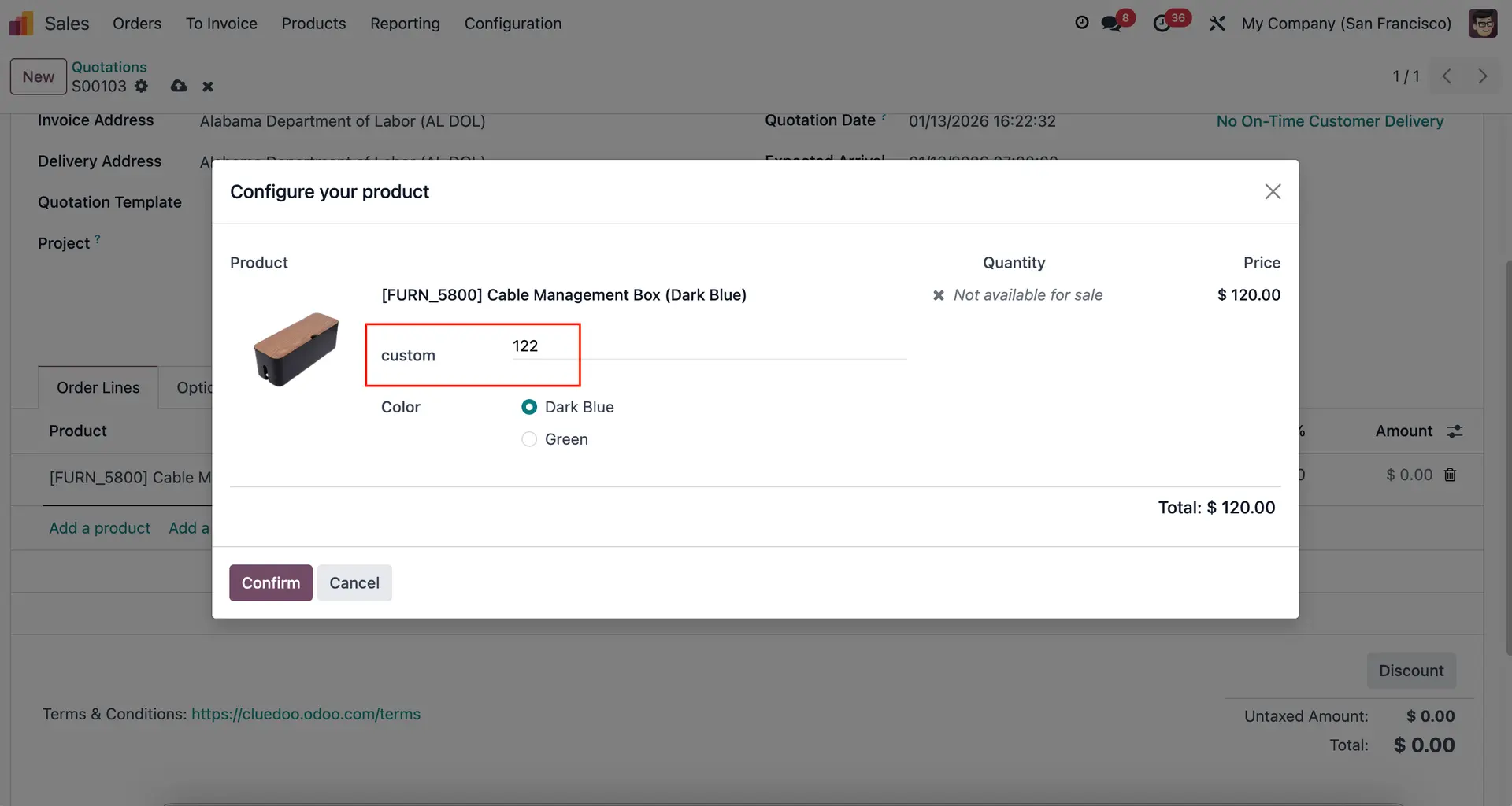 |
PRODUCT CONFIGURATION WIZARD ON PRODUCT TEMPLATE
Note: The attribute should be on "dynamically" variant creation mode. You may upload an image for each Attribute Value. | 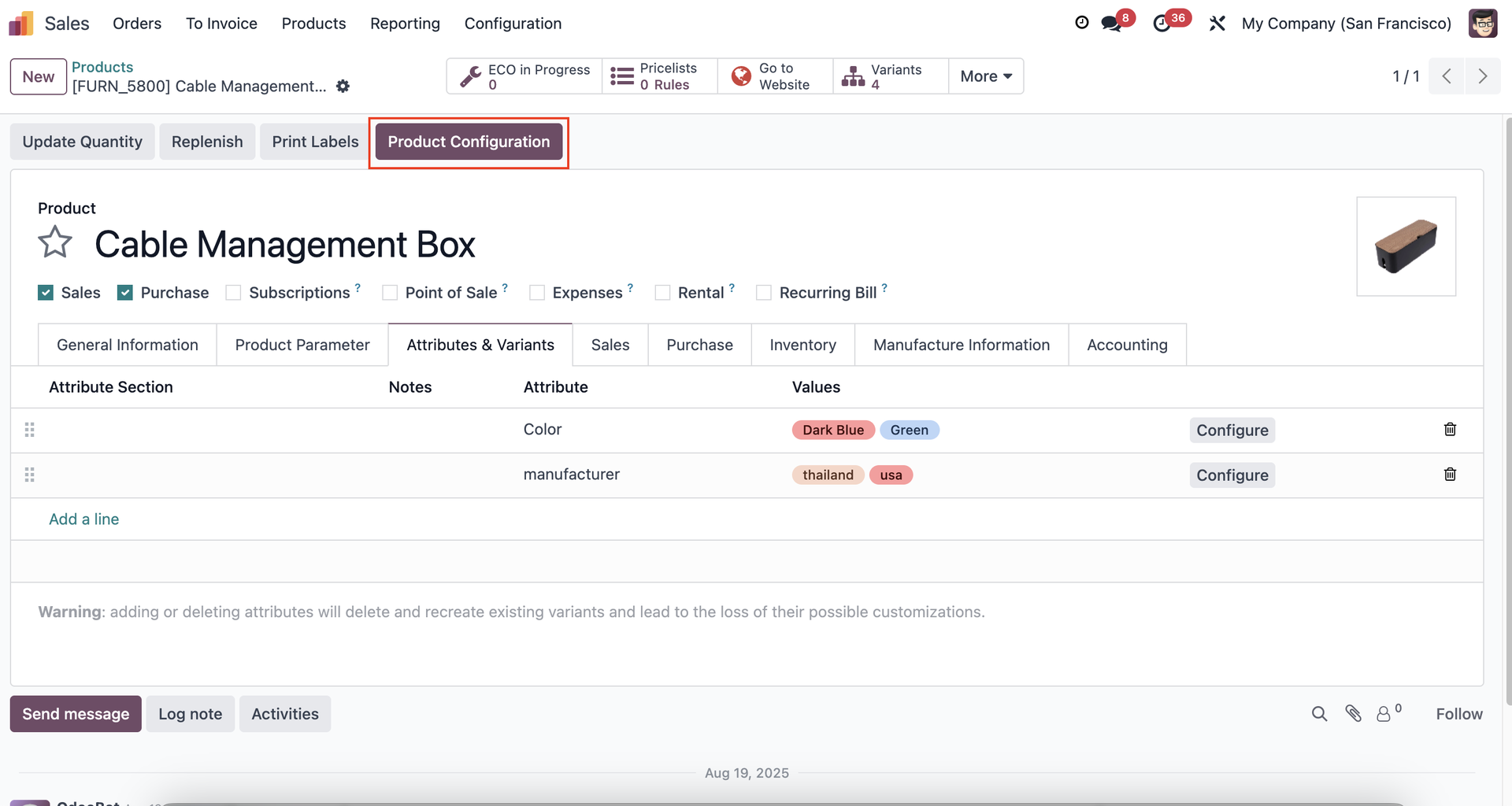 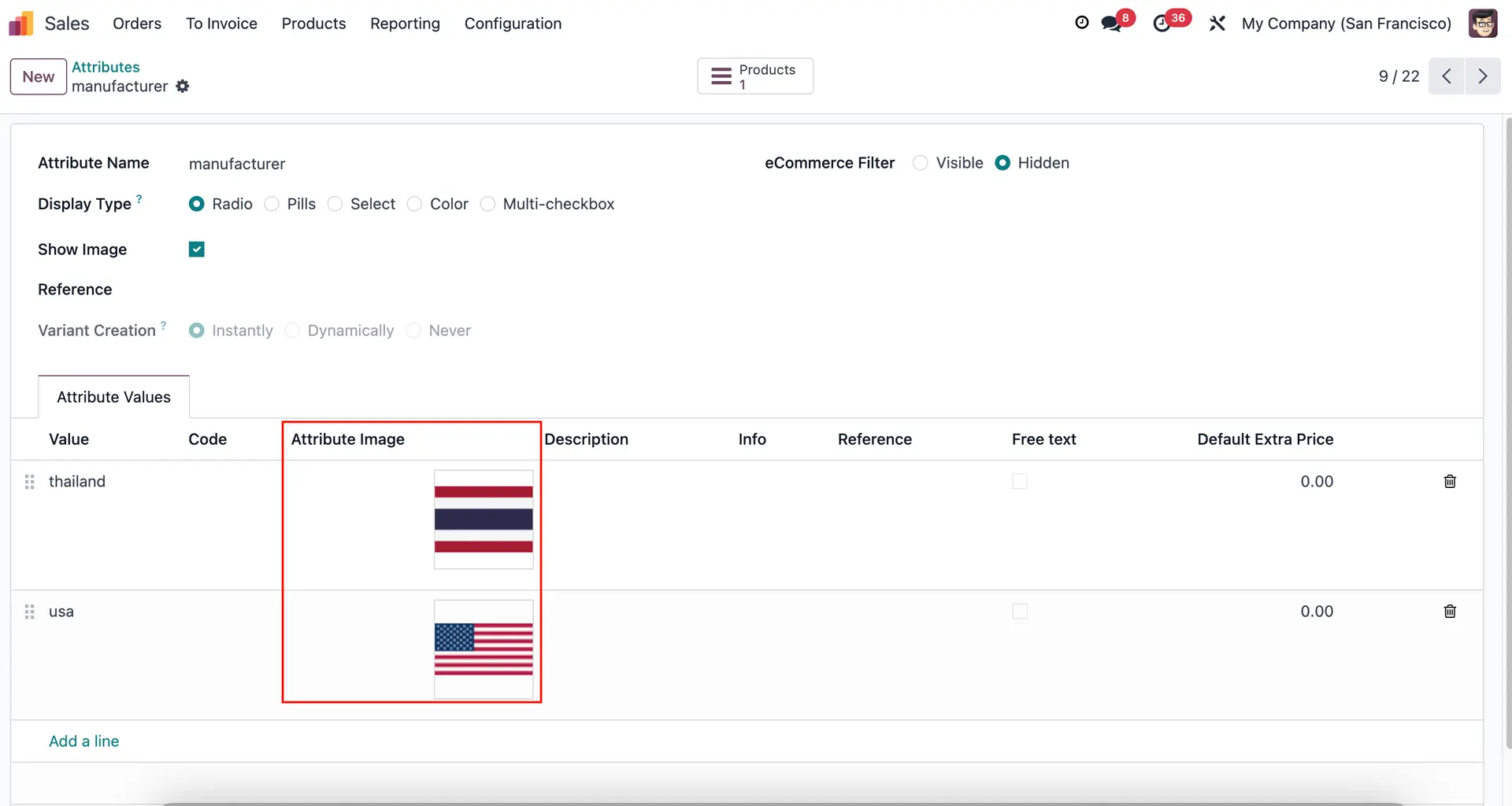 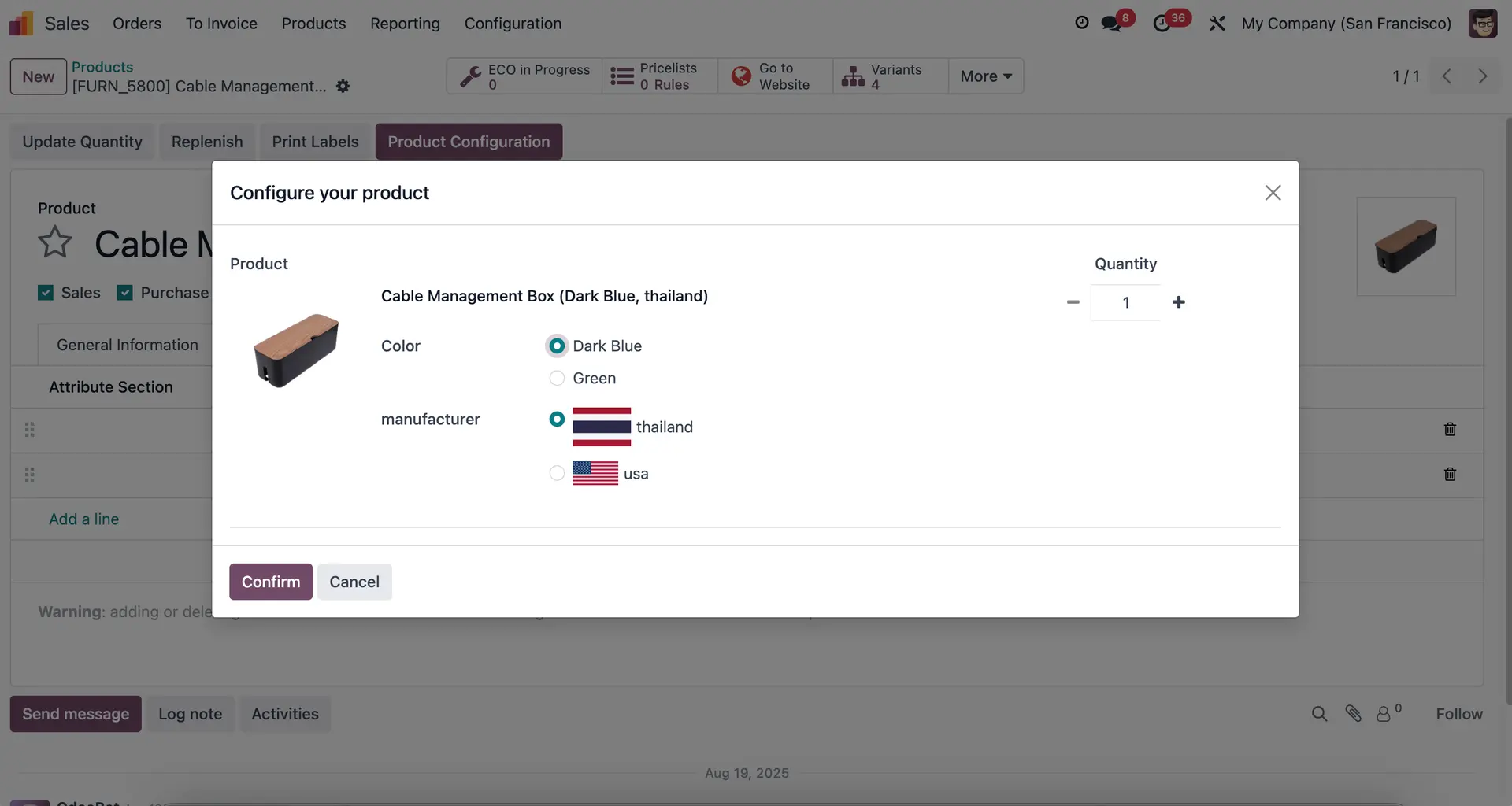 |
ATTRIBUTE SECTION
|  |
2. On Product -> Variants tab, we can add lines to the Attribute Section. | 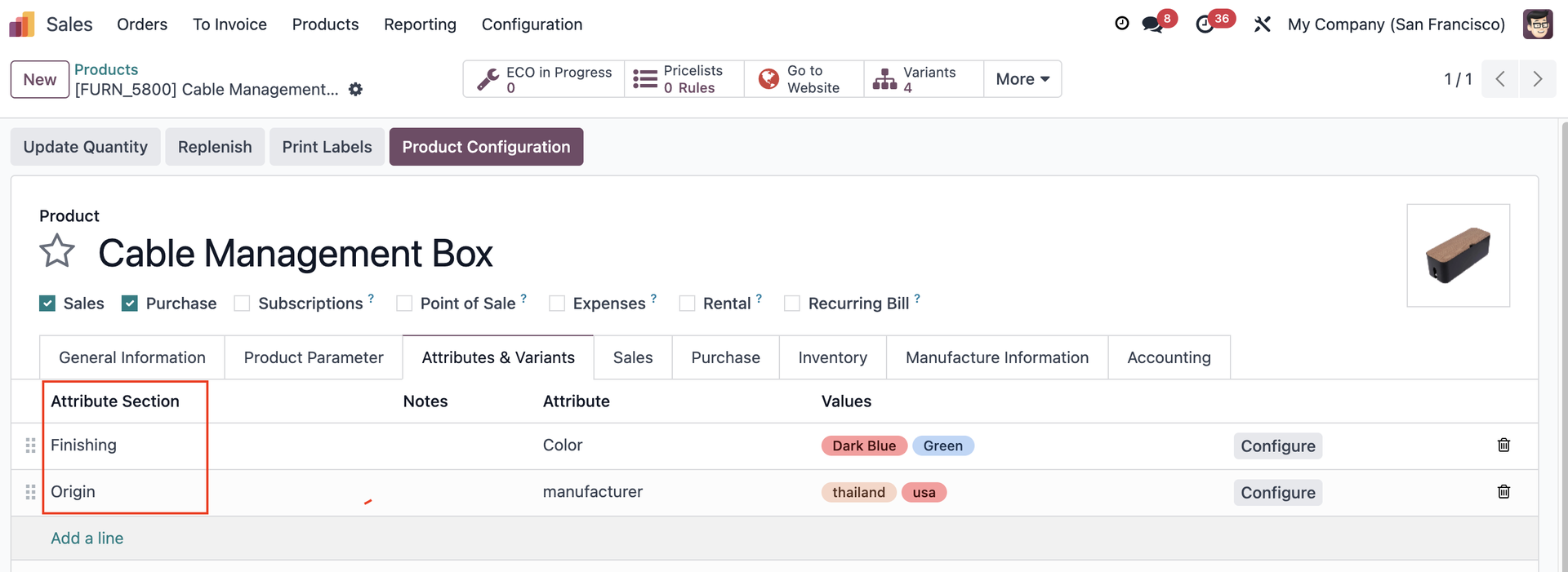 |
3. On the Product Configuration wizard we can see the created sections in bold | 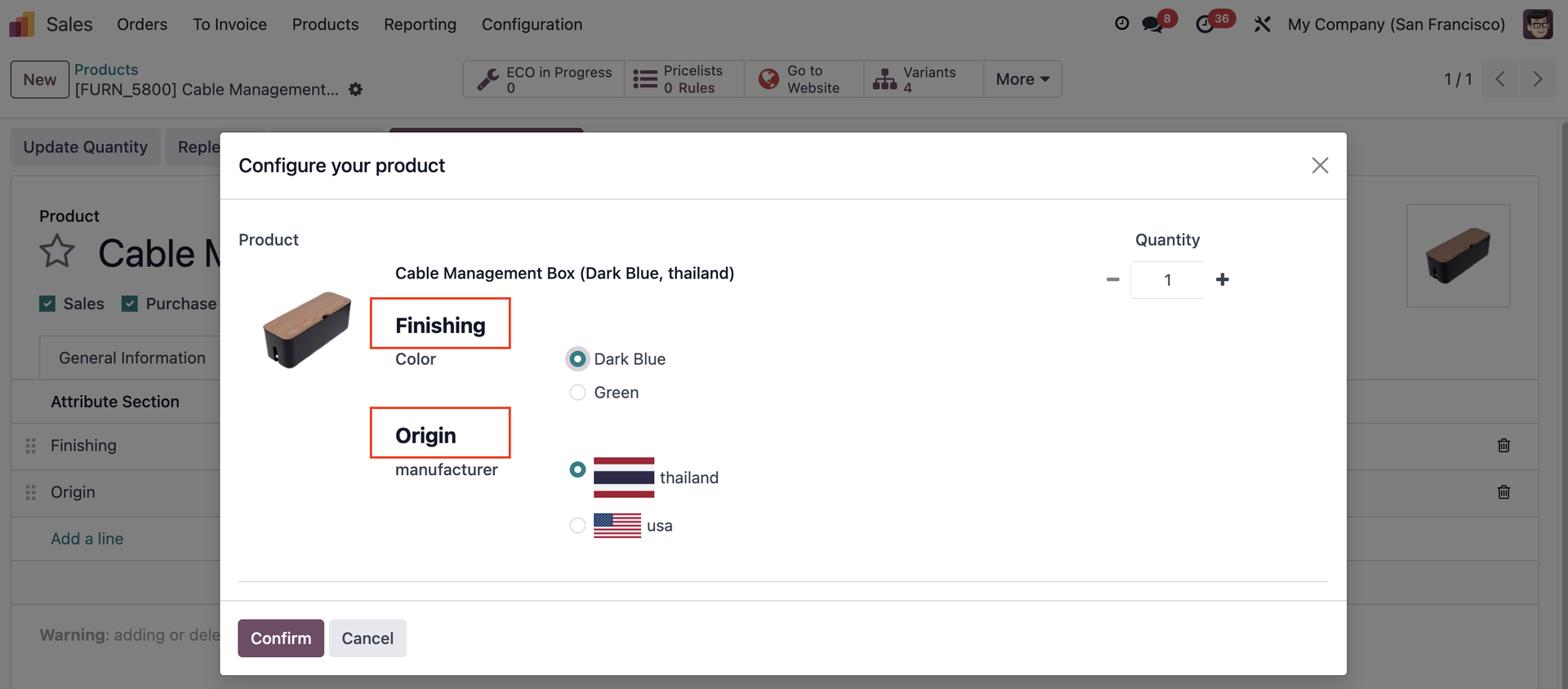 |
ATTRIBUTE INFO
| 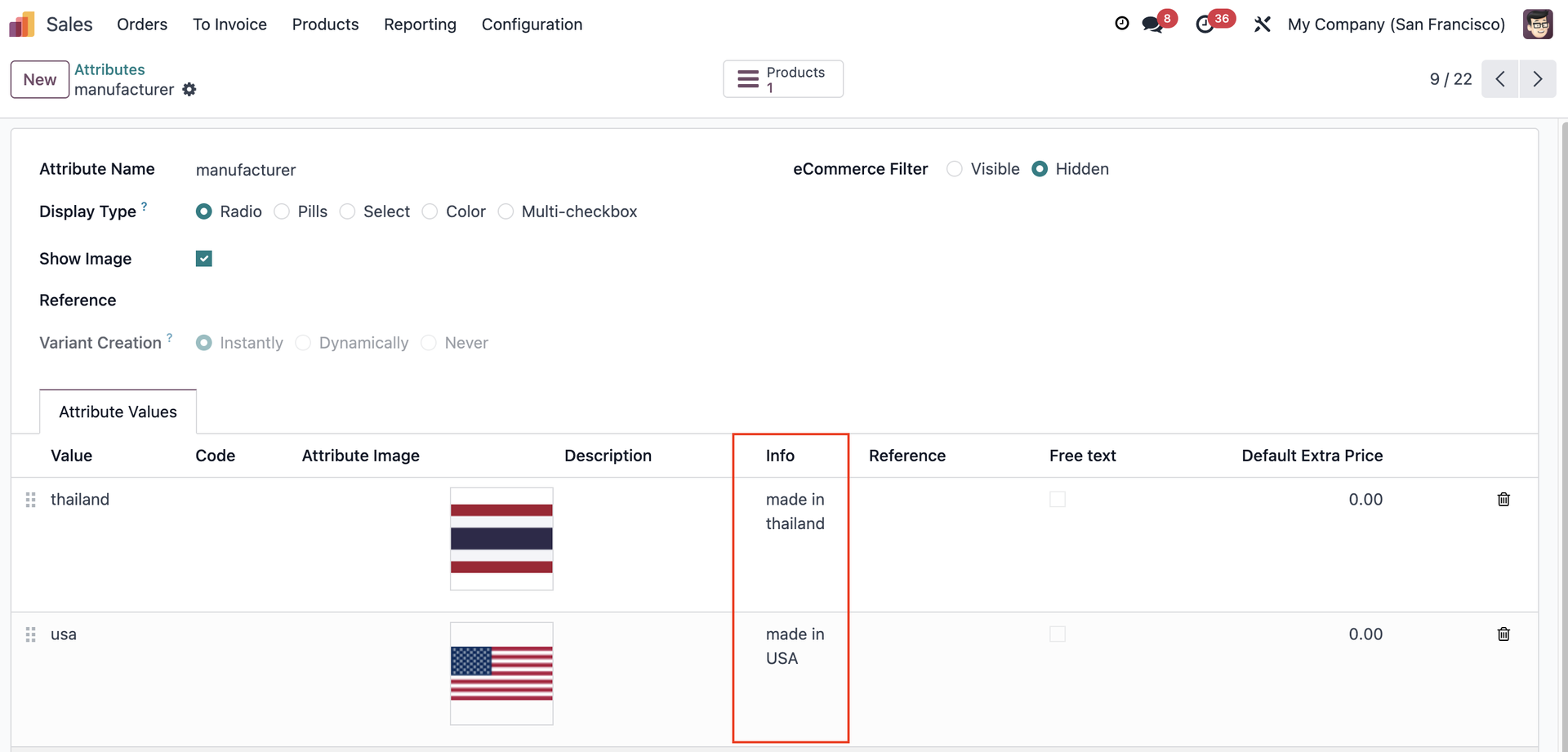 |
2. When we click on the info button, we can see the information we created. | 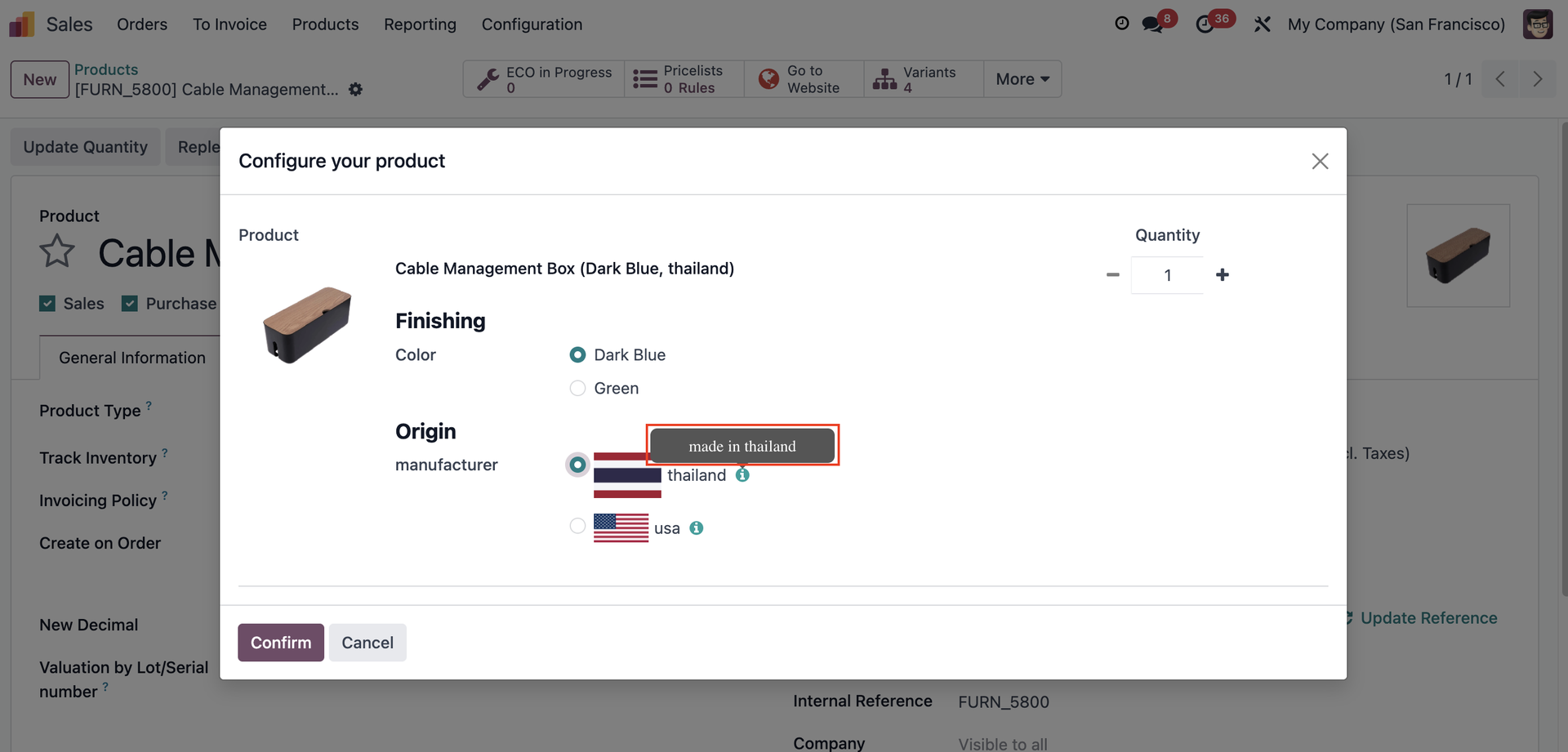 |