


ODOO'S FUNCTION
In Odoo, the Purchase Unit is used as the default unit of measure (UoM) for purchase orders, but there is no dedicated UoM for sales orders generated from intercompany transactions. This can cause discrepancies when a purchase order automatically creates a sales order in the vendor company, leading to mismatched quantities and UoMs.
CLUEDOO'S FUNCTION
CLuedoo introduces a UoM Sales Order (UoM SO) feature to ensure that sales orders generated from intercompany purchases reflect the same quantity and UoM as in the purchase order. When a user selects a UoM SO, it is applied to the sales order in the vendor company, preventing inconsistencies and ensuring seamless data synchronization in Make-to-Order (MTO) and intercompany transactions.
1. Go to Settings in both companies and checkbox Inter-Company Transactions, Generate Sales Orders, Generate Purchase Orders | 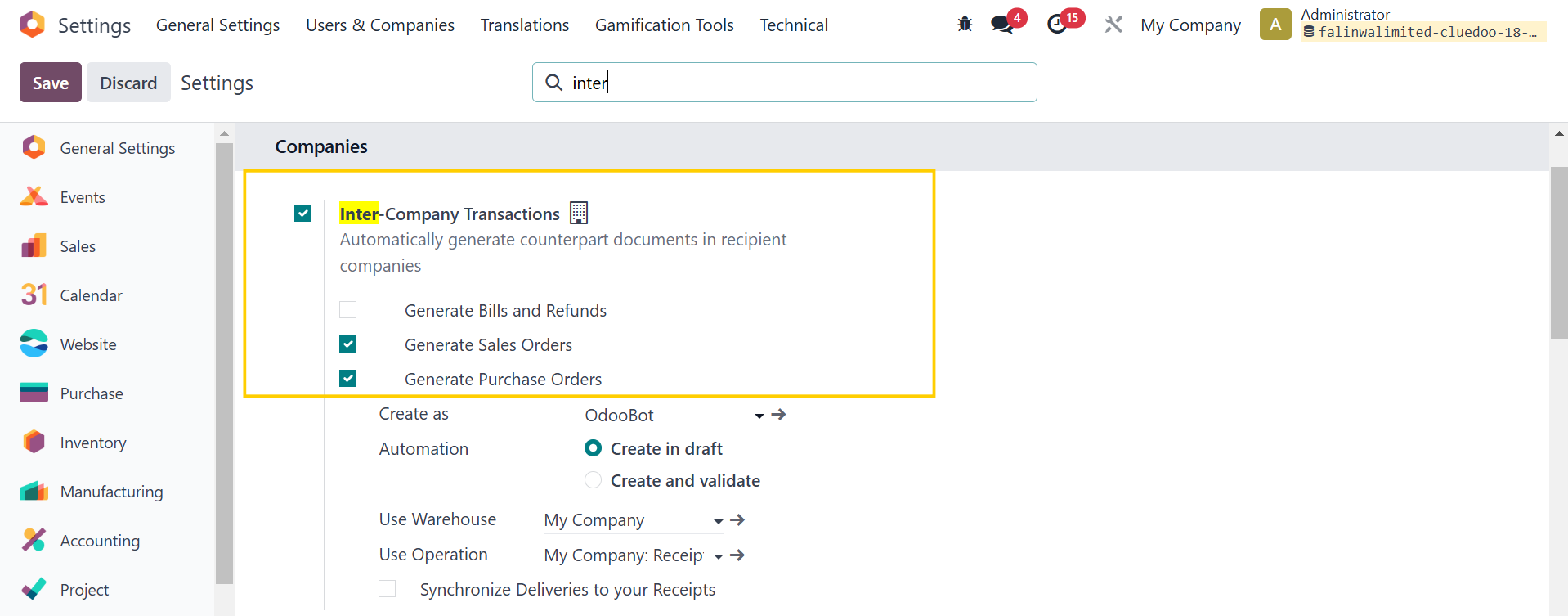 |
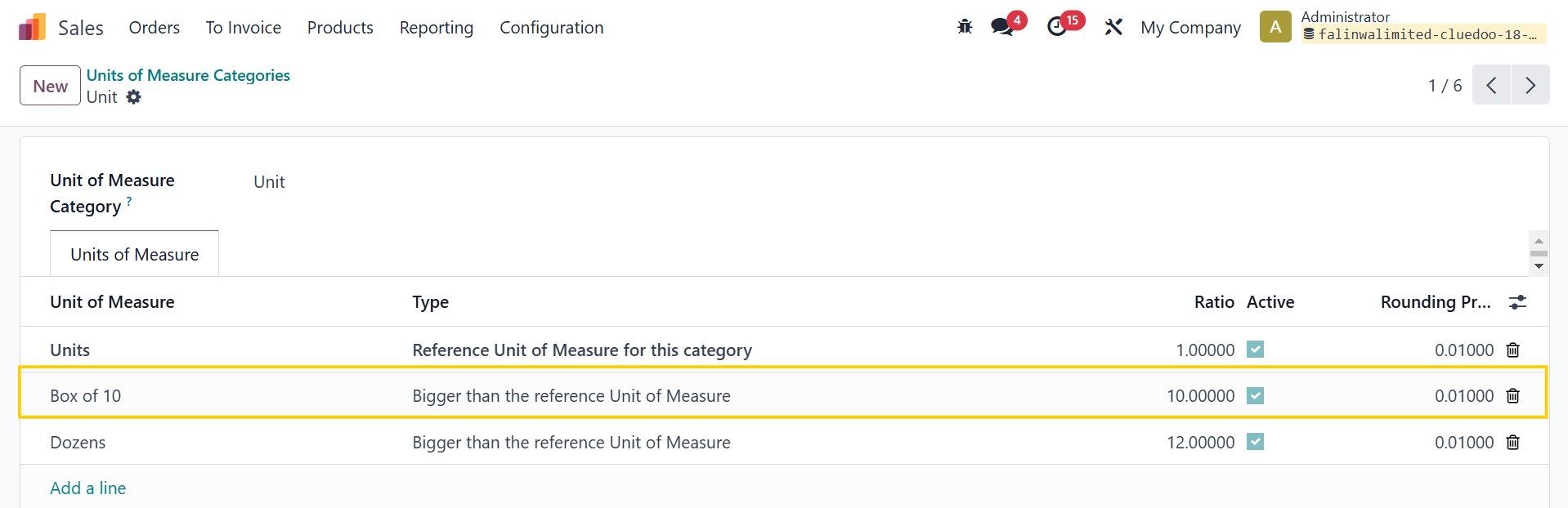
2. Go to Sales > Configuration > Unit of Measure > Unit of Measure Categories > Create a new UoM that is smaller/bigger than the reference UoM e.g. I create a Box of 10 Units Note: Unit of Measure Categories are not available on v19 |
|
3. Create a new product or choose an existing one > Set Purchase Unit under the Purchase tab and UoM SO under the Sales tab Note: Purchase Unit is removed in Odoo v19. It can be defined on Purchase's Vendor. | 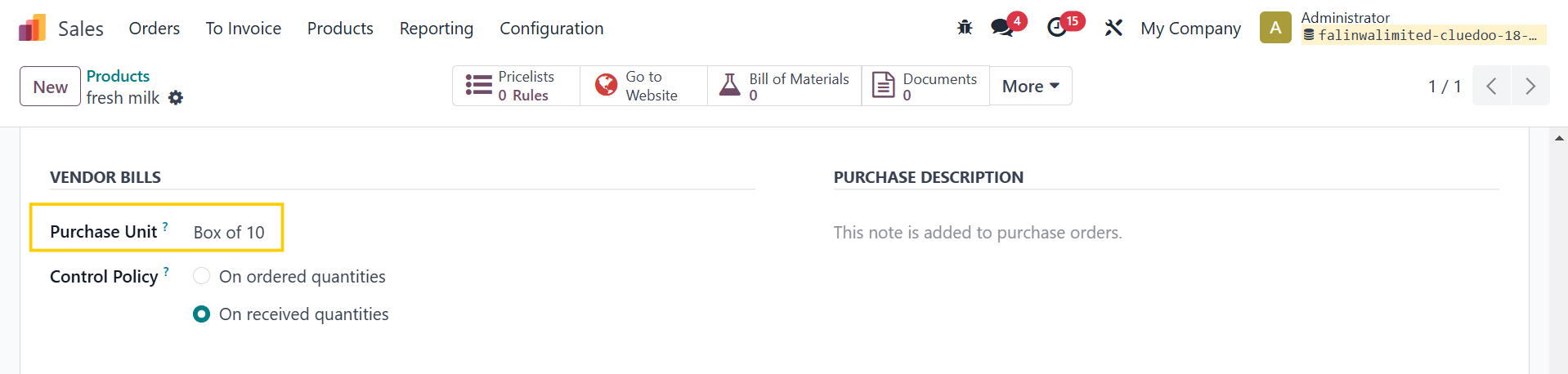 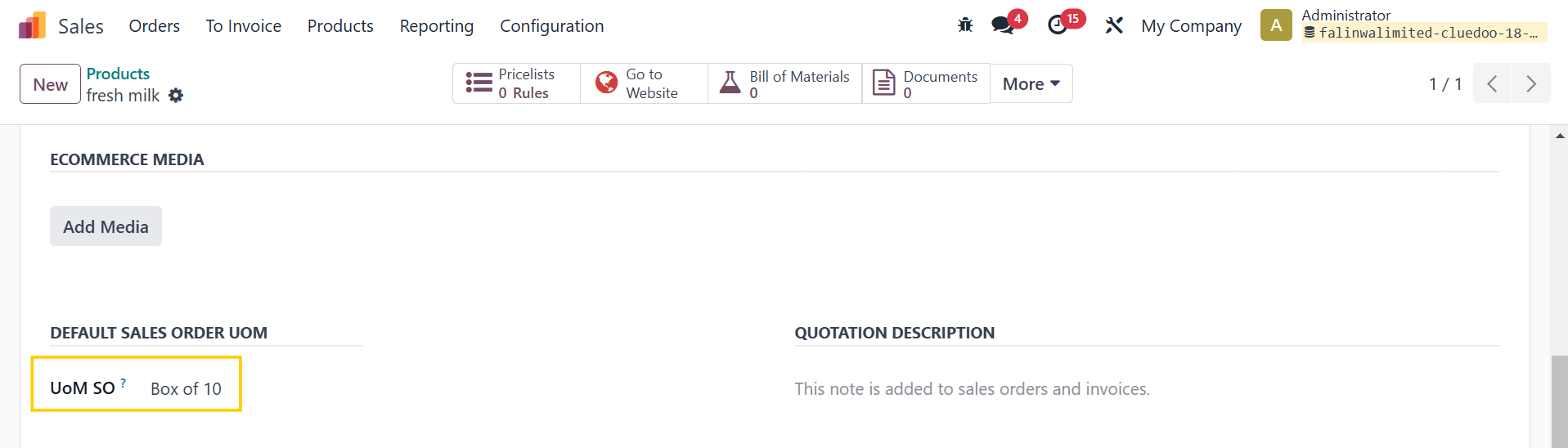 |
Note: Purchase Unit and UoM SO must be in the same category as the default UoM |  |
4. Under the Inventory tab, set the Routes to Buy and MTO | 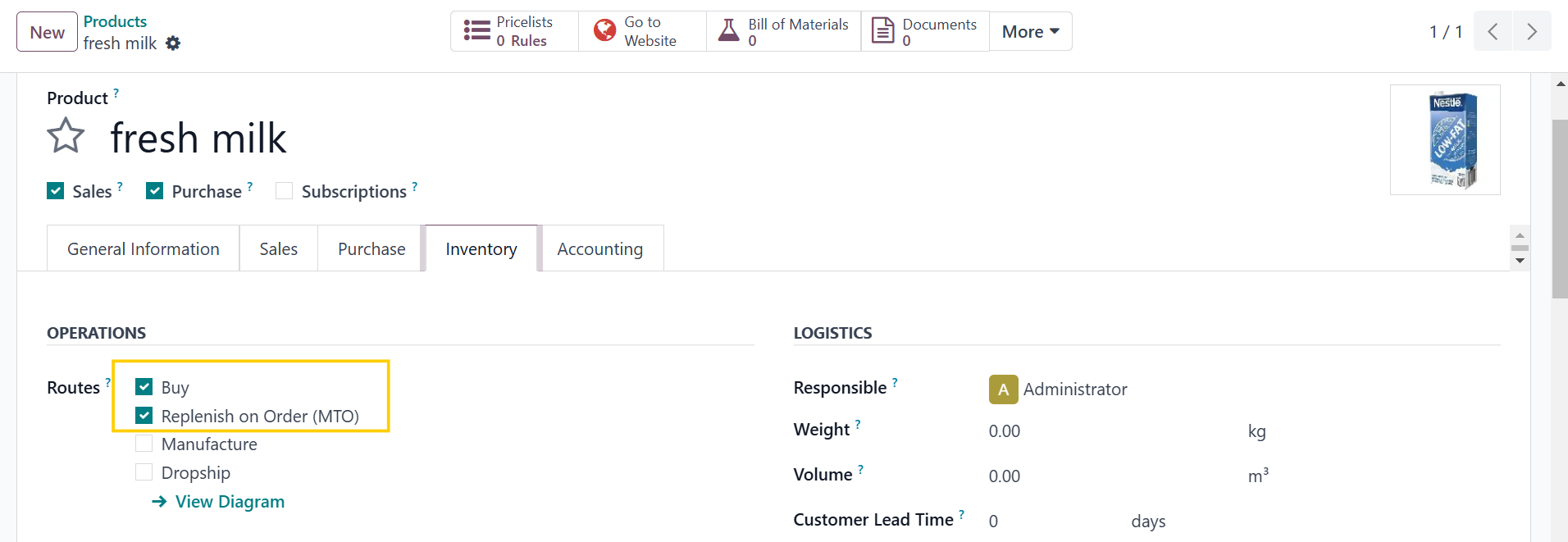 |
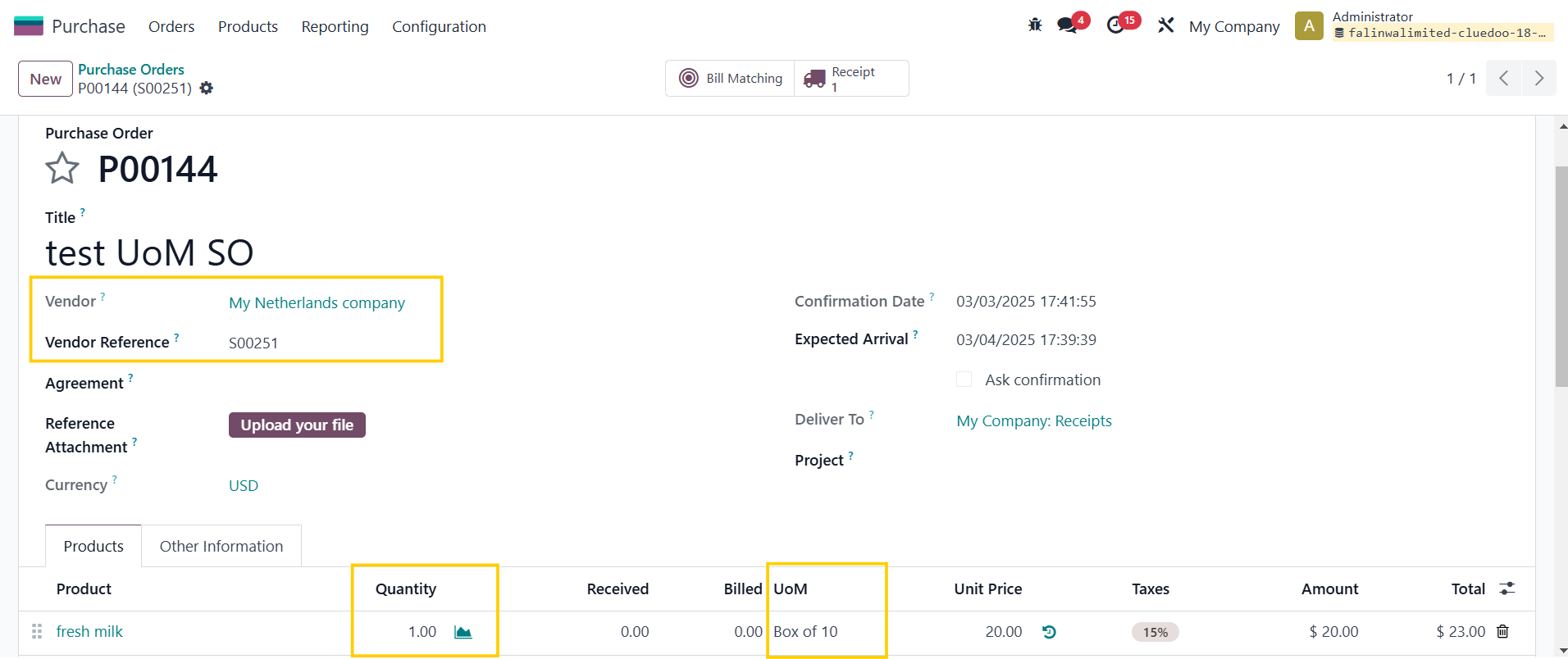
5. Create a new Purchase Order > Choose the Vendor and add the product > Confirm Order |
|
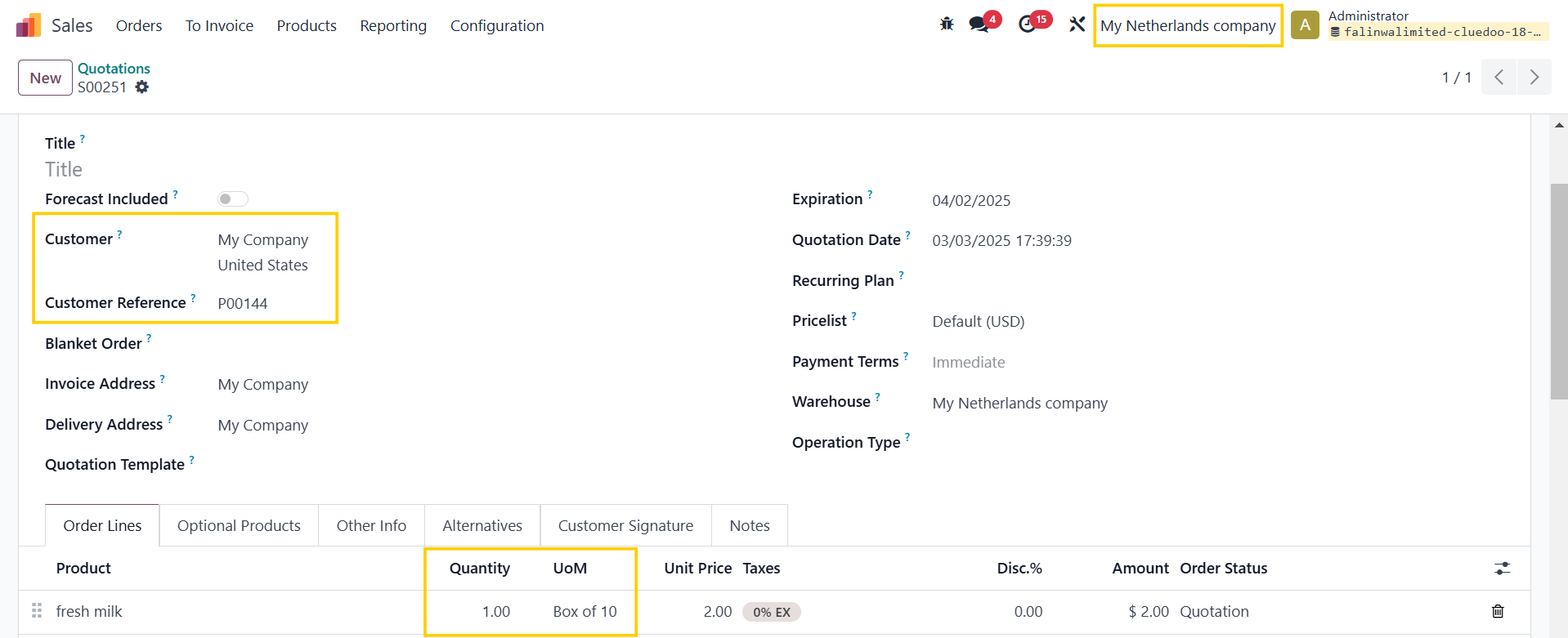
6. Go to the Vendor's Sales Order, the information from the Purchase Order has been transferred with the correct Quantity and UoM |
|