


ODOO'S FUNCTION
In Odoo, tracking the duration of the subscription is not straightforward. While the Start Date exists, it is located under the Other Info tab, making it less visible for quick reference. The End Date is not explicitly defined but can be inferred from the end date of the Recurring Plan, which is not directly linked to a structured subscription duration. Additionally, Odoo does not provide a field to define each subscription period. Moreover, Odoo does not allow invoicing before the subscription starts, restricting businesses that need to collect payments in advance.
CLUEDOO'S FUNCTION
Invoice Before Start Date: Enables invoicing before the subscription officially begins, allowing businesses to collect payments in advance.
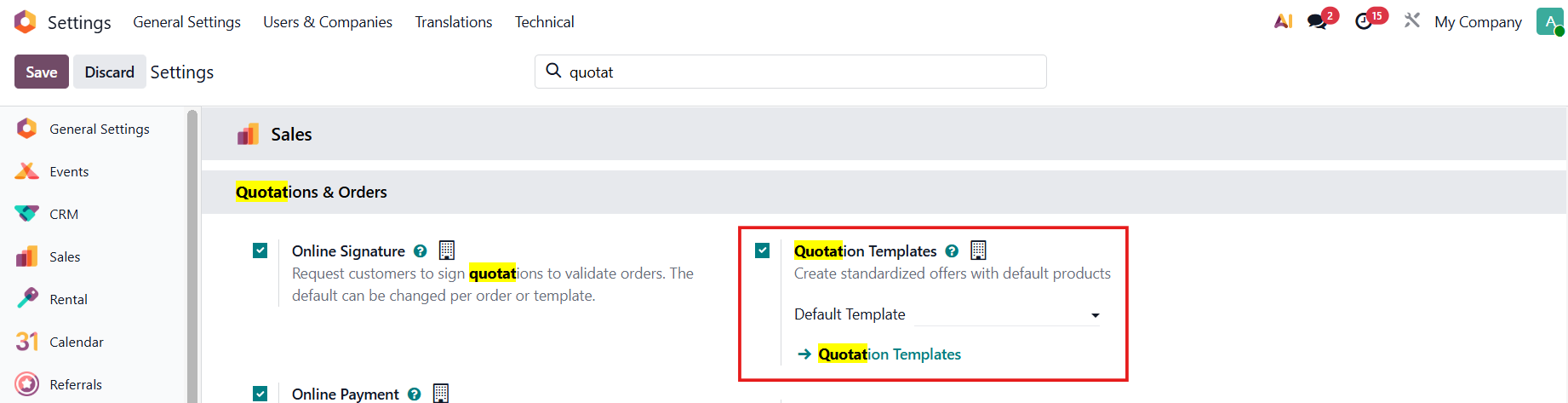
CONFIGURATION1. Create a service-type and recurring product. | 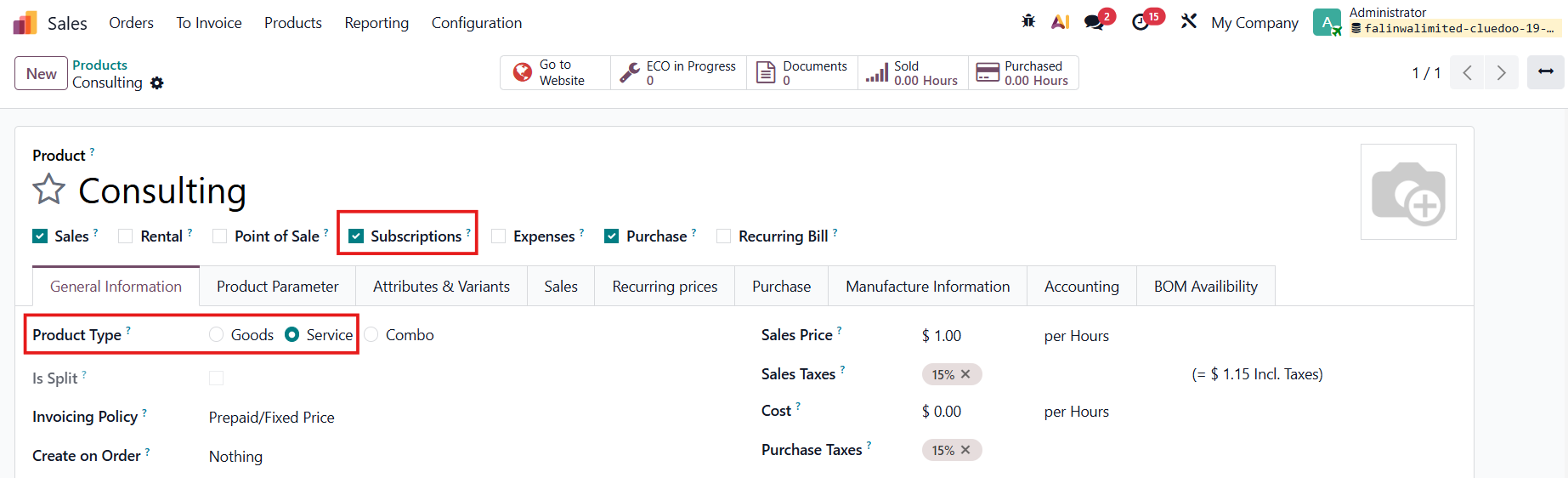 |
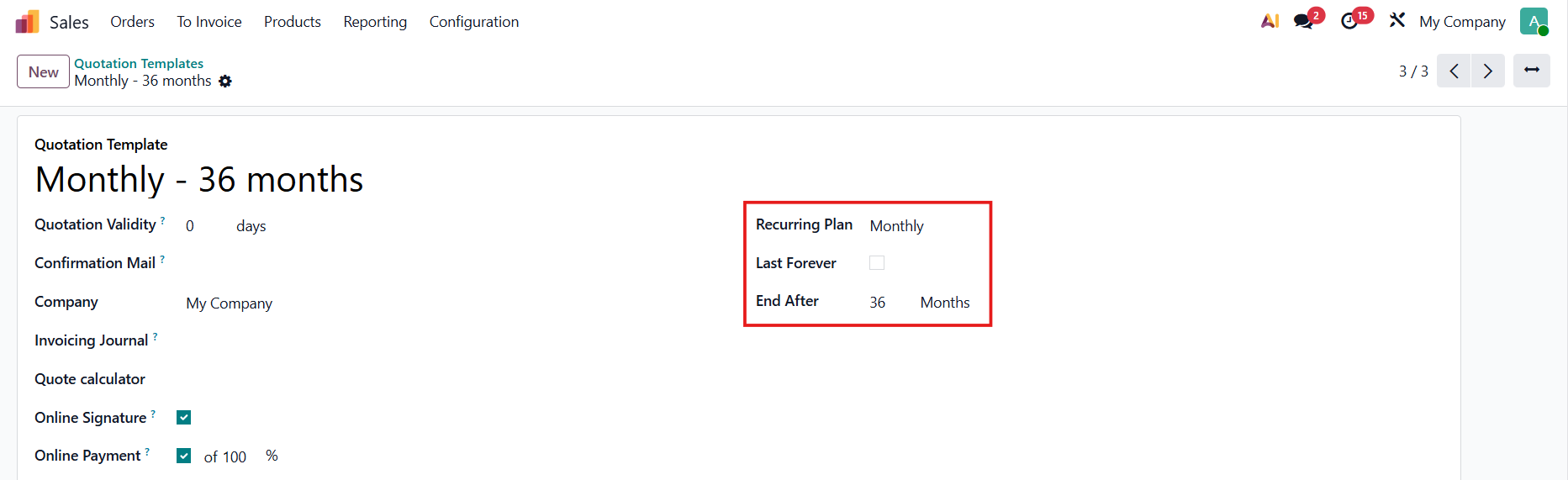
2. Set up the Quotation Template
|
|
USAGE2. Go to Subscriptions > New to create a new subscription > Fill in the necessary information > Confirm When you fill in the start date in the Subscription Period, the end date of the subscription will be automatically calculated based on your Quotation Template. The Current Period will also be added and its duration is based on the Recurring Plan You can choose the Invoicing Period/Invoicing Date BEFORE the Subscription's start date e.g Subscription starts from Oct 1, Invoicing Date is 15 Sept | 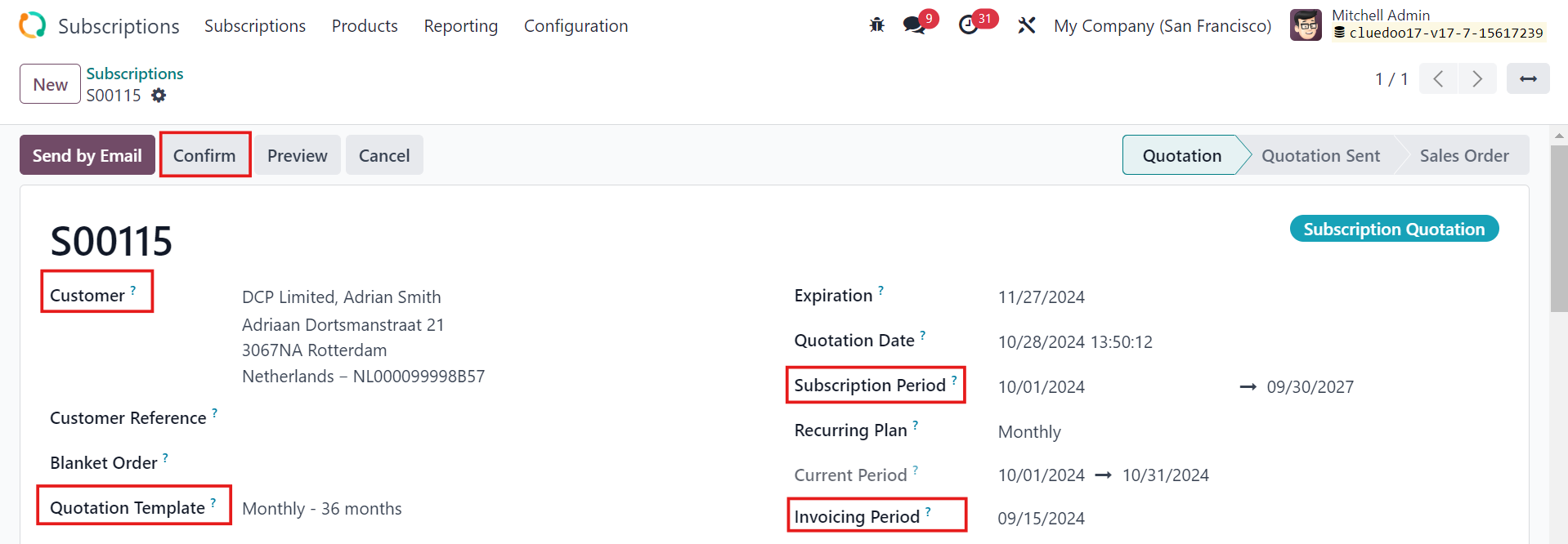 Recurring Plan 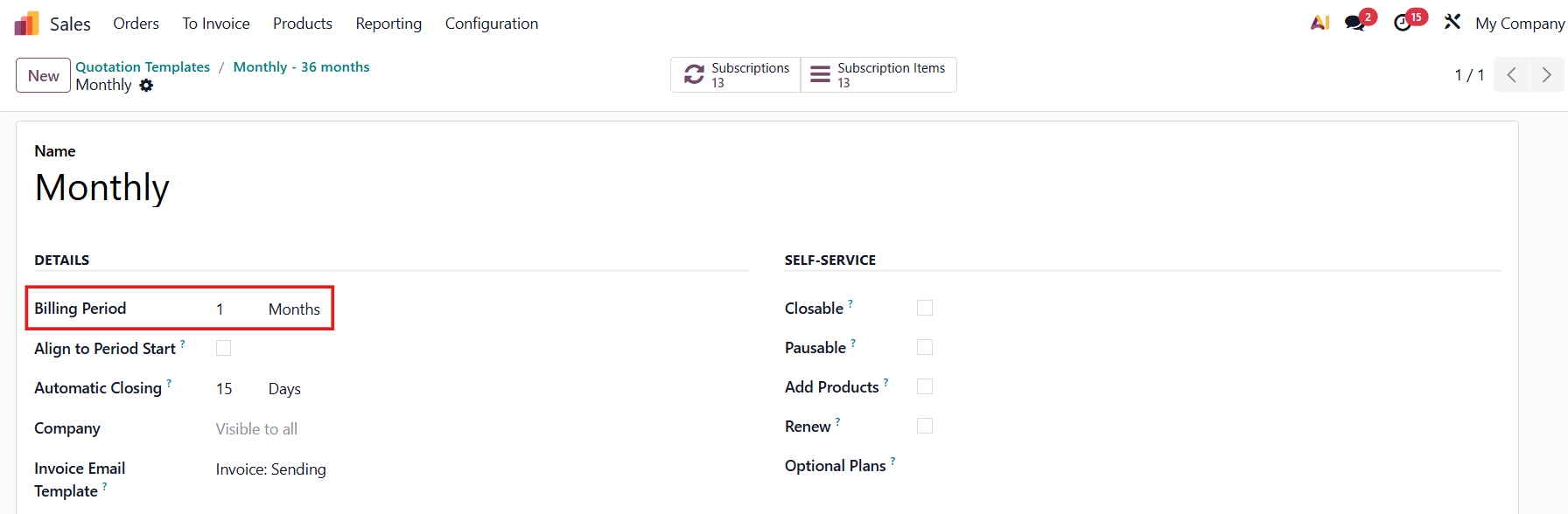 |
If the Quotation Template is empty then the end date of the subscription will be left empty as well | 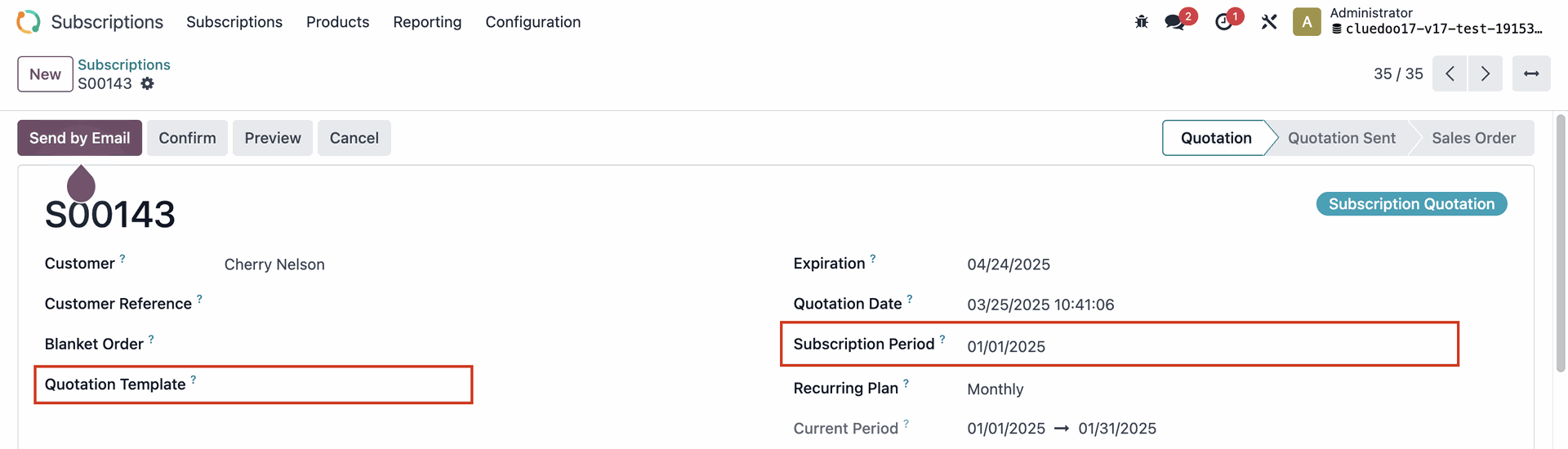 |
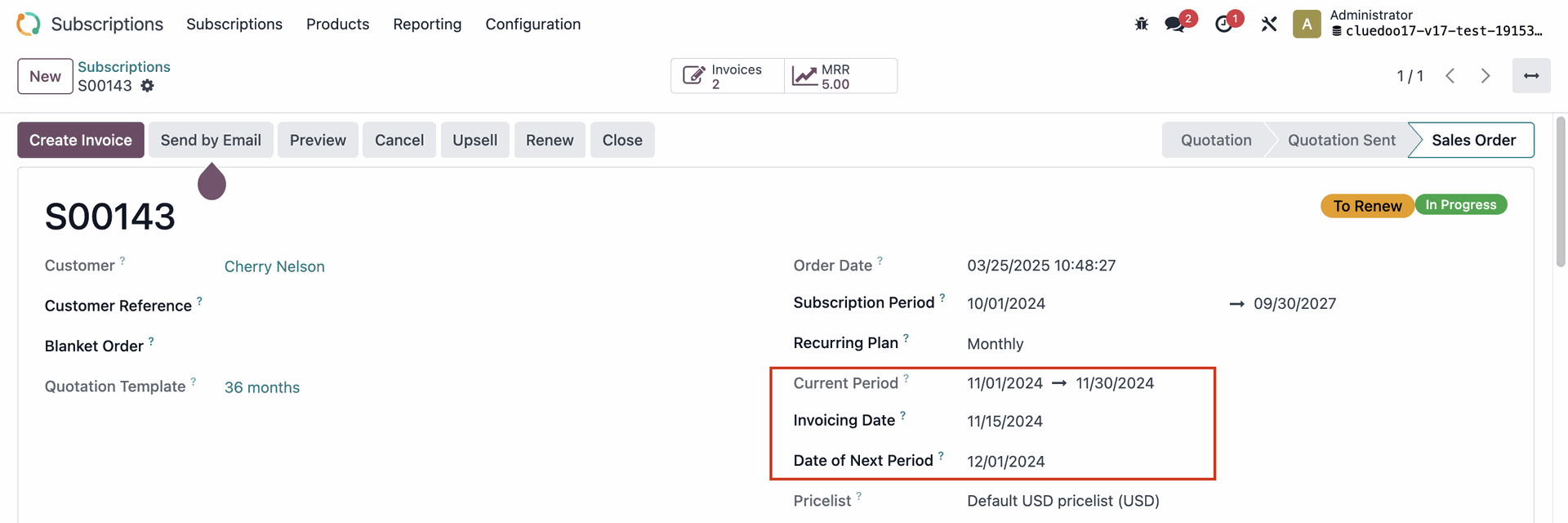
3. After you confirm the subscription, the Date of Next Period will be updated as well | 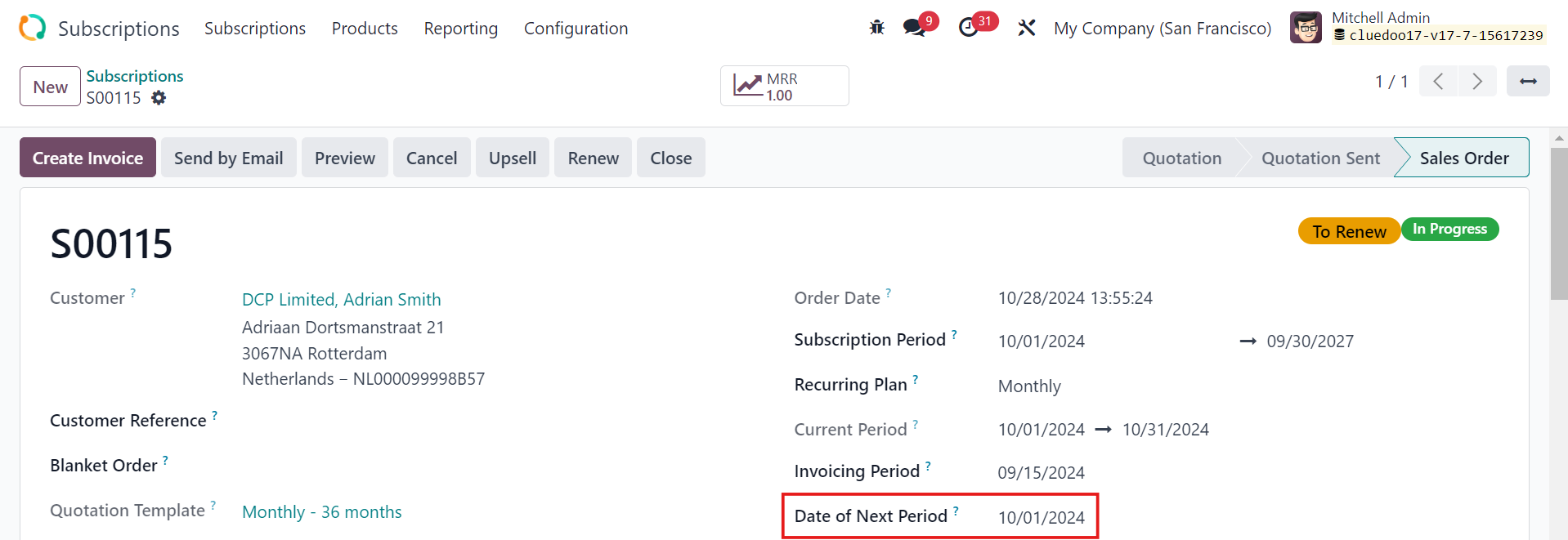 |
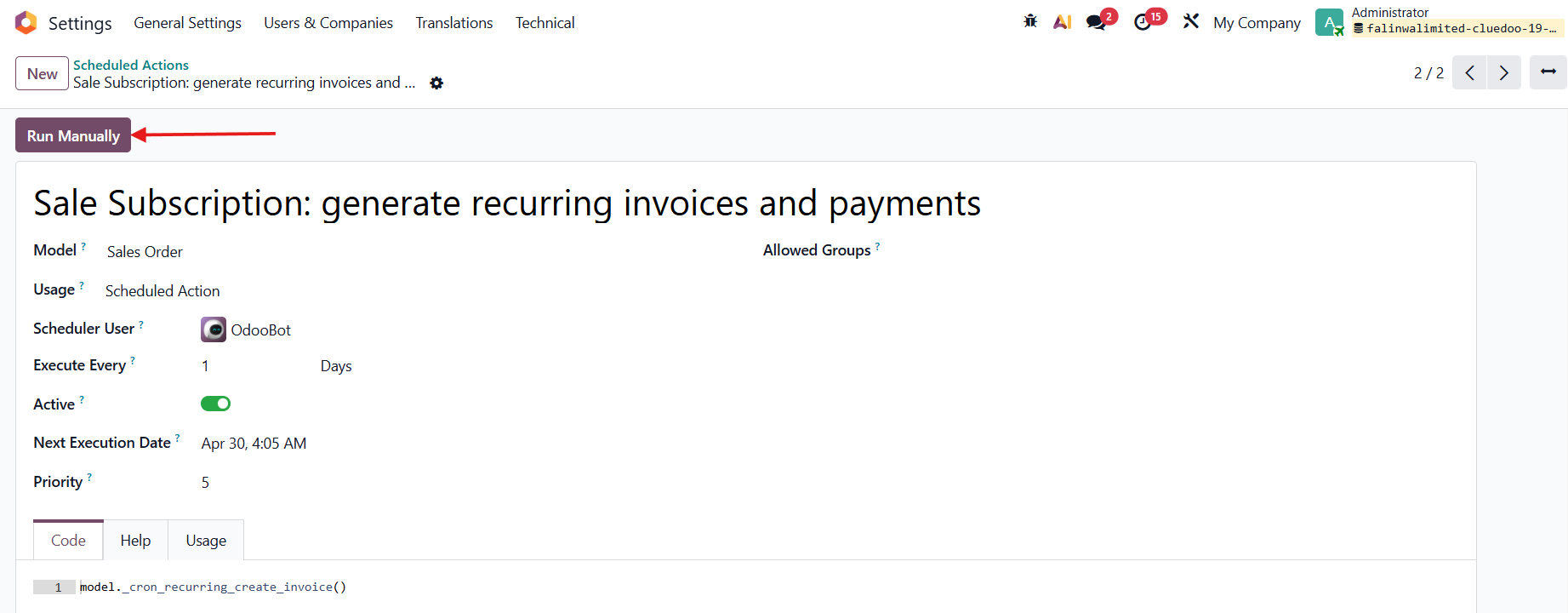
3. Go to Settings > Scheduled Actions > Find Sale Subscription: generate recurring invoices and payments > Run Manually to create an invoice. |
|
The Date of Next Period jumps to the next period only after creating an invoice, so does the Invoicing Period / Invoicing Date. |
|
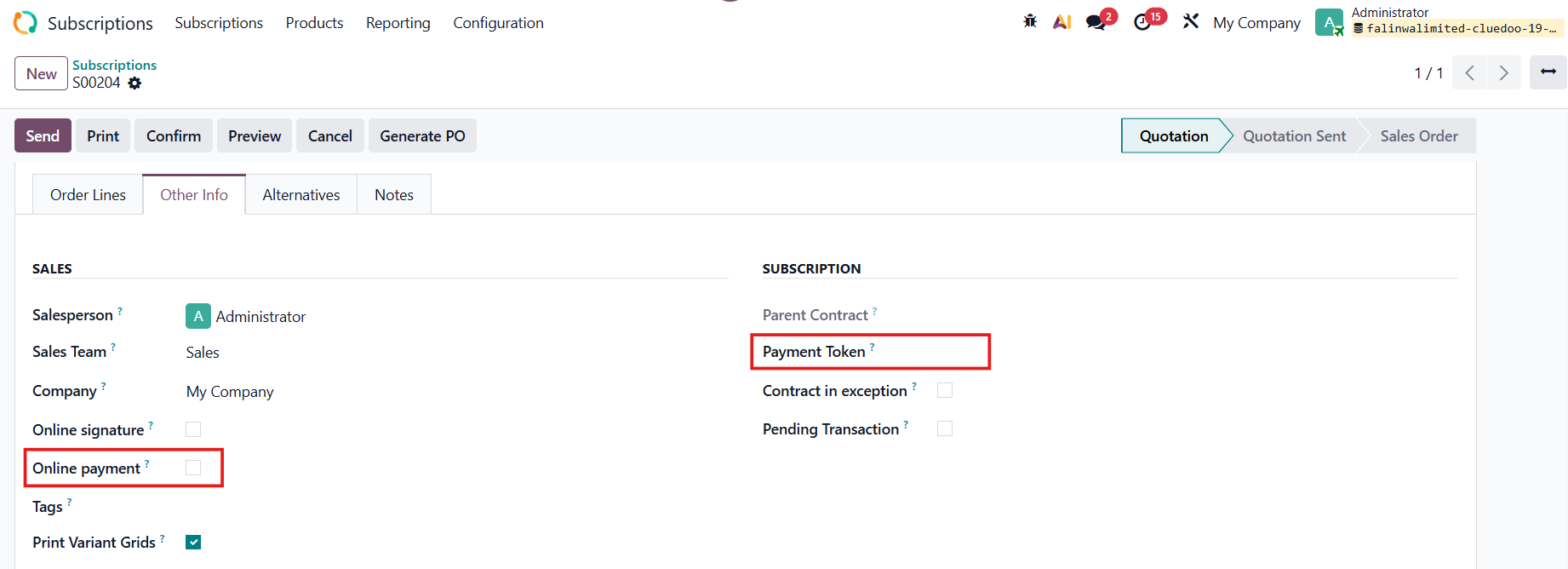
Note: Since v18, uncheck the Online Payment option / fill in the Payment Token, or the automatic invoice will not be created. |
|
4. In the Invoice Lines, the Label and the Start/End Date are based on the Current Period. Note: On v19, Star and end Date changed into Deferred Date. | 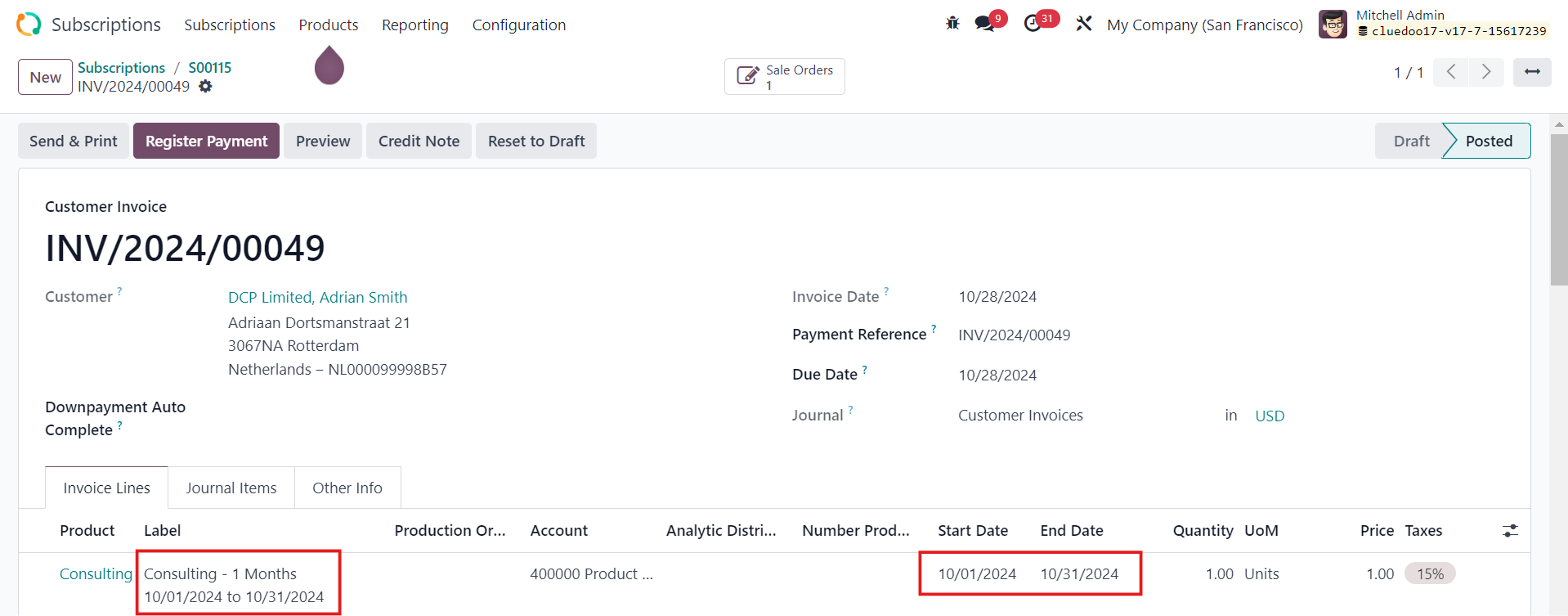 |
5. After the 2nd invoice is generated, you will notice the Current Period has moved to the next period, so have the Invoicing Date and Date of Next Period. Notes:
|
|