



ODOO'S FUNCTION
Odoo allows managing multiple sales orders per customer, providing flexibility for handling separate transactions. However, it does not offer a built-in way to merge multiple sales orders into one, which can lead to duplication or inefficiencies in processing.
CLUEDOO'S FUNCTION
CLuedoo adds the ability to merge multiple sales orders into a single one for the same customer. This helps streamline order management, reduce redundancy, and simplify invoicing or delivery processes.
Go to the Sales Module. |  |
Start by creating several quotations you’d like to merge into one. | 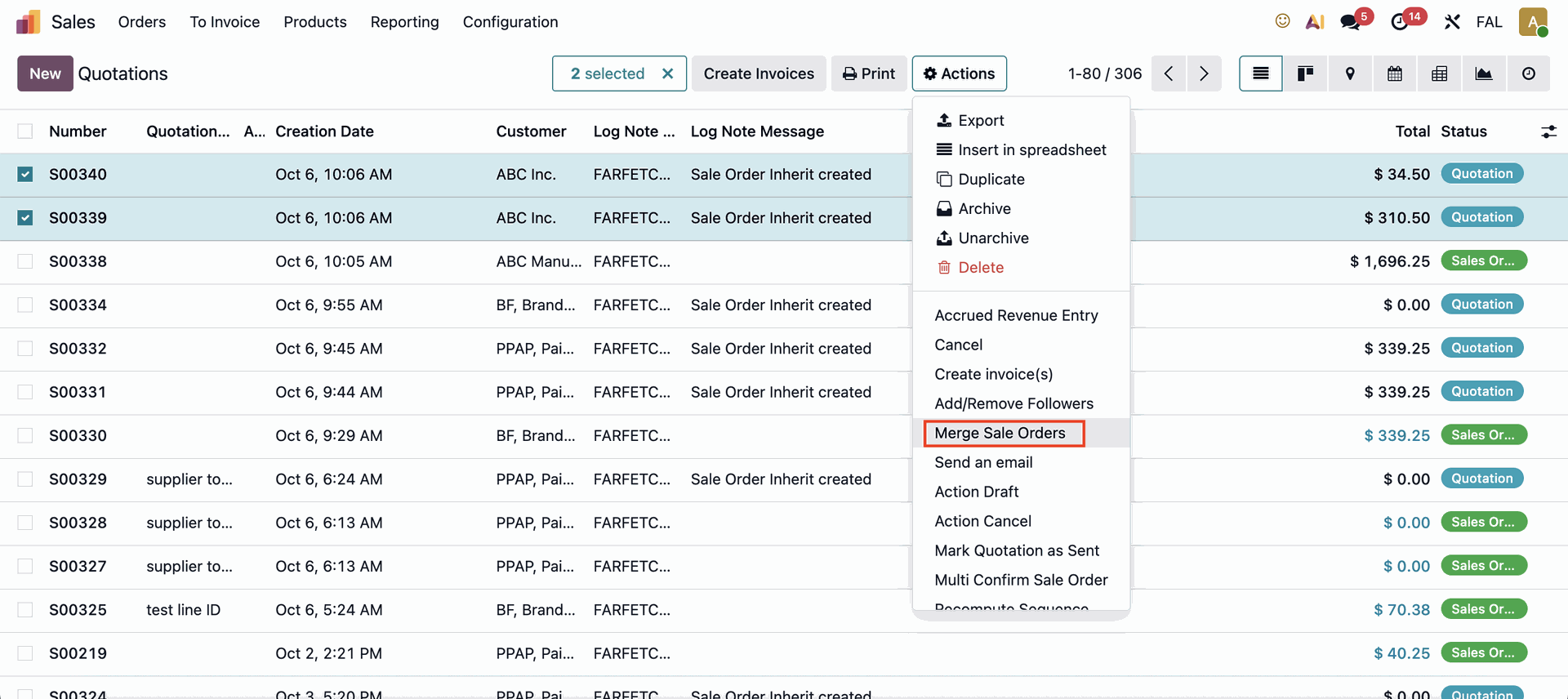 |
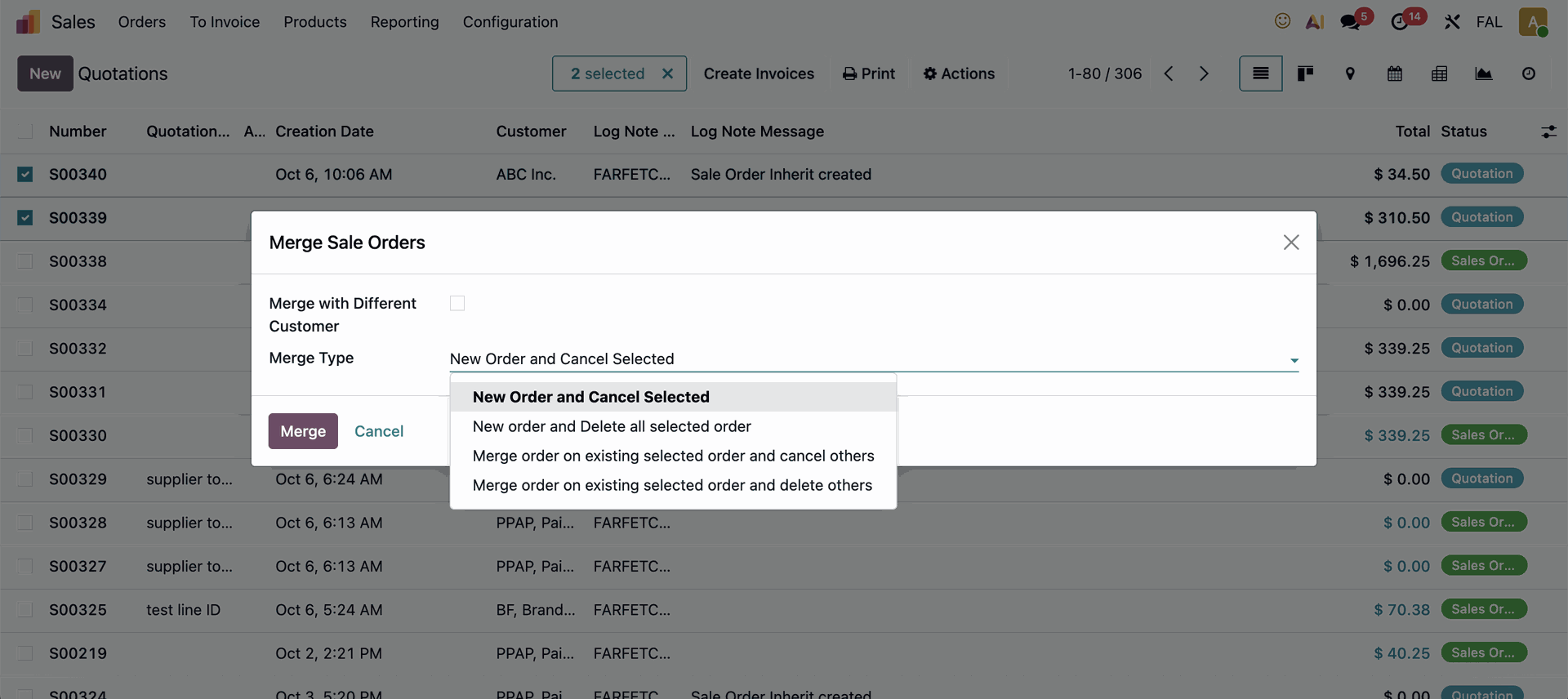
There are several options available to merge your quotations:
|  |
If you choose to merge with an existing order, you will need to select which quotation number you would like the orders to be merged into. | 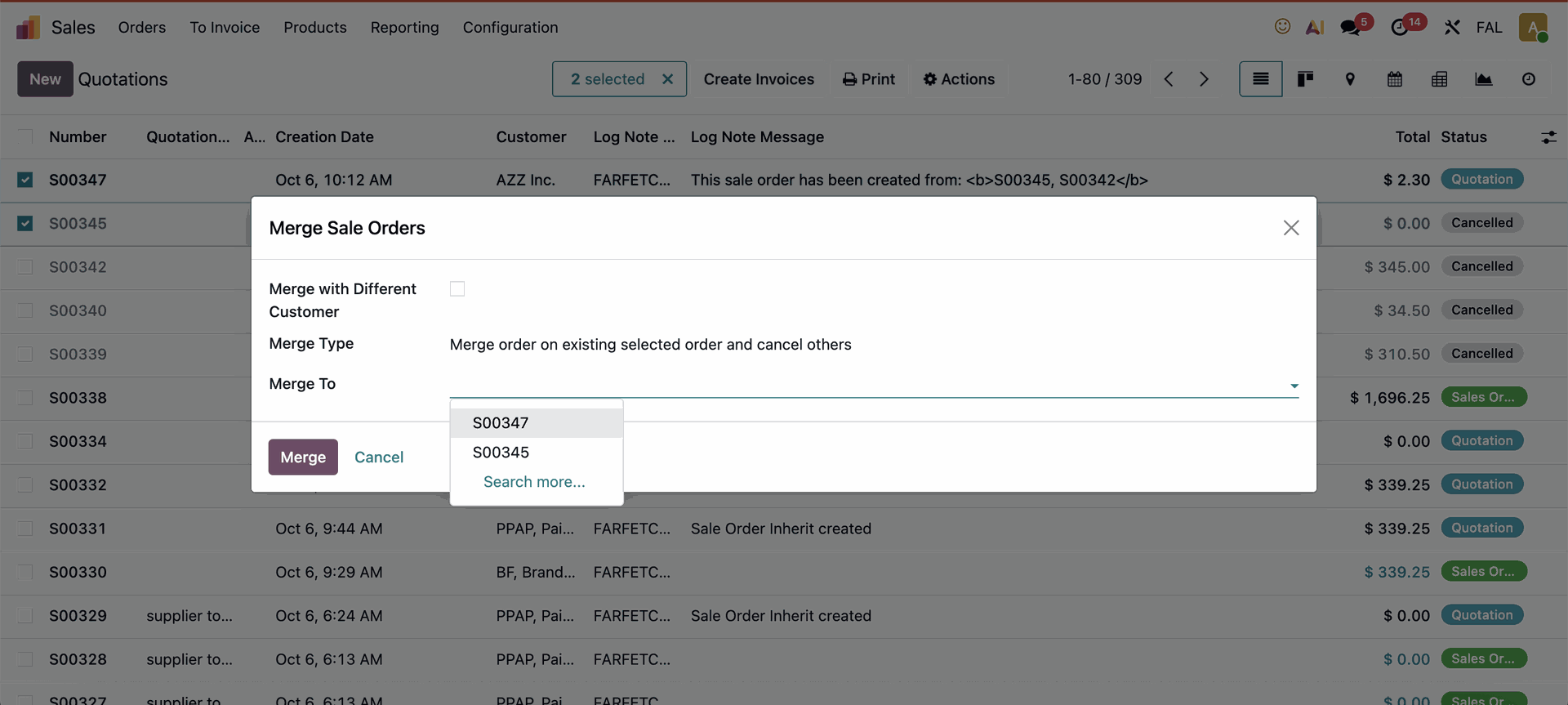 |
When you choose to merge and cancel the selected orders, the cancelled orders will remain visible for reference. | 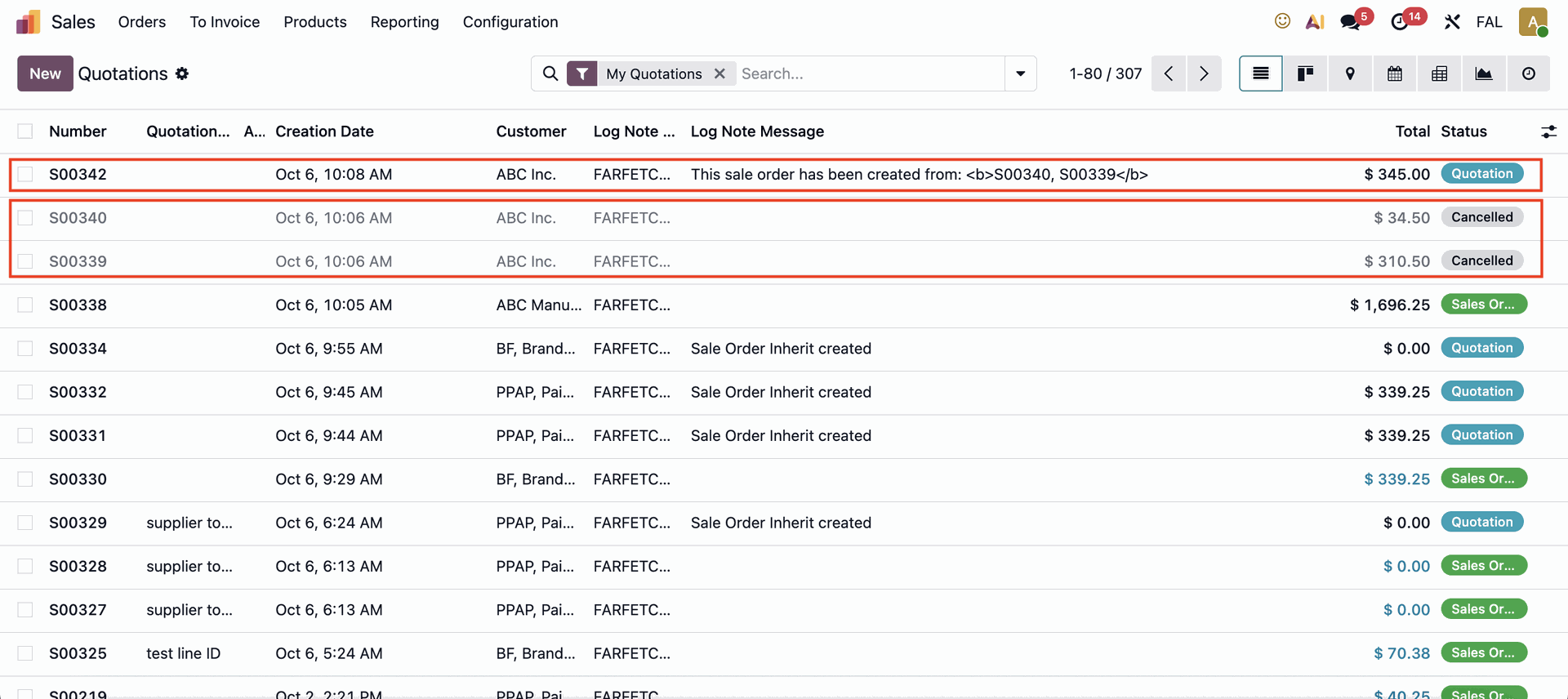 |
When you select the option to merge and delete the selected orders, the deleted orders will no longer be visible. | 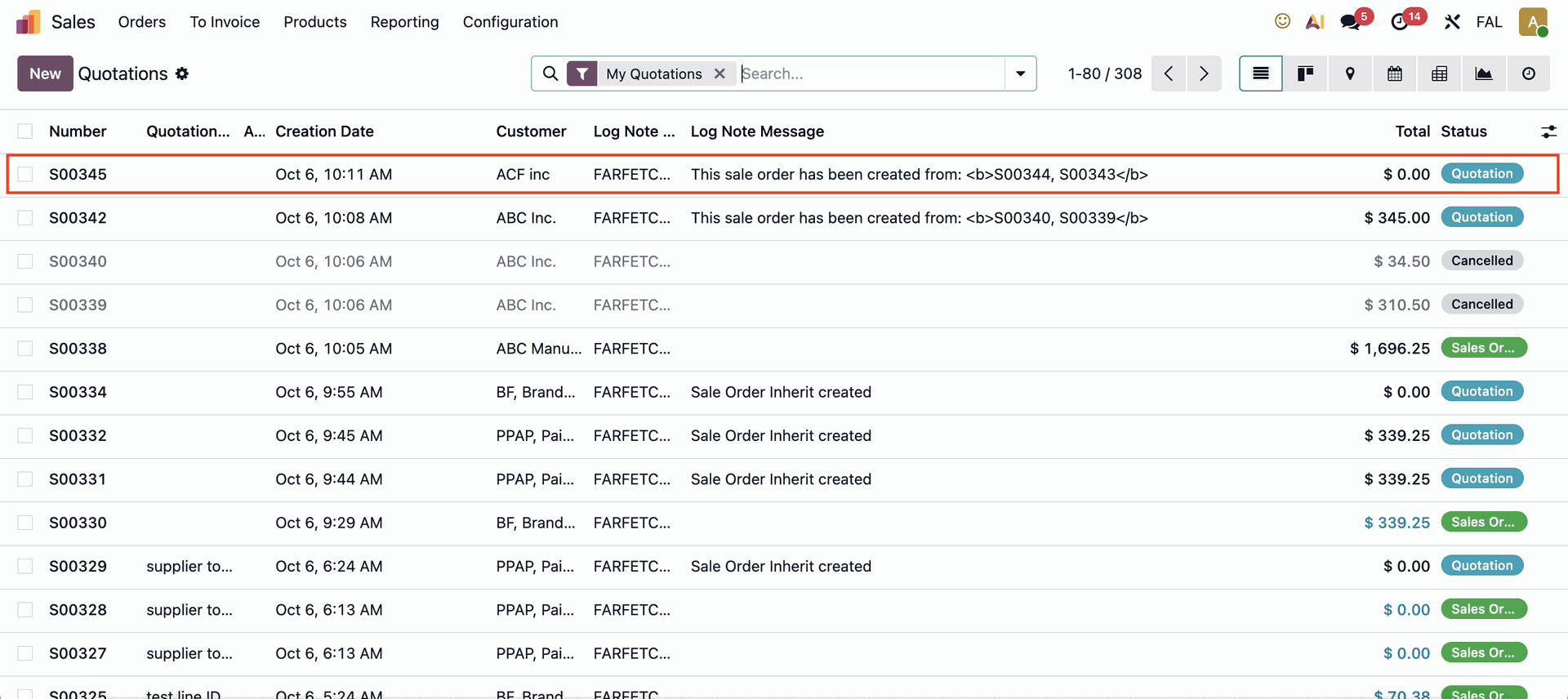 |
Note: If you try to merge two quotations that have different customers, the system will not allow you to proceed. | 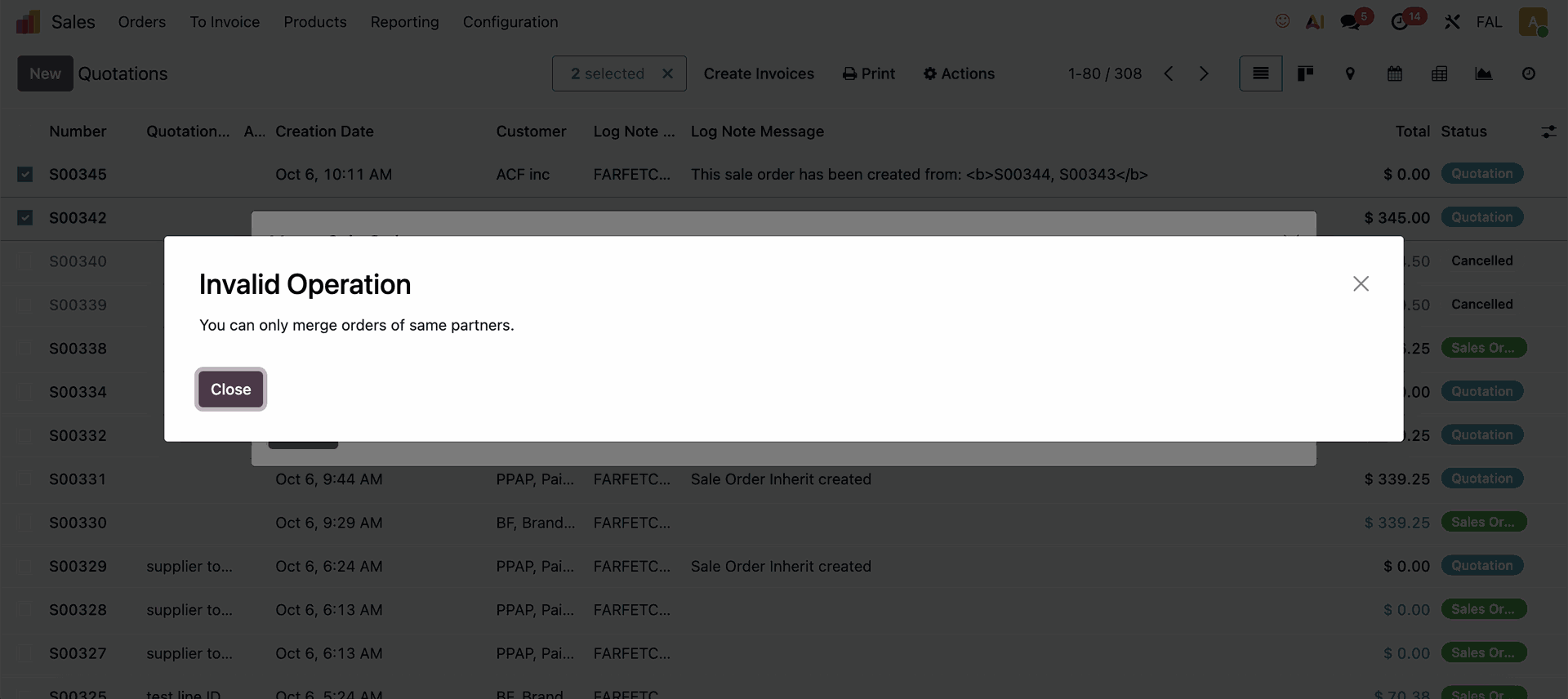 |
However, if you want to merge two quotations from different customers into a new customer, you can do so by checking the “Merge with Different Customer” field and entering the new customer’s name. | 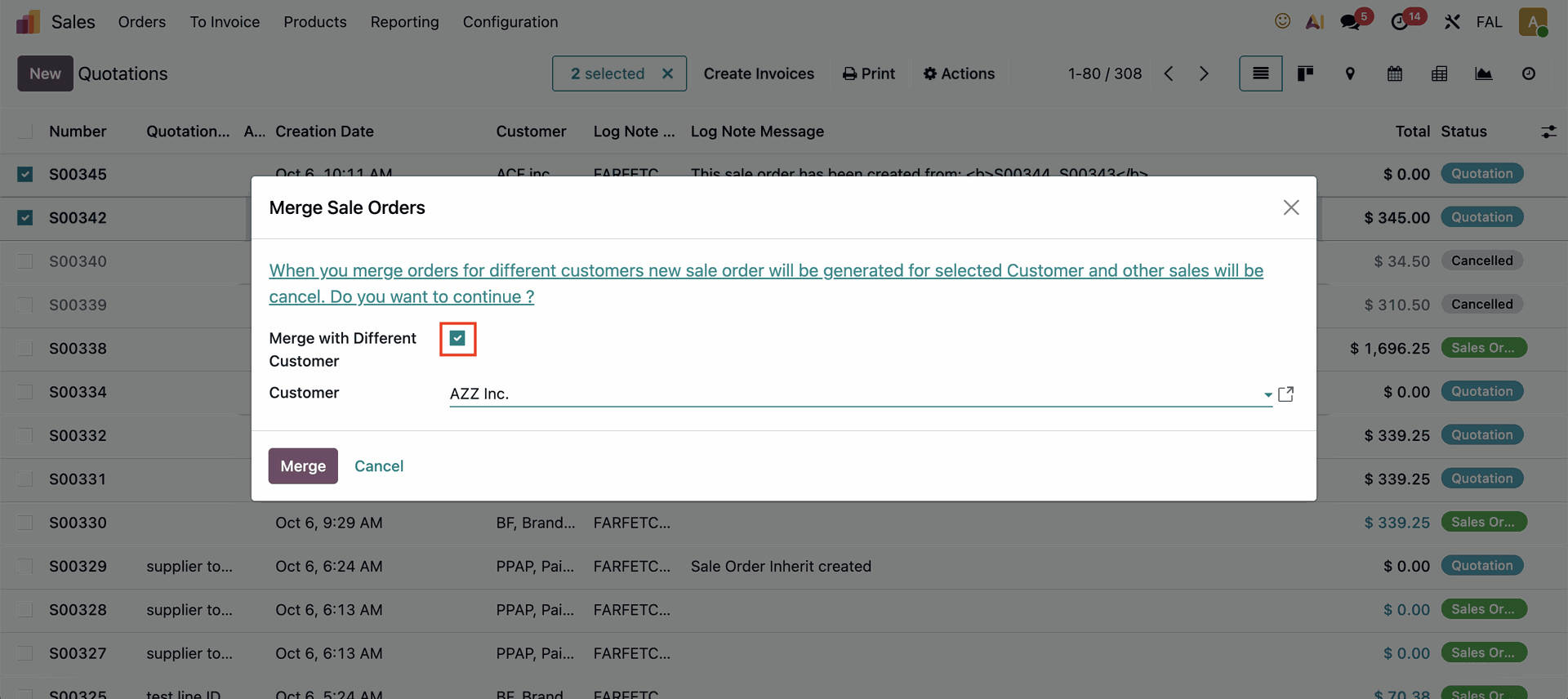 |
The new quotation will be created using the customer name you entered. | 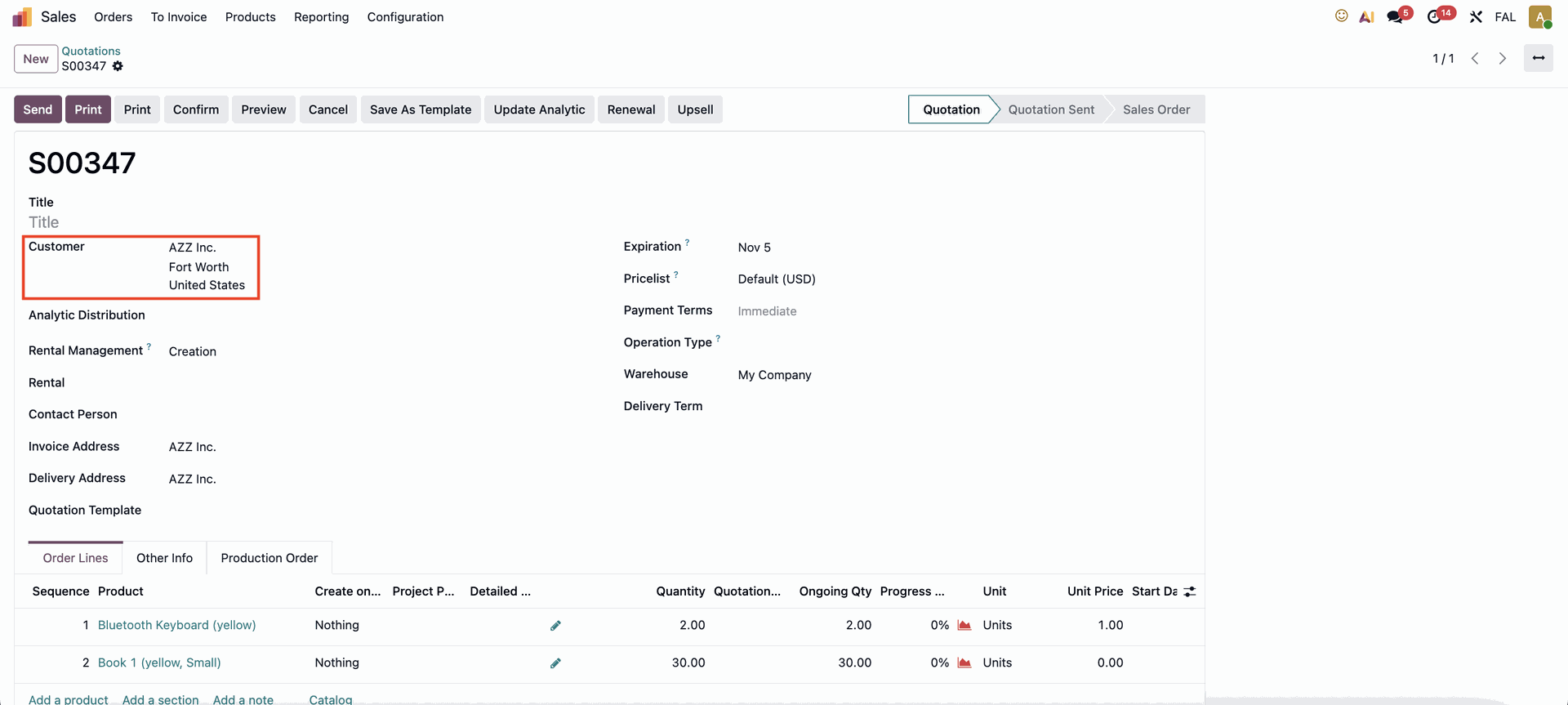 |