



ODOO'S FUNCTION
In Odoo, when a Receipt is generated from the Purchase Order confirmation, the received product quantity (Quantity field) is automatically set to match the planned quantity to be moved (Demand field). However, in practice, the planned quantity may be split across multiple transfers and users must manually adjust the actual received quantity.
CLUEDOO'S FUNCTION
In CLuedoo, when a Receipt is generated from a Purchase Order confirmation, the Quantity field for the received product is initially set to 0. Users can then manually adjust this value based on the actual received quantity. In comparison with Odoo’s behavior, setting the default quantity to 0 helps minimize misunderstandings regarding the actual received quantity.
A. When a Receipt is generated from the Purchase Order confirmation1. Purchase → New RFQ → Fill Vendor → Fill Delivery To → Fill Product line (product and quantity) → Confirm Order → You will see a Receipt button is generated. Note: Ensure the product's 'Track Inventory' setting is set to 'By Unique Serial Number' or ' By Lots'. | 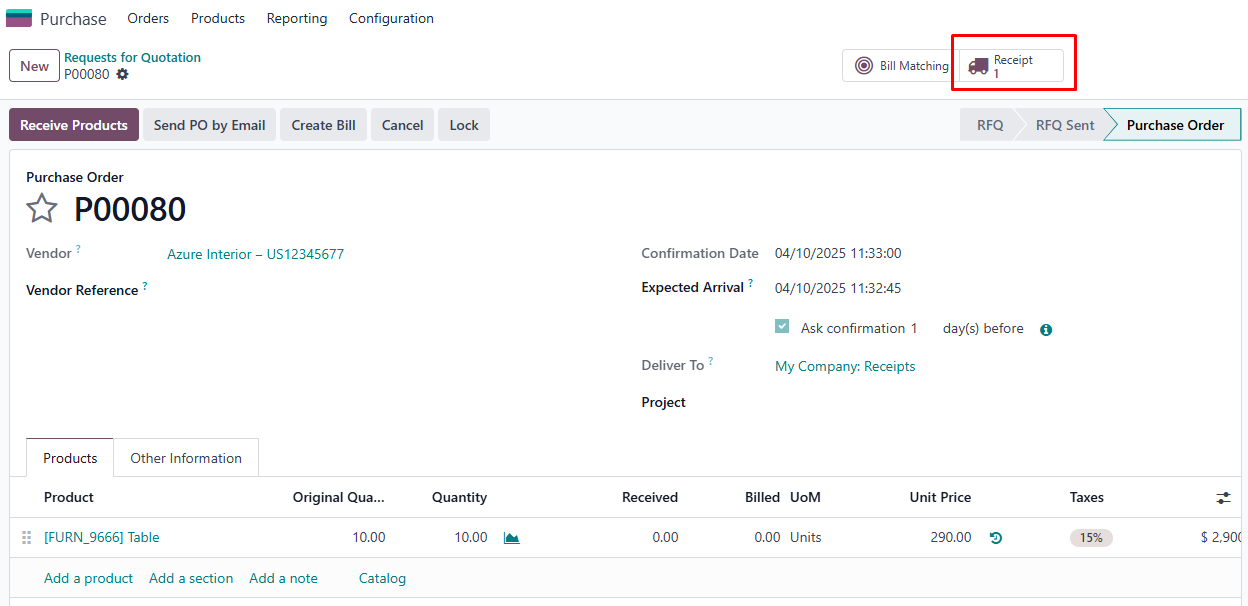 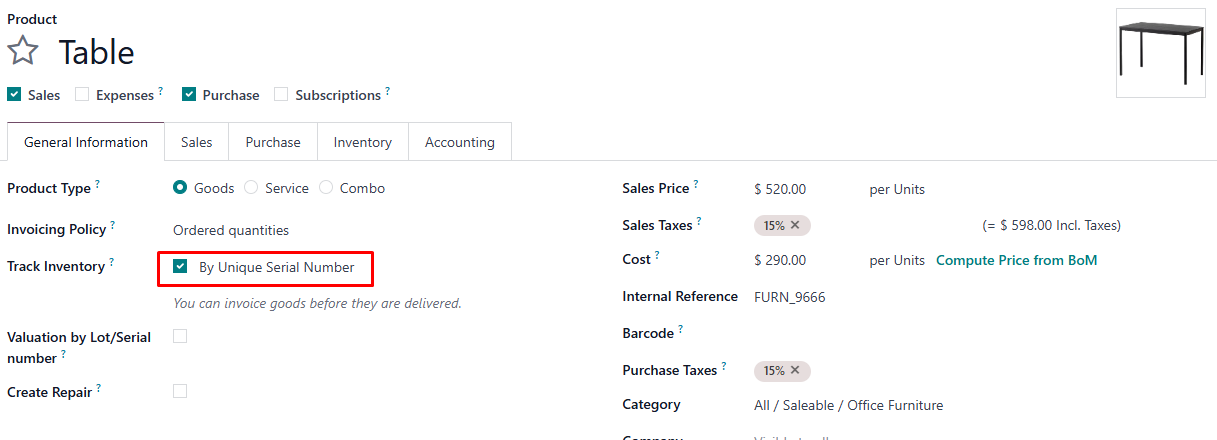 |
2. Receipt → You will see the quantity is set to 0 | 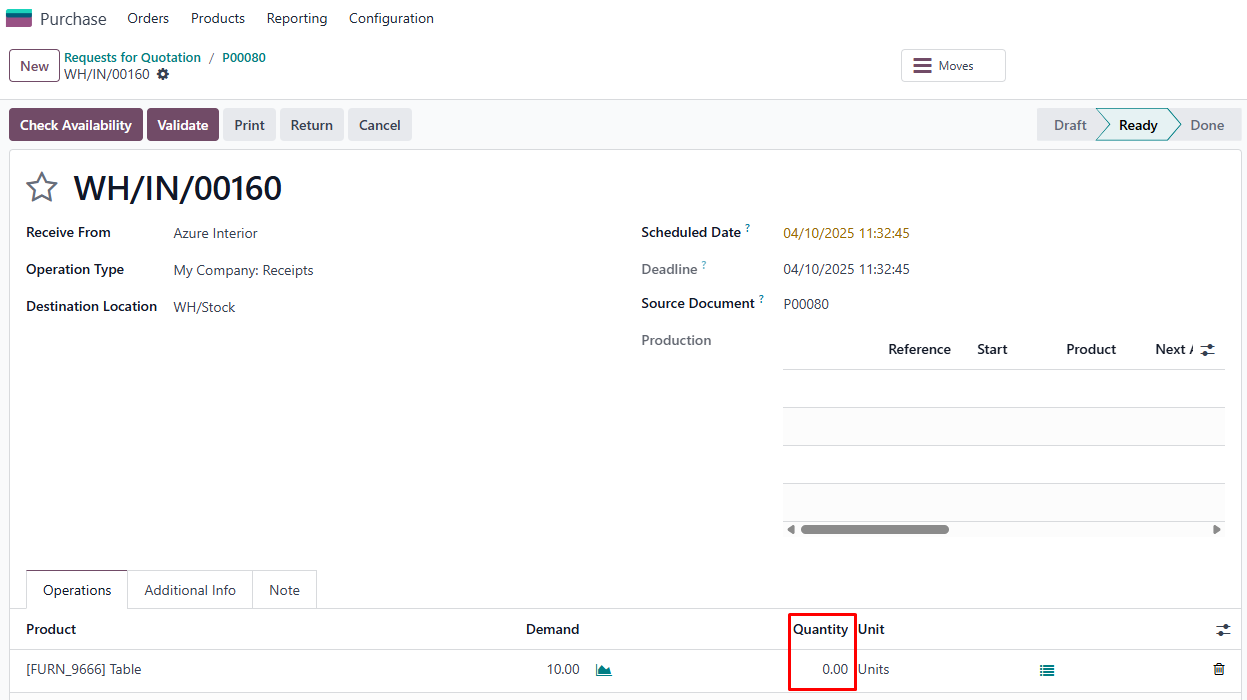 |
3. Receipt → Open: Stock move → Generate Serials/Lots → Fill unique First Serial Number and Number of SN → Generate → Save Note: Fill in Number of SN that is lower than the ordered quantity to create a Backorder | 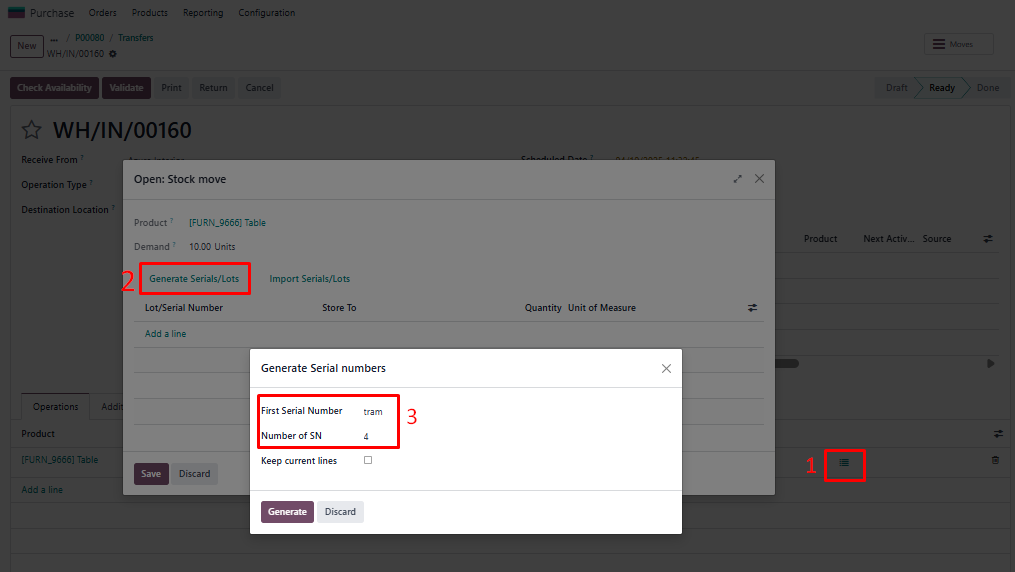 |
4. Validate → a wizard appears → Create Backorder →
A log note is generated to inform that a backorder has been created -> Open this Backorder | 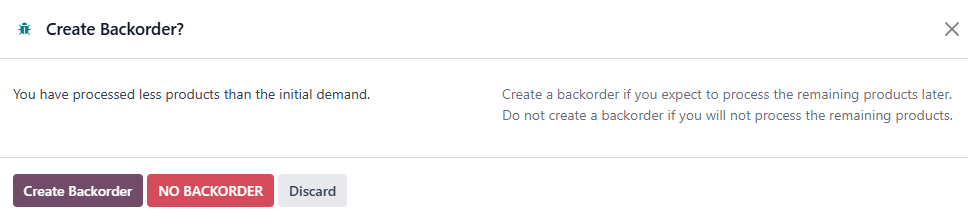 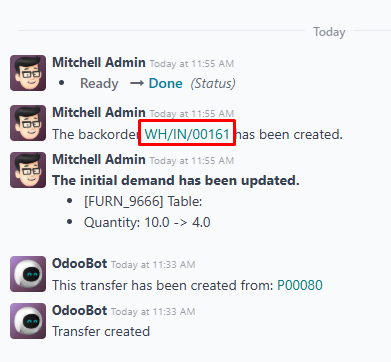 |
5. You will see the quantity in backorder is set to 0 | 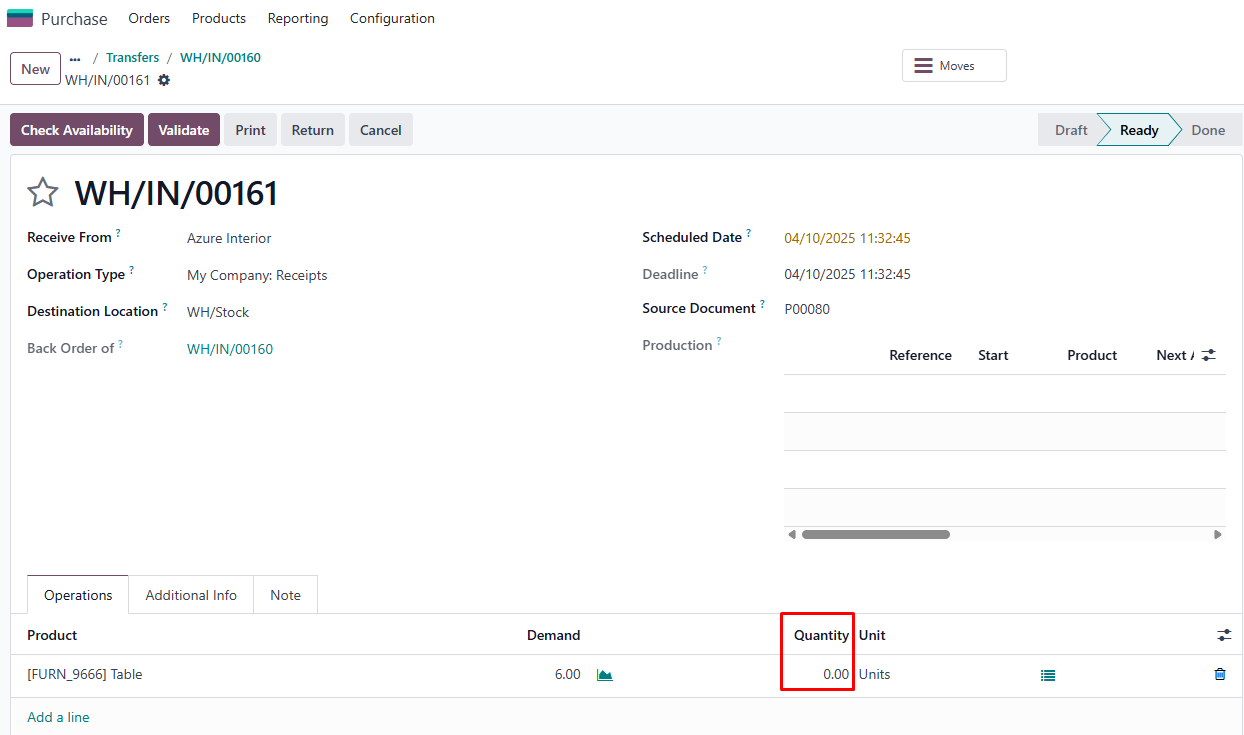 |
B. When a Receipt is created from Inventory → Transfer1. New Receipt → Fill Receive Form → Fill Product line (product and demand quantity) → Mark as Todo → You will see the quantity is set to 0 Note: Ensure the product's 'Track Inventory' setting is set to 'By Unique Serial Number'. | 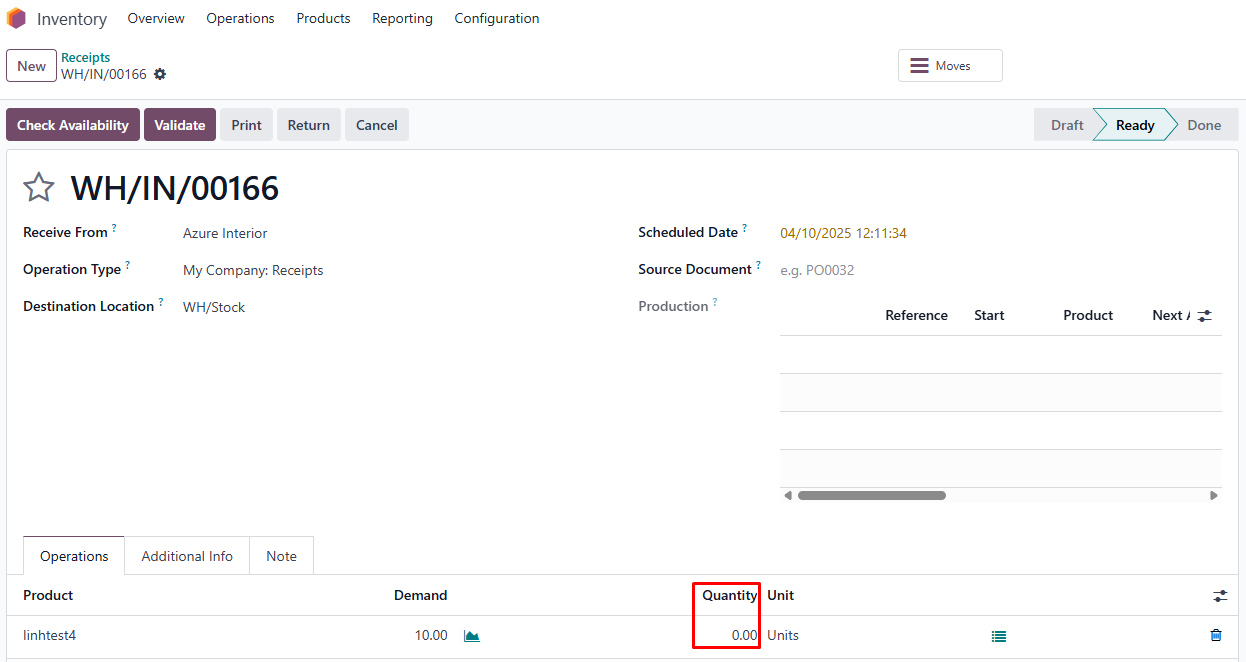 |
2. Open: Stock move → Generate Serials/Lots → Fill unique First Serial Number and Number of SN → Generate → Save Note: Fill in Number of SN that is lower than the ordered quantity to create a Backorder | 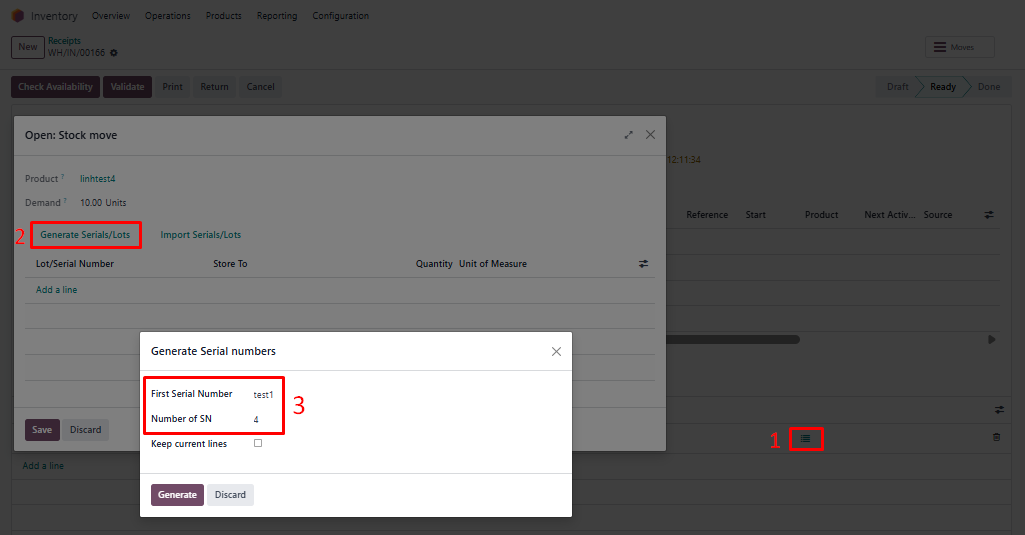 |
3. Validate → a wizard appears → Create Backorder →
A log note is generated to inform that a backorder has been created -> Open this Backorder | 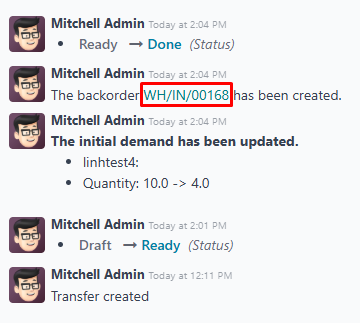 |
4. You will see the quantity in backorder is set to 0 | 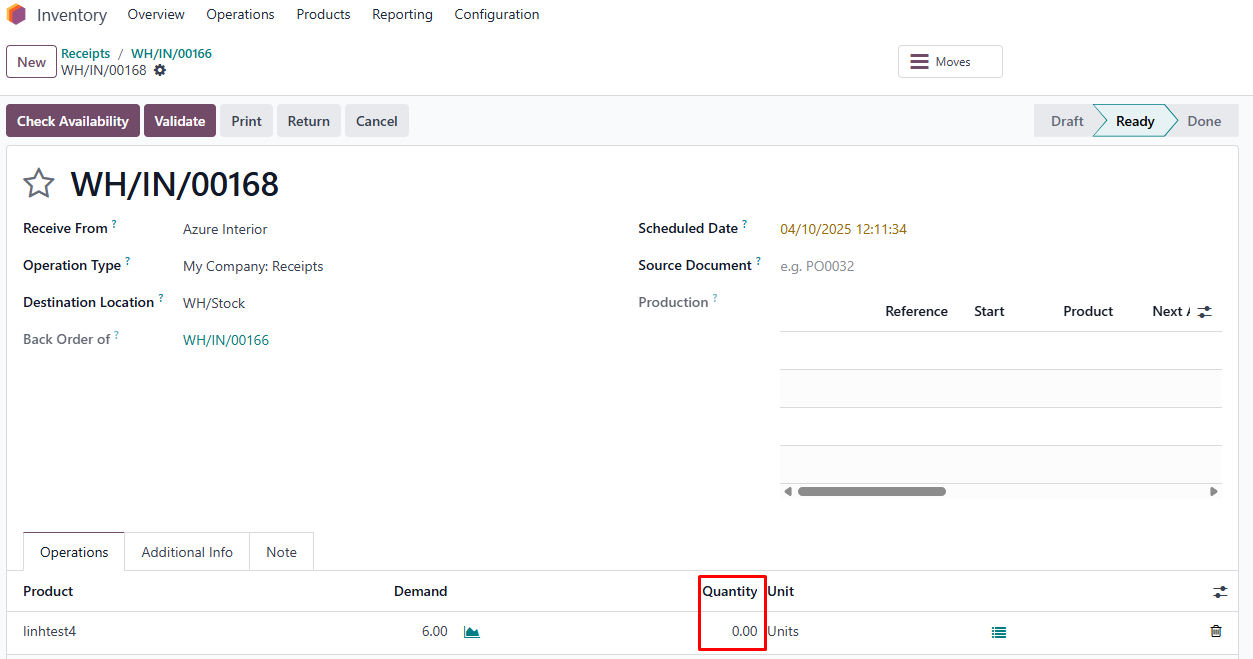 |