


ODOO'S FUNCTION
Planning schedules cannot be automatically converted into Work Entries. Users are required to manually input or generate work entries to record the actual hours worked.
CLUEDOO'S FUNCTION
1️⃣ Automatically generates work entry from planning schedules.
2️⃣ Based on the planning record, the system uses the correct work entry type (e.g., Normal Hours, Overtime).
3️⃣ Allows overlapping work entries.
WORK ENTRIES FROM WORKING SCHEDULE1. Head into Employees > Choose any employees that you want this linking to work with Under Payroll > Contract Overview > set up a contract Schedule > Work Entry Source, choose Planning | 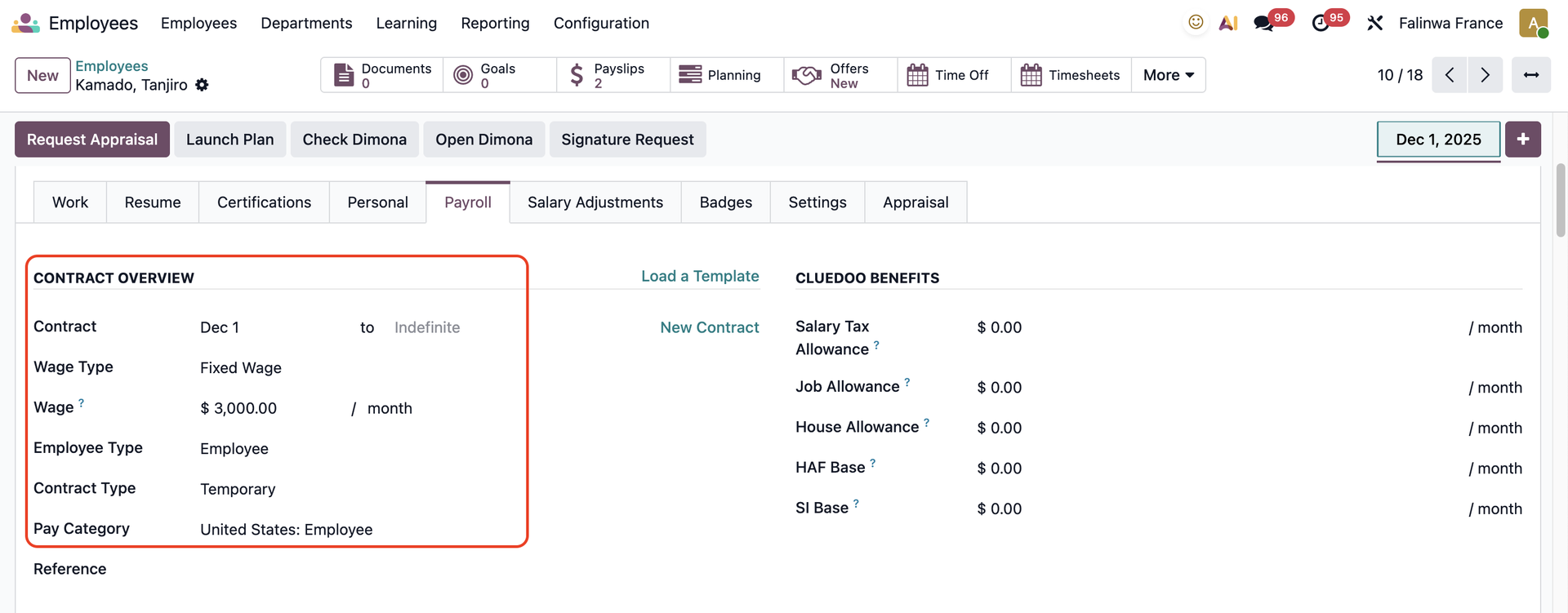 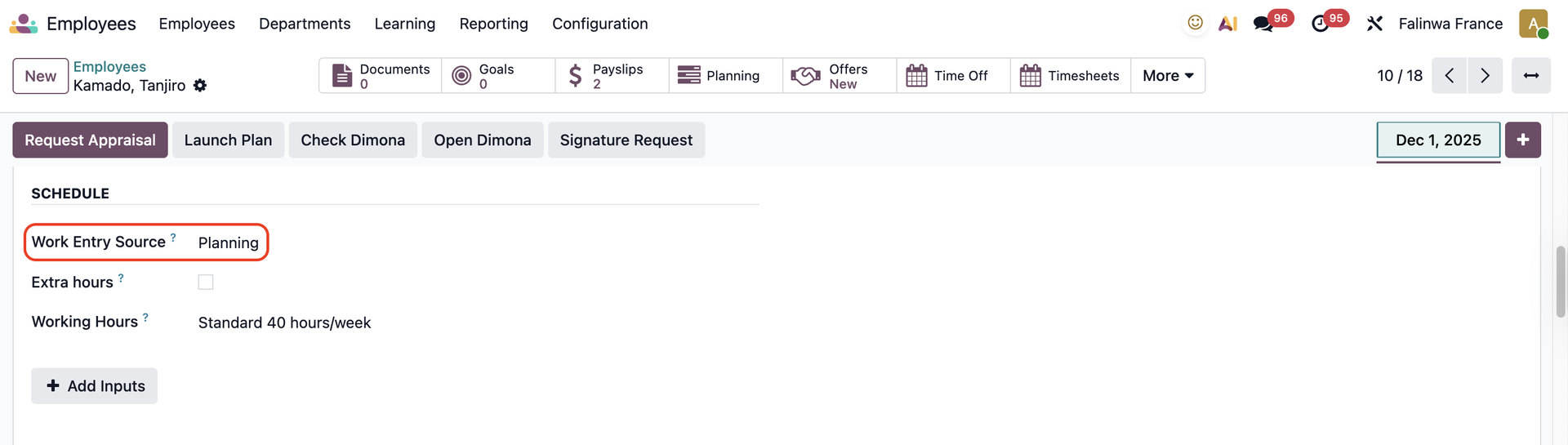 |
2. Head to Planning > New to add a new planning schedule Fill in the Resource and Date > Save | 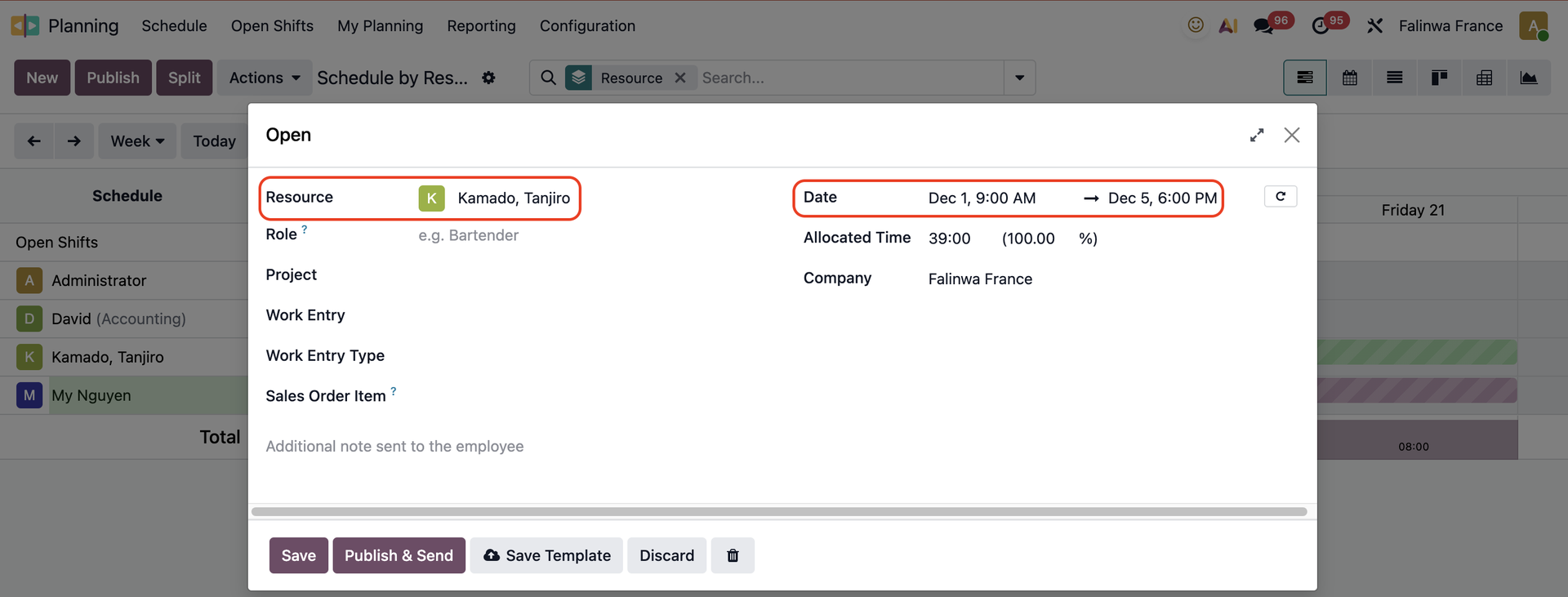 |
3. Split the schedule into working hours | 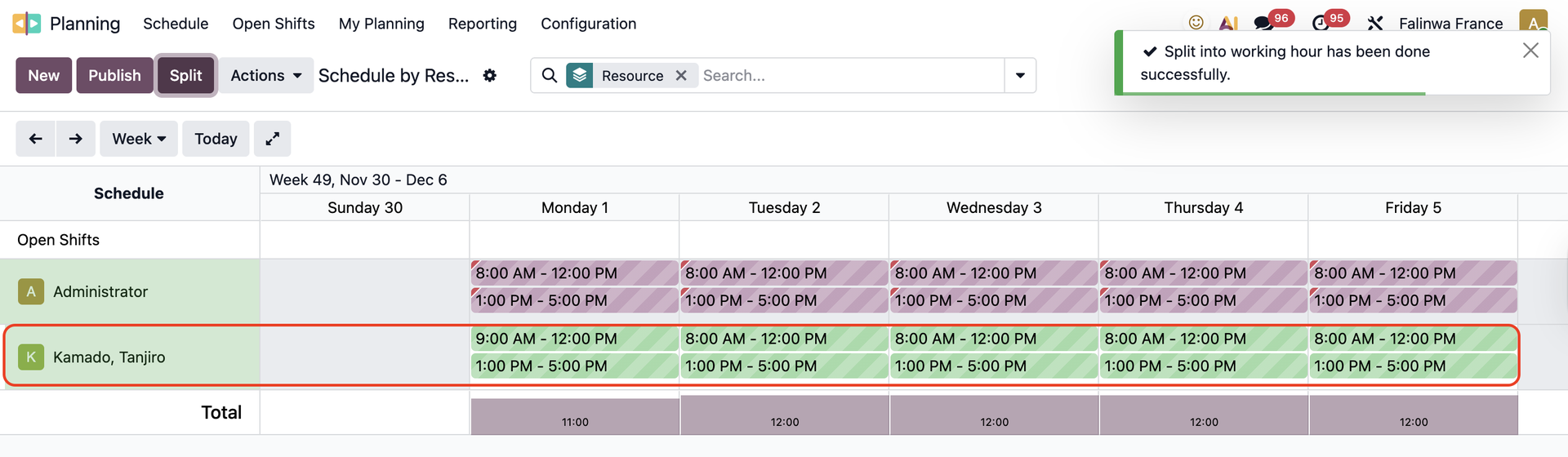 |
4. Publish > Choose which employee to publish the planning > Publish & Send | 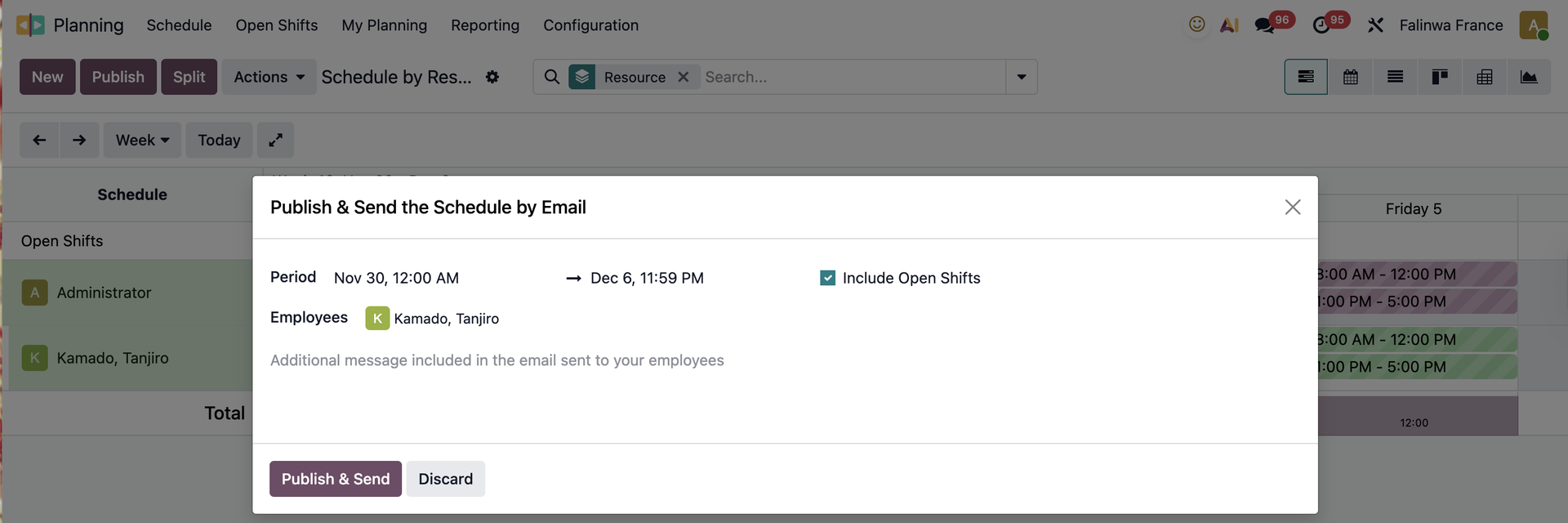 |
5. Go to Payroll > Work Entries > You can find the Work Entries linked to the Planning of the employee | 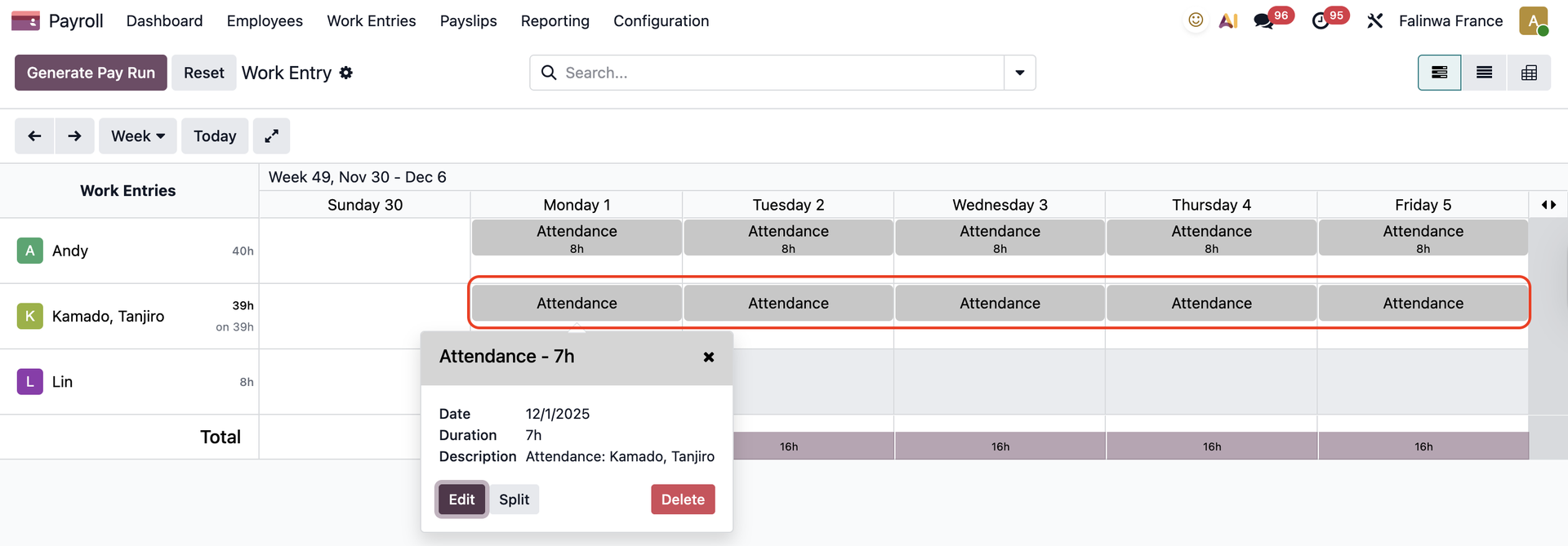 |
Open a work entry > the Work Entry Type is inherited from the working schedule | 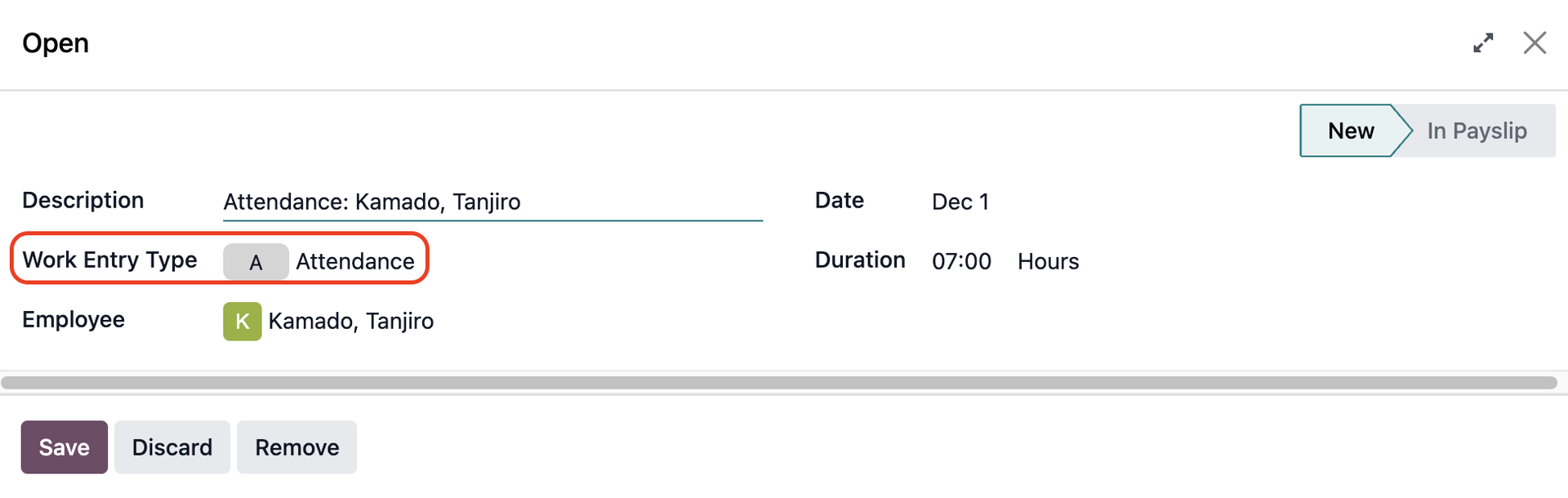 |
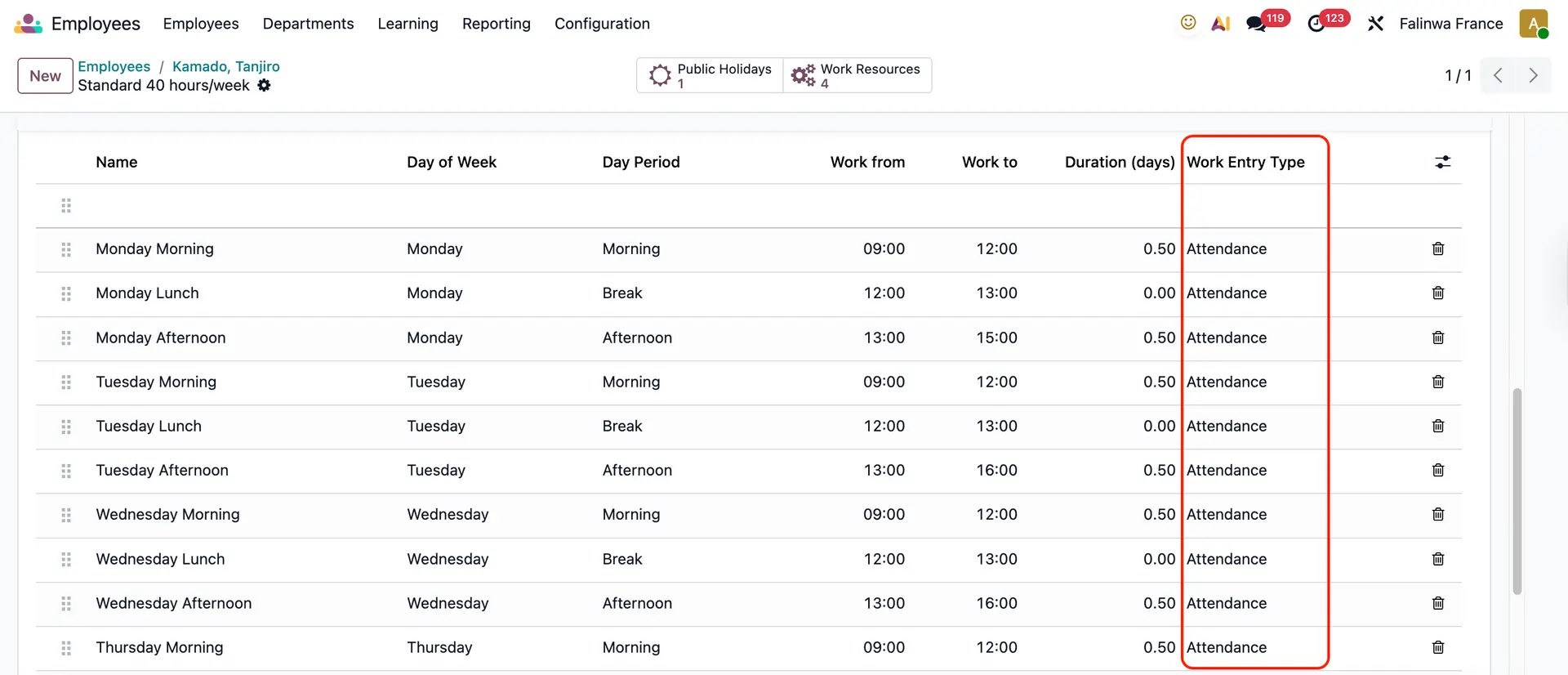
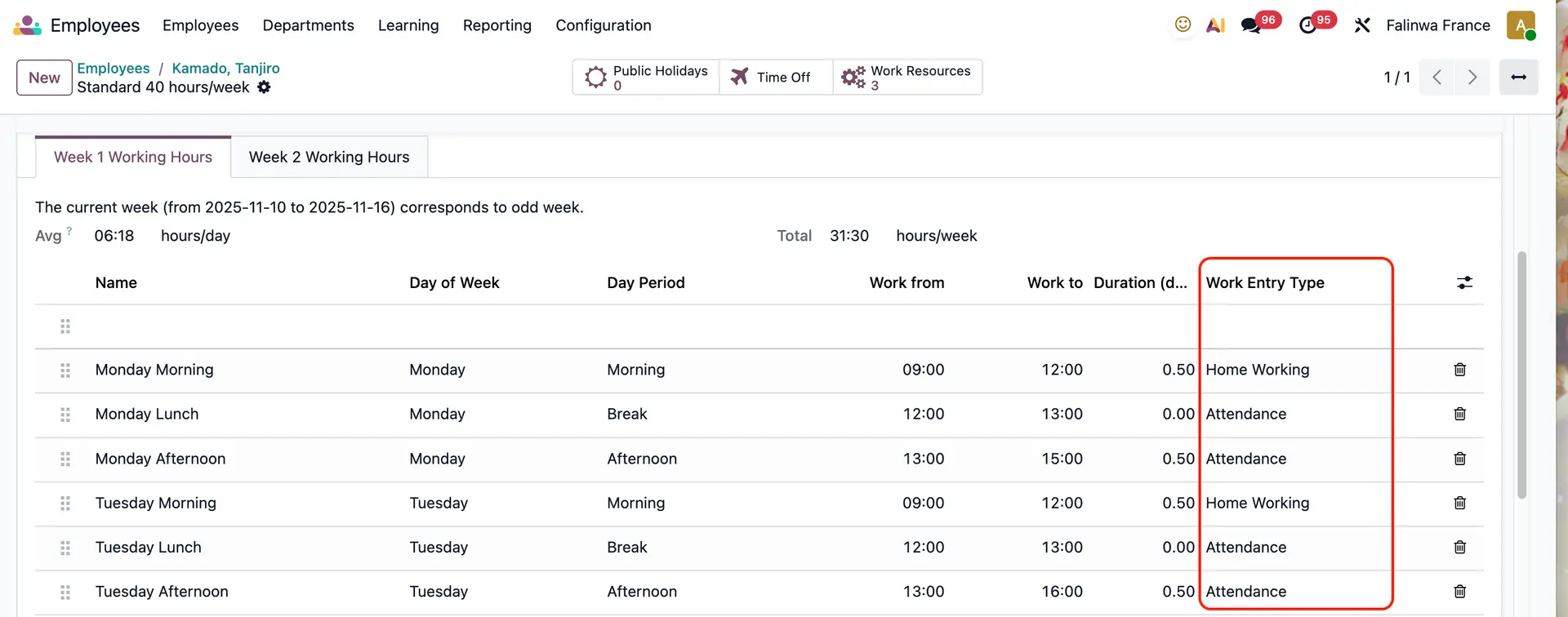
Employee's working schedule |
|
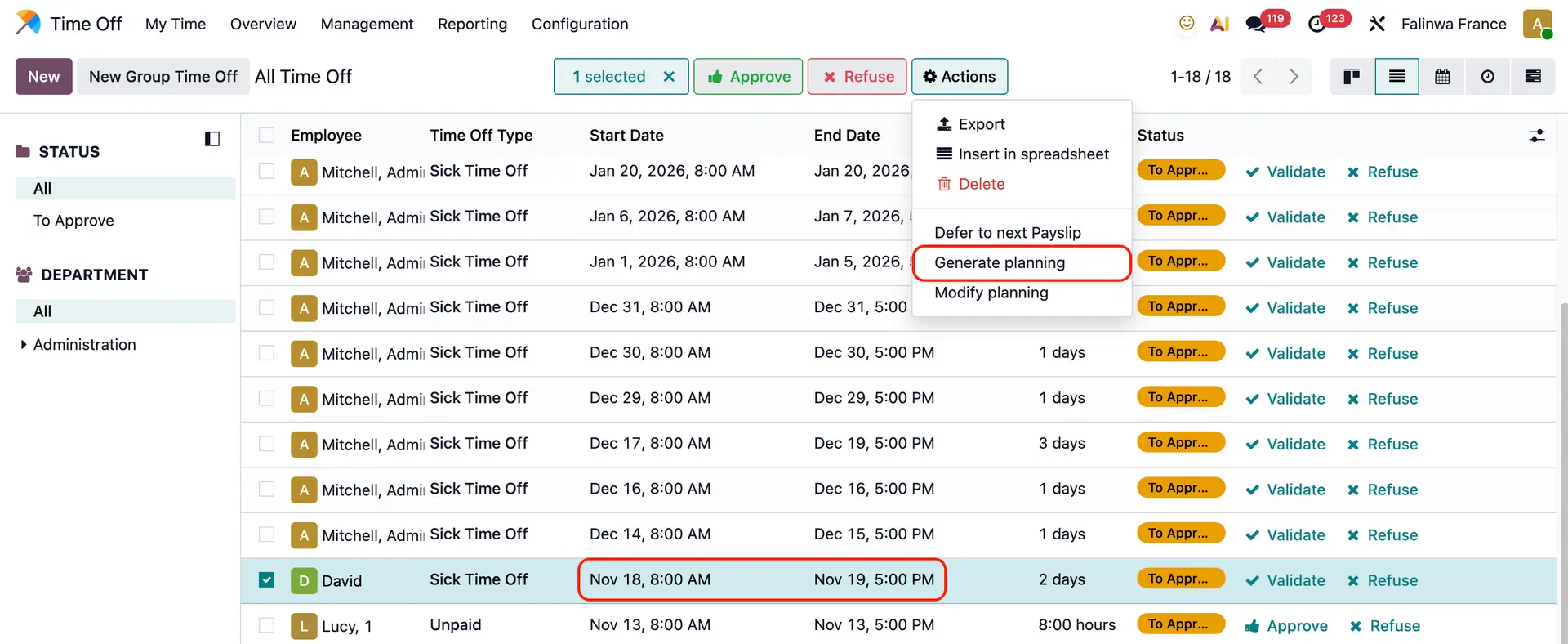
WORK ENTRIES FROM TIME OFFCreate a time off > Go to list view and choose the time off you just created > Actions > Generate Planning |
|
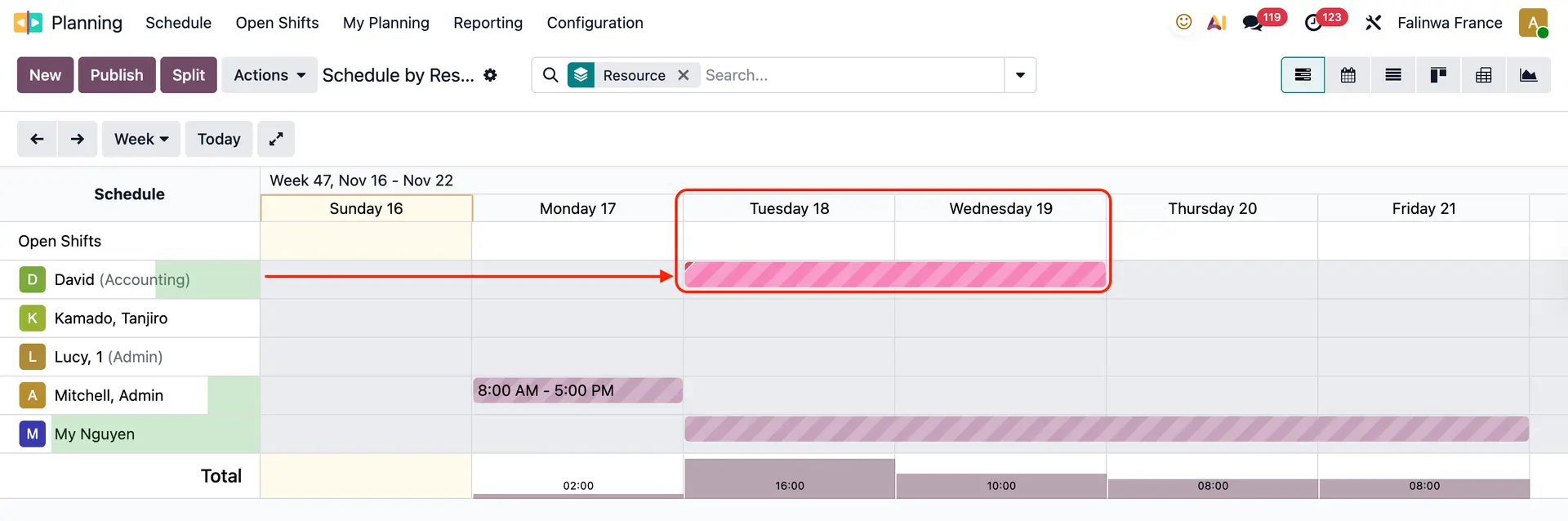
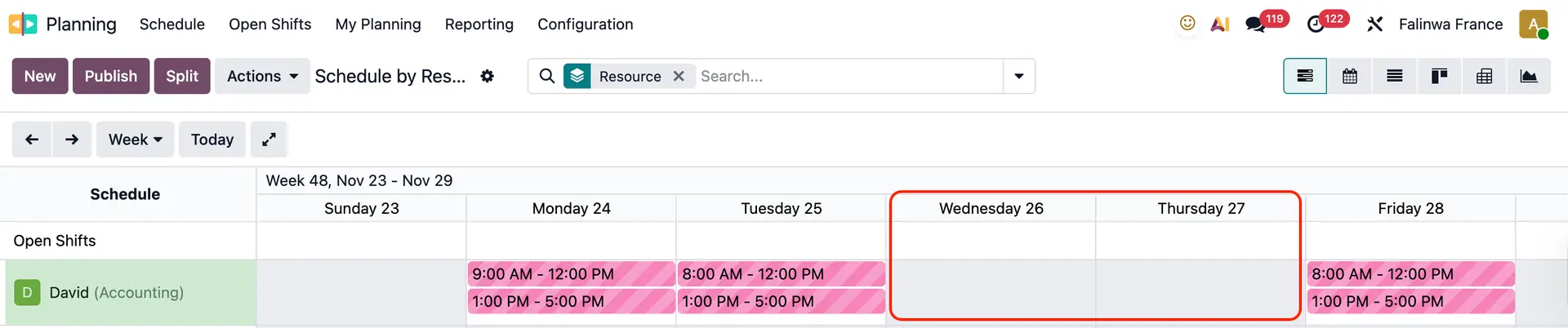
Go back to Planning > You will see the time off has been added to the schedule |
|
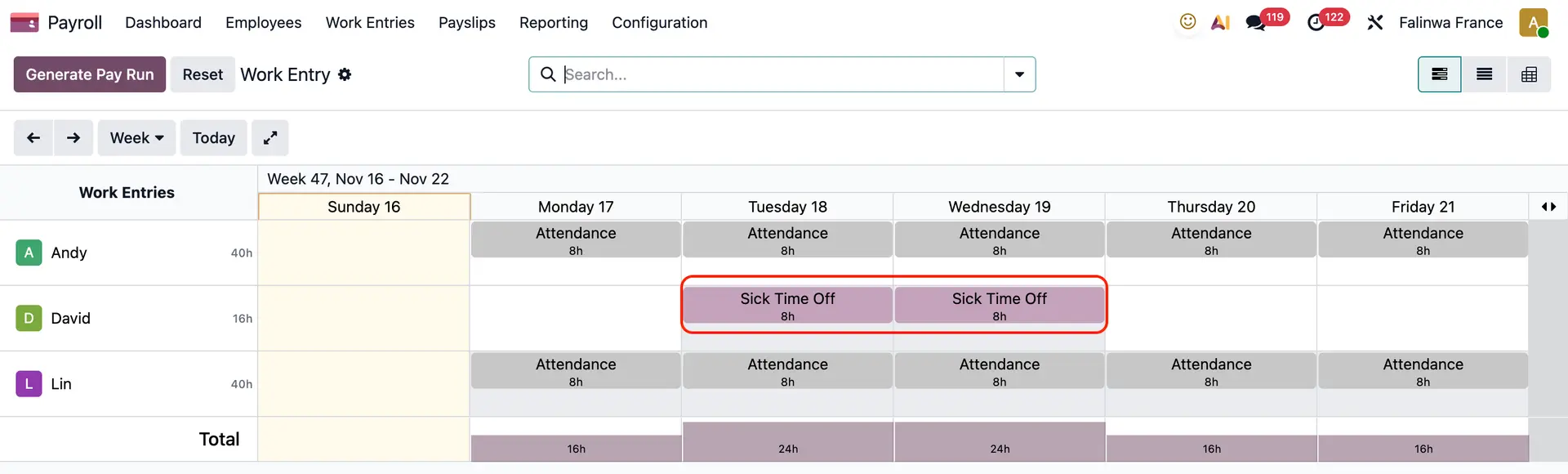
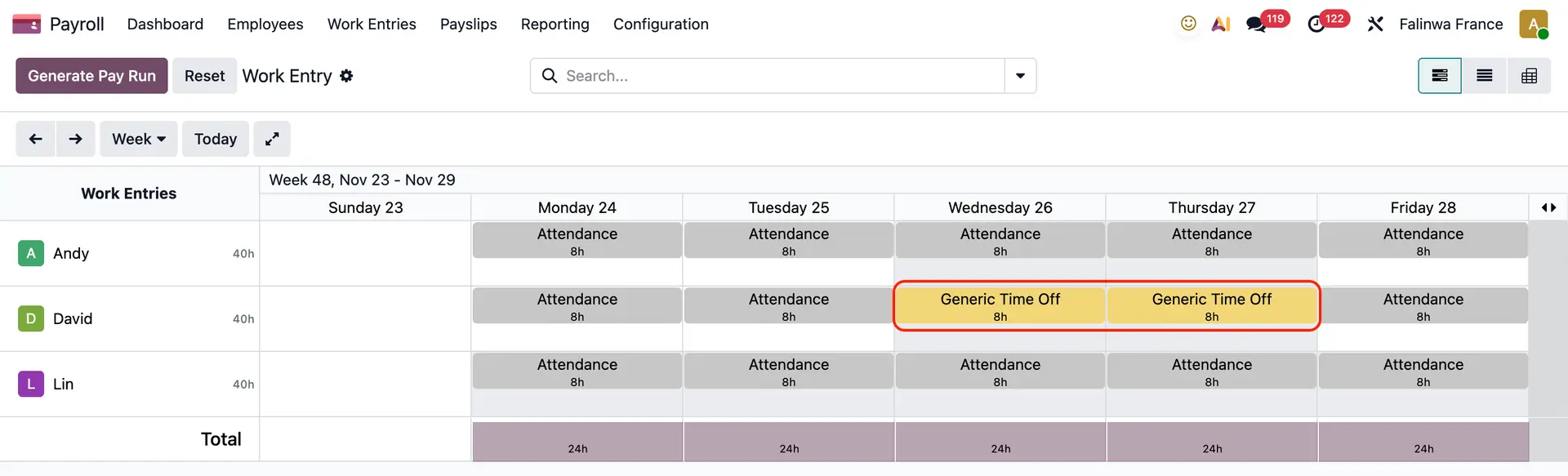
After the time off has been approved/validated > Publish the planning > Go to Work Entries, you can find the Work Entries linked to the Planning of the employee |
|
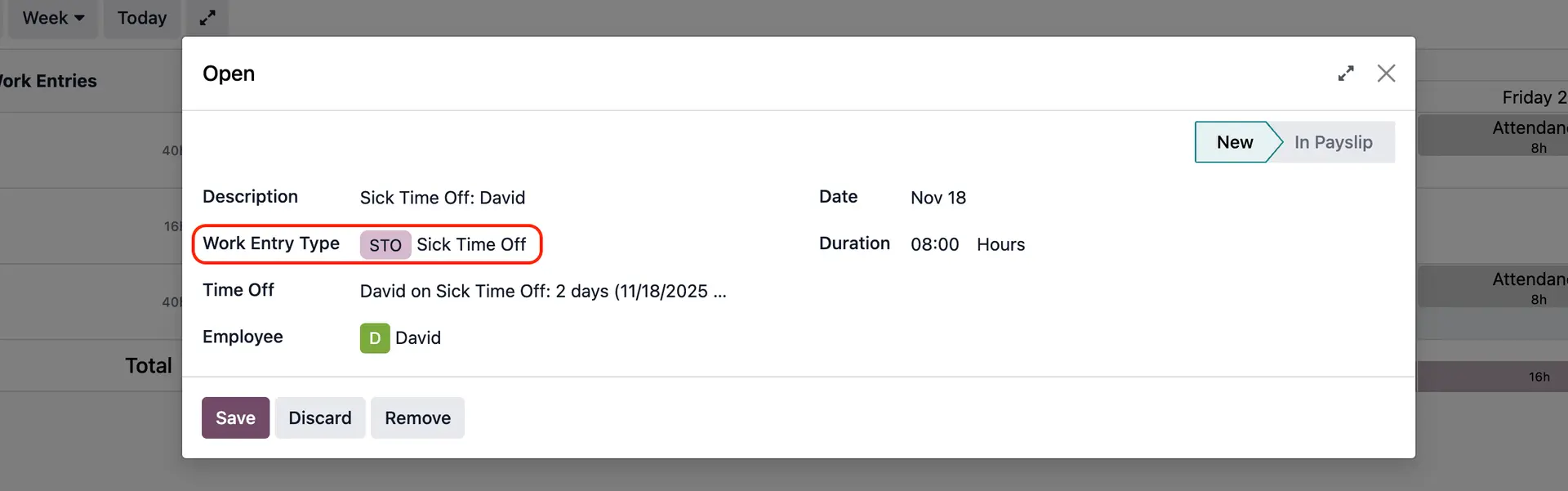
Open a work entry > the Work Entry Type is inherited from the time off |
|
WORK ENTRIES FROM PUBLIC HOLIDAYSIf there is a public holiday but the employee still works during that time, the planning will not show after you split because it splits based on the working schedule |
|
But it will still show in your Work Entries after you publish the planning with the correct Work Entry Type |
|
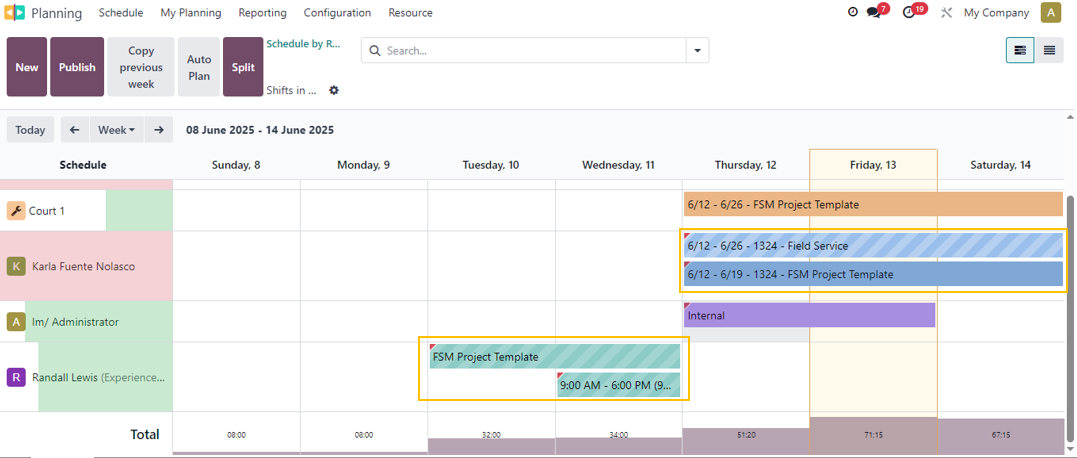
Notes: 1. Users are able to create an overlap work entry in the same interval. For example, you can schedule two different plans during the same time period. This feature also allows the time-off work entry to be created despite the overlap. |
|
2. When splitting time slots, the system will automatically select the work entry type based on the employee’s Working Hours (e.g., Home Working, Overtime Hours, etc.,) instead of always defaulting to 'Attendance'. |
|