
ODOO'S FUNCTION
Out of the box, Odoo does not feature a dedicated Sales Agreements/Blanket Orders module that mirrors its native Purchase Agreements. While businesses can loosely manage framework contracts using workarounds like pricelists, quotation templates, or the Subscriptions app, standard Odoo lacks a native mechanism to create a master sales contract with agreed-upon quantities and directly track multiple "call-off" sales orders drawn against it.
CLUEDOO'S FUNCTION
This CLuedoo module bridges this gap by mimicking Odoo's native purchase agreements to introduce fully functional Sales Agreements into the Sales app. It allows users to set up master agreements and includes an advanced option to generate agreement-level downpayments using four distinct calculation types: Fixed Amount, Percentage of Order, Percentage of Invoice, and Balance. When a standard Sales Order (SO) is created from the master agreement, the workflow remains seamless—users can generate a regular invoice for the SO while easily creating a credit note to reconcile the initial downpayment invoice.
1. Create a new Blank Order and add products with 2 types of Invoicing Policy (Delivered/Ordered quantities) > Fill in the Quantity and the Unit Price > Confirm e.g., Total Untaxed Amount = $3000 | 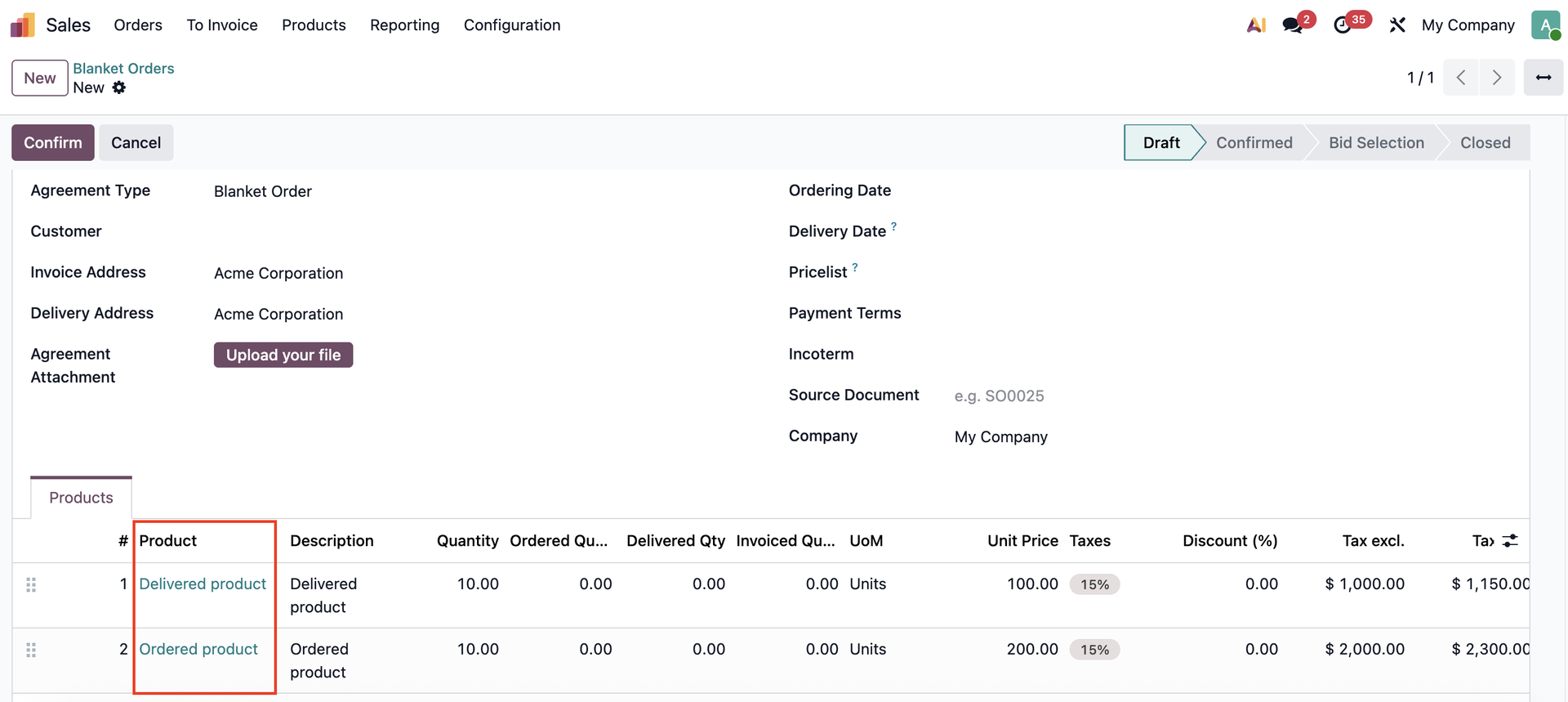 |
2. Create Invoice for the Blanket Order > > Choose a Down Payment Amount > Confirm the order e.g., 50% | 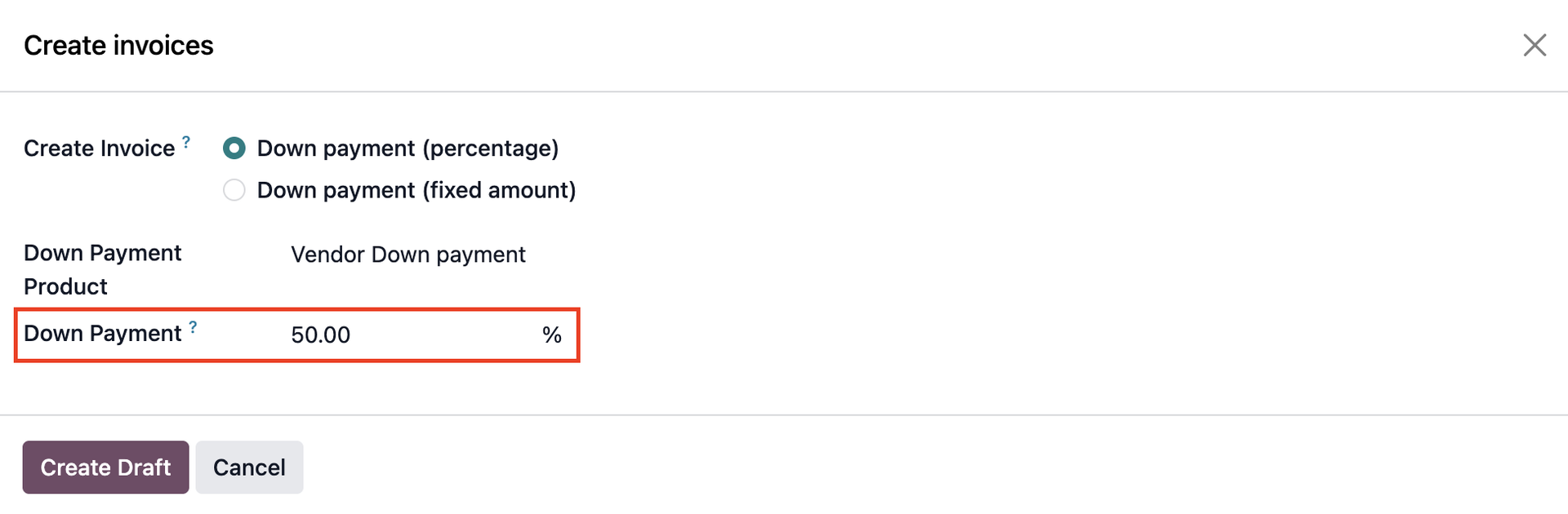 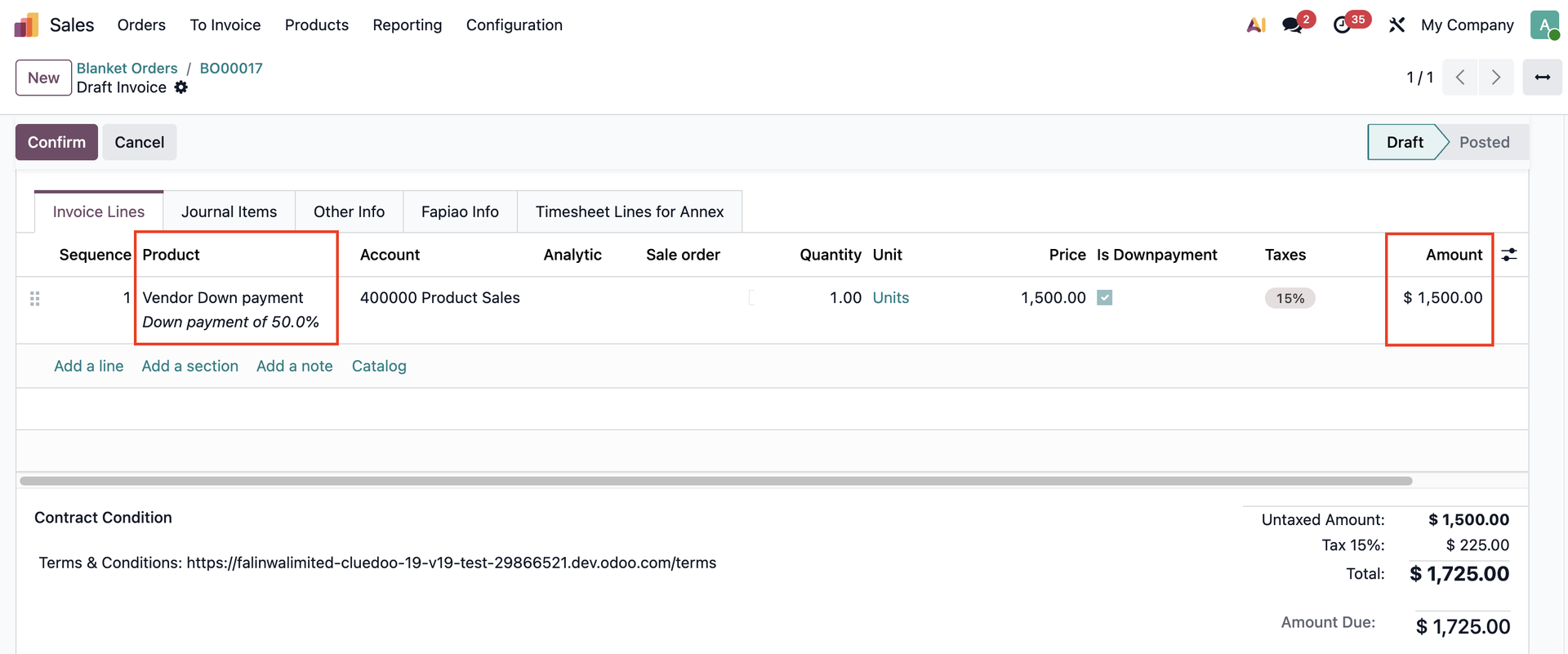 |
3. Go back to the blanket order > Create a new quotation > Edit the Quantity if needed > Confirm > Go to the Delivery e.g., Total Untaxed Amount = $2400 | 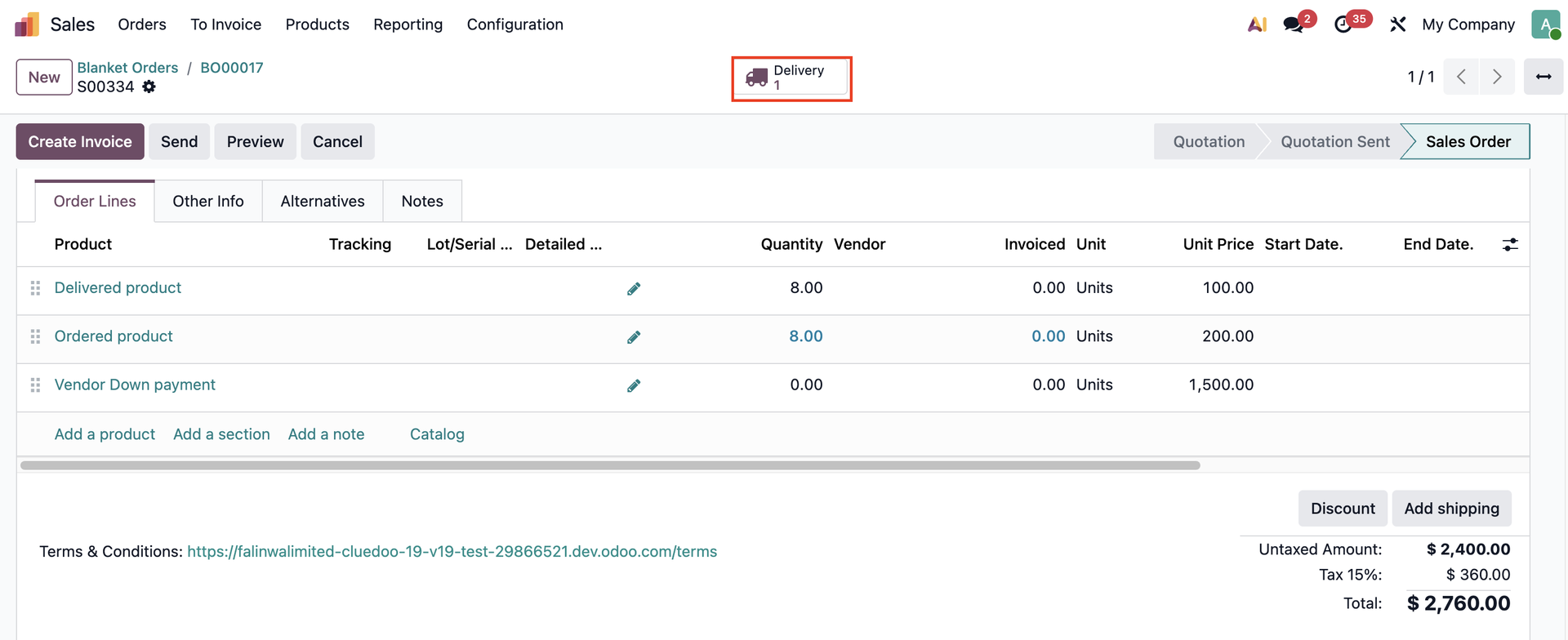 |
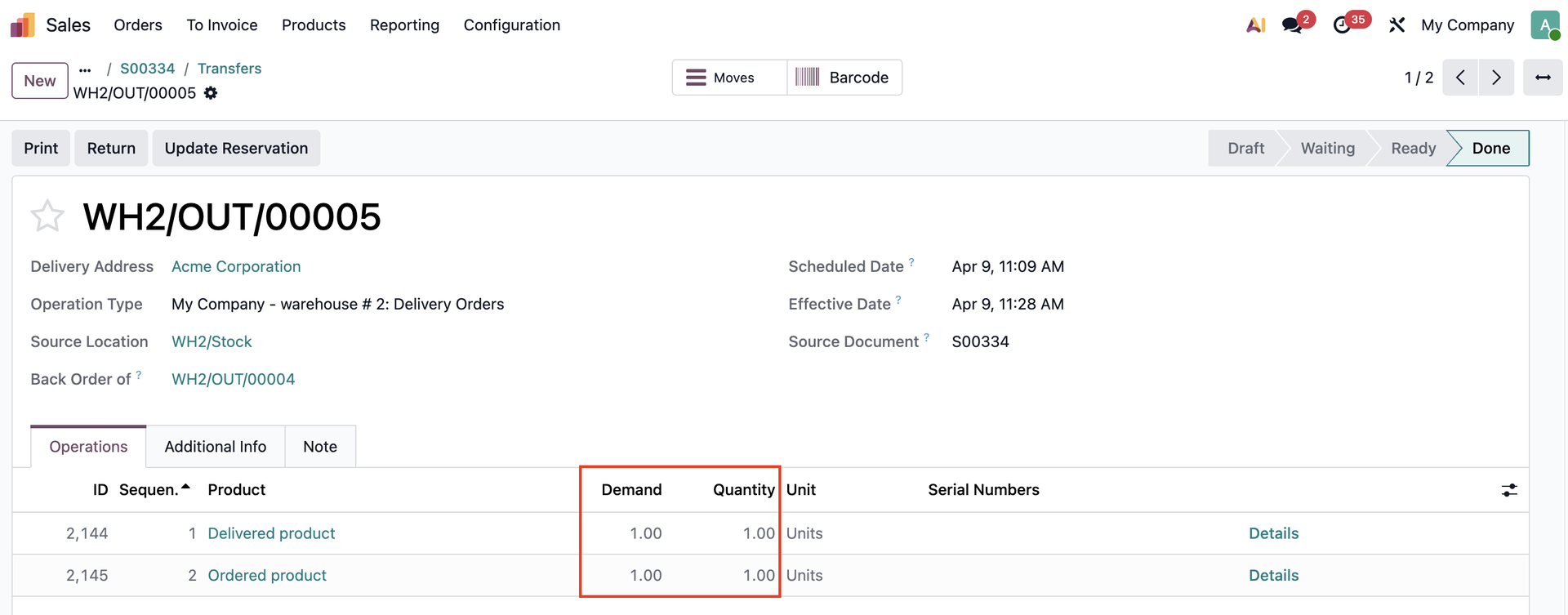
4. Change the Quantity if needed > Validate the transfer > Create backorder | 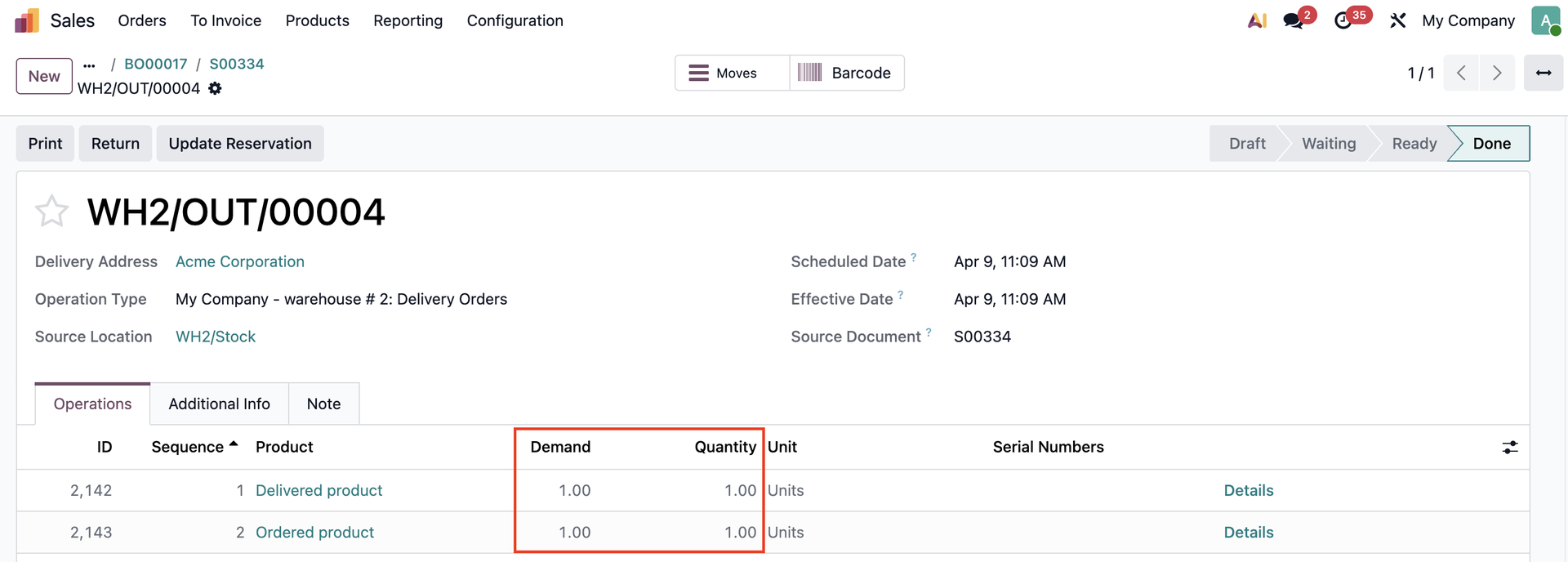 |
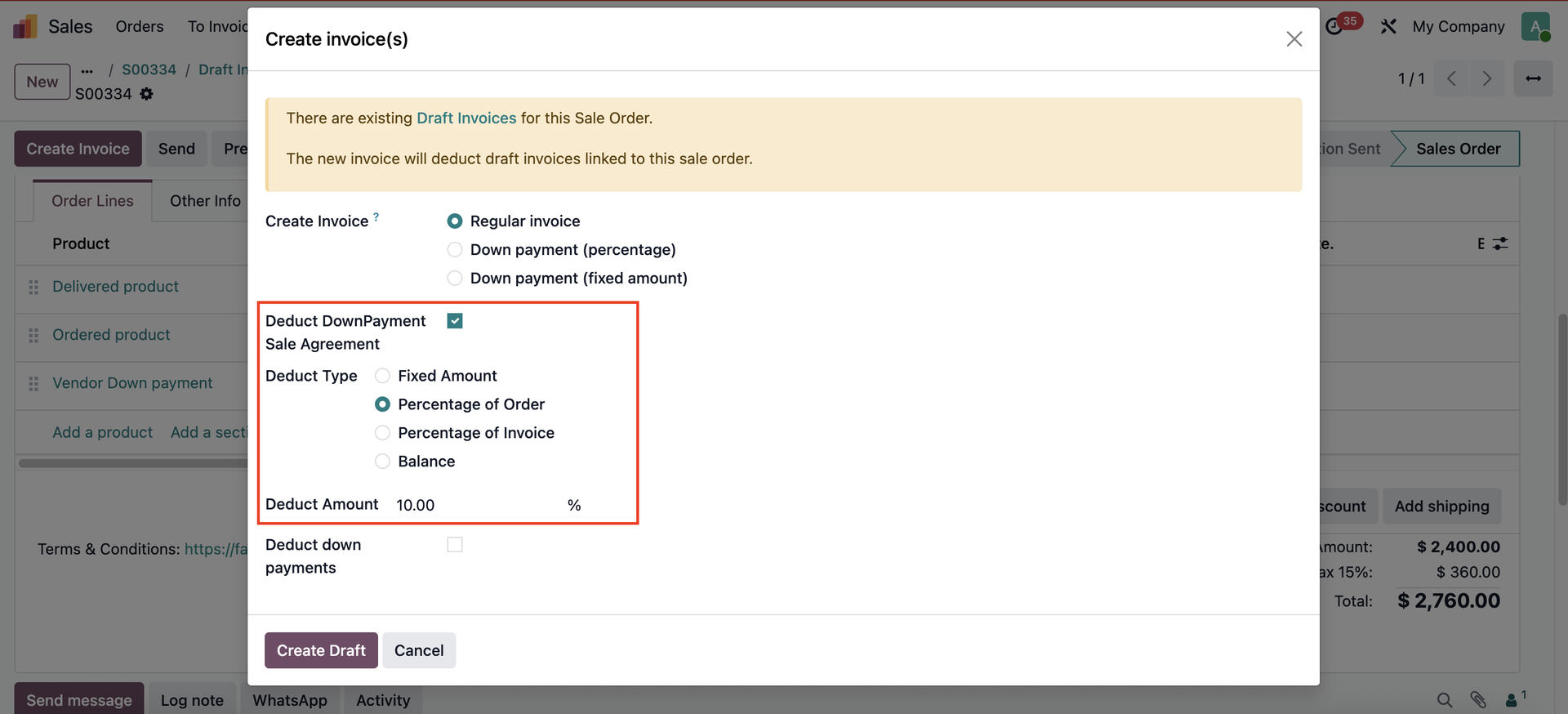
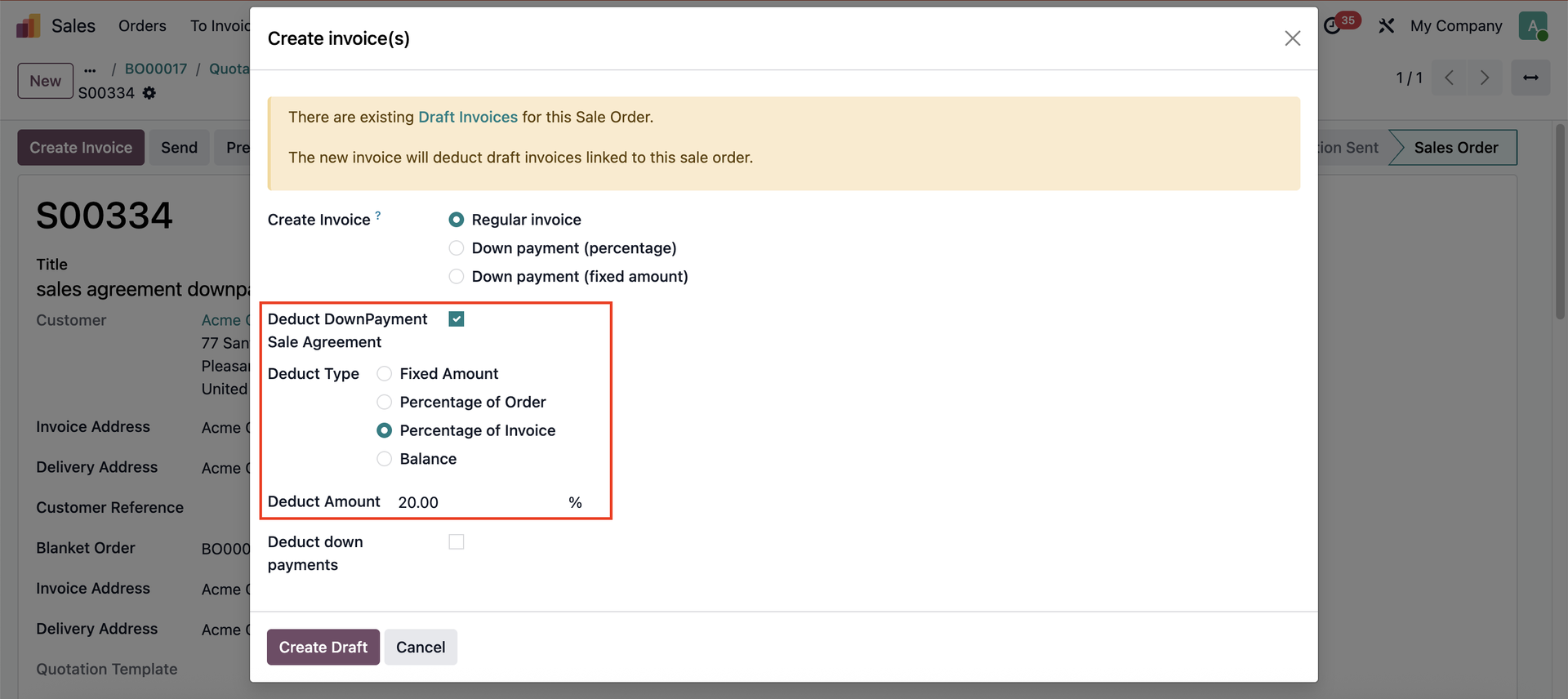
5. Go back to the SO > Create Invoice > Tick Deduct Downpayment Sale Agreement There are 4 deduct types:
Fill in the Deduct Amount > Create Draft | 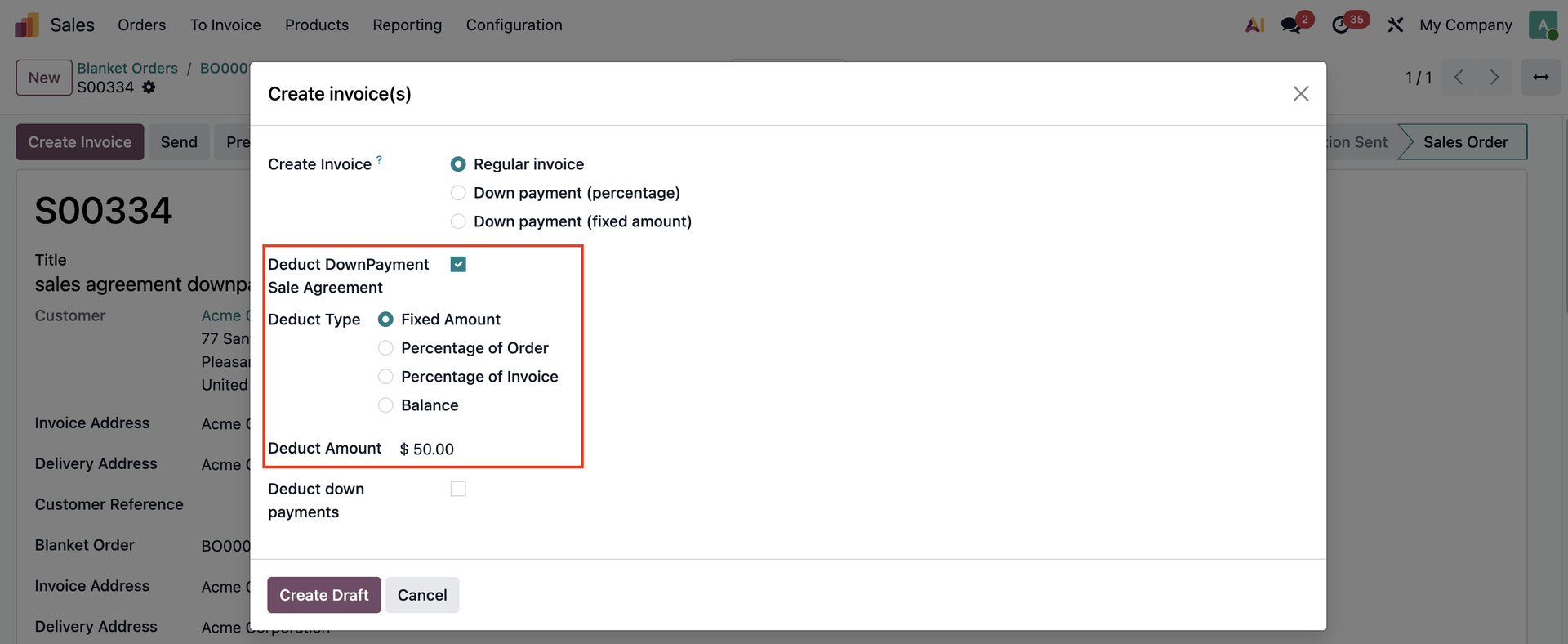 |
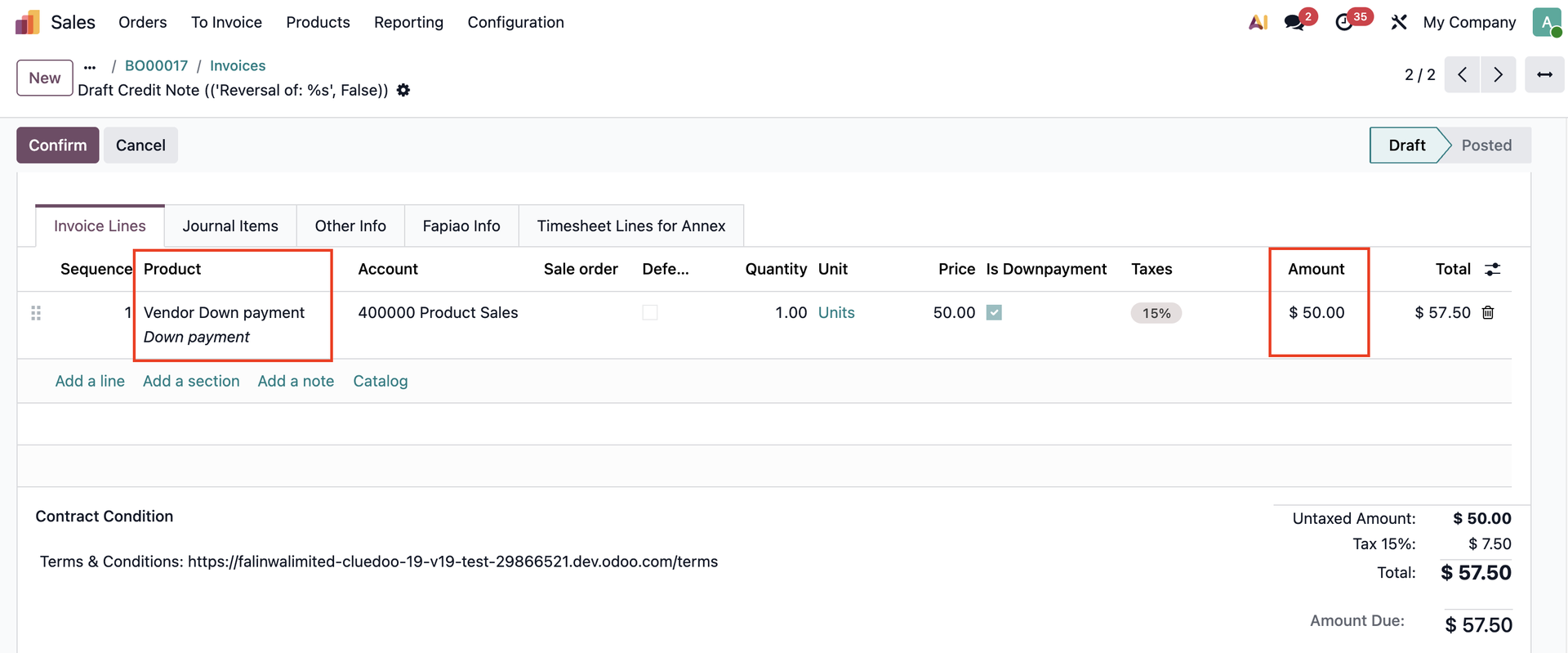
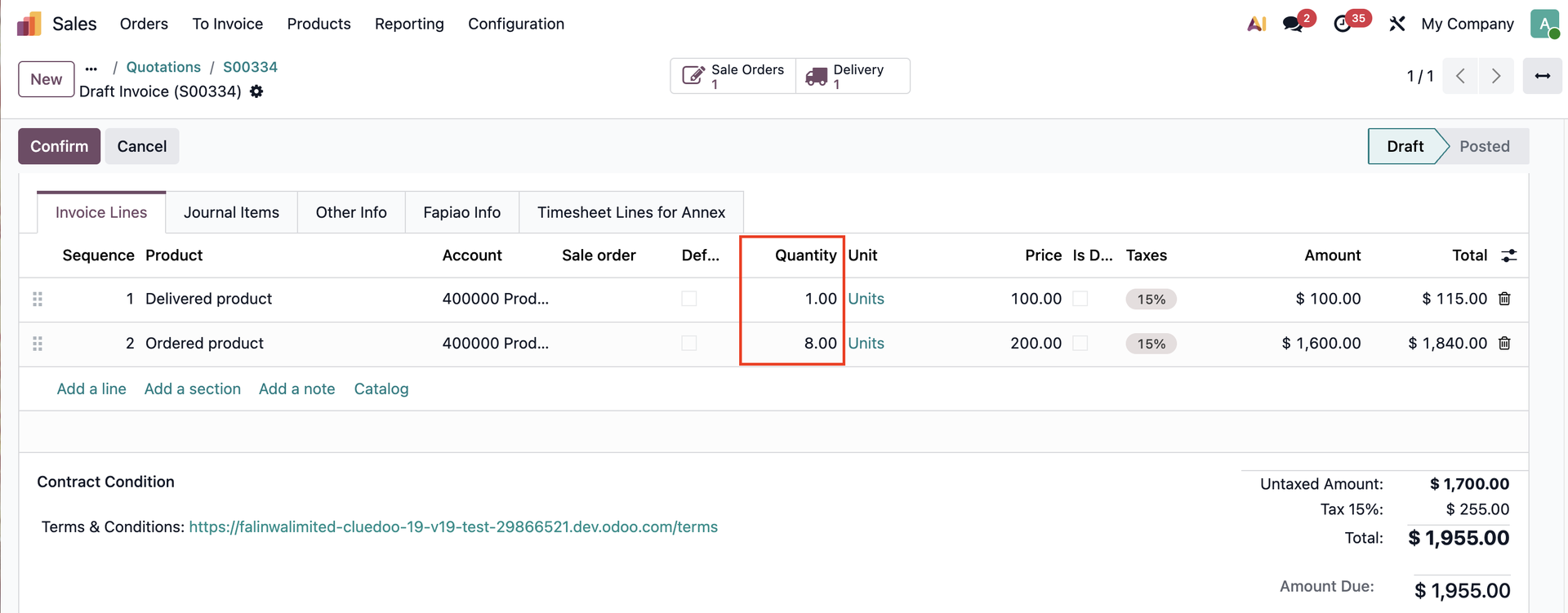
FIXED AMOUNTChoose any amount that you want to deduct (e.g., $50). Note that the amount deducted cannot be greater than the down payment amount > Create Draft > Confirm It will create a new invoice ($50) for the Blanket Order and a regular invoice for the SO. Note: Product with invoicing policy = ordered quantity automatically invoiced full quantity. | For the blanket order
For the SO
|
PERCENTAGE OF ORDERGo to the backorder > Edit the Quantity if needed > Validate |
|
Go back to SO > Create Invoice > Choose the percentage of the total order amount that you want to deduct (e.g., 10%) |
|
It will create a new invoice for the blanket order and a regular invoice for the Sales Order. | For the blanker order
For the SO
|
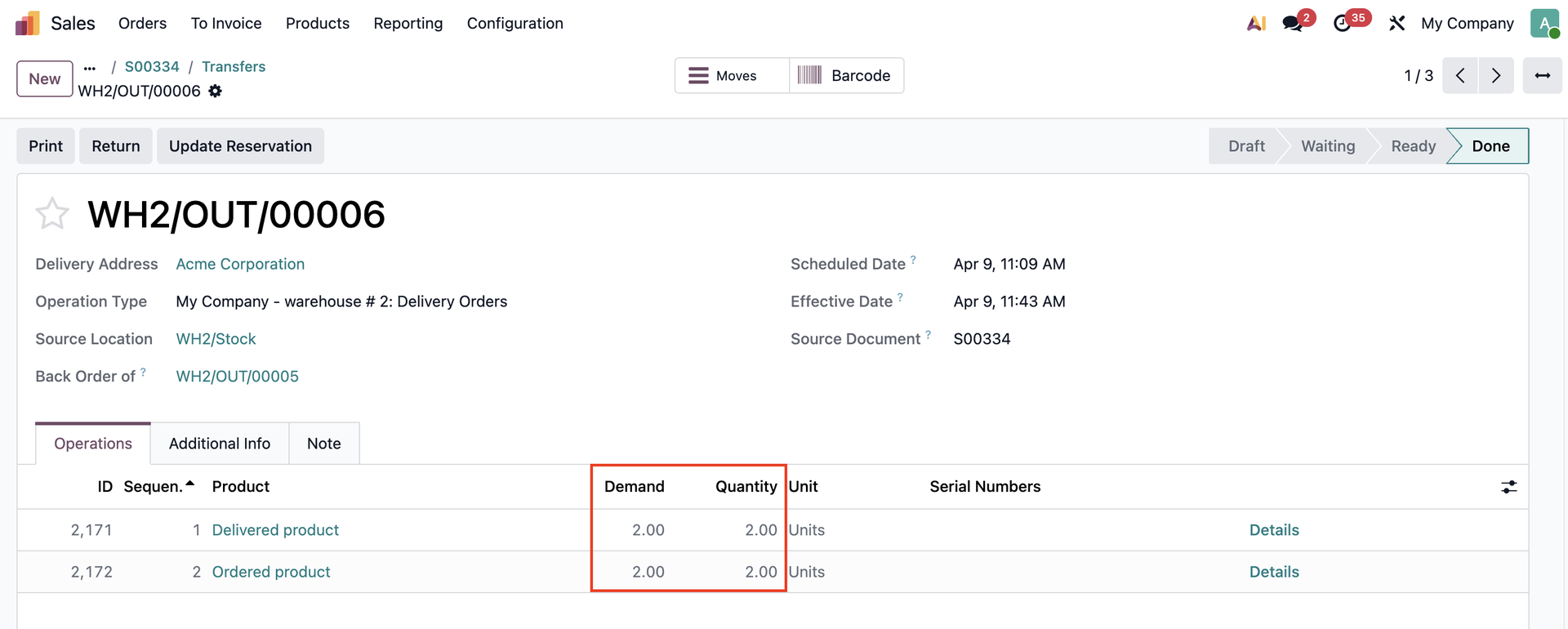
PERCENTAGE OF INVOICEGo to the backorder > Edit the Quantity if needed > Validate |
|
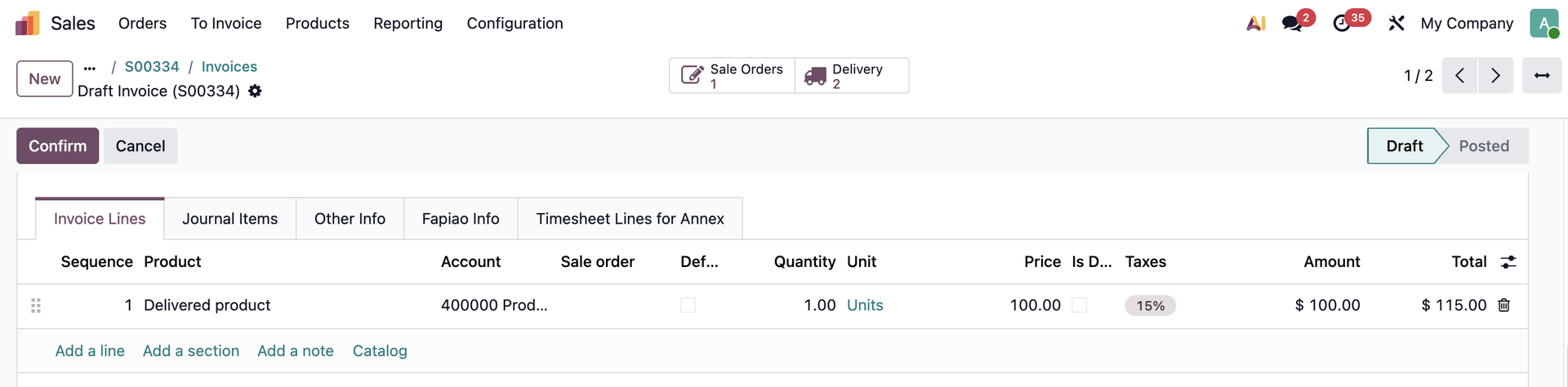
Go back to the SO > Create Invoice > Choose to deduct a percentage of the invoiceable amount (e.g., 20%) Note: Invoiceable amount = Delivered amount - Invoiced amount |
|
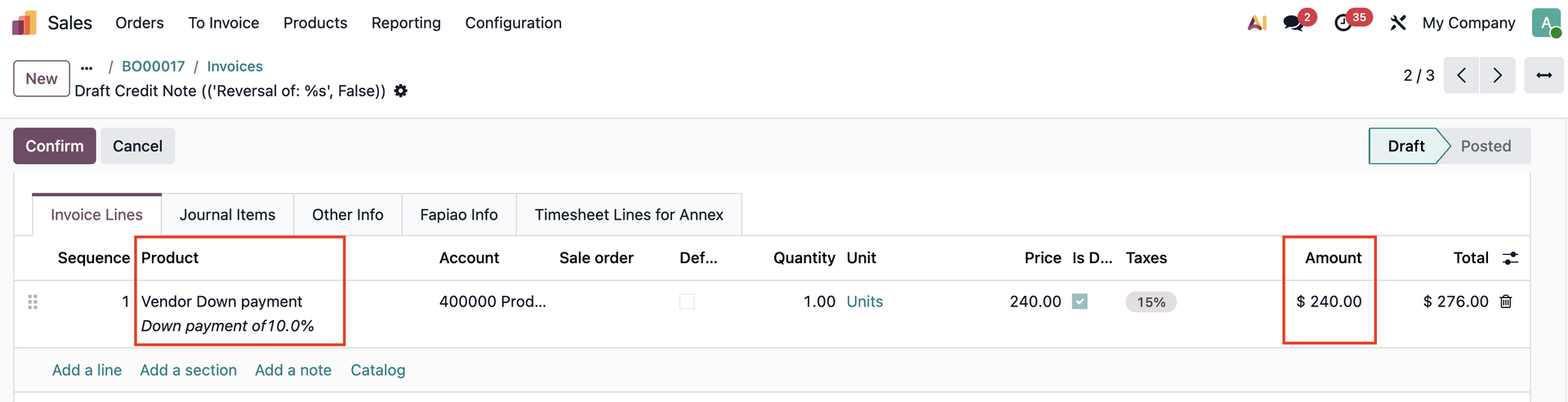
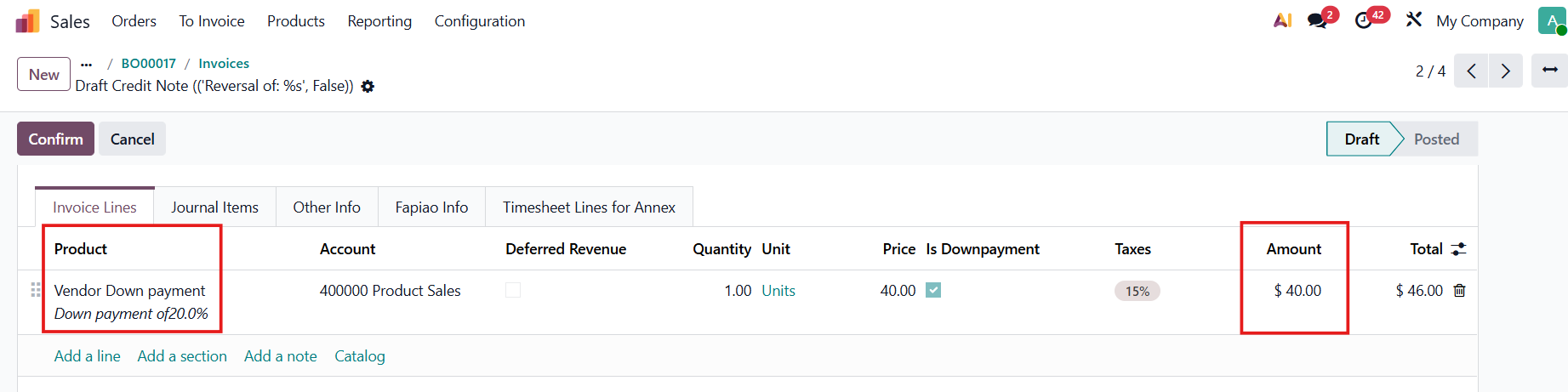
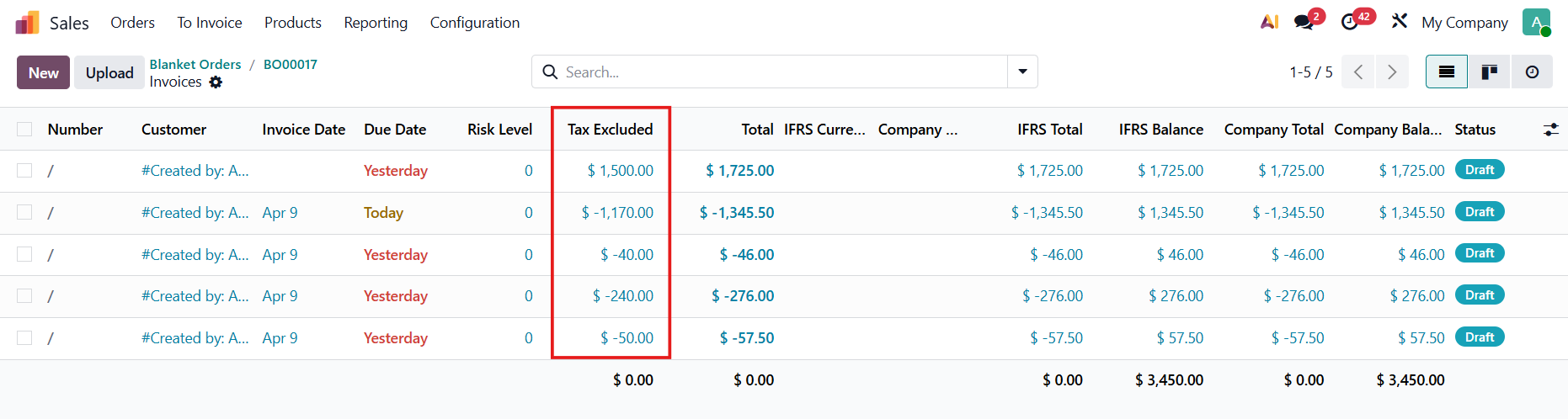
It will also create a new Invoice ($360) for the blanket order and a regular invoice for the Sales Order. Calculation:
→ [(4 - 2) *100)*20% = $40 | For the blanket order
For the SO
|
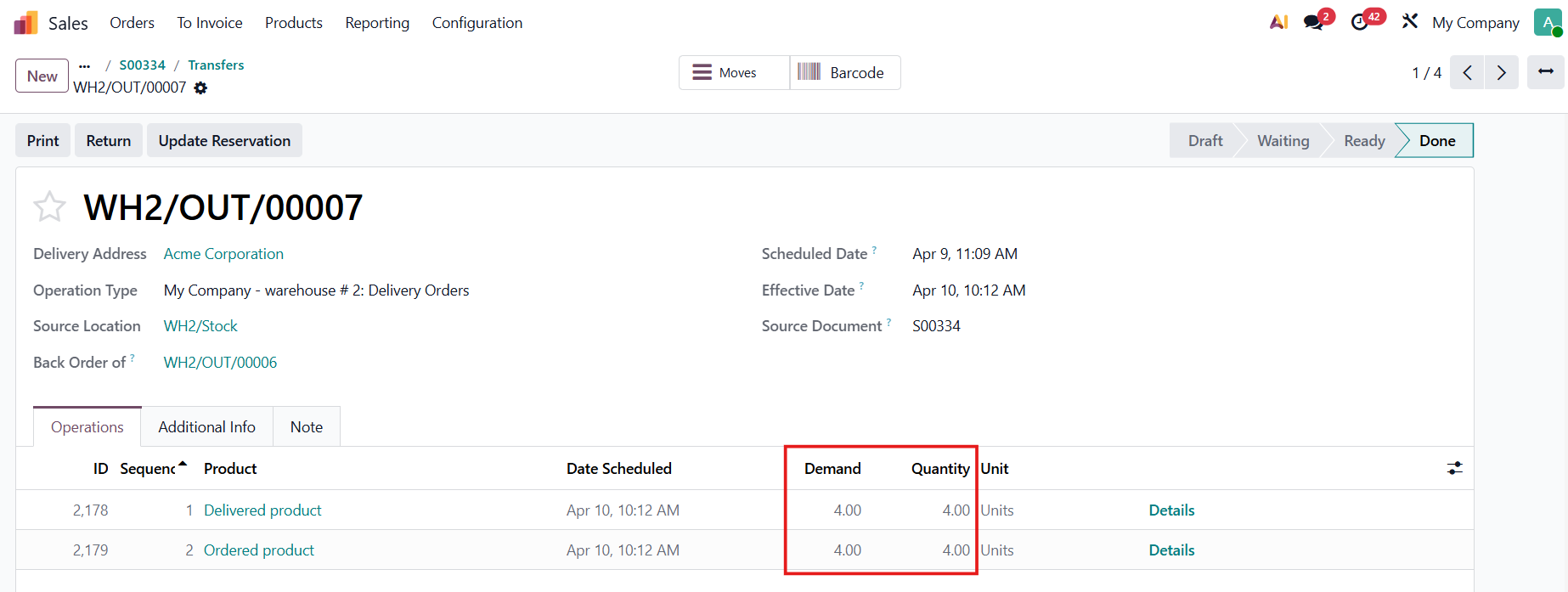
BALANCEGo to the backorder > Edit the Quantity if needed or validate the remaining quantity > Validate |
|
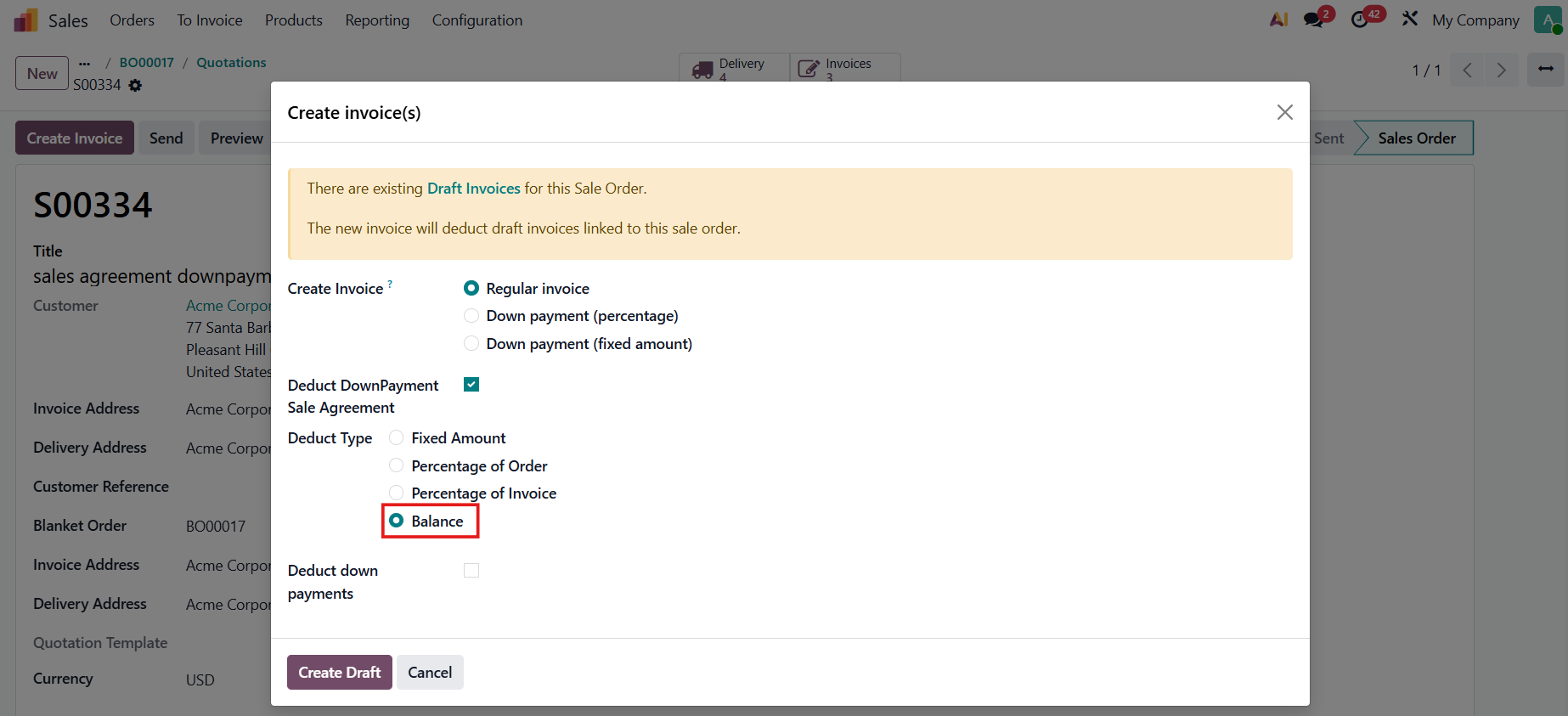
Go back to the SO > Create invoice The system would automatically subtract the total amount of any down payments made previously. |
|
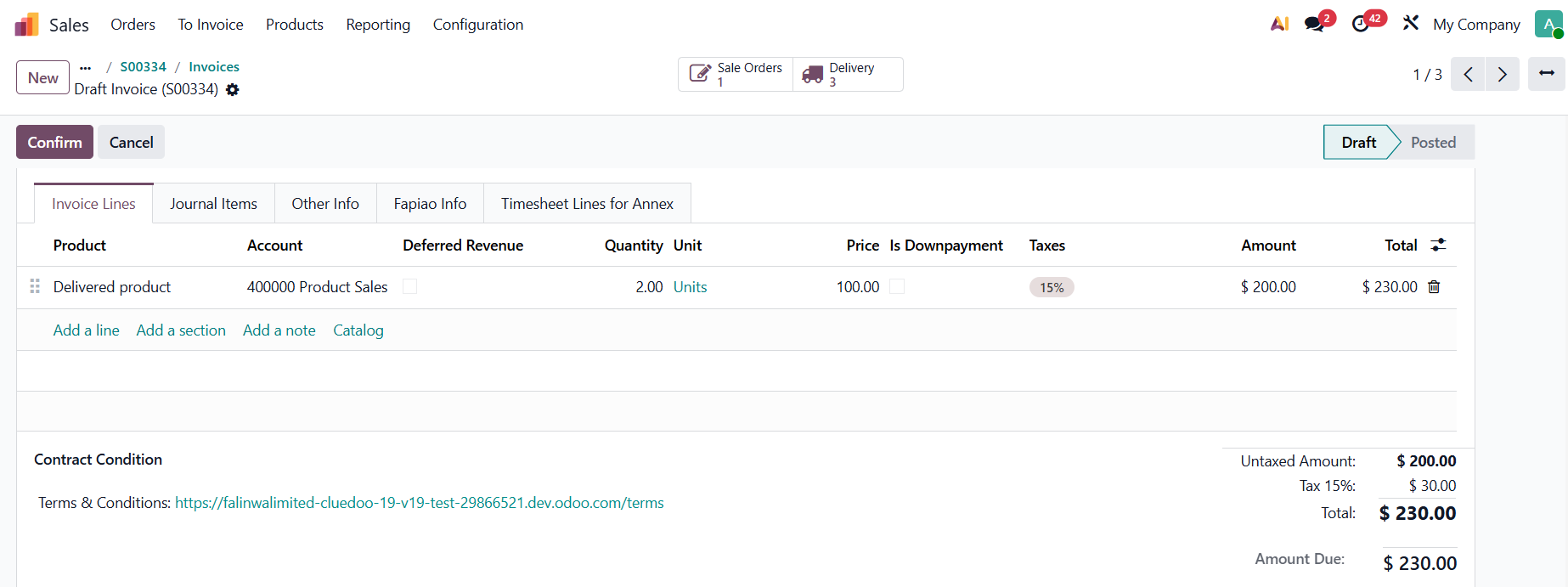
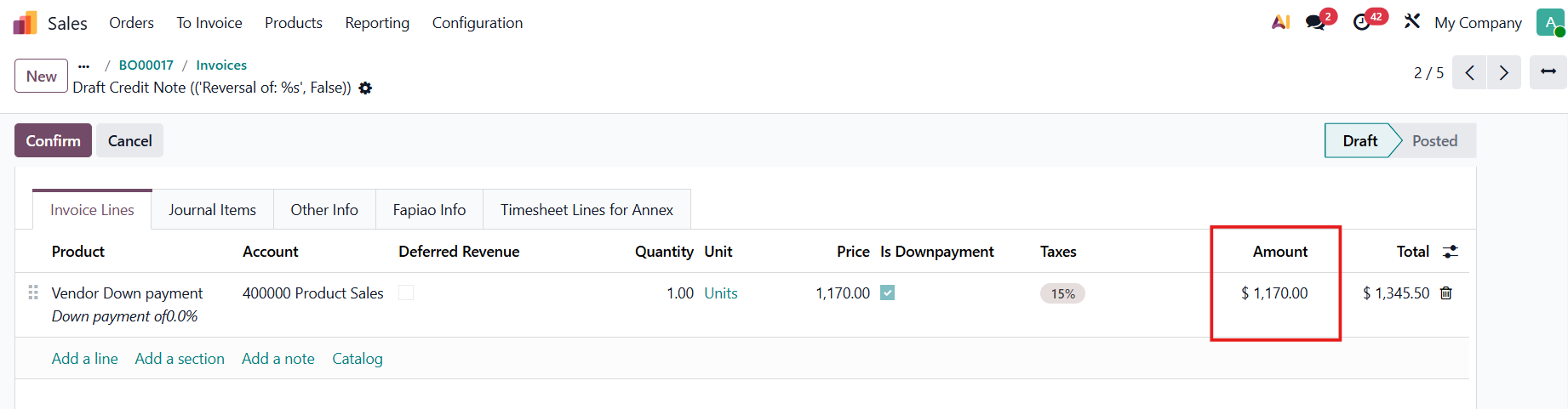
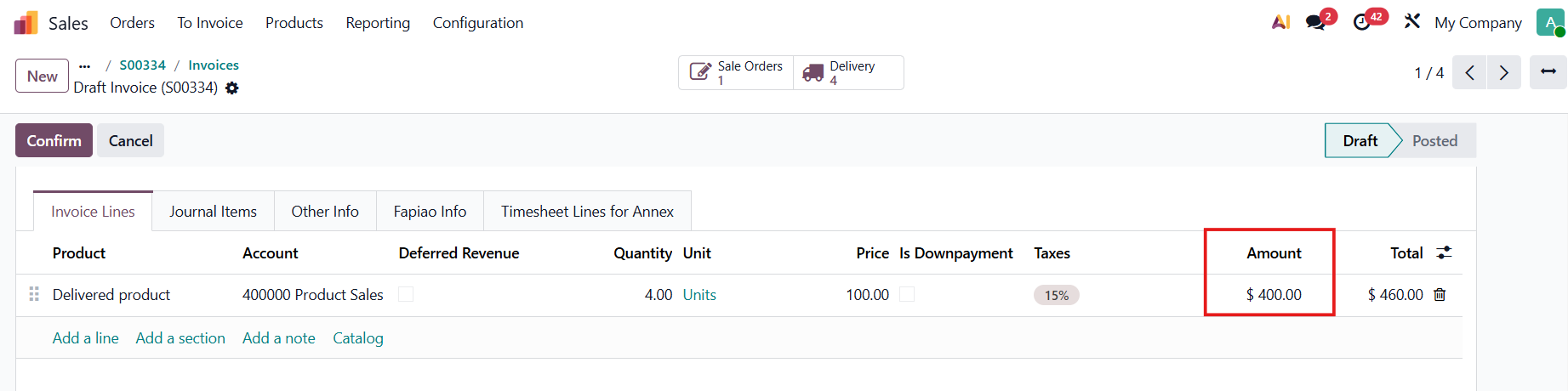
It will create a new invoice ($1170) for the blanket order and a regular invoice for the Sales Order. Calculation: 1500 - 50 - 240 - 40 = $1170 | For the blanket order
For the SO
|