


ODOO'S FUNCTION
In Odoo, the work centers could not be directly linked to product categories, and users had limited options for managing tools or selecting them based on product specifications. In the Bill of Materials (BOM), the ability to associate specific tools with operations was also missing, restricting tool management in manufacturing.
CLUEDOO'S FUNCTION
Cluedoo's new feature offers a Work Center Related field in the Product Category, allowing users to specify the relevant work center for each product category. In the Work Center form, two new tabs have been added: Insert Tools and Other Tools, which enable users to choose tools based on the Work Center linked to the product category. Additionally, a Replace button allows users to move tools between locations, offering greater flexibility in managing tools (this function differs from Odoo's standard Replace button). Users can now assign tools to specific operations in the Operations tab in BOM, enhancing production efficiency and precision.
A. WORK CENTER RELATED BUTTON1. Go to Sales > Configuration > Products > Product Categories > New to create a new category or choose an existing one > Fill in the category's name and Work Center Related > Save e.g. I created a category named L-shaped Desk and chose Insert Tools | 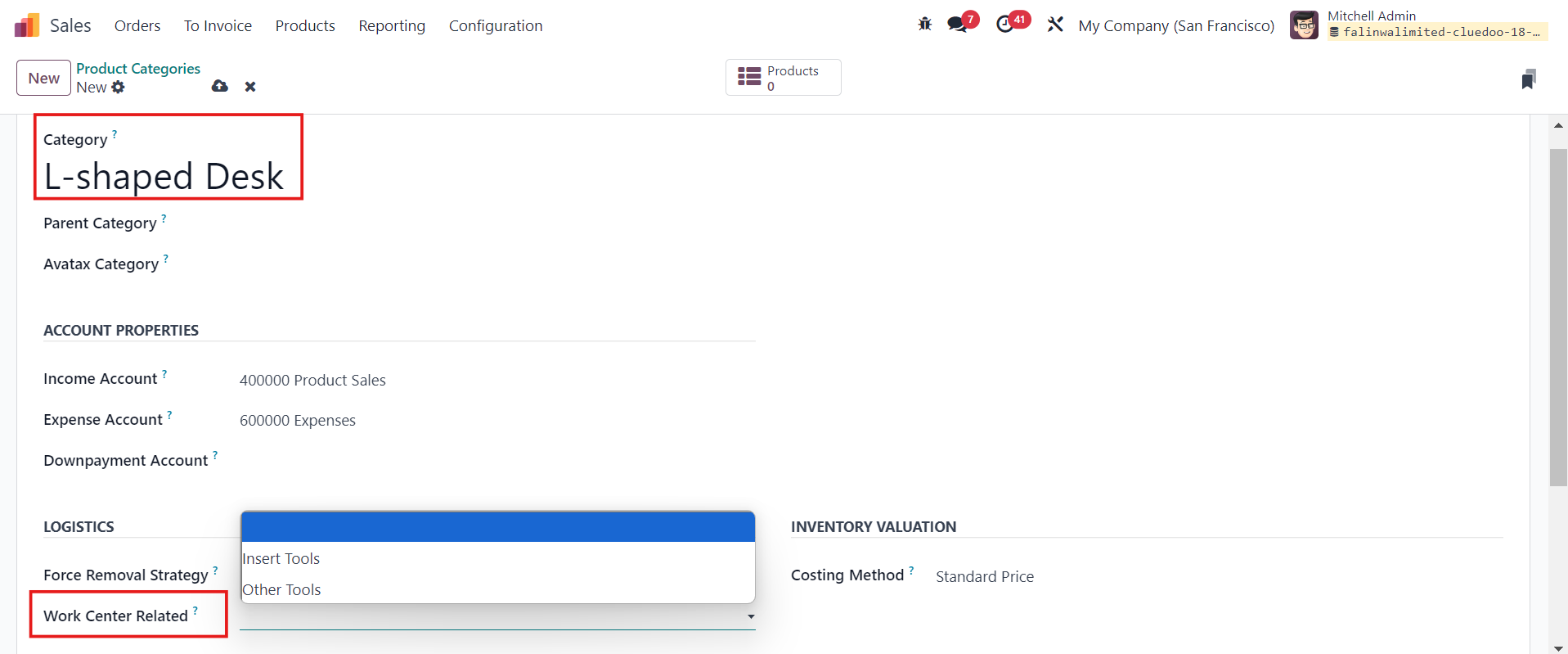 |
2. Go to Products and make sure the products you want to use are Goods and Track Inventory is enabled | 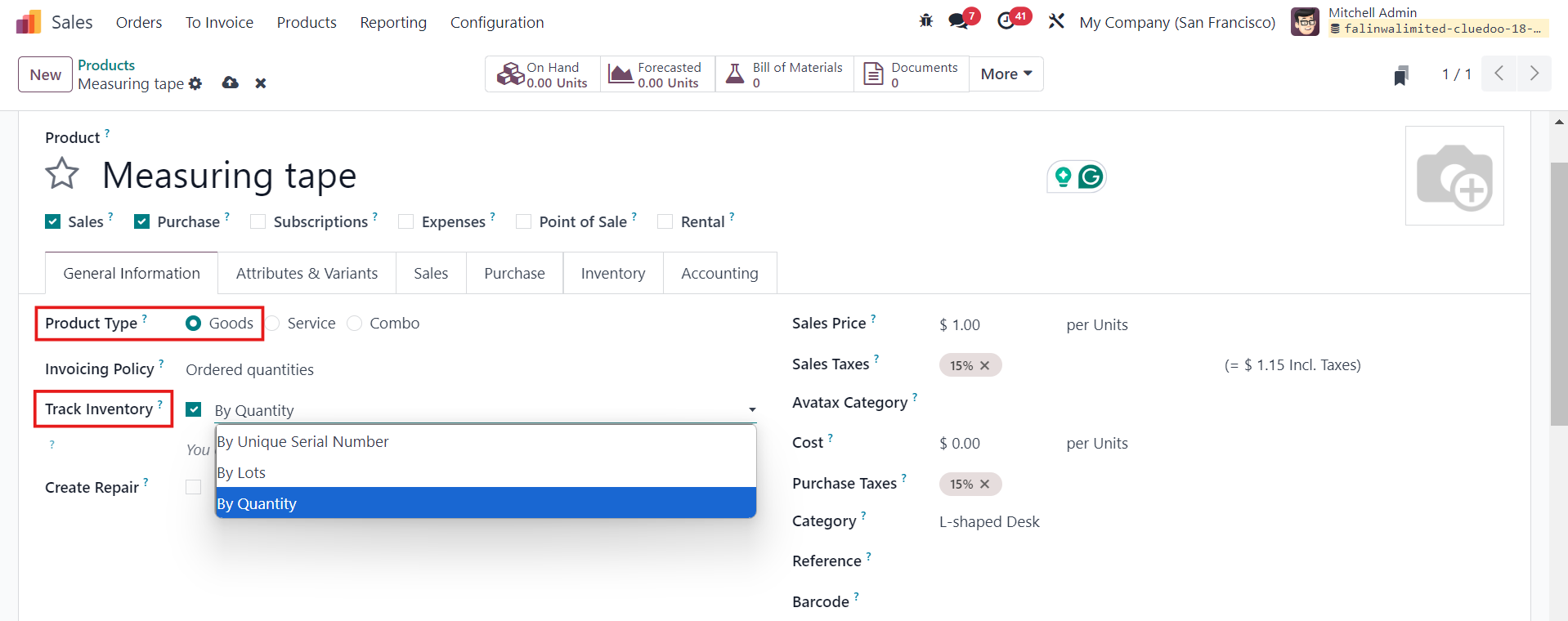 |
3. Go to Manufacturing > Configuration > Work Centers > New or choose an existing one and fill in the necessary information In the Insert Tools/Other Tools tab, you can choose the products | 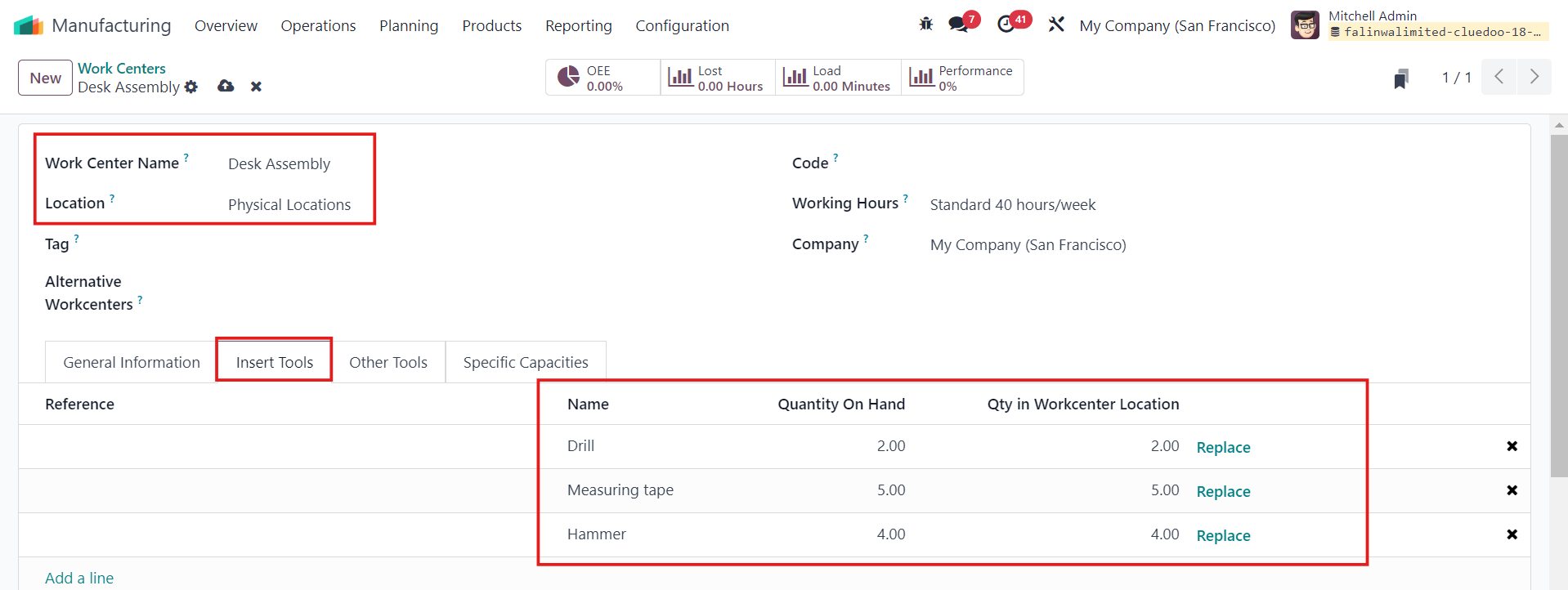 |
B. REPLACE BUTTON1. In the Work Centers that you just created/chose, click on Replace if you want to move your tool(s) from one location to another > Choose the quantity and click Replace e.g. I want to move the product Drill |  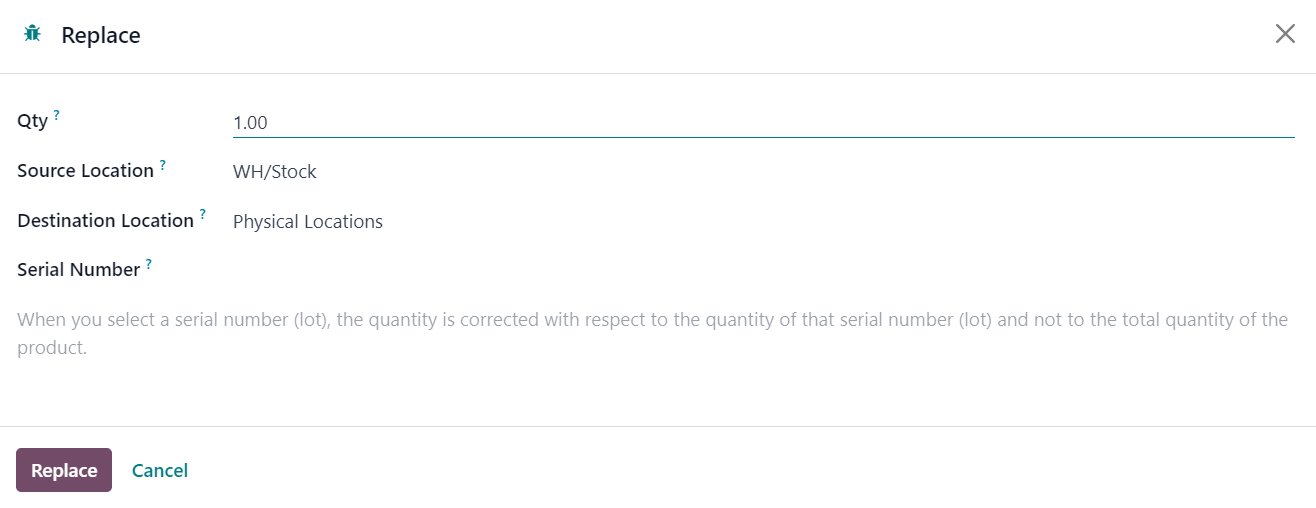 |
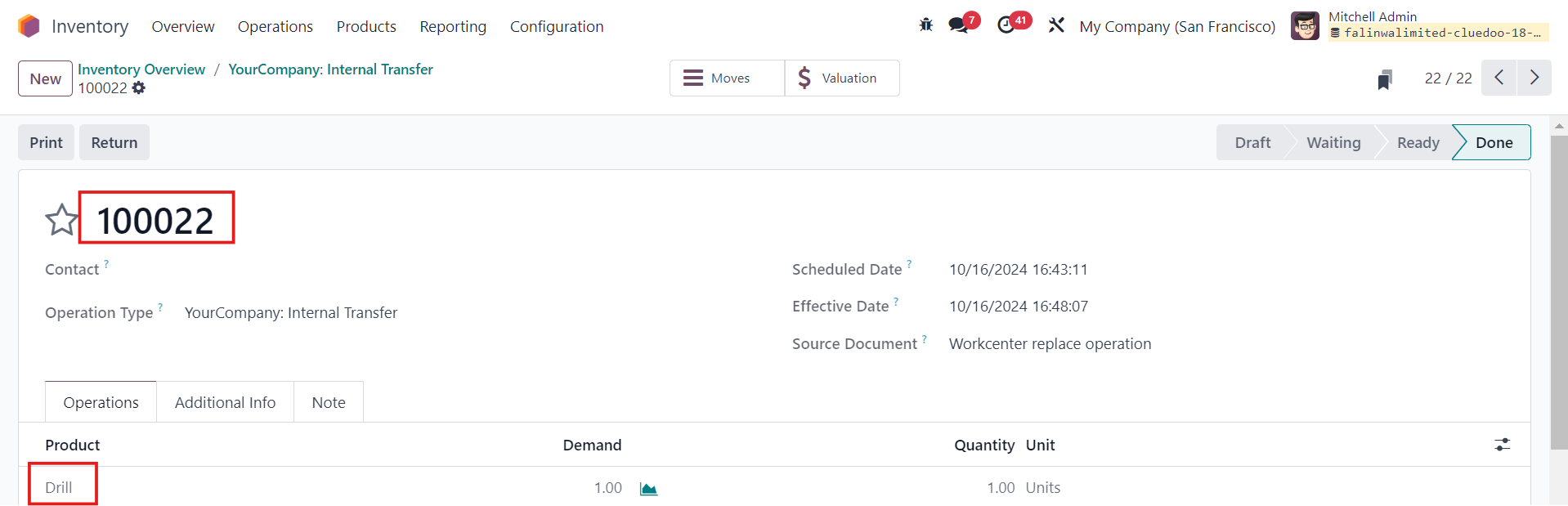
2. Go to Products > Choose Drill > Forecasted > Click on the Forecasted Report (100022) > Validate You can see that the On Hand quantity is 2 units, while the Forecasted quantity is 1 (after you moved 1 unit) | 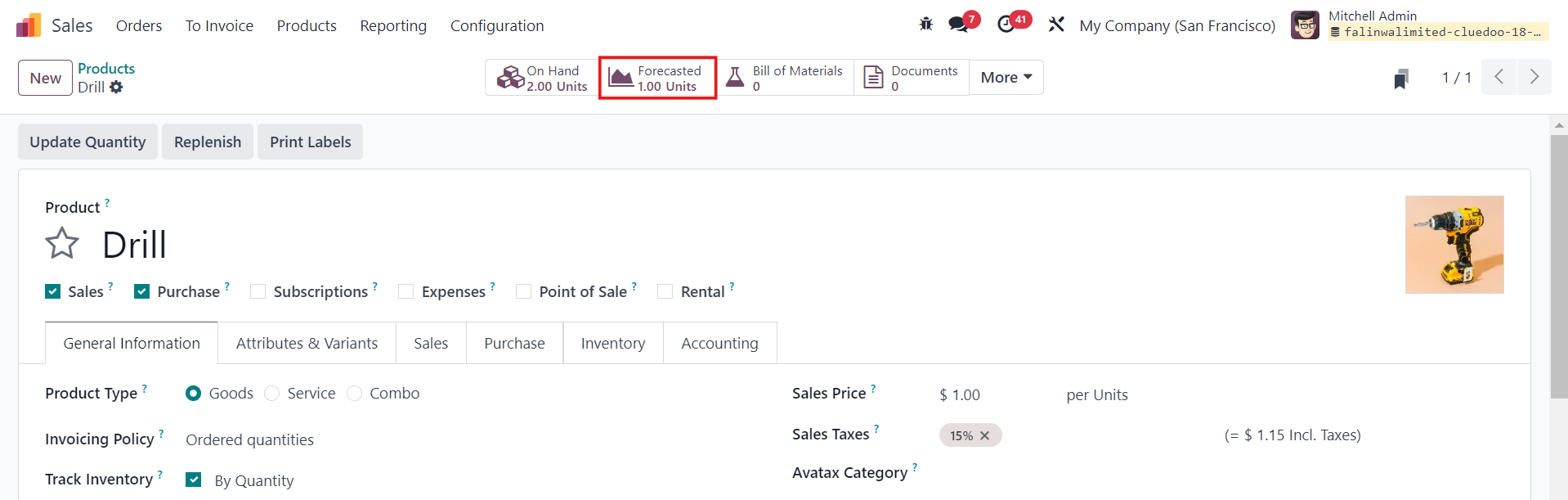 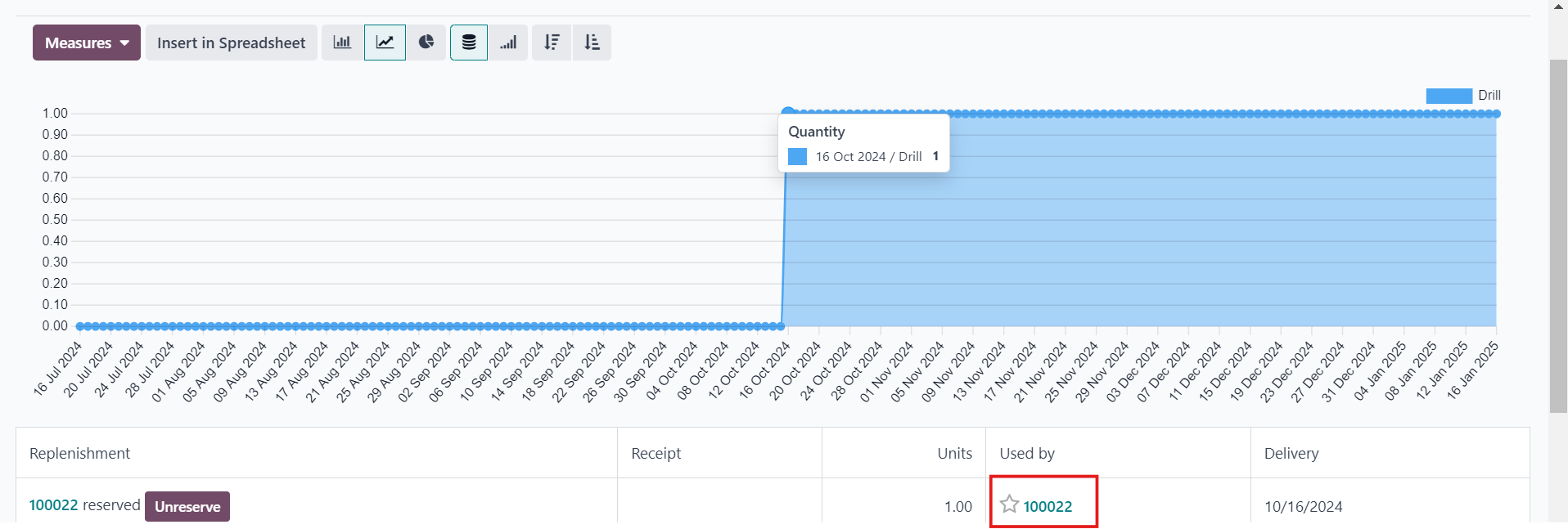 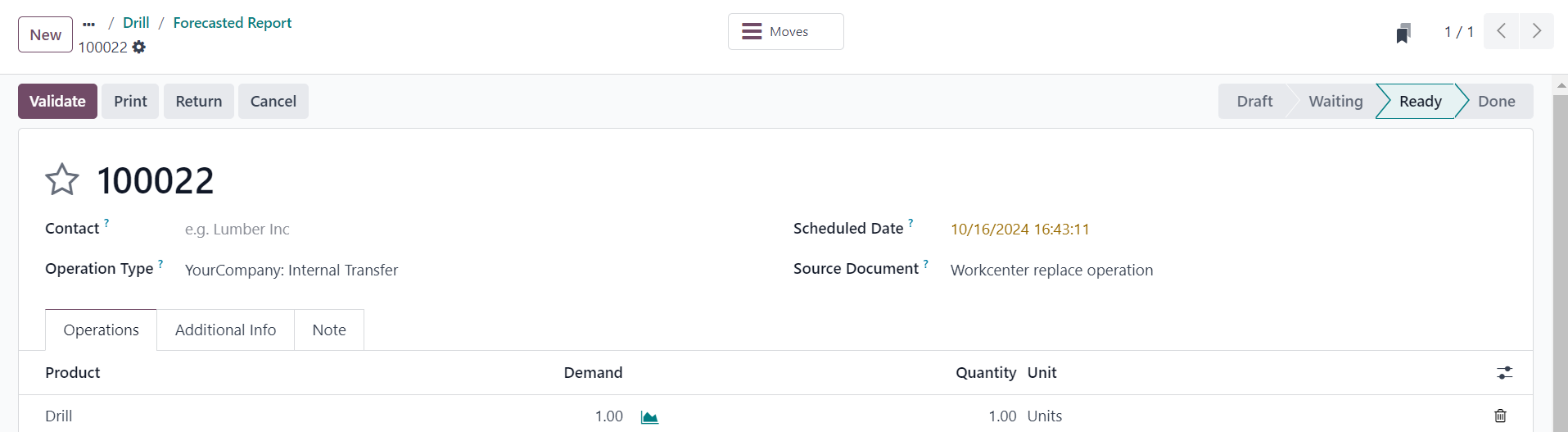 |
3. Go to Inventory > Overview > Internal Transfer and you can see that the stock move has been created |
|
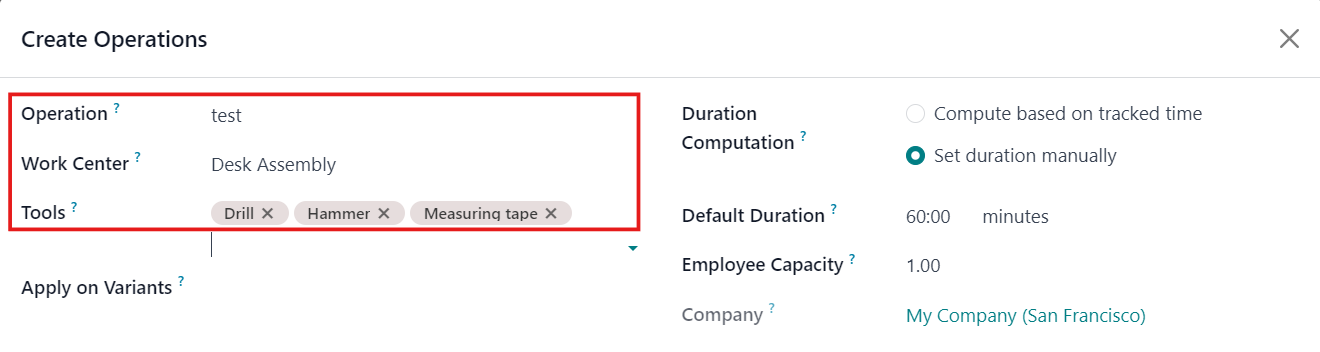
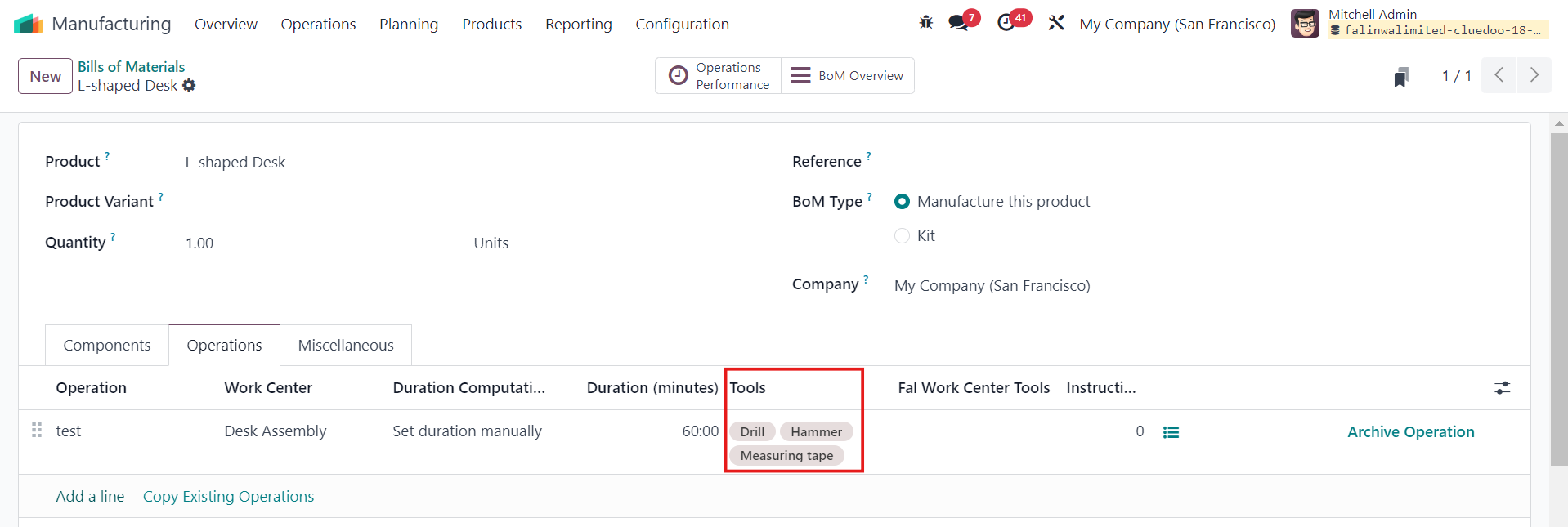
C. CHOOSE TOOLS IN BILLS OF MATERIALSGo to Manufacturing > Products > Bills of Materials > New or choose an existing one > Operations > Add a line and fill in the necessary information > Choose the tools > Save & Close Note: Make sure you choose the right Work Center |
|