



ODOO'S FUNCTION
Odoo only supports adding shipping costs directly on the Sales Order form, with calculations based on the total weight and the demand quantity. However, this approach comes with limitations, especially in scenarios involving partial deliveries or when the actual delivered quantity differs from the initial demand
CLUEDOO'S FUNCTION
Cluedoo offers the ability to add shipping costs directly from the Delivery or Batch Delivery forms. The shipping fee can be calculated based on either the Total Weight or the Package Weight, with an additional option to compute it using the Delivered Quantity instead of the demand quantity. This added flexibility allows for more accurate shipping cost management, especially in cases of partial deliveries or when the actual shipment differs from the sales order
Delivery A: Calculation Method: Total Weight Based on Delivered Quantity Go to Inventory > Delivery Methods > Create a new delivery method/ Access an existing one > Set up fields:
|   |
Go to Sales > Create a new sale order > Add products whose weights are inputted > Confirm > Move to the Delivery > Input the Delivered Quantity > Click on the Add Shipping button EX: Set up the Weight of each product (SP1, SP2, MA1) to 5 kg Note: The "Add Shipping" Button only appears on the Delivery form when the Delivery is created from a Sale Order |    |
A pop-up will appear after clicking on the Add Shipping button > Choose the configured shipping method > You can see the Shipping Cost calculated based on the Weight of products, the Delivered Quantity, and the corresponding Rules > Click on the Add button on the pop-up > The Shipping cost will be added to the sale order line EX: For this transfer: Set up the Weight of each product (SP1, SP2, MA1) to 5 kg
> Total Weight of the Transfer = 40 kg > Meet the condition "if Weight <= 50" => The shipping cost of the delivery = 20 + 2 * 40 = 100 |    |
Based on Demand Quantity Go back to the Delivery Method form > Uncheck the Delivered Quantity checkbox > Save |  |
Go back to the Delivery Form > Click on the Add Shipping button > Choose the configured shipping method > Can see that the Shipping Cost of the Delivery is calculated based on the Demand Quantity EX: For this transfer: Set up the Weight of each product (SP1, SP2, MA1) to 5 kg
> Total Weight of the Transfer = 30 kg > Meet the condition "if Weight <= 30" => The shipping cost of the delivery = 30 + 2 * 30 = 90 |    |
B: Calculation Method: Package Weight Go to Inventory > Delivery Methods > Create a new delivery method/ Access an existing one > Set up fields:
Note: With the 'Package Weight' method, the calculation only works correctly when packages are assigned, so please make sure to check this checkbox when using this method (Packages are only allowed to be set up for Delivered Quantity) |  |
Go back to the Delivery Form > Assign packages to each product |    |
Click on the Add Shipping button > Choose the configured shipping method > Can see that the Shipping Cost of the Delivery is calculated based on the Total Weight of each Package and the corresponding Rules Note: Total Weight of each Package is the sum of the weight of all products contained in that package Ex: For this transfer > Set up the Weight of each product (SP1, SP2, MA1) to 5 kg
> Calculate based on the corresponding rules:
=> The Shipping Cost of the Delivery = 40 + 40 + 30 = 110 |   |
Batch Delivery A: Calculation Method: Total Weight Based on Delivered Quantity Go to Inventory > Delivery Methods > Create a new delivery method/ Access an existing one > Set up fields:
| |
Go to Inventory > Operations > Deliveries > Select deliveries > Add to batch Note: The Add Shipping button only appears on the Batch Transfer form when there is at least one Transfer created from a sales order |  |
On the Batch form > Click on the Add Shipping button > Choose the configured shipping method > Can see the Shipping Cost calculated based on the Weight of products, the Delivered Quantity, and the corresponding Rules > Click on the Add button on the pop-up > The Shipping cost will be added to the first relevant sale order EX: For this batch transfer: Set up the Weight of each product (SP1, SP2) to 5 kg
> Total Weight of the Batch Transfer = 50 kg > Meet the condition "if Weight <= 50" => The shipping cost of the batch delivery = 20 + 2 * 50 = 120 |     |
Based on Demand Quantity Go back to the Delivery Method form > Uncheck the Delivered Quantity checkbox > Save | |
Go back to the Batch Delivery Form > Click on the Add Shipping button > Choose the configured shipping method > You can see that the Shipping Cost of the Delivery is calculated based on the Demand Quantity EX: For this batch transfer:
Set up the Weight of each product (SP1, SP2) to 5 kg
> Total Weight of the Batch Transfer = 40 kg > Meet the condition "if Weight <= 50" => The shipping cost of the batch delivery = 20 + 2 * 40 = 100 |   |
B: Calculation Method: Package Weight Go to Inventory > Delivery Methods > Create a new delivery method/ Access an existing one > Set up fields:
Note: With the 'Package Weight' method, the calculation only works correctly when packages are assigned, so please make sure to check this checkbox when using this method (Packages are only allowed to be set up for Delivered Quantity) |  |
On the Batch form > Assign packages > Click on the Add Shipping button > Choose the configured shipping method > Can see that the Shipping Cost of the Delivery is calculated based on the Total Weight of each Package and the corresponding Rules Note: The Total Weight of each Package is the sum of the weight of all products contained in that package Ex: For this batch transfer > Set up the Weight of each product (SP1, SP2) to 5 kg
> Calculate based on the corresponding rules:
=> The Shipping Cost of Batch Delivery = 80 + 40 + 30 = 150 |    |
Note: If we select a shipping method with the calculation method set to Package Weight but do not assign any packages to the transfer or batch transfer beforehand, a warning will appear | 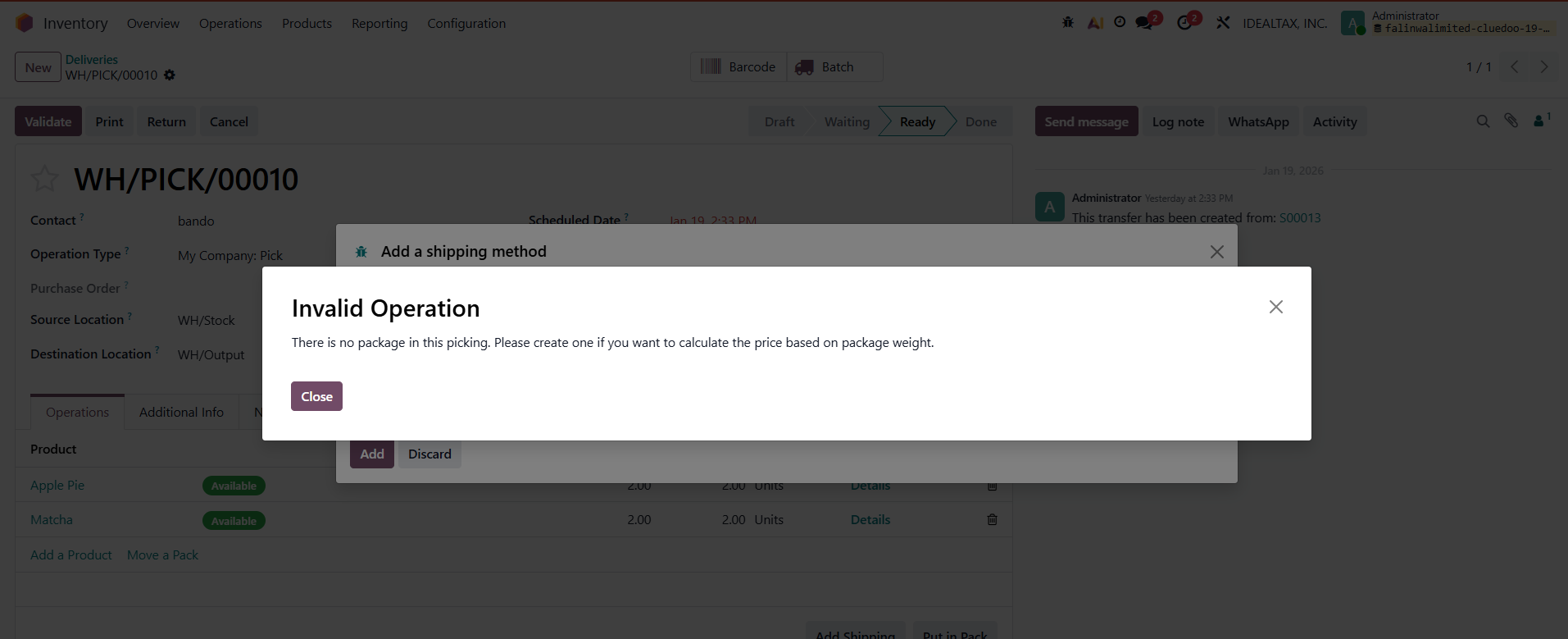 |