



ODOO'S FUNCTION
Odoo does not provide a checking method between companies within the same group.
CLUEDOO'S FUNCTION
Cluedoo introduces the concept of intercompany reconciliation to accurately monitor and trace intragroup transactions. For instance, when company A sells to company B, resulting in an invoice in A and a vendor bill in B, Cluedoo's Intercompany Reconciliation module allows us to align and link these transactions, providing clear visibility into the origin of each entry.
This module enables you to monitor and trace intragroup transactions efficiently, while also streamlining the consolidation process.
1. Go to Accounting > Chart of Accounts > Choose the account(s) that we will use for Bill and Invoice> Check Allow Intercompany Reconciliation |  |
2. Choose the Company in the top right of the screen > Go to Sales > Create a new Sales order with the customer is the company we want to sell to> Confirm the Order, then Create an Invoice For instance, one company named My Company (San Francisco) sells products to another company named ABC Indonesia, resulting in an invoice in My Company (San Francisco) and a vendor bill in ABC Indonesia. |  |
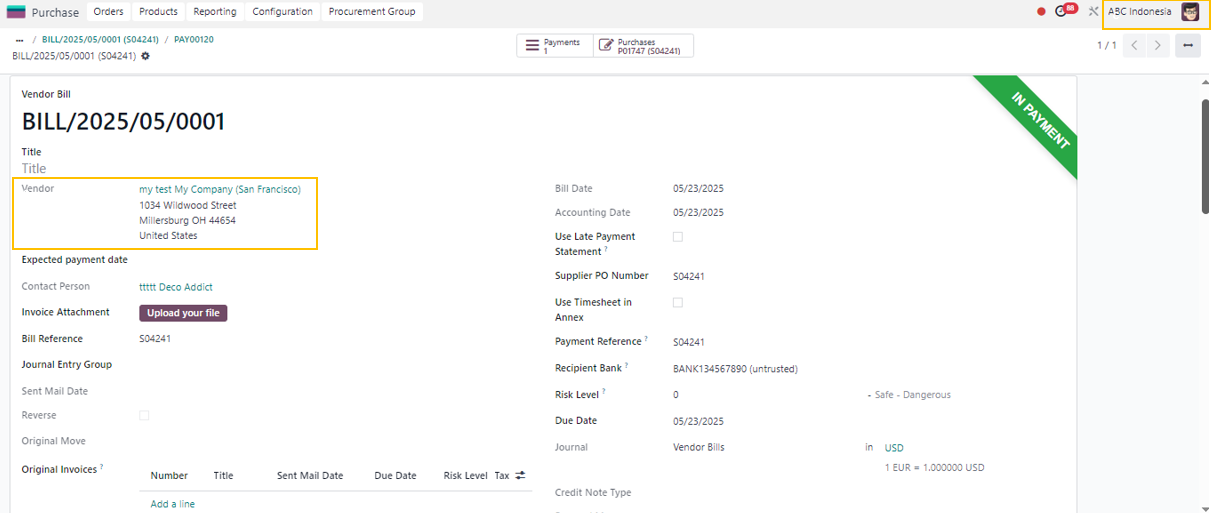
3. Choose another Company > Go to Purchase > We could see a Purchase Order that links with the invoice we've created > Confirm this order > Receive products > Validate the transfer > Create a bill > Confirm and pay vendor bill > Validate payment |  |
4. Go to Accounting > Journal Items > Search with group by "Company" Remember to select all the companies in the top right corner of the screen in order to view the complete company information after grouping. |  |
Choose the bill and the invoice we've created and then click to the Action to Match the bill and the voice |  |
5. This will give an intercompany matching number to the journal items. |  |
STORY BEHIND THE FEATURE
ODOO'S FUNCTIONS
Odoo does not provide a checking method between companies within the same group.
CLUEDOO'S FUNCTIONS
MODULE +
CLUEDOO RECOMMENDATIONS
Install in 100% of your databases if you work in a multi-company environment.
OUR FEATURES AS SOLUTIONS
Provides an intercompany matching number
HOW TO USE THIS MODULE
1
Go to Accounting > Chart of Accounts > Choose the account(s) that we will use > Check Allow Intercompany Reconciliation
2
Choose the Company in the top right of the screen > Go to Sales > Create a new Sales order with the customer is the company we want to sell to> Confirm the Order, then Create an Invoice
For instance, one company named My Company (San Francisco) sells products to another company named ABC Indonesia, resulting in an invoice in My Company (San Francisco) and a vendor bill in ABC Indonesia.
3
Choose another Company > Go to Purchase > We could see a Purchase Order that links with the invoice we've created > Confirm this order > Receive products > Validate the transfer > Create a bill > Confirm and pay vendor bill > Validate payment
4
Go to Accounting > Journal Items > Search with group by "Company"
Remember to select all the companies in the top right corner of the screen in order to view the complete company information after grouping.




5
This will give an intercompany matching number to the journal items.
