


ODOO'S FUNCTION
In the Odoo Barcode app, generating multiple lots for a single product can feel like a marathon. If you receive 10 units of a product and need 10 unique lots, you have to manually scan or enter them one by one. There is no quick way to bulk-generate lots directly from the barcode screen, turning a simple receiving task into a tedious, manual process.
CLUEDOO'S FUNCTION
CLuedoo brings the power of bulk generation directly to your Barcode app! Instead of scanning items one by one, you get a convenient Generate Serials/Lots button right on your screen. Need 10 unique lots for 10 products? Just click the button, and the system automatically generates and assigns them all instantly - exactly like it does in the standard transfer view. Say goodbye to manual scanning and hello to instant, automated lot creation!
CONFIGURATION | |
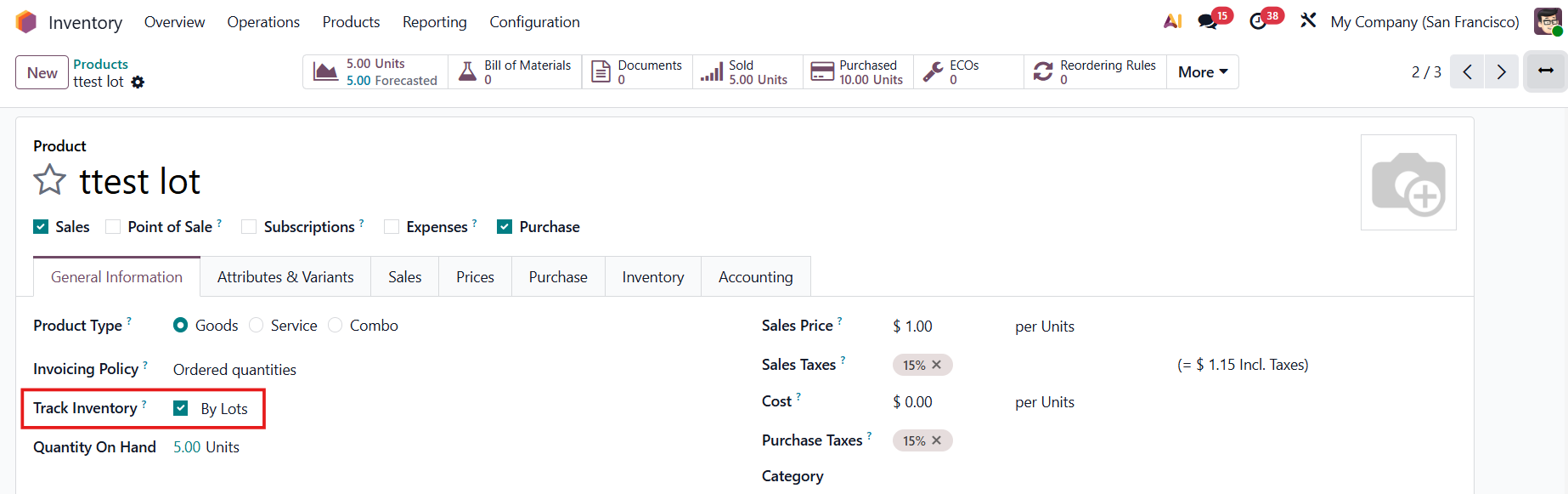
Create a product tracked by Lots/Unique Serial Number. |
|
USAGE | |
1. Go to Inventory > Operations Create a transfer, select the lot product and add the demand quantity. Mark as ToDo. | 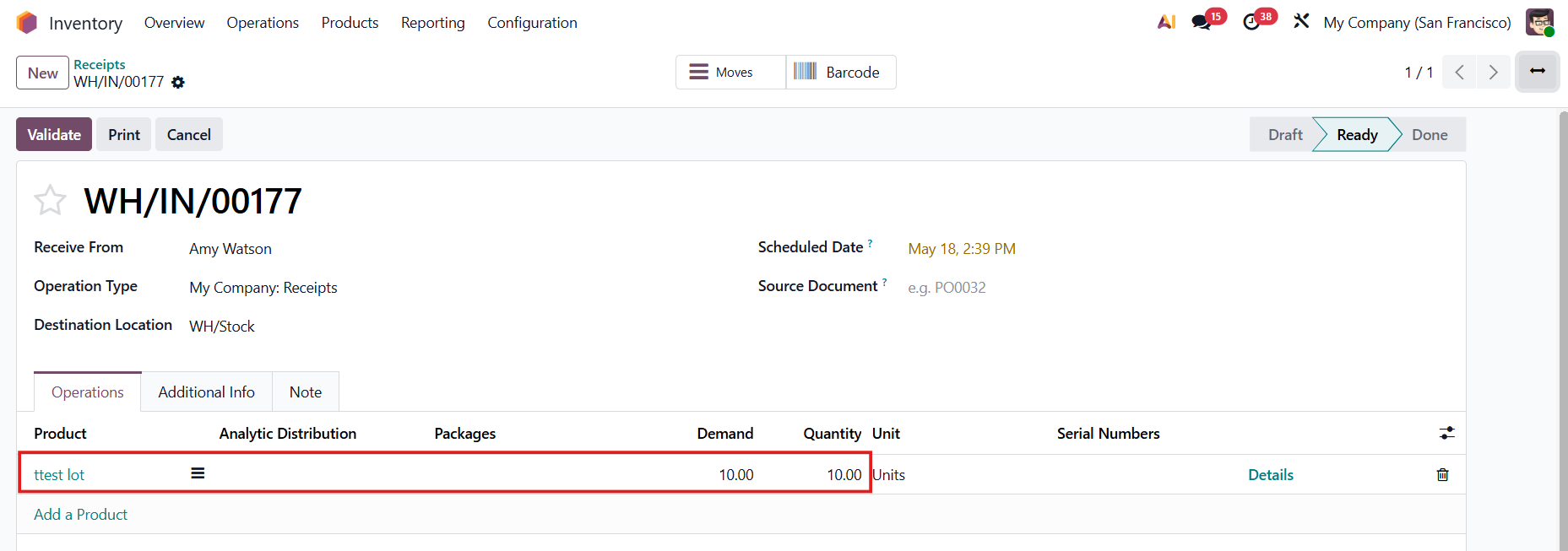 |
2. Go to Barcode > Operations > Choose the correct operation type and select the transfer created in step 1. Click the Edit button. | 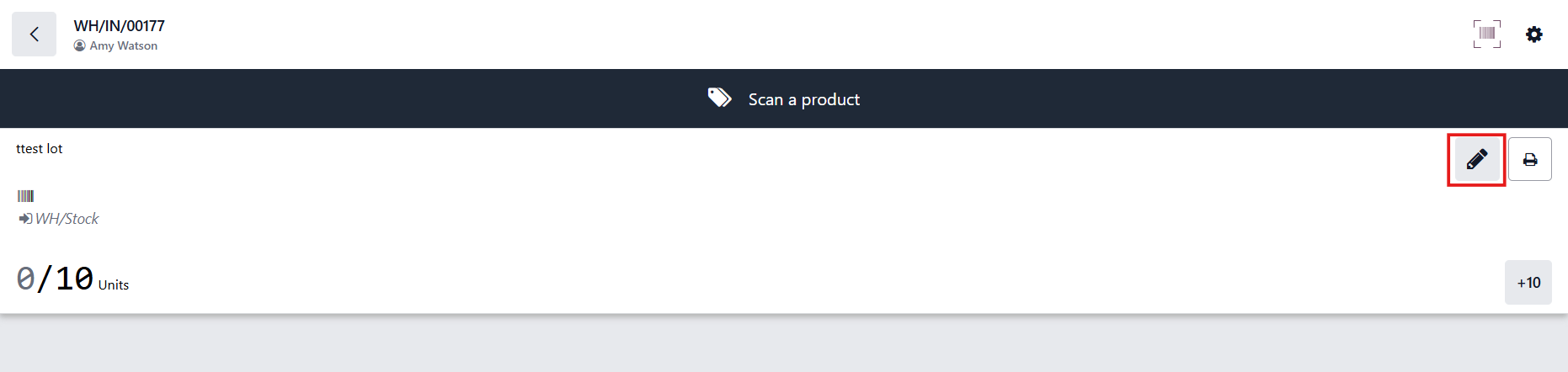 |
3. Click the Generate Serials/Lot button. | 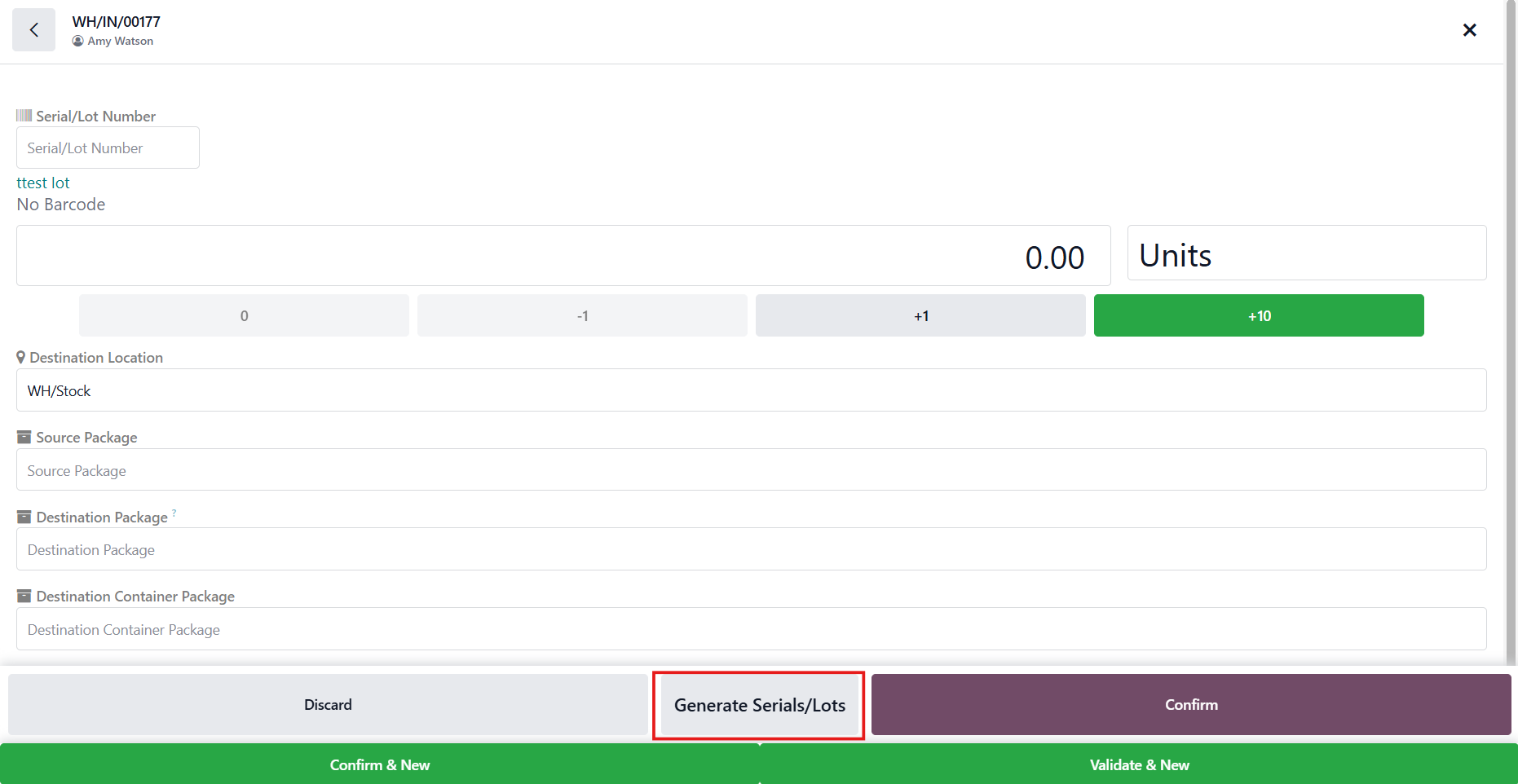 |
Fill in the information > Genrate. | 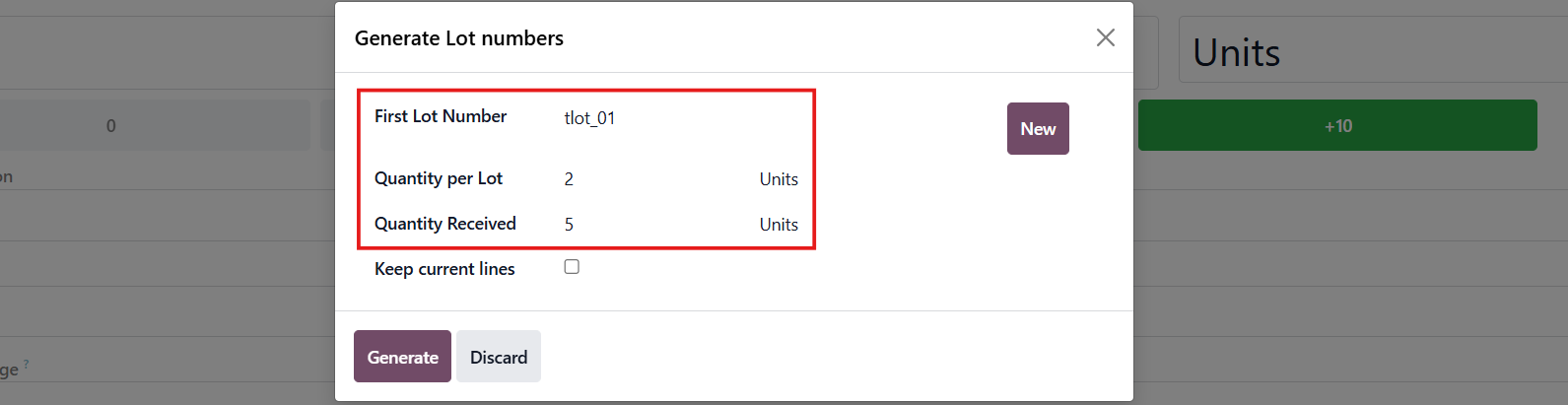 |
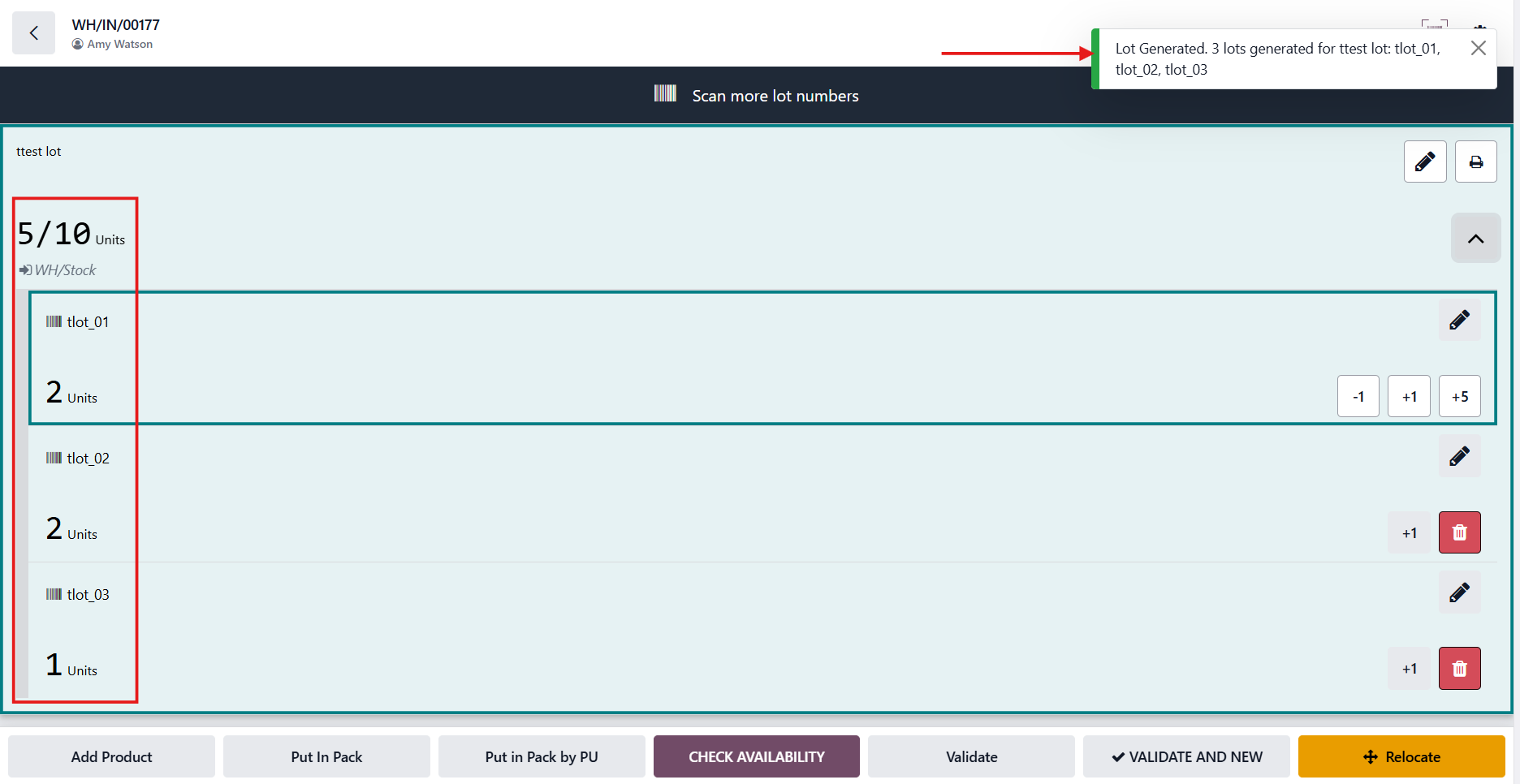
The lots will be automatically generated with the correct quantity. |
|
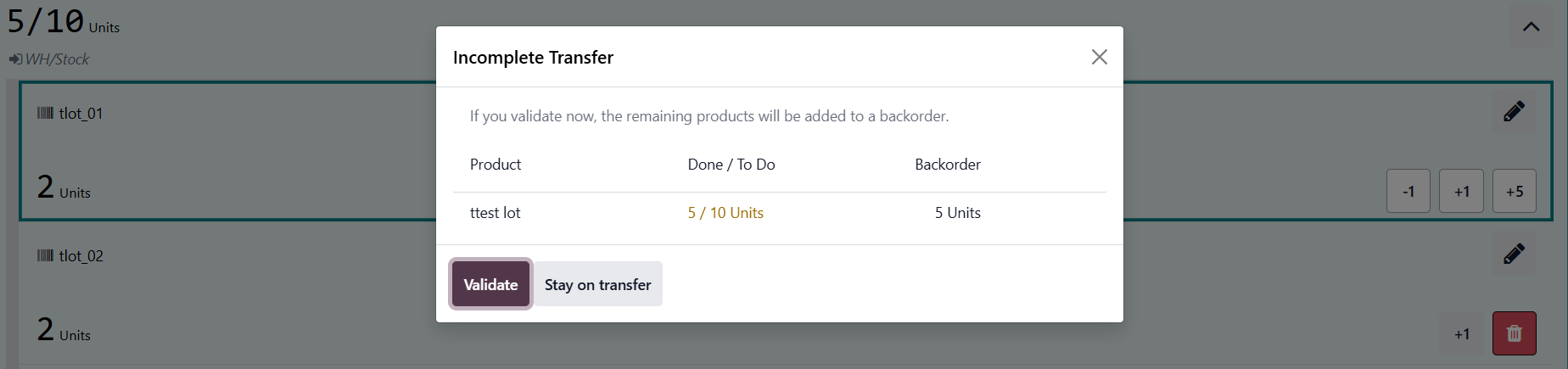
4. Click Validate |
|
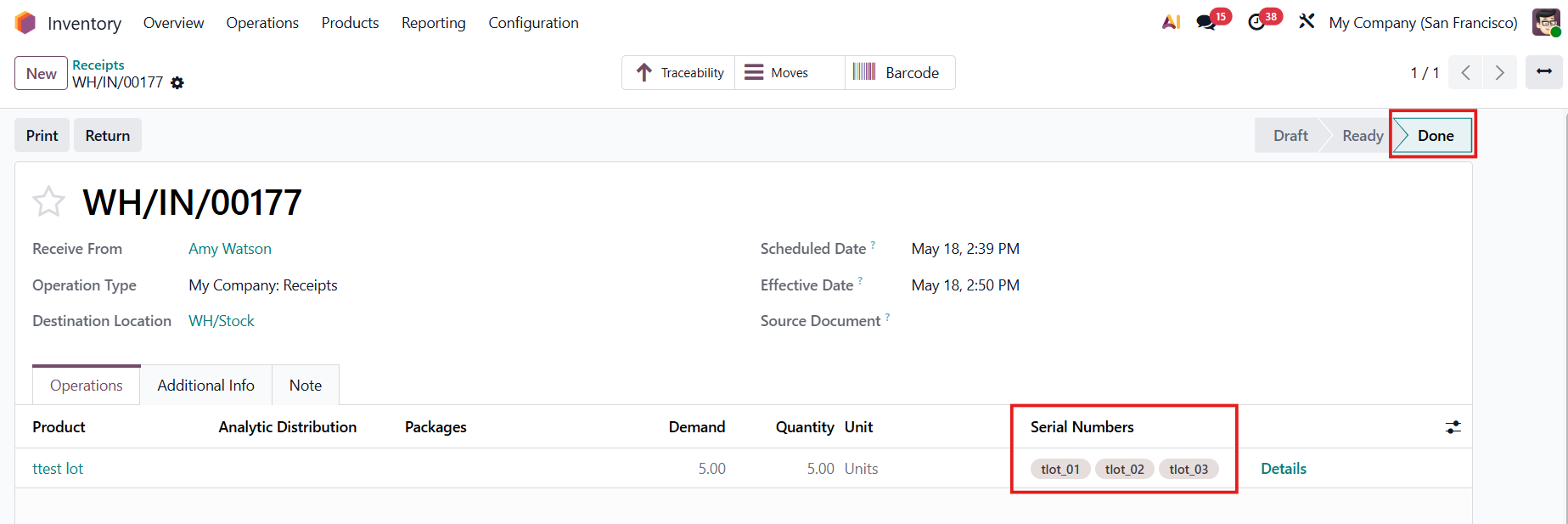
The transfer will be automatically done, and the lots will be added. |
|
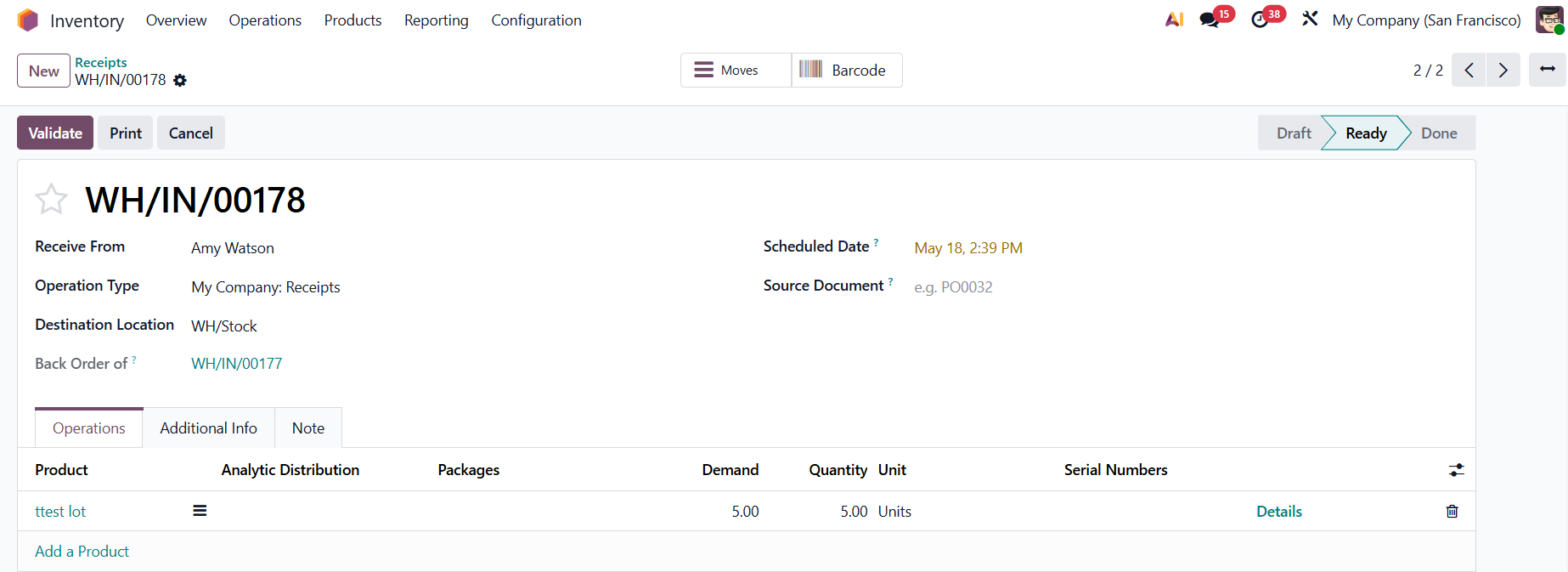
The backorder is created as well. |
|
STORY BEHIND THE FEATURE
ODOO'S FUNCTIONS
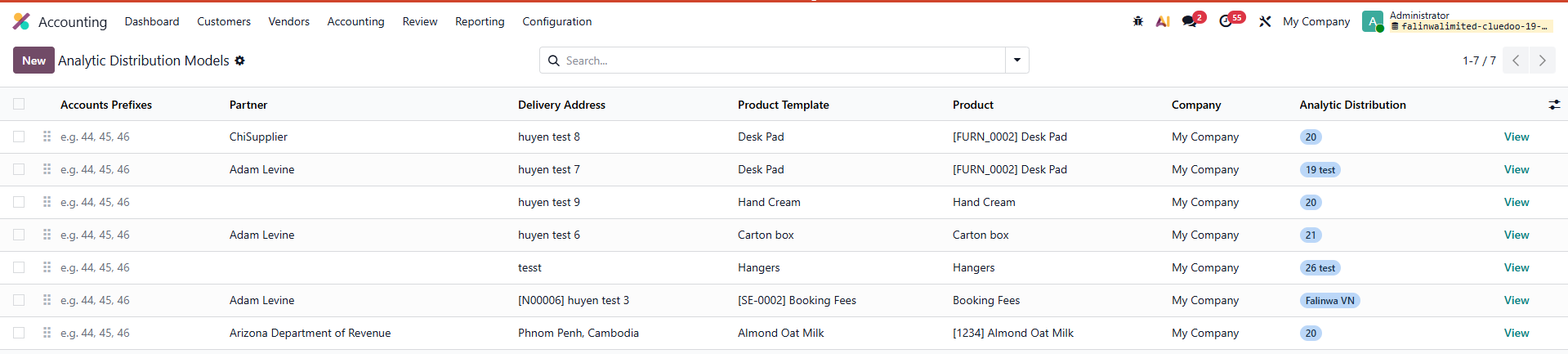
Odoo help us define Analytic Distribution Models in Accounting in order to manage product more convenience.
CLUEDOO'S FUNCTIONS
CLuedoo gives the possibility to define default analytic per delivery adress (SO/PO delivery address OR SO line/PO line delivery address).
CLUEDOO RECOMMENDATION
Install this template in 100% of your databases.
HOW TO USE THIS MODULE
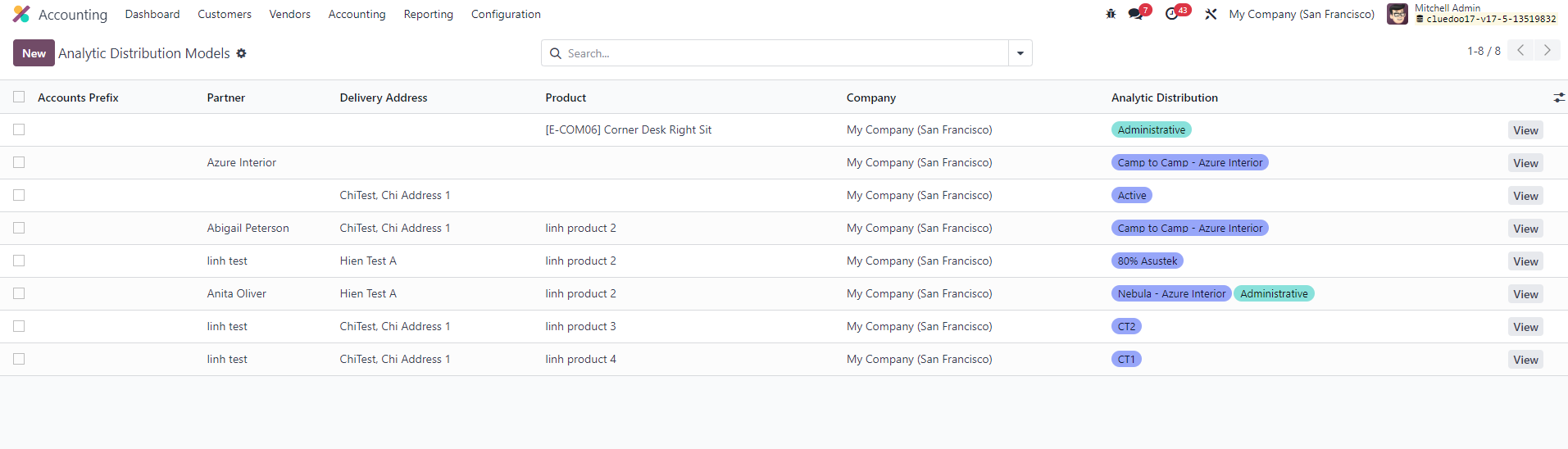
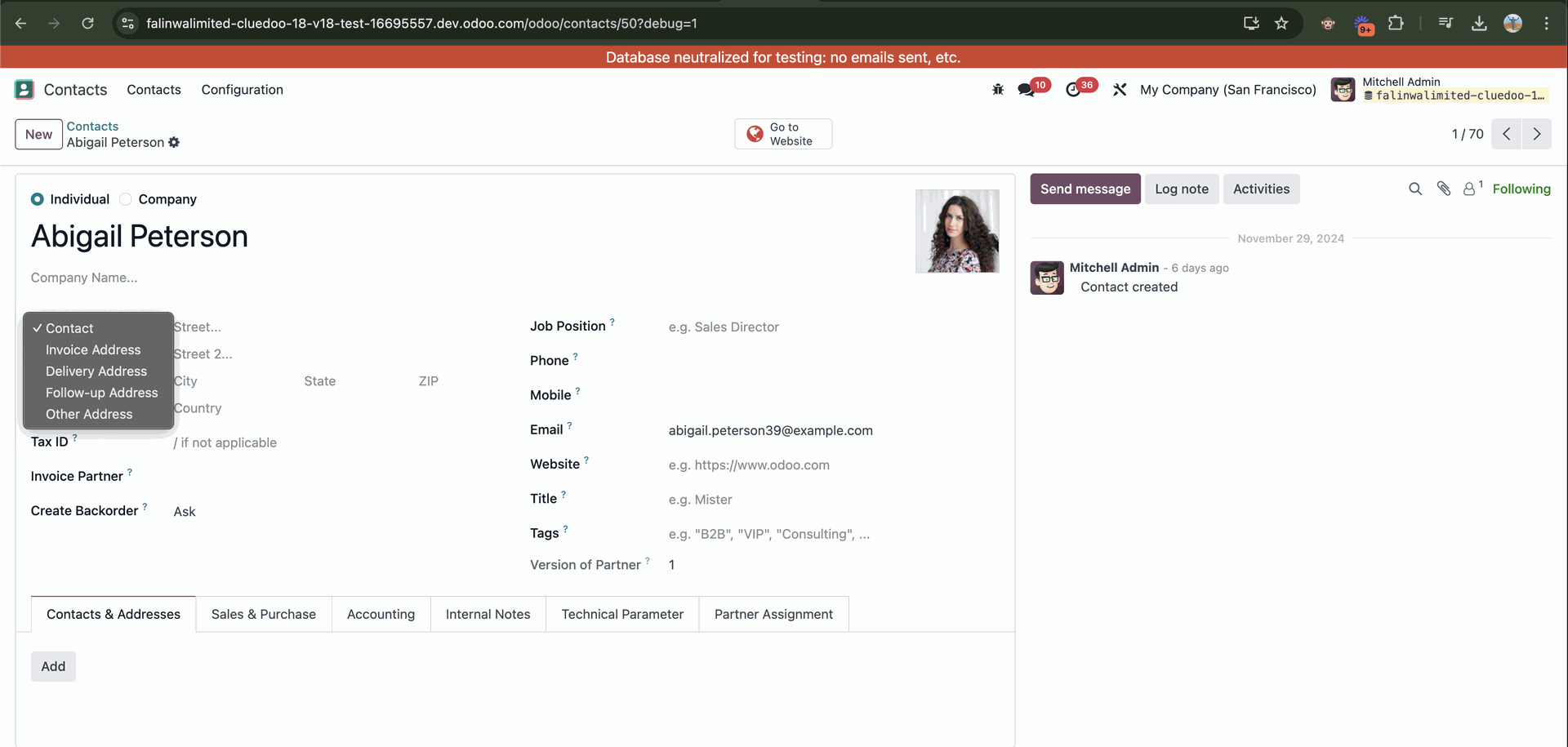
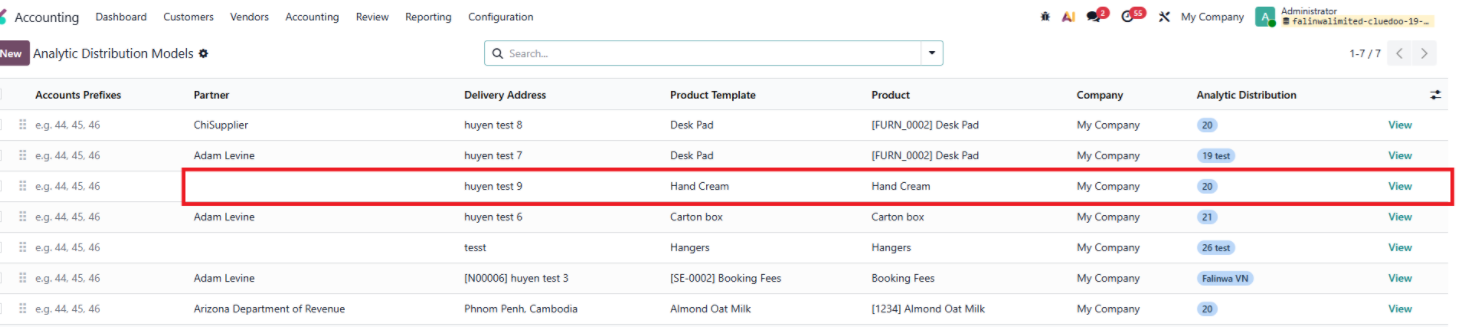
1. Go to Accounting > Analytic Distribution Models > Create new or use existed one. We have a new field to set the Delivery Address. Note: you have to set Delivery Address in Contact in order to choose delivery address. |
|
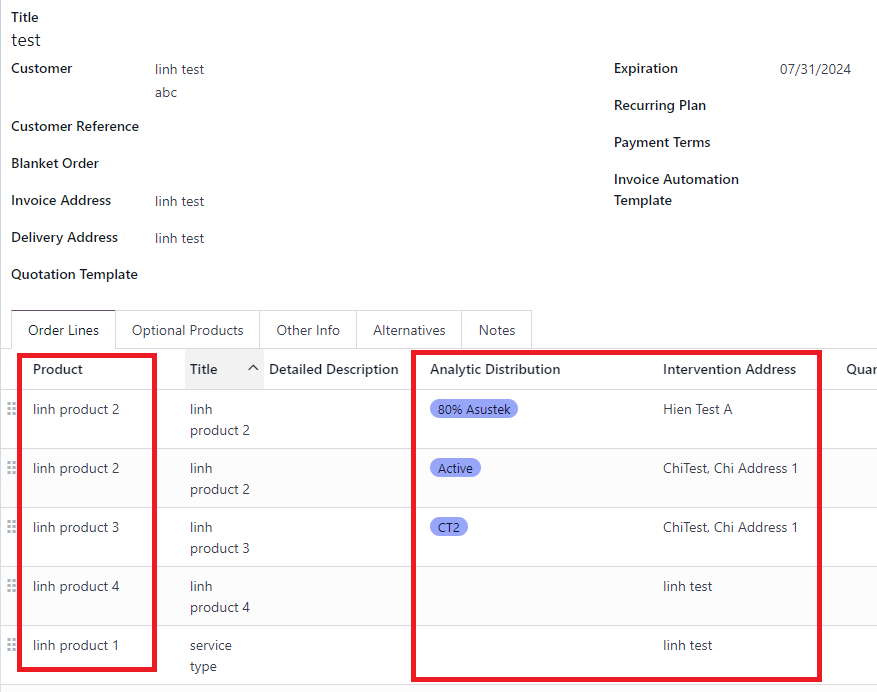
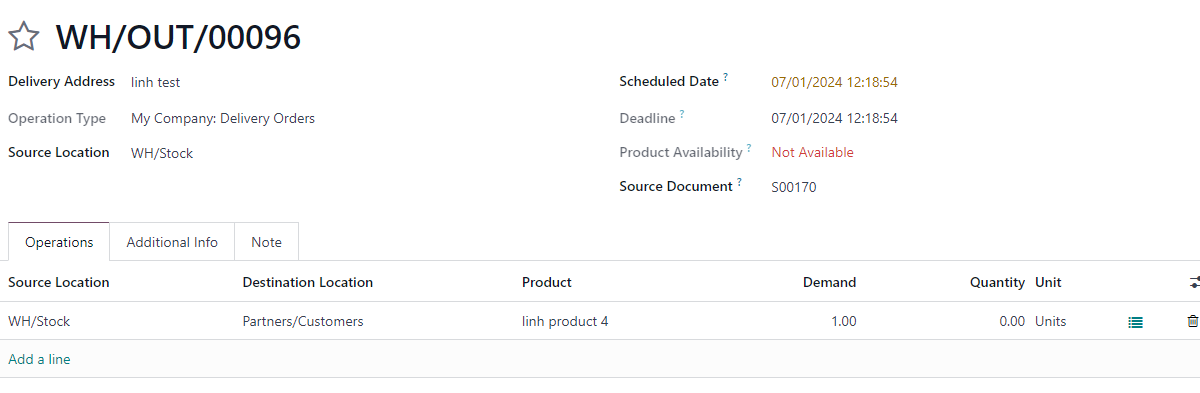
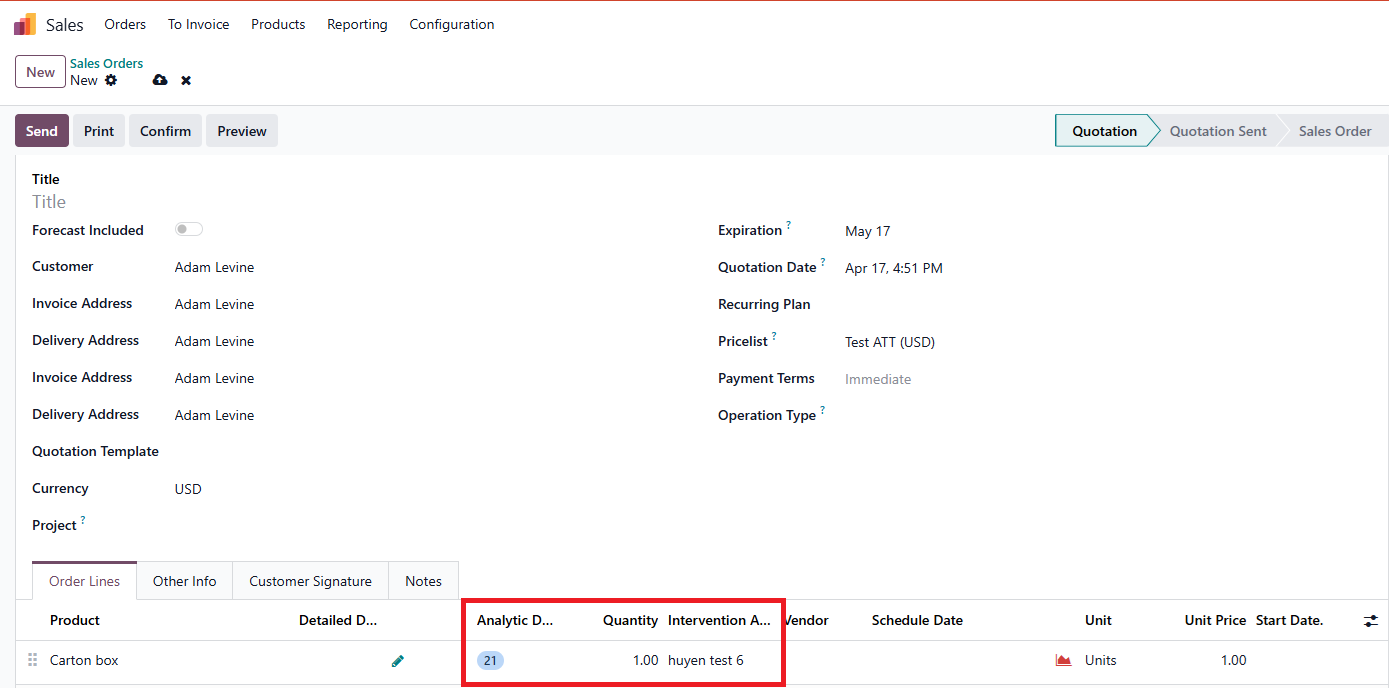
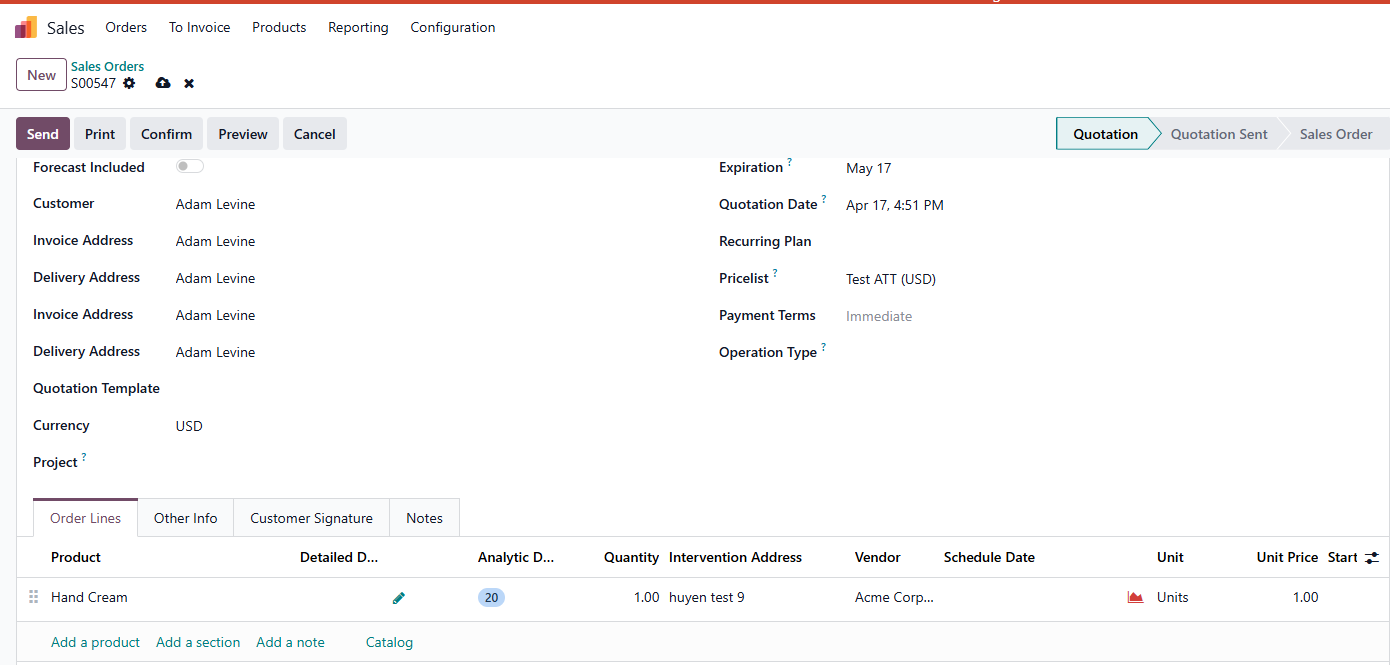
2. Create new SO or PO > Fill the vendor and product > Then choose Intervention Address > Column "Analytic Distribution" automatically filled based on your set up > Confirm For ex: Vendor: linh test With product "linh product 4" and intervention address is "linh test" not exist in Analytic Distribution Models so there's no Analytic Distribution same as "linh product 1" |
|
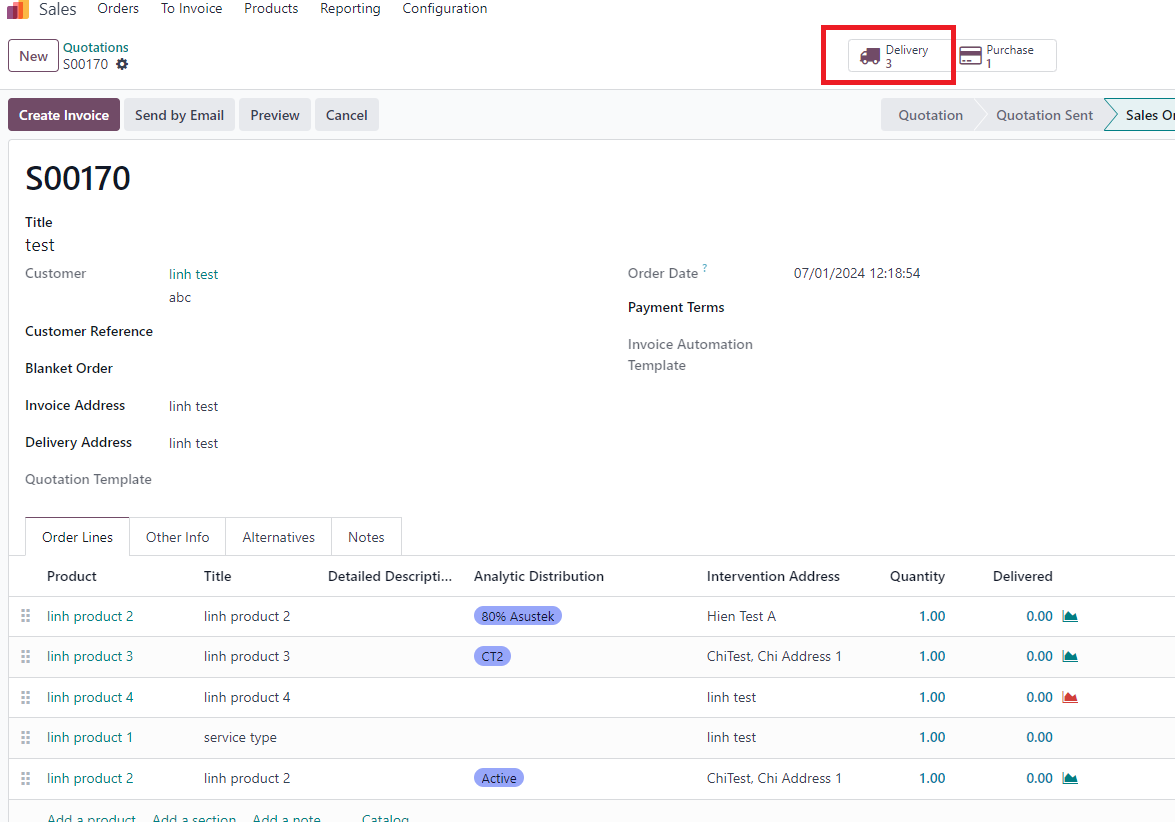
3. After confirmed > There're 3 deliveries created based on 3 Intervention Address (hien test A, Chi Address 1, linh test) Note: product with service type not create transfer (linh product 1) |
|
Additional test case Test case 1: Set up product and it's customer in ADM. Go to SO, choose this customer and this product > Analytic distribution appears correctly (same as set up in ADM) |
|
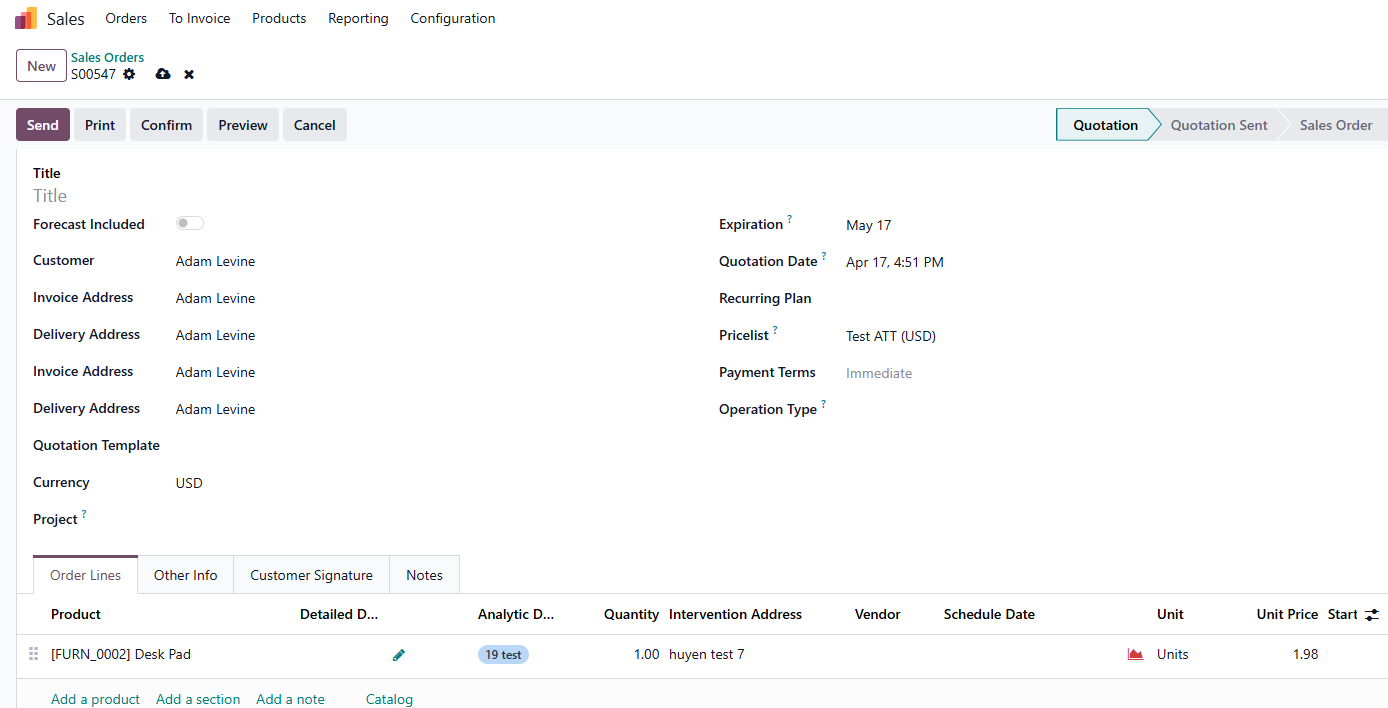
Test case 2: Set up 2 ADM with the same product but different partners and Analytic distribution. Go to SO, pick 1 of 2 customer above, choose this product > the analytic distribution appears align with the previous setting |
|
Test case 3: in ADM, set up product without partner |
|