ODOO'S FUNCTION
Standard Odoo only allows you to auto-fill analytic accounts based on products, categories, or partners. It lacks the ability to automatically track and differentiate costs or revenues by specific warehouses on your orders, forcing users to fill them in manually.
CLUEDOO'S FUNCTION
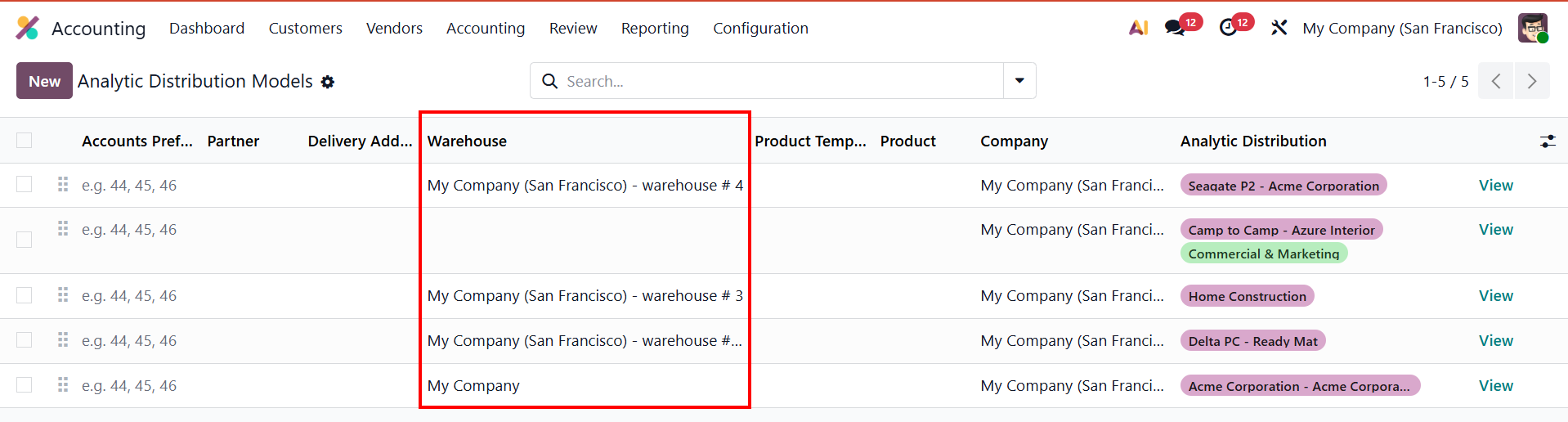
Cluedoo introduces a "Warehouse" condition to your analytic distribution models. Once configured, the system automatically detects the warehouse selected on your Sales or Purchase Order and instantly applies the correct analytic account to all product lines without any manual effort.
CONFIGURATION | |
1.Go to Accounting > Configuration > Analytic Distribution Models > Click New button to create a new distribution rule. |
|
2. Under the Conditions to Meet section, fill in the Company and select your target Warehouse. Scroll down to the Distribution to Apply section and add the corresponding Analytic Distribution. | 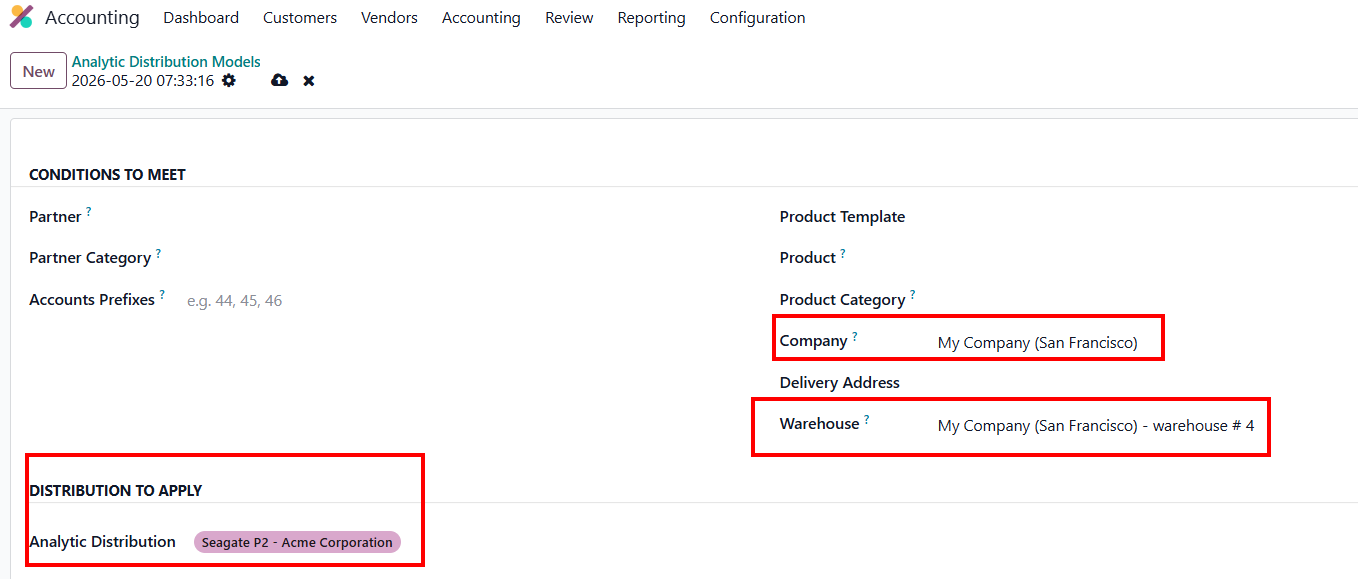 |
USAGE | |
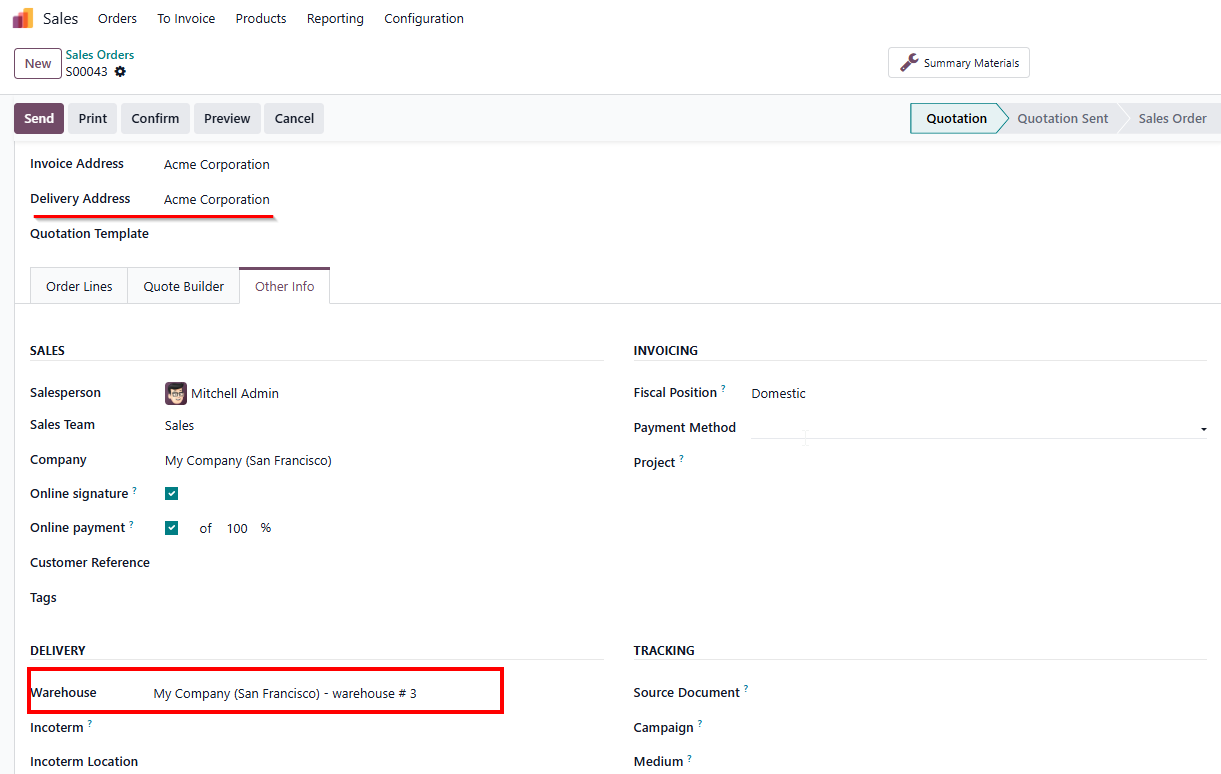
SALES ORDERS 1. Go to Sales, click New, and navigate to the Other Info tab to select your Warehouse. Verify that the Operation Type field automatically fills in correspondingly based on your selected warehouse. |
|
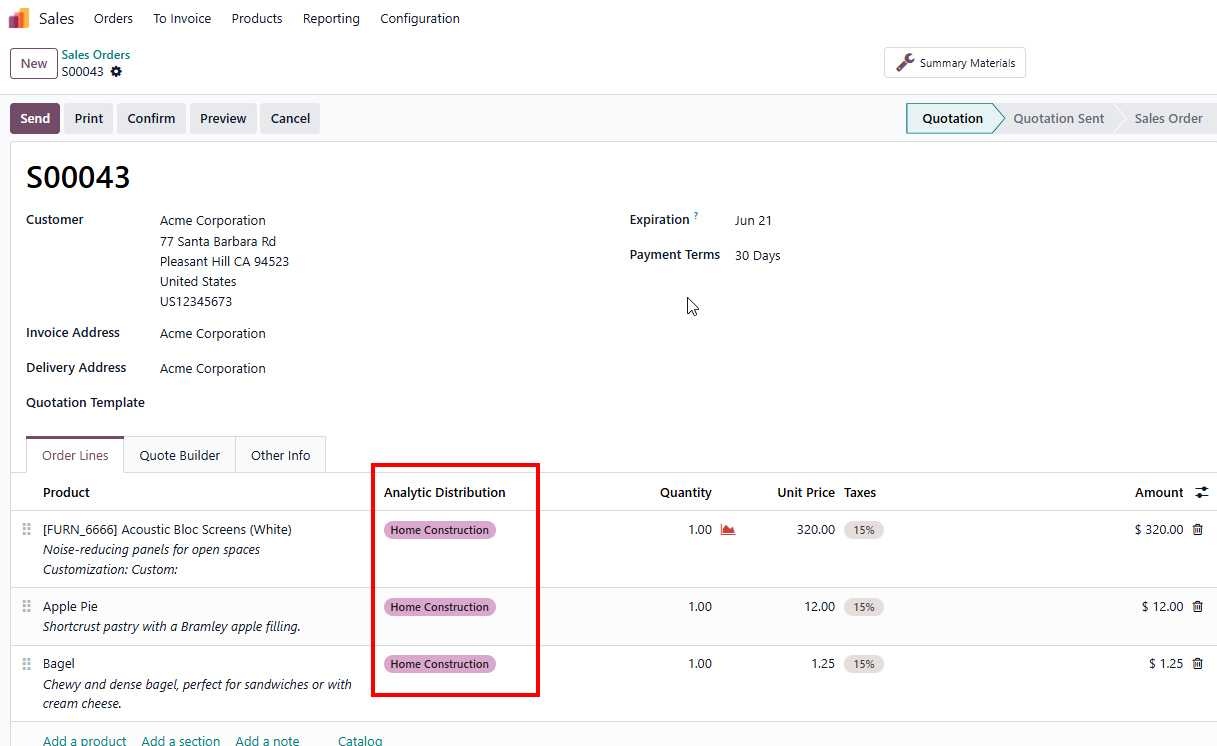
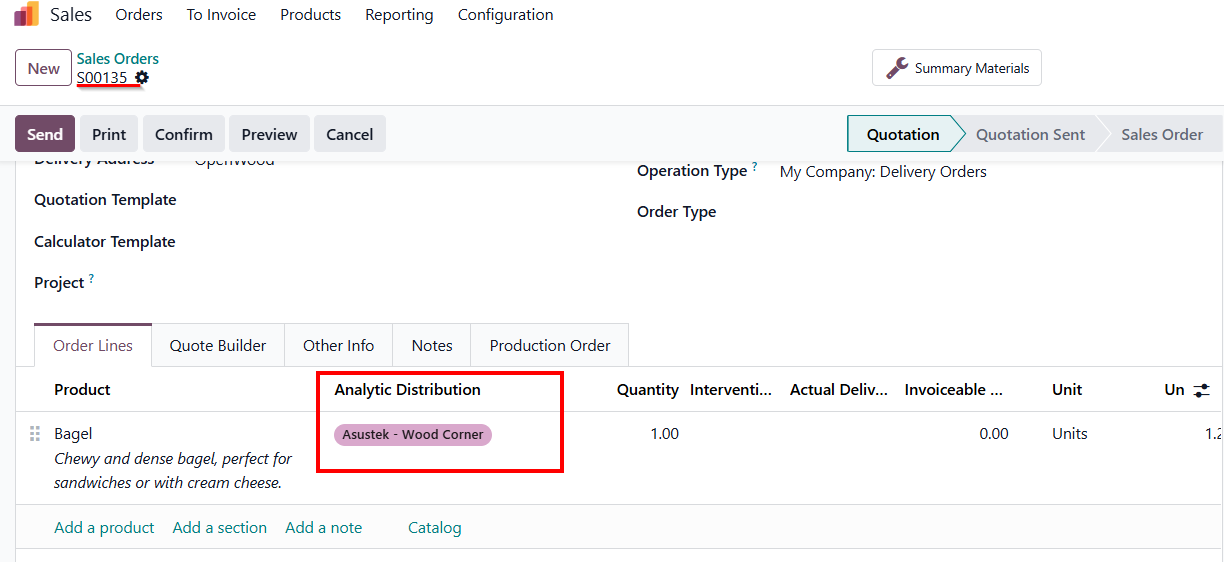
2. Return to the Order Lines tab, click Add a product to select the item(s). The system will automatically apply the matching warehouse Analytic Distribution. |
|
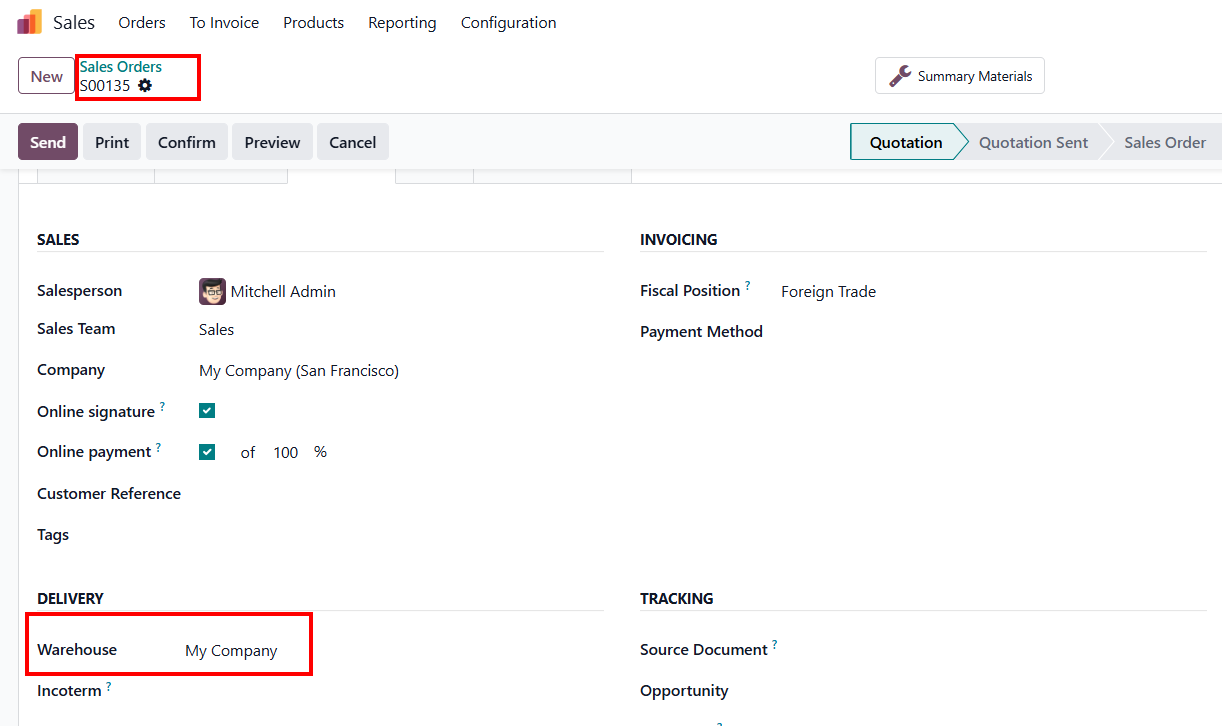
3. Sequence-Based Evaluation: The system evaluates distribution models strictly based on their sequence order. The first rule that matches the specified conditions will be applied immediately.
> When creating an order with My Company, the system evaluates the list sequentially and applies Line 2, as it is the first matching rule. |
|
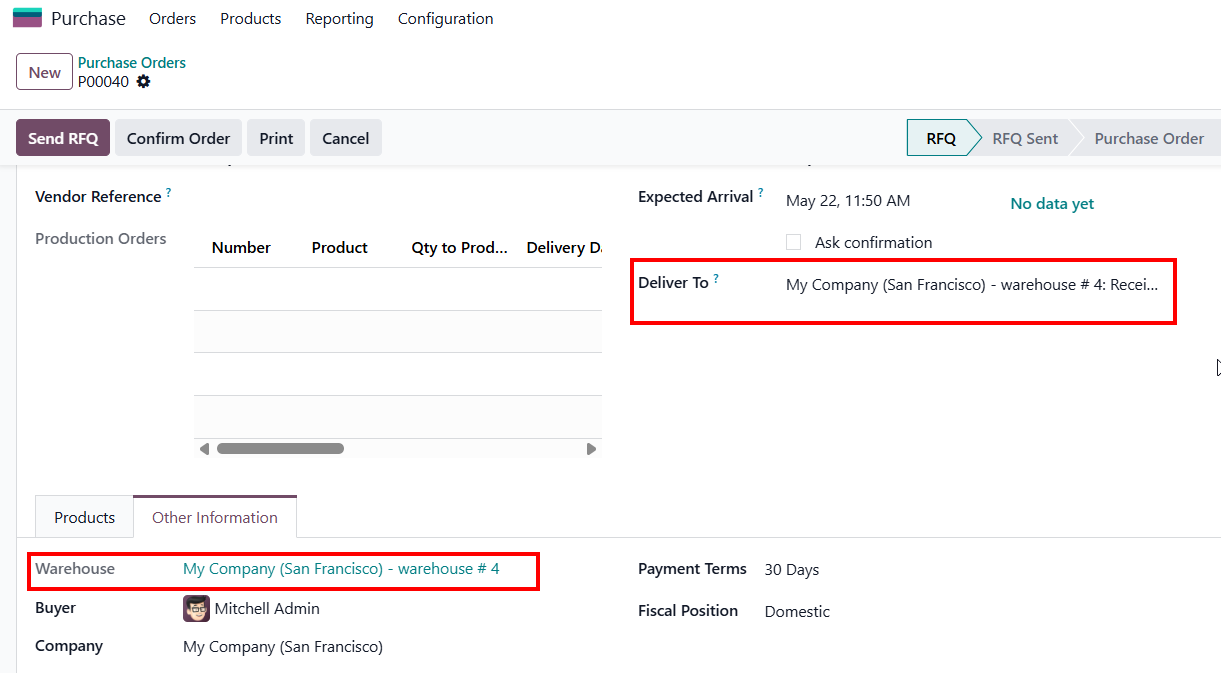
PURCHASE ORDERS 1. Go to Purchase, create a New order, and select the destination warehouse route in the Deliver To field. Check the Other Information tab to confirm that the Warehouse field has automatically populated and locked as read-only. |
|
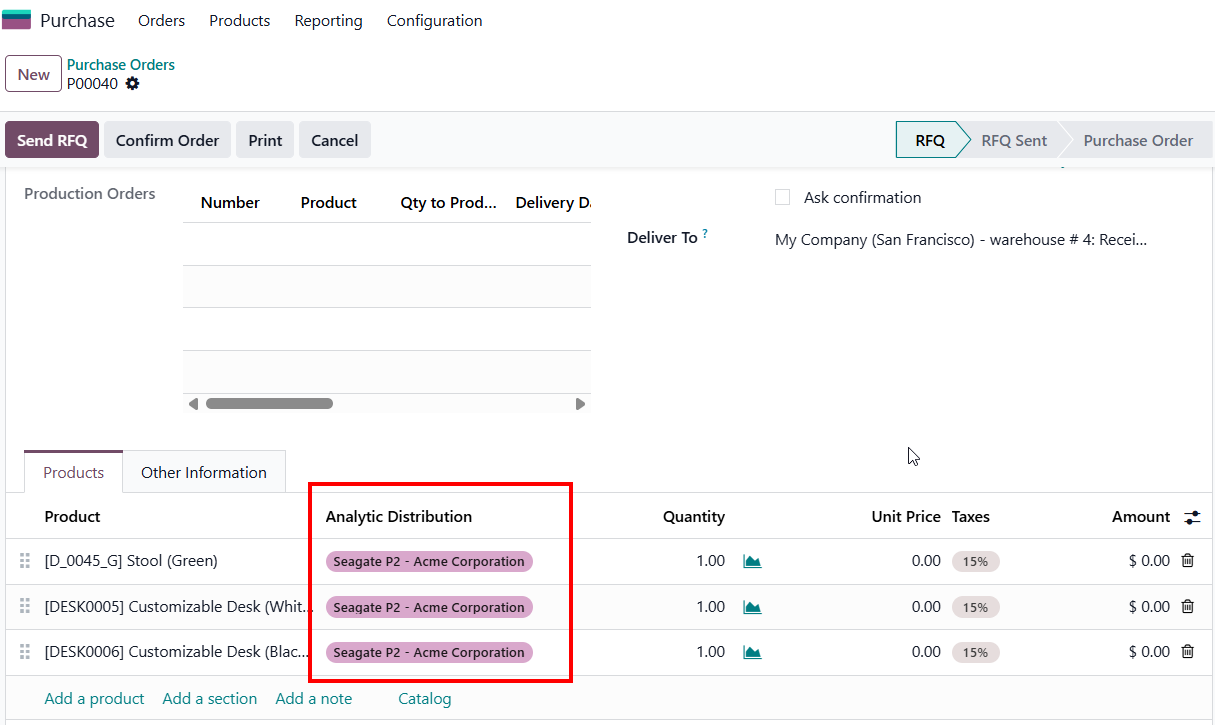
2. Go back to the Products tab and add the item(s). The system will automatically apply the matching warehouse Analytic Distribution. |
|